Configure certificate-based authentication for Azure OpenAI, Azure AI Foundry models, and Azure guardrails (PII, Content Safety, Prompt Shield).
This guide explains how to configure certificate-based authentication using Microsoft Entra ID
for Azure OpenAI and Azure AI Foundry models in TrueFoundry’s AI Gateway. Certificate authentication
is also supported for Azure AI Foundry-based guardrails — Azure PII,
Azure Content Safety, and
Azure Prompt Shield.
private-key.pem - Keep this secure, you’ll provide it to TrueFoundry
certificate.crt - Upload this to Azure
If using an existing certificate, ensure you have:
The private key in PEM format
The public certificate to upload to Azure
3
Upload Certificate to App Registration
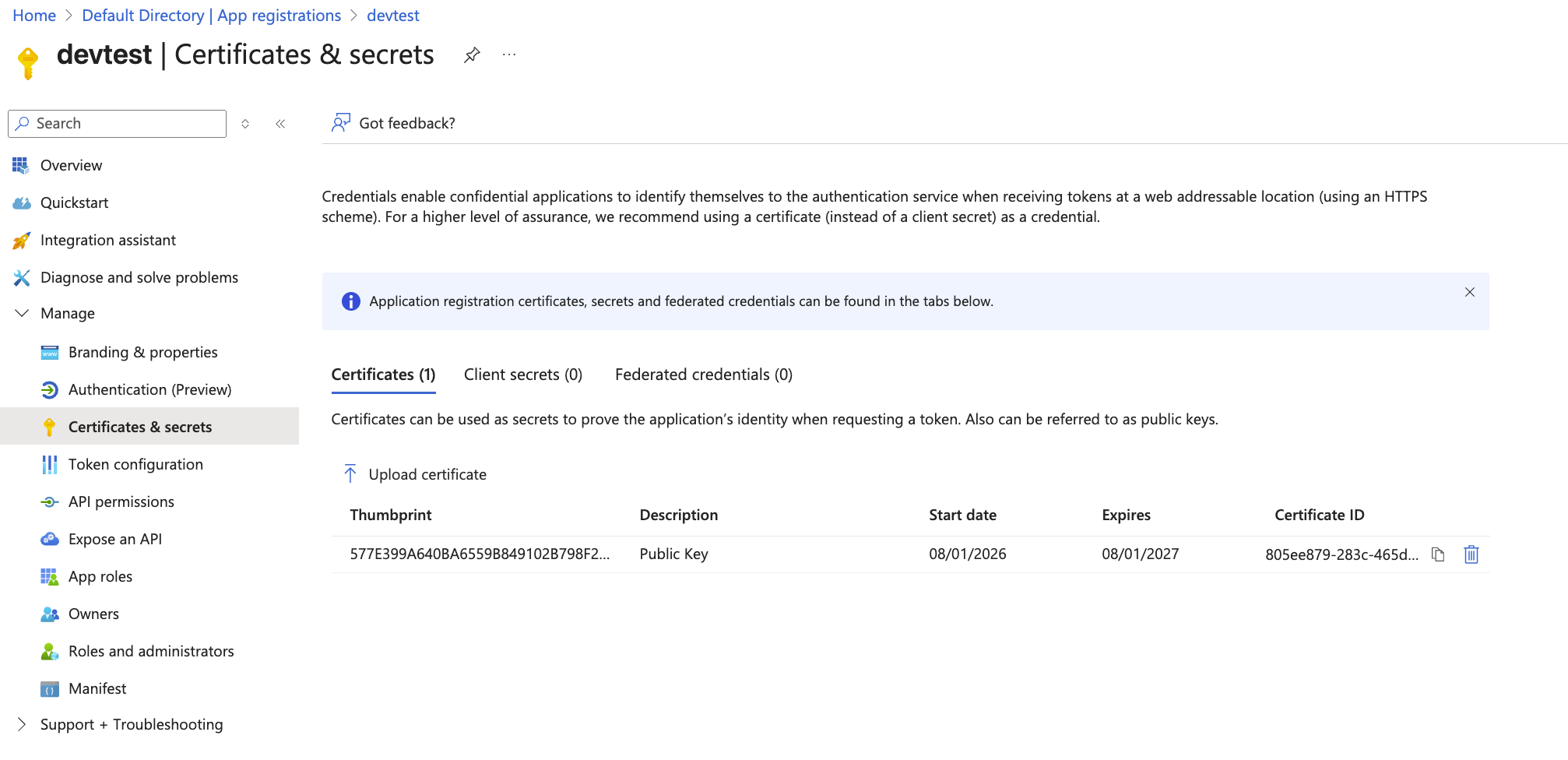
In your app registration, navigate to Certificates & secrets > Certificates >
Upload certificate.Upload certificate.crt and note the Thumbprint value displayed after upload.
Upload certificate and copy thumbprint
4
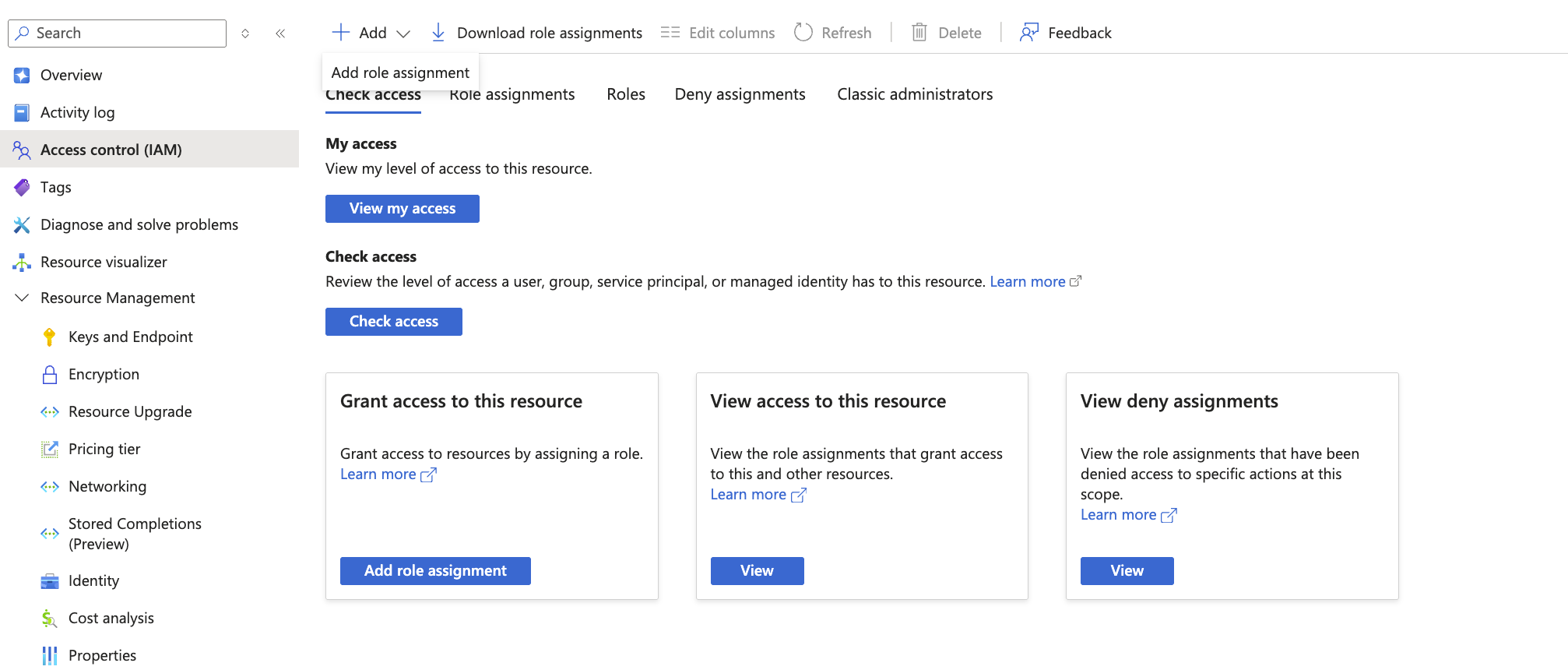
Assign RBAC Role to App Registration
Navigate to your Azure resource > Access control (IAM) > Add role assignment.
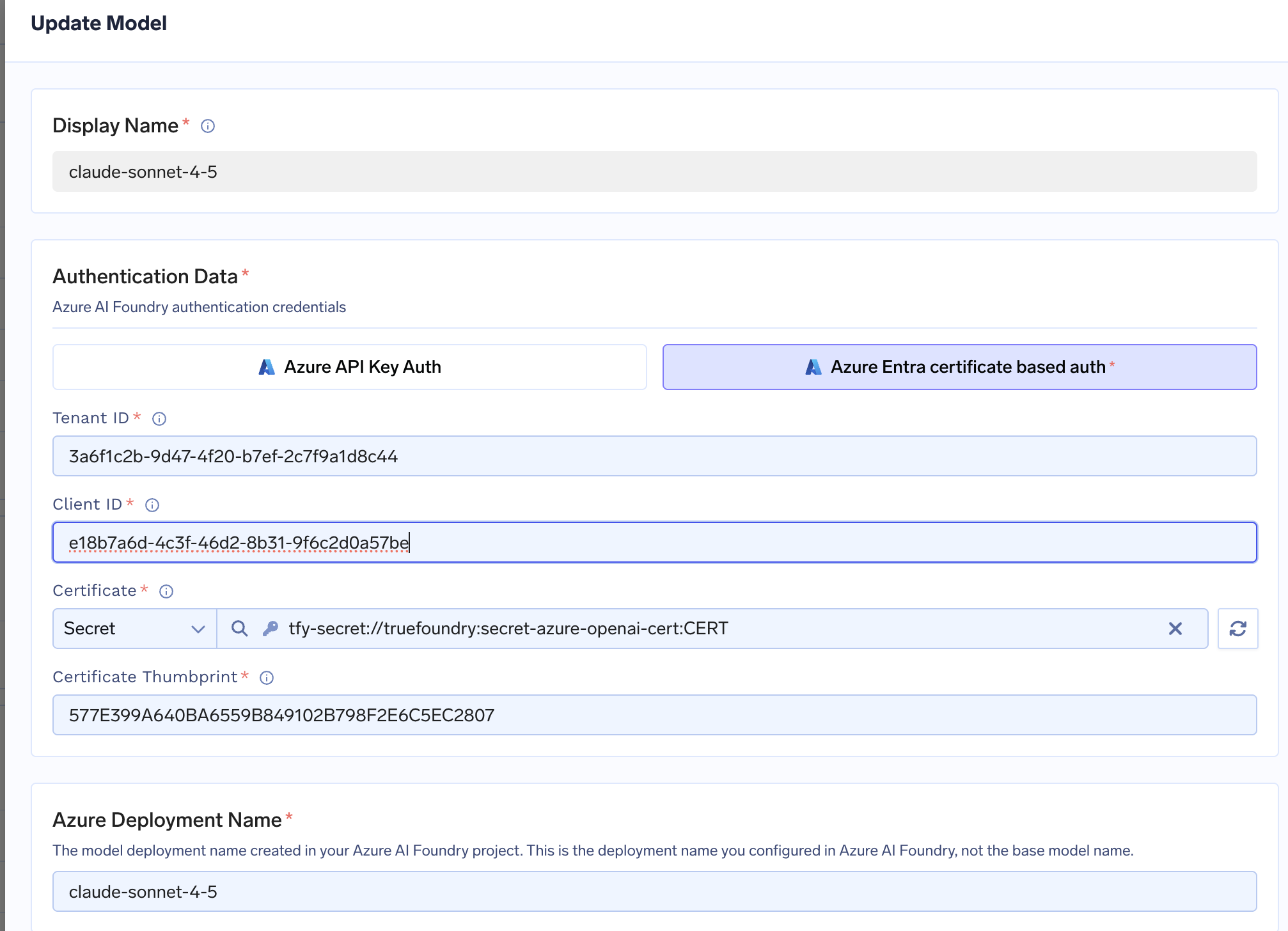
Navigate to AI Gateway > Models and select your provider (Azure OpenAI or Azure AI Foundry).Click Add Account and select Entra certificate based auth. Fill in the following:
Field
Description
Tenant ID
Directory (tenant) ID from app registration overview
Client ID
Application (client) ID from app registration overview
Certificate
Contents of the private key in PEM format. You can also use a TrueFoundry Secret here.
Certificate Thumbprint
Thumbprint shown after uploading certificate to Azure
For Azure AI Foundry, certificate authentication is configured at the model level,
not the account level.
Azure AI Foundry model-level certificate configuration
2
Add Models and Test
Add your models as described in the Azure OpenAI or
Azure AI Foundry documentation.Test the connection using the Playground to verify authentication works.