Learn how to set up and implement guardrails to ensure safe and compliant LLM interactions and MCP tool invocations.
To get started with integrating and using Guardrails, follow the steps below:
1
Create a Guardrails Group
A guardrails group serves as a container for multiple guardrail integrations. You can assign who can add/edit/remove guardrails in a group and who can access the guardrails in a group. There are two type of roles for collaborators:
Manager: Can create, edit, delete and use the guardrail integrations in the group.
User: Can use the guardrail integrations in the group.
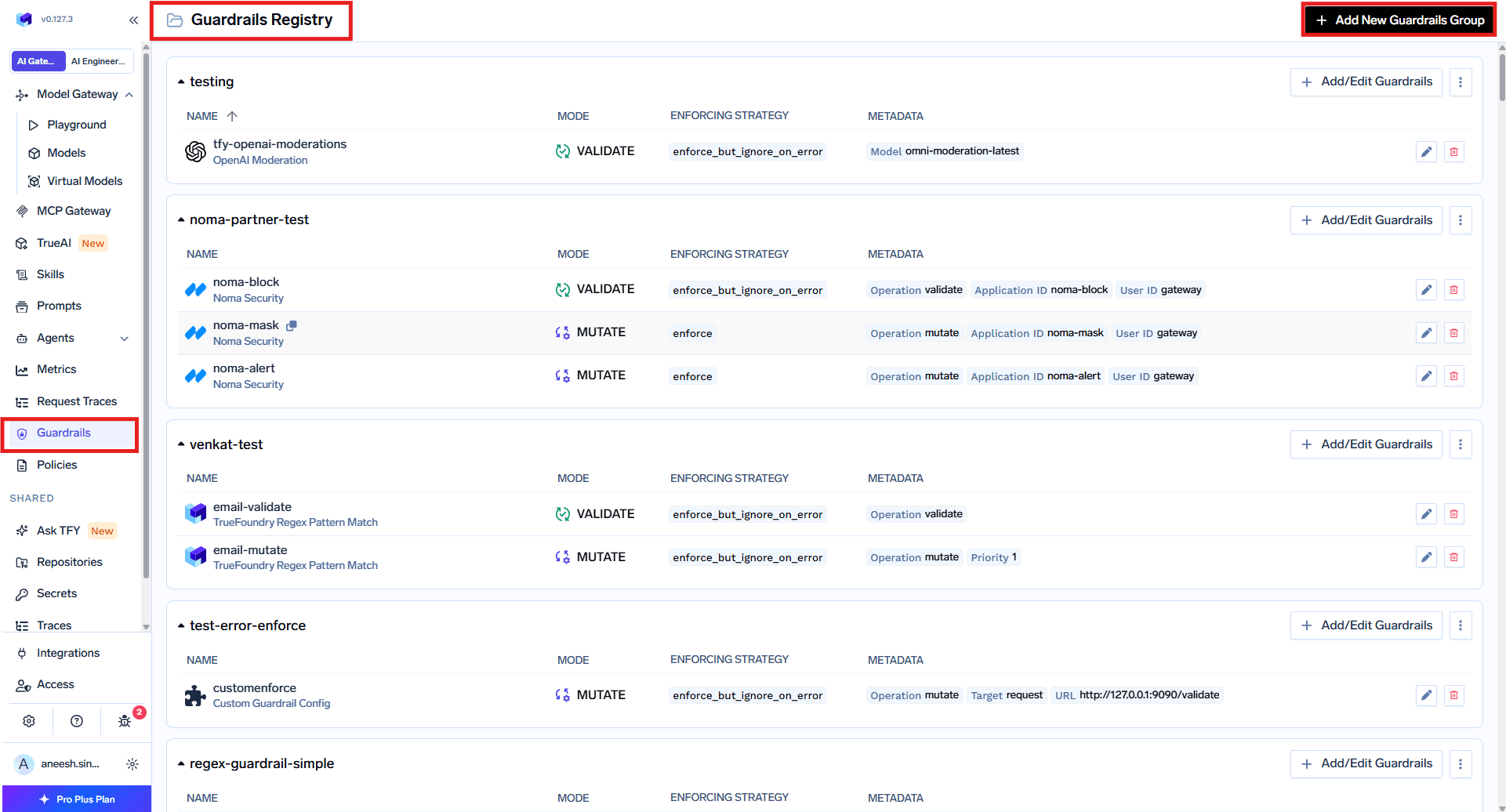
To create a guardrails group, navigate to AI Gateway → Guardrails. Give your group a name. In our case, we’ve named it openai-guardrail.
Create a Guardrails Group
Give your group a name
A Guardrail Group is the minimum level of access control for guardrails.A common usage pattern is to create an org-wide global guardrails group which contains the organization wide guardrails. The Platform team is the manager and the entire org are users of the guardrail.For team/product specific guardrails, its better to create individual guardrail groups per product / team.
2
Add Guardrail Integration in Guardrails Group
You can add integrations to your guardrails for content moderation and safety. Let’s create an OpenAI guardrail integration, which we will later use as an output guardrail in our configuration example. This will allow us to automatically moderate and filter responses from the LLM using OpenAI’s moderation capabilities.
Select the OpenAI Moderation from the list of integrations.
Select the OpenAI Moderation Integration
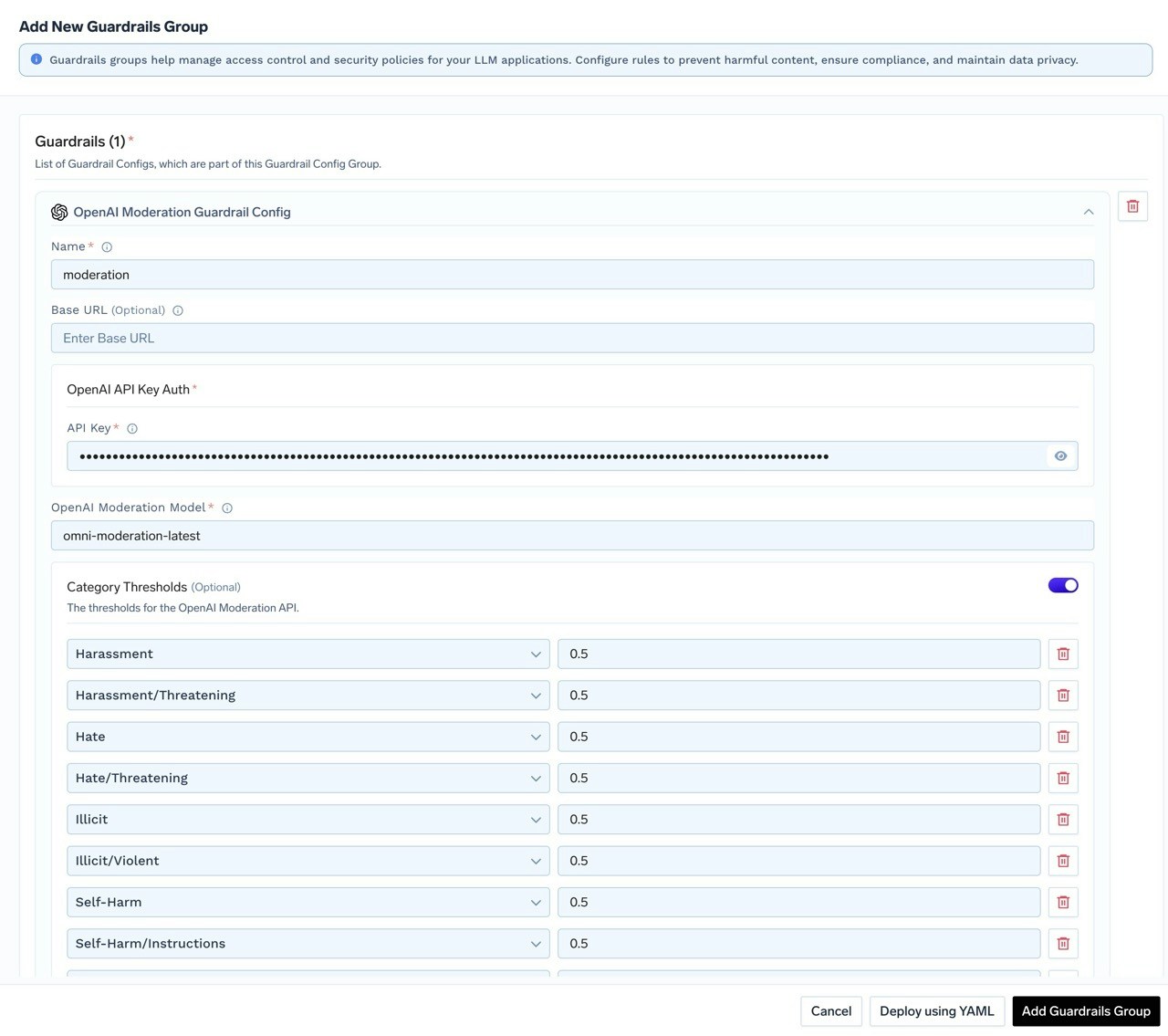
Fill in the OpenAI Moderation Guardrail Config form. For this tutorial, we’ve named it tfy-openai-moderation.
Fill in the OpenAI Moderation Form
Save the guardrail group.
You are now ready to use this OpenAI guardrail integration in your guardrail configuration to moderate LLM inputs. This means the guardrail will be applied to the input prompts before they are sent to the LLM, helping to ensure that any unsafe or non-compliant content is detected and handled prior to model processing.
To customize moderation sensitivity for specific categories such as harassment, sexual, or hate, enable the Category Thresholds option. You can then adjust the threshold values for each category according to your requirements.
3
Test Guardrails in Playground
The Playground allows you to test guardrails on all four hooks before deploying to production.
Once you have configured guardrail policies in AI Gateway → Policies → Guardrails, you can test MCP Pre Tool and Post Tool guardrails from the Playground:
Configure Guardrail Policies First
Navigate to AI Gateway → Policies → Guardrails and create rules that target your MCP servers/tools with guardrails on the MCP Tool Pre-Invoke or Post-Invoke hooks.
Use the Playground with MCP Tools
In the Playground, when you invoke MCP tools (via agents or tool calls), the configured guardrails will automatically execute on the Pre Tool and Post Tool hooks.
View Results in Traces
After execution, navigate to Monitor → Request Traces to see detailed information about which guardrails were triggered on each MCP tool invocation, including:
Pre Tool guardrail validation results
Post Tool guardrail findings and mutations
Pass/fail status for each guardrail
Testing in the Playground is an easy way to validate that your guardrails are correctly configured before deploying to production. For MCP guardrails, use the Request Traces view to verify guardrails are triggering as expected on tool invocations.
4
Trigger Guardrails in LLM requests from code
You can pass guardrails as headers at a per-request level by providing the X-TFY-GUARDRAILS header. You can copy the relevant code snippet from the Playground section.
Select the Guardrail to Apply
On the left side, choose the LLM Input Guardrails and LLM Output Guardrails sections, and select the guardrails you want to apply. For this tutorial, we’ve selected the tfy-openai-moderation guardrail for both input and output.
Select the Guardrail to Apply
Get the Code Snippet
After configuring your request and selecting the desired guardrail(s), click the Code button at the top right of the Playground.
In the code snippet section, you will see ready-to-use examples for different SDKs and curl. Note: The generated code will automatically include the necessary X-TFY-GUARDRAILS header with your selected guardrails.
Code Snippet Section
Copy and Run the Code
Copy the generated curl command (or code for your preferred SDK) and run it.
The guardrails you selected in the Playground will be applied automatically, as reflected in the request headers.
You can use this approach with any HTTP client or SDK by adding the X-TFY-GUARDRAILS header to your request. This allows you to dynamically apply guardrails per request without changing your global configuration.
For backward compatibility, input_guardrails maps to llm_input_guardrails and output_guardrails maps to llm_output_guardrails.
5
Configure guardrail policies at gateway layer
Registering a guardrail integration doesn’t apply it to any traffic by itself — you also need a guardrail policy that defines when to apply which guardrails.
Navigate to Guardrail Policies
Go to AI Gateway → Policies → Guardrails to access the Guardrail Policies page.
Create a Guardrail Rule
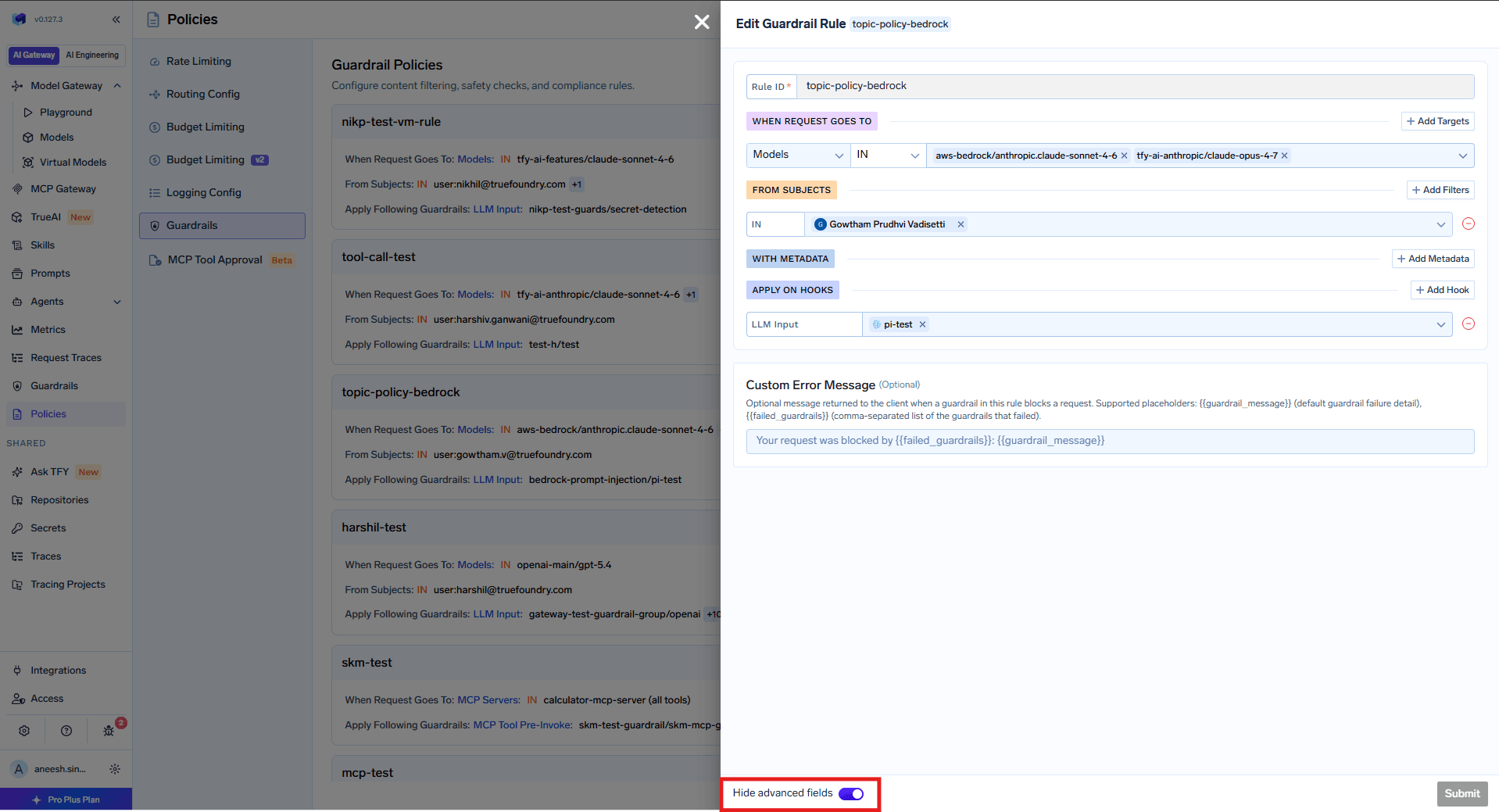
Click Add New Guardrail Rule, set a unique Configuration Name, and fill in the form:
Under When Request Goes To, target specific models or MCP servers
Under From Subjects, filter by the users, teams, or virtual accounts making the request
Under Apply on Hooks, attach your registered guardrails to any of the four hooks:
LLM Input - Before LLM request
LLM Output - After LLM response
MCP Tool Pre-Invoke - Before MCP tool invocation
MCP Tool Post-Invoke - After MCP tool returns
Submit the Rule
After filling out the form, click Submit to save this named policy (each rule is its own gateway-guardrails-config).
Guardrail policy rule targeting models and MCP servers with guardrails applied on hooks
For more details on how to configure guardrail policies, including custom error messages and YAML configuration, see Configure Guardrail Policies.
Configuring guardrails at the AI Gateway layer is recommended for organization-wide enforcement. This centralizes guardrail management and auditing, eliminating the need to set headers on every request. MCP tool guardrails are especially important for securing agentic workflows.
6
Monitor Guardrail Execution
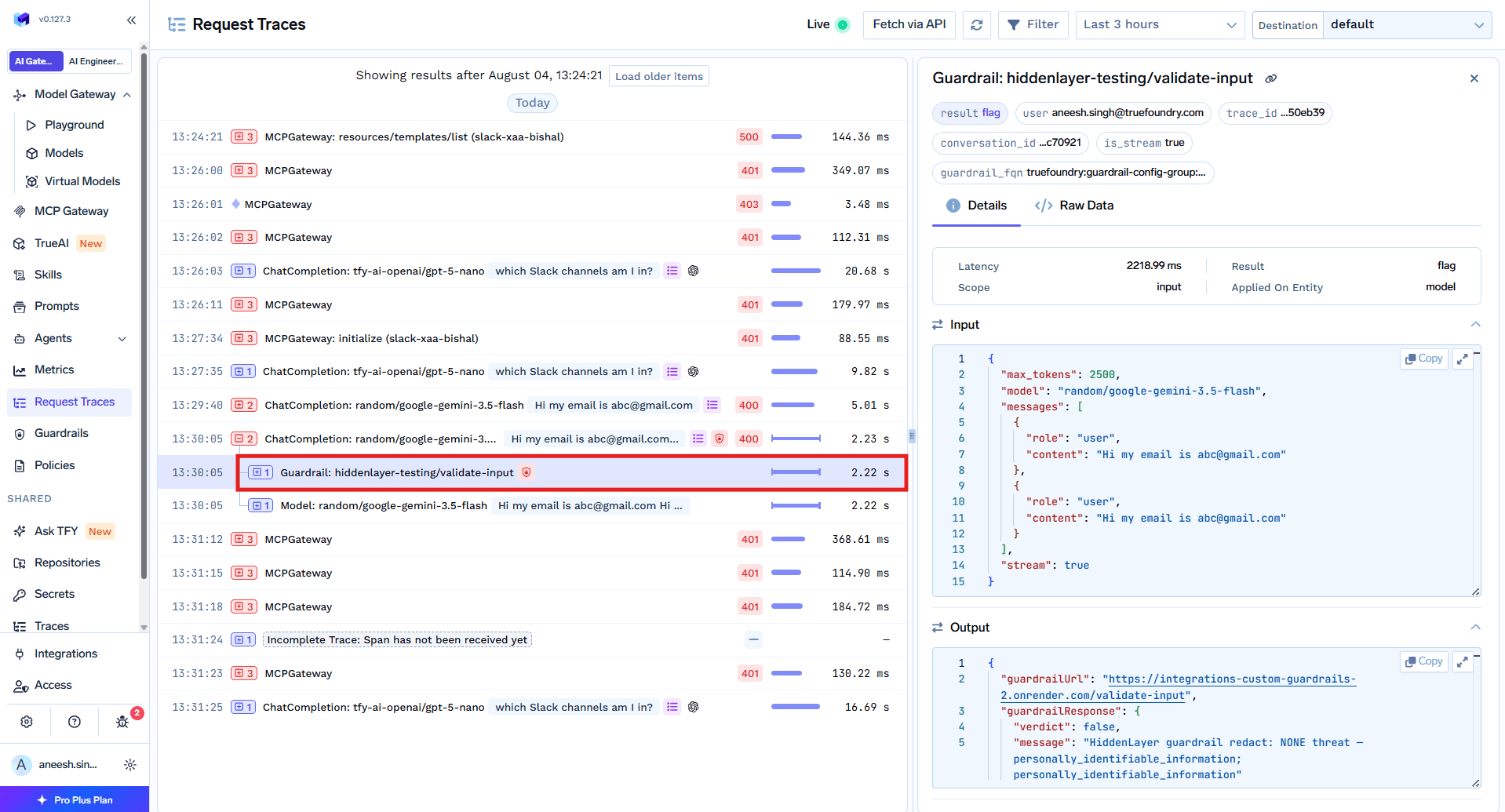
After configuring guardrails, you can verify they are being applied correctly by monitoring execution in real-time through the AI Gateway dashboard:
Navigate to AI Gateway → Monitor → Request Traces
View detailed traces showing which guardrails were triggered on each hook
See findings, mutations, and execution timing for each guardrail
Filter by guardrail status to quickly find blocked or flagged requests
Guardrail latency visible in Request Traces
Use the Request Traces view to debug guardrail behavior, identify false positives during audit mode rollout, and verify your configuration is working as expected.
7
Detect Guardrail Violations Programmatically
When a guardrail blocks a request, the AI Gateway returns a 400 status code with error.type set to guardrail_checks_failed. You can use this to handle violations in your application.
from openai import OpenAIclient = OpenAI( api_key="your_truefoundry_api_key", base_url="{GATEWAY_BASE_URL}")try: response = client.chat.completions.create( model="openai-main/gpt-4o-mini", messages=[ {"role": "user", "content": "How do I write a function to calculate factorial?"} ] ) print("Response:", response.choices[0].message.content)except Exception as e: if hasattr(e, 'response') and e.response is not None: error_data = e.response.json() if error_data.get('error', {}).get('type') == 'guardrail_checks_failed': print("Guardrail violation detected!") checks = error_data.get('guardrail_checks', {}) for hook in ['llm_input_guardrails', 'llm_output_guardrails', 'mcp_tool_pre_invoke_guardrails', 'mcp_tool_post_invoke_guardrails']: if checks.get(hook): print(f"Violation on: {hook}")
The guardrail_checks object in the error response only contains the hooks that were evaluated for the request.
Was this page helpful?
Assistant
Responses are generated using AI and may contain mistakes.