

When to use
Use tool approvals when a tool is too risky to run unattended - deleting records, sending external communications or mutating production infrastructure - but you still want agents to use it with a human in the loop. For agent-turn pauses inside the Agent Harness (rather than Gateway policy), see Human checkpoints in the TrueForge docs.How tool approvals work
- A gated
tools/callarrives at the MCP Gateway. The gateway matches the request against your tool approval policies by MCP server and tool name. - An approval request is created. The first call creates a request in
pendingstate and notifies approvers through the policy’s notification target. Repeated calls for the same tool and requester reuse that pending request. - The caller gets an “approval pending” result. The tool is not executed. The client can retry the same call later.
- Approvers are notified with a link to the request.
- An approver approves or denies the request from the TrueFoundry UI, optionally recording a reason.
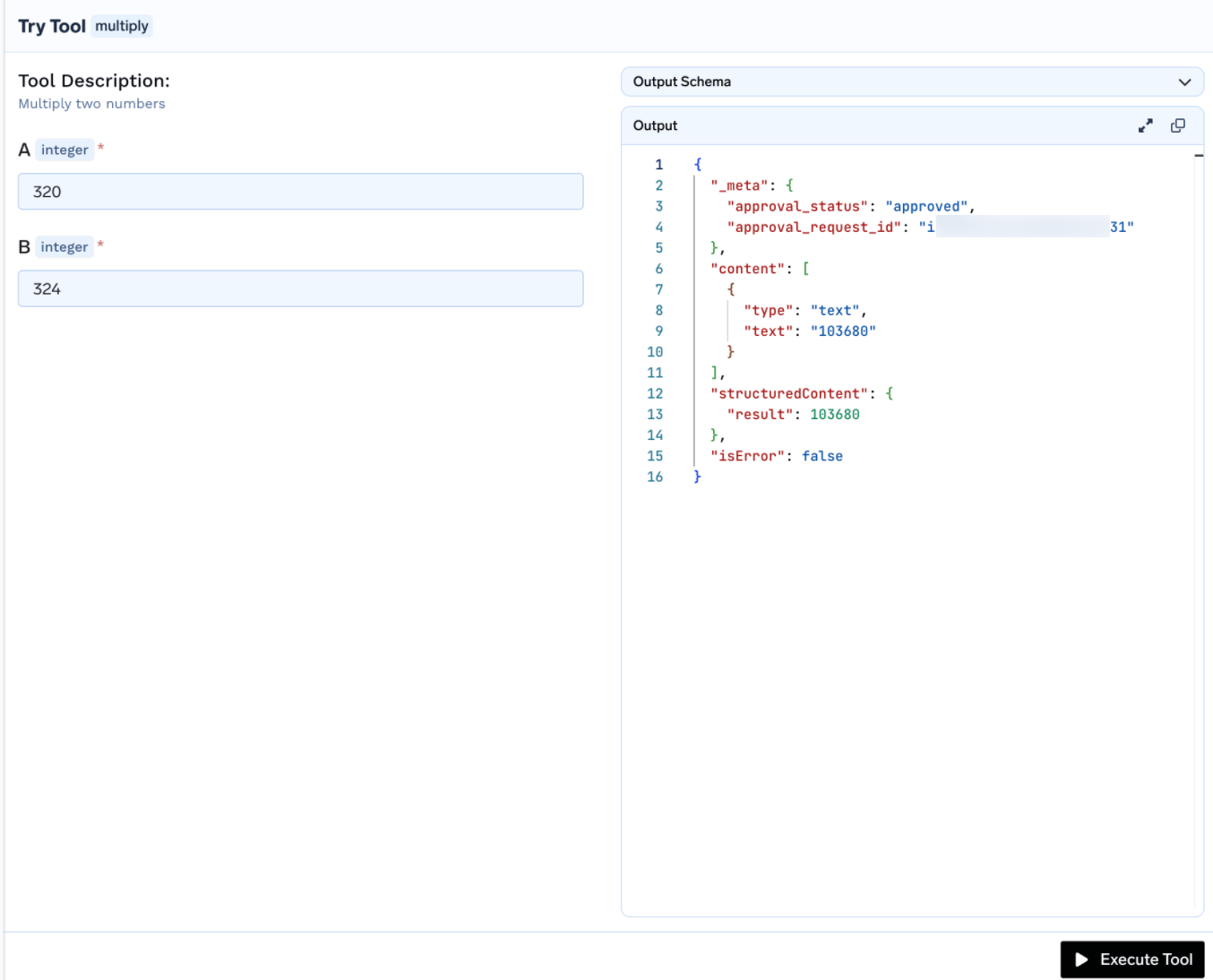
- Approved calls flow through. Once approved, the same call (same MCP server, tool, and requester) executes until the grant expires. Every result includes approval metadata in
_meta. - Grants expire. After the validity window ends (Once, or a time-based duration), the grant lapses and the next call raises a new approval request. A denial does not permanently block the requester - the next call also raises a new request.
Who can do what
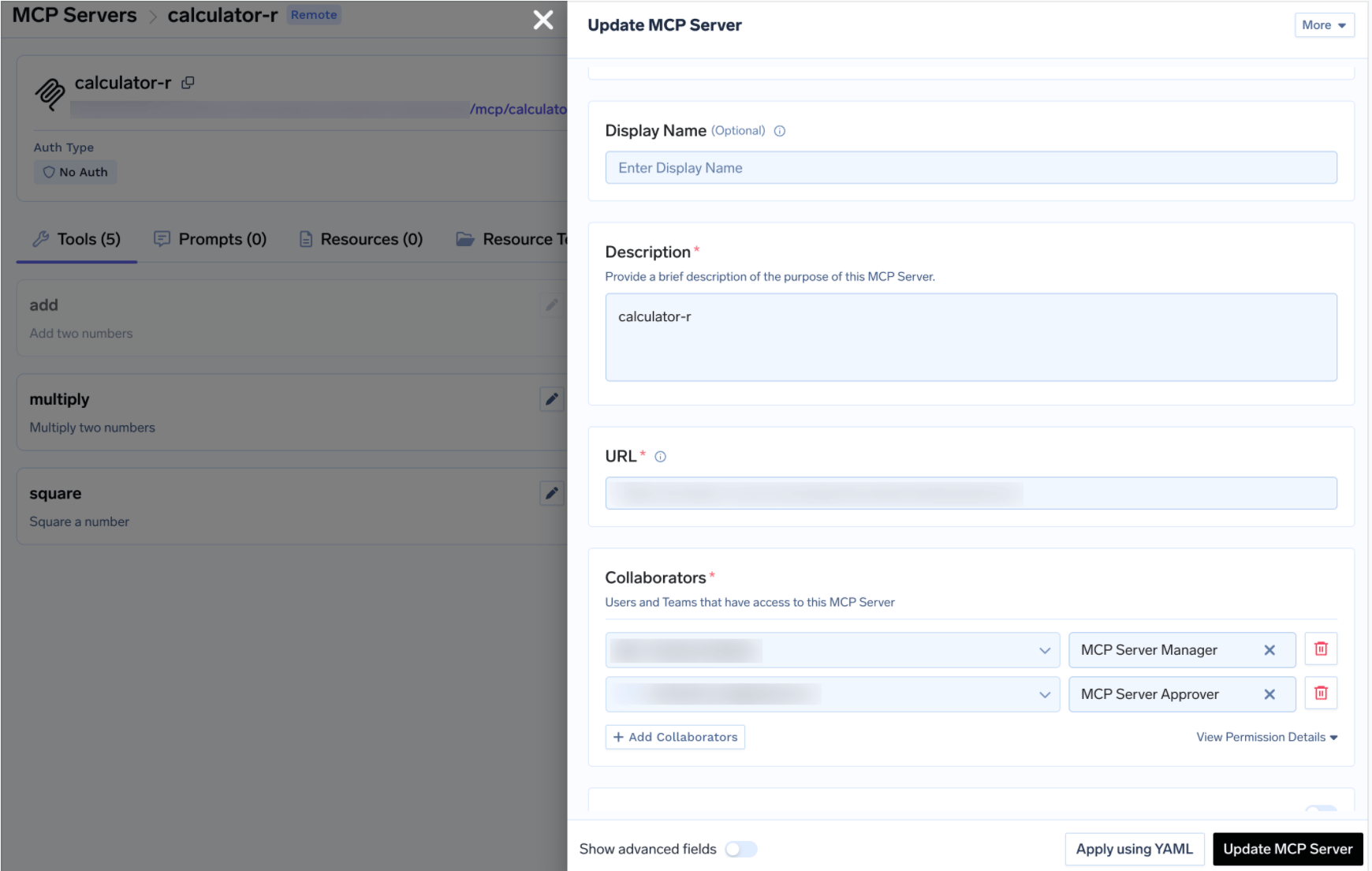
Tenant administrators can see every approval request in the tenant; MCP Server Approvers see requests for the servers they approve. To designate approvers, open the MCP server, go to Collaborators and add users or teams with the MCP Server Approver role. That role grants read access to the server plus the Approve MCP Server Actions permission - see Manage User Roles & Permissions.
Create a tool approval policy
Each policy names the MCP servers it gates, the tool groups that require approval, the validity window for grants, and the notification target for approvers.1
Open Tool Approval policies
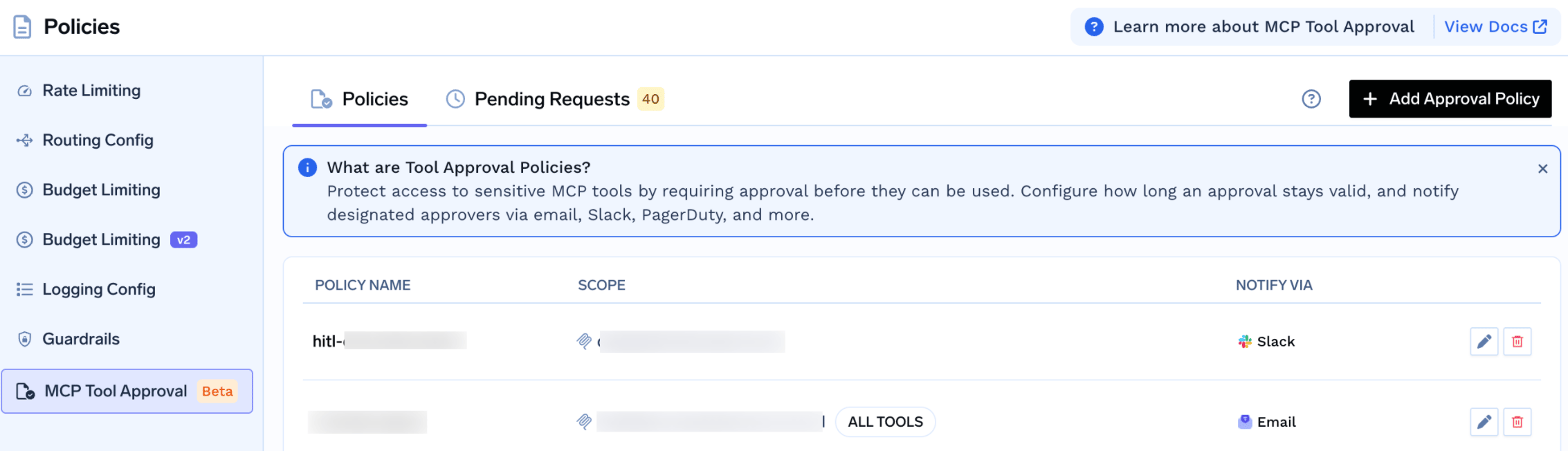
Navigate to AI Gateway → Policies → MCP Tool Approval and create a new policy.
2
Pick tools that require approval
In Pick specific tools that require approval, select an MCP server and choose an approval scope: specific tool names, destructive tools only, or all tools. For each selected tool or group, set approval validity (Once or a time-based duration).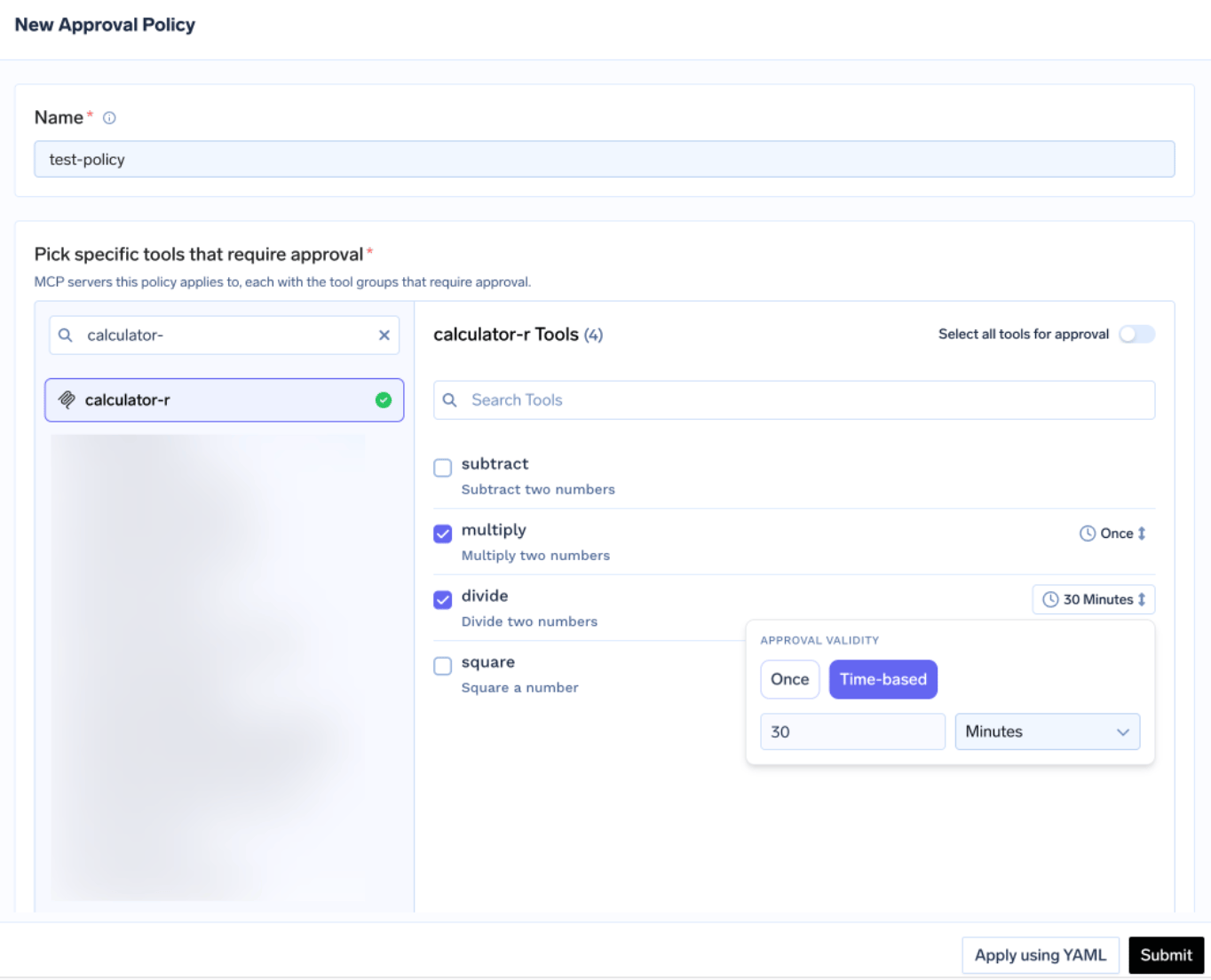
3
Configure notifications
Choose a notification target so approvers are alerted when a request is raised.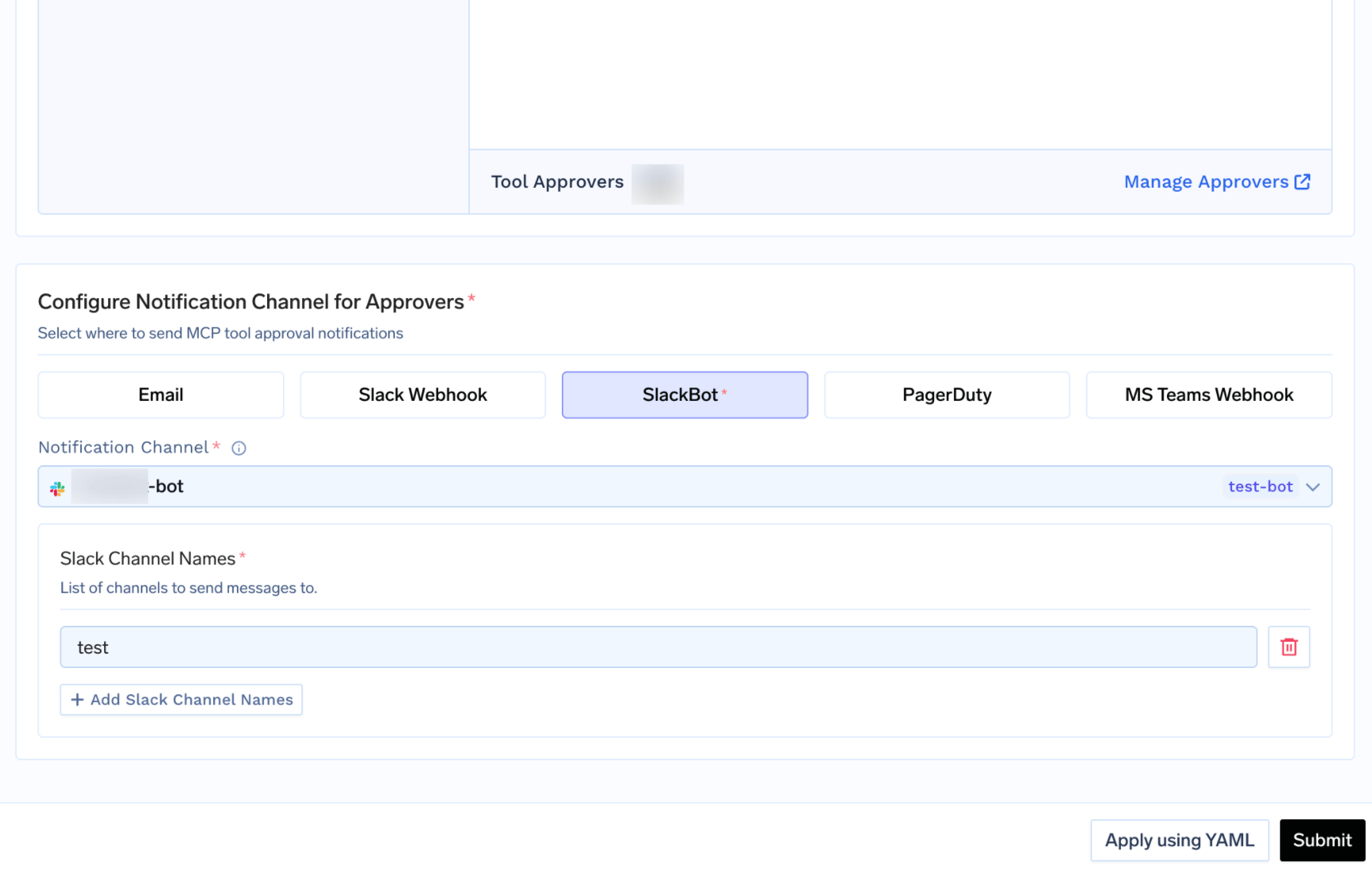
4
Save and test
Save the policy, then call a gated tool through the MCP Gateway. Confirm callers receive the pending result and that approvers can approve or deny the request.
Approval scope
Each tool group in a policy uses anapproval_scope to decide which tools on the MCP server require approval:
When more than one scope could apply to the same tool, the gateway picks the most specific match, in this order:
named > destructive > all
So a named rule for multiply overrides a broader destructive or all-tools rule for that tool.
Approval validity
After an approver approves a request, the grant stays valid according tovalidity_mode:
When multiple policies or tool groups gate the same tool, the most restrictive validity wins:
Once > time-based 10 minutes > time-based 30 minutes
Shorter (or single-use) grants always take precedence over longer ones.
Review pending requests
Open AI Gateway → Policies → MCP Tool Approval → Pending Requests to approve or deny gated calls. Each request shows the tool, policy, requester, approvers, validity window, and tool arguments.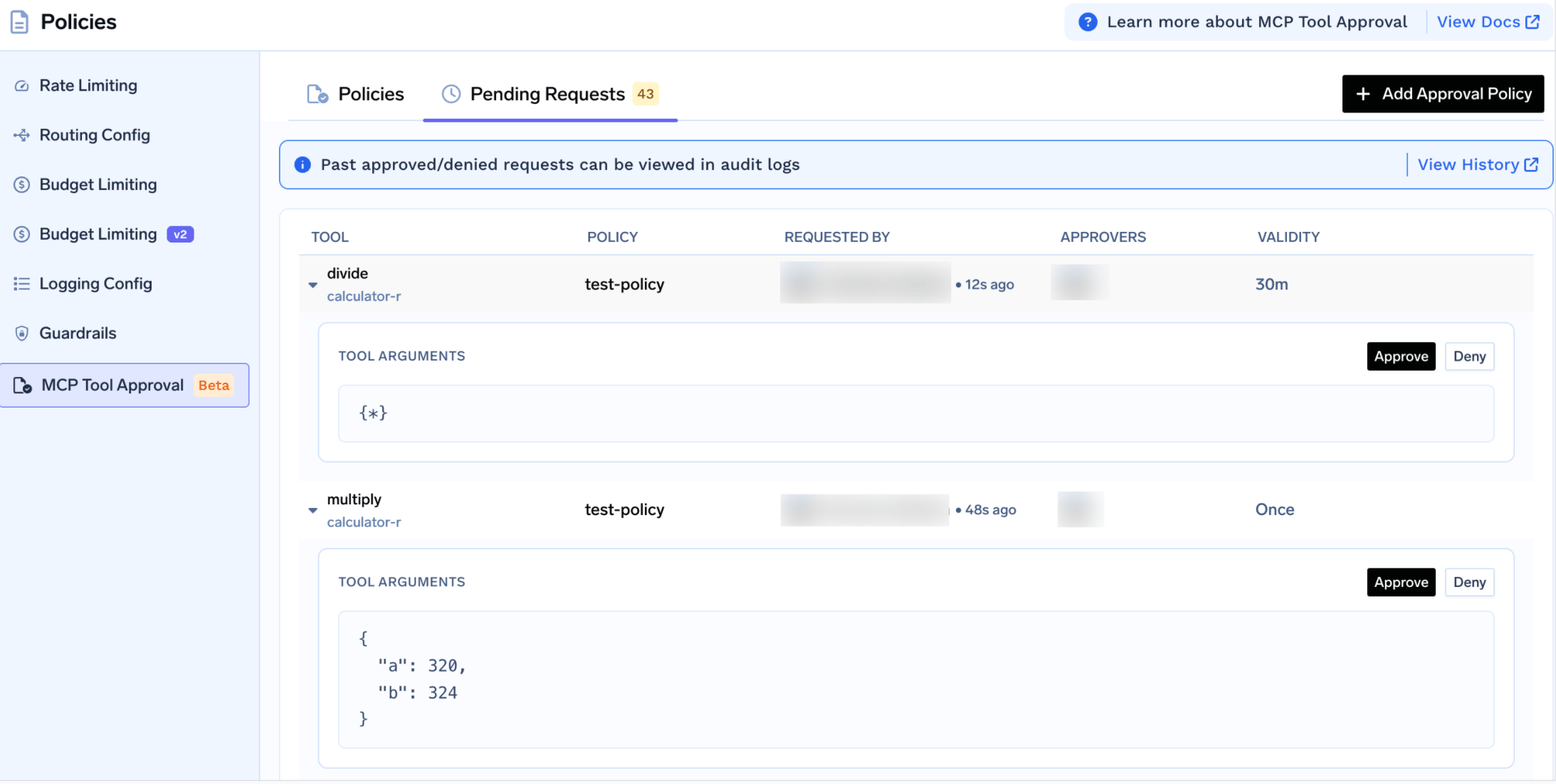
What callers see
While a request is pending (or after it has been denied and re-raised), the gateway returns a successful JSON-RPC result whose content asks the caller to wait - the tool is not executed: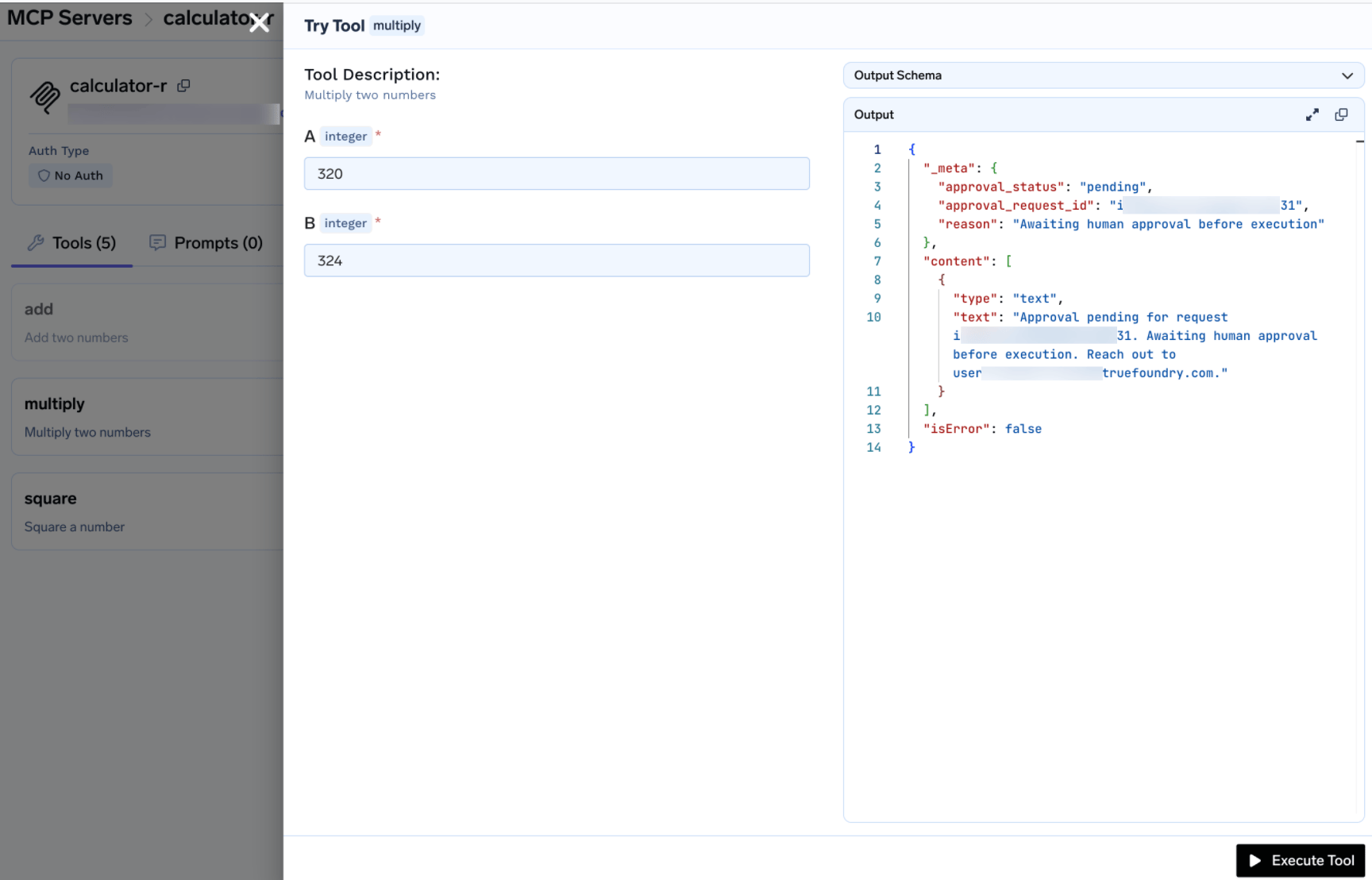
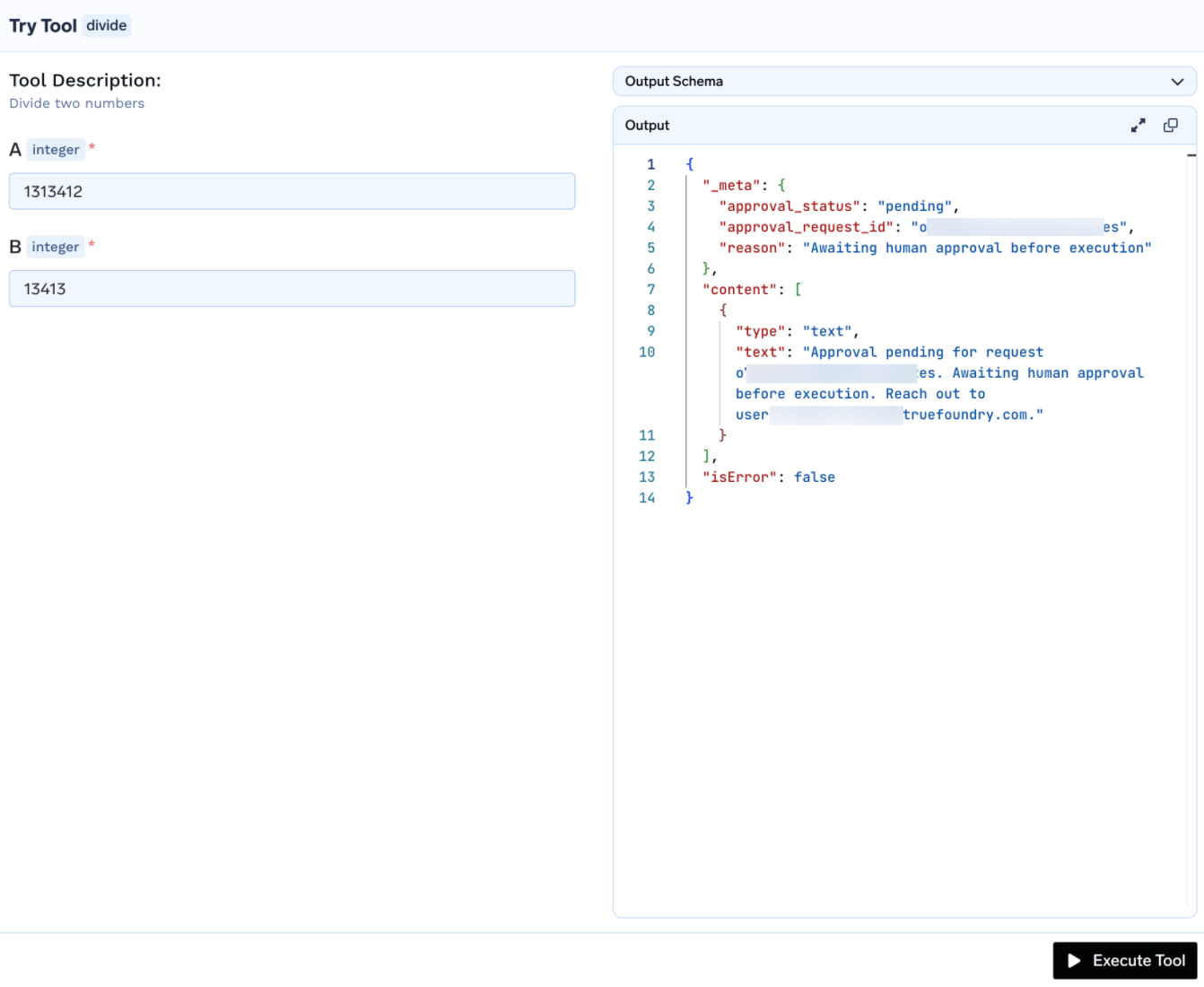
_meta:
_meta.approval_status to distinguish a held call from a real tool result and retry later.
Frequently asked questions
What happens when a grant expires?
What happens when a grant expires?
The next call to the tool raises a fresh approval request and returns the “approval pending” result. Approvers are notified again, and the requester waits for a new decision.
Does denying a request block the user permanently?
Does denying a request block the user permanently?
No. A denial is recorded on that request, but the next call to the tool raises a new approval request. To durably block access to a tool, remove the user’s access to the MCP server or disable the tool instead.
Which requests does a policy affect?
Which requests does a policy affect?
Only MCP
tools/call requests routed through the MCP Gateway for the servers and tools the policy names.What counts as a destructive tool?
What counts as a destructive tool?
Tools the MCP server annotates with
destructiveHint: true. Use approval_scope: destructive to require approval for all of them without listing each name.What if two policies gate the same tool?
What if two policies gate the same tool?
The most specific approval scope wins (
named over destructive over all), and the most restrictive validity wins (Once over shorter time-based windows over longer ones).