Provision pre-vetted MCP servers from the TrueFoundry catalogue with just a name - URLs, authentication, scopes are managed by the platform.
Connecting an MCP server traditionally requires you to provide the server URL, authentication credentials, OAuth client configuration, and scopes by hand. When the upstream MCP server updates its URL or rotates credentials, those changes have to be applied manually - an error-prone process for teams that are not familiar with MCP internals.The TrueFoundry Managed MCPs catalogue removes that friction. TrueFoundry publishes platform-verified MCP server definitions to a managed catalogue. To provision any listed server, you supply only a Name - the platform handles every URL, authentication detail, scope, and credential, and keeps them up to date as the upstream provider changes.
You want to enable a popular third-party MCP server without setting up an OAuth app or managing tokens yourself.
You want consistent, vetted defaults for an MCP server across your organization instead of ad-hoc per-team configuration.
You want URL and credential changes from the upstream provider to be picked up automatically.
For everything else - internal services, your own OpenAPI specs, or providers that are not yet in the catalogue - see Getting Started for the other ways to register an MCP server.
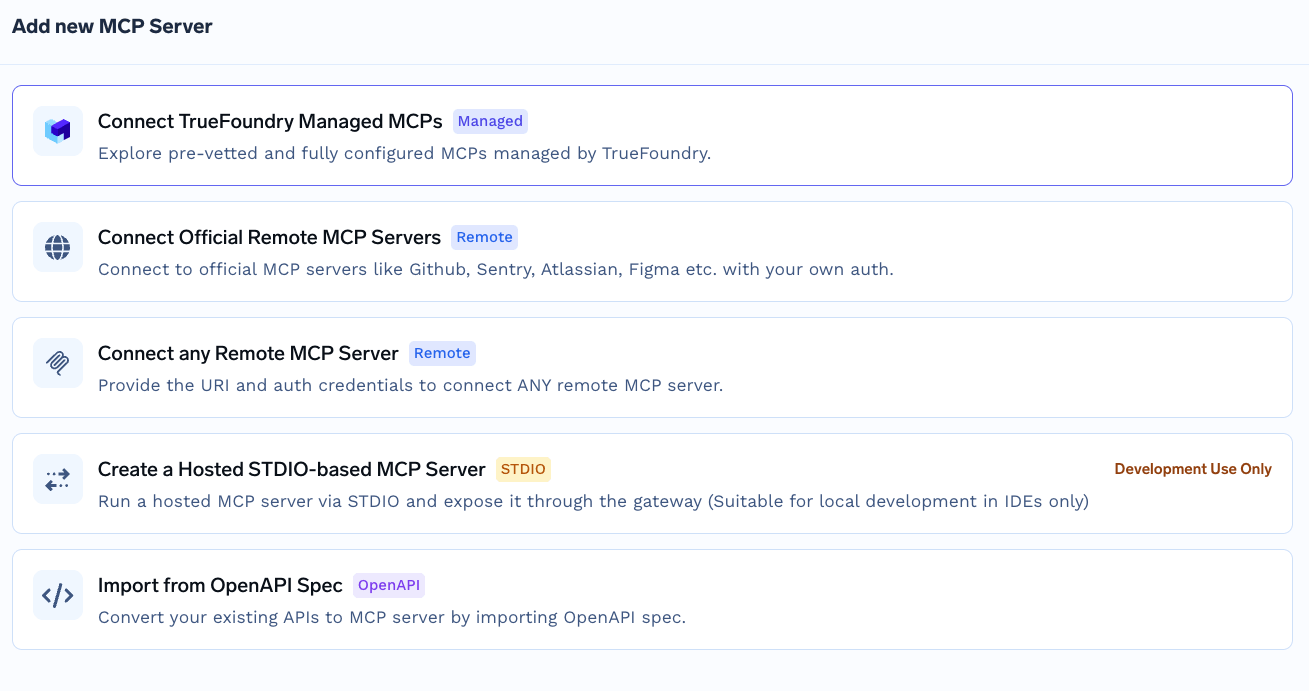
Navigate to MCP Gateway in the left sidebar and click Add Server. Select Connect TrueFoundry Managed MCPs at the top of the picker.
Add MCP Server picker with the TrueFoundry Managed entry
2
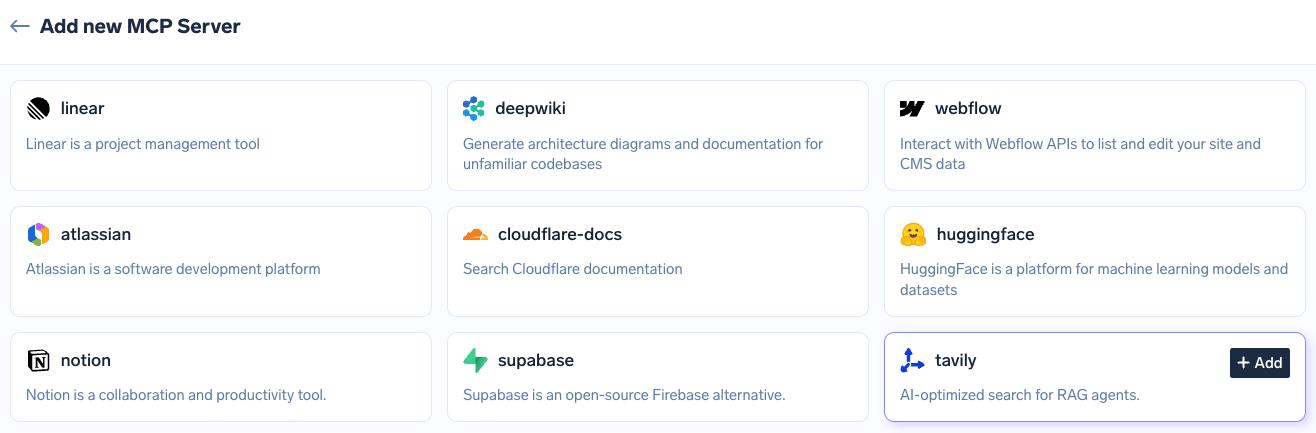
Pick a server from the catalogue
Hover over a card and click + Add to provision that server. The platform creates the MCP server with all required URLs, authentication, scopes, and credentials already set - there are no further fields to fill in for typical providers.
TrueFoundry Managed MCP catalogue
3
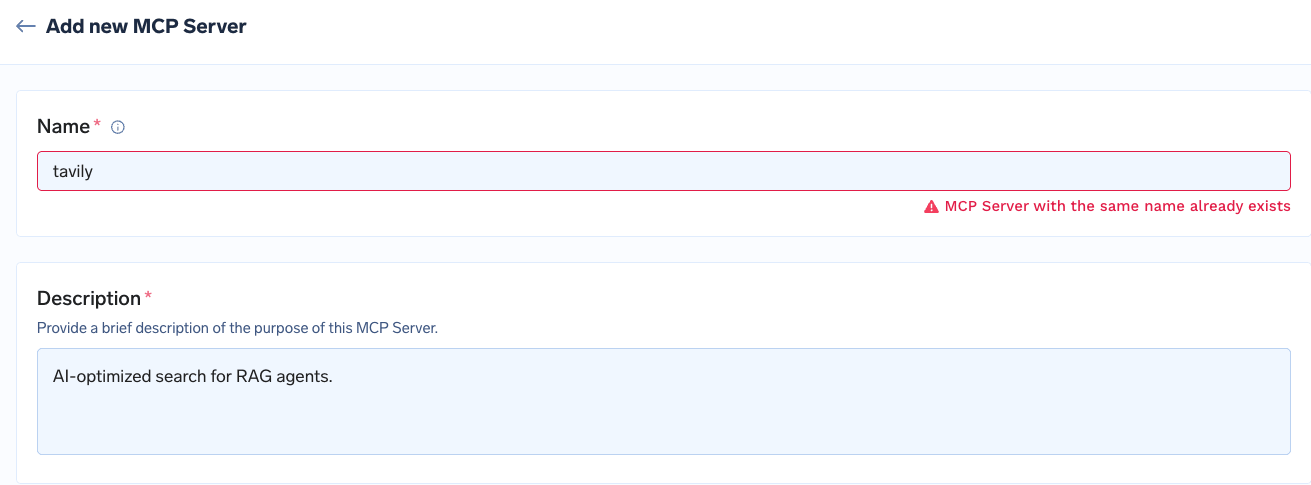
Resolve a name conflict, if one occurs
If you already have an MCP server with the same name, update the Name to something unique and click Add MCP Server.
Resolve a duplicate-name conflict by renaming the server
For OAuth-based servers, end users authorize the upstream provider with their own account. For all TrueFoundry Managed MCPs, the redirect URI is:
https://auth.truefoundry.com/mcp/oauth2/callback
This is TrueFoundry’s centrally managed OAuth callback and is safe to approve. For the full inbound and outbound auth flow, see Authentication and Security.