

1
Register guardrails
In AI Gateway → Guardrails, create a guardrails group and add the guardrail integrations you want to use — TrueFoundry guardrails, external providers, or your own custom guardrails. See the Getting Started guide for a walkthrough.
2
Configure policies
In AI Gateway → Policies → Guardrails, create policy rules that decide when to apply which guardrails — based on the model or MCP server being called, the user or team making the request, and request metadata — and on which hooks they run (LLM input/output, MCP tool pre/post invoke).
Registering a guardrail does not apply it to any traffic by itself. Guardrail policies are what attach registered guardrails to requests. The only exception is passing guardrails per-request via the
X-TFY-GUARDRAILS header, which bypasses policies entirely.Create a Guardrail Policy
Navigate to AI Gateway → Policies → Guardrails and click Add New Guardrail Rule. Each policy is stored as its own named configuration (same grain as logging config). Give it a unique Configuration Name and fill in the following sections:When Request Goes To (Targets)
Define which traffic the rule applies to. Click Add Targets to add conditions on:- Models — Select one or more models with an
INorNOT INcondition. If no model condition is set, the rule matches requests to any model. - MCP Servers — Select one or more MCP servers, and optionally narrow down to specific tools within each server (for example, only the
ask_questiontool of a server).
From Subjects
Specify who the rule applies to. Click Add Filters to addIN / NOT IN conditions on users, teams, or virtual accounts. For example, apply a rule to team:data-science but exclude user:admin@company.com. If no subject filter is set, the rule applies to all callers.
With Metadata
Match requests based on metadata key-value pairs sent in theX-TFY-METADATA header. For example, a rule with metadata environment: production only applies to requests carrying X-TFY-METADATA: {"environment": "production"}.
Apply on Hooks
Attach your registered guardrails to one or more hooks. Click Add Hook, pick the hook, and select the guardrail integrations to run on it:
You can attach multiple guardrails to the same hook — all of them run for matching requests.
Set a Custom Error Message
By default, when a guardrail blocks a request, the client receives the provider-specific failure detail. You can override this with a Custom Error Message per rule — useful for showing end users a friendly, actionable message instead of raw guardrail output. The message supports two placeholders:
For example:
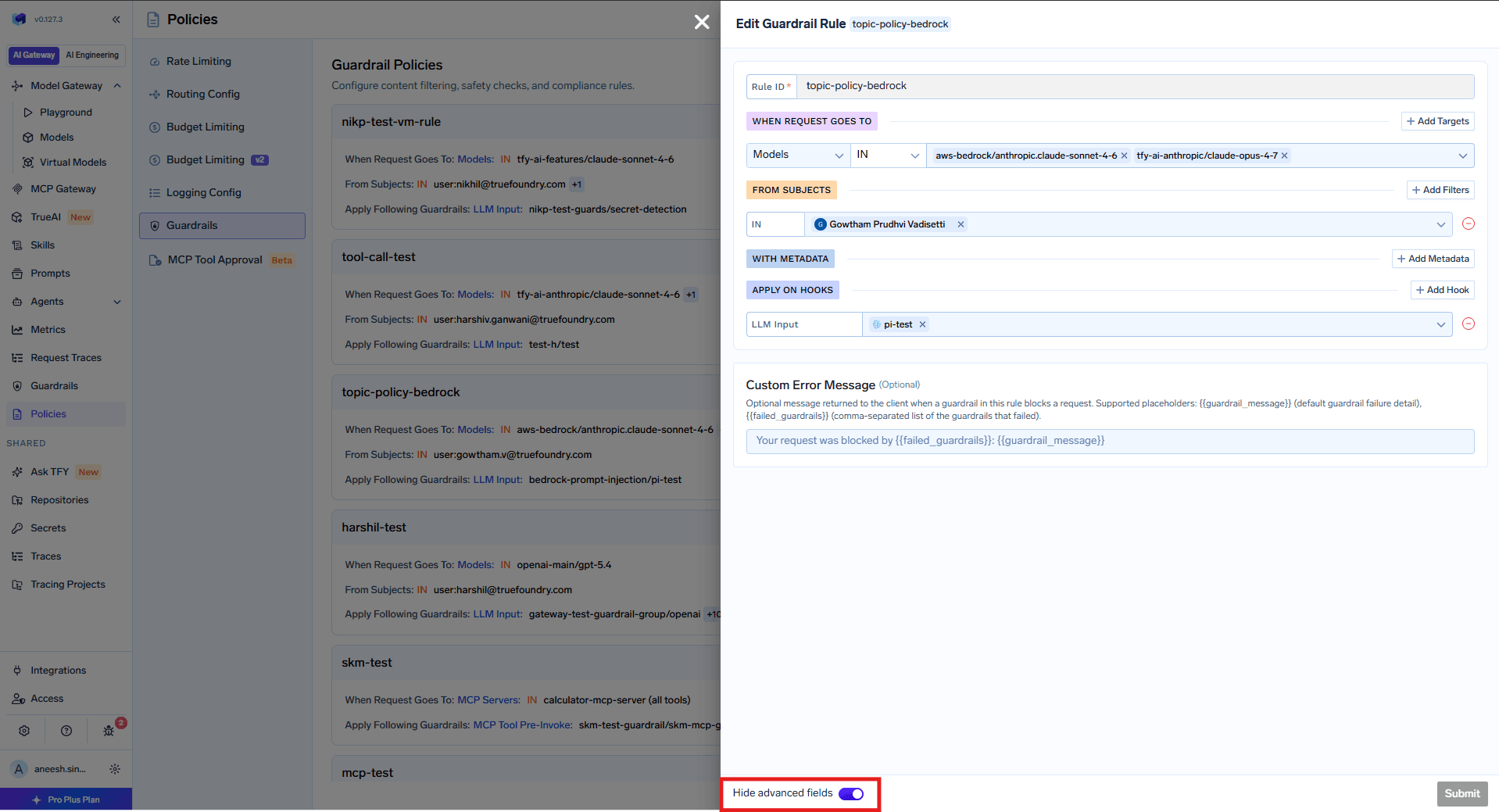
Custom Error Message field in the guardrail rule editor — toggle advanced fields to show it
{{guardrail_message}} continue to work unchanged.
How Policies Are Evaluated
- All named policies are evaluated for every request. The guardrails from all matching policies are combined (union) and applied together.
- If multiple policies match, their guardrails are merged per hook — for example, if policy A applies PII detection on LLM Input and policy B applies prompt injection detection on LLM Input, both guardrails run.
- A policy with no target or subject conditions matches all requests. Use this for baseline guardrails that should apply universally alongside any other matching policies.
- Omitted conditions are not used for filtering — if a policy has no model condition, it matches any model.
YAML Configuration
Guardrail policies can also be managed as YAML — useful for GitOps (tfy apply) or reviewing a single policy. Each policy is its own document with a unique name (not a single file with a rules[] array). See Named Guardrail Policies — v0.179 if you are migrating from the old folded schema.
Example Configuration
Two policies as two YAML documents (apply each separately):- palo-alto-rule — Targets requests to
openai-main/gpt-3-5-turbo-16kfromteam:everyone, applying Prisma AIRS guardrails on both LLM input and output. - mcp-test-rule — Targets requests to the
kubernetes-mcpMCP server fromteam:test-team(excluding a specific user), applying PII detection before tool invocation and Prisma AIRS after.
Policy Structure
custom_error_message placeholders
The when Block
The when block contains two main sections: target (what the request targets) and subjects (who is making the request):
If
when is empty ({}), the policy matches all requests.Target: Match by MCP Servers
Target: Match by MCP Servers
Target: Match by Models
Target: Match by Models
Target: Match by Metadata
Target: Match by Metadata
X-TFY-METADATA: {"environment": "production", "tier": "enterprise"}Target: Match by Specific MCP Tool
Target: Match by Specific MCP Tool
Subjects: Users with IN/NOT IN
Subjects: Users with IN/NOT IN
Combined Target and Subjects
Combined Target and Subjects
target and subjects conditions must match for the policy to apply.