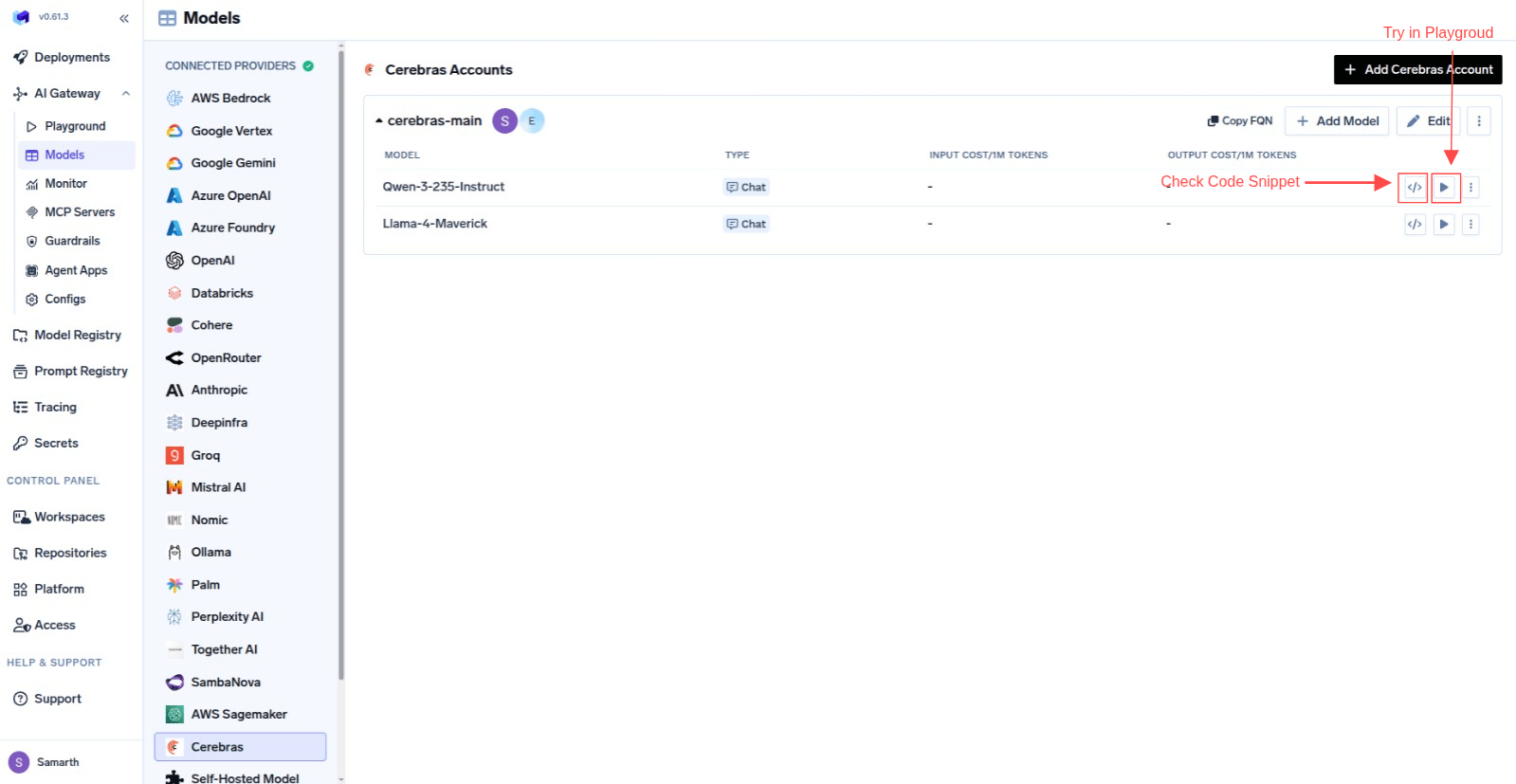
This section explains the steps to add Cerebras models and configure the required access controls.
1
Navigate to Cerebras Models in AI Gateway
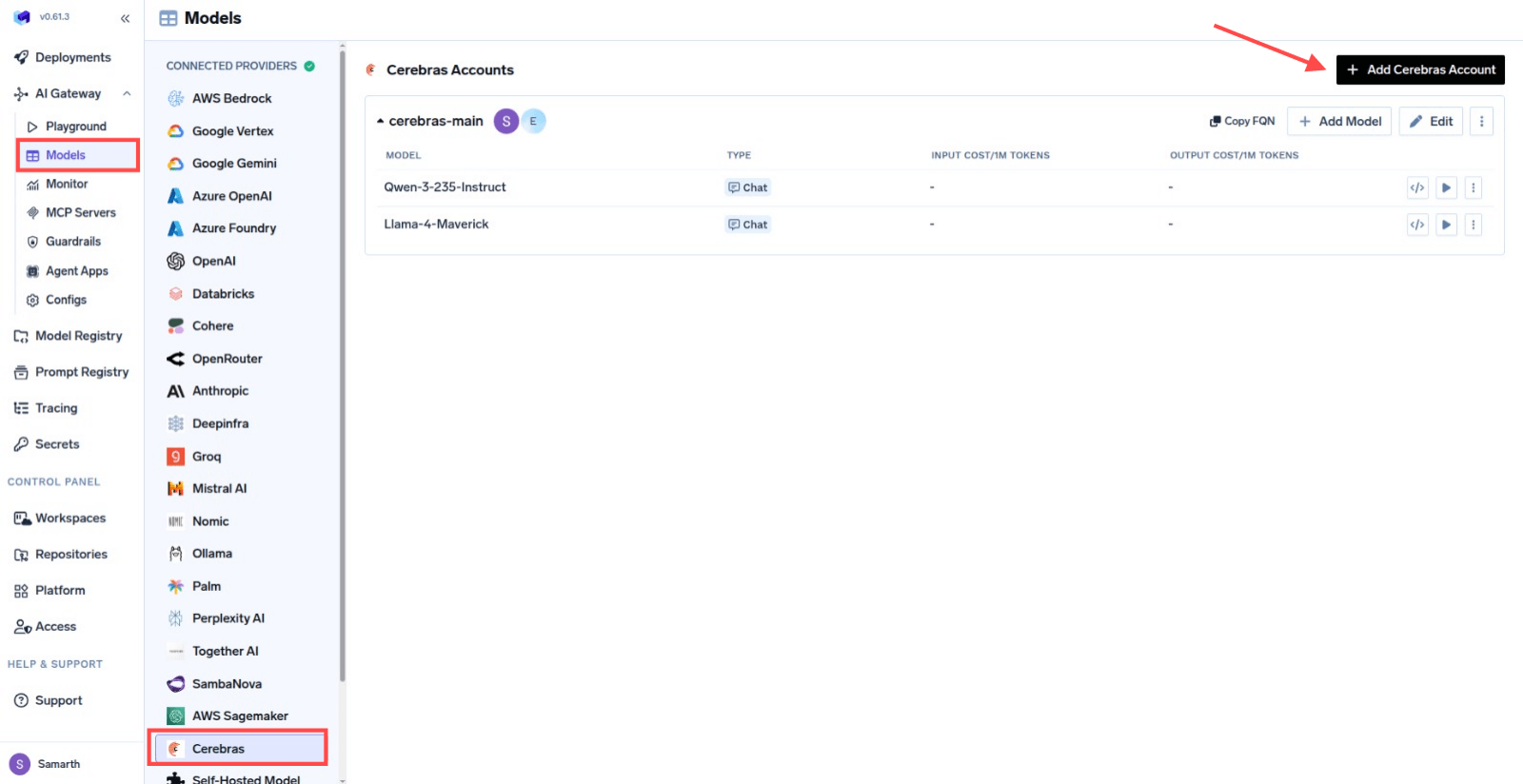
From the TrueFoundry dashboard, navigate to AI Gateway > Models and select Cerebras.
Navigate to Cerebras Models
2
Add Cerebras Account Details
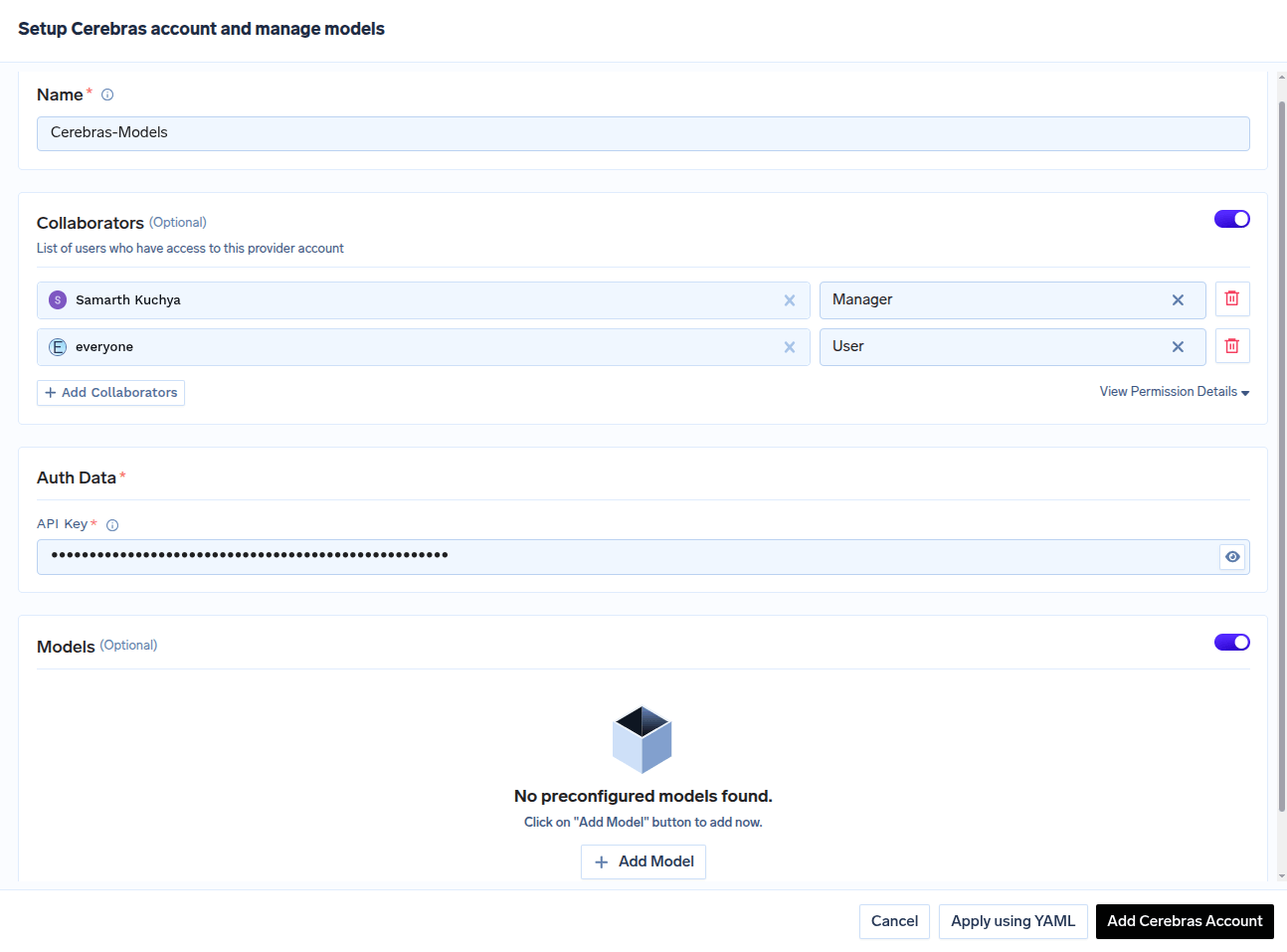
Click Add Cerebras Account. Give a unique name to your Cerebras account and complete the form with your Cerebras authentication details (API Key).
Add collaborators to your account. You can read more about access control here.
Cerebras Account Form
3
Add Models by Model ID
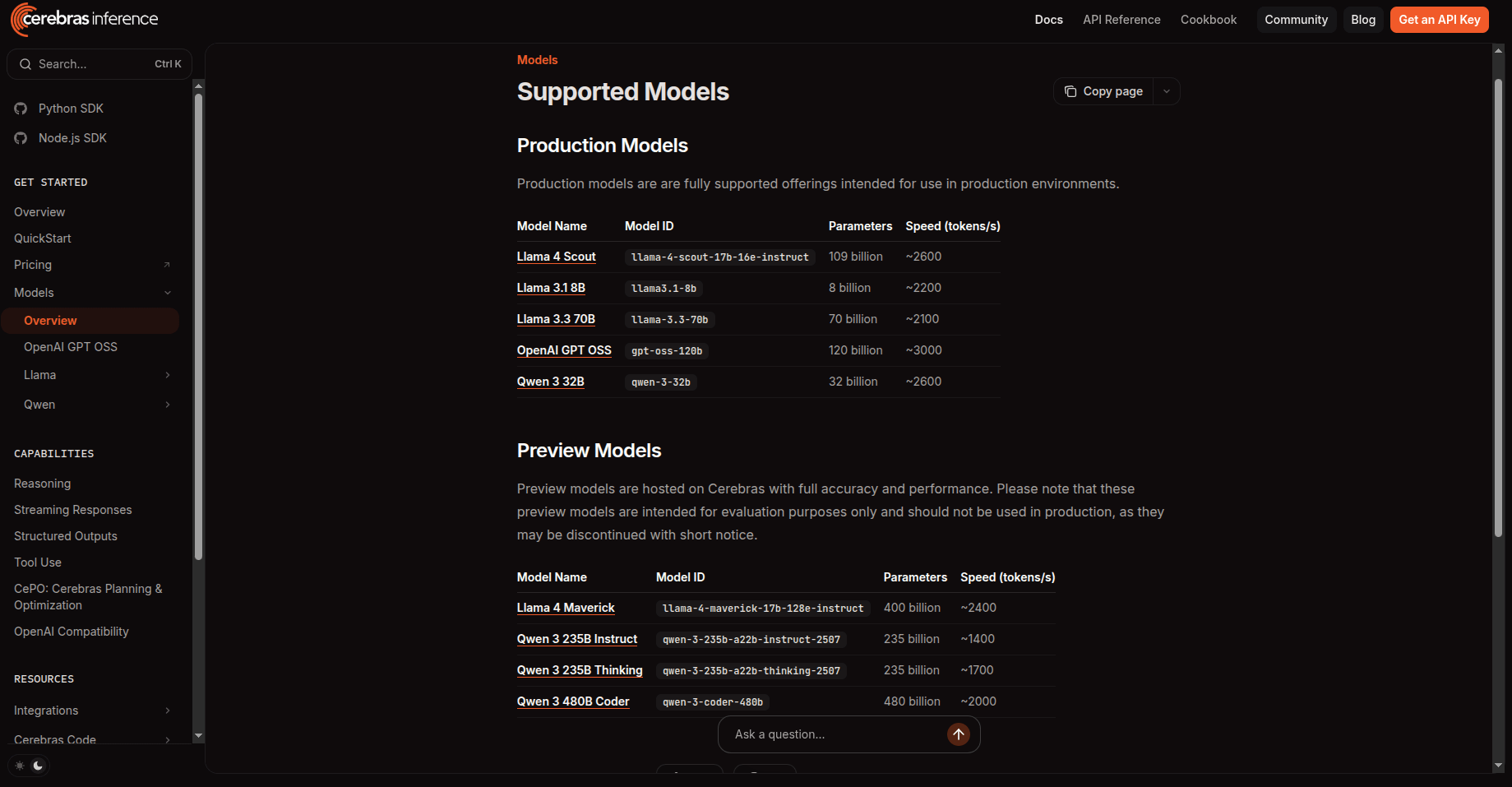
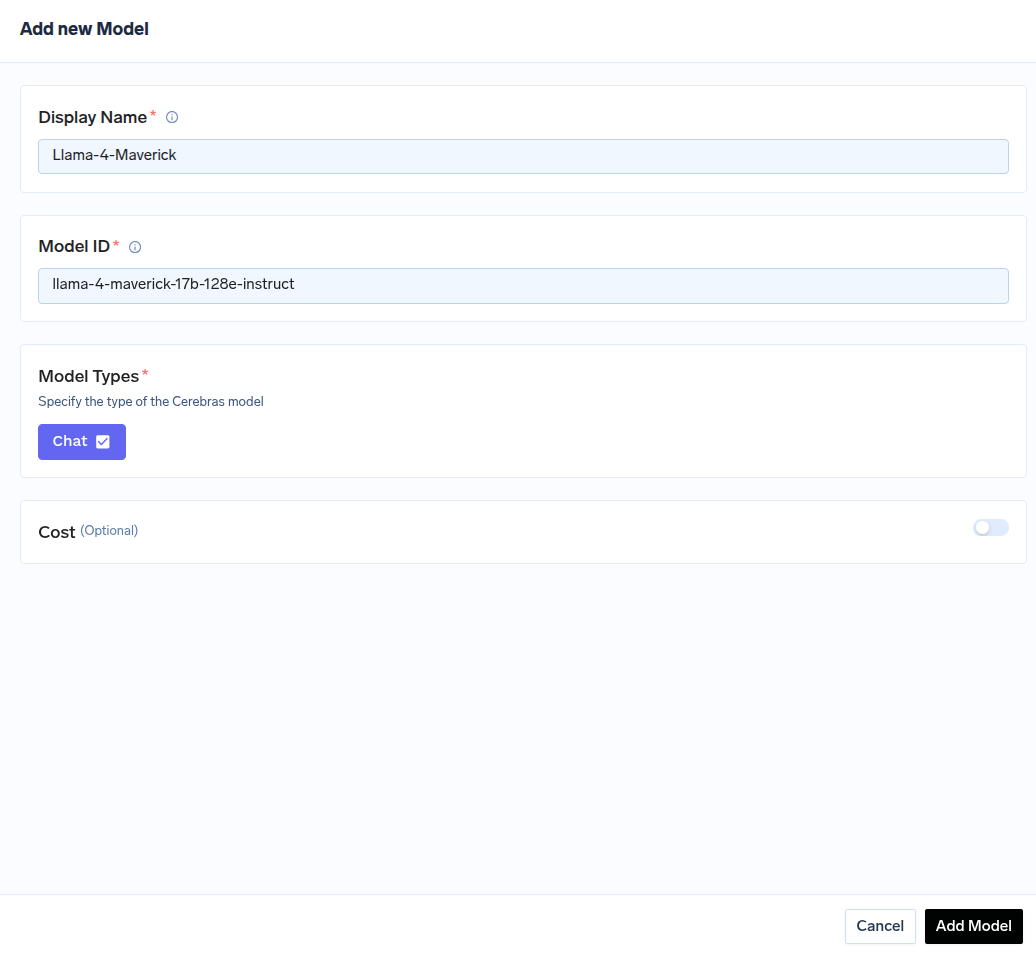
Click on + Add Model to open the form for adding a new model. For Cerebras, you don’t select from a list. Instead, you need to get the Model ID from their docs page.
Find Model ID in Cerebras Docs
Use this Model ID when adding the model in TrueFoundry.