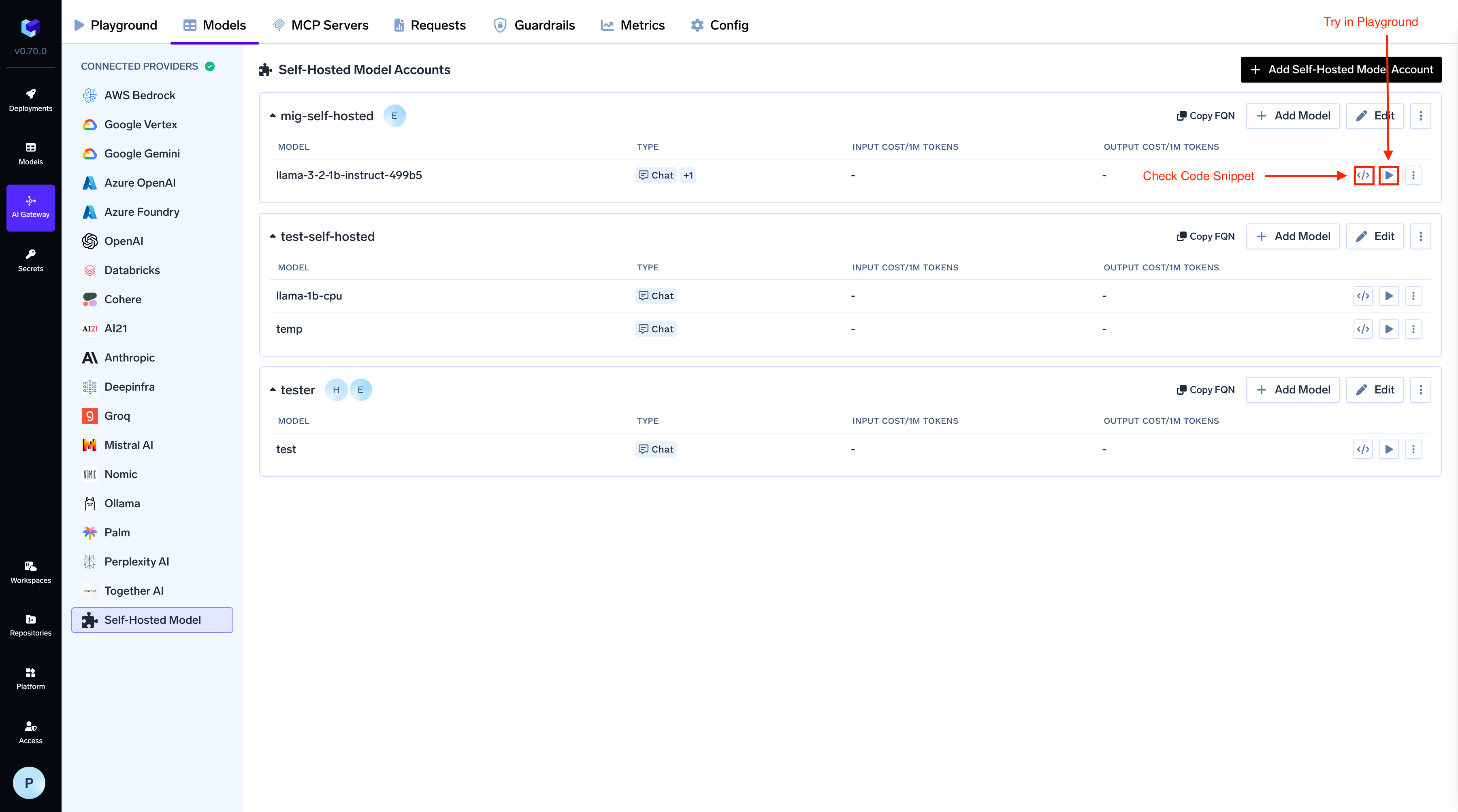
Learn how to add and configure self-hosted or external AI models to TrueFoundry AI Gateway for centralized management and inference.
If you run LLMs on your own infrastructure — on-premises GPUs, private cloud instances, or any model server not deployed through TrueFoundry — you can connect them to the AI Gateway by providing the endpoint URL and authentication details.Once registered, these models appear in the AI Gateway model catalog alongside cloud providers and benefit from all gateway features: routing, guardrails, rate limiting, cost tracking, and observability.
Your model server must expose an HTTP endpoint. The AI Gateway works best with OpenAI-compatible APIs, which is the default output format for popular inference frameworks:
Follow these steps to add a self-hosted or external model (deployed on TrueFoundry or elsewhere) to the AI Gateway.
1
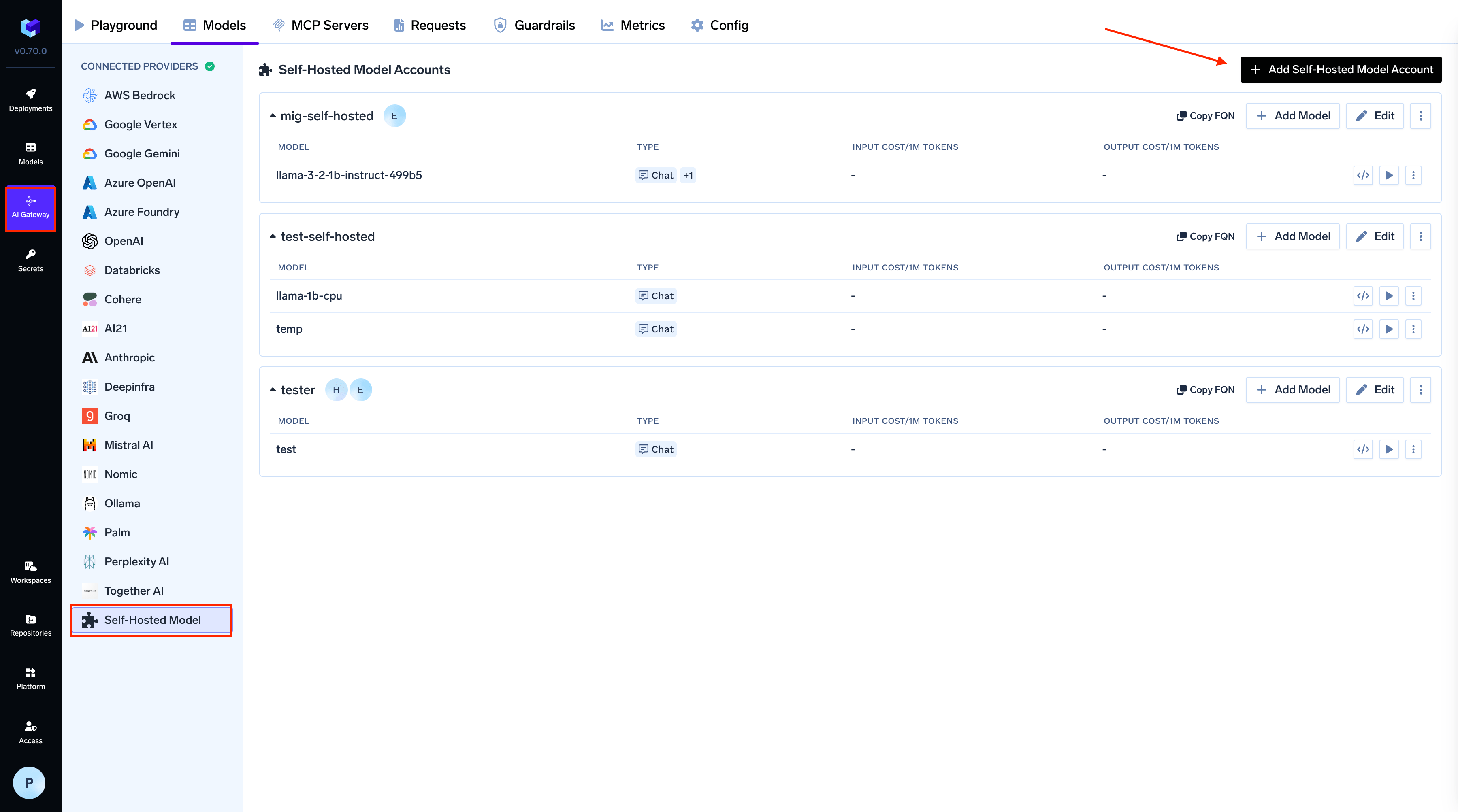
Navigate to Self Hosted Models in AI Gateway
From the TrueFoundry dashboard, navigate to AI Gateway > Models and select Self Hosted Models.
Add model to AI Gateway
2
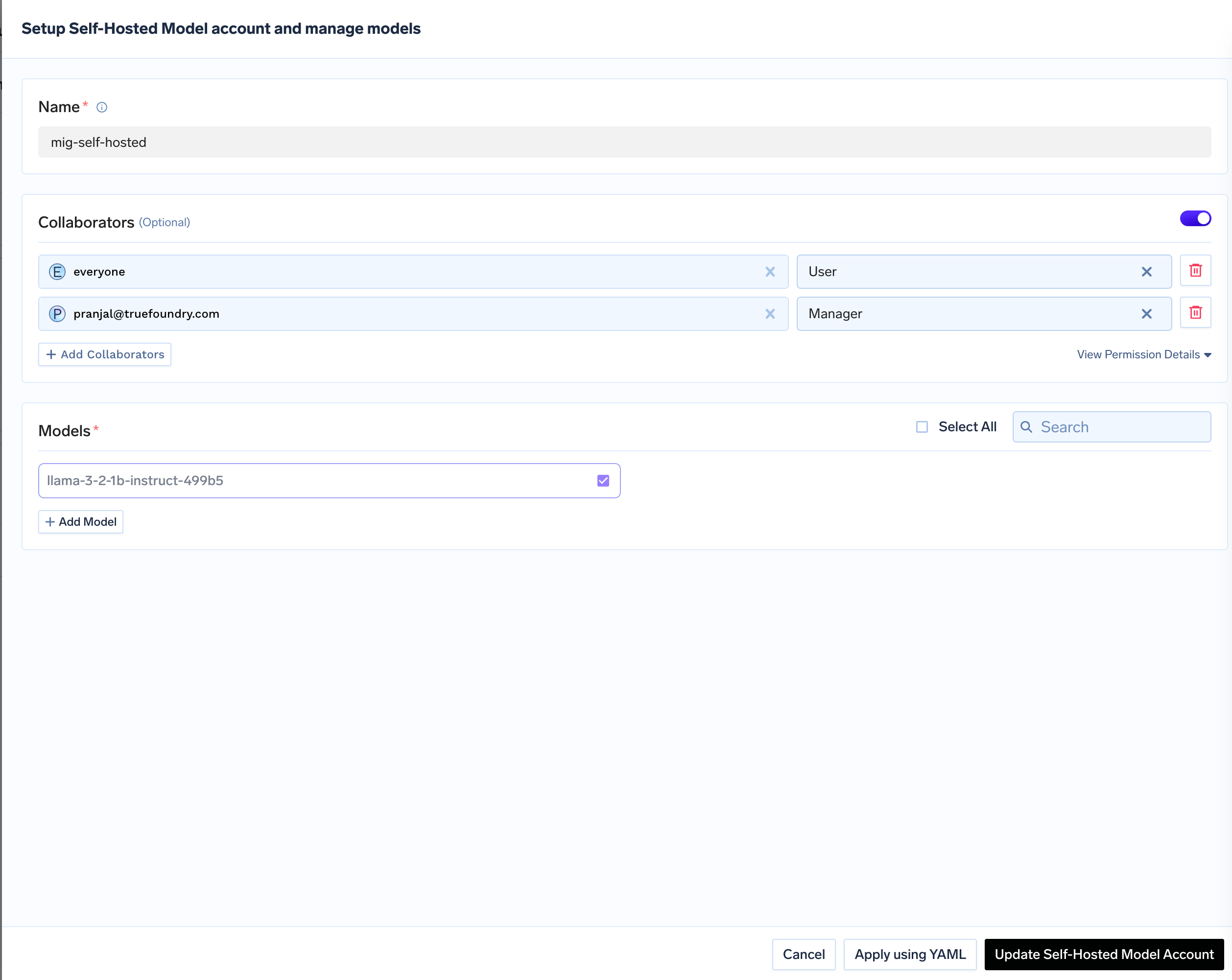
Add Collaborators
Add collaborators to your account, this will give access to the account to other users/teams. Learn more about access control here.
Add collaborators for the model
3
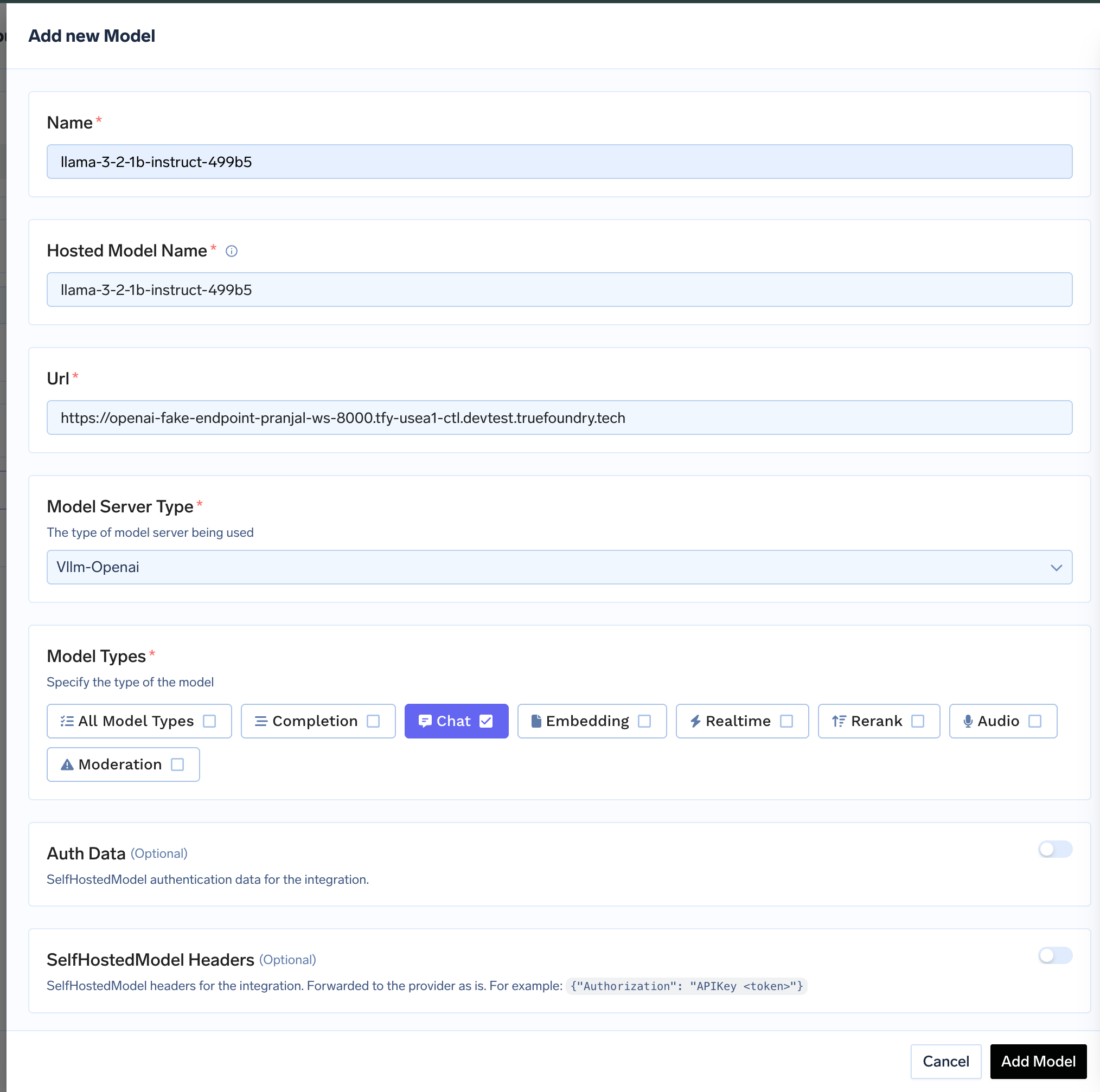
Configure Model Details
Give a name to your hosted model and add ModelId, add the URL to the hosted model. Choose the correct Model Server for your model and optionally add Auth Data which will be used for Authentication of request to the model.
A self-hosted vLLM server can answer System One choice questions on POST /v1/systemone (and /v1/decisions, translated) when the vLLM build includes vllm#59299 (after v0.31.0). Set Model Server to vLLM and Model Types to Decision. vLLM rejects noul and score questions itself; that upstream 400 is forwarded.
Python
import osimport requestsgateway_base_url = os.environ["GATEWAY_BASE_URL"].rstrip("/")response = requests.post( f"{gateway_base_url}/v1/systemone", headers={"Authorization": f"Bearer {os.environ['TFY_API_KEY']}"}, json={ "model": "self-hosted/qwen3-decider", "state": "I was charged twice for order #4411 and want a refund.", "questions": { "urgency": { "type": "choice", "instructions": "How urgent is this?", "criteria": { "low": "can wait a week", "high": "needs action today", }, } }, }, timeout=60,)response.raise_for_status()print(response.json()["answers"]["urgency"])