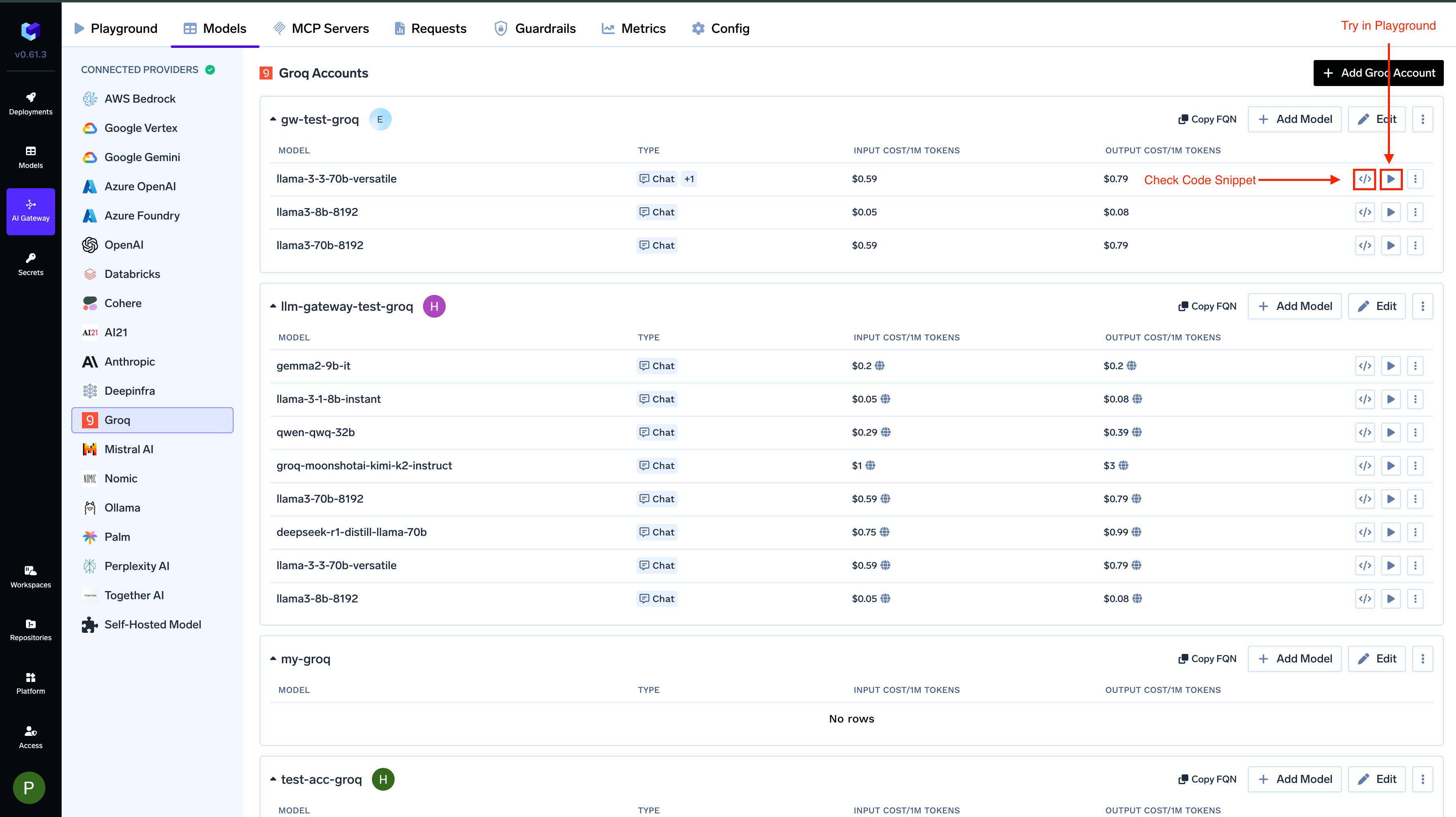
This section explains the steps to add Groq models and configure the required access controls.
1
Navigate to Groq Models in AI Gateway
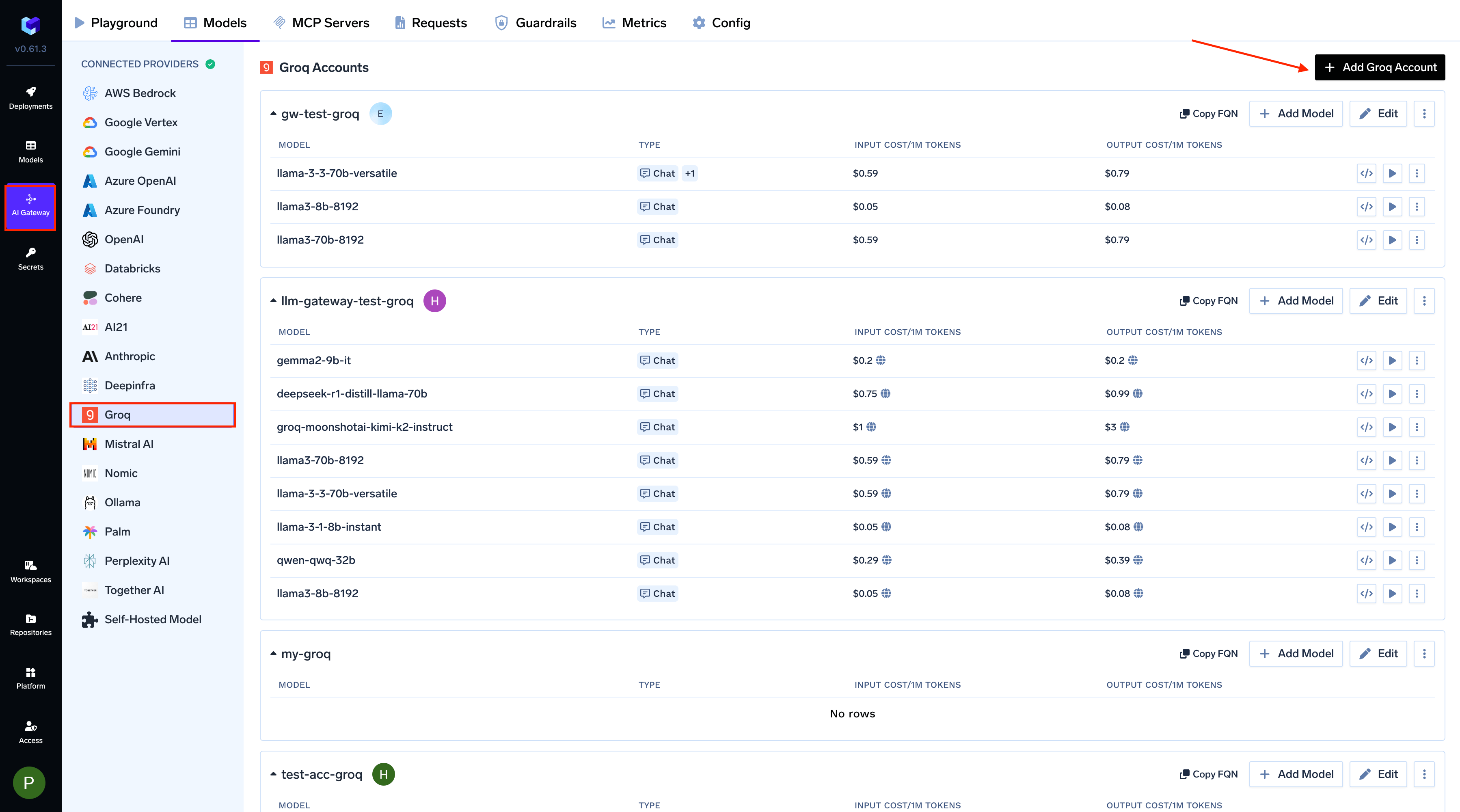
From the TrueFoundry dashboard, navigate to AI Gateway > Models and select Groq.
Navigate to Groq Models
2
Add Groq Account Details
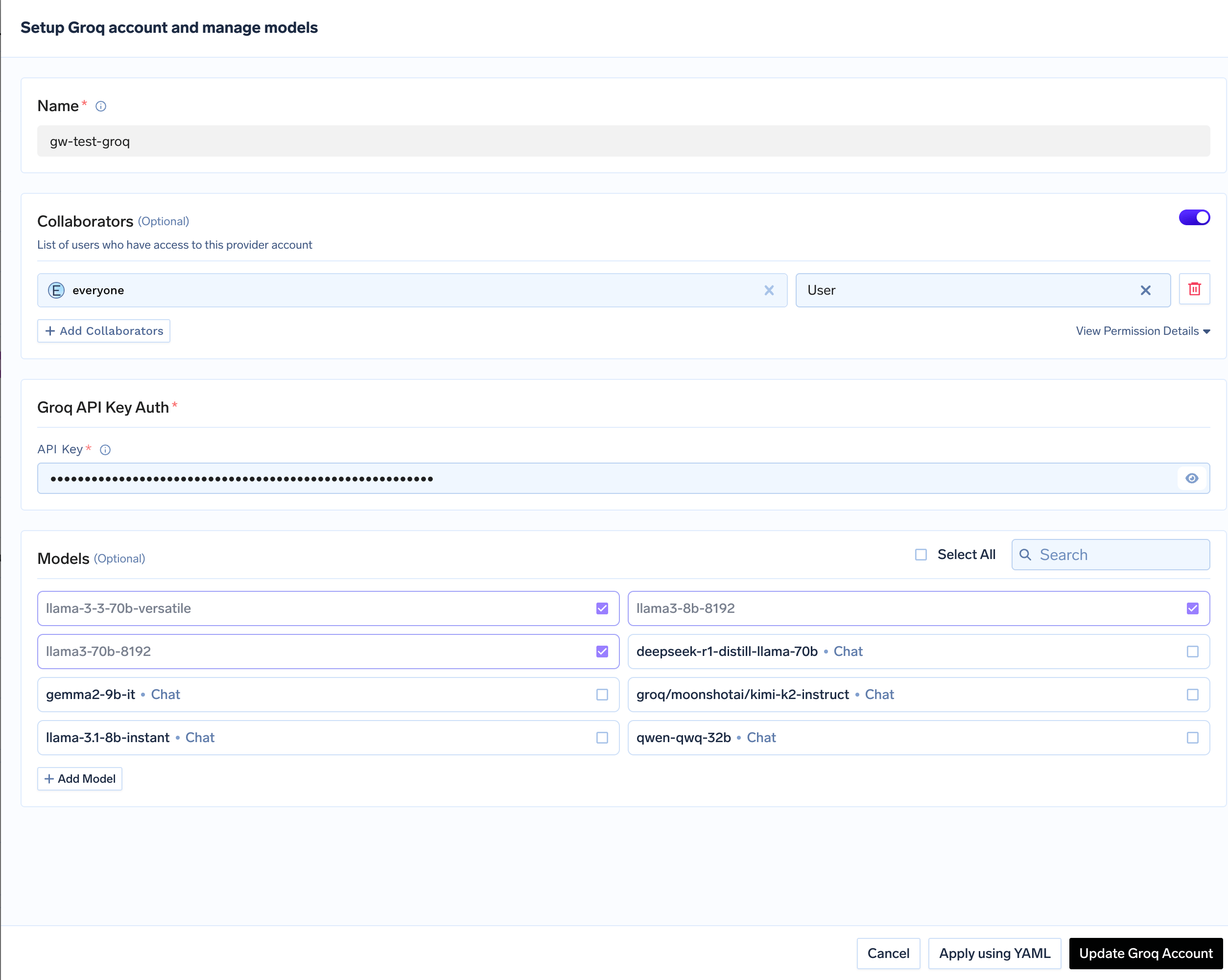
Click Add Groq Account. Give a unique name to your Groq account and complete the form with your Groq authentication details (API Key). Add collaborators to your account, this will give access to the account to other users/teams. Learn more about access control here.
Groq Model Account Form
3
Add Models
Select the model from the list. If you see the model you want to add in the list of checkboxes, we support public model cost for these models.
(Optional) If the model you are looking for is not present in the options, you can add it using + Add Model at the end of list (scroll down to see the option) by filling the form.