Adding Models

This section explains the steps to add Google Vertex AI models and configure the required access controls.
1

Navigate to Google Vertex Models in AI Gateway

From the TrueFoundry dashboard, navigate to AI Gateway > Models and select Google Vertex.
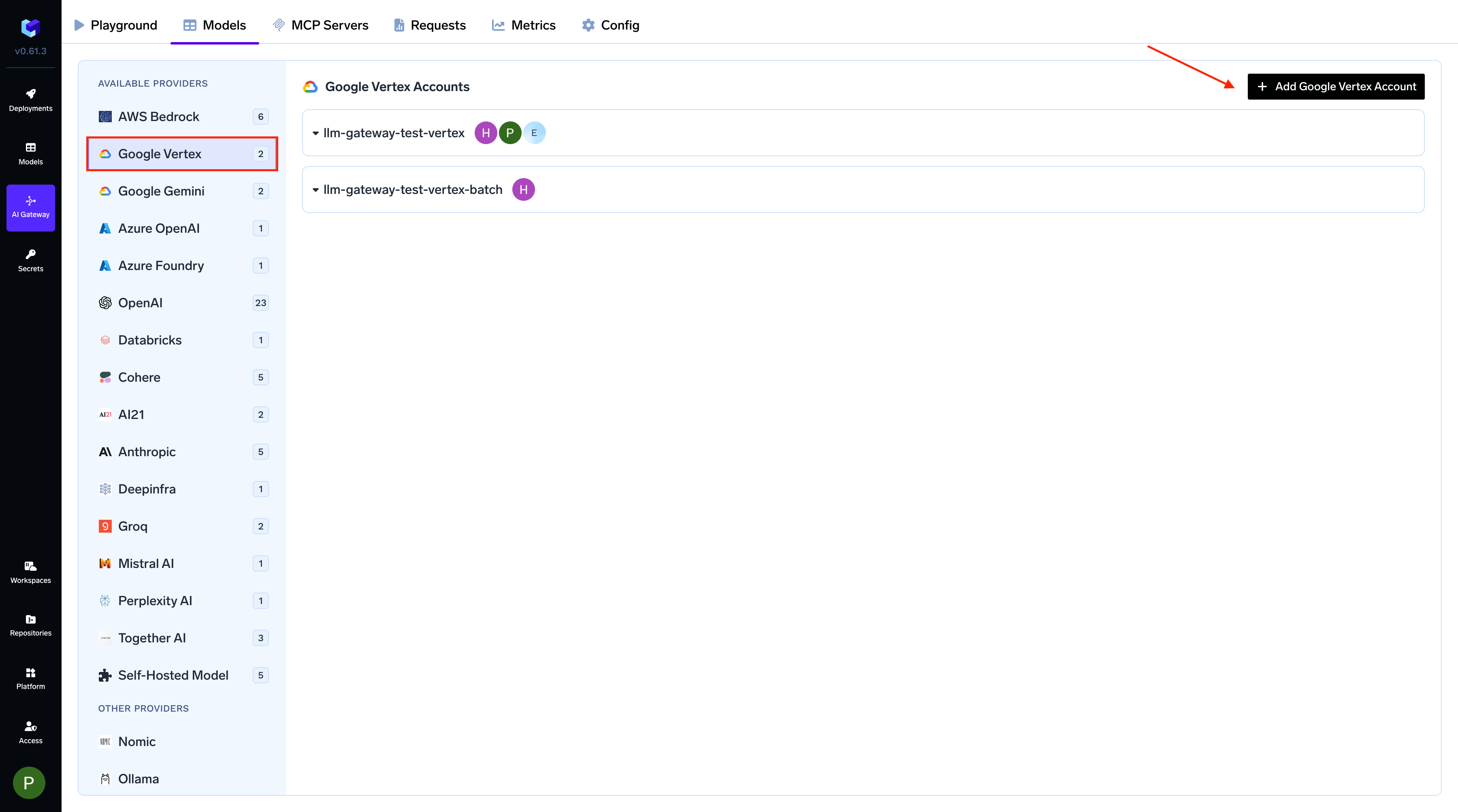
Navigating to Google Vertex Provider Account in AI Gateway
2

Add Google Vertex Account and Authentication

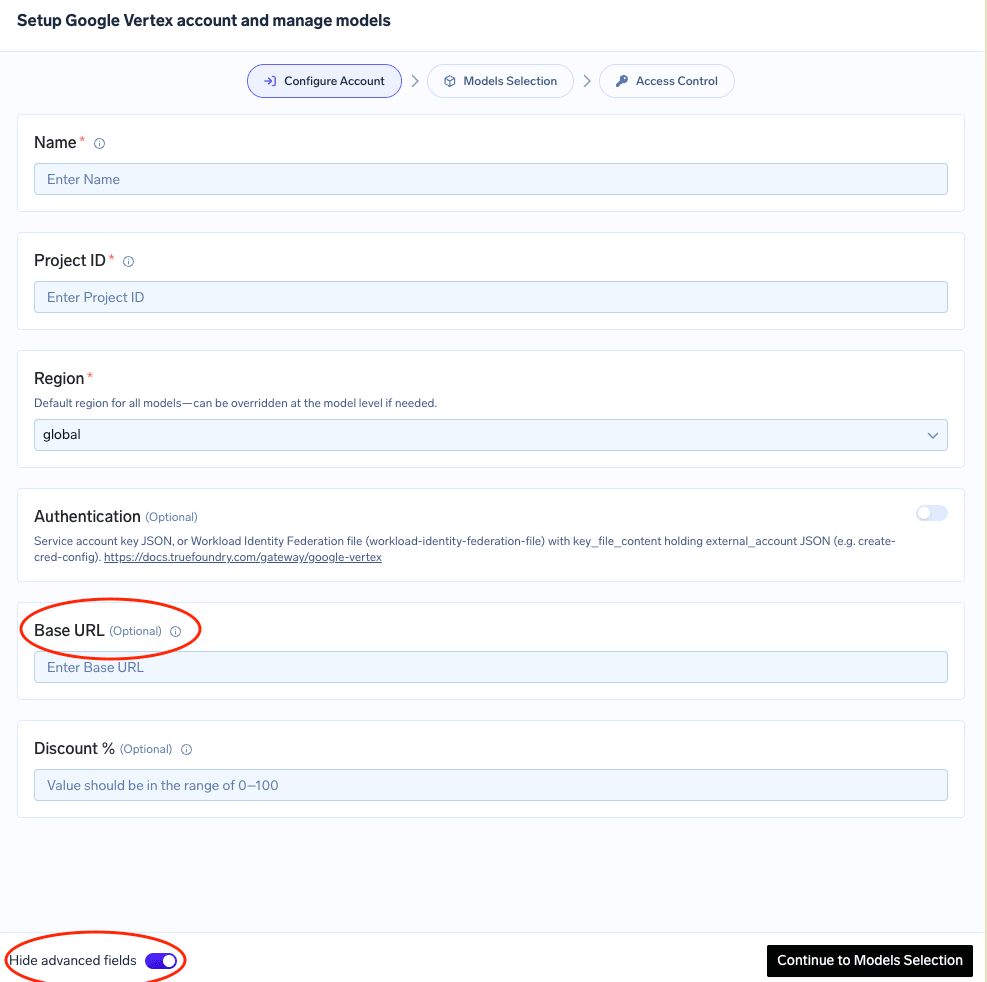
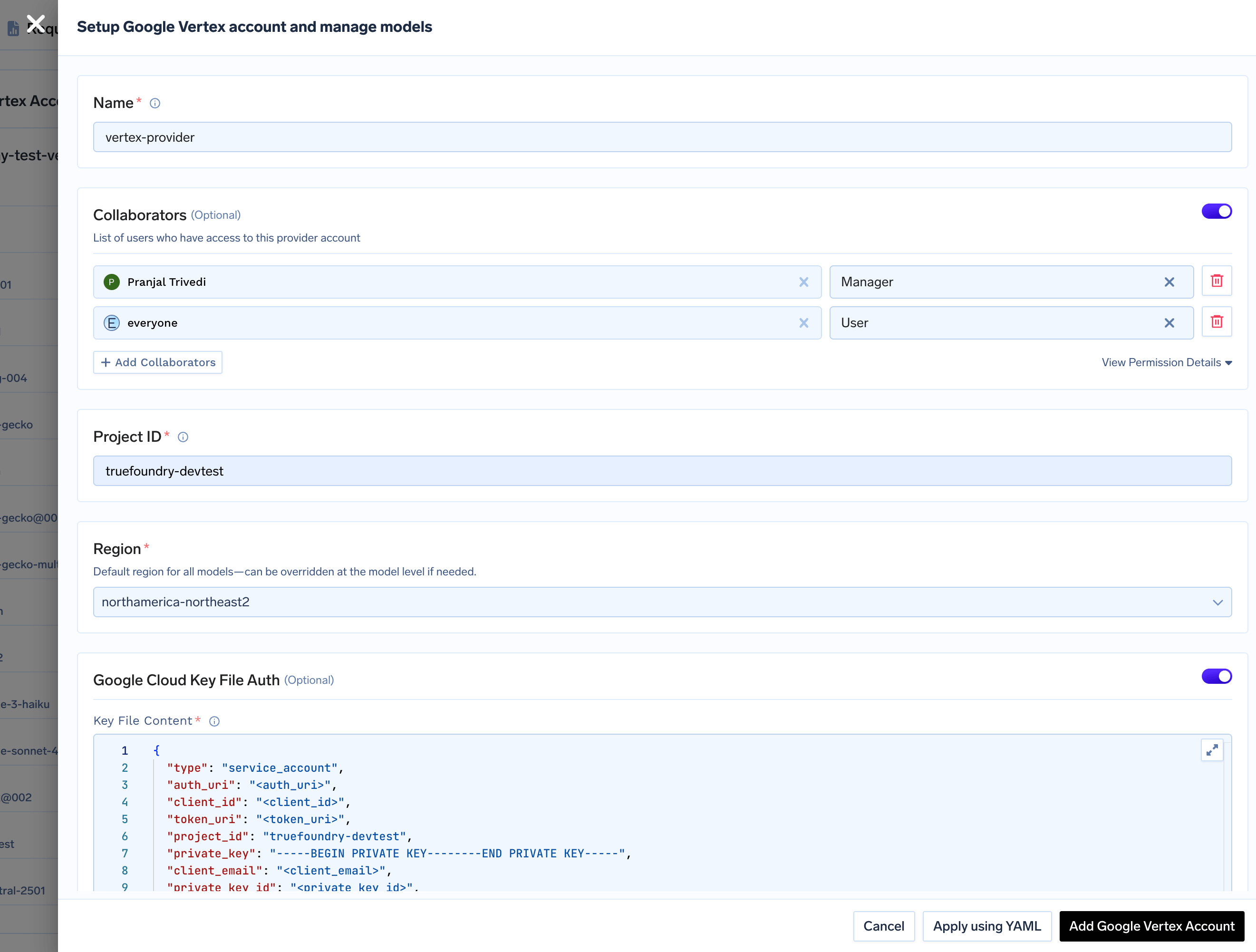
Give a unique name to your Google Vertex account. This will be used to refer to the models later. Add collaborators to your account, this will give access to the account to other users/teams. Learn more about access control here.
Required IAM RoleThe Google Cloud identity used by the gateway (a service account, whether referenced by a key, by GKE Workload Identity, or by Workload Identity Federation) must have the Agent Platform User role (roles/aiplatform.user, formerly Vertex AI User), which includes the aiplatform.endpoints.predict permission required by the gateway.The gateway supports three authentication methods. Pick the one that matches your deployment.1. Using Service Account JSON KeyThis method works for all deployment types (GKE, EKS, AKS, on-premises, or the SaaS Gateway).
  • Generate a Service Account JSON key by following the official Google Cloud documentation here.
  • The service account must have the Agent Platform User role (formerly Vertex AI User).
  • When adding the provider account in TrueFoundry, select Service account key file as the authentication type and paste the JSON key into the Service account key JSON field (or store it as a secret and reference it).
2. Using Workload Identity Federation (Keyless, Cross-Cloud)Workload Identity Federation (WIF) lets the gateway authenticate to Google Cloud without service account keys, even when running outside of GKE — for example, on Amazon EKS, Azure AKS, or on-premises Kubernetes clusters. It works by exchanging a short-lived Kubernetes service account token for a Google Cloud access token through Google’s Security Token Service.
Workload Identity Federation is the recommended approach for production deployments running outside of GKE. It eliminates long-lived service account keys while supporting any Kubernetes environment, and it also works on the SaaS version of the AI Gateway.
Prerequisites
  1. A Google Cloud project with Vertex AI enabled.
  2. A Workload Identity Pool and Provider configured in Google Cloud IAM. Follow the official guide: Configure Workload Identity Federation with Kubernetes.
  3. A Google Cloud IAM service account that the federated identity can impersonate, with the Agent Platform User role (roles/aiplatform.user, formerly Vertex AI User) granted on the project.
  4. The Kubernetes service account used by the gateway must have permission to issue TokenRequest resources for itself. The TrueFoundry-provided Helm chart configures this RBAC automatically.
Generate the credential configuration JSONUse the gcloud CLI to generate the credential configuration file:
gcloud iam workload-identity-pools create-cred-config \
  projects/<PROJECT_NUMBER>/locations/global/workloadIdentityPools/<POOL_ID>/providers/<PROVIDER_ID> \
  --service-account=<GSA_EMAIL> \
  --credential-source-type=programmatic \
  --output-file=credential-config.json
This produces a JSON file with "type": "external_account" describing the identity pool, audience, and STS token-exchange endpoints. It is not a private key.
For a complete step-by-step walkthrough of setting up Workload Identity Federation from an EKS cluster, see the FAQ: How do I set up Workload Identity Federation for an EKS cluster?
Configure in TrueFoundryWhen adding or editing the Vertex AI provider account:
  1. Select Workload Identity Federation file as the authentication type.
  2. Paste the contents of the generated credential-config.json into the Key file content field, or store it as a secret and reference it.
Resumable file uploads (used for some batch and fine-tuning workflows that upload files to Google Cloud Storage via signed URLs) are not yet supported with Workload Identity Federation. If you rely on those flows, use a Service Account JSON key instead.
3. Using GCP Workload Identity on GKE (Self-Hosted Gateway only)When running the gateway inside Google Kubernetes Engine (GKE), you can rely on GKE’s built-in Workload Identity, which lets a Kubernetes service account (KSA) act as a Google Cloud IAM service account (GSA) automatically through the GKE metadata server.
GKE Workload Identity is GKE-specific. Pods using the configured KSA authenticate as the associated GSA when accessing Google Cloud APIs, with no extra configuration on the gateway side.
To set up GKE Workload Identity, follow the official Google Cloud documentation: Configure Workload Identity on GKE.When adding the Vertex AI provider account in TrueFoundry, leave the authentication section empty — the gateway will automatically pick up GKE Workload Identity credentials via Application Default Credentials (ADC).
GCP Workload Identity (GKE ADC) does not work on the SaaS version of the Gateway, and it only works when the gateway runs inside a GKE cluster. For all other environments, use Workload Identity Federation or a Service Account JSON key.
Google Vertex account configuration form with fields for name, project ID, service account JSON, and region
3

Configure Project ID and Region

Provide your Google Cloud Project ID and a default Region for all models under this account. You can override the region for individual models later.Project ID
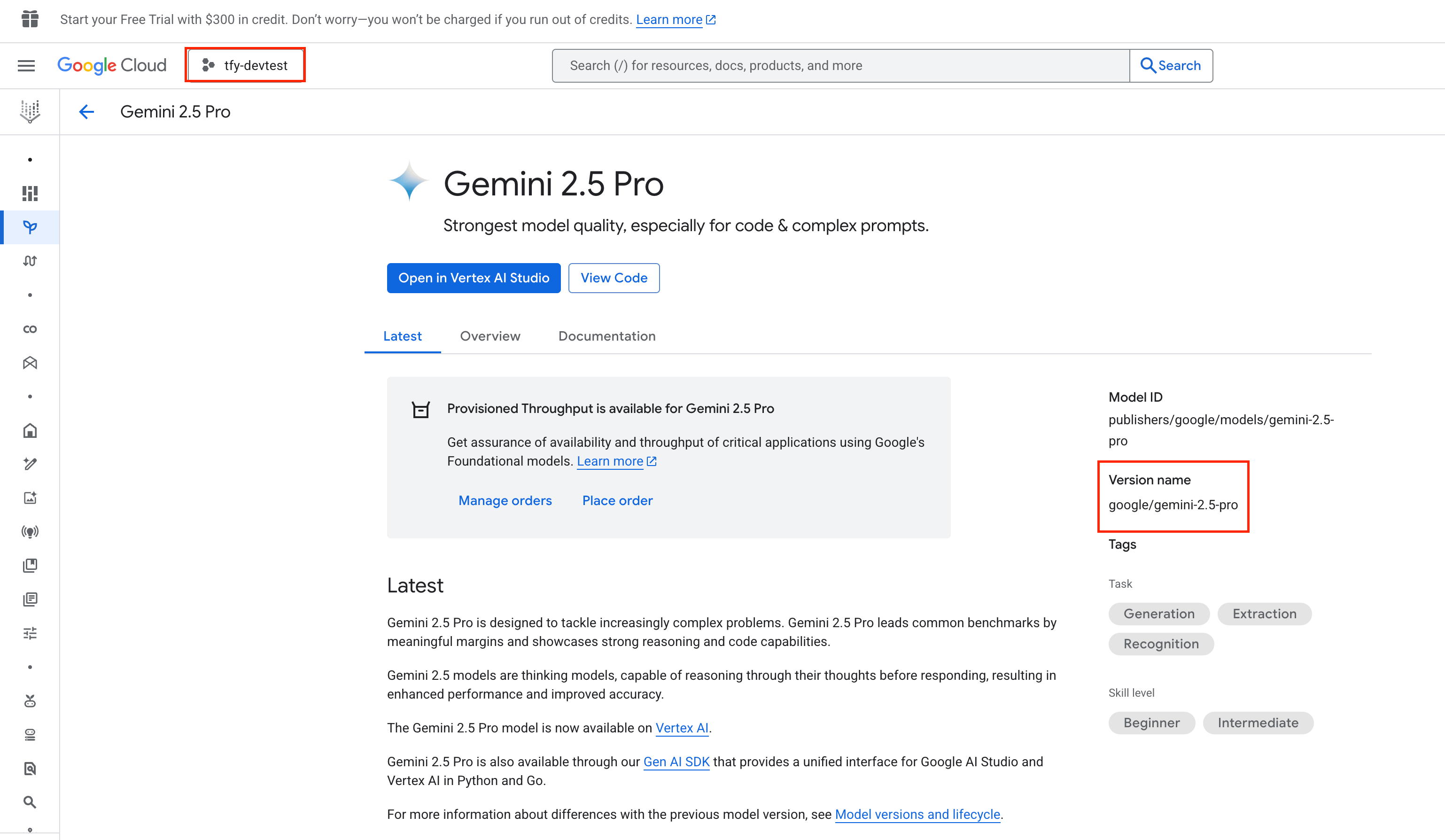
  • You can find your Project ID in the top-right corner of your Google Cloud Console.
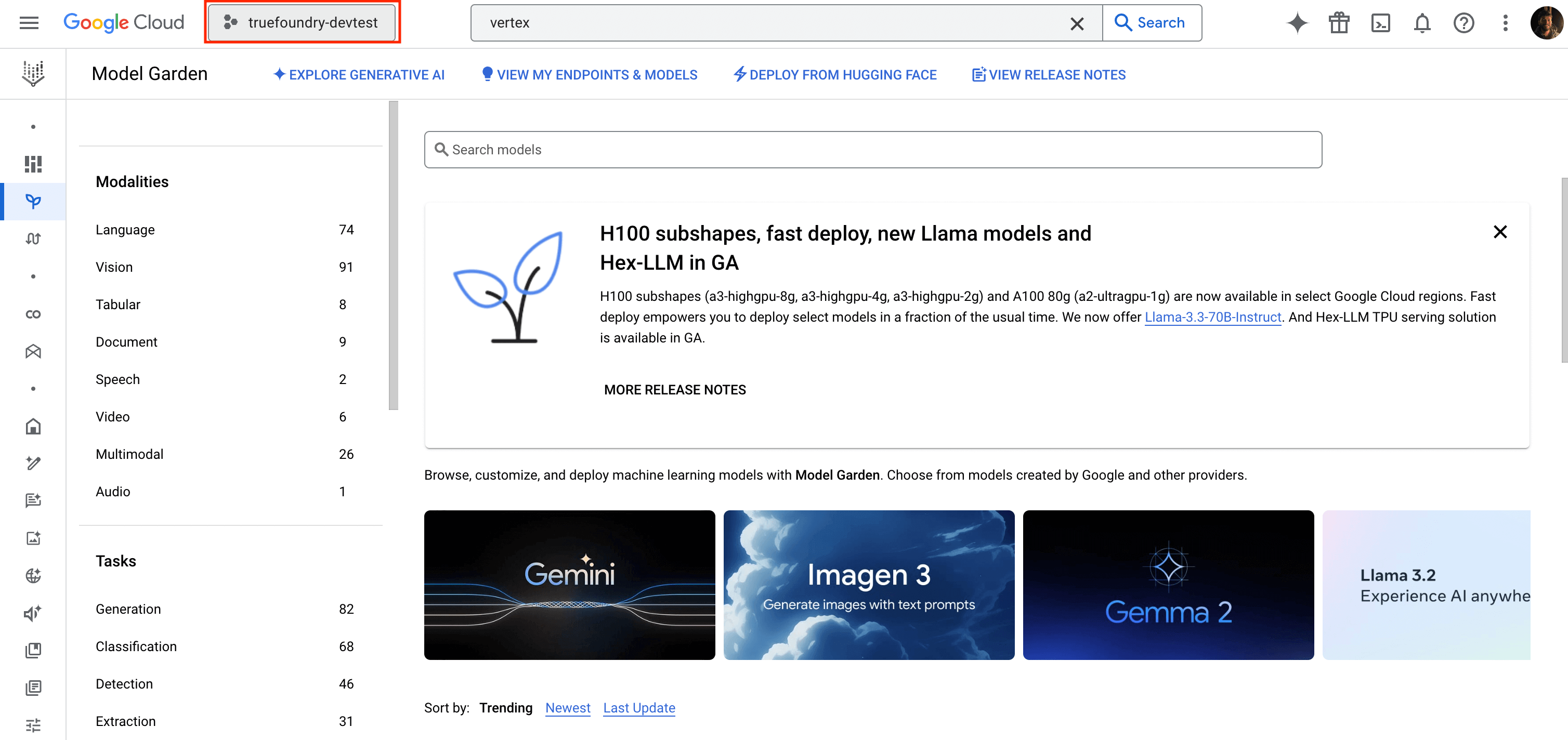
Google Cloud Console header showing project ID location in the dropdown menu
Region
  • Specify a default region for all models under this account. You can override this region for individual models later.
4

Add Models

You can either select available models from the list or add them manually by clicking + Add Model. When adding a model manually, the Model ID format depends on the provider.
Select a Gemini model from the list or add it manually.
  • Model ID Format: google/<vertex-model-id>
  • Example: google/gemini-1.5-pro
You can find the Model ID in the Google Cloud Console.
Google Cloud Console showing Gemini model details with model ID highlighted
Select a Claude model from the list or add it manually.
  • Model ID Format: anthropic/<vertex-model-id>
  • Example: anthropic/claude-3-5-sonnet-v2@20241022
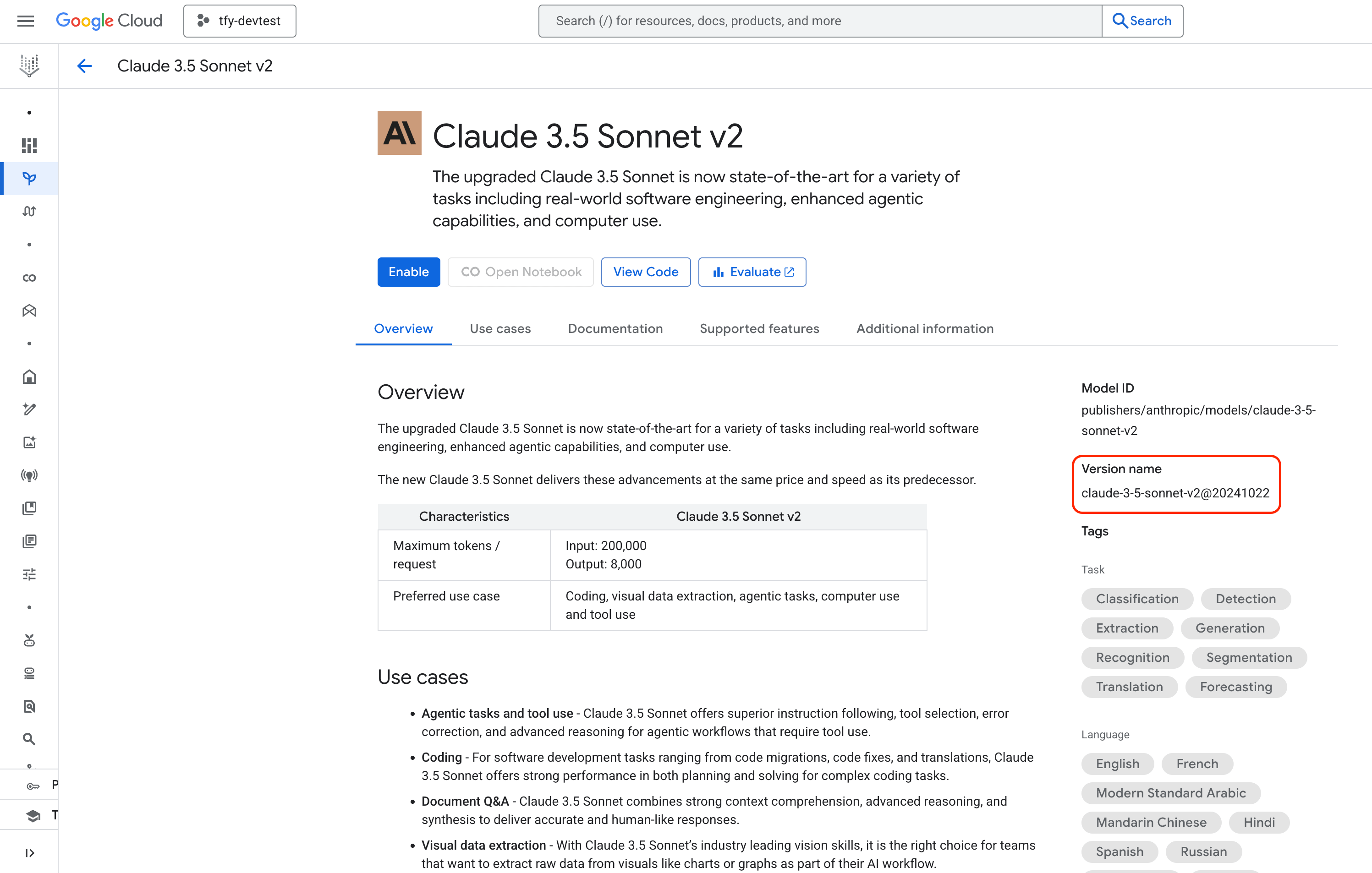
Google Cloud Console showing Anthropic Claude model details with model ID highlighted
Select a Mistral model from the list or add it manually.
  • Model ID Format: mistralai/<vertex-model-id>
  • Example: mistralai/mistral-large-2411@001
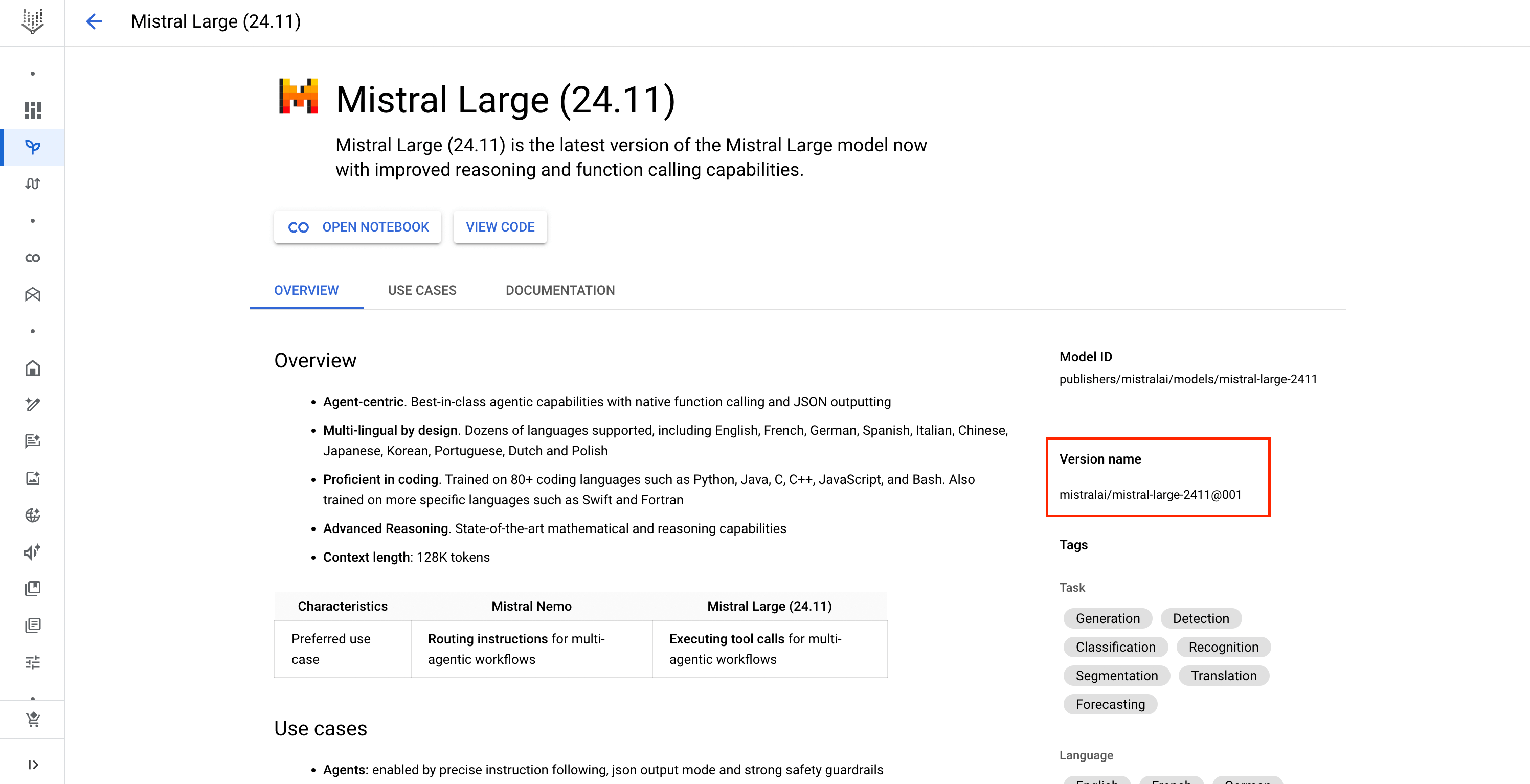
Google Cloud Console showing Mistral AI model details with model ID highlighted
When adding any model manually, you can specify a Region to override the default one set at the account level.

Inference

After adding the models, you can perform inference using an OpenAI-compatible API via the Playground or by integrating it with your own application.
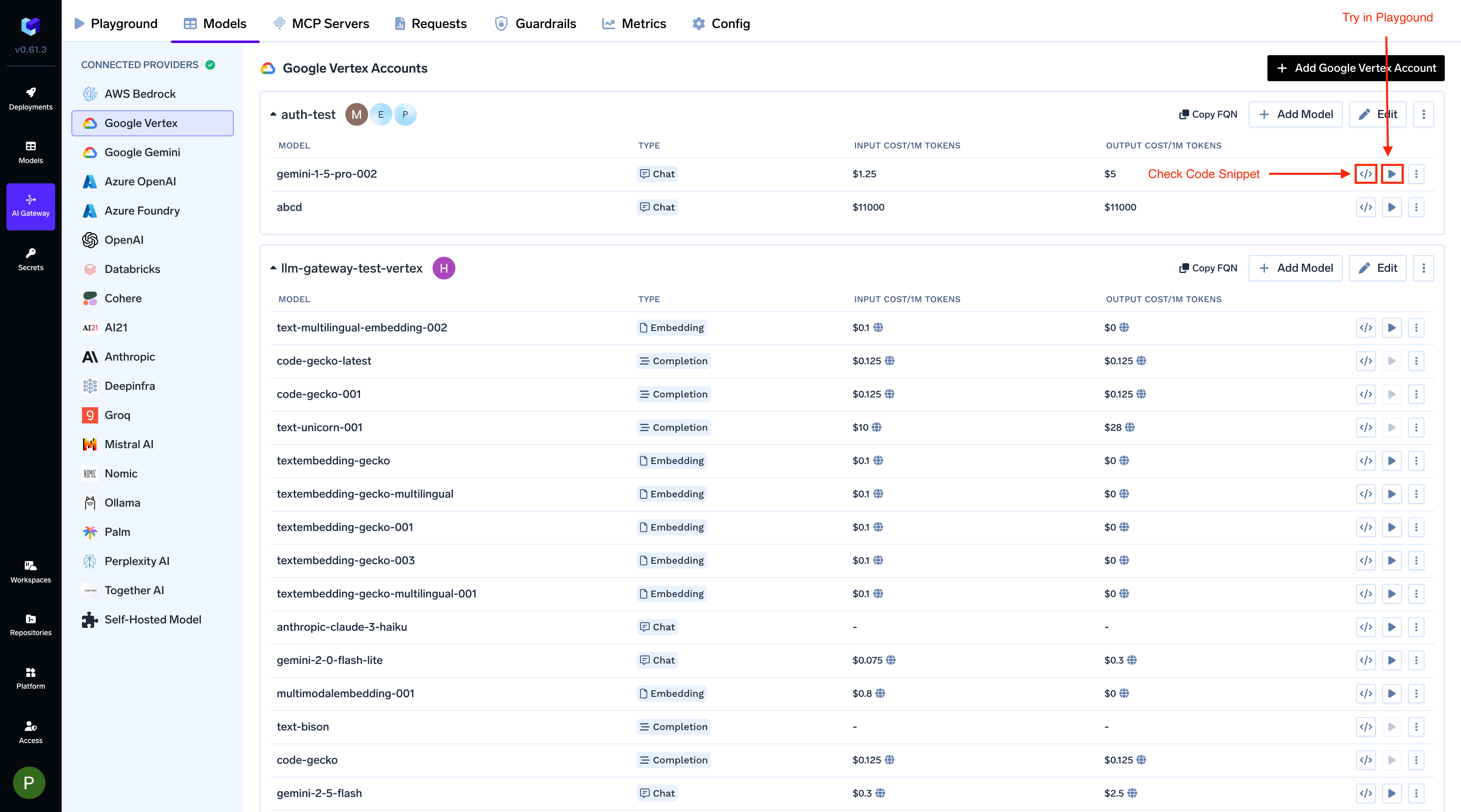
Code Snippet and Try in Playgroud Buttons for each Google Vertex model

Supported APIs

Once your Vertex provider account is configured, the following API surfaces are available through the gateway. The table below summarizes each endpoint alongside platform feature support (tracing, cost tracking).
Legend:
  • Supported by Provider and Truefoundry
  • Supported by Provider, but not by Truefoundry
  • Provider does not support this feature
APIEndpointTracingCost Tracking
Chat Completions/chat/completions
Embeddings/embeddings
Image Generation/images/generations
Image Edit/images/edits
Text-to-Speech/audio/speech
Batch API/batches
Files API/files
Fine-tuning/fine_tuning/jobs
Vertex’s chat completions endpoint is the most widely used — it supports streaming, tools, multimodal input (images, audio, video, PDF), structured JSON outputs & extended thinking. The gateway translates OpenAI-compatible requests into Vertex’s native generateContent API based on the model family. Full provider capability matrix: Chat Completions API.
Python
from openai import OpenAI

client = OpenAI(
    api_key="your-truefoundry-api-key",
    base_url="{GATEWAY_BASE_URL}",
)

response = client.chat.completions.create(
    model="vertex-main/gemini-2.5-flash",
    messages=[
        {"role": "user", "content": "What is TrueFoundry in one line?"},
    ],
)
print(response.choices[0].message.content)
Set stream=True and iterate over delta chunks. Defensively check that chunk.choices is non-empty and delta.content is not None.
Python
stream = client.chat.completions.create(
    model="vertex-main/gemini-2.5-flash",
    messages=[{"role": "user", "content": "Count from 1 to 5, one number per line."}],
    stream=True,
)
for chunk in stream:
    if (
        chunk.choices
        and len(chunk.choices) > 0
        and chunk.choices[0].delta.content is not None
    ):
        print(chunk.choices[0].delta.content, end="", flush=True)
print()
Advertise a tool, hand the model’s tool_calls back as a tool role message, then request the final response.
Python
import json

tools = [{
    "type": "function",
    "function": {
        "name": "get_weather",
        "description": "Get the current weather for a city.",
        "parameters": {
            "type": "object",
            "properties": {"city": {"type": "string"}},
            "required": ["city"],
        },
    },
}]

messages = [{"role": "user", "content": "What's the weather in Bengaluru right now?"}]
first = client.chat.completions.create(
    model="vertex-main/gemini-2.5-flash",
    messages=messages,
    tools=tools,
    tool_choice={"type": "function", "function": {"name": "get_weather"}},
)

assistant_msg = first.choices[0].message
tool_calls = assistant_msg.tool_calls or []
if tool_calls:
    tool_call = tool_calls[0]
    messages.append(assistant_msg)
    messages.append({
        "role": "tool",
        "tool_call_id": tool_call.id,
        "content": json.dumps({"city": "Bengaluru", "temp_c": 28, "summary": "partly cloudy"}),
    })

    second = client.chat.completions.create(
        model="vertex-main/gemini-2.5-flash",
        messages=messages,
    )
    print(second.choices[0].message.content)
Gemini models support image inputs via the image_url content part. The detail parameter (low / high / auto) translates to Vertex’s native mediaResolution setting.
Python
import base64
from io import BytesIO
from PIL import Image as PILImage, ImageDraw

img = PILImage.new("RGB", (256, 256), (30, 144, 255))
draw = ImageDraw.Draw(img)
draw.ellipse((48, 48, 208, 208), fill=(255, 215, 0))
draw.rectangle((96, 96, 160, 160), fill=(220, 20, 60))

buf = BytesIO()
img.save(buf, format="PNG")
data_uri = f"data:image/png;base64,{base64.b64encode(buf.getvalue()).decode('ascii')}"

response = client.chat.completions.create(
    model="vertex-main/gemini-3-pro-image-preview",
    messages=[{
        "role": "user",
        "content": [
            {"type": "text", "text": "Describe this image in one sentence."},
            {"type": "image_url", "image_url": {"url": data_uri, "detail": "low"}},
        ],
    }],
)
print(response.choices[0].message.content)
Gemini models accept audio files inline via image_url content parts with a mime_type hint. This is unique to Gemini — Bedrock and direct OpenAI chat models do not accept audio as chat input.
Python
import base64, wave, struct, math
from io import BytesIO

# Generate a 1-second 440 Hz sine wave PCM WAV in-memory
buf = BytesIO()
with wave.open(buf, "wb") as w:
    w.setnchannels(1)
    w.setsampwidth(2)
    w.setframerate(16000)
    for i in range(16000):
        sample = int(32767 * 0.3 * math.sin(2 * math.pi * 440 * i / 16000))
        w.writeframes(struct.pack("<h", sample))
audio_uri = f"data:audio/wav;base64,{base64.b64encode(buf.getvalue()).decode('ascii')}"

response = client.chat.completions.create(
    model="vertex-main/gemini-2.5-flash",
    messages=[{
        "role": "user",
        "content": [
            {"type": "text", "text": "Describe this audio in one sentence."},
            {"type": "image_url", "image_url": {"url": audio_uri, "mime_type": "audio/wav"}},
        ],
    }],
)
print(response.choices[0].message.content)
Gemini models accept video files via image_url content parts with mime_type: video/mp4. The gateway fetches the URL server-side, so you can pass any publicly reachable MP4. This is unique to Gemini.
Python
SAMPLE_VIDEO_URL = "https://www.youtube.com/watch?v=8FsHo7xoTr4"

response = client.chat.completions.create(
    model="vertex-main/gemini-2.5-flash",
    messages=[{
        "role": "user",
        "content": [
            {"type": "text", "text": "Describe what happens in this video in one sentence."},
            {"type": "image_url", "image_url": {"url": SAMPLE_VIDEO_URL, "mime_type": "video/mp4"}},
        ],
    }],
)
print(response.choices[0].message.content)
Gemini models accept PDFs via the file content type with base64 encoding.
Python
import base64

with open("sample.pdf", "rb") as f:
    pdf_b64 = base64.b64encode(f.read()).decode("ascii")

response = client.chat.completions.create(
    model="vertex-main/gemini-2.5-flash",
    messages=[{
        "role": "user",
        "content": [
            {"type": "text", "text": "What text is in this PDF?"},
            {
                "type": "file",
                "file": {
                    "filename": "sample.pdf",
                    "file_data": f"data:application/pdf;base64,{pdf_b64}",
                },
            },
        ],
    }],
)
print(response.choices[0].message.content)
Gemini supports two structured-output modes via response_format:
  • JSON object{"type": "json_object"} — guarantees valid JSON, no schema
  • JSON schema{"type": "json_schema", "json_schema": {...}} — enforces a schema (additionalProperties: False and strict: True are recommended)
Python
import json

schema = {
    "name": "person",
    "schema": {
        "type": "object",
        "properties": {
            "name": {"type": "string"},
            "age": {"type": "integer"},
            "hobbies": {"type": "array", "items": {"type": "string"}},
        },
        "required": ["name", "age", "hobbies"],
        "additionalProperties": False,
    },
    "strict": True,
}

response = client.chat.completions.create(
    model="vertex-main/gemini-2.5-flash",
    messages=[{"role": "user", "content": "Invent a fictional person with name, age, and three hobbies."}],
    response_format={"type": "json_schema", "json_schema": schema},
)

message = response.choices[0].message
if getattr(message, "refusal", None):
    print("model refused:", message.refusal)
elif message.content:
    print(json.dumps(json.loads(message.content), indent=2))
Gemini 2.5 Pro and 2.5 Flash support extended thinking, on by default. Use reasoning_effort (low/medium/high) — the gateway translates it to Vertex’s native thinking-budget parameter. Gemini 3+ models additionally return thinking_blocks with signatures for multi-turn continuity.
Python
response = client.chat.completions.create(
    model="vertex-main/gemini-2.5-pro",
    messages=[{
        "role": "user",
        "content": "A bat and a ball cost $1.10. The bat costs $1.00 more than the ball. How much is the ball?",
    }],
    reasoning_effort="high",
    max_tokens=8000,
)

msg = response.choices[0].message
print("answer:", msg.content)
print("reasoning:", getattr(msg, "reasoning_content", None))

for block in getattr(msg, "thinking_blocks", []) or []:
    print("  block:", block.get("type"), "signature:", block.get("signature", "")[:30])
For Gemini 3+, always echo thinking_blocks exactly as returned when continuing a conversation. Blocks with missing or modified signature fields are rejected by Vertex.
Vertex’s Gemini TTS models (gemini-2.5-flash-tts, gemini-2.5-flash-preview-tts, gemini-2.5-pro-preview-tts) generate audio from text. The gateway exposes them via the OpenAI-compatible /audio/speech endpoint. Full docs: Text-to-Speech.
Model gating: Before you call the Text to Speech API, add TTS-preview model to your Vertex provider account. When adding a model, select Text to Speech as the model type.
Python
response = client.audio.speech.create(
    model="vertex-main/gemini-2.5-flash-tts",
    voice="alloy",
    input="Hello from TrueFoundry. The AI gateway makes multi-provider routing simple.",
)

with open("tts.wav", "wb") as f:
    f.write(response.read())
Vertex exposes two embedding families through /embeddings:
  • Text embeddings (text-embedding-004, text-embedding-005) — accept a task_type parameter via extra_body that tunes the vector for the downstream task (RETRIEVAL_DOCUMENT, RETRIEVAL_QUERY, SEMANTIC_SIMILARITY, CLASSIFICATION, CLUSTERING).
  • Multimodal embeddings (multimodalembedding@001) — accept text, image, and/or video in the same request and return separate vectors per modality.
Full docs: Embed API.
Python
# Text embeddings with task_type
doc = client.embeddings.create(
    model="vertex-main/text-embedding-005",
    input=["TrueFoundry is an AI gateway that unifies access to multiple LLM providers."],
    extra_body={"task_type": "RETRIEVAL_DOCUMENT"},
)
query = client.embeddings.create(
    model="vertex-main/text-embedding-005",
    input=["What does TrueFoundry do?"],
    extra_body={"task_type": "RETRIEVAL_QUERY"},
)
print("dim:", len(doc.data[0].embedding))
multimodalembedding@001 returns separate vectors per modality under embedding (text) and image_embedding. Useful for cross-modal retrieval — e.g. find the image whose embedding is closest to a text query.
Python
import base64
from io import BytesIO
from PIL import Image as PILImage

img = PILImage.new("RGB", (128, 128), (220, 20, 60))
buf = BytesIO()
img.save(buf, format="PNG")
img_b64 = base64.b64encode(buf.getvalue()).decode("ascii")

# encoding_format="float" — the gateway defaults image_embedding to
# a base64 string; set explicitly to get a list of floats.
response = client.embeddings.create(
    model="vertex-main/multimodalembedding@001",
    input=[{
        "text": "A red square with a gold circle",
        "image": {"base64": img_b64},
    }],
    encoding_format="float",
)
data = response.data[0]
print("text dim :", len(data.embedding))
print("image dim:", len(data.image_embedding))
Supported embedding models on Vertex include text-embedding-004, text-embedding-005, and multimodalembedding@001. Add them to your provider account from the model picker.
Vertex exposes Imagen and Gemini image-generation models via the OpenAI-compatible /images/generations endpoint. Full docs: Image Generation.
Python
import base64

response = client.images.generate(
    model="vertex-main/imagen-4.0-generate-001",
    prompt="A minimalist isometric illustration of a cloud with a lightning bolt, flat colors.",
    size="1024x1024",
    n=1,
)

item = response.data[0]
if getattr(item, "b64_json", None):
    image_bytes = base64.b64decode(item.b64_json)
else:
    import requests
    image_bytes = requests.get(item.url, timeout=60).content

with open("generated.png", "wb") as f:
    f.write(image_bytes)
Supported text-to-image models include imagen-4.0-generate-001, imagen-3.0-generate-002, and Gemini image models such as gemini-3-pro-image-preview.
Pricing varies by model family. Imagen models are billed per image at a flat rate. Gemini image models are billed per token, where higher-resolution / HD outputs consume more tokens. Pick the family that matches your cost profile.
Vertex’s image edit only supports inpainting with a mask — unlike OpenAI, the mask is required. Use imagen-3.0-capability-001 (Imagen’s edit-specific variant).
Python
import base64
from PIL import Image as PILImage, ImageDraw

# Build a binary mask: white where we want the model to paint, black elsewhere
mask_img = PILImage.new("L", (1024, 1024), 0)
mask_draw = ImageDraw.Draw(mask_img)
mask_draw.rectangle((700, 0, 1024, 300), fill=255)
mask_img.save("mask.png", format="PNG")

with open("generated.png", "rb") as img_f, open("mask.png", "rb") as mask_f:
    response = client.images.edit(
        model="vertex-main/imagen-3.0-capability-001",
        image=img_f,
        mask=mask_f,
        prompt="Paint a bright yellow sun in the top-right corner.",
        n=1,
    )

item = response.data[0]
if getattr(item, "b64_json", None):
    image_bytes = base64.b64decode(item.b64_json)
else:
    import requests
    image_bytes = requests.get(item.url, timeout=60).content

with open("edited.png", "wb") as f:
    f.write(image_bytes)
Image Variation (client.images.create_variation) is not supported — Vertex Imagen only supports generation and inpainting.
Vertex batch jobs are GCS-backed — the gateway uploads JSONL to a Cloud Storage bucket on your provider account, creates a Vertex batch prediction job, and fetches results from GCS. Full docs: Batch Predictions.
Vertex batch prerequisites:
  • GCS bucket — must be in the same region as your Vertex model
  • Service account / federated identity — with roles/storage.objectAdmin on the bucket
  • Workload Identity Federation caveat — does not yet support resumable uploads. Use a Service Account JSON key for batch.

Workflow Steps

The batch process follows these steps:
  1. Upload: Upload JSONL file → Get file ID (a URL-encoded gs://... URI)
  2. Create: Create batch job → Get batch ID
  3. Monitor: Check status until complete
  4. Fetch: Download aggregated results from the gateway’s /batches/{id}/output endpoint

Step-by-Step Examples

Client setup with batch-specific headers. The bucket and region headers tell the gateway where to stage the JSONL on GCS, and x-tfy-provider-model is the bare Vertex model id (no provider prefix).
Python
from openai import OpenAI

batch_client = OpenAI(
    api_key="your-truefoundry-api-key",
    base_url="{GATEWAY_BASE_URL}",
    default_headers={
        "x-tfy-provider-name": "vertex-main",
        "x-tfy-vertex-storage-bucket-name": "your-gcs-bucket-name",
        "x-tfy-vertex-region": "us-central1",
        "x-tfy-provider-model": "gemini-2.5-flash",  # bare Vertex id
    },
)
Build and upload the input JSONL.
Python
import json

LANGUAGES = ["French", "Japanese", "Hindi", "Spanish", "German"]
batch_requests = [
    {
        "custom_id": f"req-{i}",
        "method": "POST",
        "url": "/v1/chat/completions",
        "body": {
            "model": "gemini-2.5-flash",  # bare Vertex id inside the body too
            "messages": [{"role": "user", "content": f"Say hello in {lang}."}],
            "max_tokens": 50,
        },
    }
    for i, lang in enumerate(LANGUAGES)
]

with open("batch_input.jsonl", "w") as f:
    for req in batch_requests:
        f.write(json.dumps(req) + "\n")

with open("batch_input.jsonl", "rb") as f:
    uploaded = batch_client.files.create(file=f, purpose="batch")
print(uploaded.id)  # Example: gs%3A%2F%2Fyour-bucket%2Fuuid.jsonl (URL-encoded)
Vertex doesn’t enforce a strict per-batch minimum like Bedrock — you can submit a small batch for testing.
Python
batch = batch_client.batches.create(
    input_file_id=uploaded.id,
    endpoint="/v1/chat/completions",
    completion_window="24h",
)
print("batch id:", batch.id, "status:", batch.status)
Poll batches.retrieve() until completed. batch.id may come as URL-encoded; unquote() once before retrieve so the OpenAI SDK doesn’t double-encode the path.
Python
import time
from urllib.parse import unquote

TERMINAL = {"completed", "failed", "expired", "cancelled"}
TIMEOUT_SECONDS = 30 * 60
POLL_INTERVAL = 15

batch_id = unquote(batch.id)

start = time.monotonic()
while batch.status not in TERMINAL:
    if time.monotonic() - start > TIMEOUT_SECONDS:
        print(f"timed out after {TIMEOUT_SECONDS}s — rerun this cell to keep polling")
        break
    time.sleep(POLL_INTERVAL)
    batch = batch_client.batches.retrieve(batch_id)
    print("status:", batch.status)

print("final:", batch.status, "output_file_id:", batch.output_file_id)
Vertex returns the payload as a single-line JSON array (not JSONL) — parse it once, then iterate.
Python
import json
from urllib.parse import unquote

if batch.status == "completed":
    output_id = unquote(batch.output_file_id)
    text = batch_client.files.content(output_id).read().decode("utf-8")
    rows = json.loads(text)
    print(rows)
Vertex’s Files API stores uploads in Google Cloud Storage on your behalf. Upload, retrieve metadata, and retrieve content are supported. List and delete are NOT supported — the GCS backend doesn’t expose those operations. Full docs: Files API.
Python
import json
from urllib.parse import unquote
from openai import OpenAI

files_client = OpenAI(
    api_key="your-truefoundry-api-key",
    base_url="{GATEWAY_BASE_URL}",
    default_headers={
        "x-tfy-provider-name": "vertex-main",
        "x-tfy-vertex-storage-bucket-name": "your-gcs-bucket-name",
        "x-tfy-vertex-region": "us-central1",
        "x-tfy-provider-model": "gemini-2.5-flash",
    },
)

# Vertex Files API only accepts purpose="batch" (or "fine-tune" with the
# x-tfy-file-purpose header) and validates content as batch-style JSONL.
with open("files_api_test.jsonl", "w") as f:
    f.write(json.dumps({
        "custom_id": "demo",
        "method": "POST",
        "url": "/v1/chat/completions",
        "body": {
            "model": "gemini-2.5-flash",
            "messages": [{"role": "user", "content": "hi"}],
            "max_tokens": 5,
        },
    }) + "\n")

with open("files_api_test.jsonl", "rb") as f:
    uploaded = files_client.files.create(file=f, purpose="batch")
print(uploaded.id)  # gs%3A%2F%2Fbucket%2Fuuid.jsonl

# CRITICAL: unquote the id before passing it to retrieve / content.
file_id = unquote(uploaded.id)

meta = files_client.files.retrieve(file_id)
content = files_client.files.content(file_id).read()
print(f"{len(content)} bytes")
files.list() and files.delete() is not supported by Vertex — the GCS backend doesn’t expose them. Plan lifecycle management via GCS bucket policies and lifecycle rules instead of through the gateway.
Vertex’s Files API only accepts purpose="batch" for batch uploads or purpose="fine-tune" (with the x-tfy-file-purpose: fine-tune header) for tuning uploads. Plain text or non-conforming JSONL will fail validation.
Vertex supports supervised fine-tuning of Gemini models. The lifecycle:
  1. Prepare JSONL training data (one example per line)
  2. Upload via the Files API with purpose="fine-tune" and the x-tfy-file-purpose: fine-tune header
  3. Submit a fine-tune job; poll for completion
  4. Use the resulting fine-tuned model id in subsequent inference calls
Full docs: Fine-tuning.
Fine-tuning incurs real GCP charges. See the Vertex tunable model list.
Python
import json, uuid
from openai import OpenAI

FINETUNE_BASE_MODEL = "gemini-2.5-flash"

with open("finetune_training.jsonl", "w") as f:
    for topic, haiku in [
        ("the sun",   "Bright orb in the sky"),
        ("a river",   "Silver thread of life"),
        ("the moon",  "Pale night-watcher gleams"),
        ("a forest",  "Tall trees stand in green"),
        ("the ocean", "Vast blue stretching wide"),
    ]:
        f.write(json.dumps({"messages": [
            {"role": "user", "content": f"What is {topic}?"},
            {"role": "assistant", "content": haiku},
        ]}) + "\n")

ft_client = OpenAI(
    api_key="your-truefoundry-api-key",
    base_url="{GATEWAY_BASE_URL}",
    default_headers={
        "x-tfy-provider-name": "vertex-main",
        "x-tfy-vertex-storage-bucket-name": "your-gcs-bucket-name",
        "x-tfy-vertex-region": "us-central1",
        "x-tfy-provider-model": FINETUNE_BASE_MODEL,
        "x-tfy-file-purpose": "fine-tune",
    },
)

with open("finetune_training.jsonl", "rb") as f:
    ft_file = ft_client.files.create(file=f, purpose="fine-tune")

ft_job = ft_client.fine_tuning.jobs.create(
    training_file=ft_file.id,
    model=f"vertex-main/{FINETUNE_BASE_MODEL}",
    suffix=f"vertex-ft-{uuid.uuid4().hex[:6]}",
    extra_body={"hyperparameters": {"n_epochs": 2}},
)
print(f"created: {ft_job.id}  status={ft_job.status}")

# Retrieve status (queued, running, succeeded, failed, cancelled)
ft_job = ft_client.fine_tuning.jobs.retrieve(ft_job.id)
print(f"status: {ft_job.status}")

FAQs

No. You can set a default region at the account level and override it for each individual model if needed. This allows you to use models from different regions with a single provider account.
  • Service Account JSON Key — Works everywhere (any cloud, on-prem, SaaS Gateway). Simplest to set up, but requires you to manage and rotate a long-lived secret.
  • Workload Identity Federation — Recommended for production. Keyless, works on any Kubernetes cluster (EKS, AKS, GKE, on-prem) and on the SaaS Gateway. Requires a one-time setup of a Workload Identity Pool in Google Cloud.
  • GCP Workload Identity (GKE) — Only available when the self-hosted gateway runs inside a GKE cluster. Keyless and zero-config on the gateway side, but does not work on the SaaS Gateway or outside of GKE.
Service Account KeyWorkload Identity FederationGCP Workload Identity (GKE)
Works on GKEYesYesYes
Works on EKS / AKS / on-premYesYesNo
Works on SaaS GatewayYesYesNo
Key management requiredYesNoNo
Requires credential JSON in TrueFoundryYes (service account key)Yes (external_account config)No (leave empty)
Both are keyless authentication mechanisms, but they target different environments.GCP Workload Identity is a GKE-only feature. The GKE metadata server automatically maps a Kubernetes service account to a Google Cloud IAM service account. The gateway picks this up through Application Default Credentials (ADC) when no auth data is configured. It does not work on the SaaS Gateway or outside of GKE.Workload Identity Federation is a broader Google Cloud feature that works across any Kubernetes cluster (EKS, AKS, on-prem, and GKE) and on the SaaS Gateway. It requires you to provide an external_account credential configuration JSON (generated via gcloud iam workload-identity-pools create-cred-config). The gateway exchanges a short-lived Kubernetes service account token for a Google Cloud access token through Google’s Security Token Service.
This example walks through the full setup of Workload Identity Federation to let a TrueFoundry service account running on Amazon EKS authenticate to Google Cloud. Replace the pool names, project IDs, OIDC issuer URI, namespaces, and service account names with your own values.Step 1 — Create a Workload Identity Pool
gcloud iam workload-identity-pools create <POOL_NAME> \
  --location="global" \
  --description="Workload identity pool for <YOUR_CLUSTER>" \
  --display-name="<YOUR_CLUSTER>"
Step 2 — Create a Workload Identity ProviderThe --issuer-uri must be the OIDC issuer URL of your EKS cluster. You can find it in the AWS EKS console or via aws eks describe-cluster. The --attribute-condition restricts which Kubernetes service accounts can use this provider.
gcloud iam workload-identity-pools providers create-oidc <PROVIDER_NAME> \
  --location="global" \
  --workload-identity-pool="<POOL_NAME>" \
  --issuer-uri="<EKS_OIDC_ISSUER_URL>" \
  --attribute-mapping="google.subject=assertion.sub,attribute.namespace=assertion['kubernetes.io']['namespace'],attribute.service_account_name=assertion['kubernetes.io']['serviceaccount']['name']" \
  --attribute-condition="assertion.sub == 'system:serviceaccount:<NAMESPACE>:<KSA_NAME>'"
Step 3 — Create a Google Cloud Service Account
gcloud iam service-accounts create <GSA_NAME> \
  --project="<GCP_PROJECT_ID>" \
  --display-name="<GSA_DISPLAY_NAME>"
Step 4 — Grant the Service Account the Required RoleGrant the Agent Platform User role (formerly Vertex AI User, or whichever role your workload needs) to the service account:
gcloud projects add-iam-policy-binding <GCP_PROJECT_ID> \
  --member="serviceAccount:<GSA_EMAIL>" \
  --role="roles/aiplatform.user"
Step 5 — Allow the Federated Identity to Impersonate the Service AccountGrant the roles/iam.workloadIdentityUser role so the Kubernetes service account (via the workload identity pool) can impersonate the Google Cloud service account:
gcloud iam service-accounts add-iam-policy-binding <GSA_EMAIL> \
  --member="principal://iam.googleapis.com/projects/<PROJECT_NUMBER>/locations/global/workloadIdentityPools/<POOL_NAME>/subject/system:serviceaccount:<NAMESPACE>:<KSA_NAME>" \
  --role="roles/iam.workloadIdentityUser"
Optionally, to allow all service accounts in a namespace (instead of a single one), use principalSet:
gcloud iam service-accounts add-iam-policy-binding <GSA_EMAIL> \
  --member="principalSet://iam.googleapis.com/projects/<PROJECT_NUMBER>/locations/global/workloadIdentityPools/<POOL_NAME>/attribute.namespace/<NAMESPACE>" \
  --role="roles/iam.workloadIdentityUser"
Step 6 — Generate the Credential Configuration FileThis is the file you will paste into TrueFoundry when configuring the Vertex AI provider account.
gcloud iam workload-identity-pools create-cred-config \
  projects/<PROJECT_NUMBER>/locations/global/workloadIdentityPools/<POOL_NAME>/providers/<PROVIDER_NAME> \
  --service-account=<GSA_EMAIL> \
  --credential-source-file=/var/run/secrets/kubernetes.io/serviceaccount/token \
  --credential-source-type=text \
  --output-file=credential-configuration.json
The generated credential-configuration.json file is what you provide in TrueFoundry under Workload Identity Federation file when adding the Vertex AI provider account.
Gemini is generally recommended for individual developers and prototyping use cases, while Vertex AI is recommended for production and enterprise use cases.Vertex AI offers everything available in the Gemini API and more, including:
  • More secure auth using service accounts instead of API keys
  • A Model Garden that includes multiple third-party models
  • Access to provisioned throughput
You can read more about this here: