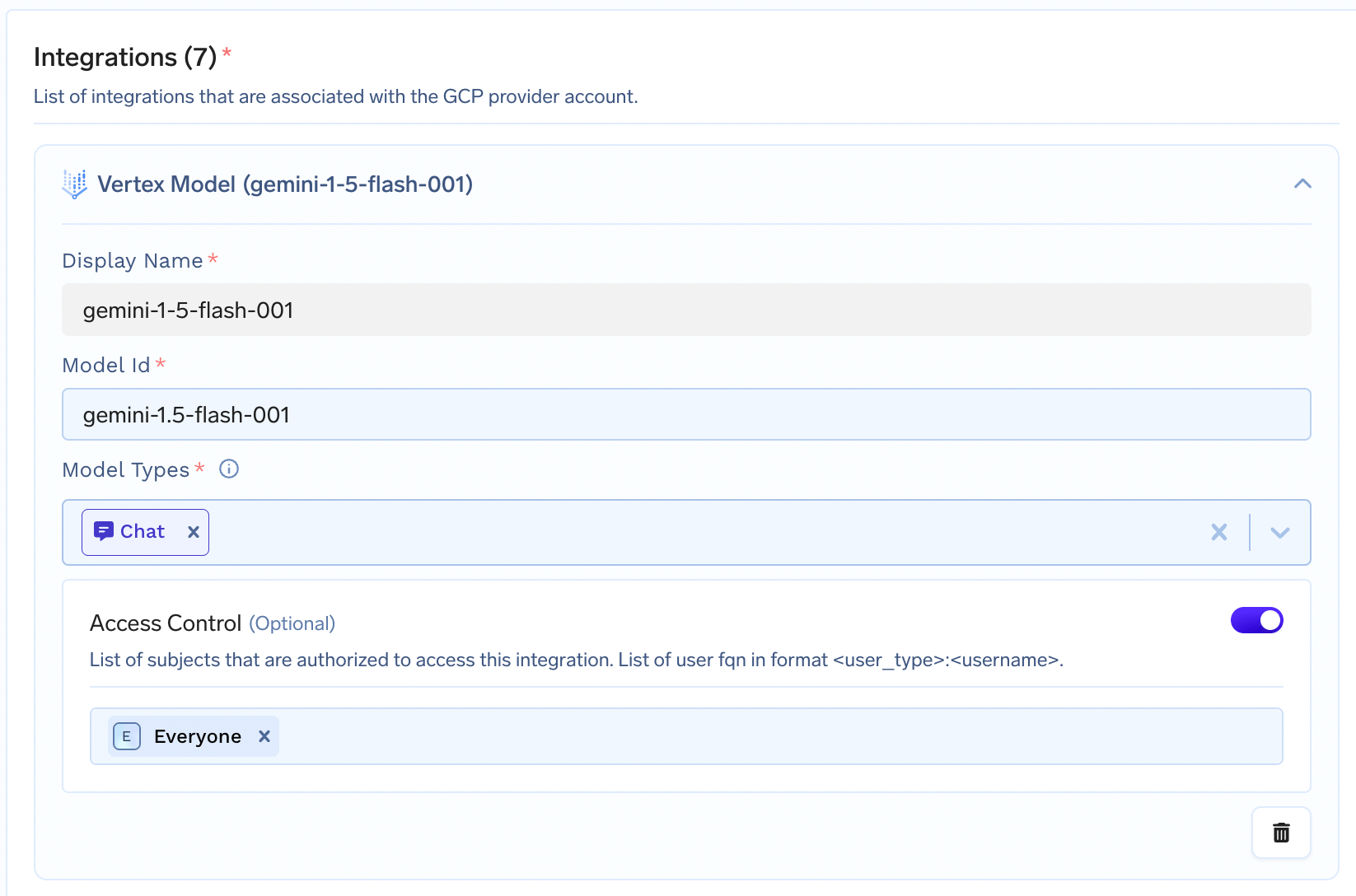
Share access with users, teams or everyone in your TrueFoundry account
As shown in the previous slides, you can share access of each integration with users, teams or everyone in your TrueFoundry account. This would allow them to view and use the integration. Only tenant-admins can edit the integrations.
Create a custom serviceaccount
- Service Account Key
- Workload Identity Federation
- AWS IAM ARN (Coming Soon)
Step 1 — Create a GCP IAM Service AccountCreate an IAM service account (name can be anything but add a prefix Step 2 — Create a JSON Key for the Service AccountGenerate a JSON key file for the service account. This key will be used to authenticate the service account in TrueFoundry.The generated
tfy to differentiate it with others).$GSA_NAME-key.json file is what you will provide in TrueFoundry when adding the GCP provider account.Step 3 — (Optional) Workflow Propeller BindingIf you are using the workflow propeller, add the following binding to the service account:Integrations
Google Cloud Storage Integration
Google Cloud Storage Integration
Follow the steps below to connect GCS storage to TrueFoundry:
-
Create a GCP bucket.
- Make sure to add the lifecycle configurations on the bucket to delete multipart upload after 7 days.
- For this go to GCP bucket -> Lifecycle -> Add a rule
- Select
Delete multi-part uploadfor 7 days
-
We also need to add the CORS policy to the GCP bucket. Right now adding the CORS policy to the GCP bucket is not possible through the console so for this, we will use gsutil
- Create a file called
cors.jsonusing the below command
- Attach the above CORS policy to the service account by running the following command using gsutils
- Create a file called
-
Create a custom IAM role with the following permissions and add to the
serviceaccountcreated above: -
Add the following IAM condition -
resource.name.startsWith('projects/\_/buckets/<bucket name>}') - Navigate to Integrations tab and follow the steps shown the previous demo to integrate your storage.
Google Artifact Registry Integration
Google Artifact Registry Integration
-
Create a custom IAM role with the following permissions and add to the
serviceaccountcreated above: - Navigate to Integrations tab and follow the steps shown the previous demo to integrate your Artifact registry.
Google Secrets Manager Integration
Google Secrets Manager Integration
-
Create a custom IAM role with the following permissions and add to the
serviceaccountcreated above: -
Add the following IAM condition-
resource.name.startsWith('projects/<GCP Project Number>/secrets/tfy') - Navigate to Integrations tab and follow the steps shown the previous demo to integrate your secret manager.
Google GKE Cluster Integration
Google GKE Cluster Integration
-
Create a custom IAM role with the following permissions and add to the
serviceaccountcreated above: - Navigate to Integrations tab and follow the steps shown the previous demo to integrate your GKE cluster.
Google Vertex Model Integration
Google Vertex Model Integration
- Create the GCP Model Account as described in the demo at the top of this document.
-
Create a custom IAM role with the following permission and add to the
serviceaccountcreated above: -
Navigate to Integrations tab and edit the GCP Model Account previously created and add the required models using their
model idand they should start showing up in the AI Gateway. Here’s an example of addinggemini-1.5-flash-001.