Add and configure Azure AI Foundry models in TrueFoundry’s AI Gateway.
Azure AI Foundry is a legacy integration. Use Microsoft Foundry for new accounts. Microsoft Foundry is generally available in TrueFoundry v0.175.0 and covers OpenAI models together with models from other publishers on one account. To move this account, follow Migrate to Microsoft Foundry. Hub and hub-based Azure resources cannot be migrated.
This section explains the steps to add Azure AI Foundry models and configure the required access controls.
1
Navigate to Azure AI Foundry Models in AI Gateway
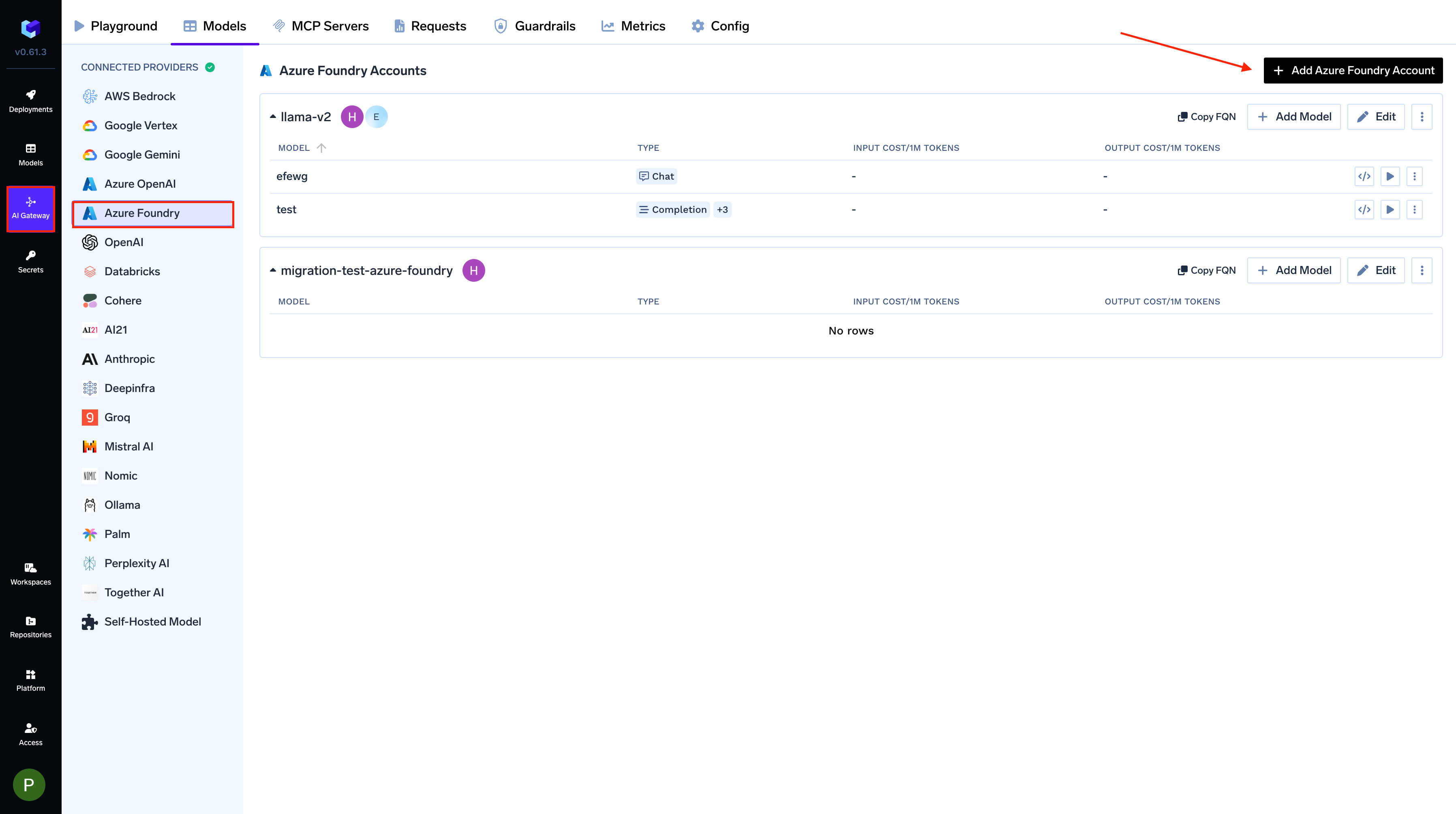
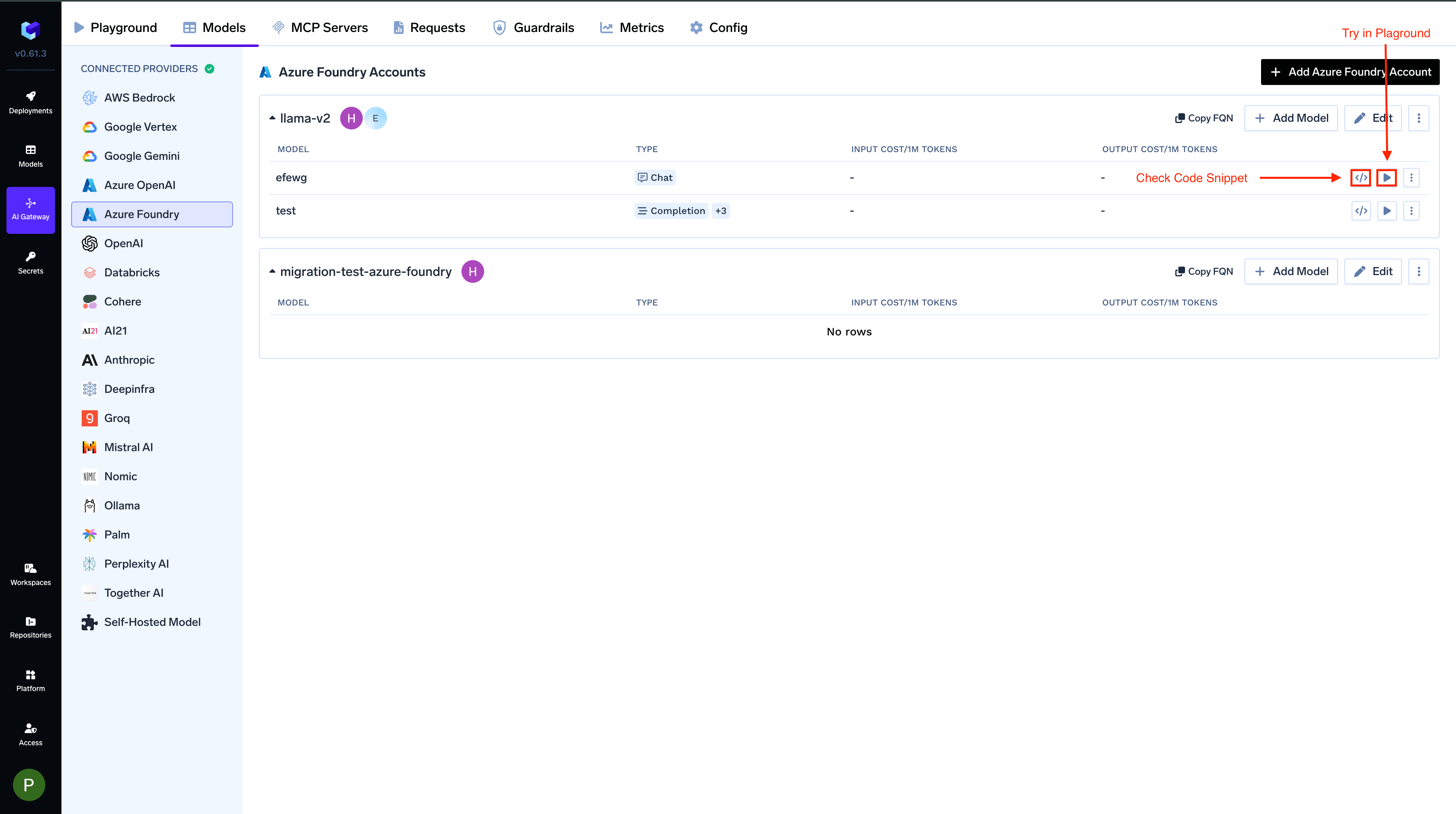
From the TrueFoundry dashboard, navigate to AI Gateway > Models and select Azure AI Foundry.
Navigate to Azure AI Foundry Models
2
Add Azure AI Foundry Account Details
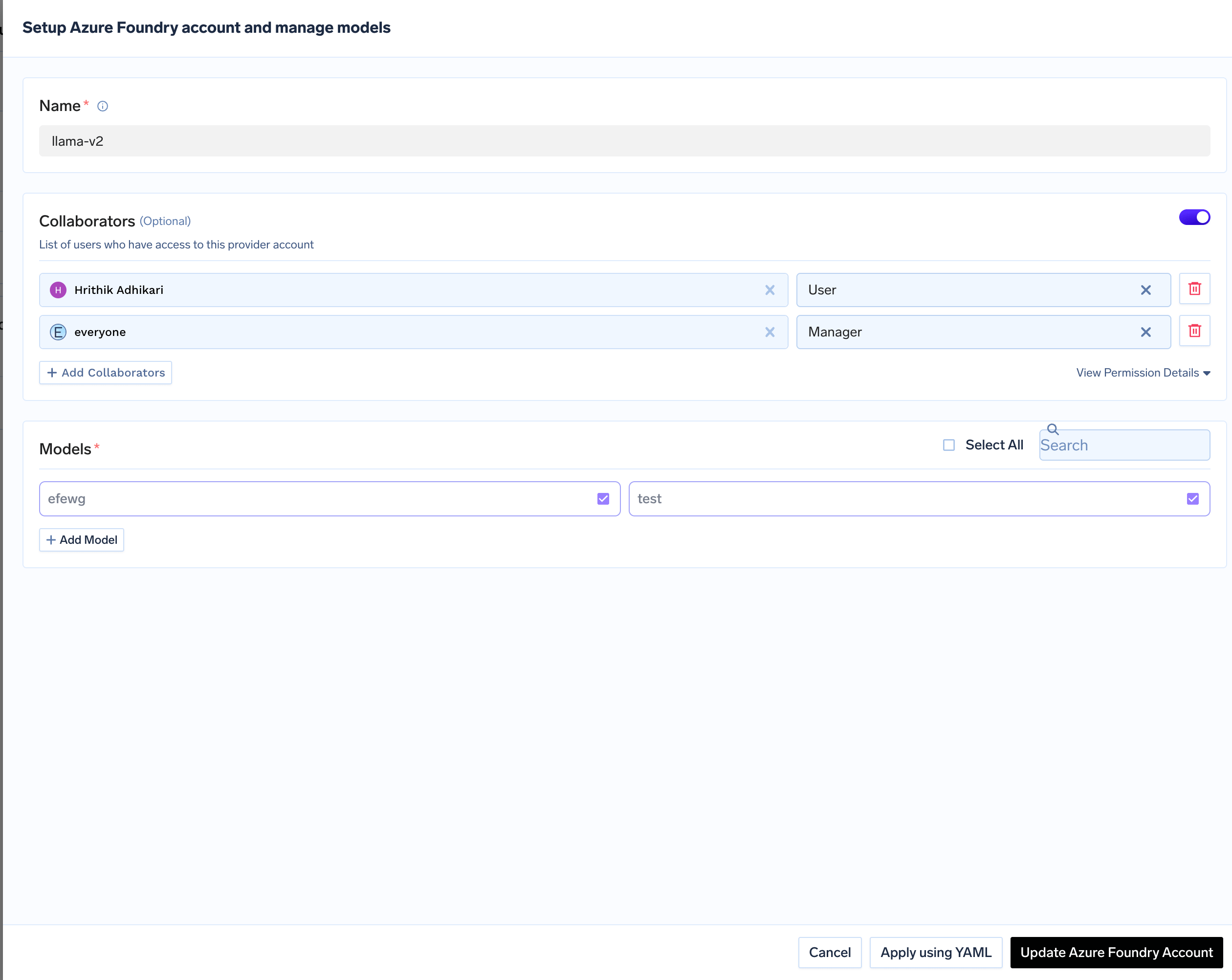
Click Add Azure AI Foundry Account. Give a unique name to your Azure AI Foundry account.
Add collaborators to your account. You can read more about access control here.
Authentication (API Key or Certificate) is configured per-model in the next step, not at the account level.
3
Add Models from Azure AI Foundry
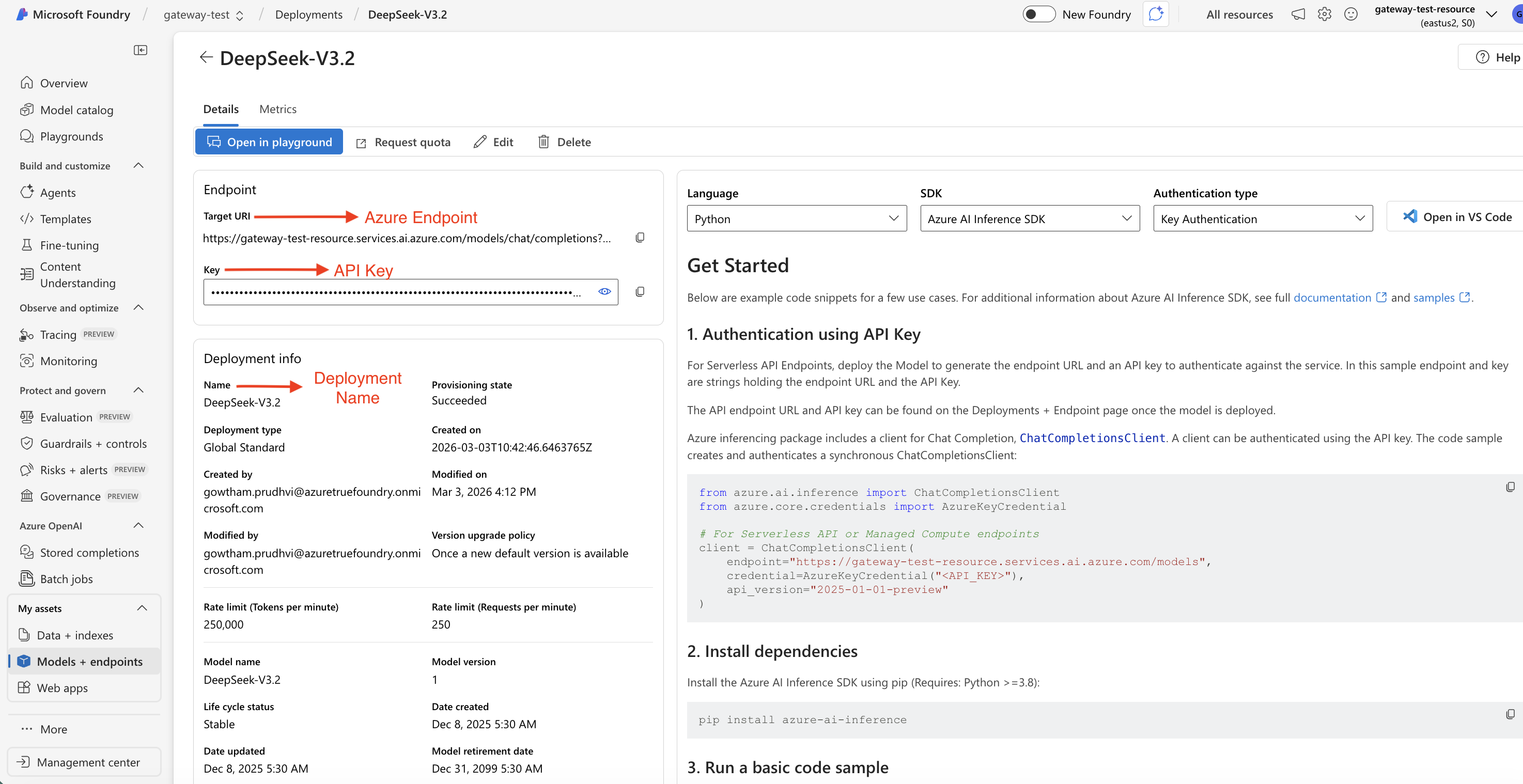
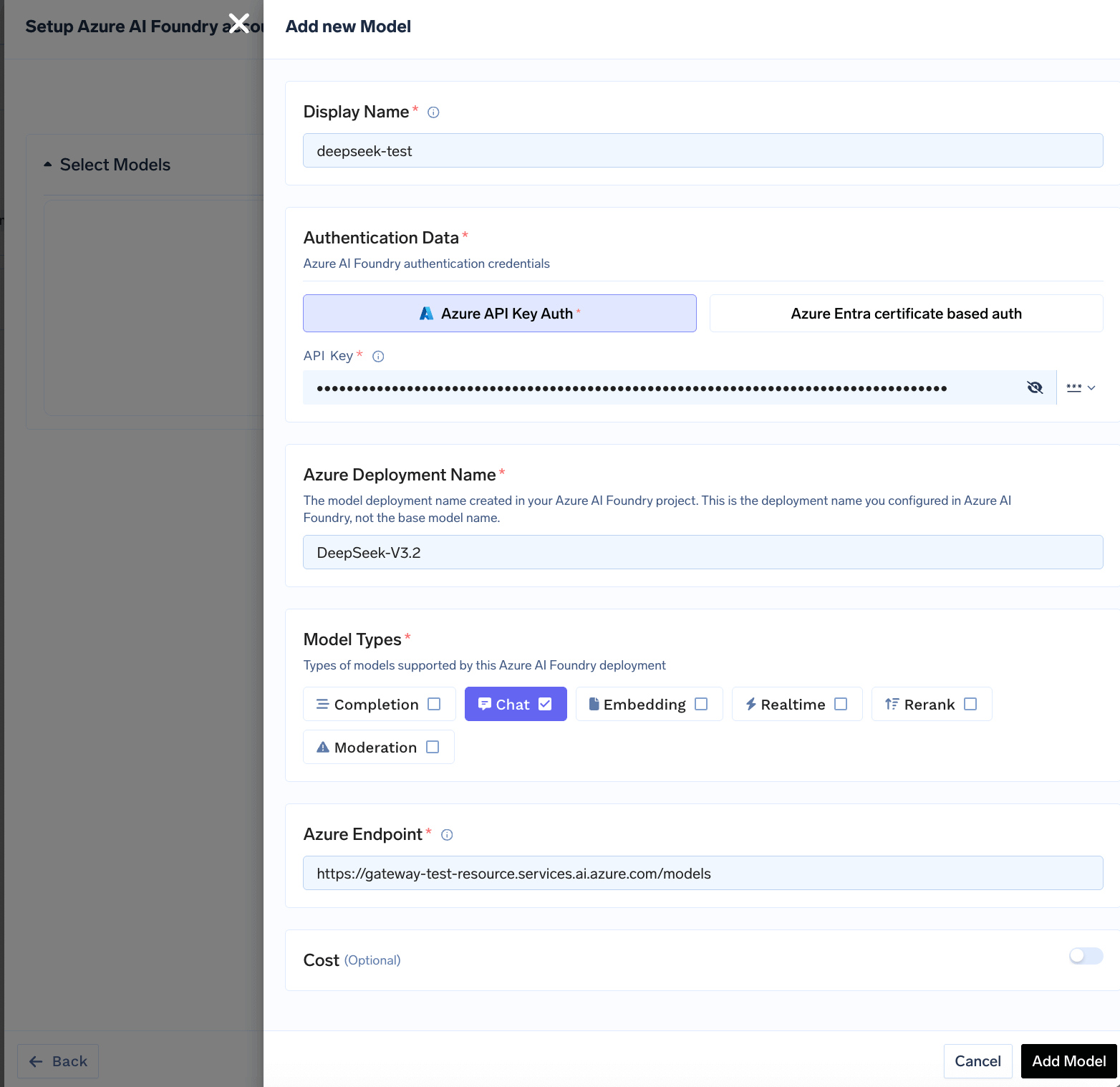
Click on + Add Model to open the model form. For Azure AI Foundry, you add models based on your deployments in Azure. First, ensure you have deployed a model in your Azure AI Foundry project. You can follow Microsoft’s instructions here.Once deployed, navigate to your deployment in the Azure AI Foundry portal to find the Target URI (endpoint URL), Deployment Name, and API Key.
Find Endpoint URL and Model Name in Azure AI Foundry
Fill in the model form with the following details:
Field
What to Enter
Where to Find in Azure
Display Name
name to identify this model in TrueFoundry
Your choice (e.g., gpt-4o-mini)
Azure Deployment Name
The deployment name from Azure AI Foundry (not the base model name)
Deployments → click deployment → Name field
Azure Endpoint
The full endpoint URL excluding the API path and query parameters (see below)
Copy the Target URI from your deployment in the Azure AI Foundry portal, but remove the API path and query parameters, gateway appends those automatically.
Model type
Azure gives you
Enter in TrueFoundry
Most models (OpenAI, Mistral, DeepSeek, Meta, Cohere, etc.)
Azure AI Foundry integration supports various AI models including OpenAI, Meta Llama, Mistral, DeepSeek, Cohere, and Anthropic Claude models deployed in your Azure account.
Cohere reranker models deployed on Azure AI Foundry are supported through the Rerank API. When adding the model, select Rerank under Model Types and set the Azure Endpoint to the Cohere provider path — the gateway appends /rerank automatically:
The Azure Deployment Name you configure is sent as the model field on the upstream Azure request, so it must match the deployment name in Azure AI Foundry.
import cohereclient = cohere.ClientV2( api_key="your-truefoundry-api-key", base_url="{GATEWAY_BASE_URL}")# Use your TrueFoundry Azure AI Foundry model name (e.g. azure-foundry/cohere-rerank)response = client.rerank( model="azure-foundry/cohere-rerank", query="Where is New Delhi?", documents=["New Delhi is capital of India", "The sky is blue"], top_n=1,)print(response)
Extract text from documents while maintaining structure and formatting (headers, paragraphs, lists, tables) using the Mistral OCR model via Azure AI Foundry. Returns markdown format and supports multiple formats including PDFs, images (png, jpeg, avif), and office documents (pptx, docx).
This endpoint cannot be used via the Mistral SDK. The Mistral SDK automatically appends /v1 to the base URL, which causes a URL mismatch (e.g. the request is sent to <base_url>/v1/ocr instead of <base_url>/ocr). Use direct HTTP requests (e.g. requests in Python) as shown below. See the open GitHub issue for details.
import base64import requestsimport jsondef encode_pdf(pdf_path): with open(pdf_path, "rb") as pdf_file: return base64.b64encode(pdf_file.read()).decode("utf-8")pdf_path = "path-to-your-pdf"base64_pdf = encode_pdf(pdf_path)url = "{GATEWAY_BASE_URL}/proxy/ocr"headers = { "Content-Type": "application/json", "Authorization": "Bearer your-truefoundry-api-key"}# Use your TrueFoundry Azure Foundry model name (e.g. azure-foundry/mistral-ocr)payload = { "model": "azure-foundry/mistral-ocr", "document": { "type": "document_url", "document_url": f"data:application/pdf;base64,{base64_pdf}" }, "include_image_base64": True}response = requests.post(url, headers=headers, json=payload)if response.status_code == 200: # Save output to file with open("ocr_output.json", "w") as f: json.dump(response.json(), f, indent=2) print("OCR output saved to ocr_output.json")else: print(f"Error: {response.status_code}") print(response.text)
Was this page helpful?
Assistant
Responses are generated using AI and may contain mistakes.