

Create a virtual model
Open Virtual Models in AI Gateway
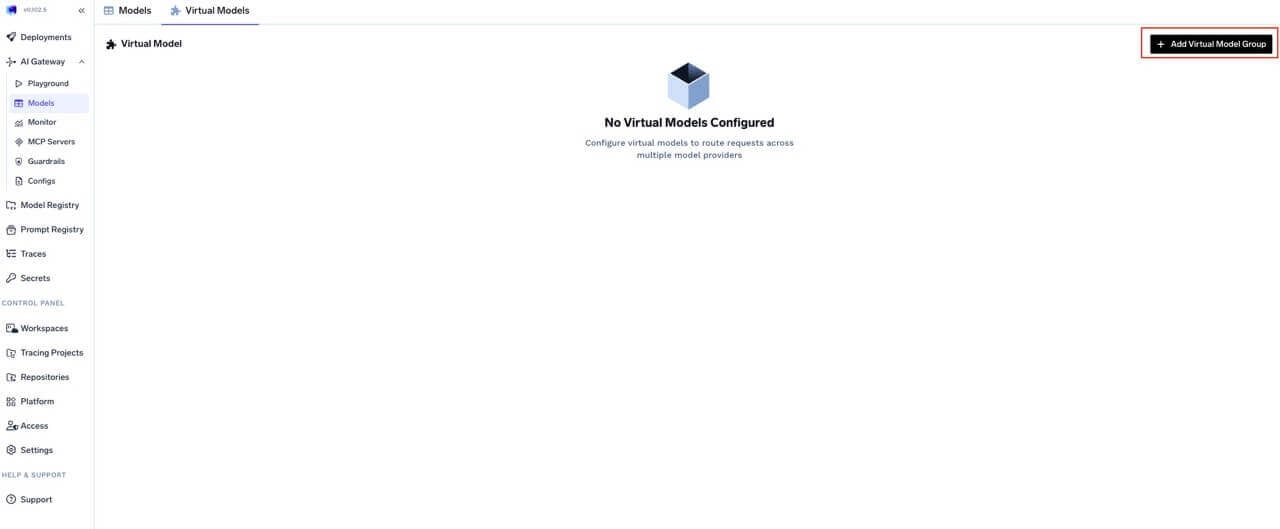
Navigate to Virtual Models in AI Gateway
Create or select a provider group and set access controls
- User — May call the virtual models in this group for inference.
- Manager — May change virtual model configuration.
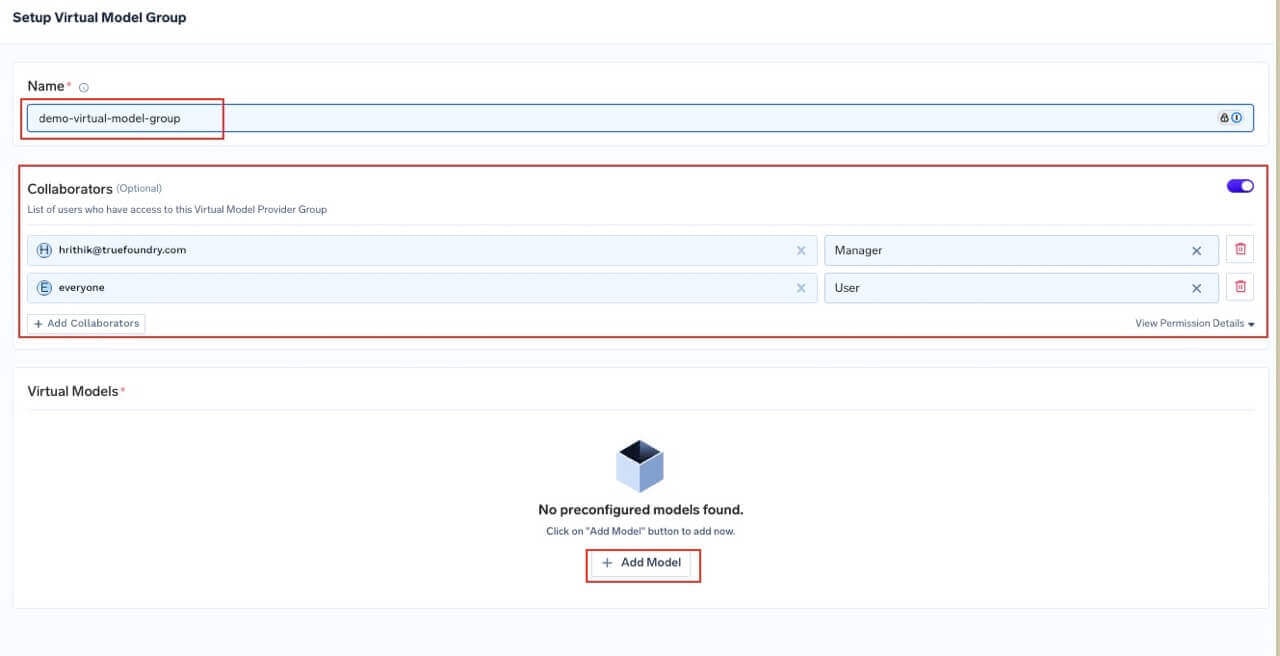
Create Virtual Model Provider Group and configure access controls
Define the virtual model, strategy, and targets
-
Name — Identifier used in the full path
group-name/virtual-model-name(for examplegpt-4-production). - Model types — Operation kinds this virtual model supports — chat, completion, embedding, rerank, moderation, and the audio types (text to speech, audio transcription, audio translation). All targets must support the operation you invoke.
-
Routing strategy — Choose one strategy:
For how each strategy works, see the overview.
-
Target models — For each target, configure:
prompt_version_fqnoverride does not apply when using agents with MCP/tools; it is supported for standard chat completion requests. - Slug (optional) — Short global alias for this virtual model. See Slugs.
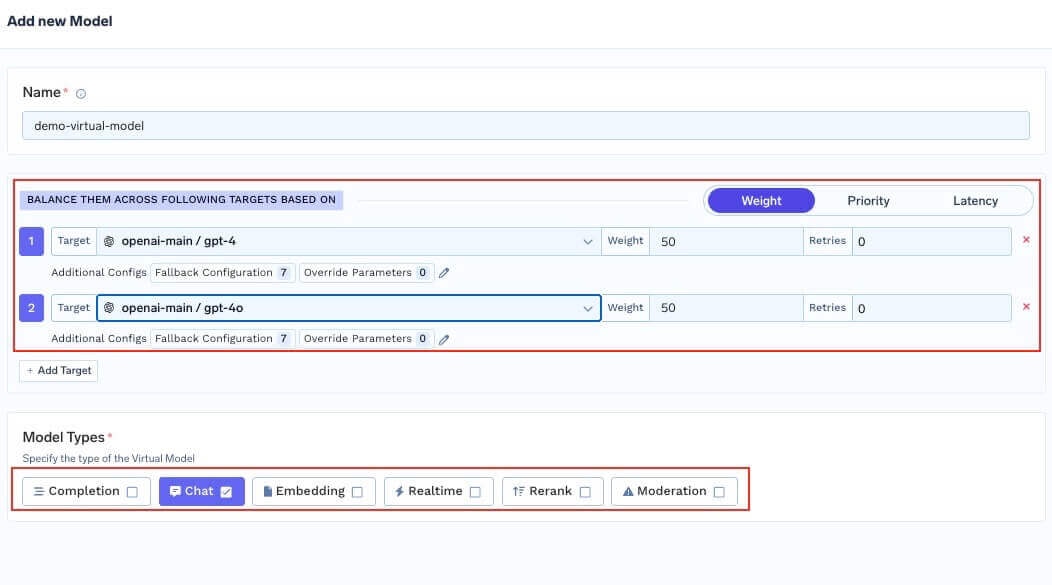
Configure virtual model details, routing strategy, and target models
Common patterns
The following YAML sketches show therouting_config shape used inside a virtual model. In the dashboard, the same fields are set in the UI.
Priority chain — fail over when rate limited
Priority chain — fail over when rate limited
Canary rollout with weights
Canary rollout with weights
On-prem primary with cloud fallback
On-prem primary with cloud fallback
Audio (STT) failover across providers
Audio (STT) failover across providers
audio_transcription so it can be called on POST /audio/transcriptions. The same shape works for text_to_speech and audio_translation — just swap the targets and model type.model:Latency race with limited retries per target
Latency race with limited retries per target
Different prompt versions per provider
Different prompt versions per provider
Sticky routing for multi-turn conversations
Sticky routing for multi-turn conversations
Complexity-based routing for cost optimisation
Complexity-based routing for cost optimisation
Region-based routing using SaaS gateway metadata
Region-based routing using SaaS gateway metadata
tfy_gateway_region and tfy_gateway_zone to request metadata — no client changes needed.Per-target header overrides
Per-target header overrides
Metadata filtering with enterprise tier routing
Metadata filtering with enterprise tier routing
x-tfy-metadata: {"tier":"enterprise"} go exclusively to the dedicated Azure deployment. All other requests are split 60/40 between OpenAI and the shared Azure deployment.Priority chain with SLA cutoff and retries
Priority chain with SLA cutoff and retries
Environment- or segment-specific routing
Use different virtual model names per environment or segment (for examplebooking-app/gpt-prod vs booking-app/gpt-dev) and have your client pass the appropriate model. You can still send metadata and headers for observability, rate limits, and other gateway features; routing for a given virtual model name is always defined on that virtual model.
Use a virtual model from your application
Once created, use the full pathvirtual-model-group-name/virtual-model-name as the model value in API requests — it works like any other model in the AI Gateway.
Try in the Playground
- Click Try in playground on the virtual model row after creation, or
- Open the Playground and pick the virtual model from the model dropdown.
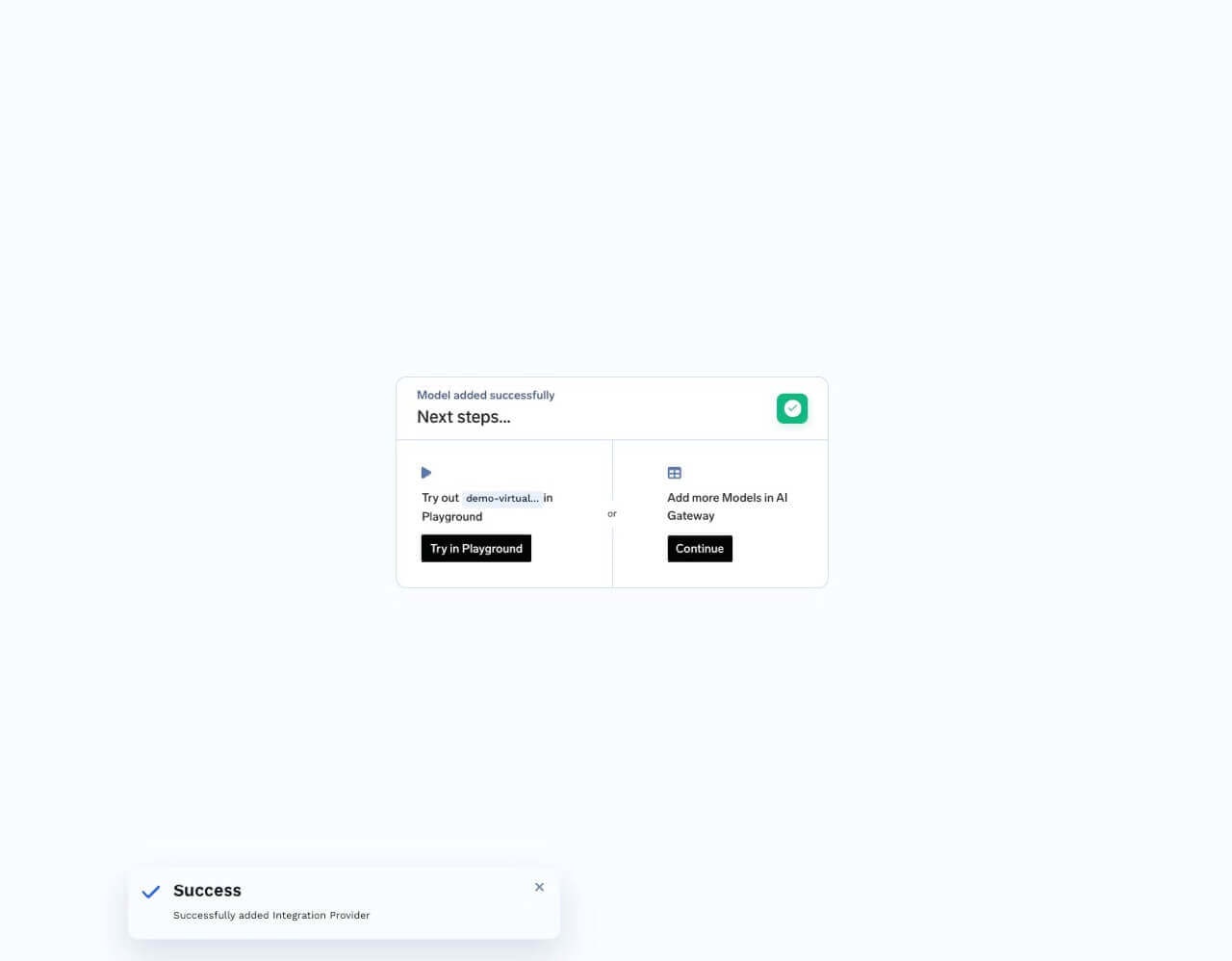
Try in playground button next to virtual model
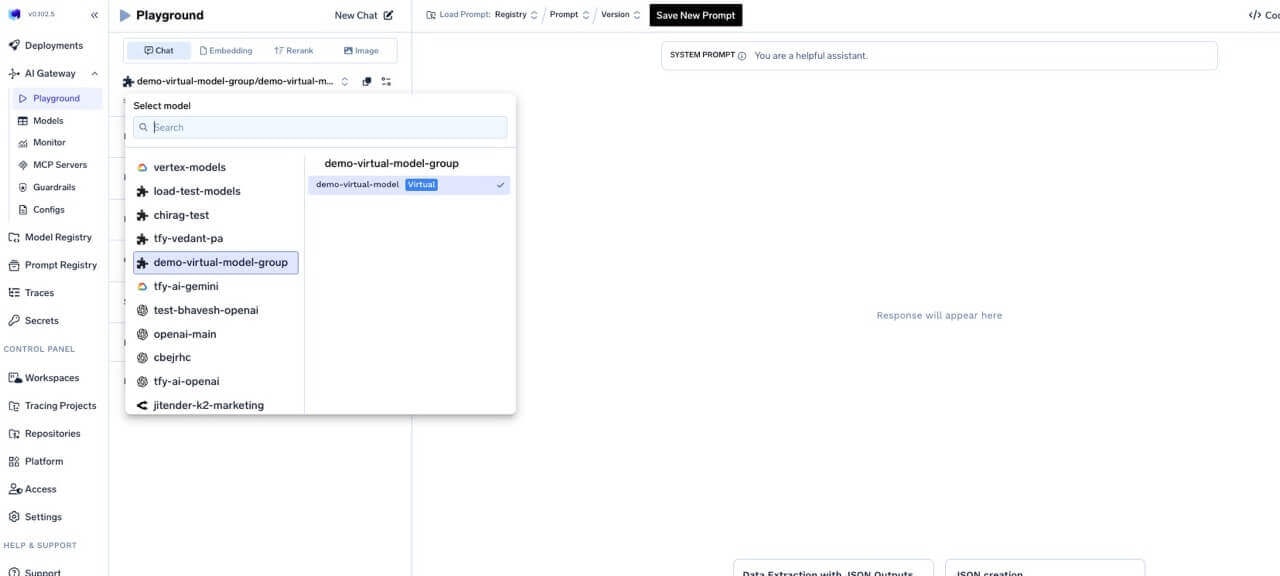
Select virtual model from playground dropdown
Virtual model slugs
Slugs are optional short names that refer to a single virtual model. They are unique across the tenant. You can use either the slug or the fullgroup/model path in requests.
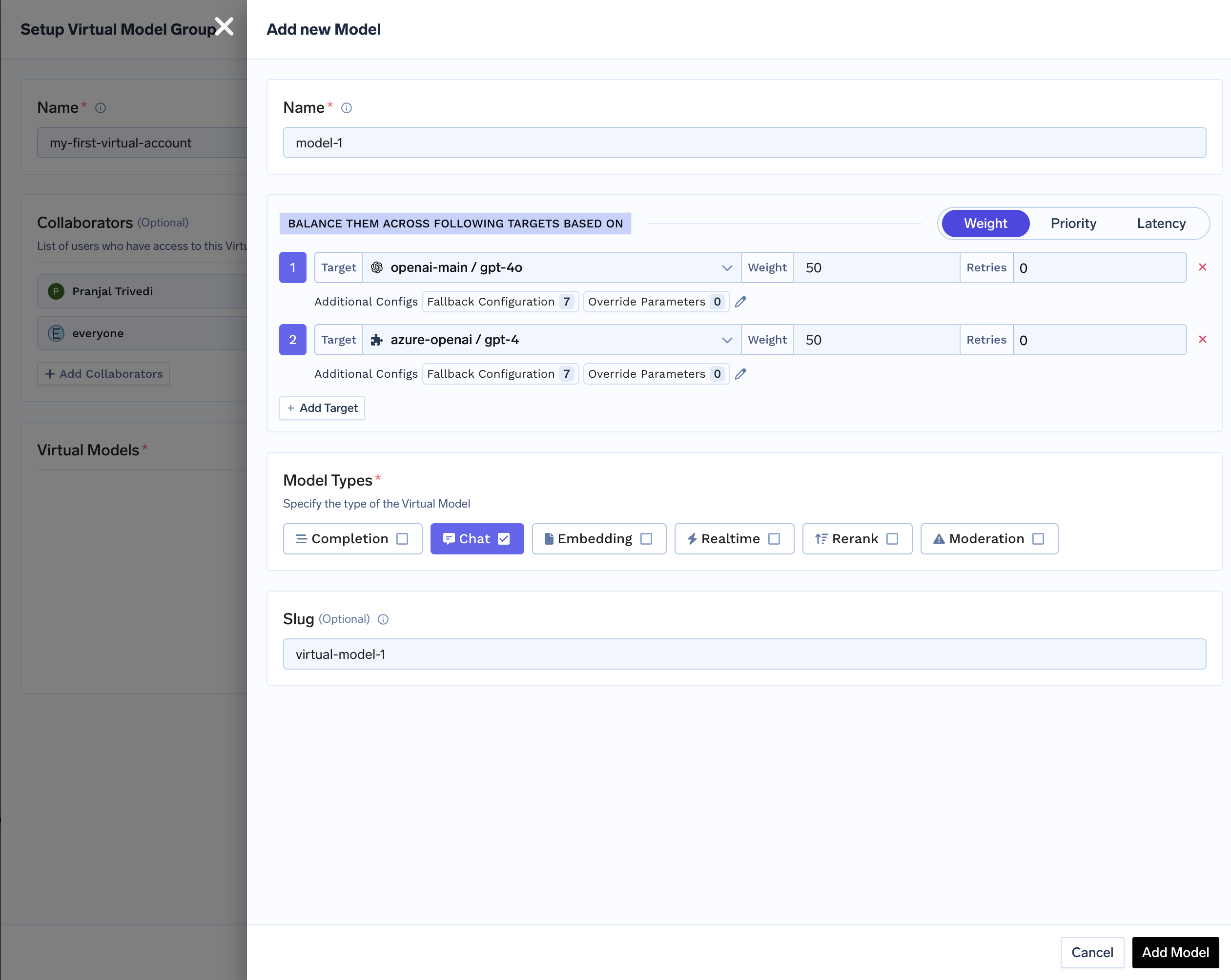
Configure slug in Virtual Model Provider Group settings
my-first-virtual-account/model-1 with slug virtual-model-1, both bodies are valid: