

Still on Budget Limiting V1? V1 is deprecated, and new budgets should use V2. If you have existing V1 rules, the Budget Limiting V1 documentation is still available, including how to migrate to V2. See the v0.158.0 announcement for the timeline.
How budget limiting works?
Budget limiting consists of a set of independent rules. Each rule defines which requests it applies to, and how much they can spend. During evaluation:- Every matching rule is checked. The AI Gateway finds all rules whose scope and filters match the incoming request.
- All matching rules must allow the request. If any matching rule has exceeded its budget and is in enforcement mode, the request is blocked.
- Cost is tracked against every matching rule. When a request matches multiple rules, usage increments on each of them.
Think of matching rules as an AND across budgets: a request proceeds only when every rule it touches is within its limit.
Tenant and team scopes
Budget limiting rules are created at one of two scopes:
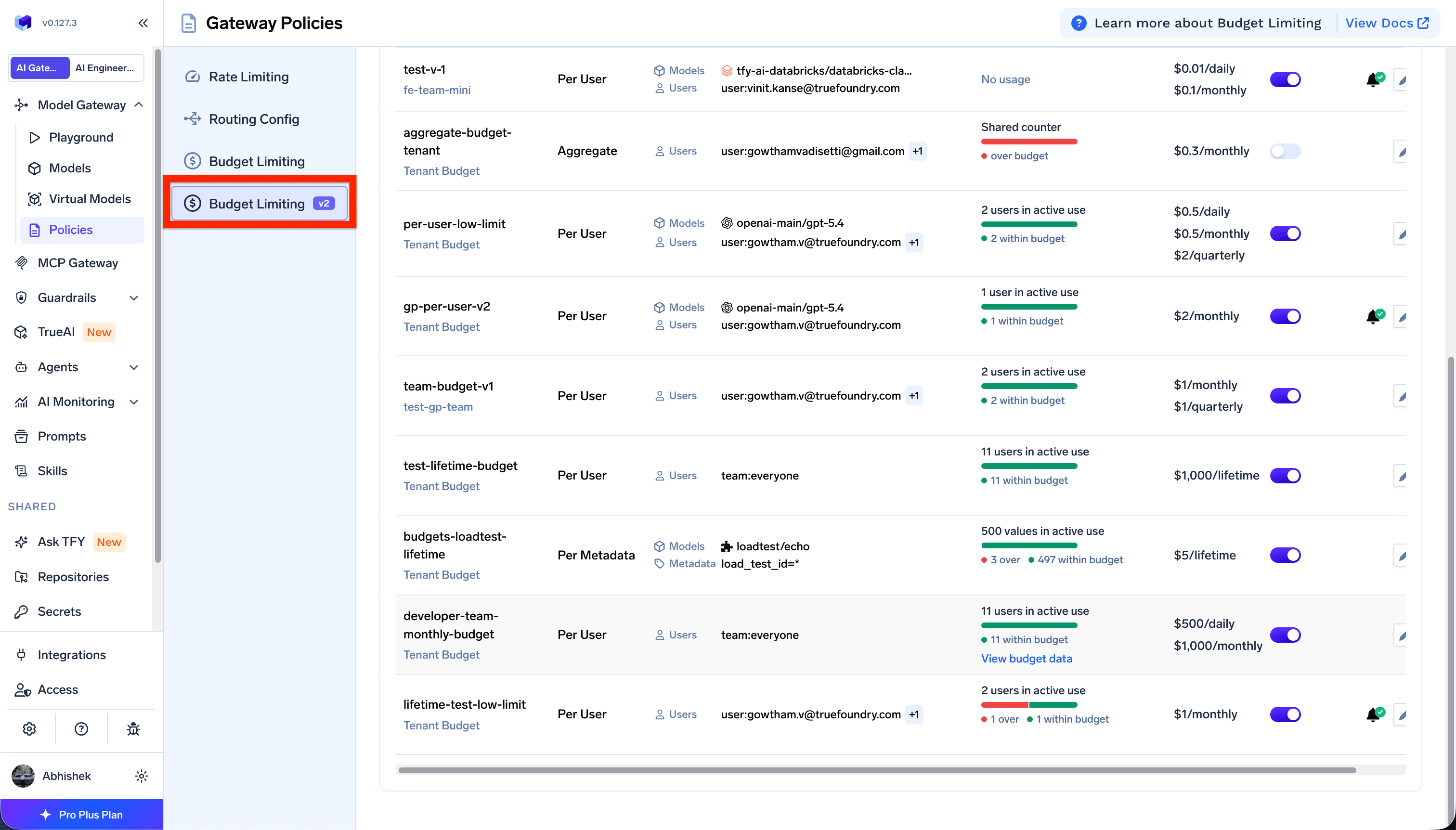
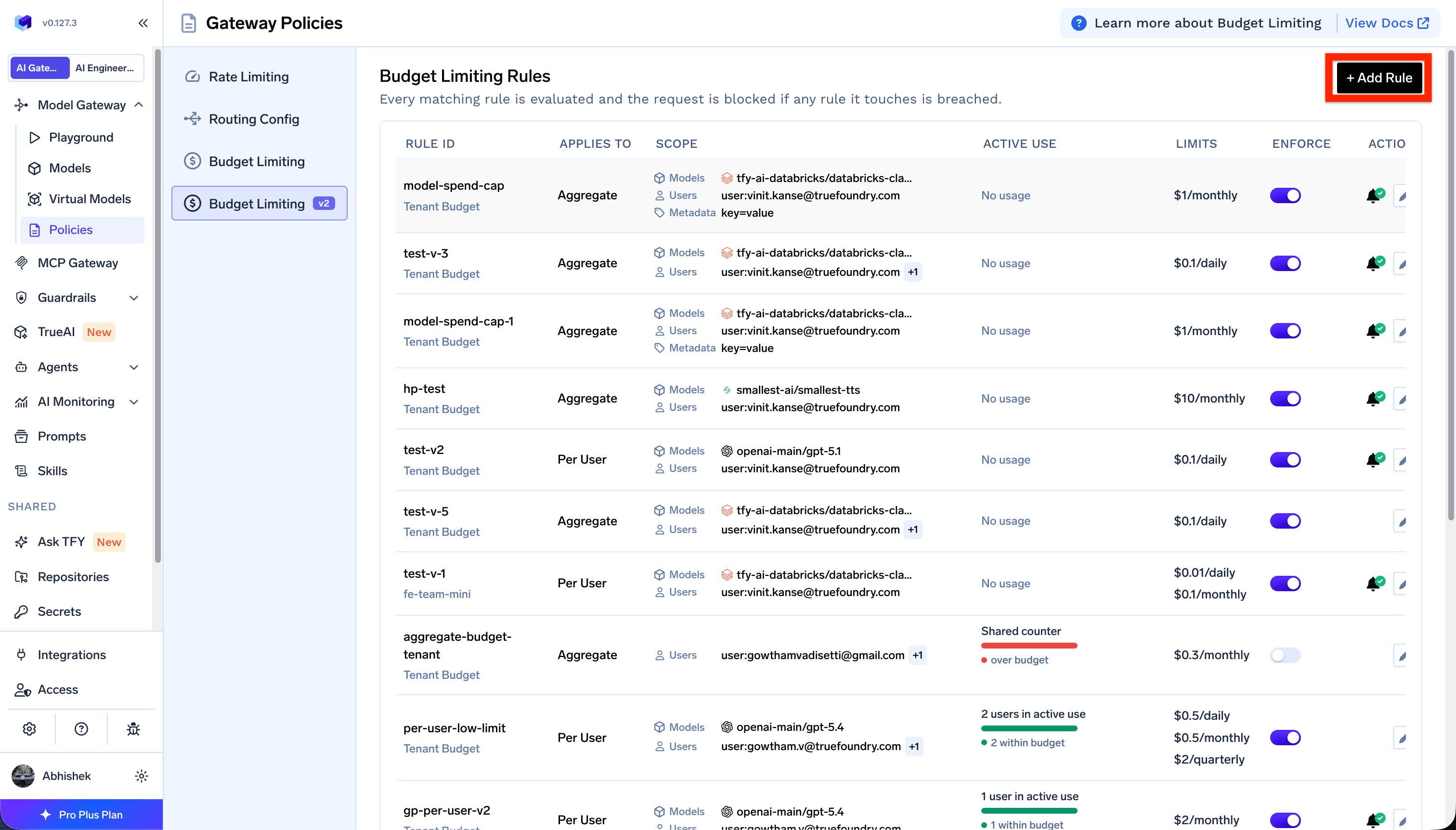
To create a rule, go to AI Gateway → Policies → Budget Limiting, and click on Add Rule. Select Tenant Budget or Team Budget as the scope, then configure the rule.
Setting up a budget limiting rule
The rule form has two steps: Select a scope and Configure.Scope filters
Define which requests the rule applies to. Filters use AND logic — a request must match every filter you add.
Use + Add Filters to combine subjects, models, provider accounts, and metadata on the same rule.
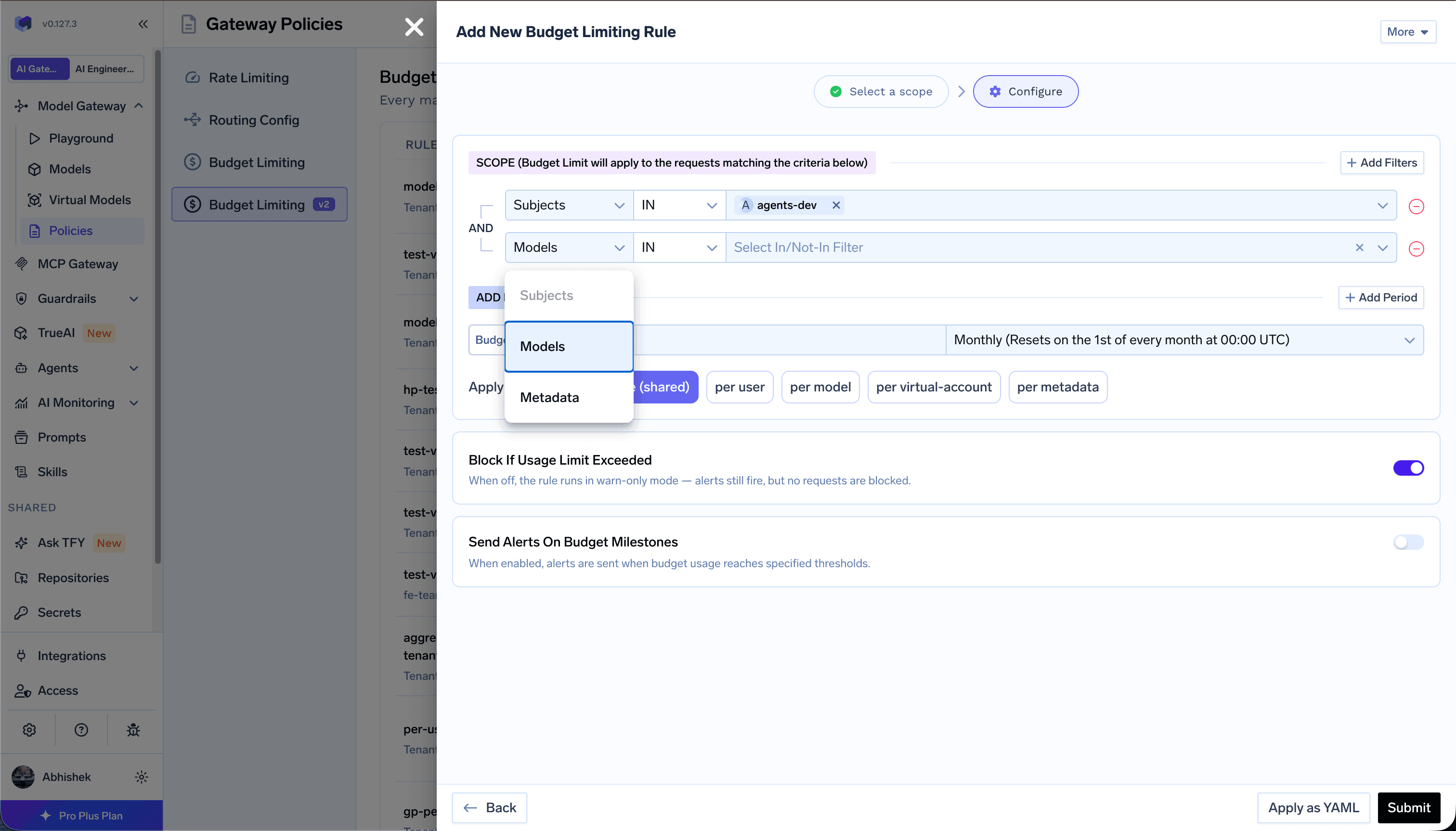
If you leave all filters empty, the rule matches every request within its tenant or team scope. This is useful for default budgets that apply broadly.
Virtual models in when.models
You can put a virtual model id (for example chat-routing/production-chat) in the Models filter the same way as a concrete model.
When a request uses that virtual model:
- The AI Gateway matches the budget against the virtual model id and the concrete target it routes to. Either id can satisfy an
INlist; either id can trigger aNOT INexclusion. - If a budget scoped to the virtual model is exceeded in enforce mode, the entire request is blocked before backends run (fallback targets are not tried).
- A budget scoped only to a concrete target still applies when that target is selected. An exceeded concrete budget can skip that target so the virtual model can fall back to another target.
Budget limits
Set one or more spending limits on the same rule using + Add Period. Each limit has an amount, and a reset period: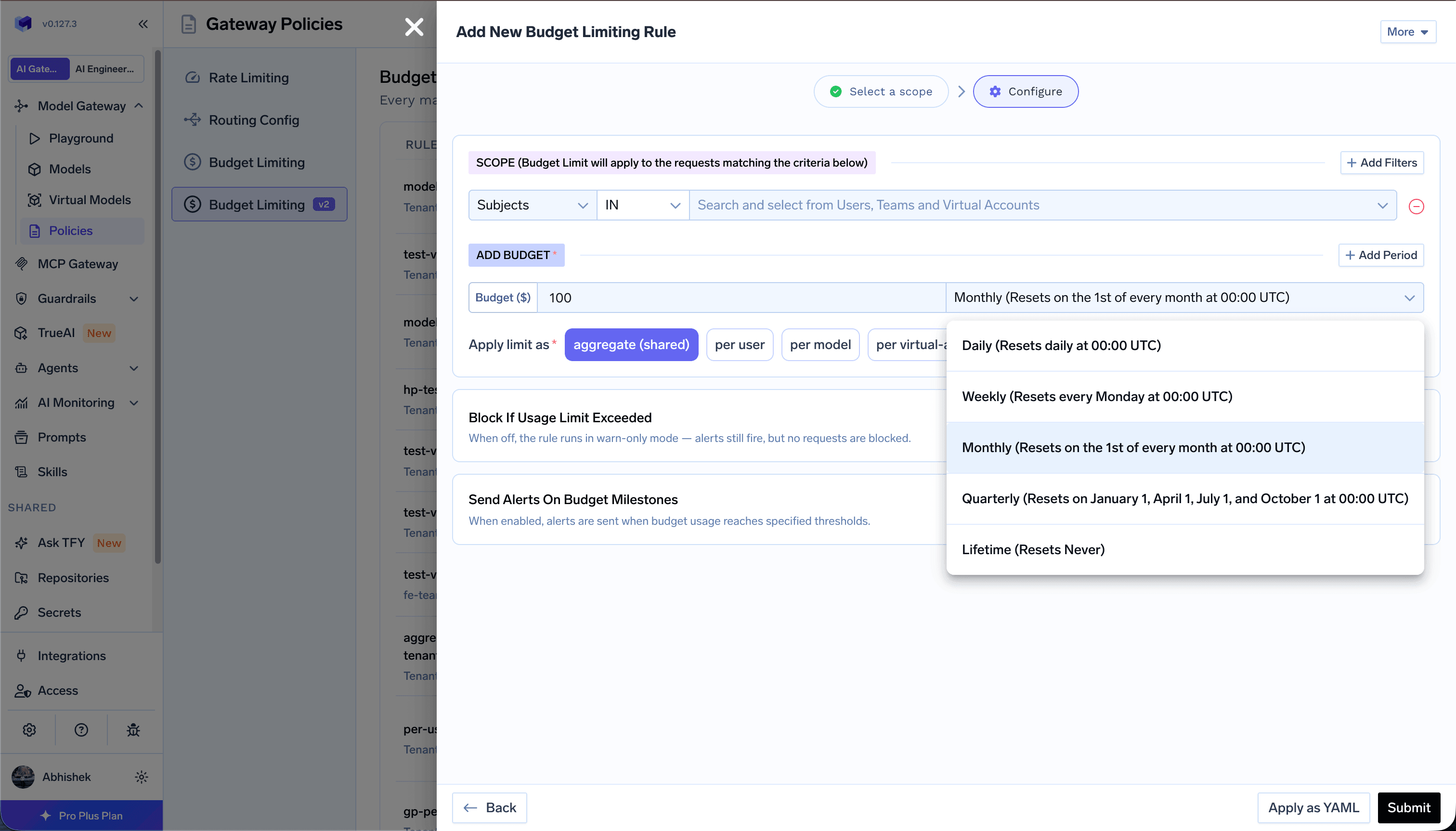
Apply limit as
Controls how the budget is partitioned across matching requests:Overrides
When you choose any per-entity option (per user, per model, per virtual account, per agent, or per metadata), you can set overrides — per-entity exceptions that replace the base limits for specific entities. Every other matching entity keeps the base limits; only the listed entities use their override values.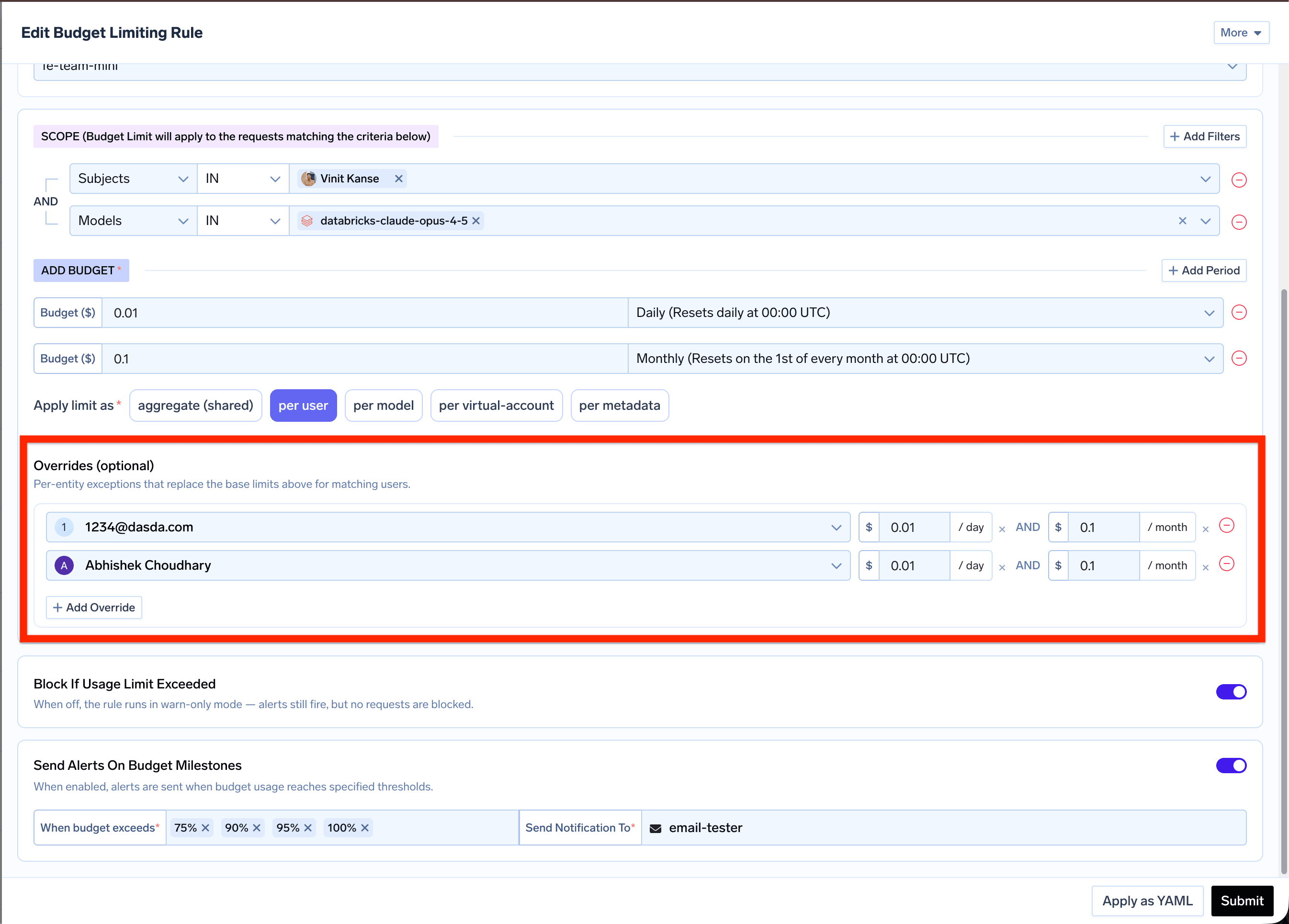
Overrides are only available for per-entity rules. Aggregate (shared) rules use a single pool, so there are no individual entities to override.
Enforcement mode
Mode controls what happens when the rule’s budget is exceeded:enforce(default): Requests are rejected with a budget-exceeded error once usage crosses the limit.audit(warn-only): Requests are allowed through even when the budget has been exceeded. Usage is still tracked and alerts still fire.soft_enforce(soft cap): The request is blocked only when no other matching budget can still allow it — that is, every other budget matching the request is also over its limit, or this is the only budget that matches. If another matching budget still has room, the request goes through and the breach is recorded like anauditbreach. A hardenforcebreach on any matching budget always takes precedence.
soft_enforce is useful for a fallback or overflow cap that should only bite when no higher-priority budget already covers the request.
Budget milestone alerts
Enable Send Alerts On Budget Milestones and select thresholds: 75%, 90%, 95%, or 100%. Alerts are sent in near real time when spending crosses a selected threshold. Each threshold alerts once per budget period, separately for each user or other entity on per-entity budgets. Lifetime budgets alert only once per threshold. Choose how to receive alerts:- Email — Send to email addresses. For per-user budgets, use
{{user.email}}into_emailsto notify the user whose budget crossed the threshold. - Slack Webhook — Post to a Slack channel.
- Slack Bot — Post to channels, send direct messages, or both.
Send Slack direct messages
Choose Slack Bot, select your notification channel, and enter recipients’ Slack email addresses in Slack User Emails. For Per user budgets, use{{user.email}} to notify each user about their own budget.
This example sends a DM at 90% and 100% of a user’s $10 daily budget. Replace budget-alerts-slack with your notification channel name.
channels: [] for DM-only alerts, or use channels: ["#budget-alerts"] to also post to a channel.
Recipient emails must match their Slack account emails. Direct messages require the
users:read.email bot permission. See Slack Bot integration to set up or update your bot.Viewing budget usage
Each rule card on the Budget Limiting page shows:- Current usage amount and percentage per limit period
- Budget limit and remaining budget
- Period start time (when the current budget period began)
- Active use breakdown for per-user, per-model, per-virtual-account, per-agent, or per-metadata rules
Usage durability
Usage counters are held in the AI Gateway’s key-value store rather than in a database. TrueFoundry snapshots them hourly and restores them automatically if that store is ever wiped, so budgets keep enforcing against accurate spend. See Budget Usage Recovery for how detection and restore work, and what is recovered.Budget exceeded response
When a budget in enforcement mode is exceeded, the AI Gateway returns HTTP429:
x-tfy-applied-rules header naming the budget that was breached:
Practical examples
Each example shows both the UI configuration and the equivalent YAML. Click Apply as YAML in the rule form to paste or edit YAML directly.Model spend cap for specific users
Model spend cap for specific users
Cap monthly spending on a specific model for a set of users. Every matching request must stay under the limit.
- UI
- YAML
How it works: Any request from the specified user to the specified model counts against a single shared $1/month pool. If usage exceeds $1, matching requests are blocked.
Virtual model spend cap
Virtual model spend cap
Cap spend on a virtual model so clients that call the facade name share one budget, regardless of which concrete target the AI Gateway picks.
- UI
- YAML
How it works: Requests with
model: chat-routing/production-chat count against this budget. If the budget is exceeded in enforce mode, the request is blocked for the virtual model (no fallback to other targets). Calling a concrete backend directly (for example openai-main/gpt-4o) does not match this rule unless that concrete id is also listed in Models.Per-user daily limits with a team budget
Per-user daily limits with a team budget
A team manager sets a $10/day per-user limit for their team without affecting other teams.
- UI
- YAML
How it works: Each member of
fe-team-mini gets an independent $10/day budget. Any tenant-wide rule that also matches is evaluated separately — both must pass.Per-user budget with overrides
Per-user budget with overrides
Set a low per-user base limit, then raise it for specific users with overrides.
- UI
- YAML
Overrides:
abhishek.choudhary@truefoundry.com → $1/day, $5/month. Every other user stays on the base $0.01/day and $0.10/month limits.Multi-period limits on one rule
Multi-period limits on one rule
Enforce daily, monthly, and quarterly caps in a single rule.
- UI
- YAML
How it works: Usage is tracked against all three periods simultaneously. A request is blocked if any period on this rule is exceeded.
Lifetime budget with warn-only mode
Lifetime budget with warn-only mode
Set a spend cap that never resets — useful for pilot programs or one-time allocations.
- UI
- YAML
How it works: Usage accumulates from rule creation and never resets. With Block If Usage Limit Exceeded off, requests are never blocked — alerts still fire at each threshold so you can monitor the pilot’s spend.
Metadata-based project budgets
Metadata-based project budgets
Track spending per project using metadata sent in the Each unique
X-TFY-METADATA header.- UI
- YAML
Requests must include the header:
project_id value gets its own $100/day budget.Independent safety nets
Independent safety nets
Combine a per-user default with a model-wide cap. Both rules apply to every matching request.
- UI
- YAML
How it works: A user calling GPT-4 is checked against both rules. The per-user $10/day limit and the $500/month model-wide cap must both be satisfied for the request to proceed.
YAML configuration reference
YAML structure reference
YAML structure reference