

Prerequisites
- Single sign-on between TrueFoundry and Entra is already configured. Follow SAML with Microsoft Entra ID or OIDC with Microsoft Entra ID first.
- You have Admin access in both TrueFoundry and Entra.
- You’re on TrueFoundry v0.143 or higher. (On earlier versions, SCIM is configured directly inside the SSO form.)
Step 1 — Generate the SCIM credentials in TrueFoundry
Enable SCIM provisioning
Open View Config
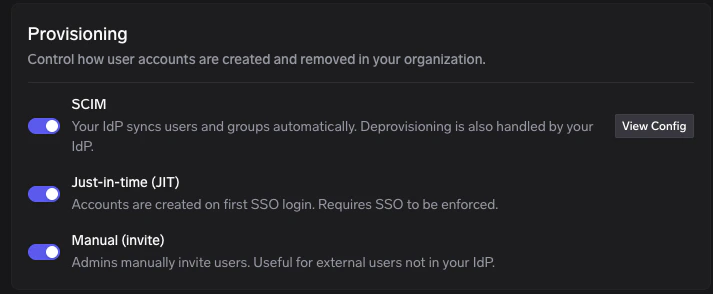
Provisioning — click View Config on the SCIM row
Copy the SCIM URL and token
- SCIM URL — this is the value Entra calls the Tenant URL.
- Token — this is the value Entra calls the Secret Token.
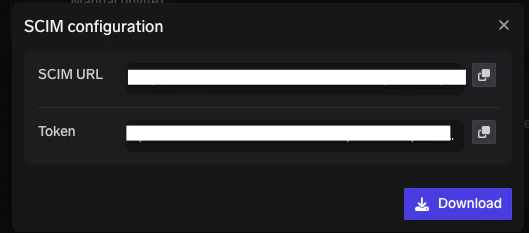
SCIM configuration — copy the SCIM URL and Token
Step 2 — Open the Entra Enterprise Application
If you don’t already have an Entra Enterprise Application for TrueFoundry, create one first by following the SAML SSO guide. SCIM provisioning is configured inside the same application.Open Enterprise applications
Select your TrueFoundry application
Step 3 — Create a provisioning configuration
Open Provisioning and create a configuration
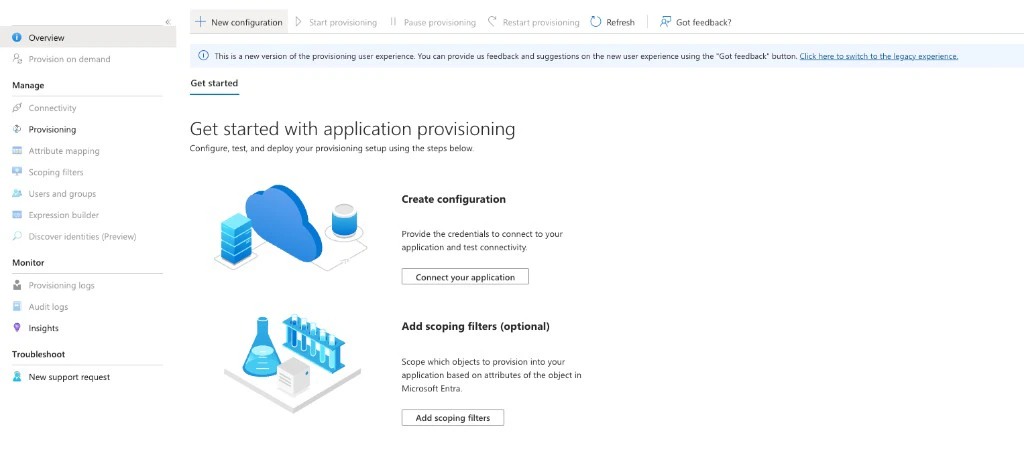
Provisioning — click + New configuration
Enter credentials, test, and create
- Tenant URL — paste the SCIM URL from TrueFoundry.
- Secret Token — paste the Token from TrueFoundry.
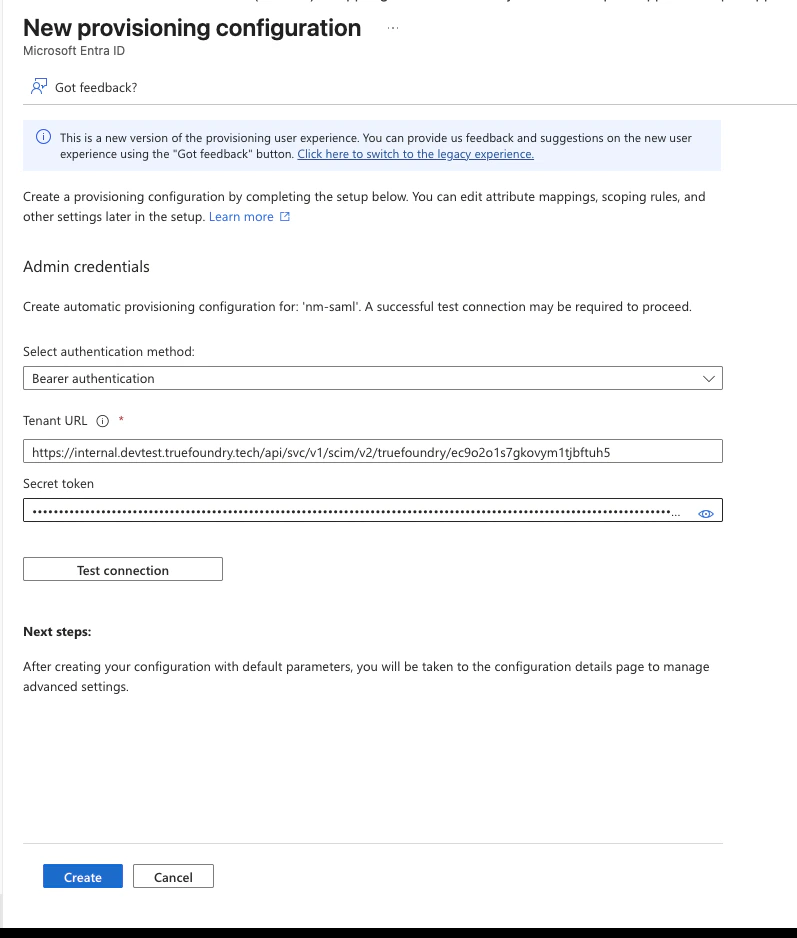
New provisioning configuration — Tenant URL, Secret Token, Test connection, and Create
Step 4 — Confirm mappings and scope
Entra ships with default attribute mappings that work with TrueFoundry. You only need to confirm them and choose the scope.Open Mappings
mail → emails, userPrincipalName → userName, givenName → name.givenName, surname → name.familyName, and objectId → externalId. No changes are needed for a standard TrueFoundry tenant.Adjust settings
- Scope → Sync only assigned users and groups (recommended).
- Provisioning Status → On.
Save
Step 5 — Assign users and groups
Open Users and groups
Pick who should be synced
Step 6 — Start provisioning
Return to Provisioning → Overview
Start provisioning
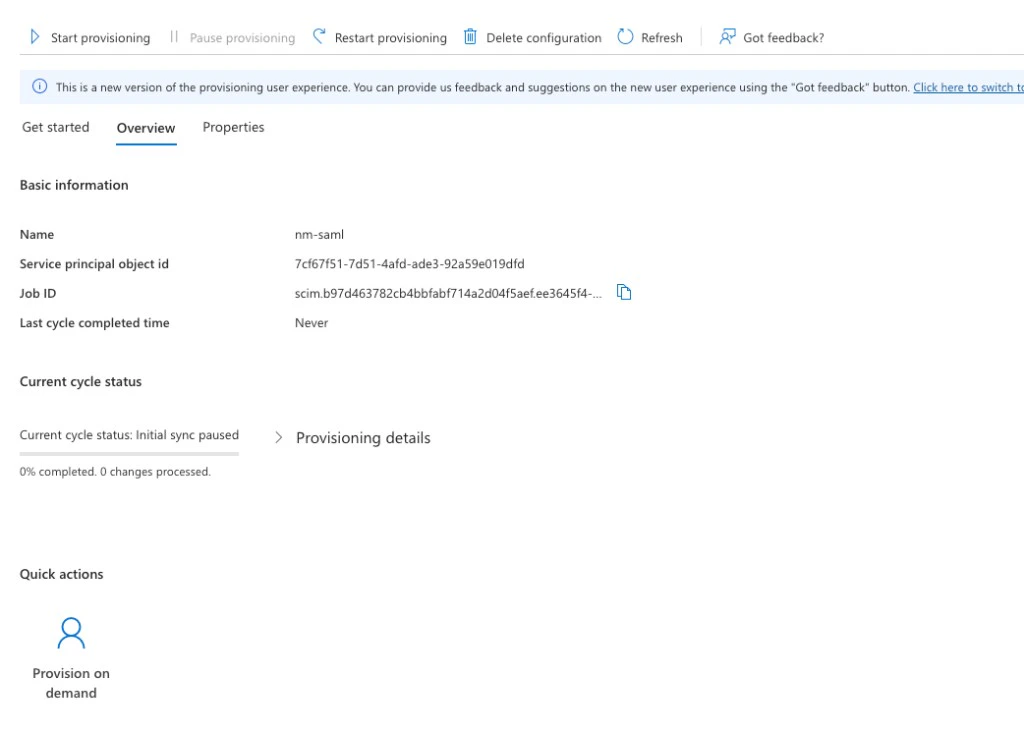
Provisioning Overview — Start provisioning and Provision on demand
Verify in TrueFoundry
How SCIM behaves with Entra
- Sync cadence — Entra performs SCIM sync on a 20–40 minute interval. Force an immediate run with Provision on demand for a single user.
- Deactivation — When you unassign a user, Entra sends a PATCH that sets
active=false. TrueFoundry then deactivates the user (instead of deleting them). - Group naming — Entra group display names sync as TrueFoundry team names. See Provision teams via SCIM for naming rules.
Troubleshooting
PATCH requests are failing with 400 errors
PATCH requests are failing with 400 errors
?aadOptscim062020 to the Tenant URL in Entra — this enables the standards-compliant PATCH behaviour Microsoft documents under SCIM compatibility flags.A user was assigned but never appeared in TrueFoundry
A user was assigned but never appeared in TrueFoundry
- In Entra, open the provisioning configuration and click View provisioning logs to see what happened for that user.
- Confirm Scope is set to Sync only assigned users and groups and that the user (or one of their groups) is assigned.
- Run Provision on demand for the user to skip the sync interval.
Group memberships aren't syncing
Group memberships aren't syncing