

Provisioning the queue
Creating an AWS Simple Queue Service (SQS) queue is a straightforward process that can be accomplished using the AWS Management Console or AWS Command Line Interface (CLI). Here’s a step-by-step guide for creating an AWS SQS queue through the AWS Management Console:
Once you click on Create queue, you’ll receive a confirmation message indicating the successful creation of the queue.
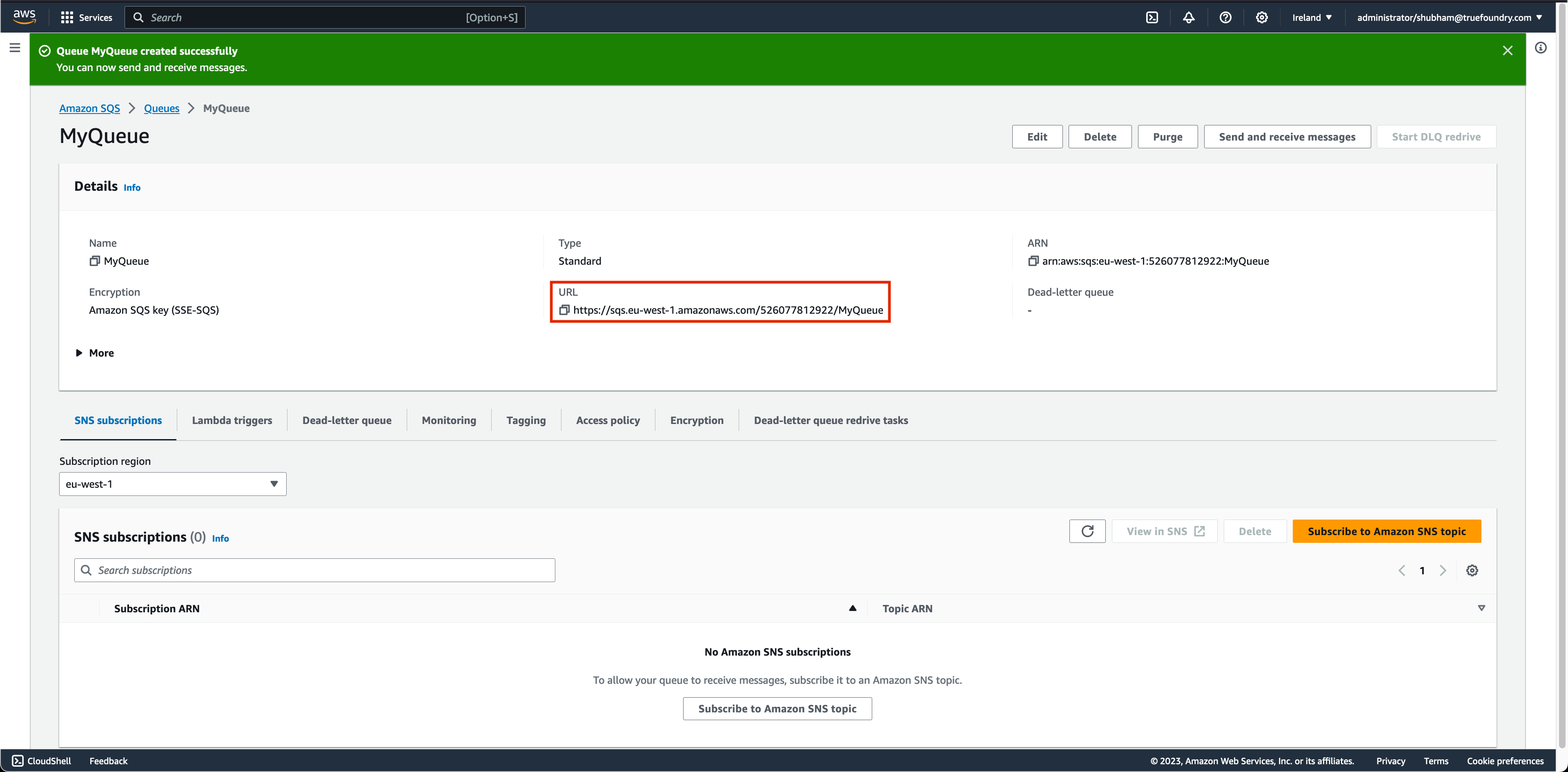
Configuring TrueFoundry Async Service with AWS SQS
You will have to specify these configurations for AWS SQS Input Worker:Configuring Autoscaling for AWS SQS Queue

Note:This metric is only available in case you are using AWS SQS for your input queue OR authentication is configured under autoscaling.
Authentication for AWS SQS
AWS IAM User
You can configure AWS IAM User with permissions to read and write to SQS Queue and generate Access key pair. You can configure AWS Access Key ID and AWS Access Secret Key in input config of SQS.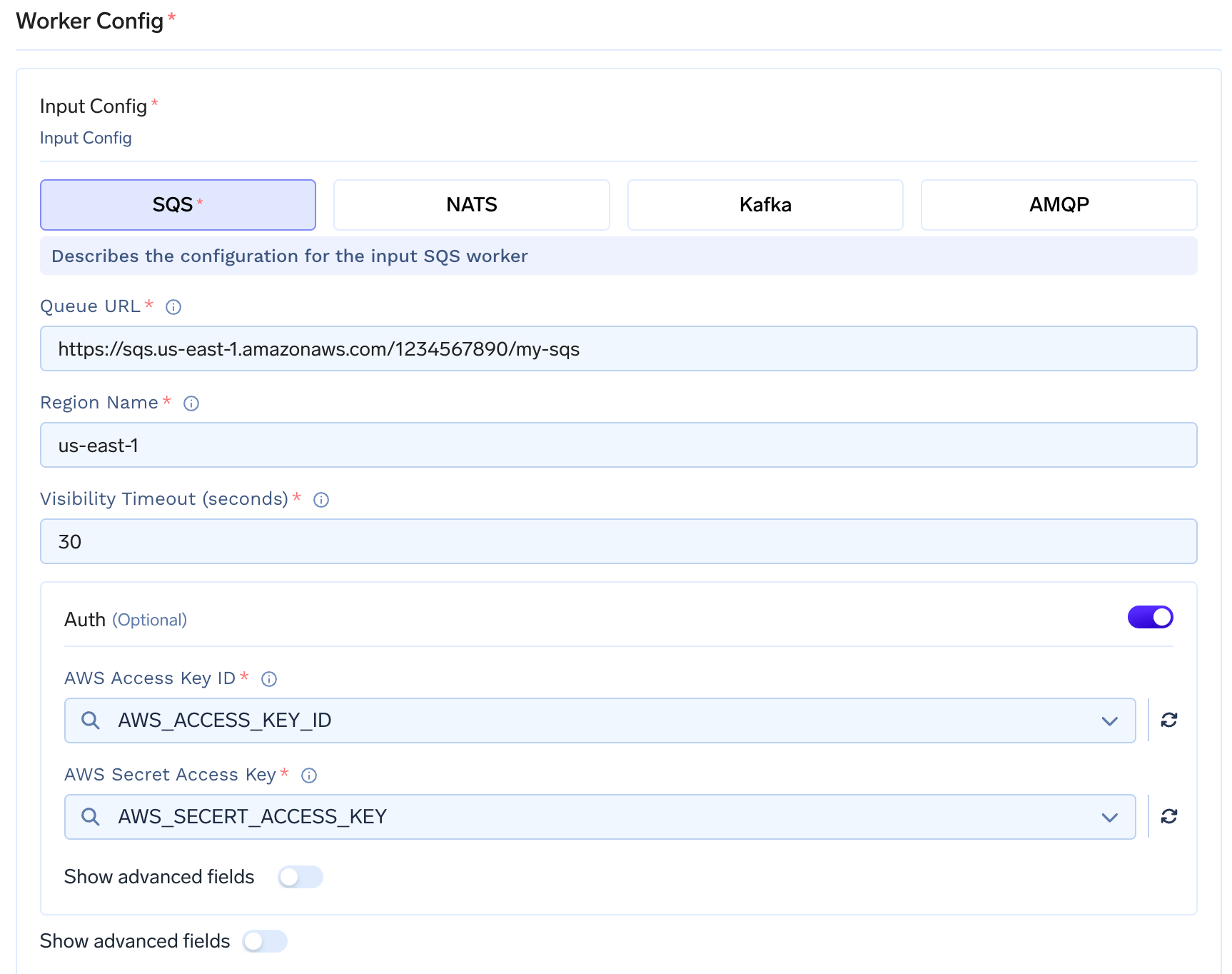
AWS IAM Role with Web Identity
You can configure AWS IAM Role along with Web Identity.Configuration for IAM Role to be attached to Async service
Configuration for IAM Role to be attached to Async service
Policy:Trust Relationship:
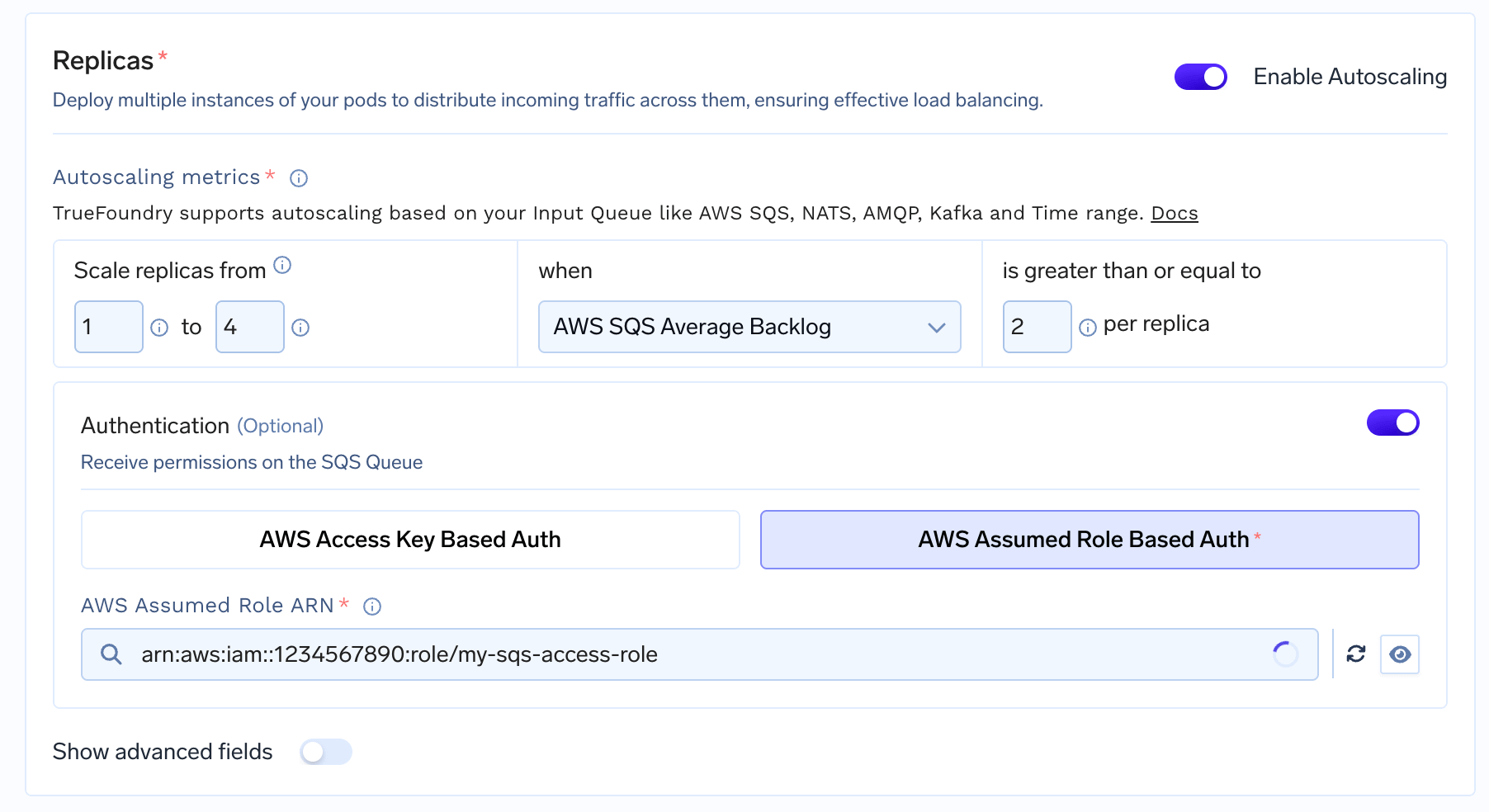
Please ensure platform IAM role is attached to Keda operator pods to be able to pull metrics when autoscaling is enabled.
Configuration for IAM Role to be attached to Keda operator
Configuration for IAM Role to be attached to Keda operator
Policy:Trust relationship:
Parameters for SQS Average Backlog
- Queue lag threshold: This is the maximum number of messages each replica should handle. If there are more messages than the threshold, the auto-scaler adds replicas to share the workload.
Configuring AWS SQS Average Backlog
Through the User Interface (UI)
Via the Python SDK
In your Service deployment codedeploy.py, include the following: