Enable multi-tenant mode on a self-hosted TrueFoundry control plane and manage tenants from the admin dashboard.
This guide is applicable only if you are self-hosting the control plane. On the TrueFoundry-hosted control plane, multi-tenancy is already enabled and managed by TrueFoundry — you can create additional tenants directly from the UI without any infrastructure changes.
A single TrueFoundry control plane can host multiple isolated tenants. Each tenant has its own users, teams, virtual accounts, SSO configuration, identity providers, and resources — see Identity and Access Management Overview for the full mental model.By default, a self-hosted control plane runs in single-tenant mode. This guide explains how to switch it to multi-tenant mode and then create and manage tenants from the admin dashboard.
Multi-tenancy on a self-hosted control plane is part of TrueFoundry’s higher-tier enterprise plan. Reach out to the TrueFoundry team before enabling it on your deployment.
In multi-tenant mode, the control plane serves each tenant on its own subdomain under a shared base_domain:
Domain
Purpose
<base_domain>
Reserved for the control plane host. The admin dashboard at <base_domain>/admin/ is used to create and manage tenants.
<tenant>.<base_domain>
Tenant-specific URL where users of that tenant log in and operate. Each tenant gets its own subdomain.
Every other component of the control plane — servicefoundryServer, tfy-llm-gateway, tfyK8sController, and mlfoundryServer — must be told that it is running in multi-tenant mode through the MULTITENANT flag.
Multi-tenancy is enabled by updating your truefoundry-values.yaml (the values file passed to the truefoundry Helm chart) and upgrading the release.
1
Pick a base domain
Choose a base domain that is dedicated to your control plane, for example app.example.com. Every tenant will be hosted on a subdomain of this domain (for example team-a.app.example.com, team-b.app.example.com).You must own this domain and be able to create a wildcard DNS record (*.<base_domain>) pointing to the control plane’s load balancer or ingress, along with a wildcard TLS certificate that covers *.<base_domain>.
2
Update truefoundry-values.yaml
Add the multi-tenant flags to each microservice and configure the virtual service to accept the wildcard host:
Once the rollout completes, the control plane is running in multi-tenant mode and the admin dashboard becomes available.
Once a control plane is switched to multi-tenant mode, it cannot be reverted to single-tenant mode. Make sure you intend to run multiple tenants on this control plane before enabling it.
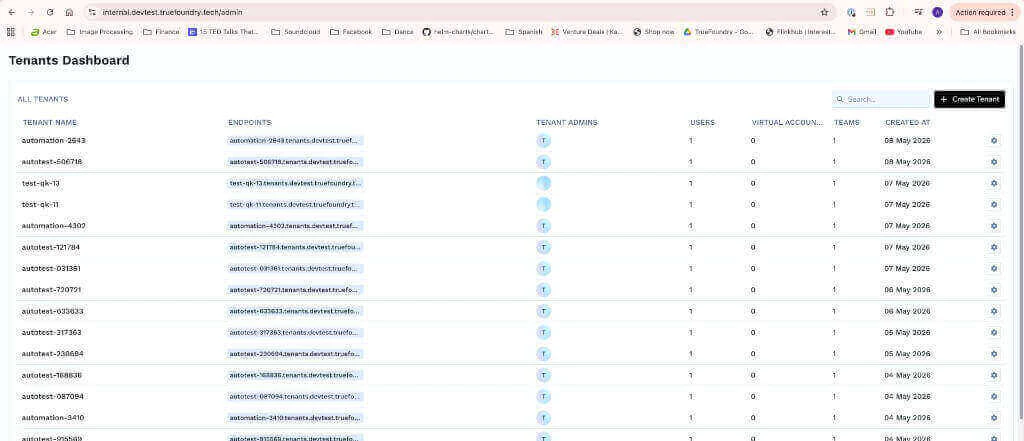
Once multi-tenancy is enabled, the parent admin can create and manage tenants from the Tenants Dashboard at <control-plane-url>/admin/.
The parent (admin) tenant is the tenant defined by global.tenantName in your truefoundry-values.yaml when the control plane was first installed (see Deploy Control Plane and Gateway Plane). Only admins of this tenant can access <control-plane-url>/admin/ and create or manage other tenants. Admins of any other tenant only have admin rights inside their own tenant.
Log in to the parent (admin) tenant and navigate to:
https://<your-control-plane-url>/admin/
The Tenants Dashboard lists every tenant on the control plane along with its endpoint, tenant admins, user count, virtual accounts, teams, and creation date.
Tenants Dashboard listing every tenant on the control plane
2
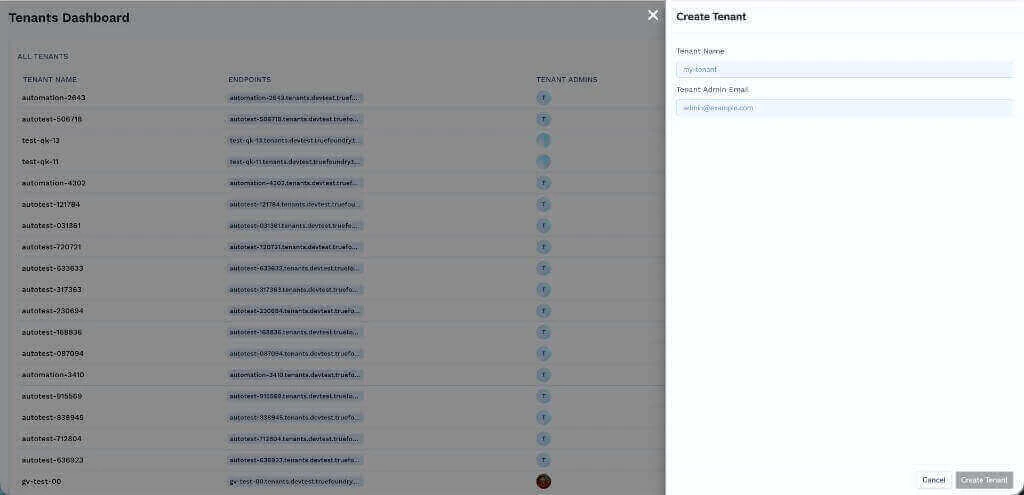
Open the Create Tenant drawer
Click Create Tenant in the top-right corner of the Tenants Dashboard.
Create Tenant drawer with tenant name and tenant admin email fields
3
Provide tenant details
Fill in:
Tenant Name — used to construct the tenant URL as <tenant-name>.<base_domain>. Use lowercase letters, numbers, and hyphens only.
Tenant Admin Email — the email address of the first user who will administer this tenant. They will receive the invite email and become the tenant’s first admin.
Click Create Tenant to provision the tenant. The new tenant immediately appears on the Tenants Dashboard.
4
Tenant admin receives an invite email
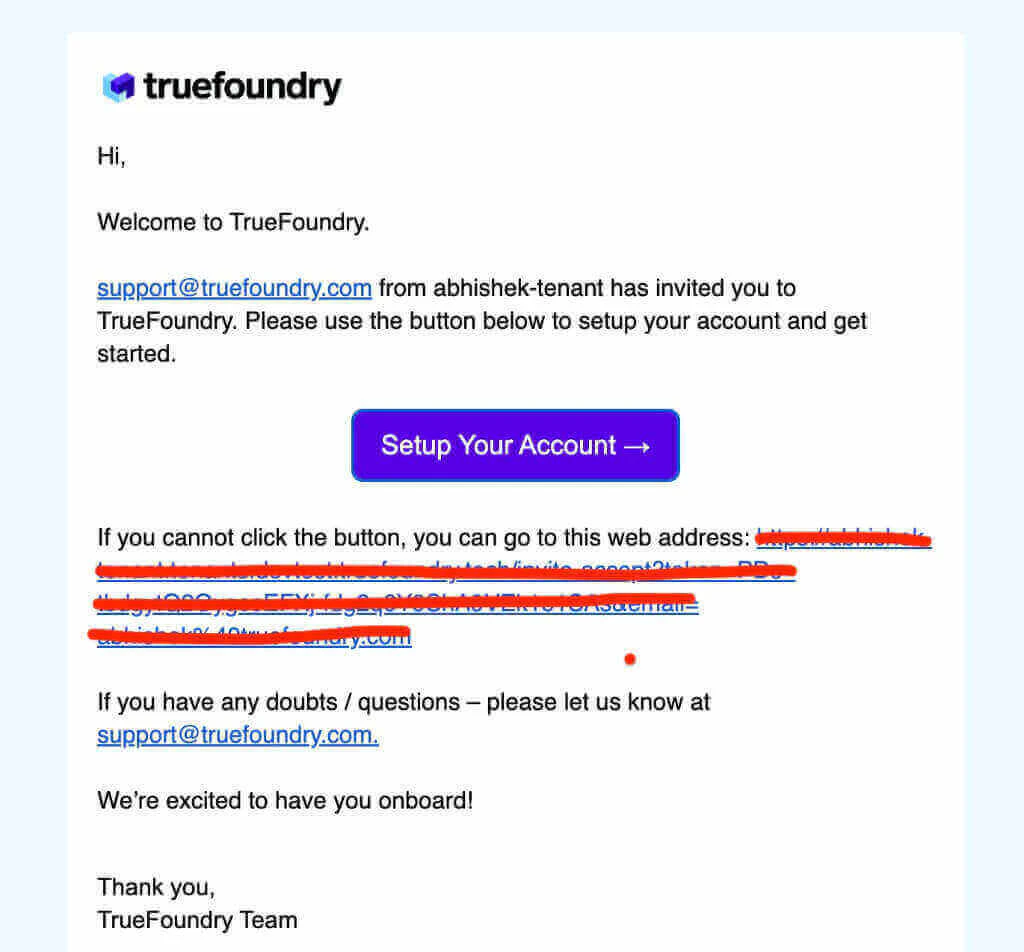
The tenant admin receives a Welcome to TrueFoundry email with a Setup Your Account button.
Invite email sent to the tenant admin after a tenant is created
5
Tenant admin activates their account
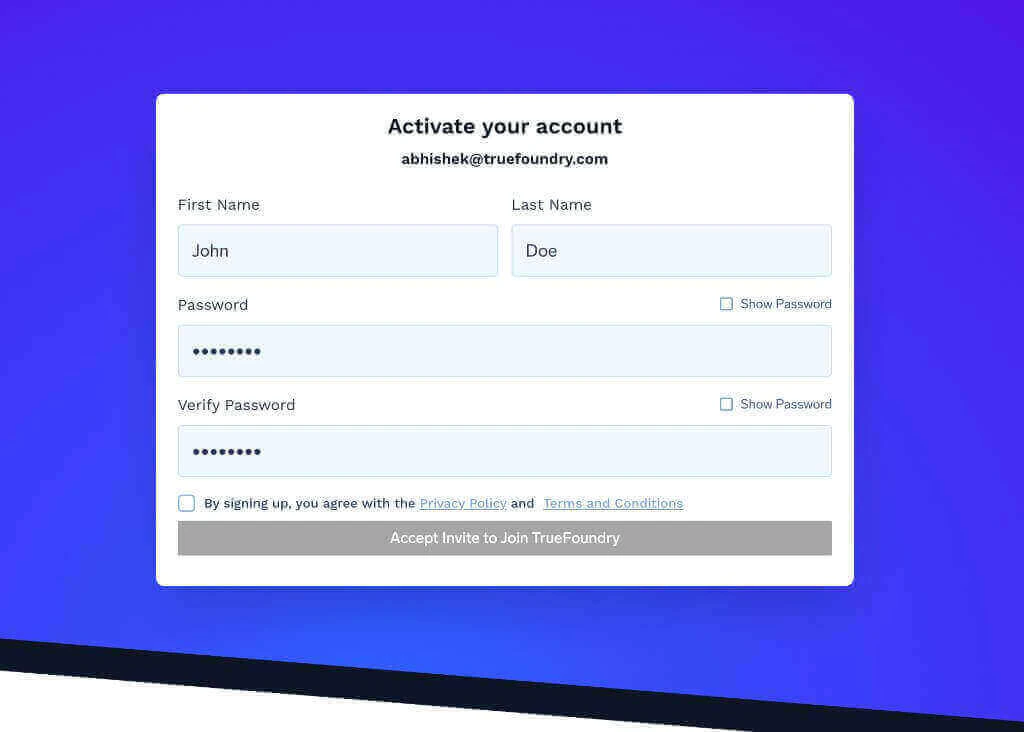
Clicking Setup Your Account opens the activation page on the new tenant’s URL. The admin sets their first name, last name, and password, then signs in to the new tenant.
Activate your account page where the tenant admin sets their initial password
This password flow is only used for the initial tenant admin login. Once they are in, the tenant admin can set up SSO and switch the tenant to SCIM, JIT, or invite-only provisioning — see Manage Users.
6
Tenant admin configures their tenant
Once logged in, the tenant admin can:
Set up SSO for the tenant (each tenant has its own SSO settings).
Open a tenant by clicking its endpoint to navigate to the tenant URL.
Search for a tenant by name using the search box in the top-right.
Inspect tenant metadata — admins, user count, virtual accounts, teams, and creation date — directly from the table.
Update tenant settings using the gear icon at the end of each row.
Tenants are designed to be fully isolated. Users, teams, virtual accounts, and resources cannot be shared across tenants. If multiple groups need to share resources, they should operate inside the same tenant and use teams and roles to scope access.
Can I switch a multi-tenant control plane back to single-tenant mode?
No. Once a control plane is switched to multi-tenant mode, it cannot be reverted to single-tenant mode. Confirm that you intend to host multiple tenants before enabling multi-tenancy.
Can each tenant have its own SSO and identity providers?
Yes. SSO, provisioning mode, identity providers, roles, users, and teams are all scoped to the tenant. Each tenant admin configures these independently from their tenant URL.
Do tenants share clusters and compute planes?
Compute planes are connected per tenant. Two tenants on the same control plane do not automatically share clusters or workloads — each tenant connects its own compute planes and manages its own resources.
Who can access the /admin/ dashboard?
Only users who are admins on the parent tenant — the tenant set as global.tenantName in your control plane Helm values — can access <control-plane-url>/admin/. Admins of any other tenant only have admin rights inside their own tenant.
Was this page helpful?
Assistant
Responses are generated using AI and may contain mistakes.