Automatically provision users and push groups from OneLogin into TrueFoundry using SCIM 2.0.
This guide explains how to push users and groups from OneLogin into TrueFoundry automatically using SCIM 2.0. With SCIM enabled, assigning a user to your OneLogin SCIM app creates them in TrueFoundry; unassigning them deactivates the user. OneLogin roles can be projected into TrueFoundry teams via the Set Groups rule.
Single sign-on between TrueFoundry and OneLogin is already configured. Follow SAML with OneLogin first.
You have Admin access in both TrueFoundry and OneLogin.
You’re on TrueFoundry v0.143 or higher. (On earlier versions, SCIM is configured directly inside the SSO form.)
OneLogin’s SCIM provisioner is a separate app from the SAML SSO app — you don’t reuse the SAML Custom Connector you created for sign-in. Both apps coexist in the same OneLogin account and reference the same set of users and roles.
Step 1 — Generate the SCIM credentials in TrueFoundry
1
Enable SCIM provisioning
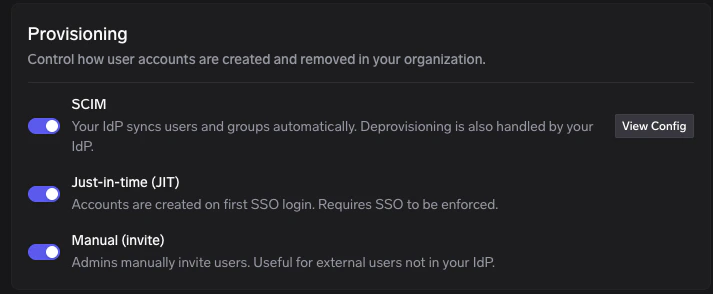
In TrueFoundry, go to Settings → Security & Access → Provisioning and turn on the SCIM toggle.
2
Open View Config
On the Provisioning page, click View Config on the SCIM row.
Provisioning — click View Config on the SCIM row
3
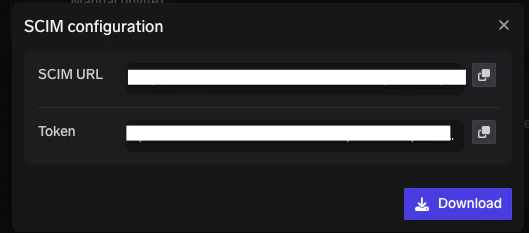
Copy the SCIM URL and token
In the SCIM configuration dialog, copy both values using the copy icons next to each field:
SCIM URL — this is the value OneLogin calls the SCIM Base URL.
Token — this is the value OneLogin calls the SCIM Bearer Token.
SCIM configuration — copy the SCIM URL and Token
Store the token somewhere safe and treat it like a password. If you lose it, open View Config again to generate a new token — which invalidates the previous one.
In the OneLogin admin console, click Applications → Applications, then click Add App in the top right.
2
Find the SCIM Provisioner app
In the Find Applications search bar, type SCIM. From the list, choose SCIM Provisioner with SAML (SCIM v2 Enterprise).
Even though you’ll only use the SCIM half of this connector, OneLogin ships the SAML and SCIM components together. You can leave the SAML side of this app untouched — the actual sign-in flow is still handled by the SAML Custom Connector you set up in the SAML guide.
3
Name the app
Enter a Display Name such as TrueFoundry SCIM and click Save.
Step 3 — Connect OneLogin to TrueFoundry’s SCIM endpoint
1
Open the Configuration tab
On the SCIM app’s detail page, click the Configuration tab on the left.
2
Paste the SCIM credentials
Enter the values you copied from TrueFoundry in Step 1:
OneLogin field
Paste this value from TrueFoundry
SCIM Base URL
TrueFoundry SCIM URL (from View Config)
SCIM Bearer Token
TrueFoundry Token (from View Config)
3
Enable and save
Click Enable to verify the connection. OneLogin performs a quick probe against the SCIM endpoint and shows a green confirmation if the credentials work. Then click Save to persist the configuration.
If the Enable click returns a 401 error, your token is wrong or has been rotated. Open View Config on the SCIM row in TrueFoundry to generate a new token and paste it back into SCIM Bearer Token.
Click the Provisioning tab on the left of the SCIM app.
2
Enable provisioning
Check Enable provisioning and click Save.
3
(Optional) Skip manual approvals
Under Require admin approval before this action is performed, uncheck the boxes for any of:
Create user
Delete user
Update user
Unchecking these lets OneLogin sync changes immediately without waiting for an admin to approve each event. Leave them checked if your security policy requires explicit approval.
4
Save
Click Save at the top right of the Provisioning tab.
In the OneLogin top navigation, click Users → Users and select the user you want to provision into TrueFoundry.
2
Assign the SCIM app
From the user page, click the Applications tab on the left and click the + icon. Pick the SCIM app you created in Step 2 from the dropdown and click Continue, then Save.
3
Approve pending assignments if needed
Depending on whether you unchecked admin approval in Step 4, the assignment may show as Pending. Click the Pending text, then click Approve in the modal to push the user to TrueFoundry.
For bulk provisioning, assign the SCIM app to a OneLogin Role under Users → Roles → Applications. Every user in that role will be synced to TrueFoundry automatically.
OneLogin doesn’t have a native concept of “groups” — instead, you use Roles plus a Rule that translates the user’s roles into a groups attribute that the SCIM app sends to TrueFoundry.
1
Create a Role
In OneLogin’s top navigation, click Users → Roles and click New Role. Give the role a meaningful name (e.g. truefoundry-admins), select the SCIM app you created in Step 2, and click Save.
2
Add users to the Role
On the role’s detail page, open the Users tab. Search for the users you want in this team, click Add To Role for each, and click Save.
3
Add a Set Groups rule on the SCIM app
Go back to your SCIM app and click the Rules tab on the left. Click Add Rule and:
Name — something like Set Groups from Roles.
Actions — choose Set Groups in <your SCIM app name> from the dropdown.
Configure the action as for each role with values that match <your SCIM app name>.
Click Save.
4
Approve any pending provisions
Return to the SCIM app’s Users tab. If you see Pending provisions, click that text and Approve the changes. OneLogin pushes the new group memberships to TrueFoundry on the next sync.
5
Verify in TrueFoundry
In TrueFoundry, go to Access → Users to confirm the assigned users appear, and check Access → Teams to see the roles materialised as teams. See Provision teams via SCIM for how group names map to TrueFoundry team names.
Event-driven sync — OneLogin pushes changes (create, update, delete, role/group changes) as they happen rather than on a polling schedule.
Deactivation vs deletion — When you unassign a user from the SCIM app, OneLogin sends a SCIM delete or active=false patch. TrueFoundry deactivates the user instead of hard-deleting them.
Role → group naming — A OneLogin Role assigned to the SCIM app surfaces as a groups value on each user; TrueFoundry uses that to populate team memberships.
The SCIM Bearer Token is incorrect or has been rotated. Open View Config on the SCIM row in TrueFoundry to generate a new token, paste it into OneLogin’s SCIM Bearer Token field, and click Enable again.
A user was assigned but never appeared in TrueFoundry
Check the SCIM app’s Users tab — the row may say Pending if admin approval is required. Click Pending and Approve to push the change.
Confirm Enable provisioning is on under the Provisioning tab.
Confirm the user has an email address in OneLogin — TrueFoundry rejects SCIM users without an email.
Group memberships aren't appearing in TrueFoundry
Open the SCIM app’s Parameters tab, click the Groups row, and confirm Include in User Provisioning is checked.
Open the SCIM app’s Rules tab and confirm the Set Groups rule from Step 7 exists and references the SCIM app’s name (not the SAML app’s name).
The user must belong to a OneLogin Role that is itself assigned to the SCIM app, otherwise no groups value is sent.
Deleting a group in OneLogin doesn't deprovision the team in TrueFoundry
This is a known limitation of OneLogin’s SCIM client: OneLogin doesn’t dispatch a group.deleted or group.user_removed event when a group (role) is deleted directly. To safely remove a team:
First remove the users from the OneLogin role — OneLogin emits user-level events that TrueFoundry honours.
Then delete the role itself in OneLogin.
If a stale team remains in TrueFoundry, an admin can delete it manually under Access → Teams.
Provisioning Status shows pending forever
Admin approval is still required for one or more of Create user, Update user, or Delete user. Either approve each event manually under the SCIM app’s Users tab, or uncheck those approval boxes in Provisioning → Require admin approval before this action is performed (Step 4) for a fully automated flow.
Was this page helpful?
Assistant
Responses are generated using AI and may contain mistakes.