

Prerequisites
- A TrueFoundry tenant with Admin access to Settings → Security & Access → SSO.
- A OneLogin account with permission to create new Applications (Super User or Admin).
Configuration overview
Create the SSO configuration in TrueFoundry
Create a custom SAML app in OneLogin
Configure the SAML connection on both sides
Map SAML parameters and assign users
email and sub attributes TrueFoundry needs and assign users to the OneLogin app.Step 1 — Create the SSO configuration in TrueFoundry
Open SSO settings
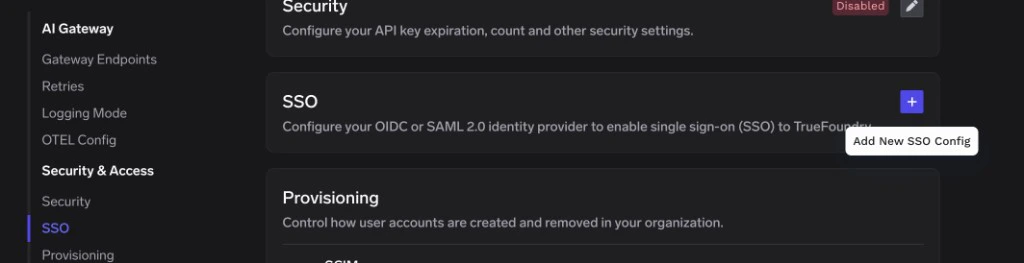
SSO page in TrueFoundry — click the + icon to add a new SSO configuration
Fill in the basic fields
- Enabled: turn this on.
- Name: a lowercase alphanumeric label — for example,
oneloginsaml. - SSO Provider: choose Custom.
- Authentication Configuration: select SAML v2.
Save to reveal the Single sign-on URL, Audience URI (SP Entity ID), and Relay URL
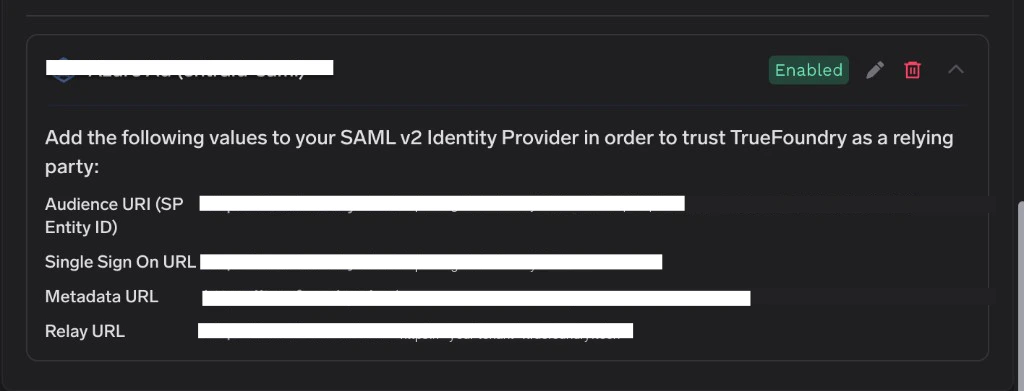
TrueFoundry SSO configuration card showing the SAML values to copy into OneLogin
Step 2 — Create a SAML app in OneLogin
Open Applications
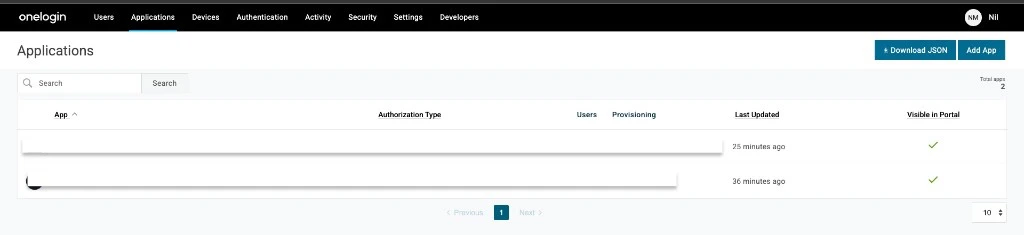
Applications page — click Add App in the top right
Add a new app
SAML Custom and select SAML Custom Connector (Advanced) from the results.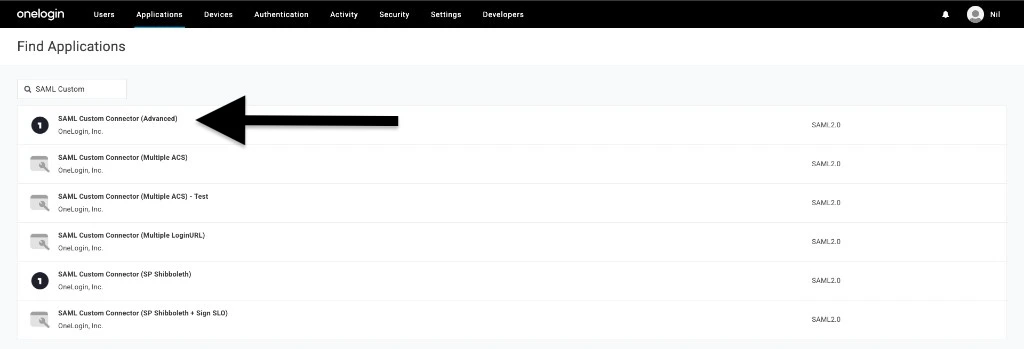
Find Applications — search for SAML Custom and select SAML Custom Connector (Advanced)
Name the application
TrueFoundry, optionally upload an app icon, and click Save.OneLogin lands you on the application’s detail page once it’s saved.Step 3 — Enter TrueFoundry’s details into OneLogin
Back in OneLogin’s application detail page, switch to the Configuration tab on the left.Fill in the Application details
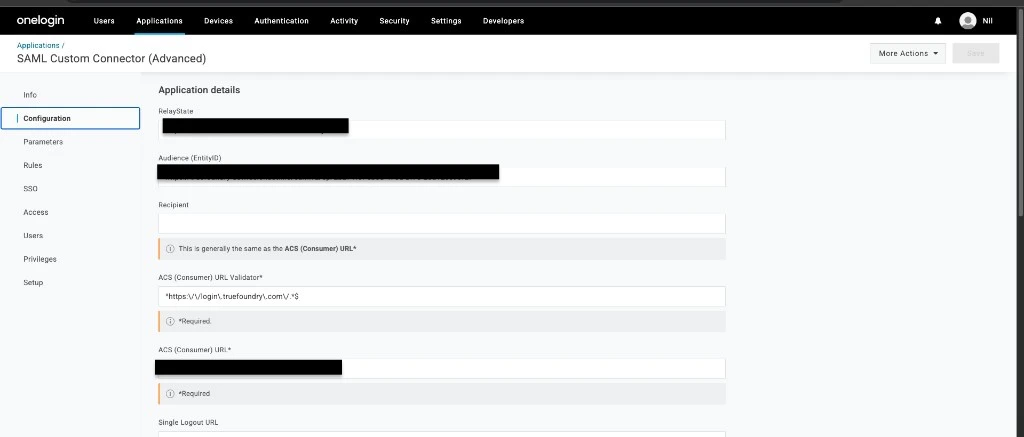
Configuration tab — Application details with Audience, ACS URLs, and Relay State
Set the SAML initiator and signature element
- SAML initiator → Service Provider.
- SAML signature element → Assertion.
- SAML nameID format → Email.
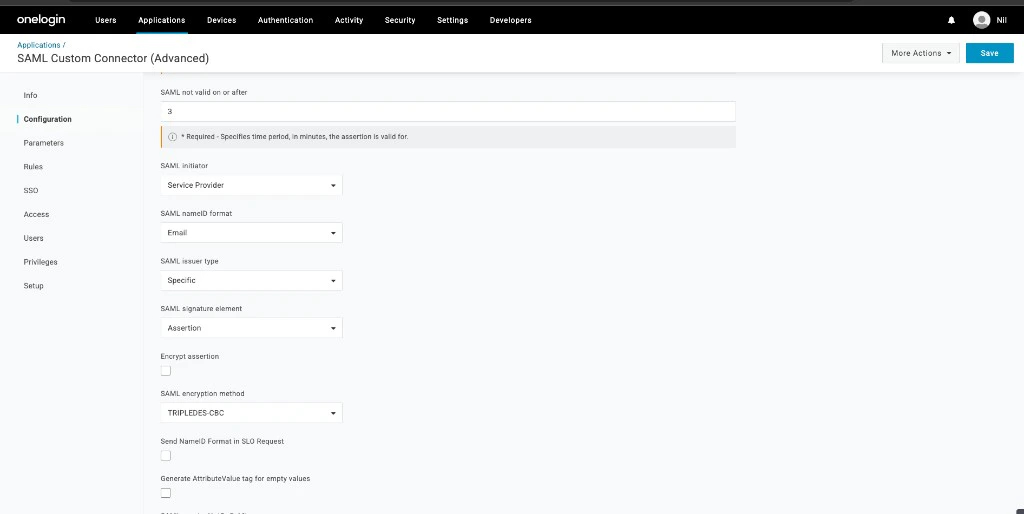
Configuration tab — SAML initiator, signature element, and nameID format set to Email
Save
Step 4 — Copy OneLogin’s IdP details back to TrueFoundry
Switch to the SSO tab on the left side of the OneLogin application.Grab the IdP endpoint and certificate
- SAML 2.0 Endpoint (HTTP) — this is the URL TrueFoundry uses to redirect users to OneLogin.
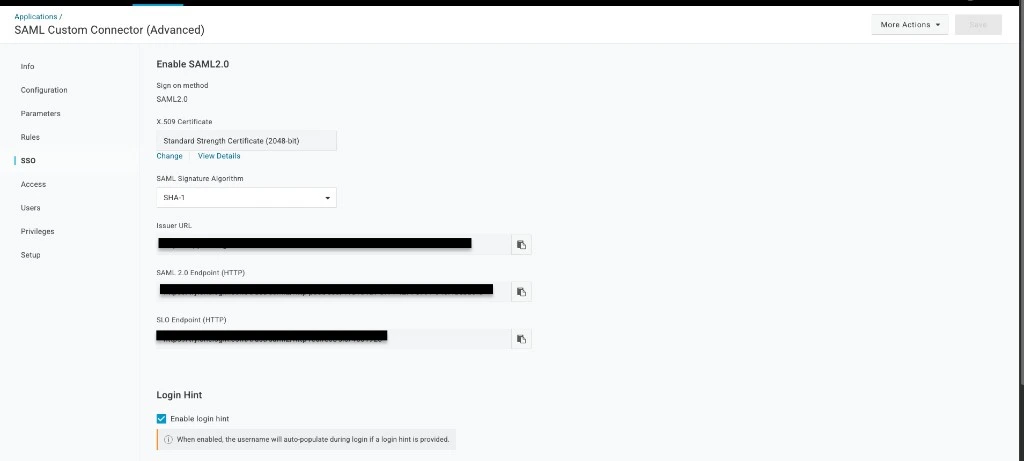
SSO tab — copy the SAML 2.0 Endpoint (HTTP)
- X.509 Certificate — click View Details under the certificate, then copy the entire PEM, including the
-----BEGIN CERTIFICATE-----and-----END CERTIFICATE-----lines.
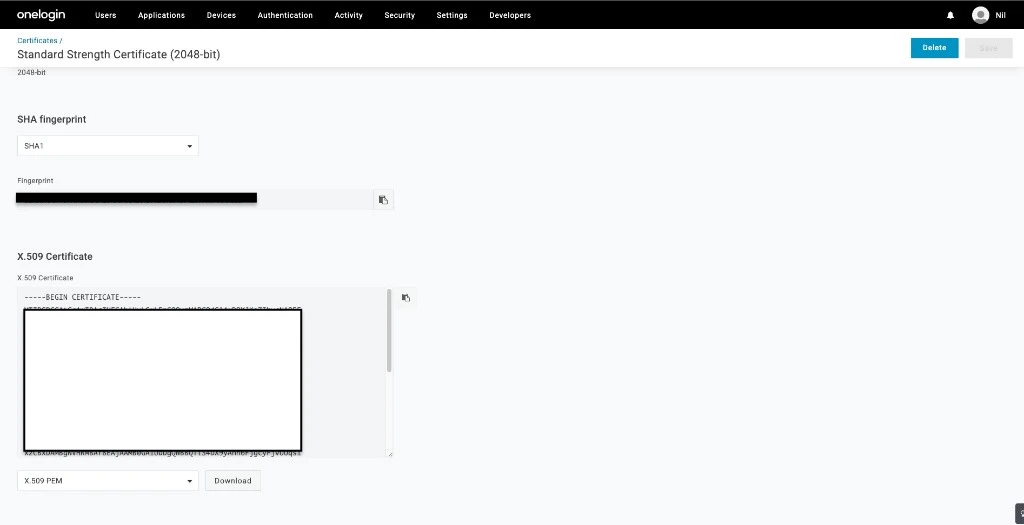
Certificate details — copy the X.509 PEM or use Download
Paste into TrueFoundry
- Identity Provider Endpoint → the SAML 2.0 Endpoint (HTTP) from OneLogin.
- X.509 Certificate → the full PEM you copied from OneLogin.
Step 5 — Map SAML parameters in OneLogin
OneLogin doesn’t include user profile attributes in the SAML response by default. You need to add them under the Parameters tab so TrueFoundry can identify the user.Open the Parameters tab
Add the required parameters
Add the email parameter
- Click + and set Field name to
email. Check Include in SAML assertion, then click Save. - On the edit screen, set Value to Email. Confirm Include in SAML assertion is checked, then click Save.
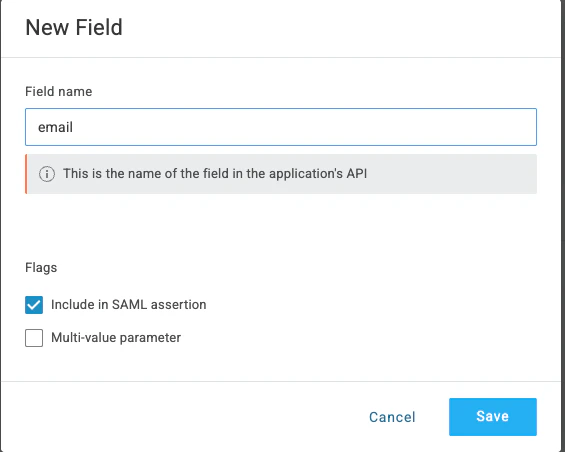
New Field — set Field name to email and check Include in SAML assertion
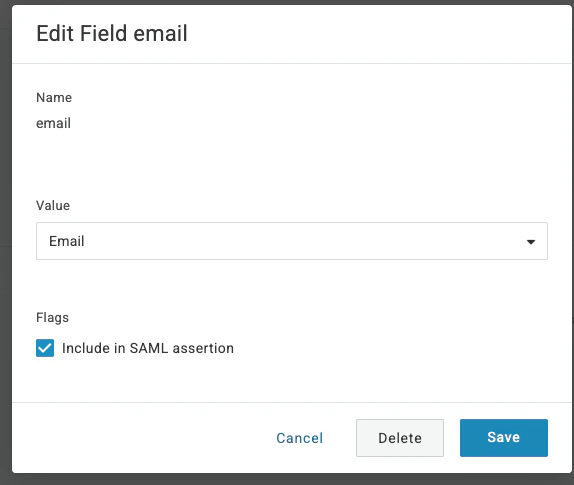
Edit Field email — set Value to Email
Add the sub parameter
Repeat the same flow for sub:- Click + and set Field name to
sub. Check Include in SAML assertion, then click Save. - On the edit screen, set Value to OneLogin ID. Confirm Include in SAML assertion is checked, then click Save.
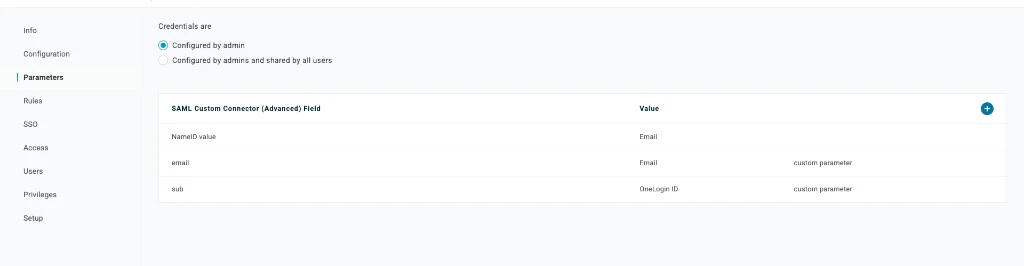
Parameters tab — final configuration
email and sub custom parameters. That is the final configuration before you assign users.Step 6 — Assign users in OneLogin
OneLogin only sends SAML responses for users assigned to the application.Open Users
Assign the application
Step 7 — Test single sign-on
- Open a private/incognito window and go to your TrueFoundry login page.
- Click Login with OneLogin (or whichever label you set under Show advanced fields → Button Text).
- Authenticate with a OneLogin user that you assigned to the application.
Optional next steps
- Automate user lifecycle with SCIM — see SCIM with OneLogin to push users and groups from OneLogin into TrueFoundry automatically.
- Customize the login button — under Show advanced fields, set Button Text to
Login with OneLoginand Button Image URL to a hosted logo if you’d like a branded button.
Troubleshooting
OneLogin returns 'ACS URL does not match' or 'Invalid ACS URL'
OneLogin returns 'ACS URL does not match' or 'Invalid ACS URL'
^https:\/\/login\.truefoundry\.com\/.*$) genuinely matches the Single Sign On URL you copied from TrueFoundry. Don’t forget to escape the slashes in the regex.TrueFoundry sign-in fails with 'no email found in SAML response'
TrueFoundry sign-in fails with 'no email found in SAML response'
email parameter isn’t being sent. In OneLogin’s Parameters tab, open the email row and make sure Include in SAML assertion is checked and the value is set to the user’s Email attribute. The parameter name must be exactly email (lower-case) unless you’ve overridden Email Claim under TrueFoundry’s Show advanced fields.'Invalid Signature' or 'Could not validate SAML response'
'Invalid Signature' or 'Could not validate SAML response'
-----BEGIN CERTIFICATE----- and -----END CERTIFICATE----- lines, then paste it back into TrueFoundry’s X.509 Certificate field.'Audience' or 'Entity ID mismatch' errors
'Audience' or 'Entity ID mismatch' errors