Automatically provision users and groups from JumpCloud into TrueFoundry using SCIM 2.0.
This guide explains how to push users and groups from JumpCloud into TrueFoundry automatically using SCIM 2.0. With SCIM enabled, assigning a user group to your JumpCloud SAML application creates its members in TrueFoundry; removing a user from the group deactivates them. JumpCloud user groups sync as TrueFoundry teams.
Rename JumpCloud user groups before you turn on SCIM. The group name becomes the TrueFoundry team name, and it must start with a letter, use only letters, numbers, hyphens (-), and underscores (_), end with a letter or number, and be 3–50 characters. Spaces are not allowed — a name like Executive Team will not provision.
A JumpCloud Custom SAML Application for TrueFoundry already exists. JumpCloud requires SCIM to be configured inside an existing SAML app — there’s no standalone SCIM application type. Follow SAML with JumpCloud first if you haven’t already.
Admin access in both TrueFoundry and JumpCloud.
You’re on TrueFoundry v0.143 or higher. (On earlier versions, SCIM is configured directly inside the SSO form.)
JumpCloud’s SCIM client only sends user updates for users who are members of a user group bound to the SAML application. Make sure the same user groups you use for SSO assignment are the ones you want synced.
Step 1 — Generate the SCIM credentials in TrueFoundry
1
Enable SCIM provisioning
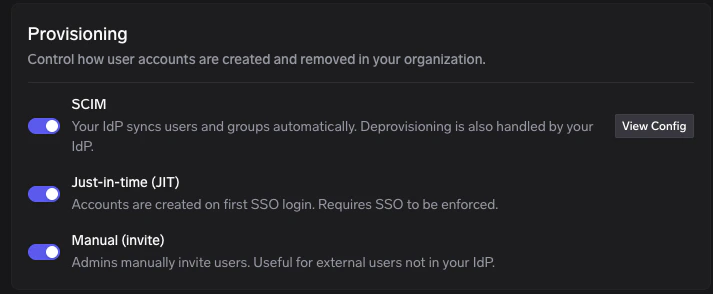
In TrueFoundry, go to Settings → Security & Access → Provisioning and turn on the SCIM toggle.
2
Open View Config
On the Provisioning page, click View Config on the SCIM row.
Provisioning — click View Config on the SCIM row
3
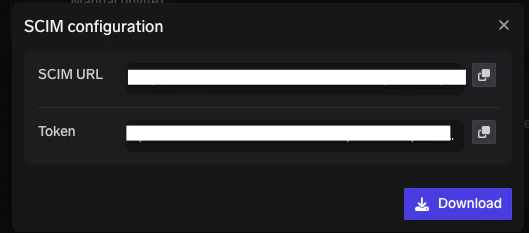
Copy the SCIM URL and token
In the SCIM configuration dialog, copy both values using the copy icons next to each field:
SCIM URL — this is the value JumpCloud calls the Base URL.
Token — this is the value JumpCloud calls the Token Key.
SCIM configuration — copy the SCIM URL and Token
Store the token somewhere safe and treat it like a password. If you lose it, open View Config again to generate a new token — which invalidates the previous one.
Under Configuration Settings, find the SCIM Version selector and choose SCIM 2.0. JumpCloud expands the form below.
2
Paste the credentials
Fill in the following fields:
JumpCloud field
Value
Base URL
TrueFoundry SCIM URL (from View Config)
Token Key
TrueFoundry Token (from View Config)
Test User Email
The email of a real user that already exists in JumpCloud. JumpCloud uses this user for the connection test.
The test user must be an active JumpCloud user. JumpCloud will issue a SCIM GET /Users filtered by this email during the connection test, so a typo or a deactivated account will cause the test to fail.
3
Test the connection
Click Test Connection. JumpCloud probes the TrueFoundry SCIM endpoint with the bearer token. A green confirmation toast appears when the credentials are valid.
If the test fails with a 401 response, open View Config on the SCIM row in TrueFoundry to generate a new token and re-paste it. If it fails with a 404, double-check the Base URL for trailing whitespace or a missing path segment.
4
Activate SCIM
Click Activate. After JumpCloud verifies the integration, the Provisioning tab shows SCIM as active.
JumpCloud only sends SCIM updates for users in groups assigned to the application. After enabling SCIM you must explicitly choose which user groups to push.
1
Open the User Groups tab
Inside the same SAML application, click the User Groups tab at the top.
2
Select the groups to sync
Tick each user group whose members should be provisioned into TrueFoundry. JumpCloud will push:
The user objects (creating them in TrueFoundry).
The group itself, which appears as a team in TrueFoundry.
Click Save in the bottom-right corner.
3
(Optional) Create a new group for SCIM sync
If you don’t yet have a group dedicated to TrueFoundry users:
In the JumpCloud left navigation, click User Groups and click the + icon to create a new group.
Give it a name — for example, truefoundry-users.
On the Users tab of the new group, add the users you want synced.
On the Applications tab of the new group, tick the TrueFoundry SAML application.
Then return to Step 4 and confirm the new group is ticked.
JumpCloud queues a SCIM sync as soon as you save the SCIM configuration and group assignments. Subsequent changes (adding/removing users from a bound group) sync within a few minutes.
2
Check users in TrueFoundry
Go to Access → Users in TrueFoundry. Assigned JumpCloud users should appear within a few minutes, with their email and team memberships populated.
3
Check teams in TrueFoundry
Go to Access → Teams. Each JumpCloud user group you assigned to the application appears as a TrueFoundry team, with members reflecting the JumpCloud group membership.
Group-scoped — JumpCloud only syncs users via groups bound to the SAML application. Direct user assignments without a group are not synced.
Deactivation — Removing a user from every bound group sends a SCIM PATCH active=false, which deactivates the user in TrueFoundry rather than deleting them.
Group renames — Renaming a JumpCloud user group renames the corresponding TrueFoundry team on the next sync.
Manual user updates — Editing a user’s first name, last name, or email in JumpCloud triggers a SCIM PUT and updates the user record in TrueFoundry.
The bearer token is incorrect or expired. Open View Config on the SCIM row in TrueFoundry to generate a new token, paste it into JumpCloud’s Token Key field, and click Test Connection again.
Test Connection fails with 'user not found' or 404
The Test User Email doesn’t match a real JumpCloud user. JumpCloud queries its own directory before calling TrueFoundry — make sure the email is spelled correctly and belongs to an active user.
A user was assigned but never appeared in TrueFoundry
Confirm the user is a member of a user group that you ticked under the User Groups tab. JumpCloud doesn’t sync users assigned to the application individually — only via groups.
Check SCIM activity in JumpCloud under Insights → Directory Insights. These logs are not on the application.
Force a manual sync by removing and re-adding the user to the group.
Group memberships aren't syncing
JumpCloud only pushes groups that are explicitly ticked on the User Groups tab of the SAML application. Confirm the group is selected and saved. If the group is selected but TrueFoundry doesn’t show it, check Insights → Directory Insights for group provisioning events such as group_create_provision.
SCIM stops working after rotating the TrueFoundry token
Generating a new token in TrueFoundry (View Config on the SCIM row) invalidates the previous one. Update the Token Key field on JumpCloud’s Provisioning tab and click Update to resume sync.
Was this page helpful?
Assistant
Responses are generated using AI and may contain mistakes.