Configure OpenID Connect single sign-on between TrueFoundry and Auth0.
This guide walks you through setting up OpenID Connect (OIDC) single sign-on between TrueFoundry and Auth0. Once finished, members of your Auth0 tenant can sign in to TrueFoundry through a Login with Auth0 button.For SAML 2.0 instead of OIDC, see SAML with Auth0.
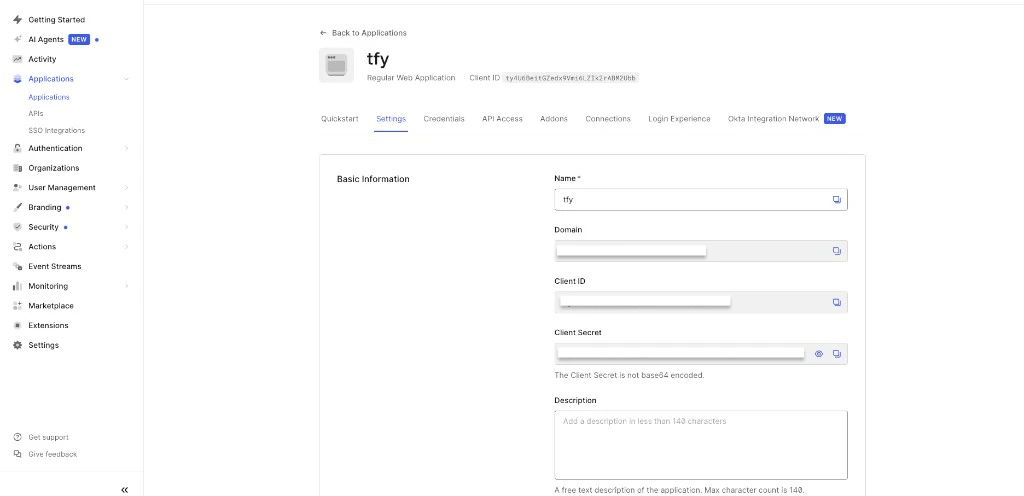
Sign in to the Auth0 dashboard as an administrator.In the left navigation, expand Applications and click Applications, then click Create Application in the top-right.
2
Choose the application type
Fill in:
Name — a label such as TrueFoundry.
Application type — choose Regular Web Applications.
Click Create.
3
Open the Settings tab
On the new application page, click the Settings tab. You’ll use this tab in the next step to register TrueFoundry’s callback URL and copy the credentials.
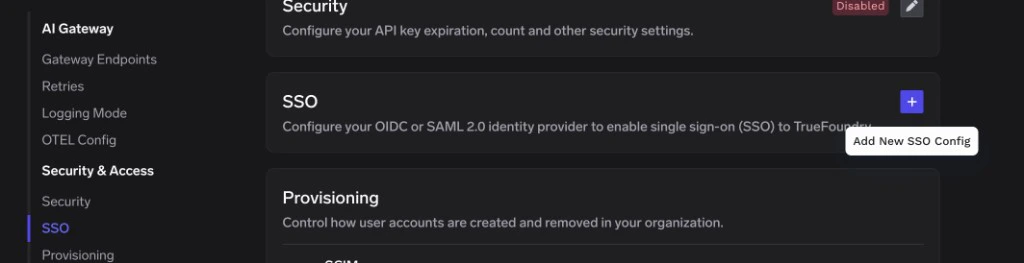
In TrueFoundry, go to Settings → Security & Access → SSO.Click the + icon labeled Add New SSO Config.
SSO page in TrueFoundry — click the + icon to add a new SSO configuration
2
Fill in the SSO form
Enabled: turn this on.
Name: a lowercase alphanumeric label — for example, auth0oidc.
SSO Provider: select Custom.
Authentication Configuration: choose OIDC.
Client ID: the Client ID from Auth0.
Client Secret: the Client Secret from Auth0.
Discover endpoints: leave enabled.
Issuer URL:
https://<your-tenant>.auth0.com/
Replace <your-tenant> with the Domain from your Auth0 application — for example, https://acme.us.auth0.com/. If you use a custom Auth0 domain, use that instead (for example, https://auth.acme.com/).
Auth0 issuers must end with a trailing slash. https://acme.us.auth0.com (no slash) will fail validation; https://acme.us.auth0.com/ works.
Scopes(optional): leave blank to use the default openid email. Add profile if you want first and last name in the token.
3
Save
Click Save. TrueFoundry validates the issuer URL and stores the credentials.
Open a private/incognito window and visit your TrueFoundry login page.
Click Login with Auth0 (or whichever button label you chose under Show advanced fields → Button Text).
Authenticate with an Auth0 user.
You should land in the TrueFoundry dashboard. New users are created automatically if JIT provisioning is enabled; otherwise the user must already exist in TrueFoundry or be invited.
'Issuer did not match' or 'Failed to discover endpoints'
Almost always a trailing-slash problem. The Auth0 issuer must end with / — use https://<tenant>.auth0.com/, not https://<tenant>.auth0.com. Update the Issuer URL in TrueFoundry and save again.
'Callback URL mismatch' on the Auth0 consent screen
The exact URL https://login.truefoundry.com/oauth2/callback is missing from Allowed Callback URLs on the Auth0 application. Add it (comma-separated if other URLs already exist), save changes, and retry.
Sign-in works but the user's email is empty
Auth0 only emits the email claim when the application requests the email scope. The TrueFoundry default already includes it, but if you overrode Scopes, make sure email is in the list — for example, openid email profile.If you still see an empty value, expand Show advanced fields in TrueFoundry and set Email Claim to the claim name Auth0 emits (usually email).
Was this page helpful?
Assistant
Responses are generated using AI and may contain mistakes.