

There are two ways to point Claude Desktop at the AI Gateway. The per-user UI below (Developer Mode → Configure third-party inference) is best for a single machine or a quick trial, but each user configures it and can change or remove it. To enforce it across a fleet, use MDM managed preferences, which push the AI Gateway configuration into the
com.anthropic.claudefordesktop domain and lock it down.Third-party mode replaces the first-party experience, and the user’s subscription plays no part in it. The app never signs in to claude.ai; inference is billed per token to the model account on the gateway (your Anthropic, Bedrock, or Vertex key). The Anthropic connector directory and claude.ai sync are unavailable, org connectors come from managed config instead. Who this suits:
- No Claude subscription: the clean case. Users need no Claude account; your API key pays.
- Enterprise: works, but the seat goes unused for everything inside Desktop. To keep seats paying, leave Desktop first-party and govern it with Anthropic Inference Hooks (guardrails and audit, no gateway cost tracking).
- Team, Pro, Max: works, but the person is already paying per user and you’d now pay API tokens as well. Rarely worth it; govern Desktop with aitori instead unless the user doesn’t need the subscription for anything else.
Prerequisites
Before you configure Claude Desktop, ensure you have:- TrueFoundry account, Create a TrueFoundry account and follow Gateway quick start. You need your gateway base URL (see Gateway base URL) and a TrueFoundry API key.
- Models on the AI Gateway, Add the Claude models you plan to use via TrueFoundry (Anthropic direct, Bedrock, or Vertex). See Anthropic model integration. For Cowork, include Opus, Sonnet, and Haiku so primary chats and sub-agents can resolve cleanly (details below).
- Claude Desktop, Install from claude.com/download. For manual setup, launch the app but do not sign in until you have opened the configuration window (Anthropic recommends staying on the login screen).
Enable Developer Mode
The third-party inference UI is behind Developer Mode. macOS: Menu bar → Help → Troubleshooting → Enable Developer Mode. Windows: Application menu (top-left on the login screen) → Help → Troubleshooting → Enable Developer Mode.Open the configuration window
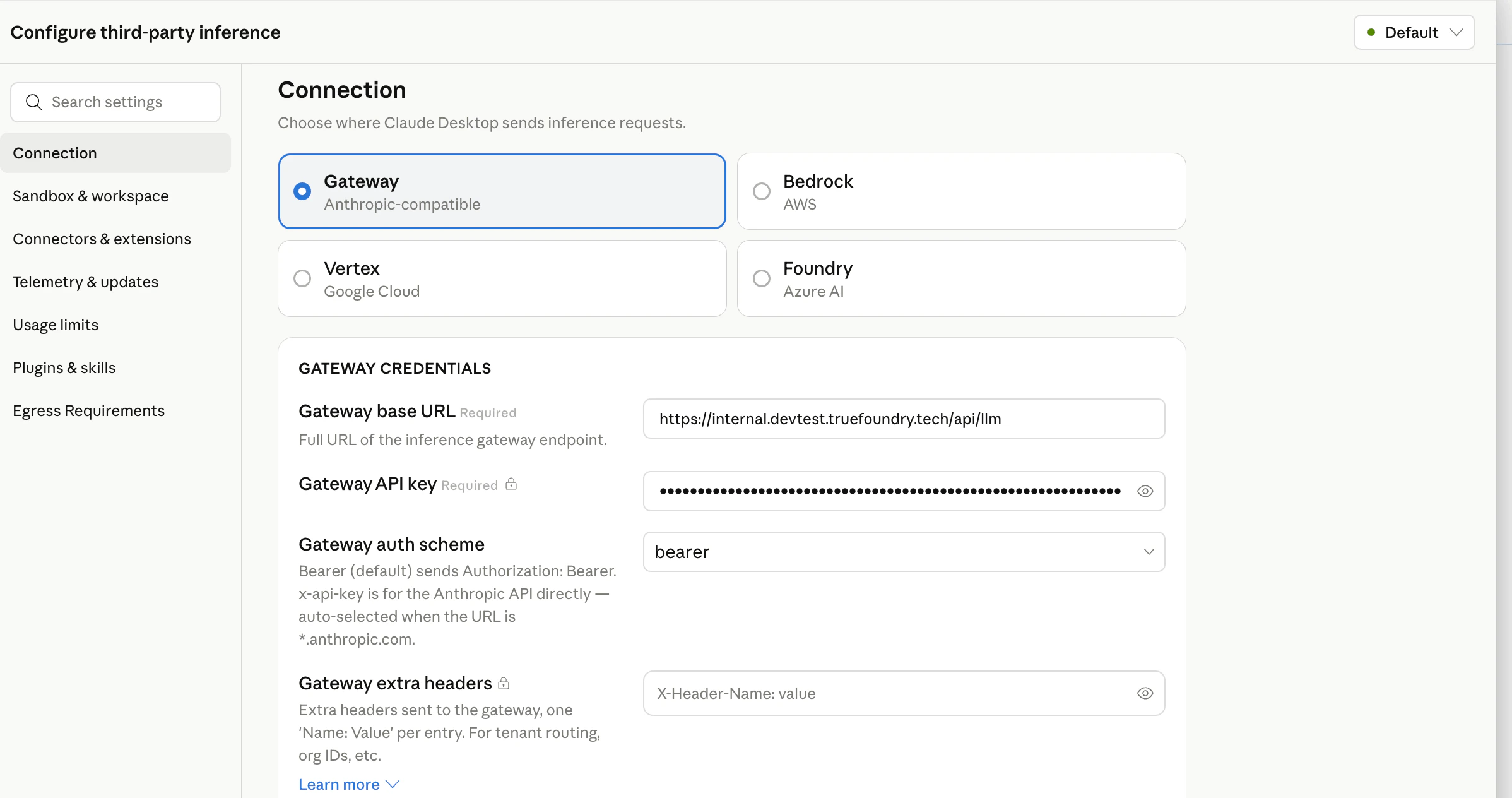
Developer → Configure third-party inference. You should see a sidebar with sections such as Connection, Sandbox & workspace, Connectors & extensions, and others. Work through Connection first, then Identity & Models as needed.Connection, point Claude Desktop at TrueFoundry
- Under Connection, choose Gateway (Anthropic-compatible).
- Set Gateway base URL to your TrueFoundry AI Gateway URL.
- Set Gateway API key to your TrueFoundry API key.
- Set Gateway auth scheme to
bearer(sendsAuthorization: Bearer <key>). Usex-api-keyonly if your deployment expects that header instead. - Gateway extra headers (optional), one
Name: Valueper line for tenant routing or metadata, for exampleX-TFY-METADATA: {"team":"platform"}.
Identity & Models
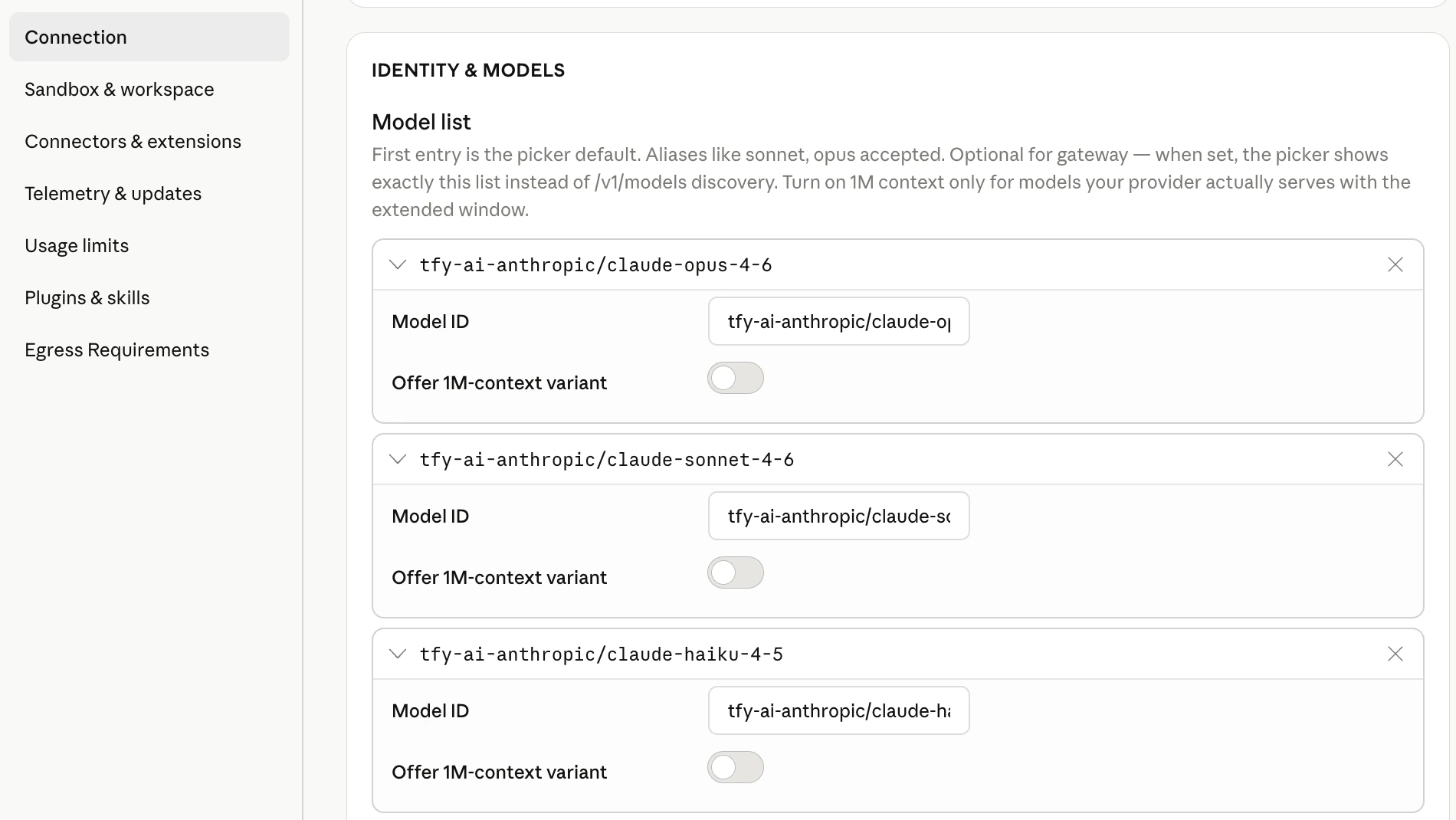
Per Anthropic’s configuration docs, the model list forgateway inference is optional: when you leave it empty, Cowork calls the AI Gateway’s GET /v1/models endpoint and builds the picker from the response. The TrueFoundry AI Gateway exposes this endpoint, so you can rely on auto-discovery.
It is still recommended to set the model list explicitly. When you configure it, the picker shows exactly the models you list instead of everything /v1/models returns. That helps you:
- Pin Haiku: Cowork’s built-in Explore sub-agent is configured to use Haiku for fast, read-only work. User-dispatched sub-agents in Cowork have also been observed to route through Haiku (anthropics/claude-code#47488). If discovery returns no Haiku id or several ambiguous Haiku variants, sub-agent calls can fail or behave unpredictably. Listing
your-account/claude-haiku-4-5(or your org’s equivalent) removes that ambiguity. - Shorten the picker when discovery is noisy:
/v1/modelsmay list many ids. An explicit list is optional but handy when you want Cowork users to see only the models you intend for this deployment.
provider-account/model-id (same strings you use in the TrueFoundry playground). Example (replace tfy-ai-anthropic with your Anthropic model account name in TrueFoundry):
Apply locally and relaunch
Click Apply locally. Claude Desktop writes the configuration and relaunches. On the sign-in screen you should see the option to start in Cowork on 3P using the profile you just built.Enforce fleet-wide via MDM (managed preferences)
The per-user UI above is convenient but not enforceable. For managed fleets, Claude Desktop reads Cowork on 3P configuration from OS-native managed preferences in thecom.anthropic.claudefordesktop domain, the same class of control as pushing managed-settings.json for Claude Code. Push these keys via your MDM (Jamf, Kandji, Mosyle, Intune, Group Policy) or write and lock them with a script.
Config locations
Keys: every value is stored as a string; arrays and objects are JSON-encoded strings (see Anthropic’s Configuration reference).
Custom headers.
inferenceCustomHeaders is a JSON object attached to every inference request, use it for tenant routing or metadata (for example X-TFY-METADATA), or to carry the credential in a custom header such as X-TFY-API-KEY (the same header Claude Code sends via ANTHROPIC_CUSTOM_HEADERS). Any header emitted by a credential helper merges over these.
Example macOS plist:
TrueFoundry ships
tfy-local-ai-setup to automate this end-to-end: it runs the device-login flow as the signed-in user, writes the managed preferences above (with the token in the X-TFY-API-KEY header), immutably locks the file, and refreshes on a schedule. Run it with --claude-desktop (and --desktop-header 'Name: Value' for extra custom headers). The same binary also manages Claude Code and Codex, and only configures tools that are actually installed, so you can safely push all flags to your whole fleet. Deployment scripts and the token-refresh model are on Enforce with MDM.Org connectors and web search
In third-party mode the Anthropic connector directory is unavailable, so org MCP connectors reach Claude Desktop only through themanagedMcpServers managed preference, a JSON-encoded array of {"name", "transport", "url", "oauth"} entries pointing at servers on the TrueFoundry MCP Gateway. The same mechanism is how you give Desktop a governed web search that works on every model, and how you disable the built-in one.
The full reference, entry shape, oauth vs headers, toolPolicy, isLocalDevMcpEnabled, the macOS write-ordering caveat, and web search setup, is on Govern MCP traffic.
Guardrails
In third-party mode every model request passes through the gateway, so gateway guardrails and request logs apply in full: input and output checks, PII, prompt injection, moderation, and audit, configured once on the gateway with nothing to set in Desktop. See Guardrails overview. MCP tool calls are governed separately through the MCP Gateway; see Govern MCP traffic. If Desktop stays first-party on an Enterprise plan, Anthropic Inference Hooks send each prompt to the gateway for an allow/deny verdict before inference. That gives guardrails and audit on content, but no cost tracking, budgets, or routing, because the model call itself never reaches the gateway.Verify the integration
- Start a Cowork session and send a short test message.
- In TrueFoundry, open AI Gateway → Analytics (see Analytics overview) and confirm requests appear for your API key and chosen model.
- For configuration diagnostics, use Help → Troubleshooting → Copy Managed Configuration Report, it summarizes detected keys and whether gateway credentials validated (secrets redacted).
Code tab and Claude Code CLI
The Code tab inside Claude Desktop uses Claude Code on the host. Some Cowork settings do not yet mirror one-to-one into Code-tab sessions. For terminal or VS Code workflows with environment variables andsettings.json, follow Claude Code.
FAQs
Can users bring their existing claude.ai conversations into third-party mode?
Can users bring their existing claude.ai conversations into third-party mode?
Yes. Claude Desktop has an Import from Claude wizard (Settings → Import & export → Import…) that copies claude.ai conversations and projects into the local session store, so users pick up where they left off and the replies are served by your gateway models. It is off by default and can only be turned on through the
claudeAiImport managed preference, so it is part of the MDM rollout rather than something users enable themselves.Two things to know before you enable it: on a claude.ai Team or Enterprise workspace, a workspace owner must also allow members to export their own data, and the import never includes uploaded file contents, only the messages that referenced them. Terminal Claude Code history is not covered.The key reference, recommended posture, and caveats are under Enforce with MDM. Anthropic’s walkthrough: Import history from claude.ai.After pointing Desktop at the gateway, the Connectors panel is empty and I can't add a custom connector
After pointing Desktop at the gateway, the Connectors panel is empty and I can't add a custom connector
Expected. Third-party mode bypasses the claude.ai account UI, and that panel is where Anthropic’s connector directory lives. Connectors still work, just differently: remote MCP servers (HTTP/SSE) are admin-pushed through the
managedMcpServers managed preference, each pointing at a server on the MCP Gateway, and users click Connect to sign in as themselves; local stdio MCP servers remain user-addable via claude_desktop_config.json while isLocalDevMcpEnabled is true. Claude Desktop doesn’t support MDM-managed and user-added remote servers at the same time, so push a complete catalog. See Govern MCP traffic.My chats and projects disappeared when I switched Desktop to the gateway
My chats and projects disappeared when I switched Desktop to the gateway
They aren’t lost. Connecting to a gateway creates a new local profile; the earlier conversations are still in the user’s claude.ai account. To bring them across, enable the
claudeAiImport managed key and users get an Import from Claude wizard. On a Team or Enterprise workspace an owner must also allow members to export their own data, and uploaded file contents never come across. See Enforce with MDM.Desktop discovers models fine but every message fails with 401 Invalid bearer token
Desktop discovers models fine but every message fails with 401 Invalid bearer token
The 401 is from Anthropic, not the gateway. The Anthropic model account that Desktop’s models route to has no API key (or an invalid one), so the gateway forwarded Desktop’s TrueFoundry bearer to Anthropic, which rejected it. Add a valid API key to the model account. Desktop can’t use subscription passthrough, so the model account it uses must always hold a key.
Every Desktop session starts with tens of thousands of tokens of MCP tool schemas
Every Desktop session starts with tens of thousands of tokens of MCP tool schemas
By default Desktop inlines the full schema of every managed connector into each session. Turn on tool search with the
toolSearchEnabled managed preference (a plain boolean, MDM-only, Desktop 1.21459.0+); Desktop then loads a tool’s schema only when it is first used. Setting ENABLE_TOOL_SEARCH yourself has no effect, because Desktop strips it from the session environment while toolSearchEnabled is unset. Pilot with one group first: enabling it adds the tool-search-tool-2025-10-19 beta and tool_reference blocks to requests, which pass through on Anthropic direct but may be filtered on other providers. See Enforce with MDM.