This guide walks you through setting up SAML 2.0 single sign-on between TrueFoundry and Google Workspace. Once finished, members of your Workspace can sign in to TrueFoundry through a Login with Google button.
This guide configures SAML SSO via Google Workspace for an entire organisation. It is not the same as “Sign in with Google”, which uses OAuth 2.0 / OIDC and authenticates individual Google consumer accounts. Confirm with your security team that you actually want SAML before continuing.

Prerequisites

  • A TrueFoundry tenant with Admin access to Settings → Security & Access → SSO.
  • A Google Workspace account with Super Admin privileges on admin.google.com so you can create custom SAML apps.
You’ll bounce between the Google Admin Console and the TrueFoundry SSO settings. Keep both open in adjacent tabs to copy-paste values quickly.

Configuration overview

1

Create the SSO configuration in TrueFoundry

Save a SAML SSO configuration in TrueFoundry to surface the ACS URL, Entity ID, and Start URL.
2

Create a custom SAML app in Google

Add a new custom SAML app under Apps → Web and mobile apps in the Google Admin Console.
3

Configure the SAML connection on both sides

Paste TrueFoundry’s values into Google’s Service Provider Details, then paste Google’s IdP values back into TrueFoundry.
4

Roll out and test

Turn the app ON for the right org units and verify sign-in.

Step 1 — Create the SSO configuration in TrueFoundry

1

Open SSO settings

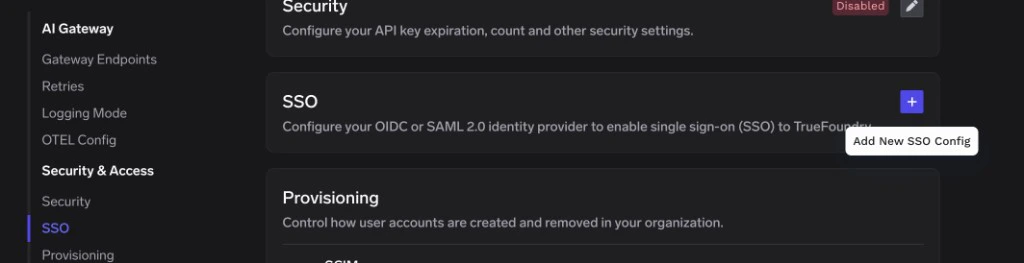
Go to Settings → Security & Access → SSO.Click the + icon labeled Add New SSO Config.
TrueFoundry SSO settings page with the Add New SSO Config plus button highlighted
2

Fill in the basic fields

  • Enabled: turn this on.
  • Name: a lowercase alphanumeric label — for example, googleworkspacesaml.
  • SSO Provider: select Google.
  • Authentication Configuration: choose SAML v2.
Leave Identity Provider Endpoint and X.509 Certificate blank for now — you’ll fill them in once Google surfaces those values.
3

Save to reveal the Single sign-on URL, Audience URI (SP Entity ID), and Relay URL
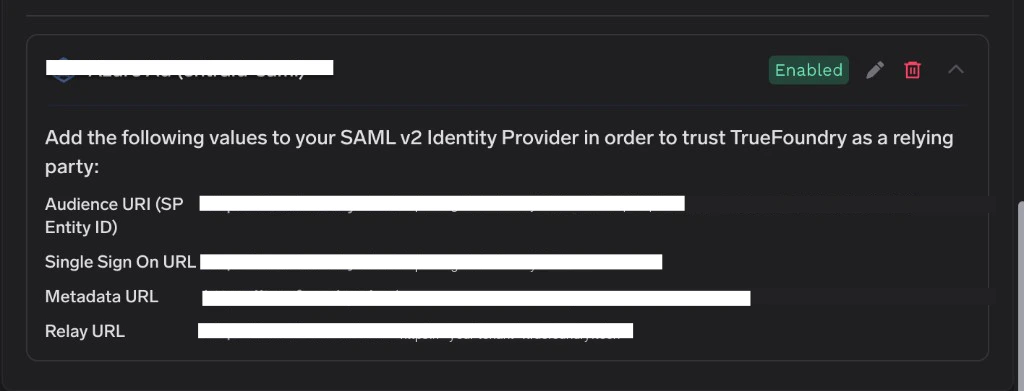
Click Save. TrueFoundry displays the values you need for Google on the SSO configuration card:
Google fieldValue from TrueFoundry
ACS URLSingle Sign On URL
Entity IDAudience URI (SP Entity ID)
Start URL / Relay State (if used)Relay URL
TrueFoundry SSO configuration card displaying Audience URI, Single Sign On URL, Metadata URL, and Relay URL for SAML setup

Step 2 — Create a custom SAML app in Google

1

Open the Google Admin Console

Sign in to admin.google.com as a Super Admin.In the left sidebar, expand Apps and click Web and mobile apps.
2

Add a custom SAML app

Click Add app → Add custom SAML app.On the App details screen, enter an App name (for example TrueFoundry). Optionally upload an app icon, then click Continue.
3

Continue past Google Identity Provider details

On the Google Identity Provider details screen, click Continue without copying anything yet — you’ll paste the SSO URL and certificate into TrueFoundry in Step 5.

Step 3 — Enter TrueFoundry’s details into Google

On the Service Provider Details step of the wizard, paste the values from Step 1.
1

Paste the Service Provider URLs

Google fieldValue from TrueFoundry
ACS URLSingle Sign On URL
Entity IDAudience URI (SP Entity ID)
Leave Start URL blank and leave Signed response unchecked unless your security policy requires it.
2

Set the Name ID

Configure the Name ID block:
  • Name ID formatEMAIL.
  • Name IDBasic Information > Primary email.
Click Continue.

Step 4 — Map directory attributes

On the Attributes step, add mappings for the claims TrueFoundry expects:
1

Add email and sub

Under Attributes, click Add mapping for each row:
Google directory attributeApp attribute
Primary emailemail
Primary emailsub
Google does not expose an Azure-style objectId in the custom SAML wizard. Mapping Primary email to both email and sub is the most common pattern. If your organisation populates Employee ID for every user, you can map that field to sub instead for a more stable identifier.
2

Finish the wizard

Click Finish. Google lands you on the new app’s overview page — the SAML app exists but is OFF for everyone by default.

Step 5 — Paste Google’s IdP details into TrueFoundry

1

Open Google Identity Provider details

From the app’s overview page, click Download metadata or open the SAML app setup flow again and navigate to Google Identity Provider details. Copy the SSO URL and click Download under Certificate to save the .pem file.
2

Paste into TrueFoundry

Return to Settings → Security & Access → SSO in TrueFoundry and edit the SSO configuration you created in Step 1. Set:
  • Identity Provider Endpoint → Google’s SSO URL.
  • X.509 Certificate → the full contents of the downloaded .pem file, including the -----BEGIN CERTIFICATE----- and -----END CERTIFICATE----- lines.
Click Save.

Step 6 — Enable user access in Google

Newly-created custom SAML apps are turned OFF for the entire Workspace. You must explicitly enable the app for the users who should be able to sign in.
1

Open User access

From the new app’s overview page, click the User access card on the right (it shows as OFF for everyone).
2

Turn the service ON

Either:
  • Choose ON for everyone and click Save, or
  • Select an organisational unit or group on the left and toggle Service status to ON for just that subset.
Google can take up to 24 hours to propagate the ON / OFF change. Until propagation finishes, affected users will see app_not_configured_for_user when they try to sign in. This is a Google-side delay — there is nothing to fix in TrueFoundry.

Step 7 — Test single sign-on

  1. Open a private/incognito window and visit your TrueFoundry login page.
  2. Click Login with Google (or whichever Button Text you chose under Show advanced fields).
  3. Authenticate with a Google Workspace user that the app is enabled for.
If the sign-in succeeds you’ll land in the TrueFoundry dashboard. New users are created automatically if JIT provisioning is enabled; otherwise the user must already exist in TrueFoundry or be invited.

Optional next steps

  • Use OIDC instead — if you don’t need SAML, the OAuth 2.0 flow against Google is simpler. Configure a Google Cloud OAuth client and switch Authentication Configuration to OIDC in TrueFoundry.
  • Use a different IdP — see SAML with Microsoft Entra ID for the equivalent flow against Entra.

Troubleshooting

The certificate pasted into TrueFoundry doesn’t match the active signing certificate on Google’s app. Re-download the .pem from the Google Identity Provider details screen of your custom SAML app and paste the entire contents — including the -----BEGIN CERTIFICATE----- and -----END CERTIFICATE----- lines — into TrueFoundry’s X.509 Certificate field.
The Google org unit they belong to isn’t enabled for the SAML app yet, or Google hasn’t finished propagating the change. Confirm under Apps → Web and mobile apps → <your app> → User access that the OU is ON, then wait up to 24 hours for propagation.
The email and sub attribute mappings weren’t saved. Edit the SAML app in Google, open Attribute mapping, and confirm Primary email maps to both email and sub (or Employee IDsub if you use that pattern).
Google signs SAML assertions by default but does not sign the SAML response envelope unless asked to. If your security policy requires a signed response, edit the SAML app in Google, return to Service Provider Details, and check Signed response. Then re-test.