

What is OpenLIT?
OpenLIT is an open-source, OpenTelemetry-native observability platform purpose-built for LLM applications. It provides zero-code auto-instrumentation, real-time monitoring, and cost tracking for LLM requests across all major providers.Key Features of OpenLIT
- LLM Tracing: Capture detailed traces of all LLM interactions including inputs, outputs, latency, and token usage with zero-code instrumentation
- Cost Tracking: Track per-model, per-provider token usage and associated costs in real time
- Metrics & Dashboards: Visualize aggregated usage, latency, and error rates across your LLM gateway
Prerequisites
Before integrating OpenLIT with TrueFoundry, ensure you have:- TrueFoundry Account: Create a TrueFoundry account and follow the instructions in our Gateway Quick Start Guide
- Helm Repository Access: The OpenLIT Helm chart is hosted at
https://openlit.github.io/helm/— make sure to use this exact URL when configuring the Helm deployment
Architecture Overview
OpenLIT on TrueFoundry is deployed as a single Helm release that bundles three components:Integration Steps
1
Create a ClickHouse Secret in TrueFoundry
OpenLIT uses ClickHouse as its database. Store the ClickHouse password securely using TrueFoundry Secrets before deploying.
- Go to Secrets in the TrueFoundry left sidebar.
- Create a new secret group called
clickhouse. - Add a key called
CLICKHOUSE_PASSWORDwith your desired password value. - Copy the secret reference — it will look like
tfy-secret://truefoundry:clickhouse:CLICKHOUSE_PASSWORD.
2
Deploy OpenLIT via Helm
- Go to Deployments → New → Helm in the TrueFoundry dashboard.
- Select Public Helm Repository and fill in:
- Paste the following in the Values block:
Replace
NAMESPACE in INIT_DB_HOST with your actual TrueFoundry workspace namespace (e.g. harsh-ws). You can find this in your workspace settings.- In the Additional Manifests section, add the following two manifests separately by clicking + Add Additional Manifests for each:
NAMESPACE→ your workspace namespace (e.g.harsh-ws)CLUSTER_DOMAIN→ your cluster’s base domain (e.g.tfy-usea1-ctl.devtest.truefoundry.tech)
- Click Submit to deploy. Once all pods are running, you should see the deployment in TrueFoundry:
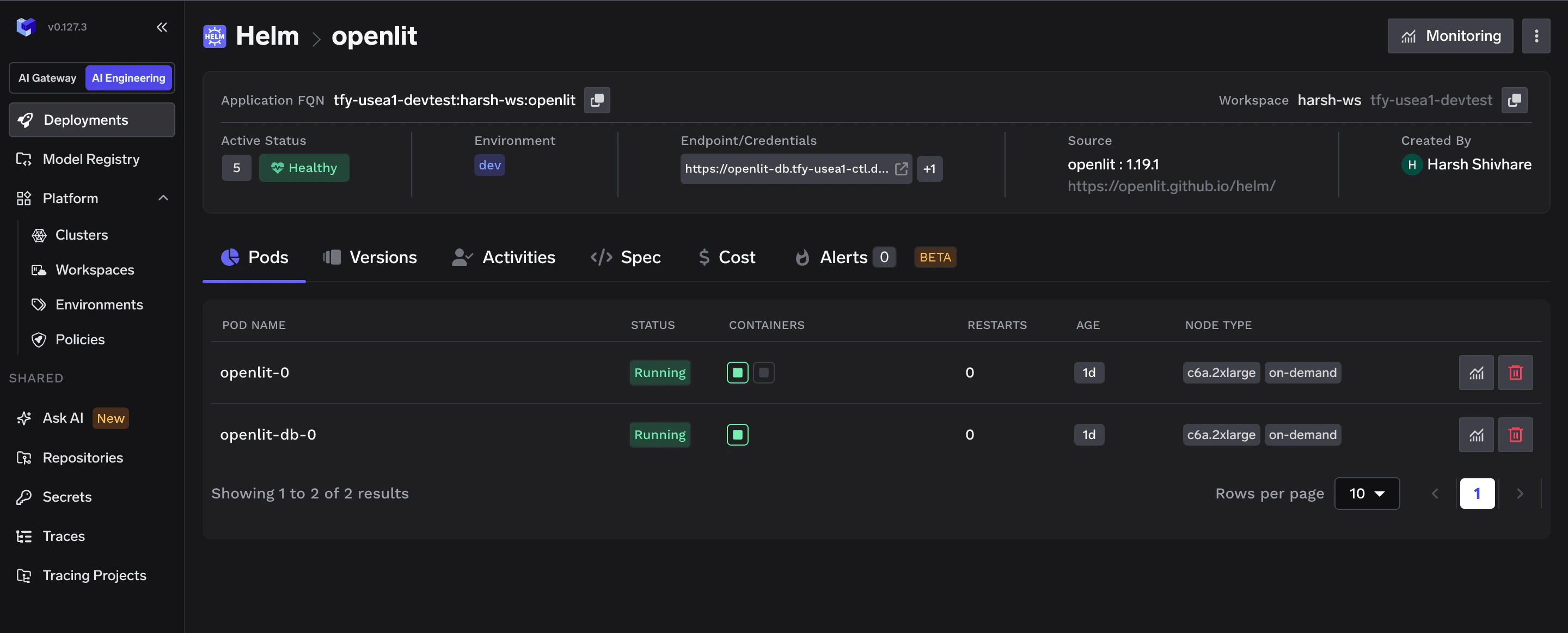
Deploy order within the Helm chart is automatic — ClickHouse starts first via an init container that waits for ClickHouse to be healthy before OpenLIT starts.
3
Access the OpenLIT Dashboard
Once all pods are running, open the dashboard at:Default login credentials: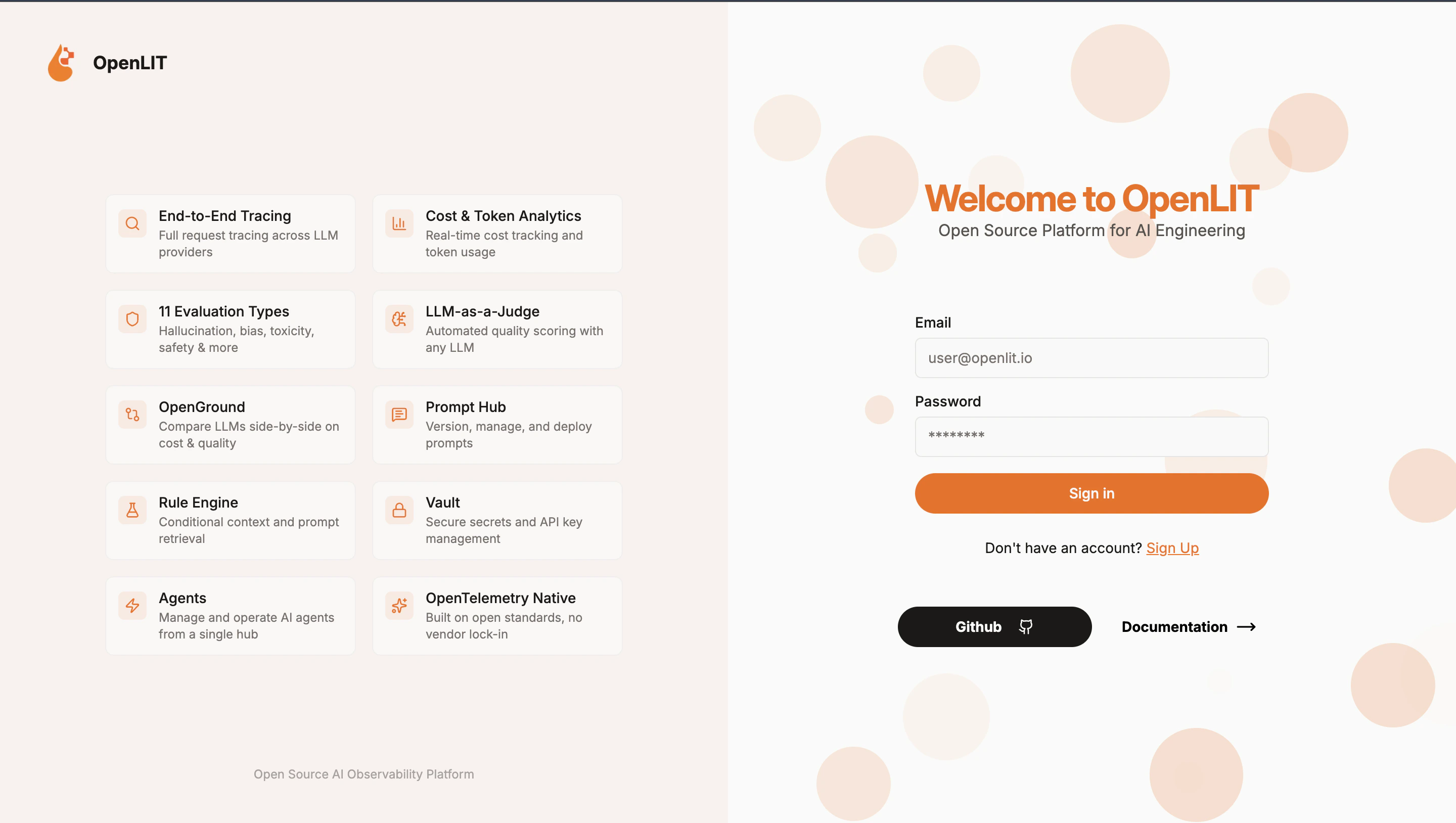
4
Configure OTEL Export in TrueFoundry
Now point the TrueFoundry AI Gateway to ship traces and metrics to your OpenLIT instance.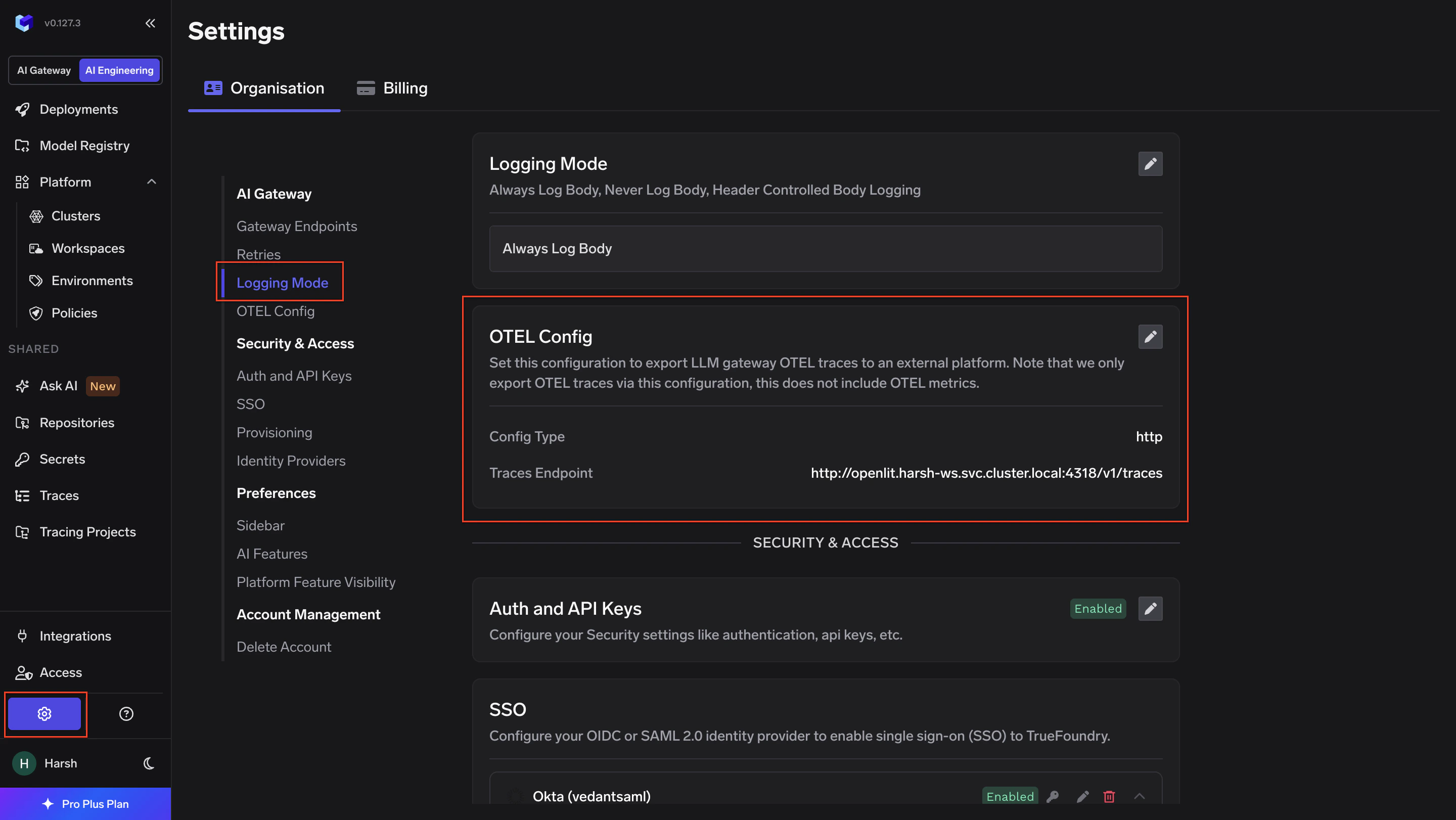
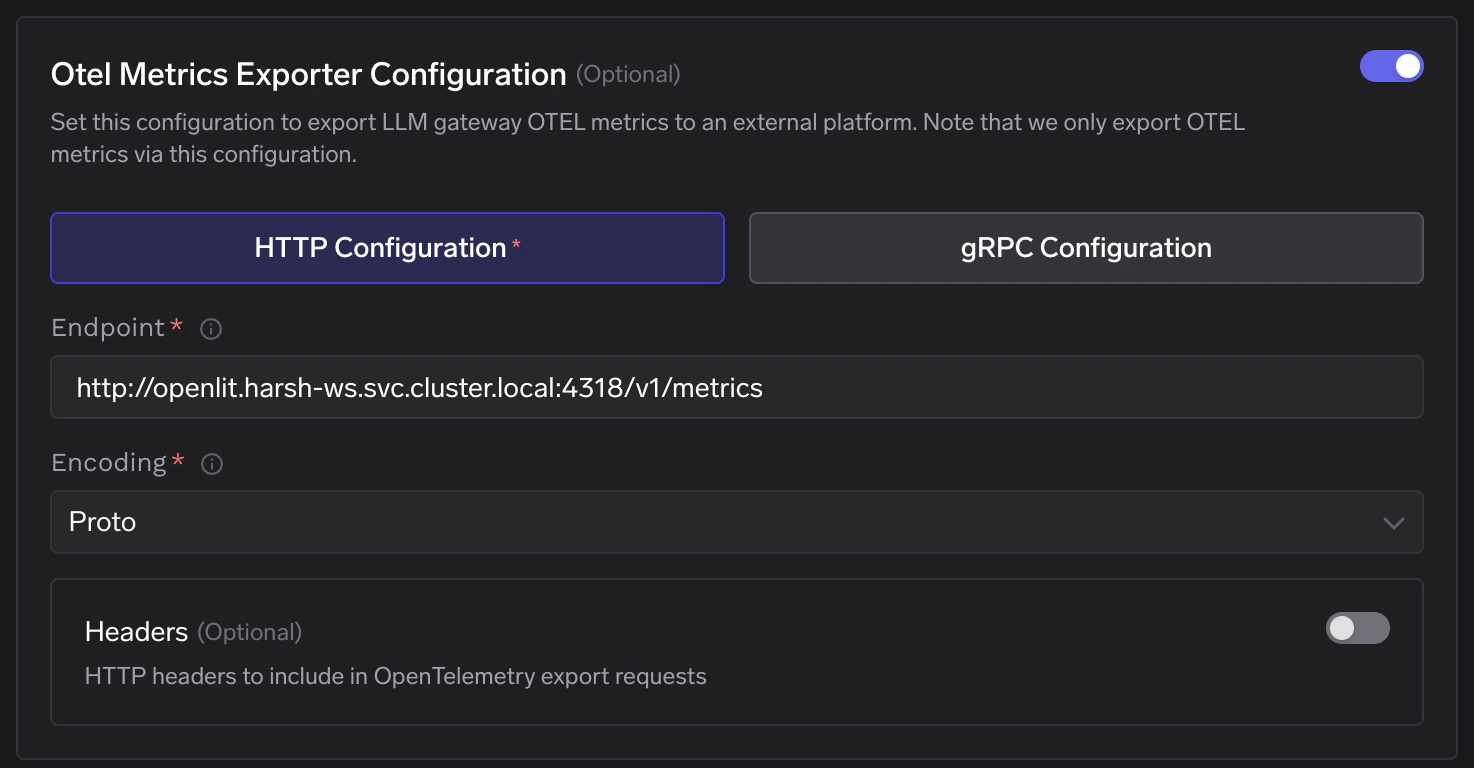
- Go to AI Gateway → Controls → Settings in the TrueFoundry dashboard.
- Scroll down to the OTEL Config section and click the edit (✏️) button.
Otel Metrics Exporter Configuration:
Replace
NAMESPACE with your actual workspace namespace. Click Save to apply.5
Verify the Integration
- Make a request through the TrueFoundry AI Gateway.
- Navigate to the Requests tab in the OpenLIT dashboard and confirm traces are appearing.
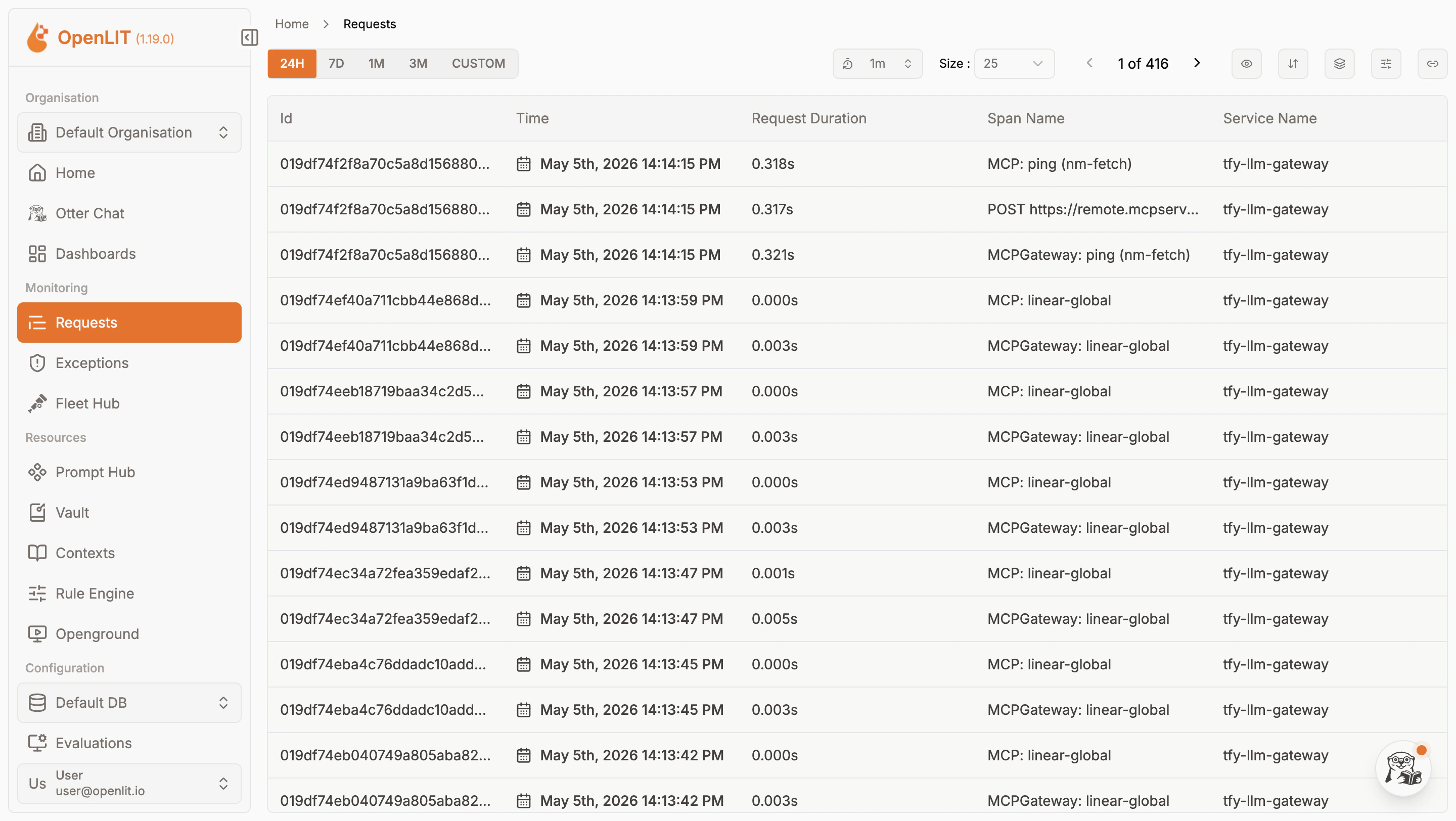
- Navigate to the Metrics tab to confirm aggregated metrics are also flowing in.

Internal Service DNS Reference
Once deployed, the following internal DNS names are available within the cluster:Use the internal DNS for OTEL Config endpoints — external URLs are only needed for browser access to the dashboard.