November 14, 2026
|
5 min read



Blazingly fast way to build, track and deploy your models!
Out of the box, Cursor's AI agent only knows about your codebase. That's it. It can't see your Postgres tables, has no clue what GitHub issues are piling up, and definitely can't pull design tokens from Figma. MCP servers are what bridge that gap. They're lightweight programs that plug external tools into Cursor through one standardized protocol—the Model Context Protocol—so the agent can query databases, file issues, or fetch API data right from the editor.
Some quick history. Anthropic open-sourced MCP in November 2024. OpenAI adopted it by May 2025, and Google DeepMind brought Gemini support in April. Then, in December 2025, Anthropic donated the whole thing to the Agentic AI Foundation (under the Linux Foundation), co-founded with Block and OpenAI. That move was significant. MCP went from being Anthropic's project to a genuinely vendor-neutral standard.
Cursor has emerged as one of the go-to MCP clients among IDEs. But getting it set up properly—and understanding what can go wrong from both a config and security standpoint—takes more than just pasting a JSON snippet you found on Reddit.
MCP servers in Cursor connect its AI coding agent to external tools, services, and data sources through the Model Context Protocol (MCP). They let Cursor interact with tools such as GitHub, Slack, databases, and Figma without requiring a separate custom integration for each service.
When you ask Cursor to perform a task, its agent can discover and call the relevant tools exposed by connected MCP servers. This helps you automate development workflows and access project context directly from Cursor.
MCP servers extend Cursor beyond code generation by connecting its AI agent to the tools, data, and services you already use. You can retrieve project information, query databases, interact with APIs, and automate development tasks without switching between multiple applications.
GitHub and GitLab MCP servers let Cursor access repositories, review issues, inspect pull requests, and retrieve code context. Depending on the server's supported tools and permissions, you can also ask Cursor to create issues, review changes, or help manage pull requests.
Database MCP servers connect Cursor to data sources such as PostgreSQL and other supported databases. You can ask questions about schemas, inspect tables, and run queries through the tools provided by the server. Use read-only credentials where possible, especially when working with production data.
MCP servers can connect Cursor to services such as Slack, Jira, and other business applications. This allows you to retrieve relevant conversations, check project tickets, and access external information while working on code. The available actions depend on the integration and the permissions you grant.
Filesystem MCP servers can give Cursor access to specific local directories and files. This helps the agent read project documentation, inspect configuration files, and work with resources outside the currently open code context. Restrict access to the directories the server actually needs.
By combining multiple MCP servers, you can connect different steps in a development workflow. For example, Cursor could retrieve a Jira ticket, inspect the relevant GitHub repository, and help prepare a code change. Actions such as creating tickets or opening pull requests depend on the tools available and may require your approval.
The best MCP server for Cursor depends on your development workflow. You can connect Cursor to code repositories, local files, databases, browsers, and cloud infrastructure to give its AI agent access to the tools it needs.
The GitHub MCP server connects Cursor to GitHub repositories, issues, pull requests, and other supported features. You can use it to search code, understand project changes, review pull requests, and manage issues without leaving your coding workflow. It's useful for developers who want to automate routine repository tasks.
The Filesystem MCP server allows Cursor to read and manage local files and directories within configured access limits. You can use it to inspect project documentation, review configuration files, and organise resources. Restrict access to the directories your tasks require, particularly when your machine contains sensitive files.
Database MCP servers connect Cursor to databases such as PostgreSQL and other supported systems. They let you inspect schemas, retrieve records, and run queries through available tools. This is useful when debugging database-backed applications or understanding unfamiliar data models. Use read-only credentials wherever possible, especially when connecting to production databases.
The Playwright MCP server allows Cursor to interact with web pages through a browser. It can help navigate websites, interact with page elements, and test application flows. Developers can use it to investigate UI issues, verify forms, and support browser-based testing without manually repeating every step.
Cloud and DevOps MCP servers connect Cursor to infrastructure, deployment platforms, and development tools. Depending on the integration, you can inspect cloud resources, retrieve deployment information, investigate errors, and work with project tasks. These servers are especially useful for infrastructure and platform engineering workflows. Use scoped credentials and require approval for sensitive production changes.
This is one reason MCP vs API matters for IDE agents: APIs require explicit integration logic, while MCP lets Cursor dynamically load available tools from connected servers.
MCP defines three moving pieces. Hosts are the application—Cursor. Clients are connectors inside the host that handle individual server connections. Servers are the lightweight programs on the other end, exposing tools via JSON-RPC 2.0.
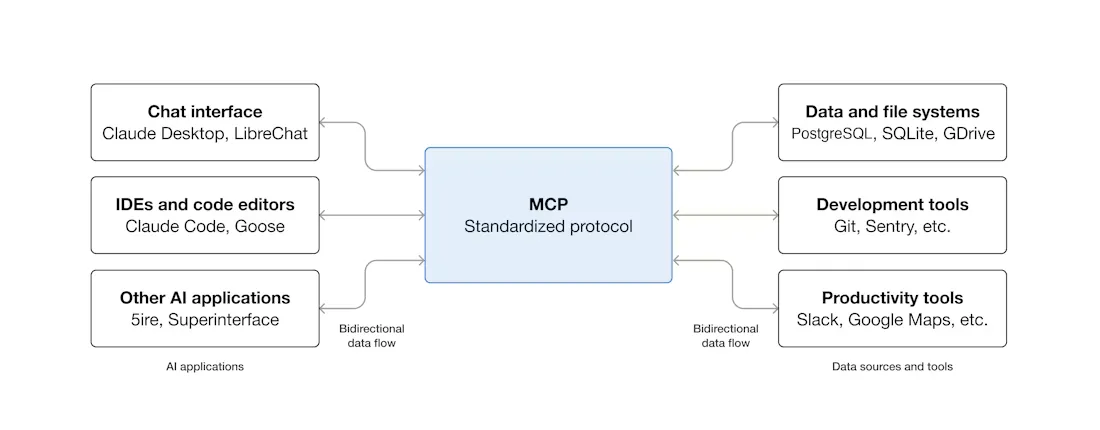
This is one reason MCP vs API matters for IDE agents: APIs require explicit integration logic, while MCP lets Cursor dynamically load available tools from connected servers.
MCP defines three main components. Hosts are applications such as Cursor. Clients are connectors within the host that manage individual server connections. Servers are lightweight programs that expose tools through JSON-RPC 2.0.
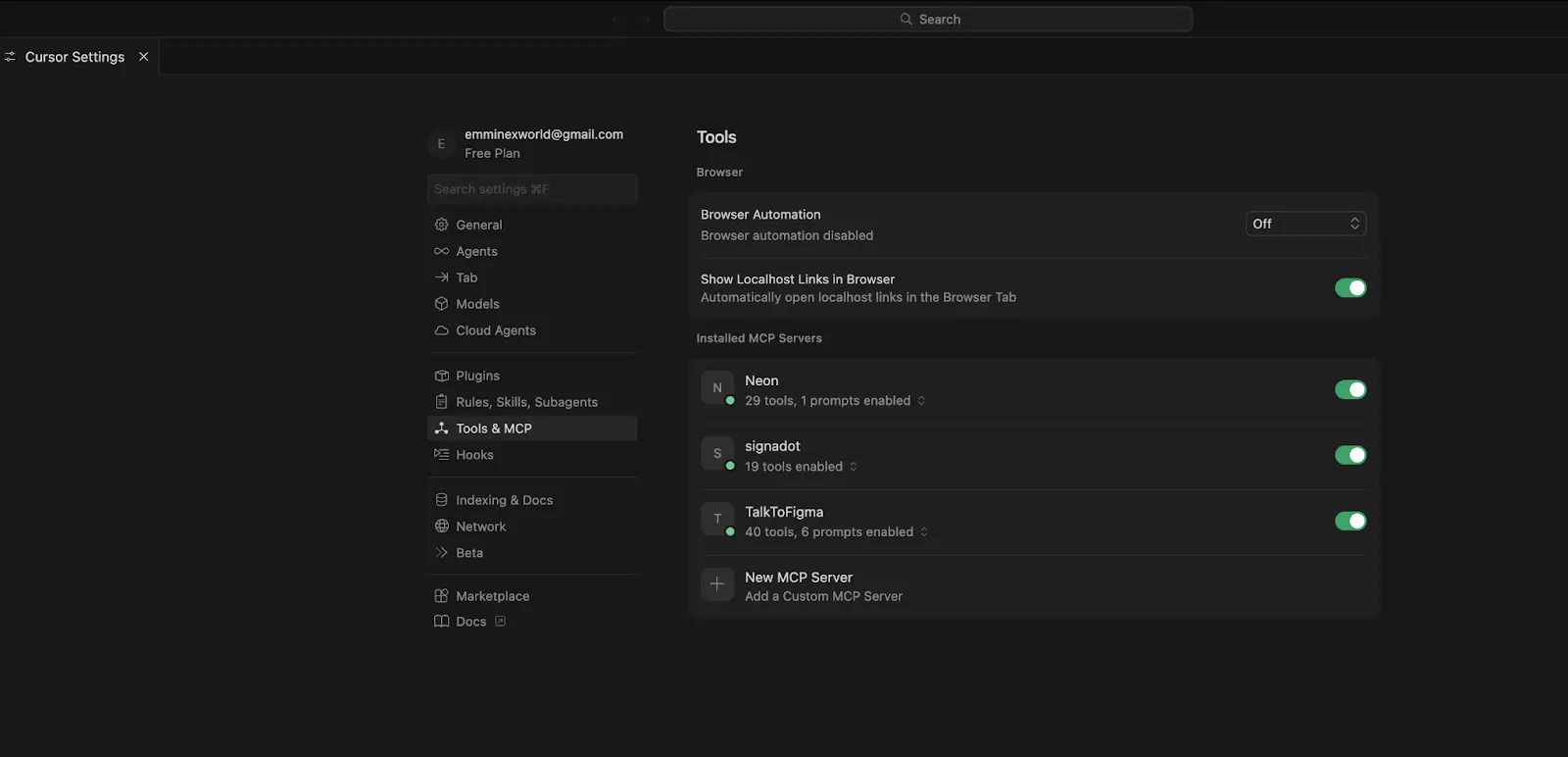
In practice? You open Cursor. Its Agent scans your enabled MCP servers, loads the tools they expose, and figures out which ones to call as part of whatever task it's working on. Head over to Cursor Settings > Tools & MCP and you'll see every loaded server with a status indicator. You can flip individual tools on or off from that panel.
Servers can expose three types of things:
For a more thorough walkthrough of MCP architecture and server primitives, check out our guide on MCP and How It Works.
Three options here. Which one you pick depends on a simple question—local server or remote?
Our recommendation: stdio for local experimentation. Streamable HTTP for literally everything else.
More and more MCP servers now have an "Add to Cursor" button sitting right on their docs page. Click that, and Cursor opens a dialog with the server name, transport, and URL already filled in. Click Install. That's the whole process.
Servers requiring authentication will trigger a browser-based OAuth flow, and Cursor stores the resulting credentials for you. If you're a server developer wanting to add these deep links, the Cursor MCP documentation explains how.
Open Cursor Settings > Tools & MCP, hit New MCP Server (which drops you into mcp.json), or just create the file manually. Put it at .cursor/mcp.json inside your project for project-scoped config, or ~/.cursor/mcp.json for global.
Here's what a GitHub MCP server looks like running through Docker:
{
  "mcpServers": {
    "github": {
      "command": "docker",
      "args": [
        "run", "-i", "--rm",
        "-e", "GITHUB_PERSONAL_ACCESS_TOKEN",
        "ghcr.io/github/github-mcp-server"
      ],
      "env": {
        "GITHUB_PERSONAL_ACCESS_TOKEN": "<YOUR_TOKEN>"
      }
    }
  }
}
The fields, briefly:
Way simpler. Just a URL and optional headers:
{
  "mcpServers": {
    "remote-api": {
      "url": "https://mcp.example.com/mcp",
      "headers": {
        "Authorization": "Bearer <YOUR_API_KEY>"
      }
    }
  }
}
No command. No args. Cursor hits the HTTP endpoint directly.
Project config (.cursor/mcp.json in the repo root) affects only that project. Global config (~/.cursor/mcp.json) applies everywhere. Same server defined in both files? Project-level wins.
Cursor has a ceiling of roughly 40 active tools across all your MCP servers combined. Exceed it and two things happen: you get a warning, and the agent silently loses access to some tools. It just can't see them anymore.
Why does the limit exist? Each tool definition burns context tokens. And once you shove 40+ tool descriptions into a prompt, the LLM's ability to pick the right one deteriorates noticeably.
What to do about it: open each server in settings and switch off the tools you're not actively using. And as a general rule, a server exposing 5 to 10 well-defined tools will serve you better than one megaserver trying to do 30 things.
Your MCP server didn't start. Cursor shows no error. No warning. Nothing. You just notice that tools aren't showing up.
Nine times out of ten, the problem is one of these: Node.js or Python isn't installed (or isn't on your PATH). The package version in your config doesn't exist. Or an environment variable you referenced is either empty or completely missing.
Fastest way to debug: copy the command from your mcp.json verbatim and run it in a terminal. Like this: npx -y @modelcontextprotocol/server-postgres postgresql://localhost/mydb. Whatever error Cursor was swallowing will print right to your screen.
stdio transport and remote environments do not get along. The subprocess launches on the remote side, but Cursor expects it locally. You end up with intermittent connection failures that are incredibly annoying to track down.
Just use Streamable HTTP. Deploy the MCP server as a hosted endpoint and point Cursor at the URL. Saves hours of debugging.
We keep running into the same three:
MCP servers run code with your credentials. Let that sink in for a moment. Whatever permissions you hand a server—database access, GitHub tokens, API keys—it will use them. Every MCP server is, for all practical purposes, a fully trusted integration. If a server is compromised or malicious, it has everything you gave it.
2025 was a rough year for Cursor MCP security. Researchers published multiple critical CVEs, and each one exposed a fundamentally different attack surface:
More details on these topics in our guides on enterprise MCP security and access control patterns.
For a single developer, MCP is great. Set it up once, enjoy the productivity boost, move on. But scaling to a team of 20? Or 200? That's where the pain starts.
API keys end up scattered across individual laptops. There's no centralized view of which servers and tools are active across the org. Zero audit trail. And when somebody leaves the company—or even just switches teams—you're stuck rotating credentials in dozens of individual Cursor config files spread across who-knows-how-many machines.
An MCP Gateway puts a layer between your agents and your MCP servers that handles all of the above: centralized authentication, role-based access, observability, and policy enforcement.
TrueFoundry's MCP Gateway does exactly that. Developers authenticate once against the gateway. From that point on, the gateway manages every downstream OAuth token and credential for them. Administrators define per-server access controls and permissions through RBAC. Every tool call—every single one—gets logged with full request-level tracing.
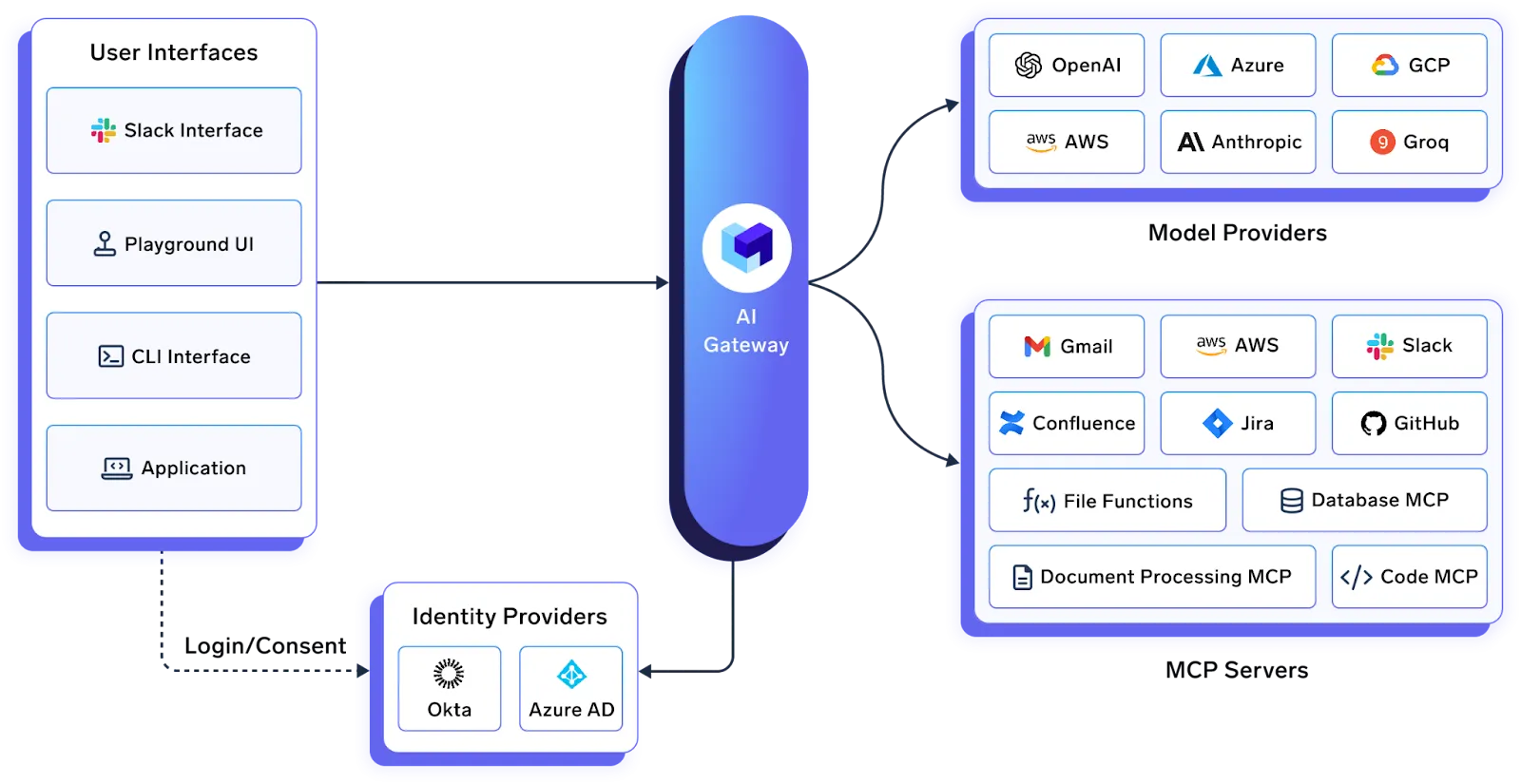
One feature worth calling out specifically: Virtual MCP Servers. The gateway can expose a scoped subset of tools from the servers behind it. Suppose you want an agent that can read GitHub issues but must never, under any circumstances, delete a repository. You don't enforce that via a system prompt the LLM might ignore. The gateway enforces it at the protocol level. The "delete repo" tool simply doesn't exist from the agent's perspective.
Organizations already running TrueFoundry's AI Gateway for LLM routing and cost control get native integration with MCP Gateway. One control plane covering models, tools, and agents.
Cursor can also connect directly to TrueFoundry's AI Gateway for centralized LLM routing, cost tracking, and key management.
MCP gives Cursor the ability to interact with real, external tools—not just your source files. Individual setup takes minutes. The actual engineering challenge shows up later: governance, credential management, access control, and observability at team scale.
Start small. One or two servers. Use deep links where available. Respect the 40-tool limit. Stay updated to keep ahead of security patches. And if you're deploying MCP across a team or org, look into an MCP Gateway before the credential sprawl problem solves itself by turning into a security incident.
Book a demo to see it in action.
TrueFoundry AI Gateway delivers ~3–4 ms latency, handles 350+ RPS on 1 vCPU, scales horizontally with ease, and is production-ready, while LiteLLM suffers from high latency, struggles beyond moderate RPS, lacks built-in scaling, and is best for light or prototype workloads.

An MCP server connects Cursor’s AI agent to external tools and data through the Model Context Protocol (MCP). It lets Cursor interact with services such as GitHub, Slack, Postgres, and Figma during development workflows.
The best MCP server depends on your workflow. GitHub is useful for repository tasks, Postgres for database access, and Figma for design context. Choose trusted servers that provide only the tools and permissions you need.
You can add an MCP server through Cursor Settings under Tools & MCP, use a configuration link if available, or edit .cursor/mcp.json for a project-specific setup. Follow the server’s documentation for the required configuration.
Cursor’s practical MCP tool limit depends on the number of tools, their descriptions, and the available context. Too many tools can make selection less reliable and consume context. Disable unused tools to keep your setup manageable.
Cursor supports MCP capabilities such as resources and elicitation, depending on its version and implementation. Resources provide contextual information, while elicitation lets a server request structured user input during an interaction.
MCP server safety depends on its source, code, and permissions. Review the server before connecting it, restrict credentials, keep Cursor updated, and approve tool actions carefully. Avoid granting access to sensitive files or systems unnecessarily.
Large teams can use an MCP Gateway to centralise authentication, enforce role-based access control, and monitor tool calls. TrueFoundry’s MCP Gateway helps teams manage server access through centralised policies and logging.
There is no universal tool count that guarantees reliable performance. The impact depends on tool descriptions, context usage, and workflow complexity. Keep only relevant tools enabled and test selection accuracy as your MCP setup grows.
Cursor MCP lets developers extend Cursor’s AI capabilities by connecting it to external tools, services, and data sources. This allows the agent to retrieve information and perform supported actions without requiring every integration to be built directly into Cursor.
Check the server configuration, command path, environment variables, and required credentials. Review Cursor’s MCP logs for connection or execution errors, confirm dependencies are installed, and restart the server after configuration changes. Also verify that the server is compatible with Cursor.



The latest news, articles, and resources sent to your inbox