> ## Documentation Index
> Fetch the complete documentation index at: https://www.truefoundry.com/llms.txt
> Use this file to discover all available pages before exploring further.
# Setup For CLI
> Install and configure the TrueFoundry CLI for managing deployments, experiments, and platform resources.
## TrueFoundry CLI Library
TrueFoundry CLI library to help you interact with the platform programmatically.
Truefoundry CLI is a very lightweight CLI that only exposes the most common functionality and doesn't provide interaction with all APIs of Truefoundry. For that, we recommend using the APIs of Truefoundry directly or using the [TrueFoundry Python SDK](/docs/truefoundry_sdk/index).
## Install Truefoundry CLI
You need Python ≥ 3.10, ≤ 3.14 to use **truefoundry v0.17.0** and later. See [Minimum Python version raised to 3.10 — truefoundry v0.17.0](/docs/change-announcements/python-3.10-minimum-truefoundry-cli-v0.17.0).
Releases **before v0.17.0** support Python ≥ 3.8, ≤ 3.14.
```bash lines theme={"dark"}
pip install -U "truefoundry"
```
Optional features can be installed with extras.
* `workflow` extra to work with [Workflows](/docs/workflow-concepts).
* `spark` extra to work with [Spark Tasks](/docs/spark-task) in workflows.
```bash Workflows Without Spark Tasks lines theme={"dark"}
pip install -U "truefoundry[workflow]"
```
```bash Workflows With Spark Tasks lines theme={"dark"}
pip install -U "truefoundry[workflow,spark]"
```
**NOTE:** `workflow` and `spark` extras are only supported on Python ≥ 3.10, ≤ 3.12
## Authenticate CLI
To be able to use the TrueFoundry CLI, you first need to authenticate. You can login either via browser or using API Key.
To log in to **TrueFoundry**, run the following command:
```bash lines theme={"dark"}
tfy login --host # e.g. host: https://myorg.truefoundry.cloud
```
The value for `--host` is the first part of the url when you open the platform. This domain might be subdomain of your organization. The below example shows `https://myorg.truefoundry.cloud`
 This will prompt you to open a URL and show you a `Submit` button.
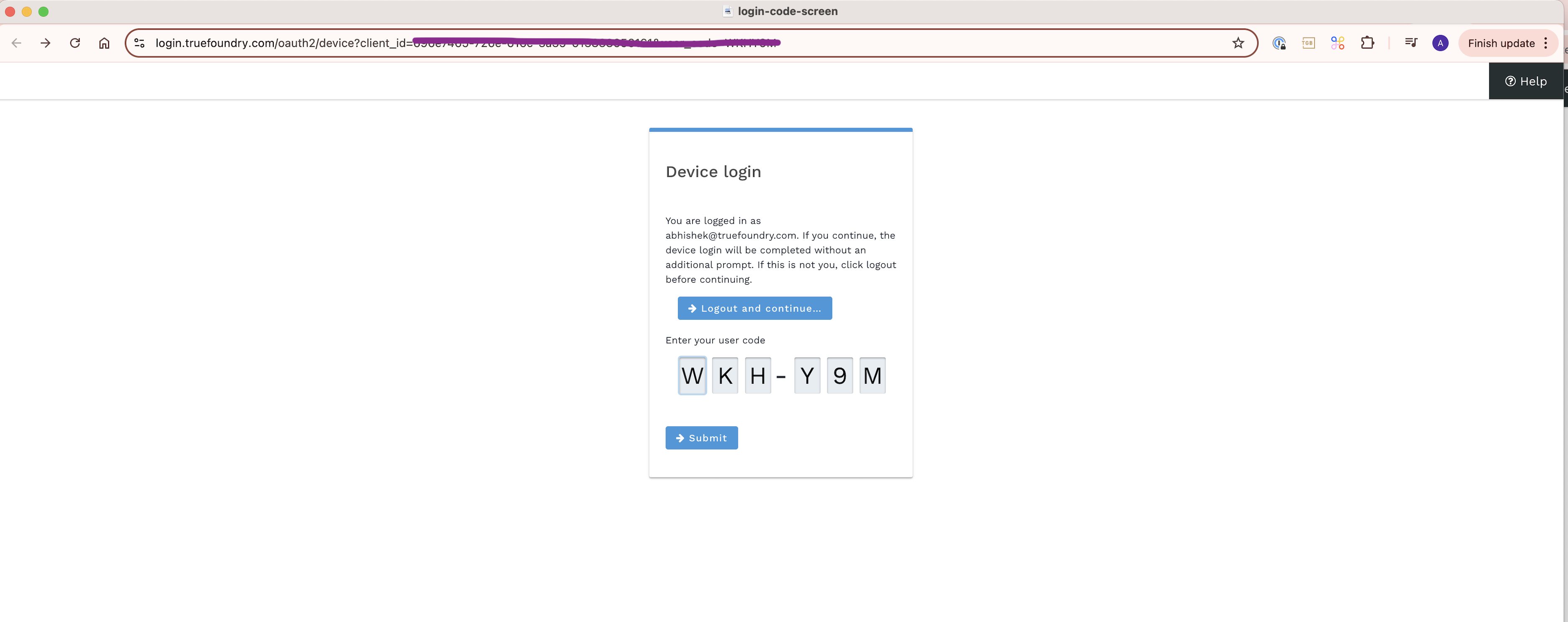 Once you click on Submit, you will be signed in to the CLI.
 For scenarios where code interacts with TrueFoundry APIs or where opening a browser is not feasible, you can log in using the TrueFoundry API Key. The steps for this are as follows:
Generate a Truefoundry API Key from Access -> Personal Access Tokens.
Your API Key is a sensitive piece of information - so **Never** share it with unauthorized individuals. You will not be able to see the value of the API key on the Truefoundry platform again - so please save it in a secure location.
For production environments, you can use [Virtual Account tokens](/docs/generating-truefoundry-api-keys#virtual-account-tokens-vats) instead of Personal Access Tokens to authenticate. Virtual Account tokens are not tied to a user and hence don't expire when the user leaves the organization.
You can use the API key to login in two ways:
#### Option 1: Setting environment variables
Set the `TFY_API_KEY` and `TFY_HOST` environment variables.
* Set `TFY_HOST` to your TrueFoundry host URL. e.g. `https://your-domain.truefoundry.com`
* Set `TFY_API_KEY` to your API key.
```bash lines theme={"dark"}
export TFY_HOST=
export TFY_API_KEY=
```
You can now use the Truefoundry SDK to interact with the platform.
#### Option 2: Using the `login` command on CLI
When using the CLI, you can provide the API key directly within the command:
```bash lines theme={"dark"}
tfy login --host --api-key
```
For scenarios where code interacts with TrueFoundry APIs or where opening a browser is not feasible, you can log in using the TrueFoundry API Key. The steps for this are as follows:
Generate a Truefoundry API Key from Access -> Personal Access Tokens.
Your API Key is a sensitive piece of information - so **Never** share it with unauthorized individuals. You will not be able to see the value of the API key on the Truefoundry platform again - so please save it in a secure location.
For production environments, you can use [Virtual Account tokens](/docs/generating-truefoundry-api-keys#virtual-account-tokens-vats) instead of Personal Access Tokens to authenticate. Virtual Account tokens are not tied to a user and hence don't expire when the user leaves the organization.
You can use the API key to login in two ways:
#### Option 1: Setting environment variables
Set the `TFY_API_KEY` and `TFY_HOST` environment variables.
* Set `TFY_HOST` to your TrueFoundry host URL. e.g. `https://your-domain.truefoundry.com`
* Set `TFY_API_KEY` to your API key.
```bash lines theme={"dark"}
export TFY_HOST=
export TFY_API_KEY=
```
You can now use the Truefoundry SDK to interact with the platform.
#### Option 2: Using the `login` command on CLI
When using the CLI, you can provide the API key directly within the command:
```bash lines theme={"dark"}
tfy login --host --api-key
```