> ## Documentation Index
> Fetch the complete documentation index at: https://www.truefoundry.com/llms.txt
> Use this file to discover all available pages before exploring further.
# Manage Virtual Accounts
> Detailed guide to how to add, manage and delete Virtual Accounts in Truefoundry
Virtual accounts are non-user accounts that can be assumed by applications or services to access resources in Truefoundry. They can be created by admins and each virtual account will have a token using which the application can access the resources.
It is usually recommended to create one virtual account per application and scope it to the minimum set of permissions required by the application.
## Create Virtual Accounts
You can create and assign permissions to a virtual account as shown below:
Once you create a virtual account, you can get the token for it by clicking on the `Get Token` button.
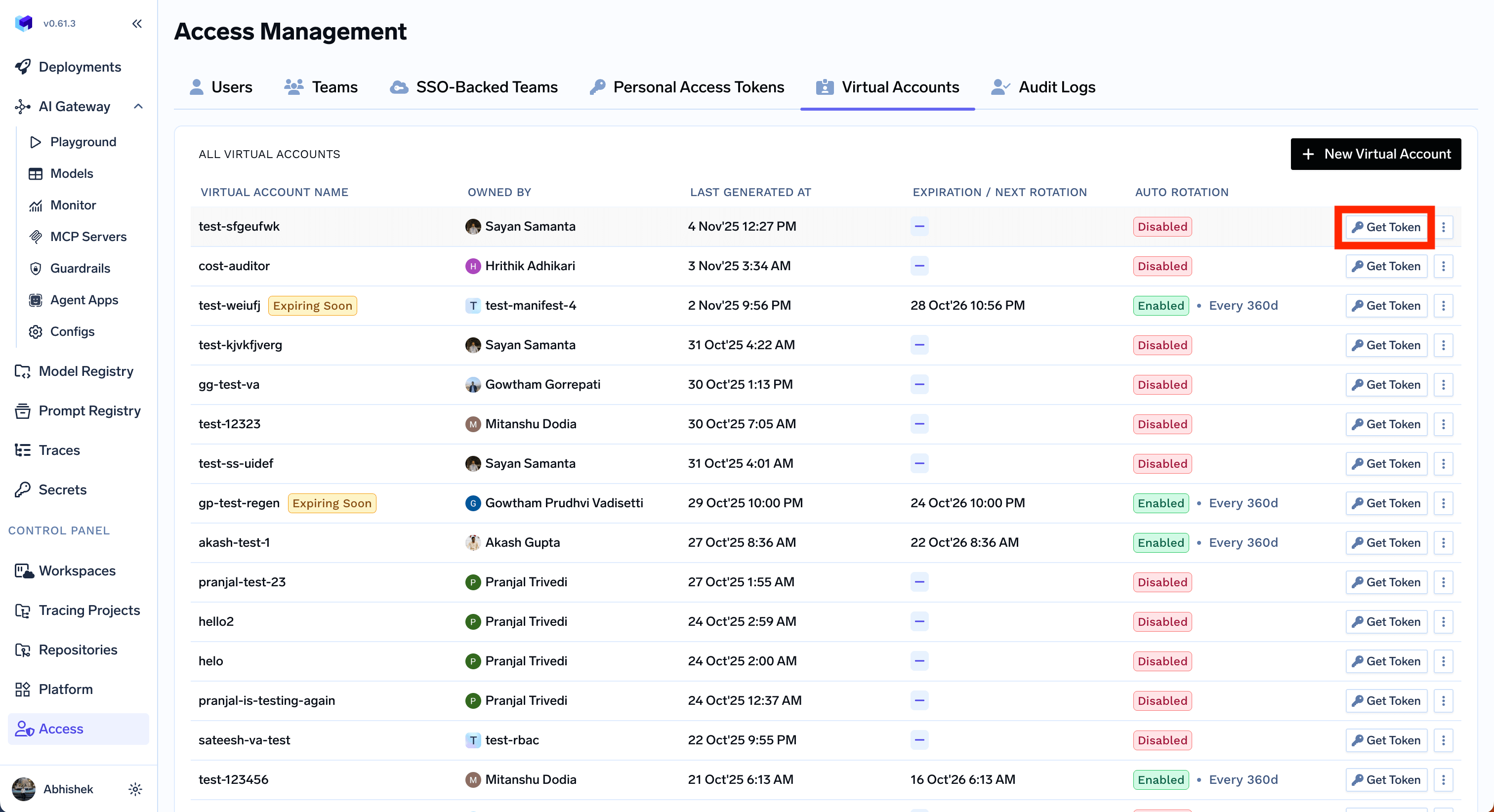 Using a virtual account, you can autorotate the tokens, set notifications on rotation and also sync the token to a secret manager of your choice.
## Identity provider mappings
If you configure an [Identity Provider](/docs/platform/identity-providers) to resolve tokens to virtual accounts, you can map IdP claim values directly to a virtual account.
Use this when a machine user, application, CI job, or external service presents a JWT from your IdP and should assume a specific TrueFoundry virtual account.
Using a virtual account, you can autorotate the tokens, set notifications on rotation and also sync the token to a secret manager of your choice.
## Identity provider mappings
If you configure an [Identity Provider](/docs/platform/identity-providers) to resolve tokens to virtual accounts, you can map IdP claim values directly to a virtual account.
Use this when a machine user, application, CI job, or external service presents a JWT from your IdP and should assume a specific TrueFoundry virtual account.
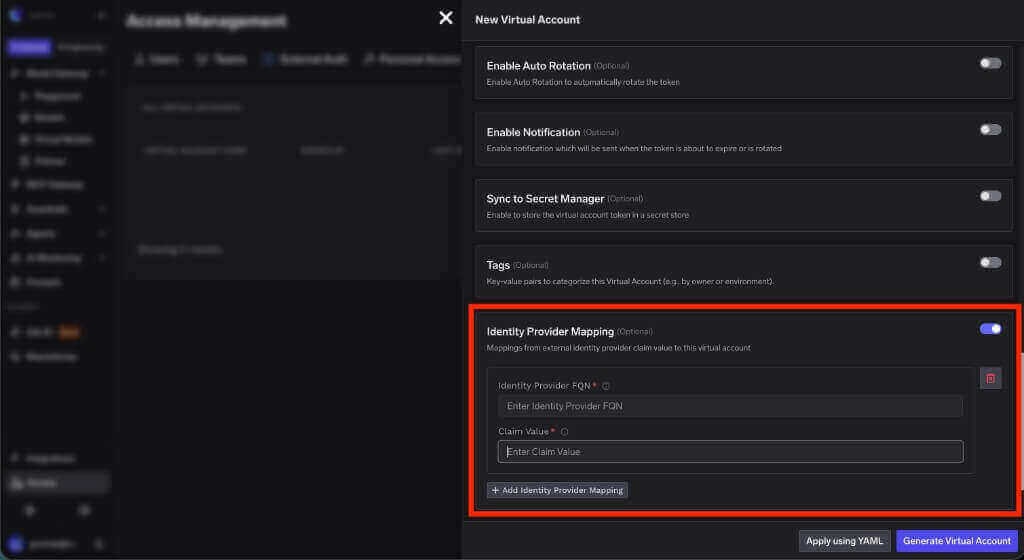 The fully qualified name of the Identity Provider that validates the incoming JWT. Copy this value from the Identity Provider configuration.
The value from the claim configured as the virtual account name claim. For example, if the Identity Provider uses `client_id` as the name claim and the token contains `gateway-service`, enter `gateway-service` here.
### Configure auto-rotation of virtual account tokens
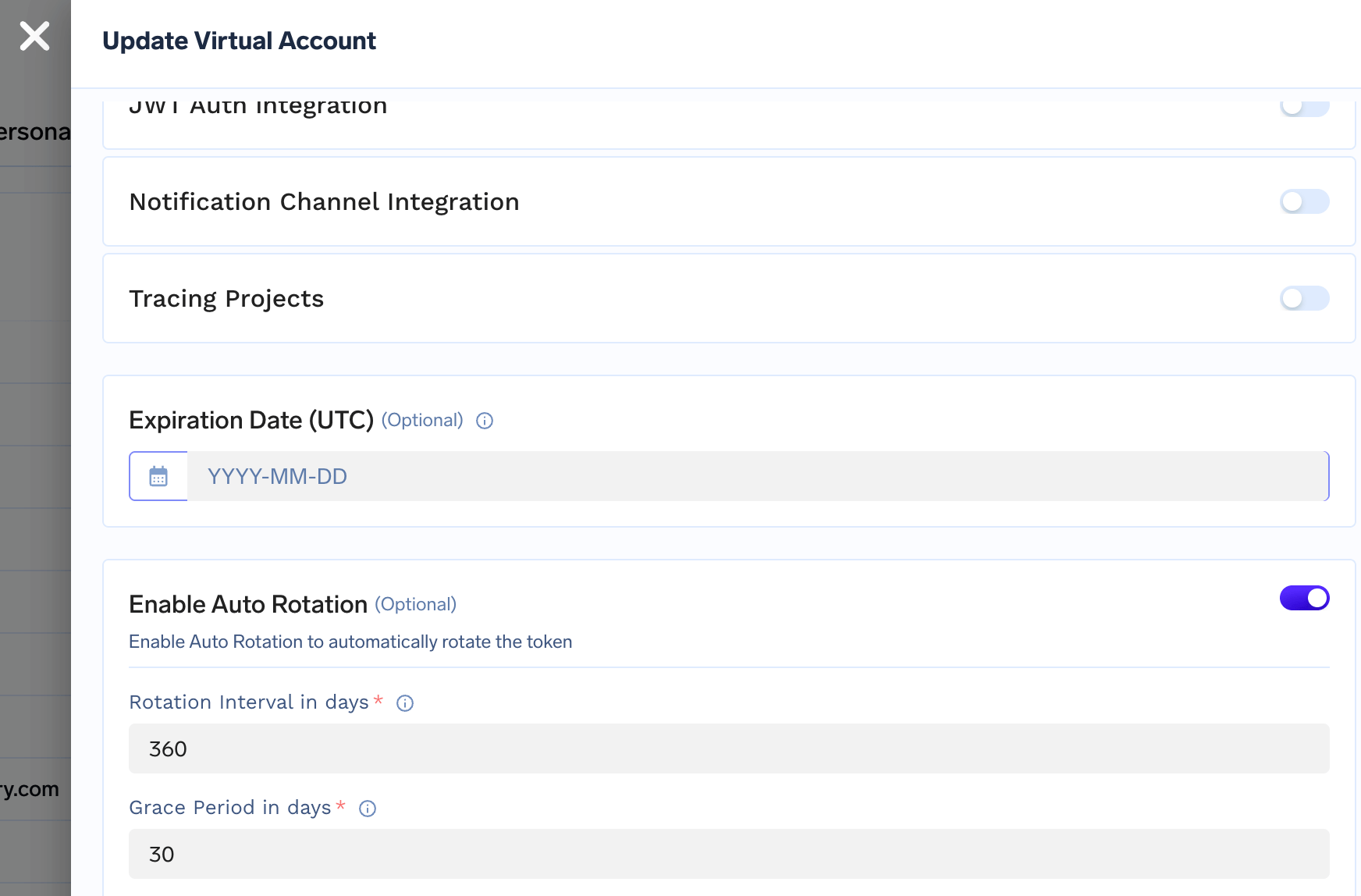
You can configure auto-rotate to automatically rotate the token at an interval. In auto-rotation, new token will be generated and can be retrieved using UI or API while the older token will be active for a grace period that is configurable.
The fully qualified name of the Identity Provider that validates the incoming JWT. Copy this value from the Identity Provider configuration.
The value from the claim configured as the virtual account name claim. For example, if the Identity Provider uses `client_id` as the name claim and the token contains `gateway-service`, enter `gateway-service` here.
### Configure auto-rotation of virtual account tokens
You can configure auto-rotate to automatically rotate the token at an interval. In auto-rotation, new token will be generated and can be retrieved using UI or API while the older token will be active for a grace period that is configurable.
 ### Configure notification on token rotation
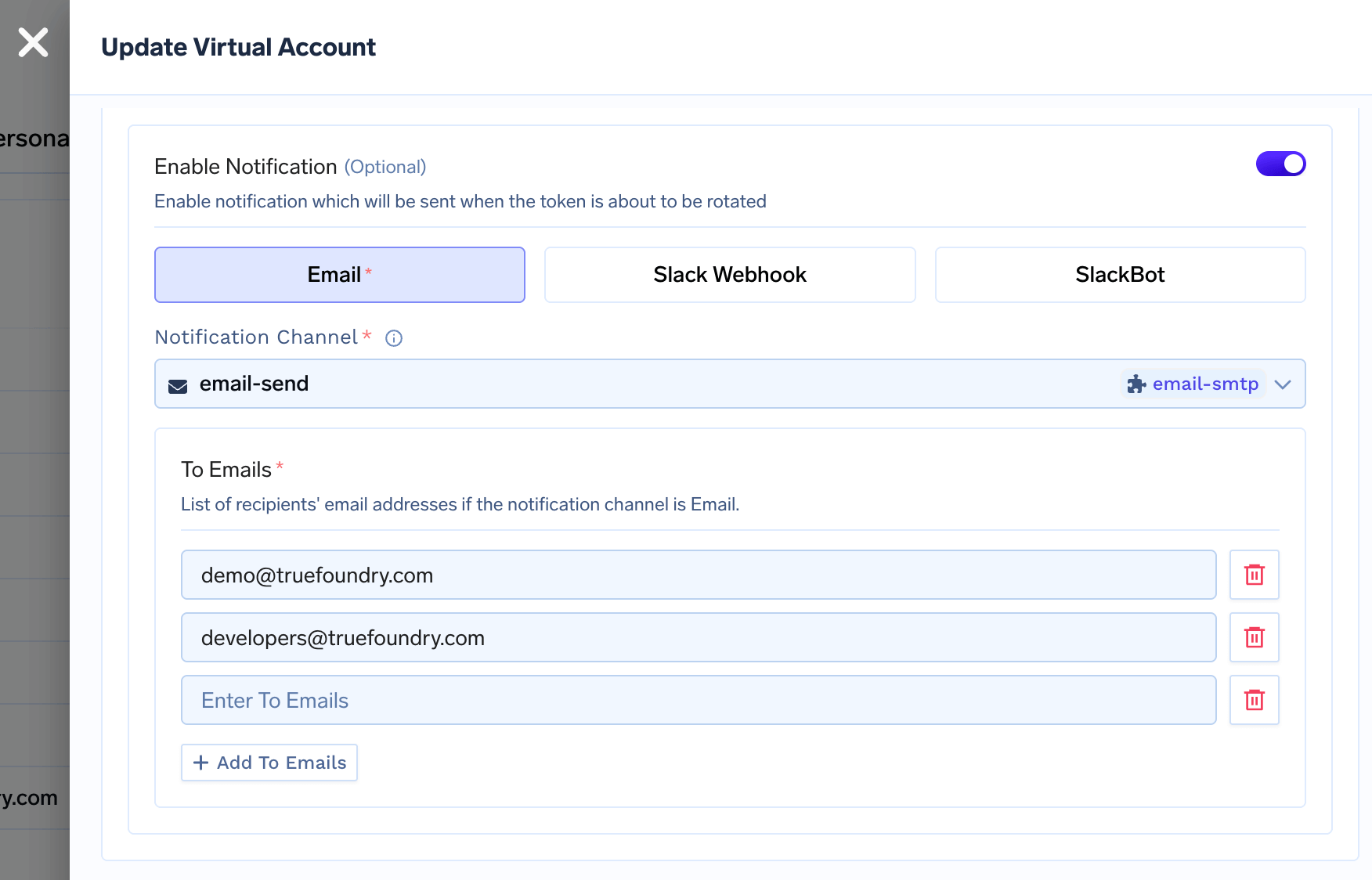
You can get notified via email or Slack when a token is rotated. To configure notification, you first need to add an integration for email or Slack. You can find the instructions [here](/docs/email-integration) and [here](/docs/slack-bot-integration).
### Configure notification on token rotation
You can get notified via email or Slack when a token is rotated. To configure notification, you first need to add an integration for email or Slack. You can find the instructions [here](/docs/email-integration) and [here](/docs/slack-bot-integration).
 ### Configure secret store sync for virtual account tokens
You can configure Truefoundry to automatically sync the virtual account token to a secret store of your choice. To use this feature, you first need to integrate a secret store with Truefoundry. Truefoundry supports integrations with AWS Parameter Store, AWS Secrets Manager, Google Secret Manager, HashiCorp Vault, Azure Vault, etc. You can find the instructions [here](/docs/integrations-secret-store).
### Configure secret store sync for virtual account tokens
You can configure Truefoundry to automatically sync the virtual account token to a secret store of your choice. To use this feature, you first need to integrate a secret store with Truefoundry. Truefoundry supports integrations with AWS Parameter Store, AWS Secrets Manager, Google Secret Manager, HashiCorp Vault, Azure Vault, etc. You can find the instructions [here](/docs/integrations-secret-store).
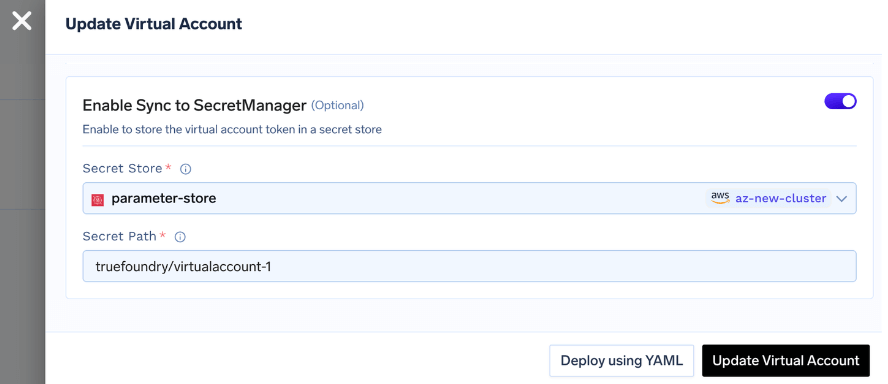 If you configure the secrets to sync to a secret store, the virtual account token will be stored in the secret store in a secret path of your choice. The token will automatically be synced to the secret store when the token is rotated.