> ## Documentation Index
> Fetch the complete documentation index at: https://www.truefoundry.com/llms.txt
> Use this file to discover all available pages before exploring further.
# Support
> How to reach the TrueFoundry support team — when to use the shared Slack/Teams channel and when to use the in-product Support Portal.
TrueFoundry tracks every customer issue, bug, and feature request in a single Support Portal so nothing gets lost in chat history. You can also visit [truefoundry.com/support](https://www.truefoundry.com/support) for an overview of all support channels and SLAs.
There are two ways to open a ticket:
1. **From your shared Slack or Microsoft Teams channel** *(recommended)* — tag **`@TrueFoundry Team`** in the thread, and a portal ticket is created automatically.
2. **From the in-product Support Portal** — open it directly when Slack/Teams is restricted on your network, when you don't have a shared channel set up, or when you want to attach long descriptions, screenshots, or logs through a structured form.
Prefer Slack or Teams for everything — even bugs and feature requests. The integration logs the message into the Support Portal automatically, so you keep the conversation in your team's chat **and** get the same tracking, SLAs, and history as a portal-raised ticket.
## Walkthrough
## Option 1 — Raise a ticket from Slack or Microsoft Teams (recommended)
If TrueFoundry has set up a shared Slack or Microsoft Teams channel with your organisation, this is the fastest way to reach us — the message stays in the conversation thread your team is already using, and the integration mirrors it into the Support Portal so it gets the same tracking and SLAs.
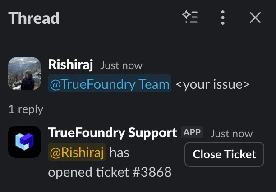
In the shared Slack or Teams channel, start a thread describing your issue and tag **`@TrueFoundry Team`**. The bot replies in-thread to confirm a ticket has been opened and shares the ticket ID.
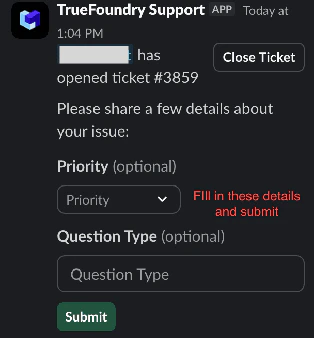
 The bot follows up in the same thread with a short form asking for **Priority** (P0–P3) and **Question Type** (component affected — gateway, infra, MCP, etc.). Fill them in and click **Submit**.
 The ticket is now visible in the Support Portal alongside any tickets you raised through the UI. You can keep replying in the Slack/Teams thread — every message is mirrored to the portal automatically.
## Option 2 — Raise a ticket from the in-product Support Portal
Use the portal directly when:
* Your organisation has not set up a shared Slack/Teams channel with TrueFoundry.
* Slack or Teams is restricted on your corporate network.
* You want to attach a long description, structured logs, or multiple screenshots through a form.
* You want to file a ticket on behalf of someone else, or browse and filter the full ticket history.
### Prerequisites
* You have access to your TrueFoundry tenant.
* The Support Portal is enabled for your account.
**If you do not see the “Support” button** in the left navigation, the portal may not be enabled for your tenant or your control plane could be on an older version. Reach out to your TrueFoundry Customer Success contact to enable it.
The ticket is now visible in the Support Portal alongside any tickets you raised through the UI. You can keep replying in the Slack/Teams thread — every message is mirrored to the portal automatically.
## Option 2 — Raise a ticket from the in-product Support Portal
Use the portal directly when:
* Your organisation has not set up a shared Slack/Teams channel with TrueFoundry.
* Slack or Teams is restricted on your corporate network.
* You want to attach a long description, structured logs, or multiple screenshots through a form.
* You want to file a ticket on behalf of someone else, or browse and filter the full ticket history.
### Prerequisites
* You have access to your TrueFoundry tenant.
* The Support Portal is enabled for your account.
**If you do not see the “Support” button** in the left navigation, the portal may not be enabled for your tenant or your control plane could be on an older version. Reach out to your TrueFoundry Customer Success contact to enable it.
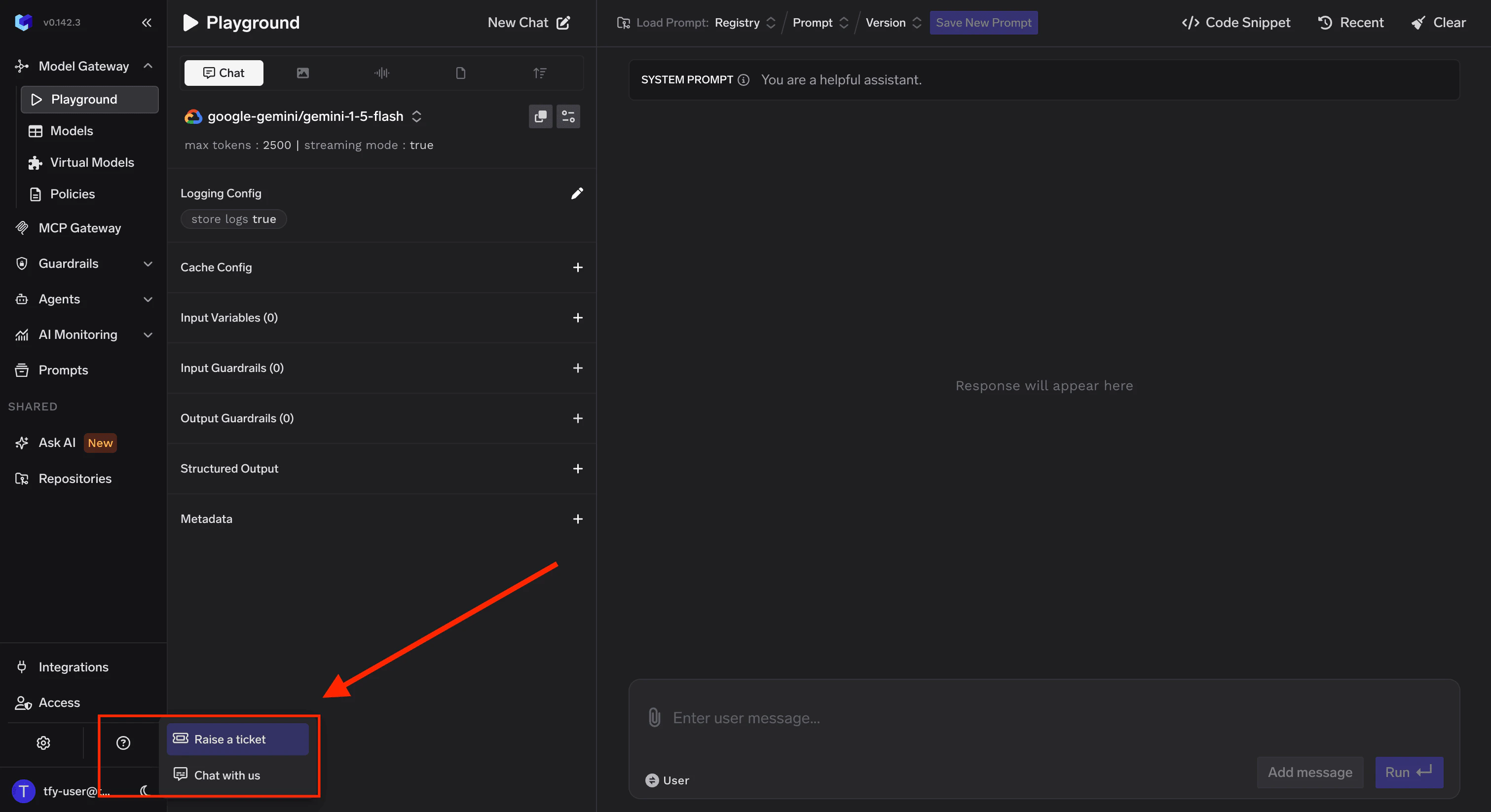
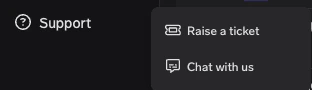 Sign in to TrueFoundry, click **Support** in the left sidebar (under **Help & Support**), and choose **Raise a ticket**. You'll be redirected to the Support Portal in a new tab.
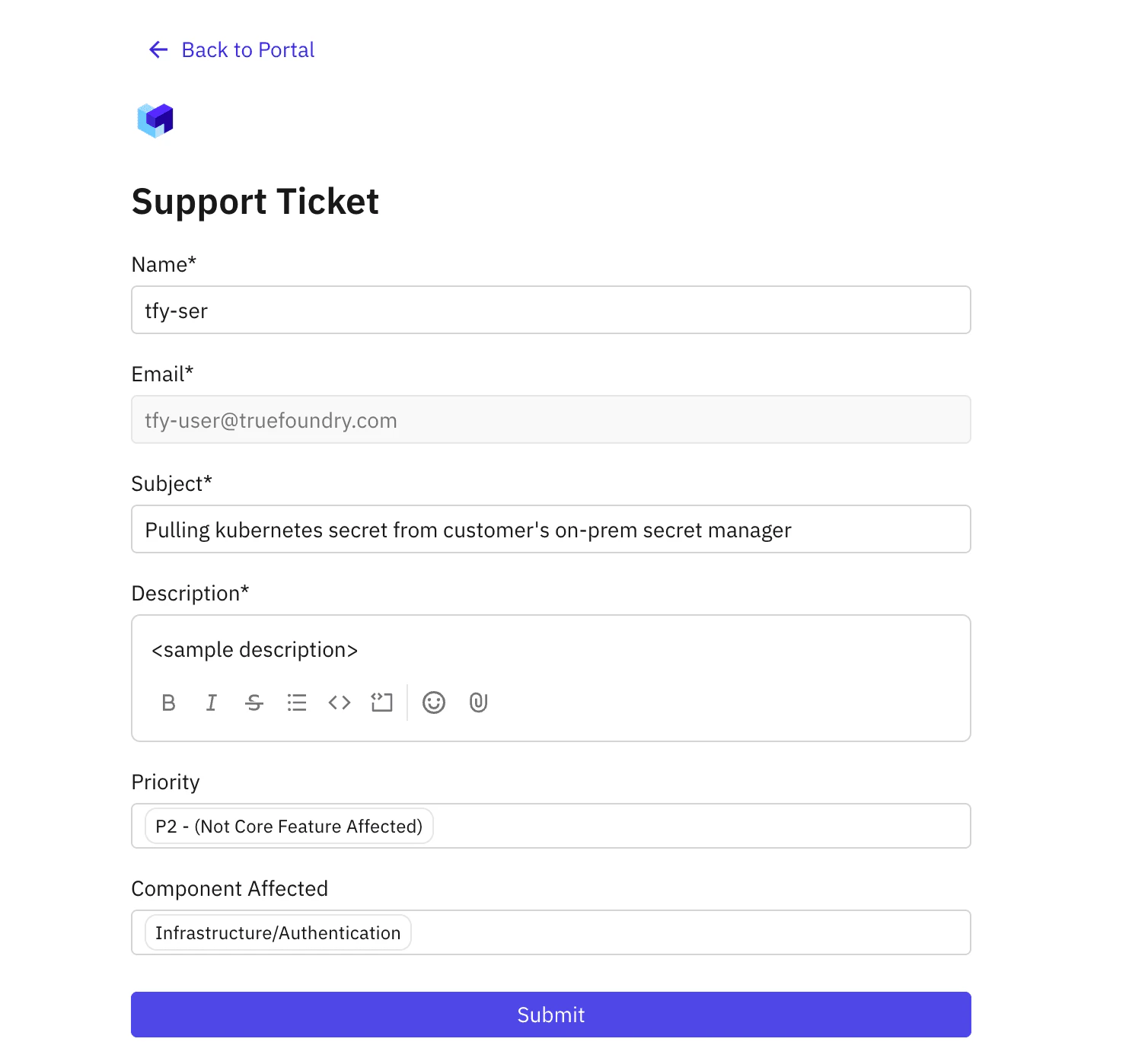
 In the portal, click **Create Ticket** and choose:
* **Support Ticket** — general help, guidance, or how-to questions.
* **Bug** — something is not working as expected.
| Field | What to put |
| ---------------------- | -------------------------------------------------------------------------------------------------------------------------------------------------------------------------------------------- |
| **Subject** | Short, specific title. e.g. *"Service deployment failing in `prod` cluster"* |
| **Description** | What you expected, what actually happened, reproduction steps (for bugs), relevant timestamps, error messages or log snippets. Links to logs/dashboards help us debug faster. |
| **Priority** | `P0` blocking production / major outage · `P1` core feature broken or major workflow blocked · `P2` issue with a workaround, moderate impact · `P3` minor issue, cosmetic, small improvement |
| **Component Affected** | The product area the issue belongs to (infra, gateway, MCP, deployments, …). |
In the portal, click **Create Ticket** and choose:
* **Support Ticket** — general help, guidance, or how-to questions.
* **Bug** — something is not working as expected.
| Field | What to put |
| ---------------------- | -------------------------------------------------------------------------------------------------------------------------------------------------------------------------------------------- |
| **Subject** | Short, specific title. e.g. *"Service deployment failing in `prod` cluster"* |
| **Description** | What you expected, what actually happened, reproduction steps (for bugs), relevant timestamps, error messages or log snippets. Links to logs/dashboards help us debug faster. |
| **Priority** | `P0` blocking production / major outage · `P1` core feature broken or major workflow blocked · `P2` issue with a workaround, moderate impact · `P3` minor issue, cosmetic, small improvement |
| **Component Affected** | The product area the issue belongs to (infra, gateway, MCP, deployments, …). |
 Click **Submit** when you're done.
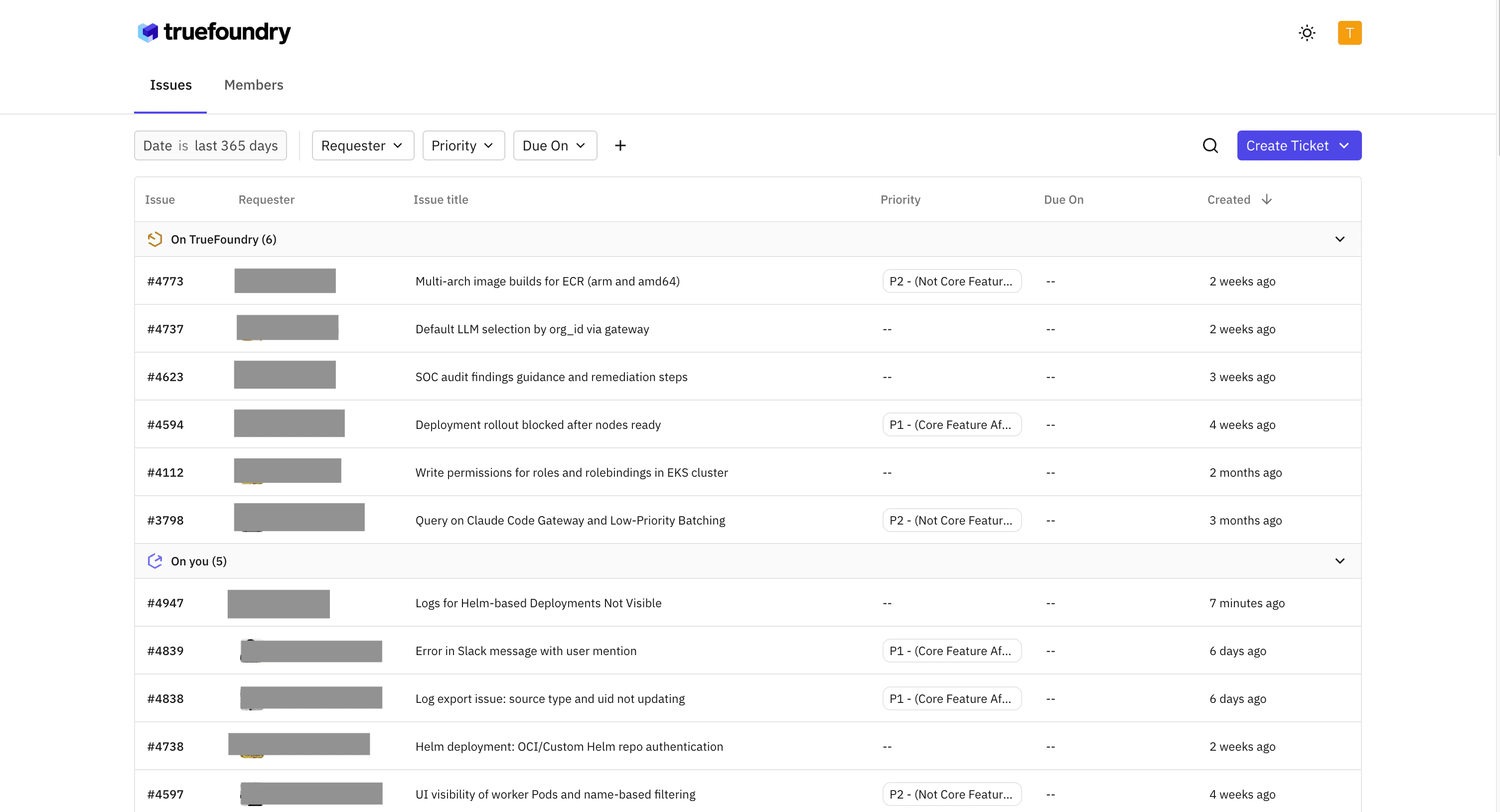
The ticket appears immediately in the portal. Returning to the portal at any time shows you:
* **Issue ID**
* Who raised it
* Priority
* Created time
* Current status and the latest updates from the TrueFoundry team
Click **Submit** when you're done.
The ticket appears immediately in the portal. Returning to the portal at any time shows you:
* **Issue ID**
* Who raised it
* Priority
* Created time
* Current status and the latest updates from the TrueFoundry team
 ## Best practices
To help us resolve your tickets faster, include:
* **Environment** — `prod`, `staging`, or `dev` (and which cluster/workspace).
* **Impact** — who is blocked, what is failing, and how many users are affected.
* **Logs and screenshots** — links to logs in your observability stack are even better than pasted snippets.
* **Reproduction steps** — for bugs, the minimum sequence we need to follow to see the same failure.
* **What changed recently** — recent deployments, config changes, version upgrades, or new integrations are usually where bugs live.
## FAQ
No — small, quick questions can stay in your shared Slack/Teams channel without tagging `@TrueFoundry Team`. Open a ticket (either through the channel tag or the portal) when the issue needs tracking, has business impact, or is anything that affects production.
Yes, as long as you tag **`@TrueFoundry Team`** in the thread. The integration creates a portal ticket and links the conversation to it. If you forgot to tag, just edit the message or post a follow-up that tags us.
Yes. Every Slack/Teams ticket has a portal ticket ID; you can open that ticket in the Support Portal at any point to attach files, reply with a longer description, or hand off the issue to a teammate.
Use the in-product Support Portal (Option 2 above) for all tickets. If you'd like a shared channel set up, ask your TrueFoundry Customer Success contact.
## Best practices
To help us resolve your tickets faster, include:
* **Environment** — `prod`, `staging`, or `dev` (and which cluster/workspace).
* **Impact** — who is blocked, what is failing, and how many users are affected.
* **Logs and screenshots** — links to logs in your observability stack are even better than pasted snippets.
* **Reproduction steps** — for bugs, the minimum sequence we need to follow to see the same failure.
* **What changed recently** — recent deployments, config changes, version upgrades, or new integrations are usually where bugs live.
## FAQ
No — small, quick questions can stay in your shared Slack/Teams channel without tagging `@TrueFoundry Team`. Open a ticket (either through the channel tag or the portal) when the issue needs tracking, has business impact, or is anything that affects production.
Yes, as long as you tag **`@TrueFoundry Team`** in the thread. The integration creates a portal ticket and links the conversation to it. If you forgot to tag, just edit the message or post a follow-up that tags us.
Yes. Every Slack/Teams ticket has a portal ticket ID; you can open that ticket in the Support Portal at any point to attach files, reply with a longer description, or hand off the issue to a teammate.
Use the in-product Support Portal (Option 2 above) for all tickets. If you'd like a shared channel set up, ask your TrueFoundry Customer Success contact.