> ## Documentation Index
> Fetch the complete documentation index at: https://www.truefoundry.com/llms.txt
> Use this file to discover all available pages before exploring further.
# Deploy MCP Server from npx/uvx
> Learn how to deploy an MCP server that you're currently using in VSCode/Cursor/Claude as a service on TrueFoundry.
Many MCP servers are distributed as npm packages (via `npx`) or Python packages (via `uvx`) and are commonly used in development environments like VSCode, Cursor, or Claude Desktop. This guide shows you how to take an MCP server that you're running locally and deploy it as a service on TrueFoundry.
This approach is ideal when you have instructions for using an MCP server in VSCode/Cursor/Claude and want to make it available as a service that can be accessed by the AI Gateway or other applications.
## Common Scenario
You might have instructions like this for using an MCP server locally:
**For npm packages:**
```json theme={"dark"}
{
"mcpServers": {
"@notionhq/notion-mcp-server": {
"command": "npx",
"args": ["-y", "@notionhq/notion-mcp-server"],
"env": {
"NOTION_API_KEY": "your-api-key"
}
}
}
}
```
**For Python packages:**
```json theme={"dark"}
{
"mcpServers": {
"filesystem": {
"command": "uvx",
"args": ["mcp-server-filesystem", "/path/to/allowed/directory"]
}
}
}
```
These configurations work great for local development, but to use the MCP server in production or make it accessible to the AI Gateway, you need to deploy it as a service.
## Prerequisites
If you're new to deploying services on TrueFoundry, we recommend first going through the [Deploy Your First Service](/docs/deploy-first-service) guide to understand the basic deployment workflow.
* An MCP server package name (e.g., `@notionhq/notion-mcp-server` or `mcp-server-filesystem`)
* A TrueFoundry workspace ([Create workspace](/docs/key-concepts#creating-a-workspace) if you don't have one)
* The environment variables or configuration the MCP server requires
* Understanding of whether the package is npm-based (`npx`) or Python-based (`uvx`)
## Understanding the Deployment
MCP servers run via `npx` or `uvx` typically use stdio (standard input/output) communication. To deploy them on TrueFoundry, you need to:
1. Wrap the `npx`/`uvx` command with `mcp-proxy` to convert stdio to HTTP
2. Deploy it as a service that can be accessed over HTTP
3. Configure the necessary environment variables
## Deployment Steps
1. Log in to your TrueFoundry dashboard
2. Select your workspace
3. Navigate to **Deployments** → **New Deployment** → **Service**
* **For npm packages (npx)**: You'll deploy using **Deploy from Docker Image** with `node:24` as the base image and run the command directly.
* **For Python packages (uvx)**: You'll deploy using **Deploy from Docker Image** with `public.ecr.aws/docker/library/python:3.11-slim` as the base image and install `mcp-proxy` via pip in the command.
1. In TrueFoundry dashboard, select **Deploy from Docker Image**
2. Set **Docker Image** to `node:24`
3. Set **Command** to `npx -y mcp-proxy --port 8000 --host 0.0.0.0 --server stream npx -y `
* Replace `` with your actual package name
* Add any required arguments after the package name
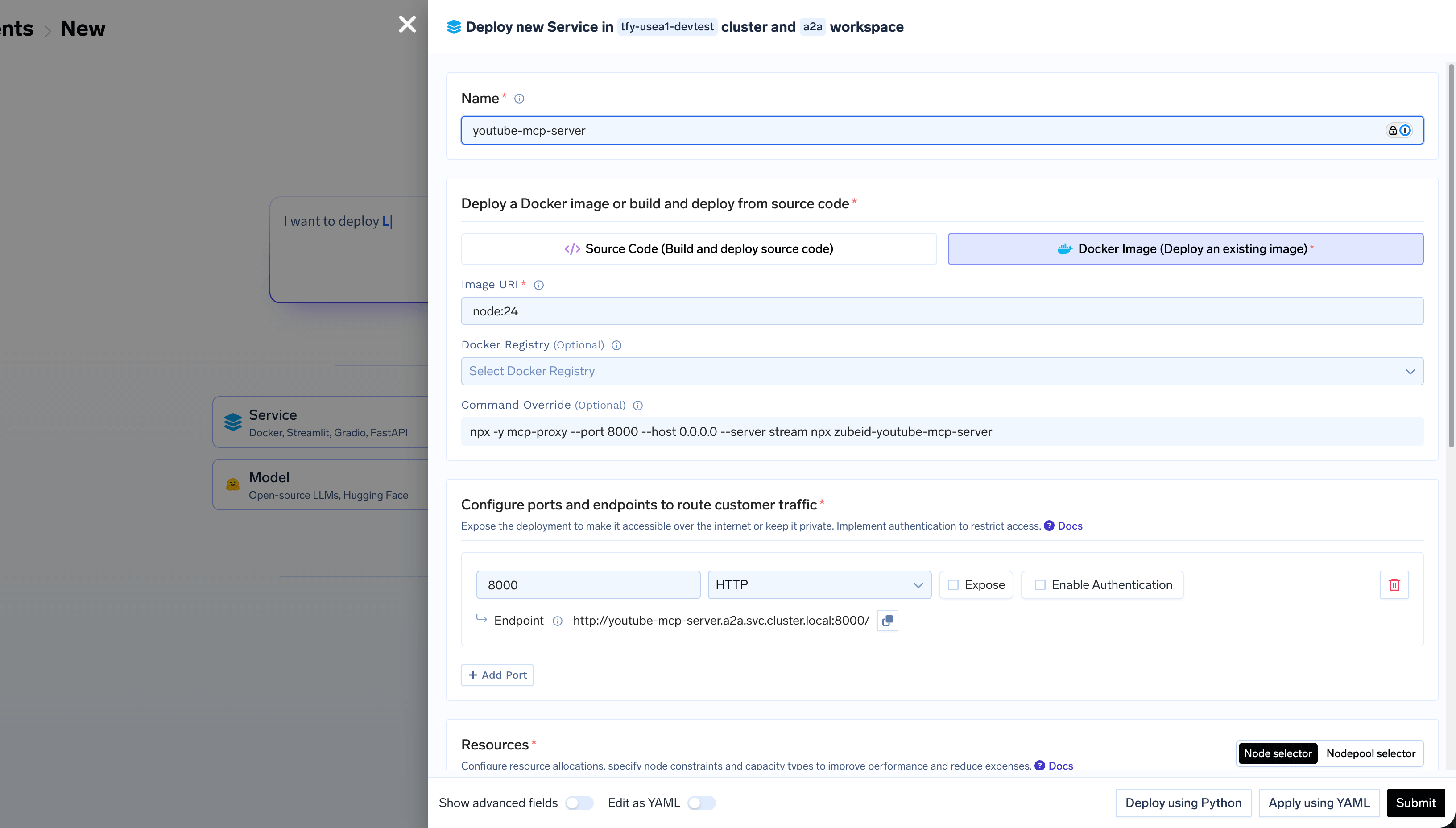 The `-y` flag with `npx` automatically installs the package if it's not already present. The first `npx -y mcp-proxy` installs and runs mcp-proxy, while the second `npx -y ` runs your MCP server package.
**Example for Notion MCP Server:**
* **Command**: `npx -y mcp-proxy --port 8000 --host 0.0.0.0 --server stream npx -y @notionhq/notion-mcp-server`
1. In TrueFoundry dashboard, select **Deploy from Docker Image**
2. Set **Docker Image** to `public.ecr.aws/docker/library/python:3.11-slim`
3. Set **Command** to `sh -c "pip install uv mcp-proxy && mcp-proxy --host=0.0.0.0 --port=8000 uvx "`
* Replace `` with your actual package name
* Add any required arguments after the package name
The `-y` flag with `npx` automatically installs the package if it's not already present. The first `npx -y mcp-proxy` installs and runs mcp-proxy, while the second `npx -y ` runs your MCP server package.
**Example for Notion MCP Server:**
* **Command**: `npx -y mcp-proxy --port 8000 --host 0.0.0.0 --server stream npx -y @notionhq/notion-mcp-server`
1. In TrueFoundry dashboard, select **Deploy from Docker Image**
2. Set **Docker Image** to `public.ecr.aws/docker/library/python:3.11-slim`
3. Set **Command** to `sh -c "pip install uv mcp-proxy && mcp-proxy --host=0.0.0.0 --port=8000 uvx "`
* Replace `` with your actual package name
* Add any required arguments after the package name
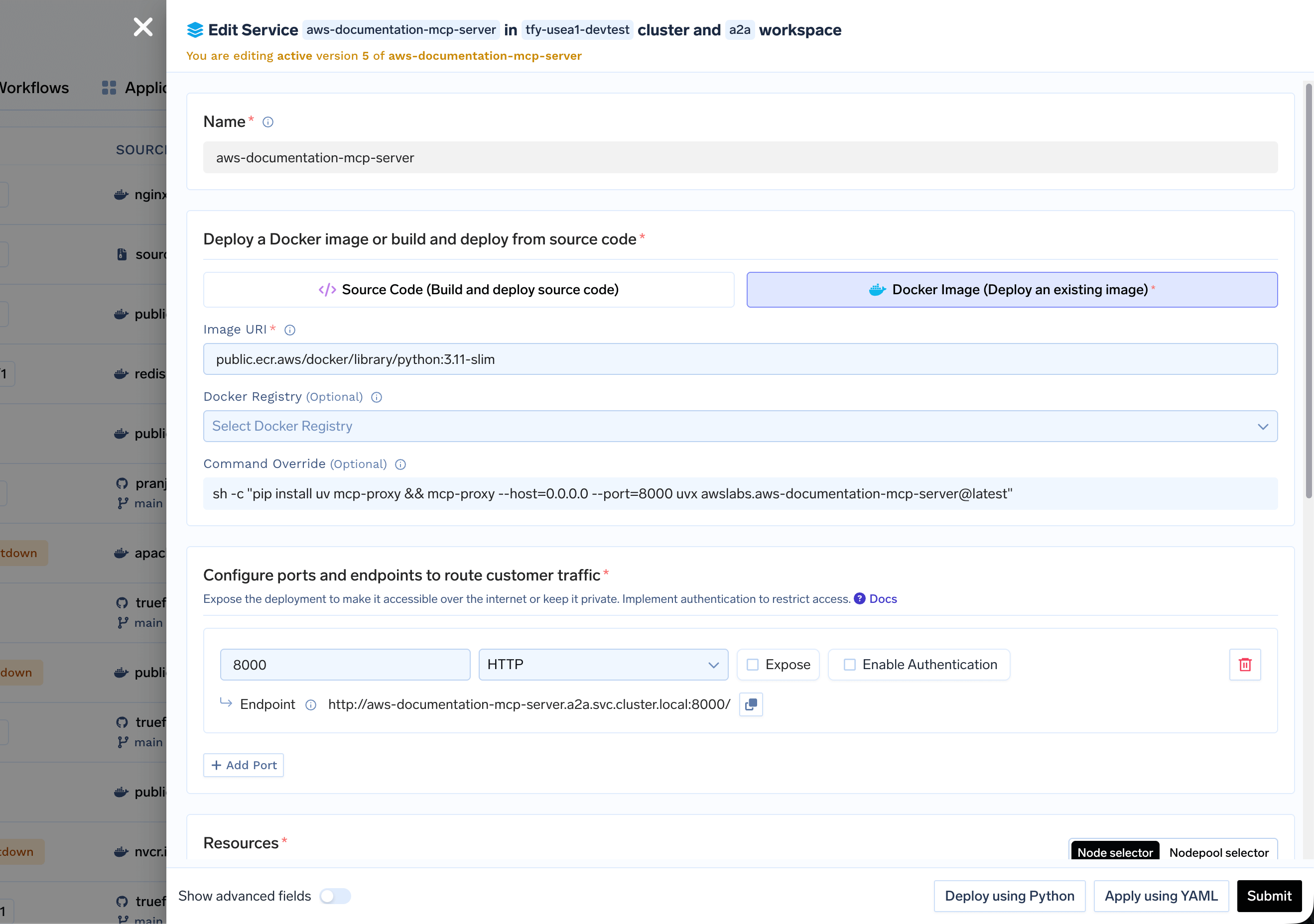 The `pip install` command installs `mcp-proxy` and `uv` (required for `uvx`), then runs mcp-proxy which wraps your uvx command.
**Example for filesystem MCP server:**
* **Command**: `sh -c "pip install mcp-proxy uv && mcp-proxy --port 8000 --host 0.0.0.0 --server stream uvx mcp-server-filesystem /data"`
The `/data` directory will be created automatically in the container. If you need a specific directory structure, you can create it using an init script or mount a volume.
1. Click **Add Port**
2. Set **Port** to `8000`
3. Set **Protocol** to `TCP`
4. Set **App Protocol** to `http`
5. Expose the port on a domain if you want.
Add any required environment variables for your MCP server. These are typically the same variables you would use in your local VSCode/Cursor/Claude configuration:
**Common environment variables:**
* `NOTION_API_KEY` - For Notion MCP server
* `GITHUB_TOKEN` - For GitHub MCP server
* `PERPLEXITY_API_KEY` - For Perplexity MCP server
* `OPENAI_API_KEY` - For OpenAI-related servers
For sensitive values, use [TrueFoundry Secrets](/docs/environment-variables-and-secrets) instead of plain environment variables.
Set appropriate resource limits. You can start with the default values and later change if needed.
Click **Submit** to start the deployment. Monitor the status until it shows **DEPLOY\_SUCCESS**.
1. Check the service status (should be green/running)
2. Note the service endpoint URL
3. Test the endpoint:
```bash theme={"dark"}
curl http://your-service-endpoint-url
```
The endpoint should respond with MCP protocol messages over HTTP.
## Passing Arguments to Packages
Some MCP servers accept command-line arguments. You can pass them through mcp-proxy:
**For npm packages (Docker Image):**
When using Deploy from Docker Image, set the command in the deployment configuration:
* **Command**: `npx -y mcp-proxy --port 8000 --host 0.0.0.0 --server stream npx -y package-name --arg value`
**For Python packages (uvx):**
When using Deploy from Docker Image, set the command in the deployment configuration:
* **Command**: `pip install mcp-proxy uv && mcp-proxy --port 8000 --host 0.0.0.0 --server stream uvx package-name --arg value`
## Troubleshooting
* Verify the package name is correct
* Check that the package is published on npm or PyPI
* Ensure `npx -y` flag is used to auto-install (for npm packages)
* For Python packages, ensure `uvx` is installed and working
* Review logs for installation errors
* Check the package documentation for required environment variables
* Ensure all required env vars are set in TrueFoundry
* Use secrets for sensitive values like API keys
* Verify the authentication method matches the package requirements
* Compare with your local VSCode/Cursor/Claude configuration
* npm/Python packages may require more memory during installation
* Increase memory limits if the service fails to start
* Monitor memory usage in the dashboard
* First startup may be slow as npx/uvx downloads the package
* Consider creating a custom image with the package pre-installed
* Use `npm install -g ` in Dockerfile for faster startups (npm)
* Pre-install Python packages in the Dockerfile
* Verify the argument format matches the package documentation
* Check that arguments are passed correctly through mcp-proxy
* Review service logs to see how the command is executed
* Test the command locally first to ensure it works
The `pip install` command installs `mcp-proxy` and `uv` (required for `uvx`), then runs mcp-proxy which wraps your uvx command.
**Example for filesystem MCP server:**
* **Command**: `sh -c "pip install mcp-proxy uv && mcp-proxy --port 8000 --host 0.0.0.0 --server stream uvx mcp-server-filesystem /data"`
The `/data` directory will be created automatically in the container. If you need a specific directory structure, you can create it using an init script or mount a volume.
1. Click **Add Port**
2. Set **Port** to `8000`
3. Set **Protocol** to `TCP`
4. Set **App Protocol** to `http`
5. Expose the port on a domain if you want.
Add any required environment variables for your MCP server. These are typically the same variables you would use in your local VSCode/Cursor/Claude configuration:
**Common environment variables:**
* `NOTION_API_KEY` - For Notion MCP server
* `GITHUB_TOKEN` - For GitHub MCP server
* `PERPLEXITY_API_KEY` - For Perplexity MCP server
* `OPENAI_API_KEY` - For OpenAI-related servers
For sensitive values, use [TrueFoundry Secrets](/docs/environment-variables-and-secrets) instead of plain environment variables.
Set appropriate resource limits. You can start with the default values and later change if needed.
Click **Submit** to start the deployment. Monitor the status until it shows **DEPLOY\_SUCCESS**.
1. Check the service status (should be green/running)
2. Note the service endpoint URL
3. Test the endpoint:
```bash theme={"dark"}
curl http://your-service-endpoint-url
```
The endpoint should respond with MCP protocol messages over HTTP.
## Passing Arguments to Packages
Some MCP servers accept command-line arguments. You can pass them through mcp-proxy:
**For npm packages (Docker Image):**
When using Deploy from Docker Image, set the command in the deployment configuration:
* **Command**: `npx -y mcp-proxy --port 8000 --host 0.0.0.0 --server stream npx -y package-name --arg value`
**For Python packages (uvx):**
When using Deploy from Docker Image, set the command in the deployment configuration:
* **Command**: `pip install mcp-proxy uv && mcp-proxy --port 8000 --host 0.0.0.0 --server stream uvx package-name --arg value`
## Troubleshooting
* Verify the package name is correct
* Check that the package is published on npm or PyPI
* Ensure `npx -y` flag is used to auto-install (for npm packages)
* For Python packages, ensure `uvx` is installed and working
* Review logs for installation errors
* Check the package documentation for required environment variables
* Ensure all required env vars are set in TrueFoundry
* Use secrets for sensitive values like API keys
* Verify the authentication method matches the package requirements
* Compare with your local VSCode/Cursor/Claude configuration
* npm/Python packages may require more memory during installation
* Increase memory limits if the service fails to start
* Monitor memory usage in the dashboard
* First startup may be slow as npx/uvx downloads the package
* Consider creating a custom image with the package pre-installed
* Use `npm install -g ` in Dockerfile for faster startups (npm)
* Pre-install Python packages in the Dockerfile
* Verify the argument format matches the package documentation
* Check that arguments are passed correctly through mcp-proxy
* Review service logs to see how the command is executed
* Test the command locally first to ensure it works