> ## Documentation Index
> Fetch the complete documentation index at: https://www.truefoundry.com/llms.txt
> Use this file to discover all available pages before exploring further.
# Deploy MCP Server From Code
> Learn how to deploy an MCP server from source code, whether it's in a public GitHub repository or code you've written yourself.
This guide covers deploying an MCP server from source code. Whether your code is in a public GitHub repository or you've written it yourself, the deployment process is the same. You can deploy both HTTP-based and stdio-based MCP servers.
If you're new to deploying services on TrueFoundry, we recommend first going through the [Deploy Your First Service](/docs/deploy-first-service) guide to understand the basic deployment workflow.
## Prerequisites
* MCP server source code (in a GitHub repository or on your local machine)
* A TrueFoundry workspace ([Create workspace](/docs/key-concepts#creating-a-workspace) if you don't have one)
* If deploying from GitHub: repository integrated with TrueFoundry (see [GitHub Integration Setup](/docs/github-integration-set-up))
* Understanding of whether your server uses HTTP/SSE or stdio communication
## Writing Your Own MCP Server
If you're writing your own MCP server, here are examples to get you started.
It's recommended to write the HTTP-based servers since they are more secure and easier to deploy.
HTTP-based servers are easier to deploy and integrate. FastMCP is a Python framework for building HTTP MCP servers:
```python server.py theme={"dark"}
from fastmcp import FastMCP
mcp = FastMCP("Calculator MCP Server")
@mcp.tool
def add(a: float, b: float) -> float:
"""Add two numbers together"""
return a + b
@mcp.tool
def subtract(a: float, b: float) -> float:
"""Subtract the second number from the first number"""
return a - b
if __name__ == "__main__":
mcp.run(transport="http", host="0.0.0.0", port=8000, path="/mcp")
```
**requirements.txt:**
```txt theme={"dark"}
fastmcp>=0.1.0
```
**Repository Structure:**
```
mcp-server/
├── server.py
├── requirements.txt
└── README.md
```
**Testing Locally:**
Before deploying, test your server locally:
```bash theme={"dark"}
# Run your server
python server.py
# Test in another terminal
curl -X POST http://localhost:8000/mcp \
-H "Content-Type: application/json" \
-d '{"jsonrpc": "2.0", "id": 1, "method": "tools/list"}'
```
If you prefer stdio communication, you'll need to implement the MCP protocol over stdin/stdout:
```python server.py theme={"dark"}
import sys
import json
def handle_request(request):
"""Handle MCP protocol requests"""
method = request.get("method")
request_id = request.get("id")
if method == "tools/list":
return {
"jsonrpc": "2.0",
"id": request_id,
"result": {
"tools": [
{
"name": "add",
"description": "Add two numbers together",
"inputSchema": {
"type": "object",
"properties": {
"a": {"type": "number", "description": "First number"},
"b": {"type": "number", "description": "Second number"}
},
"required": ["a", "b"]
}
},
{
"name": "subtract",
"description": "Subtract the second number from the first number",
"inputSchema": {
"type": "object",
"properties": {
"a": {"type": "number", "description": "First number"},
"b": {"type": "number", "description": "Second number"}
},
"required": ["a", "b"]
}
}
]
}
}
elif method == "tools/call":
# Execute tool
tool_name = request["params"]["name"]
args = request["params"]["arguments"]
if tool_name == "add":
result = args["a"] + args["b"]
elif tool_name == "subtract":
result = args["a"] - args["b"]
else:
return {
"jsonrpc": "2.0",
"id": request_id,
"error": {"code": -32601, "message": "Method not found"}
}
return {
"jsonrpc": "2.0",
"id": request_id,
"result": {
"content": [{"type": "text", "text": str(result)}]
}
}
else:
return {
"jsonrpc": "2.0",
"id": request_id,
"error": {"code": -32601, "message": "Method not found"}
}
def main():
"""Main stdio loop"""
for line in sys.stdin:
try:
request = json.loads(line.strip())
response = handle_request(request)
print(json.dumps(response))
sys.stdout.flush()
except Exception as e:
error_response = {
"jsonrpc": "2.0",
"id": request.get("id") if 'request' in locals() else None,
"error": {"code": -1, "message": str(e)}
}
print(json.dumps(error_response))
sys.stdout.flush()
if __name__ == "__main__":
main()
```
**Repository Structure:**
```
mcp-server/
├── server.py
├── Dockerfile
└── README.md
```
**Dockerfile:**
```dockerfile theme={"dark"}
FROM python:3.11-slim
# Install mcp-proxy
RUN pip install mcp-proxy
# Copy server code
WORKDIR /app
COPY . .
# Run mcp-proxy wrapping the Python stdio server
CMD ["mcp-proxy", "--port", "8000", "--host", "0.0.0.0", "--server", "stream", "python", "server.py"]
```
**Testing Locally:**
Before deploying, test your stdio server locally:
```bash theme={"dark"}
# Test stdio server
echo '{"jsonrpc": "2.0", "id": 1, "method": "tools/list"}' | python server.py
```
## Determine Your Server Type
Before deploying, you need to identify whether your MCP server uses:
* **HTTP/SSE**: The server exposes HTTP endpoints and can be accessed directly
* **Stdio**: The server communicates through standard input/output (stdin/stdout)
## Deployment Steps
The deployment process is the same whether your code is in a GitHub repository or on your local machine. The only difference is the source selection in the second step.
1. Log in to your TrueFoundry dashboard
2. Navigate to **Deployments** → **New Deployment** → **Service**
3. Select your workspace
1. Select **Git Repo** as the source
2. Choose your repository from the **Repo URL** dropdown
3. Set the **Path to Build Context** to the directory containing your MCP server code
**Path to Build Context**: This is the path to the directory in the GitHub repository that contains the code for your MCP server. If your MCP server is in the root of the repository, use `"./"`. If it's in a subdirectory like `mcp-server/`, use `"./mcp-server/"`.
**Deployment Configuration (from GitHub):**
* **Source**: Git Repo
* **Repo URL**: `https://github.com/your-org/your-repo`
* **Path to Build Context**: `"./mcp-server/"`
* **Path to requirements.txt**: `"./requirements.txt"`
* **Python Version**: `3.11`
* **Command**: `python server.py`
* **Port**: `8000`
1. Select **Code From Laptop** as the source
2. Follow the wizard to generate a `deploy.py` file
3. Place `deploy.py` in your project root
4. Run `python deploy.py` to deploy
**Example deploy.py for HTTP Server:**
```python deploy.py expandable theme={"dark"}
import logging
from truefoundry.deploy import (
Service, Build, LocalSource, PythonBuild,
Port, Resources
)
logging.basicConfig(level=logging.INFO)
service = Service(
name="my-custom-mcp-server",
image=Build(
build_source=LocalSource(project_root_path="./", local_build=True),
build_spec=PythonBuild(
build_context_path="./",
command="python server.py",
requirements_path="requirements.txt",
),
),
ports=[
Port(
port=8000,
protocol="TCP",
expose=False,
app_protocol="http",
)
],
env={
"API_KEY": "tfy-secret://your-workspace:your-secret-group:API_KEY"
},
resources=Resources(
cpu_request=0.5,
cpu_limit=1,
memory_request=1000,
memory_limit=2000,
),
replicas=1,
)
service.deploy(workspace_fqn="your-workspace-fqn")
```
**Example deploy.py for Stdio Server:**
```python deploy.py expandable theme={"dark"}
import logging
from truefoundry.deploy import (
Service, Build, LocalSource, DockerFileBuild,
Port, Resources
)
logging.basicConfig(level=logging.INFO)
service = Service(
name="my-custom-stdio-mcp-server",
image=Build(
build_source=LocalSource(project_root_path="./", local_build=True),
build_spec=DockerFileBuild(
dockerfile_path="./Dockerfile",
build_context_path="./",
),
),
ports=[
Port(
port=8000,
protocol="TCP",
expose=False,
app_protocol="http",
)
],
env={
"API_KEY": "tfy-secret://your-workspace:your-secret-group:API_KEY"
},
resources=Resources(
cpu_request=0.5,
cpu_limit=1,
memory_request=1000,
memory_limit=2000,
),
replicas=1,
)
service.deploy(workspace_fqn="your-workspace-fqn")
```
For HTTP-based servers, you can deploy directly without additional wrappers.
#### Option A: With Dockerfile (Recommended)
If you already have a Dockerfile in your repository:
**Example Configuration:**
* **Path to Build Context**: `"./mcp-server/"`
* **Path to Dockerfile**: `"./Dockerfile"`
* **Command**: `python server.py`
**Example Dockerfile:**
```dockerfile theme={"dark"}
FROM python:3.11-slim
WORKDIR /app
COPY requirements.txt .
RUN pip install --no-cache-dir -r requirements.txt
COPY . .
CMD ["python", "server.py"]
```
#### Option B: Without Dockerfile (Python)
If you're using Python without a Dockerfile:
1. Select **Python Code (I don't have Dockerfile)**
2. Set **Path to requirements.txt** relative to the build context
3. Choose **Python Version** (e.g., `3.11`)
4. Set **Command** to run your server
**Example Configuration:**
* **Path to Build Context**: `"./mcp-server/"`
* **Path to requirements.txt**: `"./requirements.txt"`
* **Python Version**: `3.11`
* **Command**: `python server.py`
**Complete Example (FastMCP HTTP Server):**
For the FastMCP server shown in "Writing Your Own MCP Server", use:
* **Path to Build Context**: `"./mcp-server/"` (or `"./"` if in root)
* **Path to requirements.txt**: `"./requirements.txt"`
* **Python Version**: `3.11`
* **Command**: `python server.py`
* **Port**: `8000`
For stdio-based servers, you need to wrap them with `mcp-proxy` to convert stdio communication to HTTP.
#### Understanding mcp-proxy
`mcp-proxy` is a tool that wraps stdio-based MCP servers and exposes them as HTTP endpoints. It acts as a bridge between the stdio protocol and HTTP.
**Installation:**
```bash theme={"dark"}
# TypeScript version
npm install -g mcp-proxy
# Python version
pipx install mcp-proxy
```
#### Option A: With Dockerfile (Recommended)
Create a Dockerfile that installs `mcp-proxy` and wraps your stdio server:
You can use the Dockerfile mentioned [above](docs/mcp-server-deployment/deploy-mcp-server-from-code#stdio-based-server-python) to wrap the stdio server.
**Configuration:**
* **Path to Build Context**: `"./mcp-server/"` (or `"./"` if in root)
* **Path to Dockerfile**: `"./Dockerfile"`
* **Command**: (defined in Dockerfile CMD) (8000 in the example above)
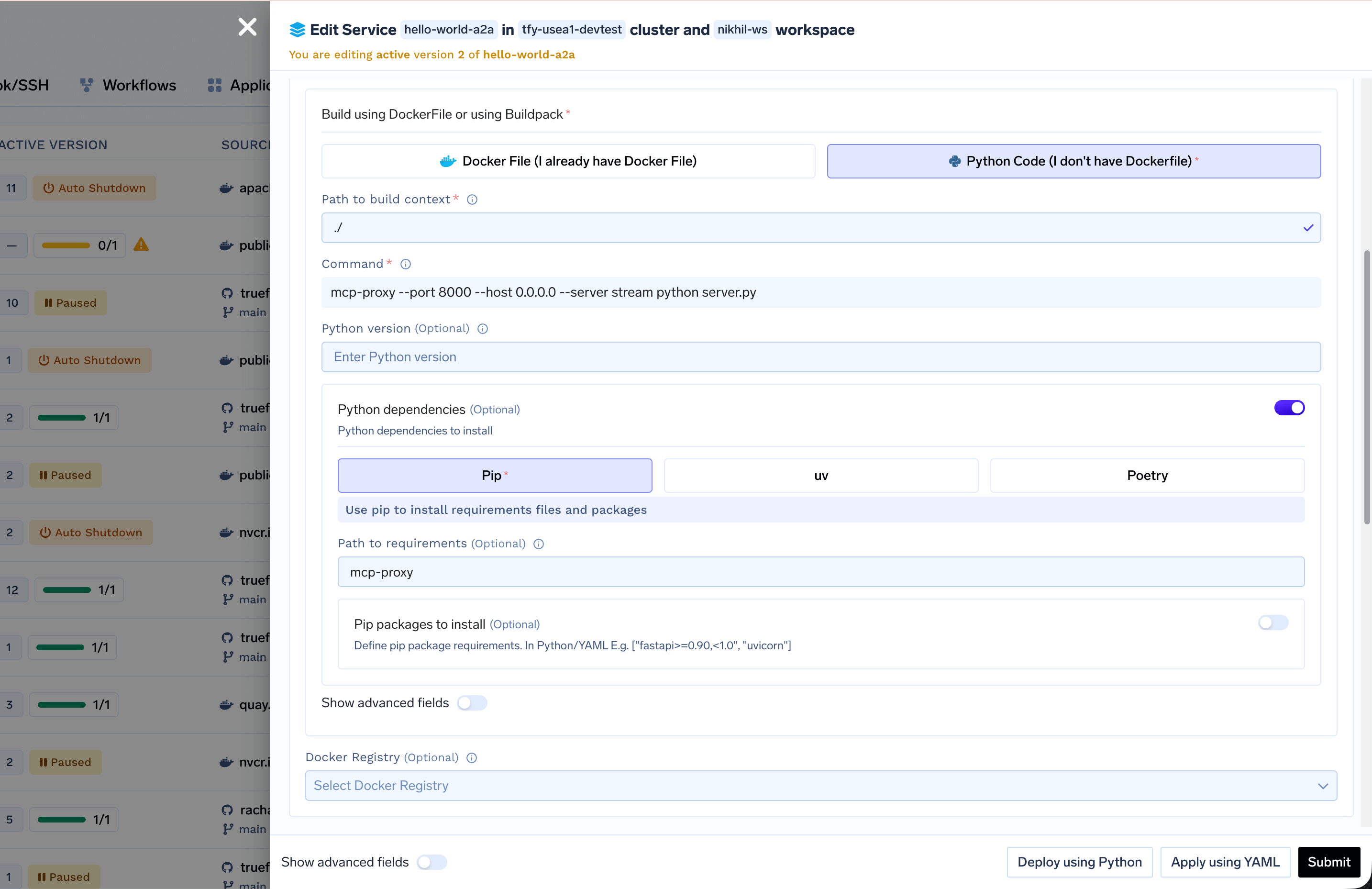
#### Option B: Python Build
If you don't want to write a Dockerfile, you can use the Python Build option and provide mcp-proxy as a dependency.
**Configuration:**
* **Path to Build Context**: `"./mcp-server/"`
* **Path to requirements.txt**: `"./requirements.txt"` (only if you have dependencies; if your server only uses standard library, you can skip this or create an empty file)
* **Python Version**: `3.11`
* **Command**: `mcp-proxy --port 8000 --host 0.0.0.0 --server stream python server.py`
 1. Click **Add Port**
2. Set **Port** to `8000` (or the port your server uses)
3. Set **Protocol** to `TCP`
4. Set **App Protocol** to `http`
5. Set **Expose** to `false` (the service will be accessible internally)
6. Optionally set a **Host** if you want a custom domain
**Important**: Make sure your MCP server binds to `0.0.0.0` and not `localhost` or `127.0.0.1` to be accessible within the cluster. This is commonly done via command line arguments like `--host 0.0.0.0` or `--bind 0.0.0.0`.
Add any required environment variables in the **Environment Variables** section. For resources, if unsure, start with the default values and later change if needed.
For sensitive values, use [TrueFoundry Secrets](/docs/environment-variables-and-secrets) instead of plain environment variables.
Click **Submit** to start the deployment. Monitor the deployment status until it shows **DEPLOY\_SUCCESS**.
After clicking Submit, your deployment will be processed in a few seconds, and your service will be displayed as active (green) in the dashboard, indicating that it's up and running. You can view all the information about your service, including logs and metrics, from the deployment dashboard.
After deployment:
1. Check the service status in the dashboard (should be green/running)
2. Note the service endpoint URL
3. Test the endpoint:
```bash theme={"dark"}
# For HTTP servers
curl http://your-service-endpoint:8000/mcp
# For stdio servers (wrapped with mcp-proxy)
curl http://your-service-endpoint:8000
```
The endpoint should respond with MCP protocol messages over HTTP.
## mcp-proxy Command Options
For stdio servers, the `mcp-proxy` command supports several options:
```bash theme={"dark"}
mcp-proxy --port 8000 --host 0.0.0.0 --server stream
```
**Common options:**
* `--port`: Port to expose HTTP endpoint (default: 8000)
* `--host`: Host to bind to (use `0.0.0.0` for TrueFoundry)
* `--server stream`: Use streaming mode for MCP protocol
* `--debug`: Enable debug logging
## Best Practices
Always implement proper error handling:
```python theme={"dark"}
@mcp.tool
def safe_tool(param: str) -> str:
"""Tool with error handling"""
try:
# Your logic
return result
except Exception as e:
raise ValueError(f"Tool execution failed: {str(e)}")
```
Validate inputs before processing:
```python theme={"dark"}
@mcp.tool
def validated_tool(url: str) -> dict:
"""Tool with input validation"""
if not url.startswith(('http://', 'https://')):
raise ValueError("URL must start with http:// or https://")
# Process valid URL
return {"status": "success"}
```
Add logging for debugging and monitoring:
```python theme={"dark"}
import logging
logging.basicConfig(level=logging.INFO)
logger = logging.getLogger(__name__)
@mcp.tool
def logged_tool(param: str) -> str:
"""Tool with logging"""
logger.info(f"Tool called with param: {param}")
# Your logic
logger.info("Tool execution completed")
return result
```
## Troubleshooting
* Check that the command is correct
* Verify the port matches your server configuration
* Ensure the server binds to `0.0.0.0`, not `localhost`
* Check service logs in the TrueFoundry dashboard
* Verify the port is correctly configured
* Check that the service is running (green status)
* Ensure the endpoint path matches your server configuration
* For internal access, use the cluster-internal URL
* Ensure `mcp-proxy` is installed in the Docker image
* Check that the installation command runs successfully
* Verify the PATH includes npm global bin directory
* Verify the command to run your stdio server is correct
* Check that all dependencies are installed
* Review service logs for startup errors
* Ensure the stdio server reads from stdin and writes to stdout
* Verify the repository URL and path are correct (for GitHub)
* Check that requirements.txt exists and is valid (for Python)
* Ensure Python version matches your code requirements
* Review build logs in the deployment dashboard
* Verify `tools/list` method returns correct format
* Check tool schemas are valid JSON Schema
* Ensure the MCP protocol version matches
* Test the endpoint directly with curl
* Check error handling in tool implementations
* Verify input validation is working
* Review service logs for detailed errors
* Test tools individually using curl or the playground
1. Click **Add Port**
2. Set **Port** to `8000` (or the port your server uses)
3. Set **Protocol** to `TCP`
4. Set **App Protocol** to `http`
5. Set **Expose** to `false` (the service will be accessible internally)
6. Optionally set a **Host** if you want a custom domain
**Important**: Make sure your MCP server binds to `0.0.0.0` and not `localhost` or `127.0.0.1` to be accessible within the cluster. This is commonly done via command line arguments like `--host 0.0.0.0` or `--bind 0.0.0.0`.
Add any required environment variables in the **Environment Variables** section. For resources, if unsure, start with the default values and later change if needed.
For sensitive values, use [TrueFoundry Secrets](/docs/environment-variables-and-secrets) instead of plain environment variables.
Click **Submit** to start the deployment. Monitor the deployment status until it shows **DEPLOY\_SUCCESS**.
After clicking Submit, your deployment will be processed in a few seconds, and your service will be displayed as active (green) in the dashboard, indicating that it's up and running. You can view all the information about your service, including logs and metrics, from the deployment dashboard.
After deployment:
1. Check the service status in the dashboard (should be green/running)
2. Note the service endpoint URL
3. Test the endpoint:
```bash theme={"dark"}
# For HTTP servers
curl http://your-service-endpoint:8000/mcp
# For stdio servers (wrapped with mcp-proxy)
curl http://your-service-endpoint:8000
```
The endpoint should respond with MCP protocol messages over HTTP.
## mcp-proxy Command Options
For stdio servers, the `mcp-proxy` command supports several options:
```bash theme={"dark"}
mcp-proxy --port 8000 --host 0.0.0.0 --server stream
```
**Common options:**
* `--port`: Port to expose HTTP endpoint (default: 8000)
* `--host`: Host to bind to (use `0.0.0.0` for TrueFoundry)
* `--server stream`: Use streaming mode for MCP protocol
* `--debug`: Enable debug logging
## Best Practices
Always implement proper error handling:
```python theme={"dark"}
@mcp.tool
def safe_tool(param: str) -> str:
"""Tool with error handling"""
try:
# Your logic
return result
except Exception as e:
raise ValueError(f"Tool execution failed: {str(e)}")
```
Validate inputs before processing:
```python theme={"dark"}
@mcp.tool
def validated_tool(url: str) -> dict:
"""Tool with input validation"""
if not url.startswith(('http://', 'https://')):
raise ValueError("URL must start with http:// or https://")
# Process valid URL
return {"status": "success"}
```
Add logging for debugging and monitoring:
```python theme={"dark"}
import logging
logging.basicConfig(level=logging.INFO)
logger = logging.getLogger(__name__)
@mcp.tool
def logged_tool(param: str) -> str:
"""Tool with logging"""
logger.info(f"Tool called with param: {param}")
# Your logic
logger.info("Tool execution completed")
return result
```
## Troubleshooting
* Check that the command is correct
* Verify the port matches your server configuration
* Ensure the server binds to `0.0.0.0`, not `localhost`
* Check service logs in the TrueFoundry dashboard
* Verify the port is correctly configured
* Check that the service is running (green status)
* Ensure the endpoint path matches your server configuration
* For internal access, use the cluster-internal URL
* Ensure `mcp-proxy` is installed in the Docker image
* Check that the installation command runs successfully
* Verify the PATH includes npm global bin directory
* Verify the command to run your stdio server is correct
* Check that all dependencies are installed
* Review service logs for startup errors
* Ensure the stdio server reads from stdin and writes to stdout
* Verify the repository URL and path are correct (for GitHub)
* Check that requirements.txt exists and is valid (for Python)
* Ensure Python version matches your code requirements
* Review build logs in the deployment dashboard
* Verify `tools/list` method returns correct format
* Check tool schemas are valid JSON Schema
* Ensure the MCP protocol version matches
* Test the endpoint directly with curl
* Check error handling in tool implementations
* Verify input validation is working
* Review service logs for detailed errors
* Test tools individually using curl or the playground