> ## Documentation Index
> Fetch the complete documentation index at: https://www.truefoundry.com/llms.txt
> Use this file to discover all available pages before exploring further.
# Secret Management
> Store and manage secrets securely using secret groups with role-based access control in TrueFoundry.
Truefoundry makes it easy to store and manage the secrets for your deployed applications. Secrets are used to store sensitive information like API keys, database passwords, which you can then refer to in your code. Truefoundry integrates with different secret managers like AWS SSM, GCP Secret Manager, HashiCorp Vault, Azure Vault, etc and allows you to store the secrets in them.
When you save a secret using Truefoundry's UI, the actual secrets are stored
in your SecretManager and Truefoundry never stores the secret with itself. You
will then get a fqn (fully-qualified-name) for your secret which you can then
use in your deployments.
To save secrets in Truefoundry, we need to first [integrate a secret manager](/docs/integrations-secret-store) with Truefoundry.
## Creating and Managing Secrets
In a project, you likely have a set of secrets associated with it. Managing access to each individual secret can become cumbersome. Hence, we have the concept of **secret groups** which lets you organize and manage related secrets for a specific project.
Within a Secret Group, you can easily add, remove, and update secrets. You can configure access control on each secret group and grant users/teams read, write or admin access.
You can check the demo below on how to add a secret group and some secrets in the group.
There are 3 roles in Secret groups:
* **Secret Group Admin**: Can create, edit and delete secrets in the group.
* **Secret Group Editor**: Can edit and delete secrets in the group and also see the secret values.
* **Secret Group Viewer**: Can only see the secret keys, but not the values.
 By default, a tenant admin has access to all secret groups. For tenant members
and teams you need to assign roles for each secret group.
## Using the Secrets
Each secret will have a fully-qualified-name (FQN) next to the secret using which you can refer to and use the secret in the places mentioned below.
By default, a tenant admin has access to all secret groups. For tenant members
and teams you need to assign roles for each secret group.
## Using the Secrets
Each secret will have a fully-qualified-name (FQN) next to the secret using which you can refer to and use the secret in the places mentioned below.
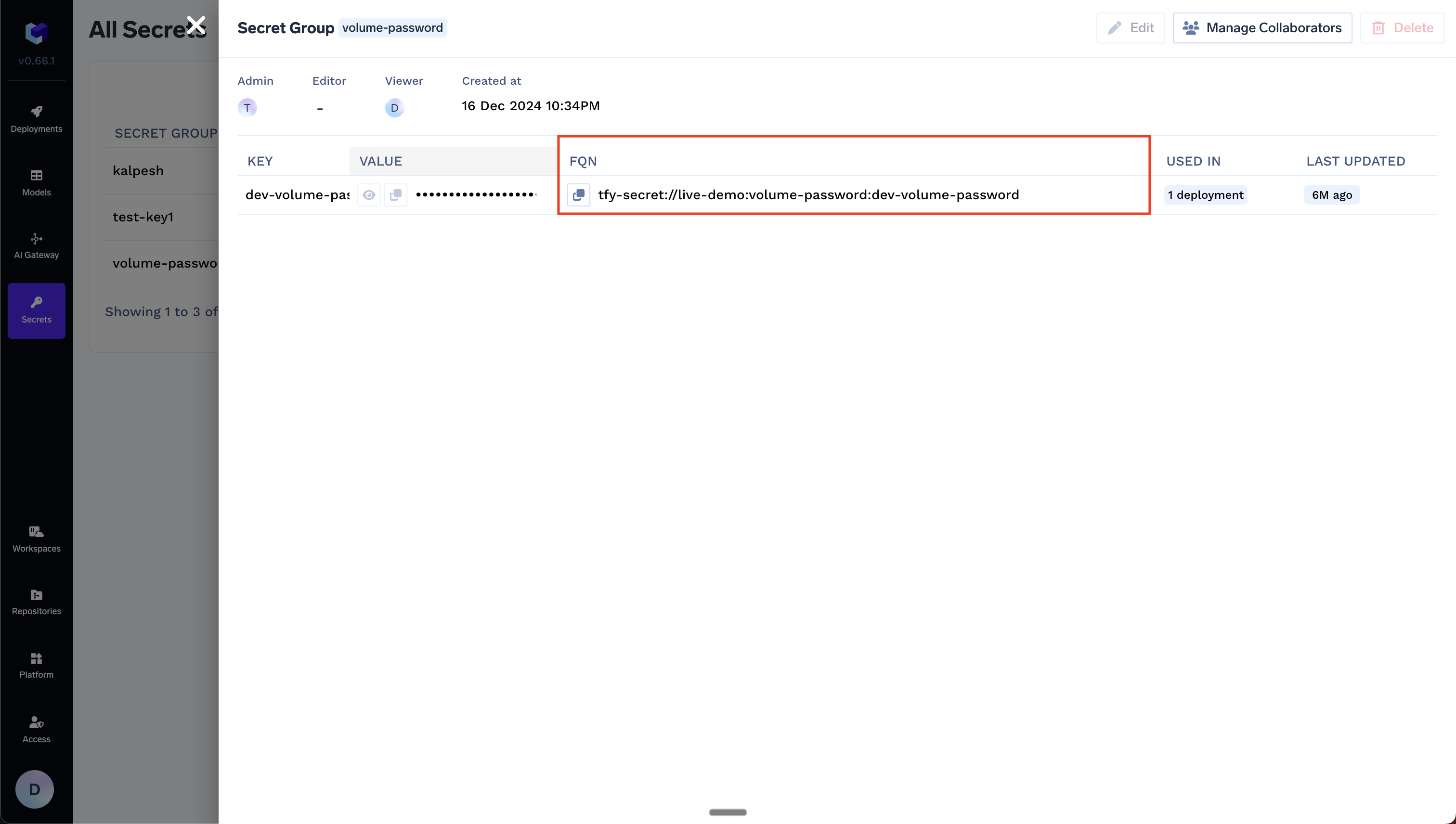 The secret FQN can be used for the following usecases:
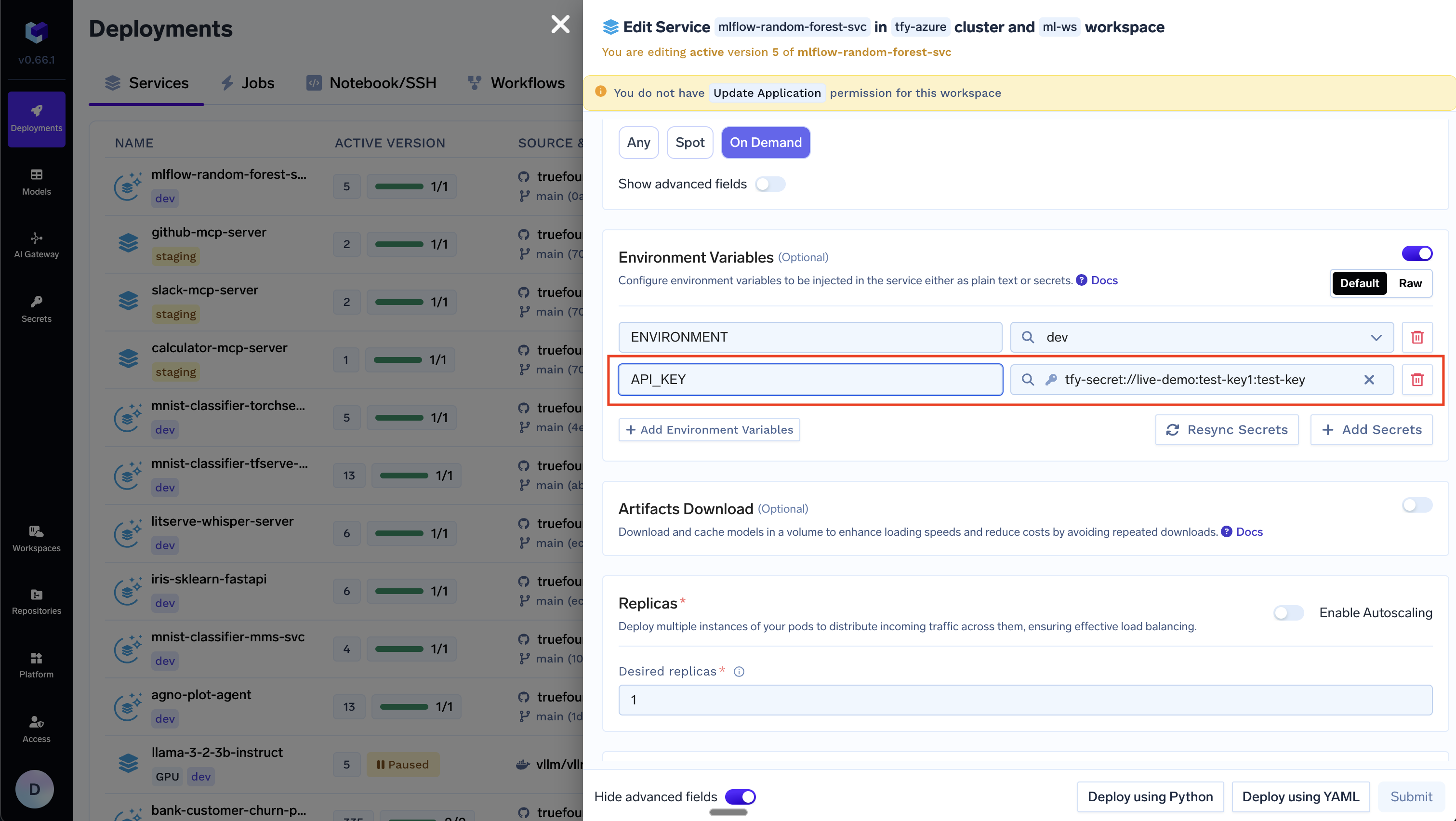 You can mount secrets as a volume in your deployments.
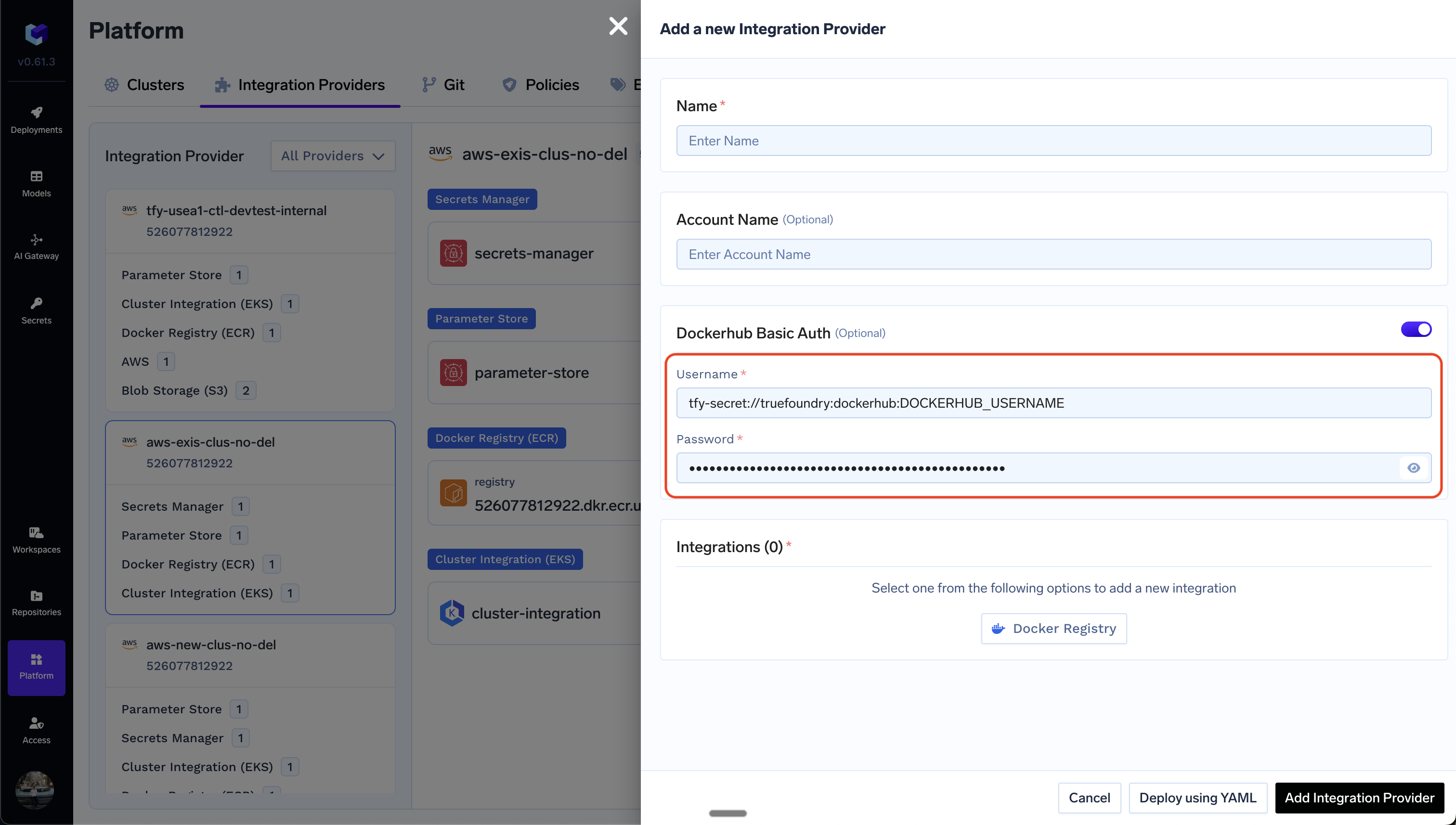
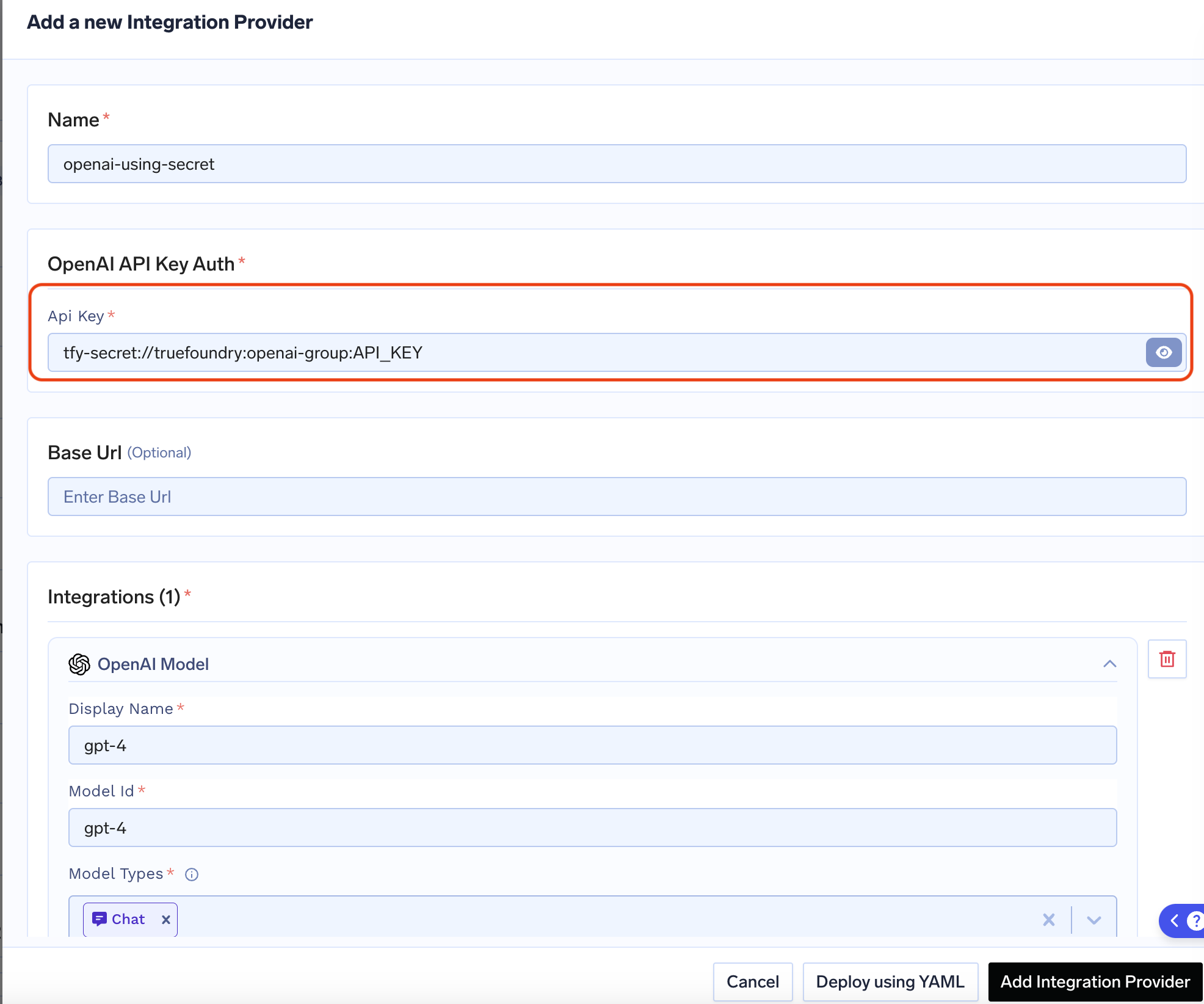 You can use the secret FQN in YAMLs which helps enable Gitops for integrations
and deployments.
To manage secrets via API (create/update secret groups, add secrets, search), see [Secret Management API](/docs/apply-api-secret-management) in the API Reference.
## Use your Own Secret Manager
TrueFoundry also supports using your own Secret Manager directly. You can use following format to refer to a secret in your Secret Manager:
```
::
```
**Example:** If your Secret Store is registered as `example/aws/aws-ssm` and you wish to use a secret at path `/tfy-secret/example/key1`, the referred key would look like `example/aws/aws-ssm::/tfy-secret/example/key1`
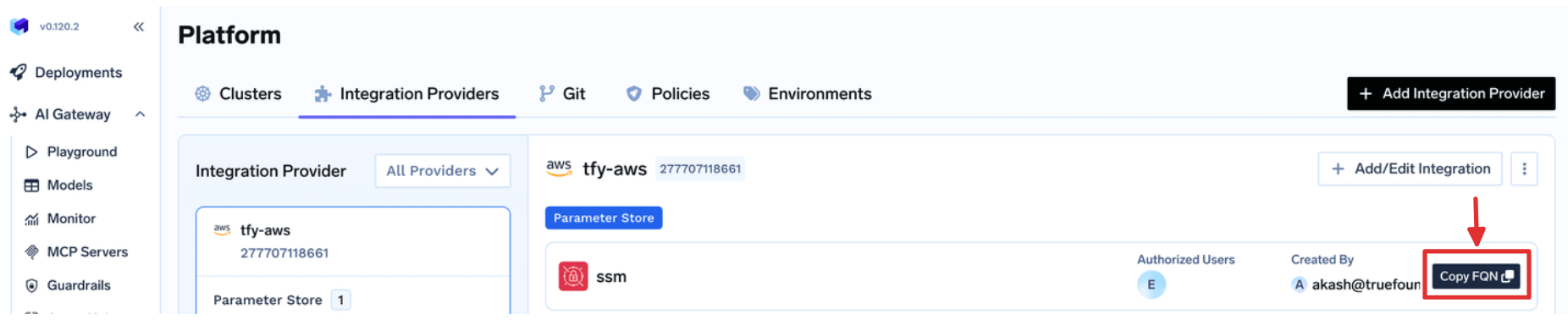
You can find the Secret Store FQN from `Platform > Integrations` page, as shown below:
You can use the secret FQN in YAMLs which helps enable Gitops for integrations
and deployments.
To manage secrets via API (create/update secret groups, add secrets, search), see [Secret Management API](/docs/apply-api-secret-management) in the API Reference.
## Use your Own Secret Manager
TrueFoundry also supports using your own Secret Manager directly. You can use following format to refer to a secret in your Secret Manager:
```
::
```
**Example:** If your Secret Store is registered as `example/aws/aws-ssm` and you wish to use a secret at path `/tfy-secret/example/key1`, the referred key would look like `example/aws/aws-ssm::/tfy-secret/example/key1`
You can find the Secret Store FQN from `Platform > Integrations` page, as shown below:
 ## Generic Secret Service (use your own secret server)
To use your own secret store with TrueFoundry, add a Generic Secret Store integration. Your server stays in your infrastructure; TrueFoundry talks to it over HTTP. You can use Header Auth (e.g. API key or bearer token). The secret mount path is fixed at **tfy-secret**.
### Add the integration
1. Go to **Platform > Integration Providers** in the TrueFoundry UI.
2. Click **Add Integration Provider**.
3. Select **Custom** as the provider type.
4. Choose **Generic Secret Store** in the integrations section.
5. Fill out the form (see image below).
## Generic Secret Service (use your own secret server)
To use your own secret store with TrueFoundry, add a Generic Secret Store integration. Your server stays in your infrastructure; TrueFoundry talks to it over HTTP. You can use Header Auth (e.g. API key or bearer token). The secret mount path is fixed at **tfy-secret**.
### Add the integration
1. Go to **Platform > Integration Providers** in the TrueFoundry UI.
2. Click **Add Integration Provider**.
3. Select **Custom** as the provider type.
4. Choose **Generic Secret Store** in the integrations section.
5. Fill out the form (see image below).
 **Fields:** Name, Display Name, Base URL (required). Optional: Custom Basic Auth, Header Auth, Headers, Access Control. The mount path is fixed at **tfy-secret**.
The root path for secrets is always **tfy-secret**.
### API contract
Your server must expose these endpoints (relative to the Base URL). **Header Auth** headers are sent on every request.
| Method | Path | Request | Response |
| -------- | ----------------------------------------- | ------------------------------------------------------------------------------------------------------- | ------------------------------------------------ |
| `PUT` | `/secrets` | **Body (JSON):** `path` (string, required), `value` (string, required). Content-Type: application/json. | 2xx. Body must include `version`. |
| `GET` | `/secrets?path=` | **Query:** `path` (required). | 200 with `{ "value": "..." }`. 404 if not found. |
| `GET` | `/secrets?path=&version=` | **Query:** `path` (required), `version` (required). | 200 with `{ "value": "..." }`. 404 if not found. |
| `DELETE` | `/secrets` | **Body (JSON):** `path` (required). Optionally `version` to delete one version. | 2xx. 400 if path/version invalid. |
**Validation:** On save, TrueFoundry calls **GET /secrets?path=tfy-secret**. Your server must respond successfully (e.g. 200) for validation to pass. After saving, use this integration as a secret store when configuring applications.
***
**Fields:** Name, Display Name, Base URL (required). Optional: Custom Basic Auth, Header Auth, Headers, Access Control. The mount path is fixed at **tfy-secret**.
The root path for secrets is always **tfy-secret**.
### API contract
Your server must expose these endpoints (relative to the Base URL). **Header Auth** headers are sent on every request.
| Method | Path | Request | Response |
| -------- | ----------------------------------------- | ------------------------------------------------------------------------------------------------------- | ------------------------------------------------ |
| `PUT` | `/secrets` | **Body (JSON):** `path` (string, required), `value` (string, required). Content-Type: application/json. | 2xx. Body must include `version`. |
| `GET` | `/secrets?path=` | **Query:** `path` (required). | 200 with `{ "value": "..." }`. 404 if not found. |
| `GET` | `/secrets?path=&version=` | **Query:** `path` (required), `version` (required). | 200 with `{ "value": "..." }`. 404 if not found. |
| `DELETE` | `/secrets` | **Body (JSON):** `path` (required). Optionally `version` to delete one version. | 2xx. 400 if path/version invalid. |
**Validation:** On save, TrueFoundry calls **GET /secrets?path=tfy-secret**. Your server must respond successfully (e.g. 200) for validation to pass. After saving, use this integration as a secret store when configuring applications.
***