> ## Documentation Index
> Fetch the complete documentation index at: https://www.truefoundry.com/llms.txt
> Use this file to discover all available pages before exploring further.
# Github
> Create a GitHub App and configure the integration with TrueFoundry for repository access and CI/CD.
## Creating the Github App
To enable GitHub integrations, you need to create a Github app. Follow these steps to create the Github app and integrate it with truefoundry:
**You need to have the admin access to create a Github app**
1. In the upper-right corner of any page on GitHub, click your profile photo.
2. Navigate to your account settings.
* For an app owned by a personal account, click **Settings**.
* For an app owned by an organization:
1. Click **Your organizations**.
2. To the right of the organization, click **Settings**.
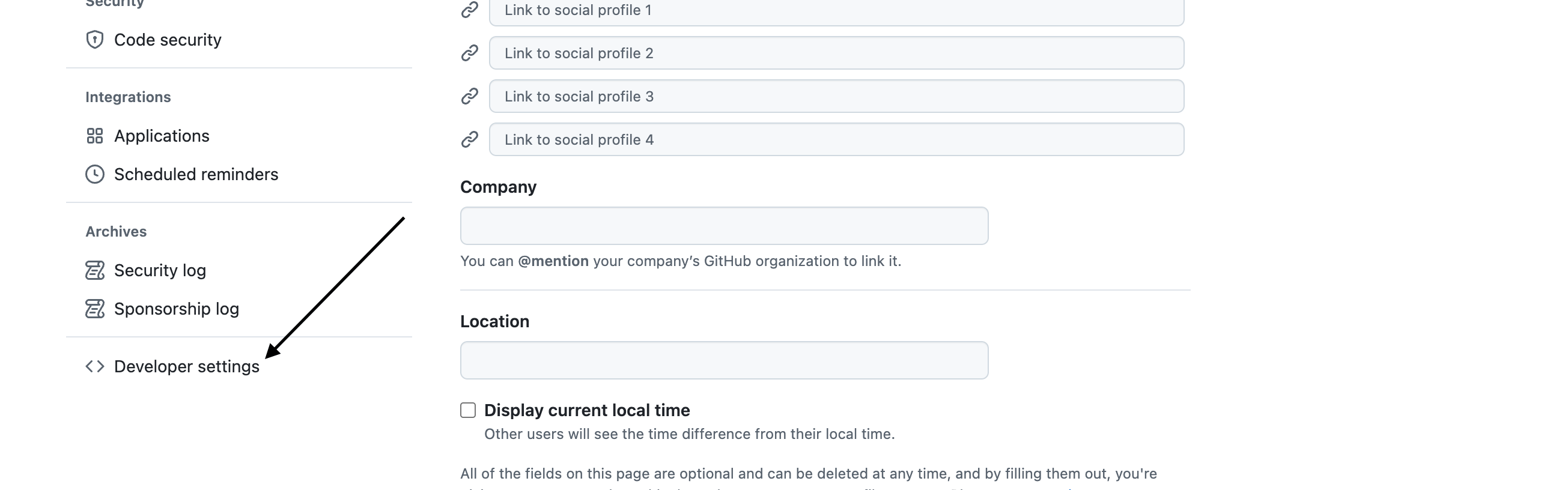
3. In the left sidebar, click **Developer settings**.
 4. In the left sidebar, click **GitHub Apps**
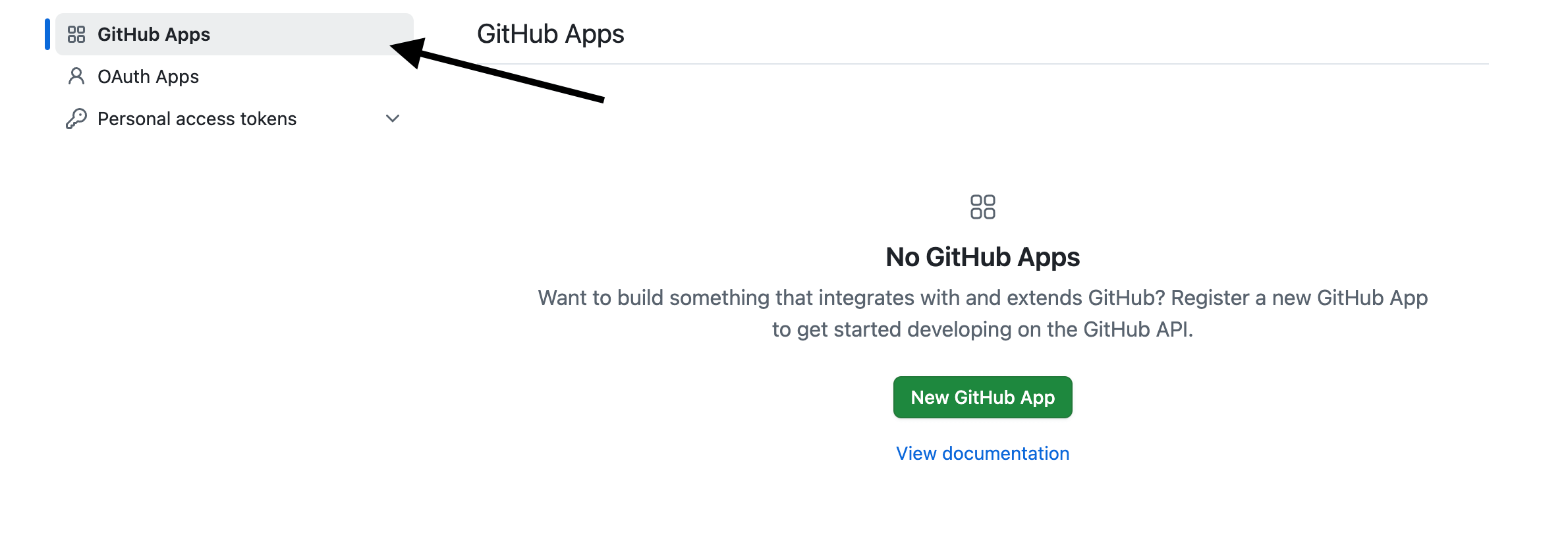 5. Now click on **New GitHub App**
6. Fill in the details as follows:
* App name: TrueFoundry
* Homepage URL: `https://` — for example, `"https://control-plane.truefoundry.com"` or `https://your-org.truefoundry.cloud`
5. Now click on **New GitHub App**
6. Fill in the details as follows:
* App name: TrueFoundry
* Homepage URL: `https://` — for example, `"https://control-plane.truefoundry.com"` or `https://your-org.truefoundry.cloud`
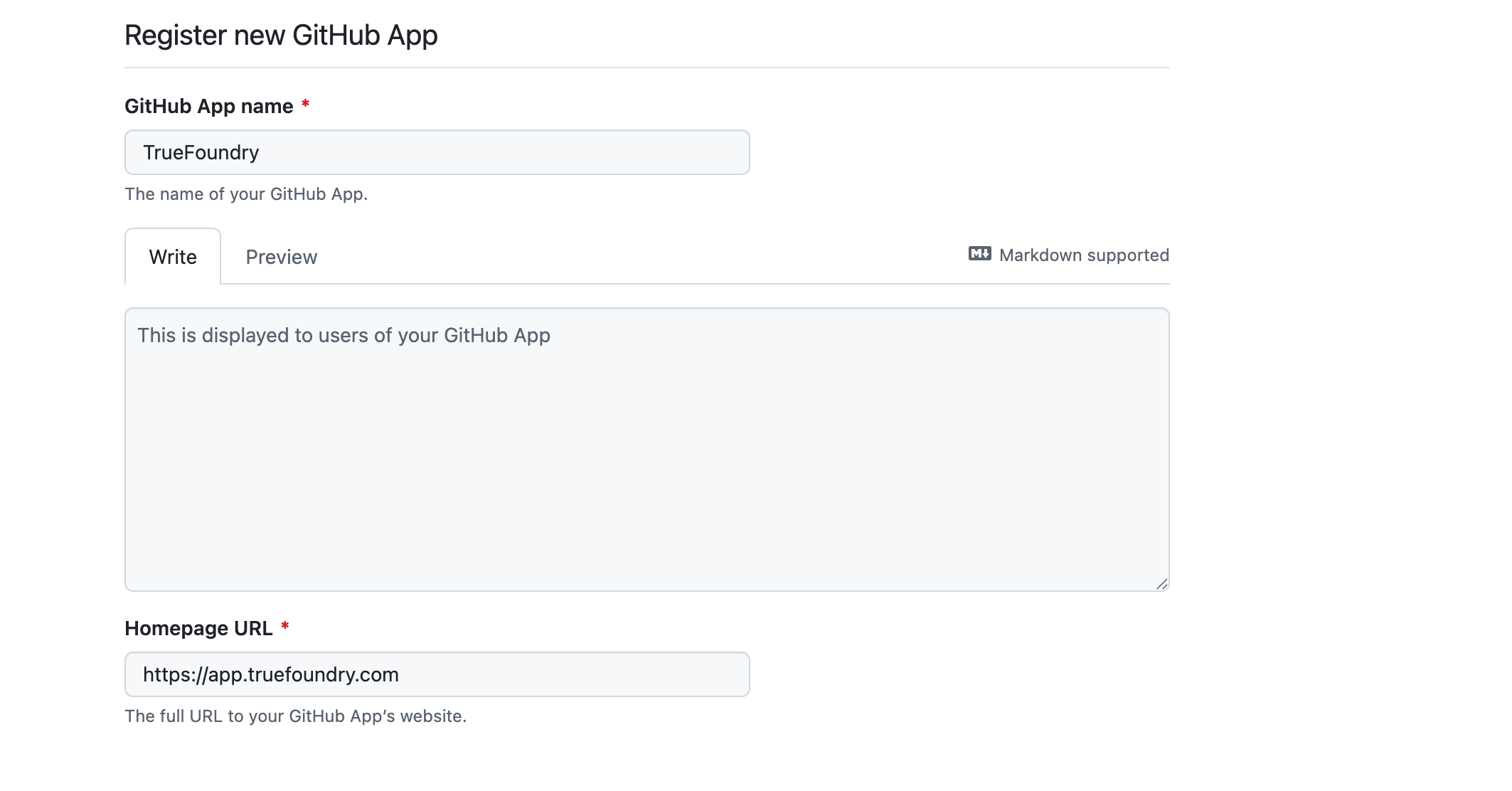 * Callback URL: `https:///api/svc/v1/vcs/github/callback`
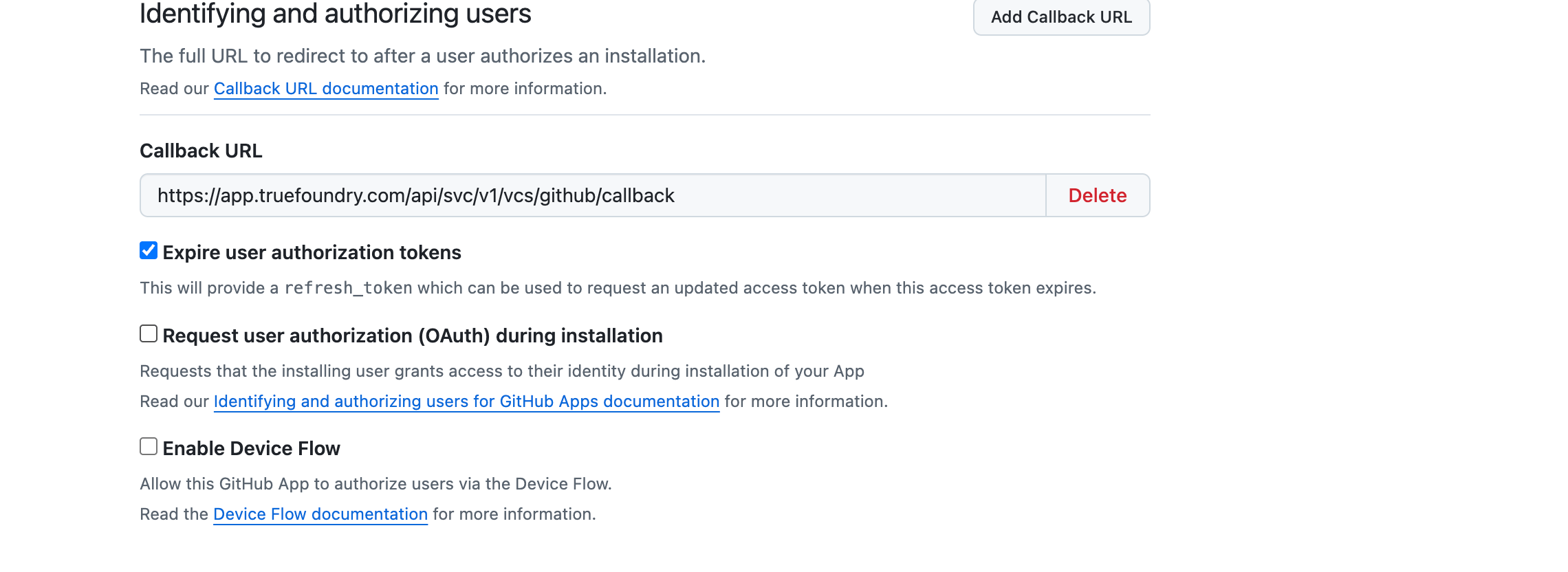 * Setup URL: `https:///api/svc/v1/vcs/github/callback`
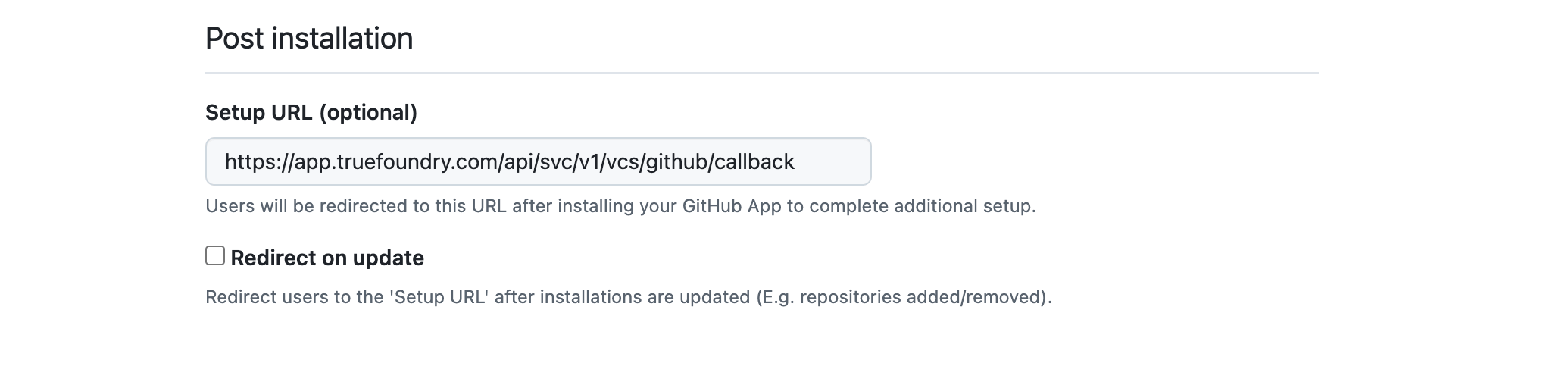 * Webhook URL: `https:///api/svc/v1/vcs/github/webhook-callback`
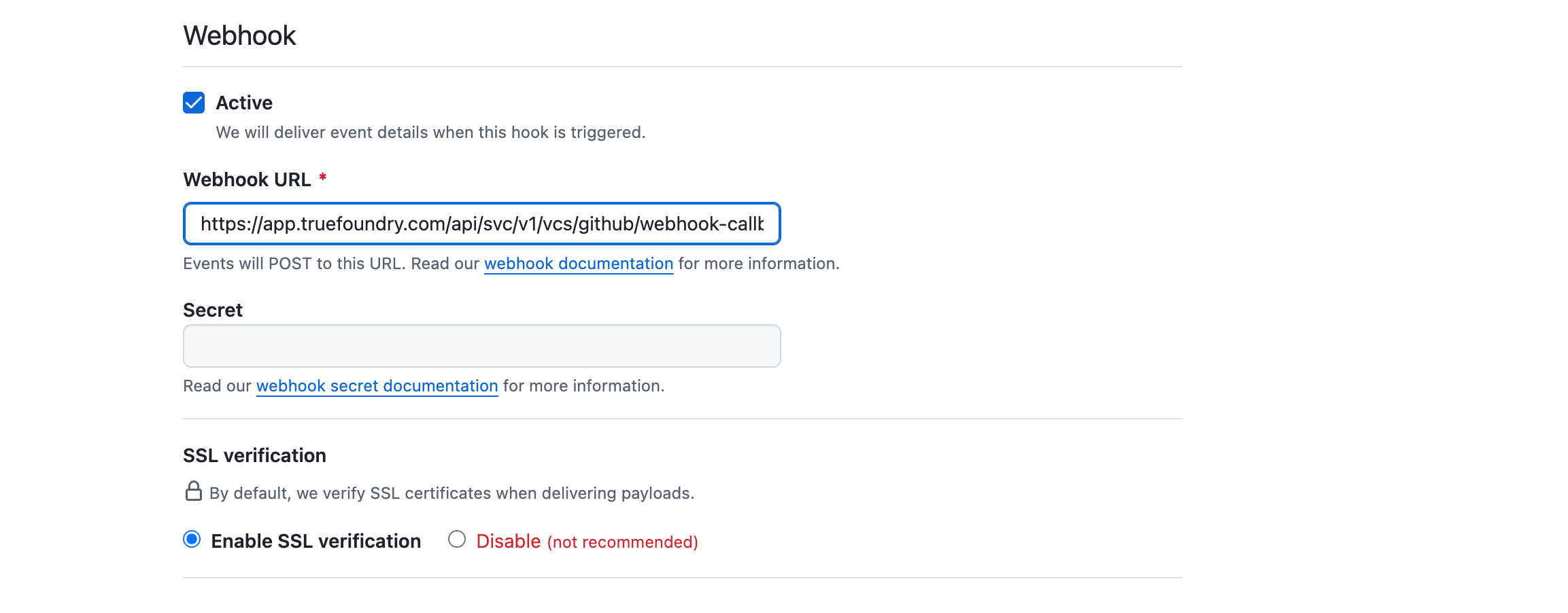 * Select the `Enable SSL Verification` checkbox
* Now in the permissions section, Give the read only access to contents in the Repository permissions
* Select the `Enable SSL Verification` checkbox
* Now in the permissions section, Give the read only access to contents in the Repository permissions
 * Now in the `Where can this GitHub App be installed?` section, Select `Any Account`
 7. Now generate a new client secret and copy it
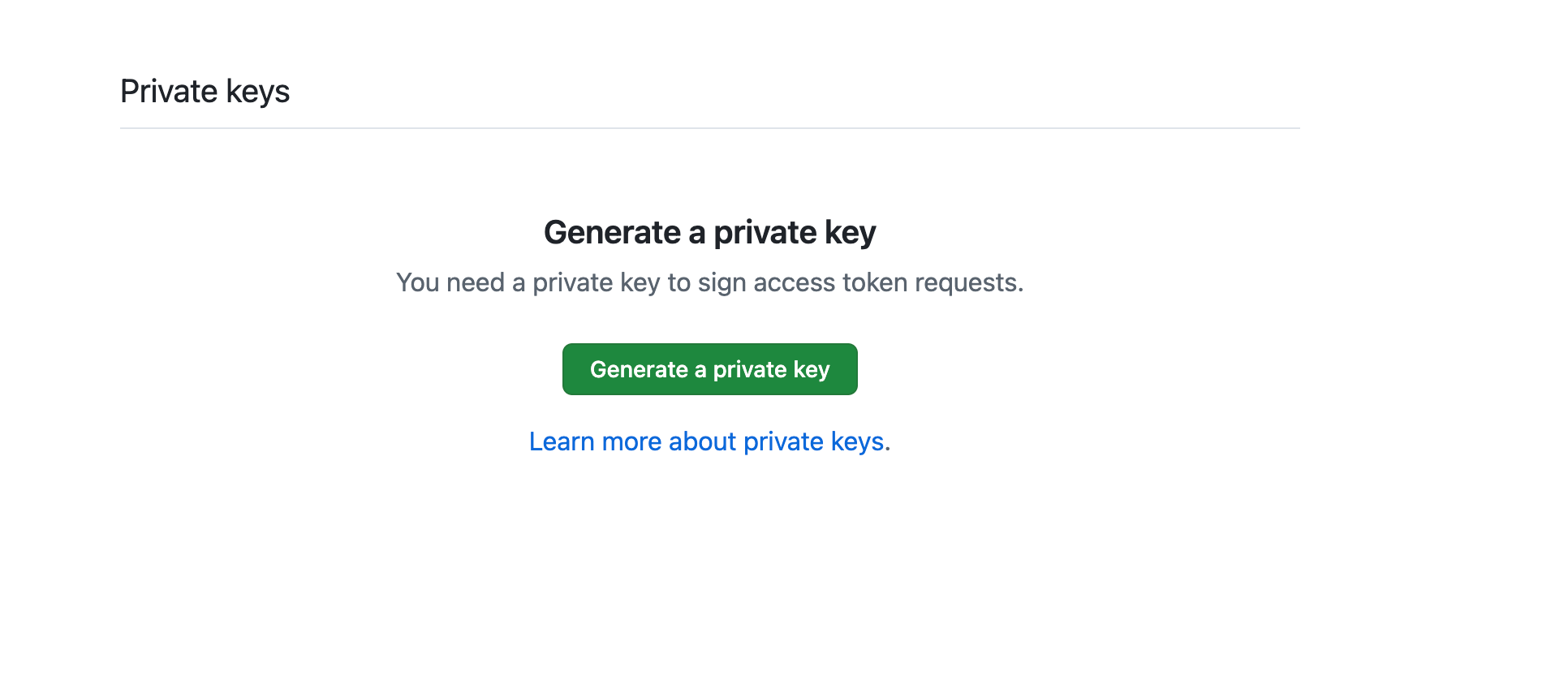
 8. Now generate a new private key(section present at the bottom) and copy it
 9. Now provide AppId, AppName, AppURL, Private Key(base64 encode) as env to servicefoundry-server
```
GITHUB_INSTALLATION_URL=https://github.com/apps//installations/new
GITHUB_PRIVATE_KEY=
GITHUB_APP_ID="" # Please note to add quotes to this value
GITHUB_PAT=
```
9. Now provide AppId, AppName, AppURL, Private Key(base64 encode) as env to servicefoundry-server
```
GITHUB_INSTALLATION_URL=https://github.com/apps//installations/new
GITHUB_PRIVATE_KEY=
GITHUB_APP_ID="" # Please note to add quotes to this value
GITHUB_PAT=
```