> ## Documentation Index
> Fetch the complete documentation index at: https://www.truefoundry.com/llms.txt
> Use this file to discover all available pages before exploring further.
# API Keys
> Create and use TrueFoundry API keys — Personal Access Tokens (PATs) for users and Virtual Account tokens (VATs) for applications.
TrueFoundry API keys are bearer tokens that let you authenticate to the platform programmatically — from the [CLI / Python SDK](/docs/setup-cli), the [REST API](/docs/truefoundry_sdk/index), the [AI Gateway](/docs/ai-gateway), the [MCP Gateway](/docs/ai-gateway/mcp/mcp-overview), and CI/CD pipelines. The same token works across all of these surfaces.
The CLI and Python SDK accept the API key via the `TFY_API_KEY` environment variable. For HTTP APIs (REST, AI Gateway, MCP Gateway), pass the same token in the `Authorization: Bearer …` header.
## Token types
TrueFoundry has two token types — pick the one that matches the identity you need:
| Token type | Tied to | Permissions | Lifecycle | Best for |
| ------------------------------- | ------------------ | --------------------------------------- | ---------------------------------------------------------------------------- | --------------------------------------------------------------- |
| **Personal Access Token (PAT)** | A TrueFoundry user | Inherits the user's permissions | Becomes invalid if the user is deactivated or removed | Local development, personal scripts, individual experimentation |
| **Virtual Account token (VAT)** | A virtual account | Whatever the virtual account is granted | Independent of any user — survives staff turnover and supports auto-rotation | Production applications, services, CI/CD, shared automations |
## Choosing between PAT and VAT
| Scenario | Recommended token |
| --------------------------------- | ----------------- |
| Local development and testing | PAT |
| Personal scripts and notebooks | PAT |
| Quick prototyping | PAT |
| CI/CD pipelines | VAT |
| Production services and APIs | VAT |
| Shared team applications | VAT |
| Long-running agents and workflows | VAT |
Avoid using PATs in production. If the user who created the PAT is deactivated or leaves the organization, the token stops working and your application will lose access.
## Personal Access Tokens (PATs)
A PAT is created by a user and inherits all permissions of that user. Any user can create a PAT for themselves — admins can additionally configure tenant-wide limits and revoke other users' tokens.
### Create a PAT
In the platform, go to **Access > Personal Access Tokens** and create a new token. You can optionally assign a **Team** to the token so that all costs incurred through this token are attributed to the selected team.
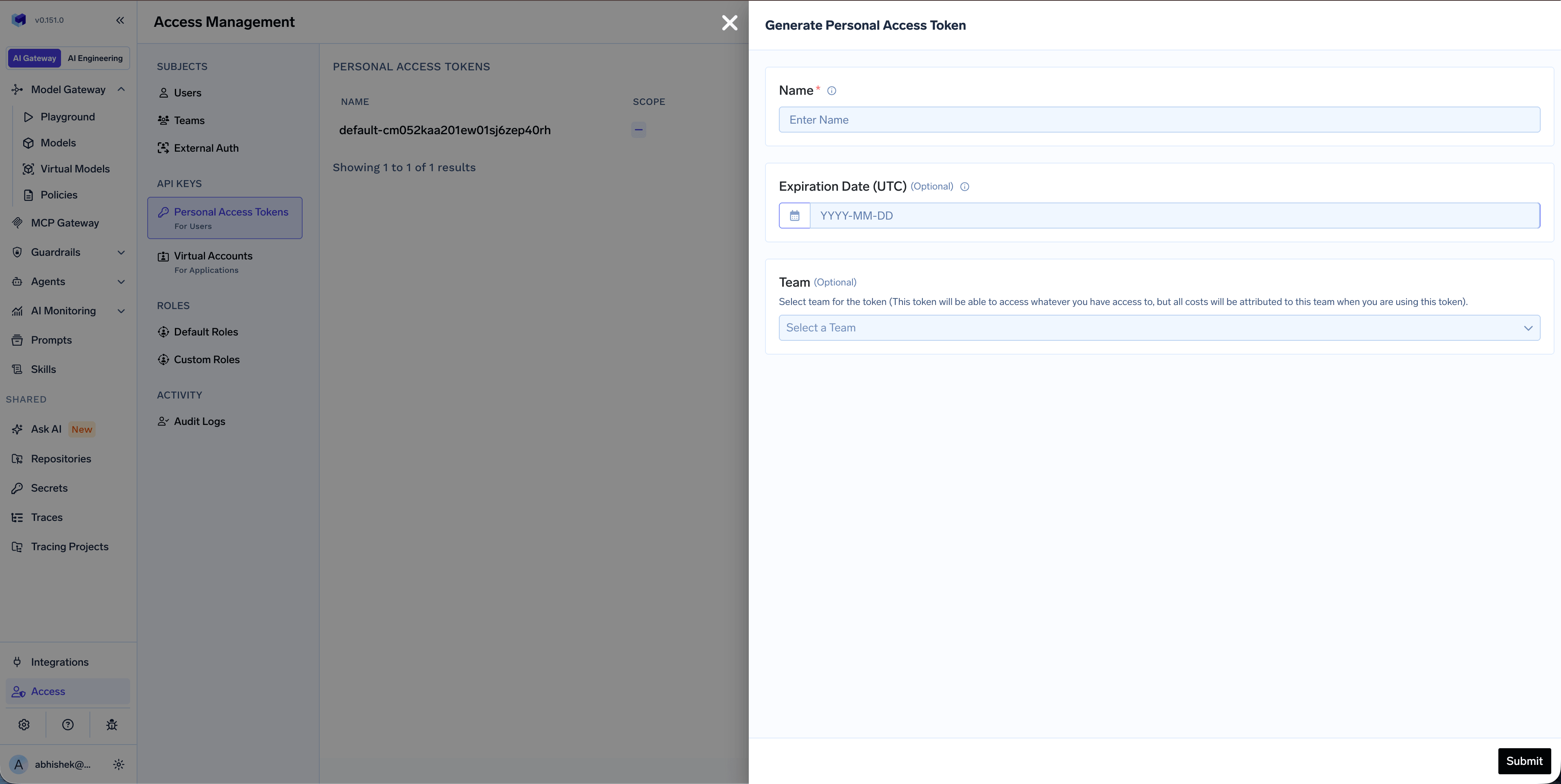 Selecting a team on a PAT is for **cost attribution only** — it does not restrict the token's permissions. The PAT still inherits the full permissions of the user who created it.
Save the token value when it's first displayed — TrueFoundry will not show it again. Treat it like a password.
### Admin controls
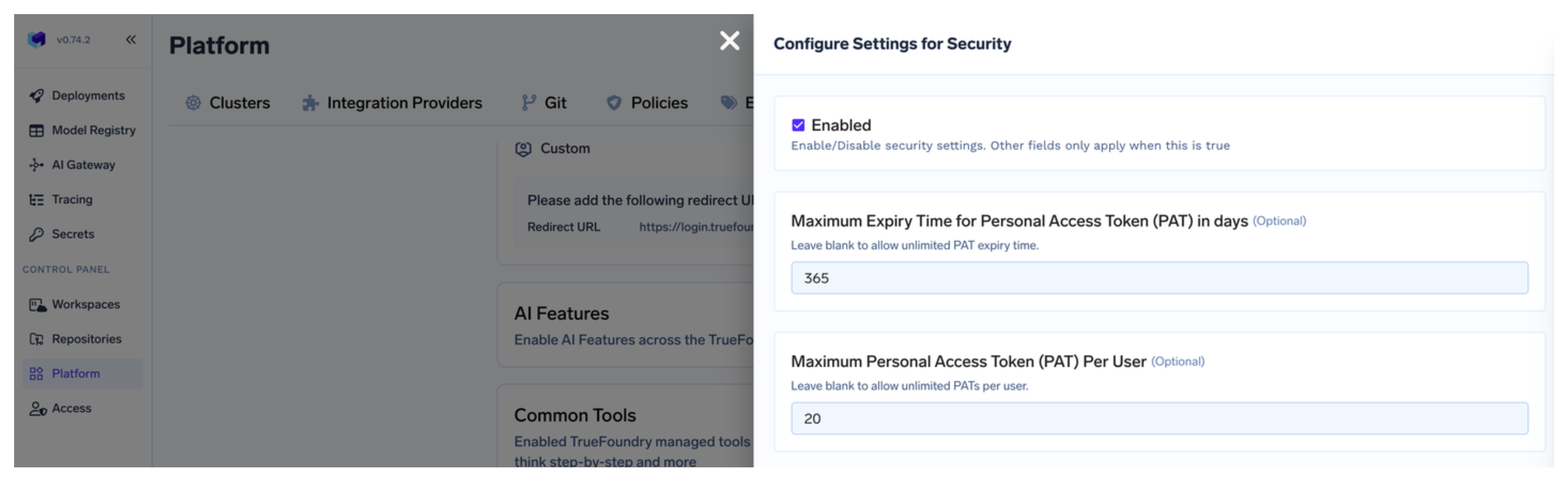
Admins can limit the maximum age and number of tokens that a single user can create under **Settings > Security**.
Selecting a team on a PAT is for **cost attribution only** — it does not restrict the token's permissions. The PAT still inherits the full permissions of the user who created it.
Save the token value when it's first displayed — TrueFoundry will not show it again. Treat it like a password.
### Admin controls
Admins can limit the maximum age and number of tokens that a single user can create under **Settings > Security**.
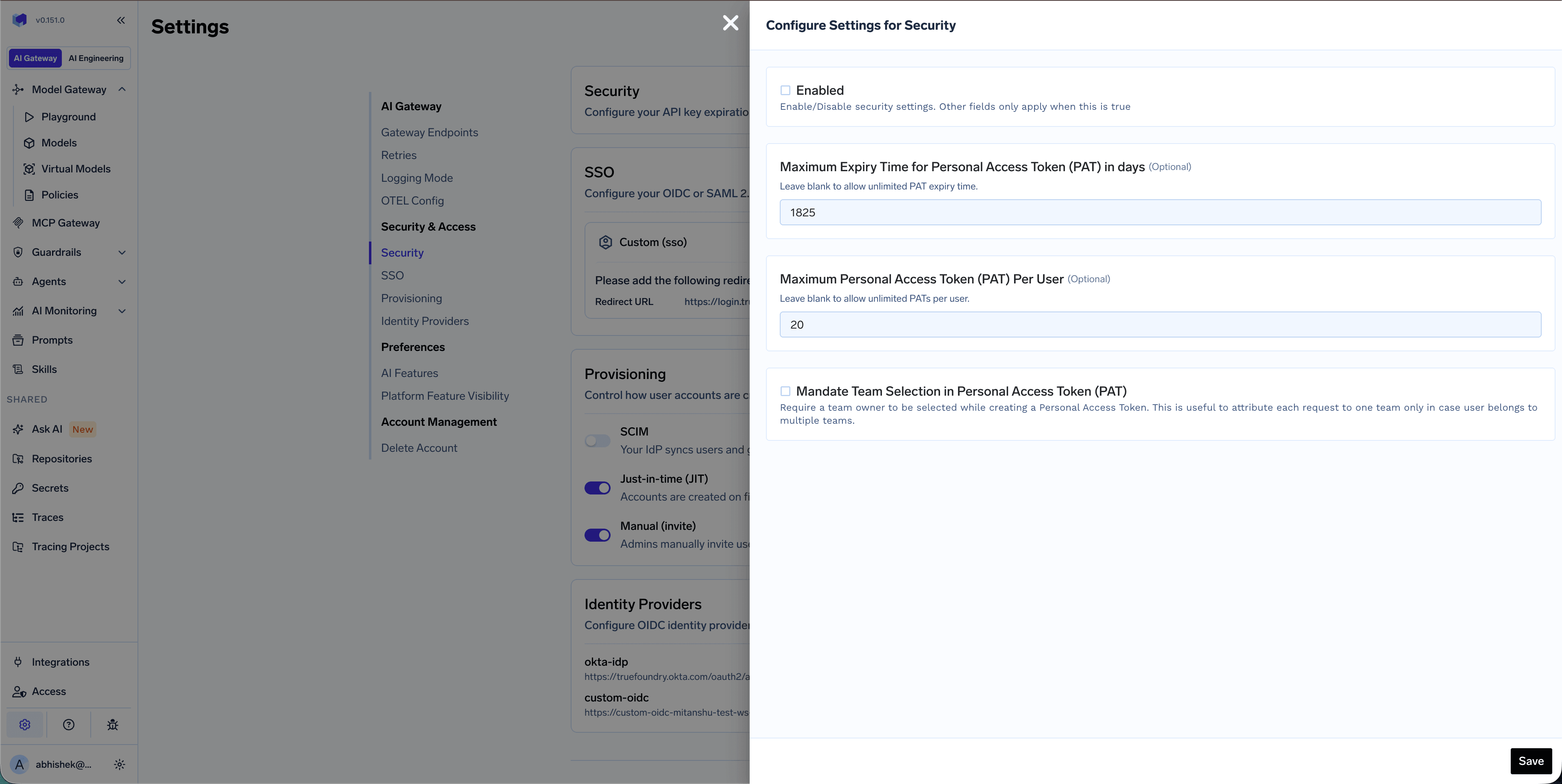
 Admins can require users to select a team when creating a PAT by enabling **Mandate Team Selection in Personal Access Token (PAT)** under **Settings > Security**. When enabled, every PAT must be associated with a team, ensuring that all API usage costs are attributed to a specific team. This is useful for organizations that need strict per-team cost tracking, especially when users belong to multiple teams.
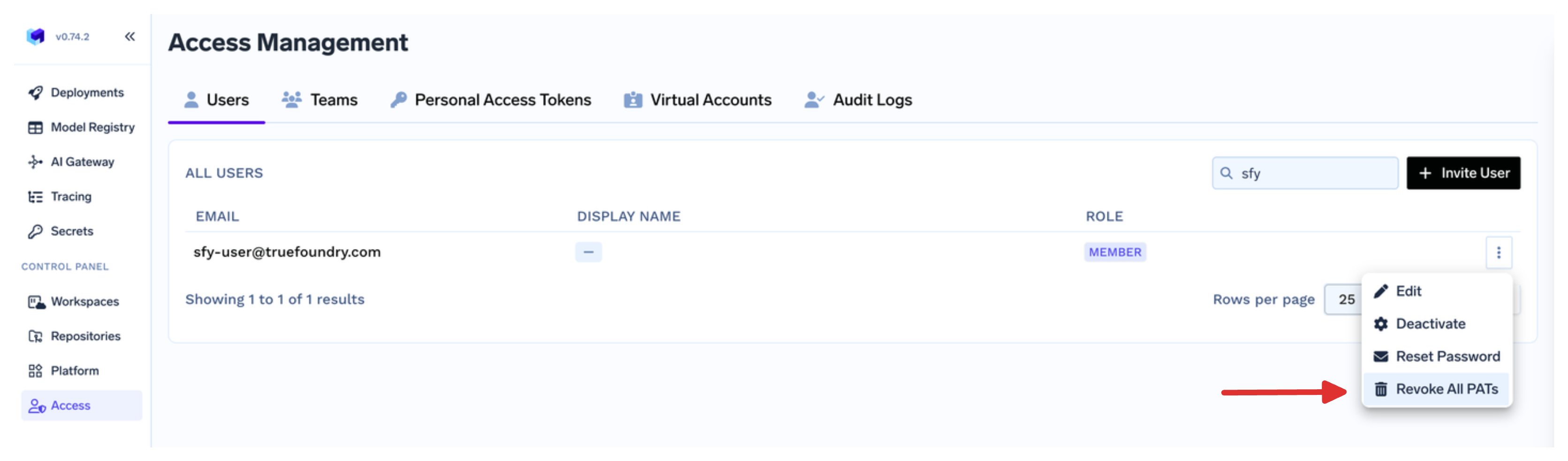
 Admins can revoke all active personal access tokens for a particular user from **Access > Users**.
 ## Virtual Account tokens (VATs)
A virtual account is a non-user identity owned by an admin (or by a team if [allowed by a custom role](/docs/platform/manage-user-roles-and-permissions#how-to-allow-teams-create-and-manage-their-virtual-accounts-without-making-them-admin)). It's granted exactly the permissions an application needs, and its token survives staff turnover.
Use a separate virtual account per application or service. This gives you per-application usage tracking, independent rotation, and least-privilege scoping.
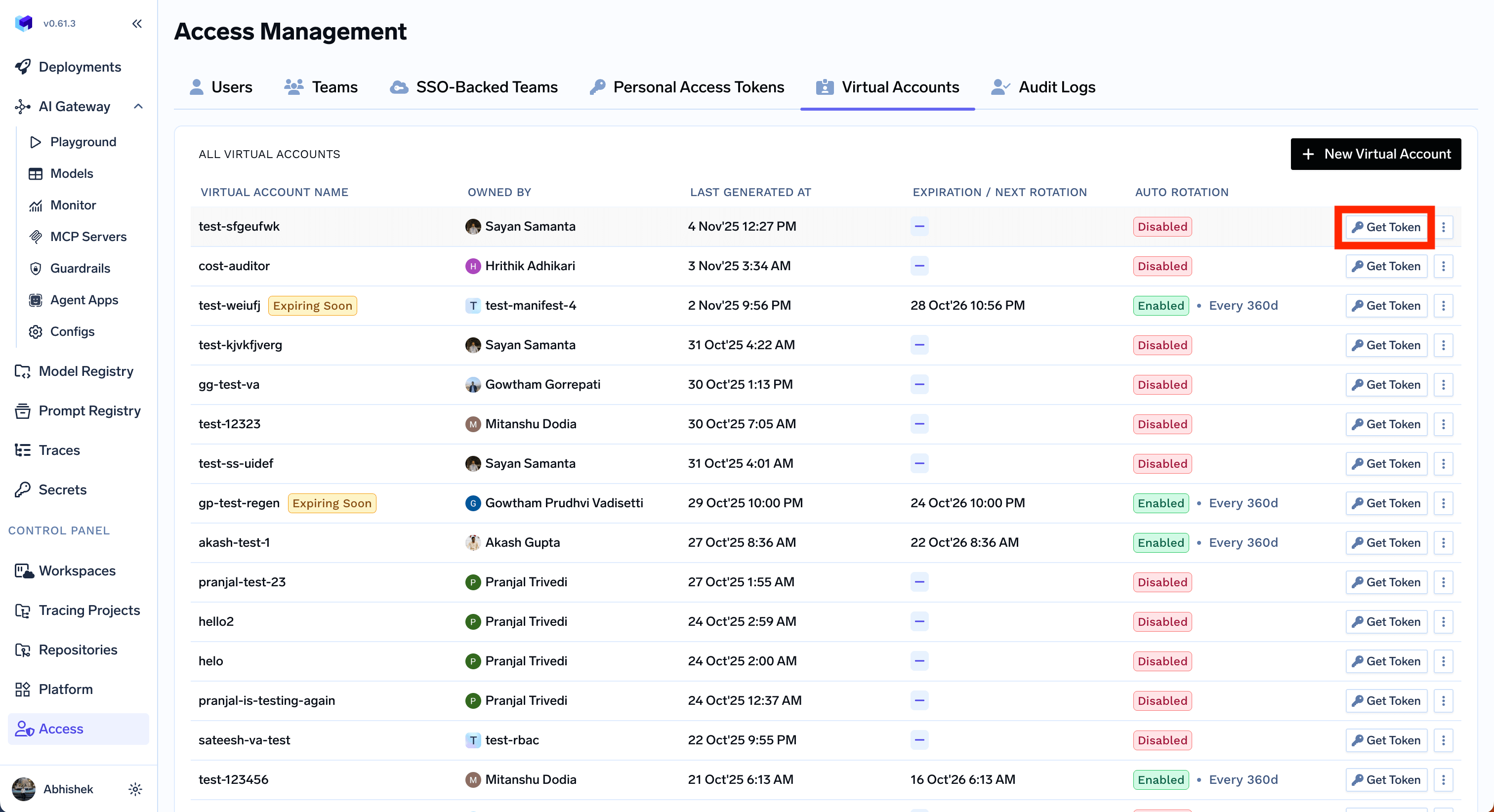
In the platform, go to **Access > Virtual Accounts** and create a new account, picking the resources and roles your application needs.
Click **Get Token** on the virtual account to retrieve the bearer token. Use this as your API key in the application.
## Virtual Account tokens (VATs)
A virtual account is a non-user identity owned by an admin (or by a team if [allowed by a custom role](/docs/platform/manage-user-roles-and-permissions#how-to-allow-teams-create-and-manage-their-virtual-accounts-without-making-them-admin)). It's granted exactly the permissions an application needs, and its token survives staff turnover.
Use a separate virtual account per application or service. This gives you per-application usage tracking, independent rotation, and least-privilege scoping.
In the platform, go to **Access > Virtual Accounts** and create a new account, picking the resources and roles your application needs.
Click **Get Token** on the virtual account to retrieve the bearer token. Use this as your API key in the application.
 Virtual accounts support advanced lifecycle features that PATs don't:
* **Auto-rotation** — rotate the token at a configurable interval, with a grace period for the previous token. See [Configure auto-rotation](/docs/platform/virtual-account-management#configure-auto-rotation-of-virtual-account-tokens).
* **Rotation notifications** — get email or Slack alerts when a token rotates. See [Configure notification on token rotation](/docs/platform/virtual-account-management#configure-notification-on-token-rotation).
* **Secret store sync** — write the token to AWS Secrets Manager, HashiCorp Vault, Google Secret Manager, Azure Key Vault, etc., and keep it in sync on rotation. See [Configure secret store sync](/docs/platform/virtual-account-management#configure-secret-store-sync-for-virtual-account-tokens).
* **Identity provider mapping** — let an externally issued JWT resolve to this virtual account. See [Identity provider mappings](/docs/platform/virtual-account-management#identity-provider-mappings).
For full virtual account management — collaborators, permissions, deletion, and the management API — see [Manage Virtual Accounts](/docs/platform/virtual-account-management).
## Using your API key
Pass your API key as a Bearer token in the `Authorization` header for all TrueFoundry HTTP APIs — REST, AI Gateway, and MCP Gateway:
```
Authorization: Bearer your-truefoundry-api-key
```
| Use case | How to provide the key |
| ----------------------------------------------- | ------------------------------------------------------------------------------------------------------------------------------------------------------------- |
| TrueFoundry CLI / Python SDK | `TFY_API_KEY` environment variable — see [Setup CLI](/docs/setup-cli) |
| REST API | `Authorization: Bearer …` header — see the [API reference](/docs/truefoundry_sdk/index) |
| AI Gateway with OpenAI / Anthropic / other SDKs | `OPENAI_API_KEY` (or equivalent) pointed at the Gateway — see [AI Gateway Authentication](/docs/ai-gateway/authentication) |
| CI/CD pipelines | Store as a CI secret, expose as `TFY_API_KEY` — see [Set Up CI/CD](/docs/setting-up-cicd-for-your-service) and [GitOps](/docs/setup-gitops-using-truefoundry) |
## Security best practices
* **Scope to least privilege.** Grant a virtual account only the resources and roles its application needs — never reuse an admin's token for a service.
* **Rotate regularly.** Configure [auto-rotation](/docs/platform/virtual-account-management#configure-auto-rotation-of-virtual-account-tokens) for VATs. For PATs, set tenant-wide age and count limits under **Settings > Security**.
* **Sync to a secret store.** Use [secret store sync](/docs/platform/virtual-account-management#configure-secret-store-sync-for-virtual-account-tokens) so the live token lives in your secret manager rather than in source code or CI variables.
* **Revoke on suspicion.** Admins can revoke all PATs for a user from **Access > Users**, and rotate or delete a virtual account from **Access > Virtual Accounts**.
* **Never commit tokens** to source control. Read them from environment variables or your secret store at runtime.
Virtual accounts support advanced lifecycle features that PATs don't:
* **Auto-rotation** — rotate the token at a configurable interval, with a grace period for the previous token. See [Configure auto-rotation](/docs/platform/virtual-account-management#configure-auto-rotation-of-virtual-account-tokens).
* **Rotation notifications** — get email or Slack alerts when a token rotates. See [Configure notification on token rotation](/docs/platform/virtual-account-management#configure-notification-on-token-rotation).
* **Secret store sync** — write the token to AWS Secrets Manager, HashiCorp Vault, Google Secret Manager, Azure Key Vault, etc., and keep it in sync on rotation. See [Configure secret store sync](/docs/platform/virtual-account-management#configure-secret-store-sync-for-virtual-account-tokens).
* **Identity provider mapping** — let an externally issued JWT resolve to this virtual account. See [Identity provider mappings](/docs/platform/virtual-account-management#identity-provider-mappings).
For full virtual account management — collaborators, permissions, deletion, and the management API — see [Manage Virtual Accounts](/docs/platform/virtual-account-management).
## Using your API key
Pass your API key as a Bearer token in the `Authorization` header for all TrueFoundry HTTP APIs — REST, AI Gateway, and MCP Gateway:
```
Authorization: Bearer your-truefoundry-api-key
```
| Use case | How to provide the key |
| ----------------------------------------------- | ------------------------------------------------------------------------------------------------------------------------------------------------------------- |
| TrueFoundry CLI / Python SDK | `TFY_API_KEY` environment variable — see [Setup CLI](/docs/setup-cli) |
| REST API | `Authorization: Bearer …` header — see the [API reference](/docs/truefoundry_sdk/index) |
| AI Gateway with OpenAI / Anthropic / other SDKs | `OPENAI_API_KEY` (or equivalent) pointed at the Gateway — see [AI Gateway Authentication](/docs/ai-gateway/authentication) |
| CI/CD pipelines | Store as a CI secret, expose as `TFY_API_KEY` — see [Set Up CI/CD](/docs/setting-up-cicd-for-your-service) and [GitOps](/docs/setup-gitops-using-truefoundry) |
## Security best practices
* **Scope to least privilege.** Grant a virtual account only the resources and roles its application needs — never reuse an admin's token for a service.
* **Rotate regularly.** Configure [auto-rotation](/docs/platform/virtual-account-management#configure-auto-rotation-of-virtual-account-tokens) for VATs. For PATs, set tenant-wide age and count limits under **Settings > Security**.
* **Sync to a secret store.** Use [secret store sync](/docs/platform/virtual-account-management#configure-secret-store-sync-for-virtual-account-tokens) so the live token lives in your secret manager rather than in source code or CI variables.
* **Revoke on suspicion.** Admins can revoke all PATs for a user from **Access > Users**, and rotate or delete a virtual account from **Access > Virtual Accounts**.
* **Never commit tokens** to source control. Read them from environment variables or your secret store at runtime.