> ## Documentation Index
> Fetch the complete documentation index at: https://www.truefoundry.com/llms.txt
> Use this file to discover all available pages before exploring further.
# Deploying NVIDIA NIM Models
> Deploy optimized TensorRT-LLM Engines using NIM Containers
Supported Model Types
Currently we list NIM models of following types
* Large Language Models (LLMs)
* Vision Language Models (VLMs)
* Embedding Models
* Reranking Models
## Adding `nvcr.io` Docker Registry
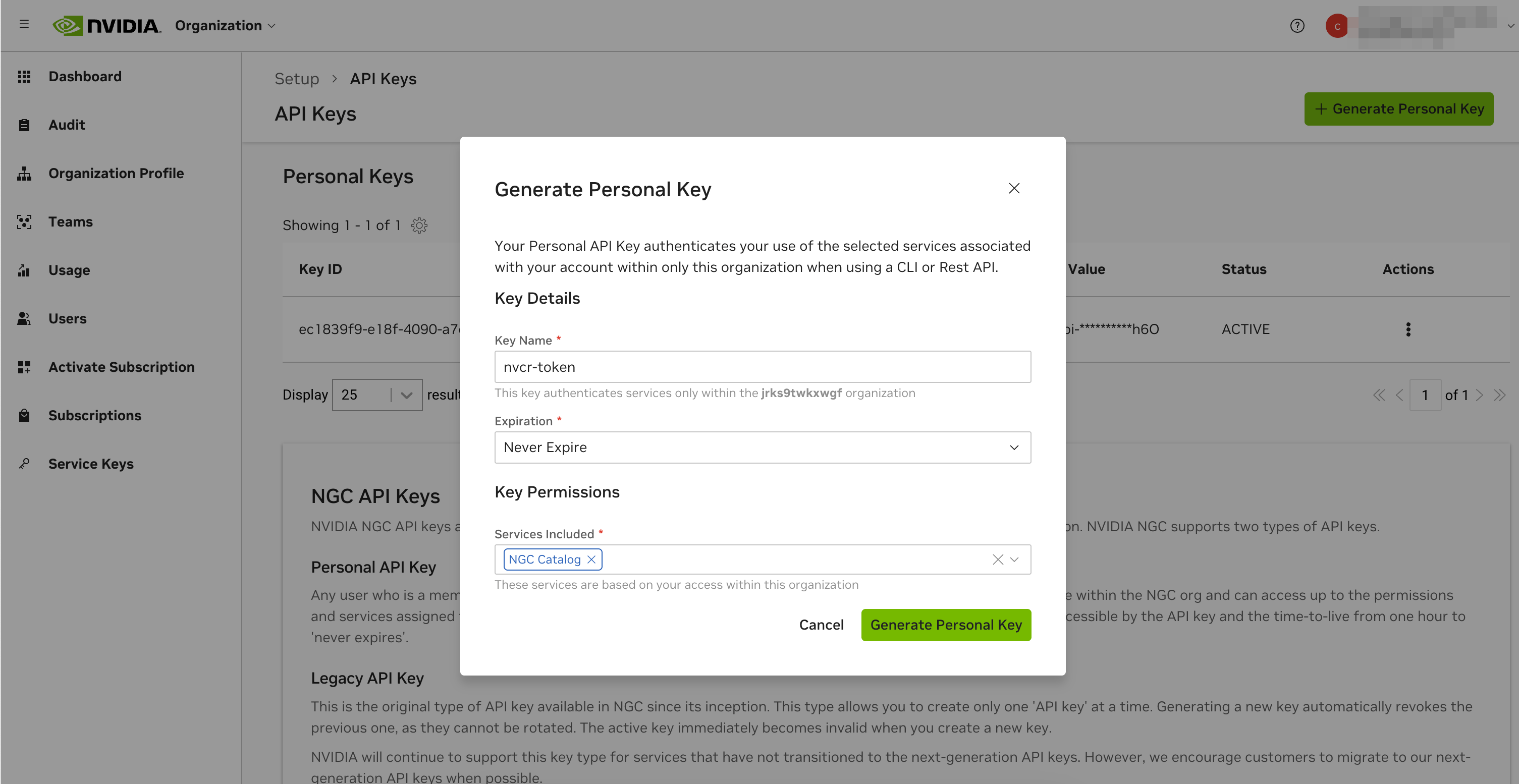
1. Generate an API Key from [https://org.ngc.nvidia.com/setup/api-keys](https://org.ngc.nvidia.com/setup/api-keys)
Make sure to give it access to `NGC Catalog`
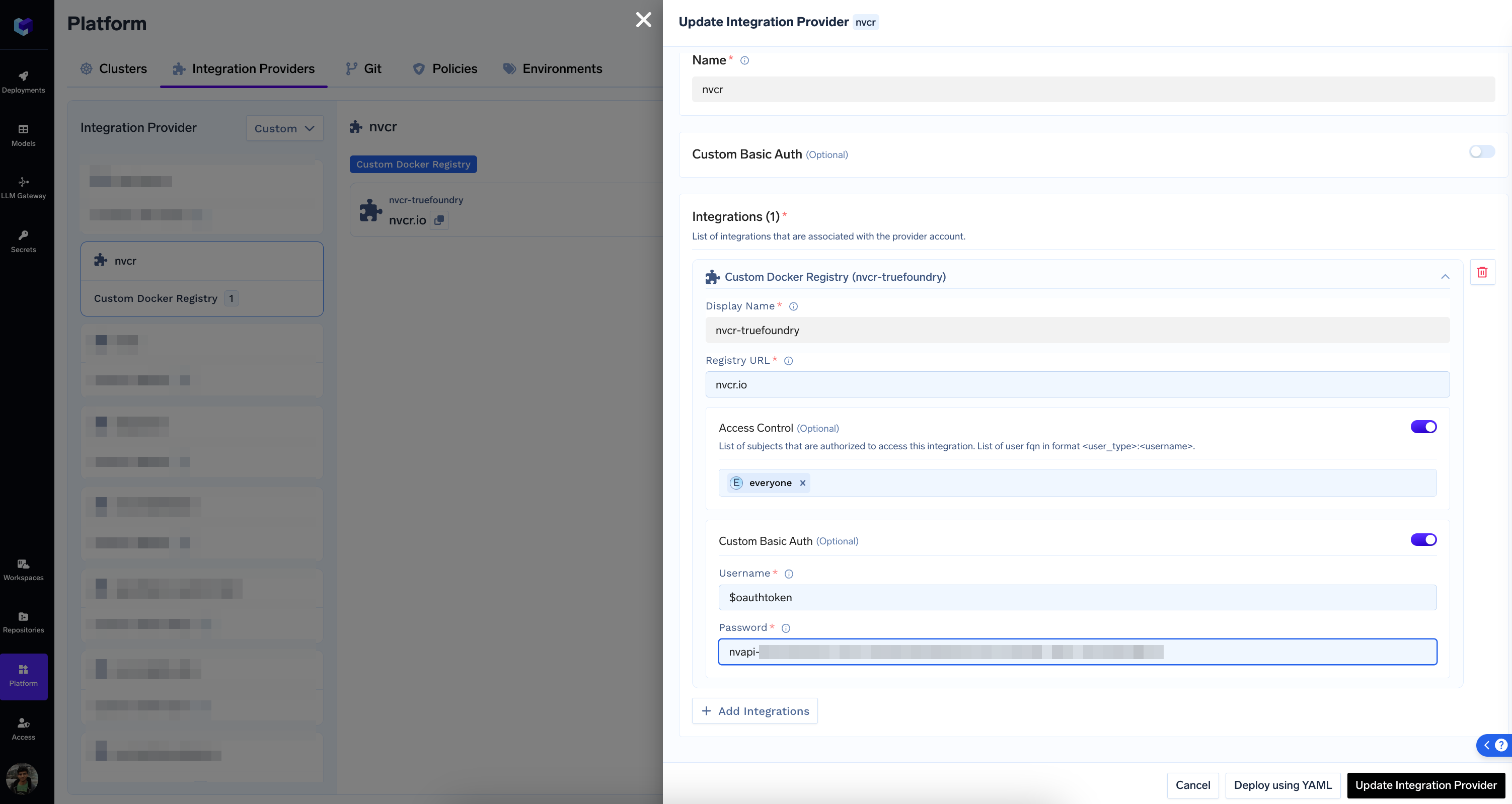
 2. Add a Custom Docker Registry to the Platform
* Registry URL: `nvcr.io`
* Username: `$oauthtoken`
* Password: The API Key from the previous step
2. Add a Custom Docker Registry to the Platform
* Registry URL: `nvcr.io`
* Username: `$oauthtoken`
* Password: The API Key from the previous step
 ## Adding NGC API Key to Secrets
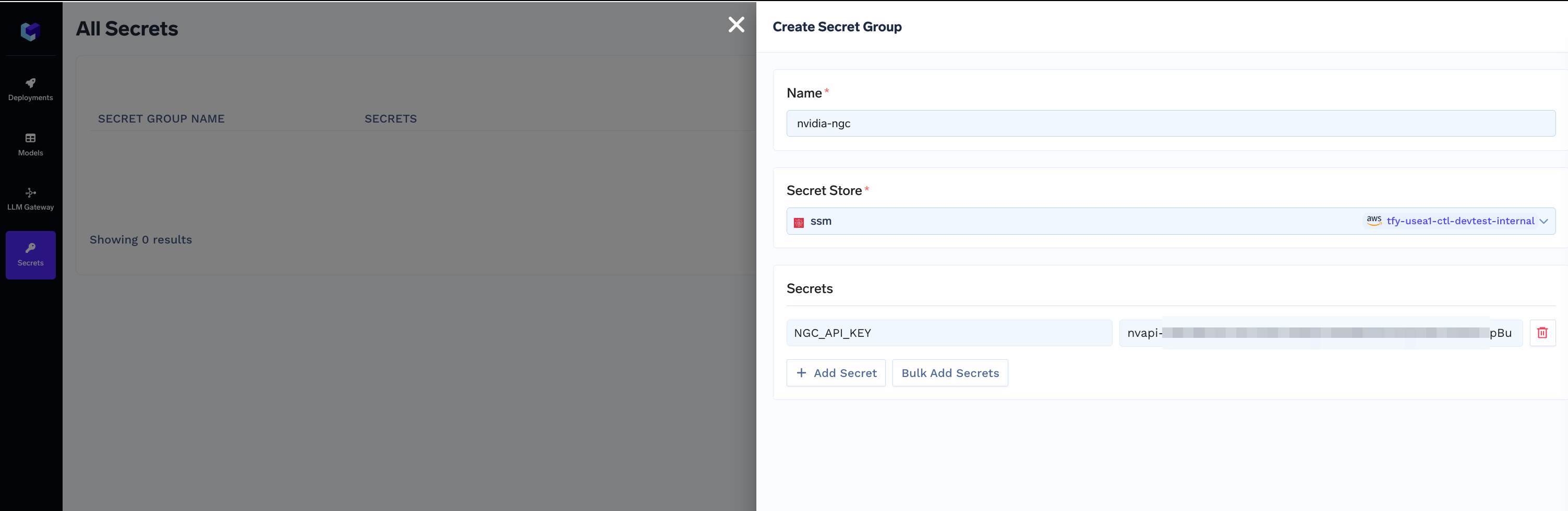
1. Add the same API Key as a [Secret](/docs/manage-secrets) on the Platform. We are calling the secret `NGC_API_KEY`
## Adding NGC API Key to Secrets
1. Add the same API Key as a [Secret](/docs/manage-secrets) on the Platform. We are calling the secret `NGC_API_KEY`
 ## Deploying a NIM Model
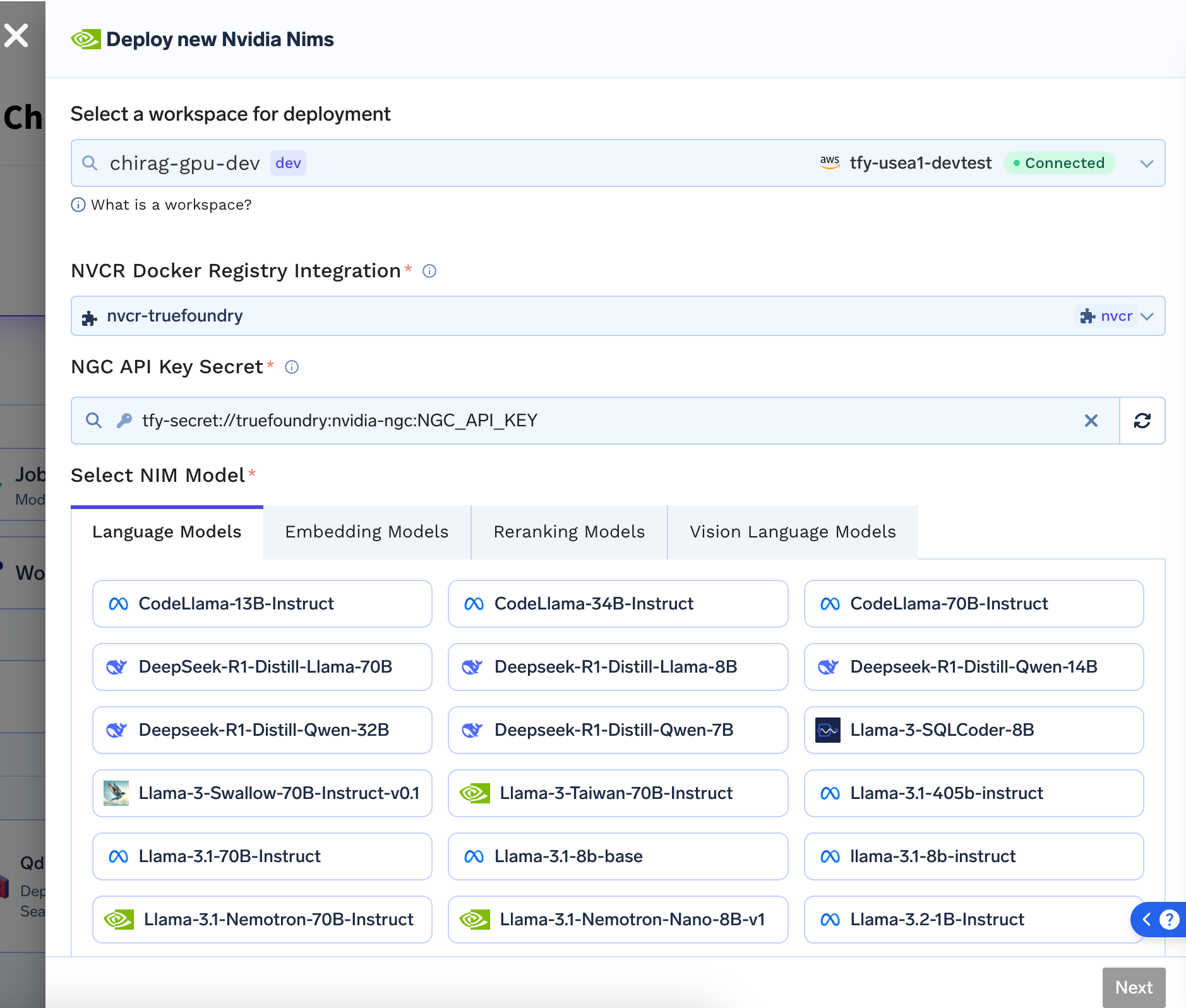
1. From `New Deployment` page, select `NVIDIA NIM`.
* Select the workspace you want to deploy to
* Select the NVCR Model Registry Integration we created in the previous step
* Select the NGC API Key Secret we created in the previous step
* Select the model you want to deploy
## Deploying a NIM Model
1. From `New Deployment` page, select `NVIDIA NIM`.
* Select the workspace you want to deploy to
* Select the NVCR Model Registry Integration we created in the previous step
* Select the NGC API Key Secret we created in the previous step
* Select the model you want to deploy
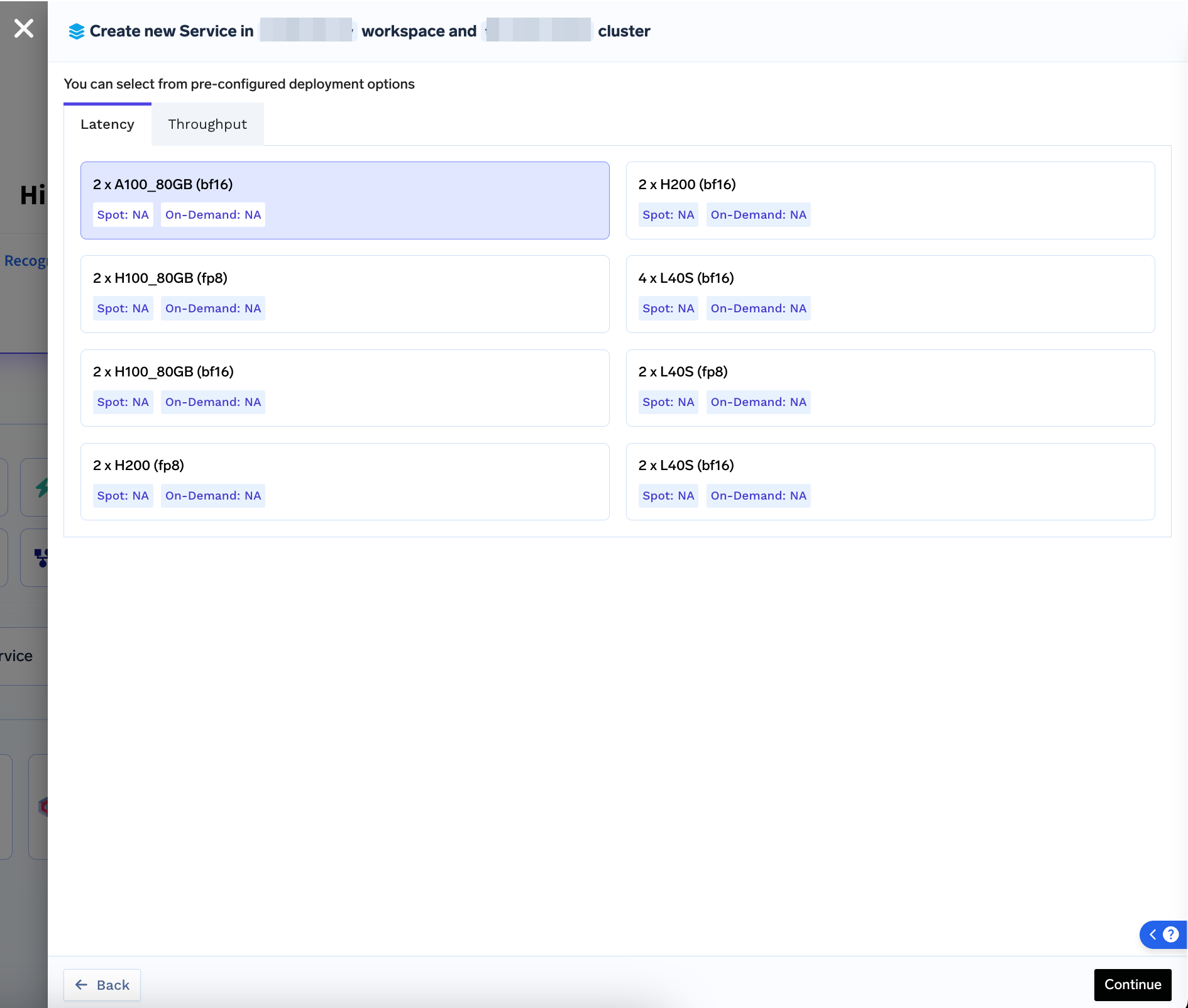
 2. Click Next. You will be presented with optimized profiles (for `latency` or `throughput` ) for differerent precision and GPU options for which TRT-LLM engines are prebuilt and available. You can select any of the profile and Continue to Deployment.
 ## (Optional) Caching NIM Model to External Volume
Recommended for Large Models and Production Environments
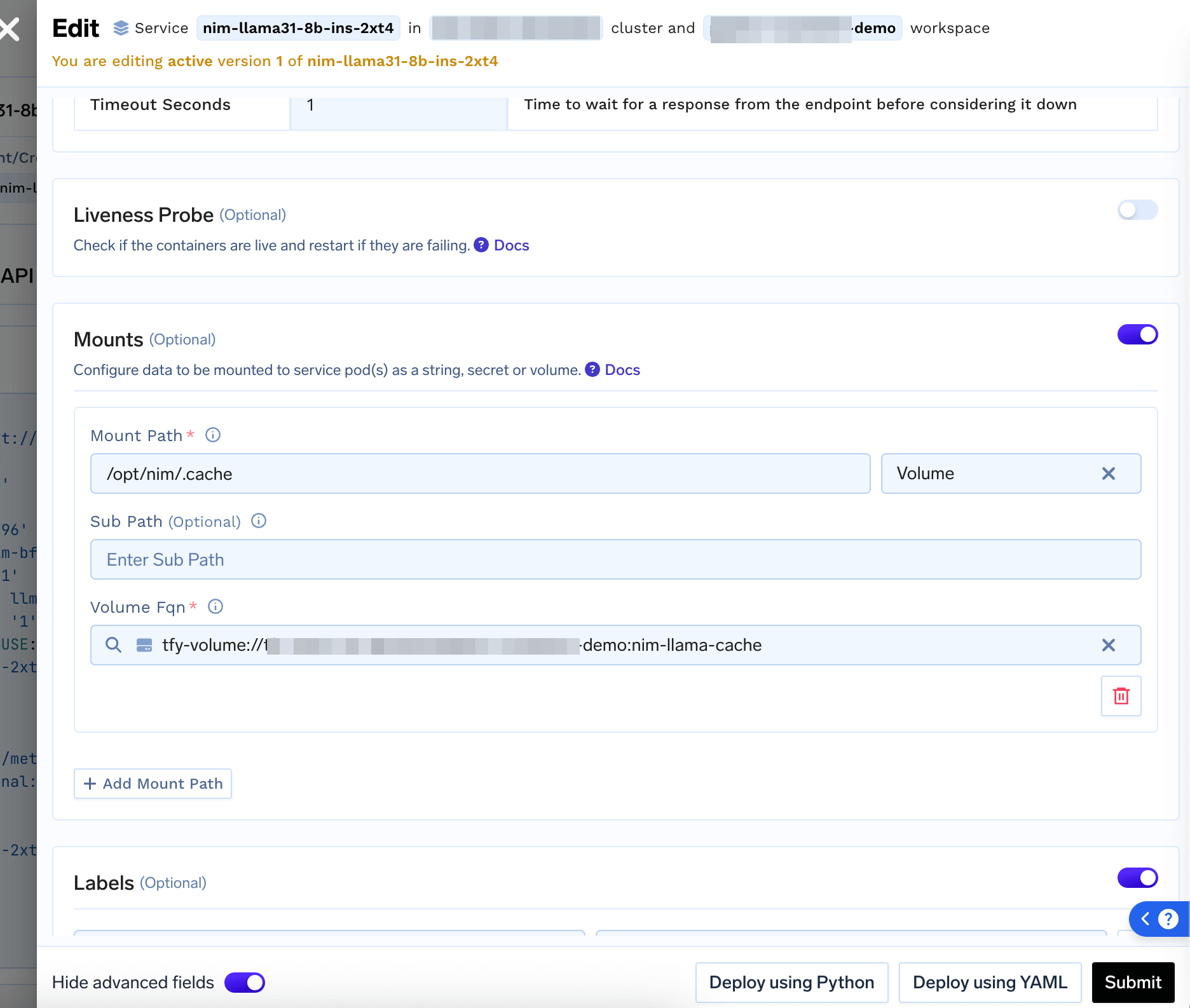
To avoid re-downloading Model on every restart, you can [Create a Volume](/docs/creating-a-volume) and [Mount the Volume ](/docs/mounting-volumes-service)at `/opt/nim/.cache`
## (Optional) Caching NIM Model to External Volume
Recommended for Large Models and Production Environments
To avoid re-downloading Model on every restart, you can [Create a Volume](/docs/creating-a-volume) and [Mount the Volume ](/docs/mounting-volumes-service)at `/opt/nim/.cache`
 ## Running Inferences
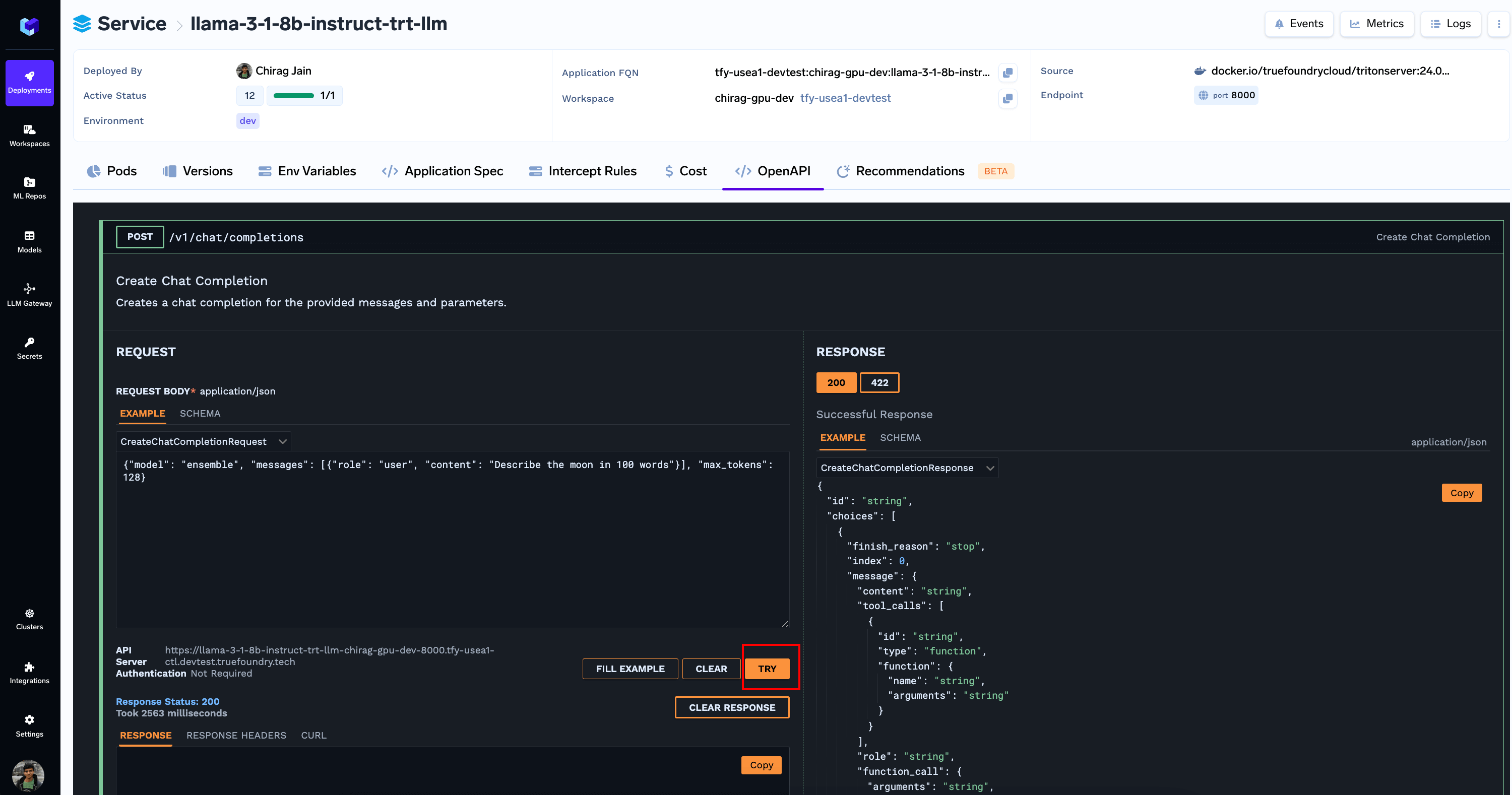
You can now run inferences via the OpenAPI tab. You can also [Add the Model to LLM Gateway](/docs/ai-gateway/self-hosted-models) using the button on the top
## Running Inferences
You can now run inferences via the OpenAPI tab. You can also [Add the Model to LLM Gateway](/docs/ai-gateway/self-hosted-models) using the button on the top