> ## Documentation Index
> Fetch the complete documentation index at: https://www.truefoundry.com/llms.txt
> Use this file to discover all available pages before exploring further.
# Configure Sidecar
> Step-by-step guide for configure sidecar, explaining configuration, best practices, and real-world usage on TrueFoundry.
To run the async service in sidecar mode as mentioned in [Introduction](/docs/introduction-to-async-service#use-sidecar), we will need to enable the sidecar in the deployment form. This is available in the advanced settings in the Deployment form.
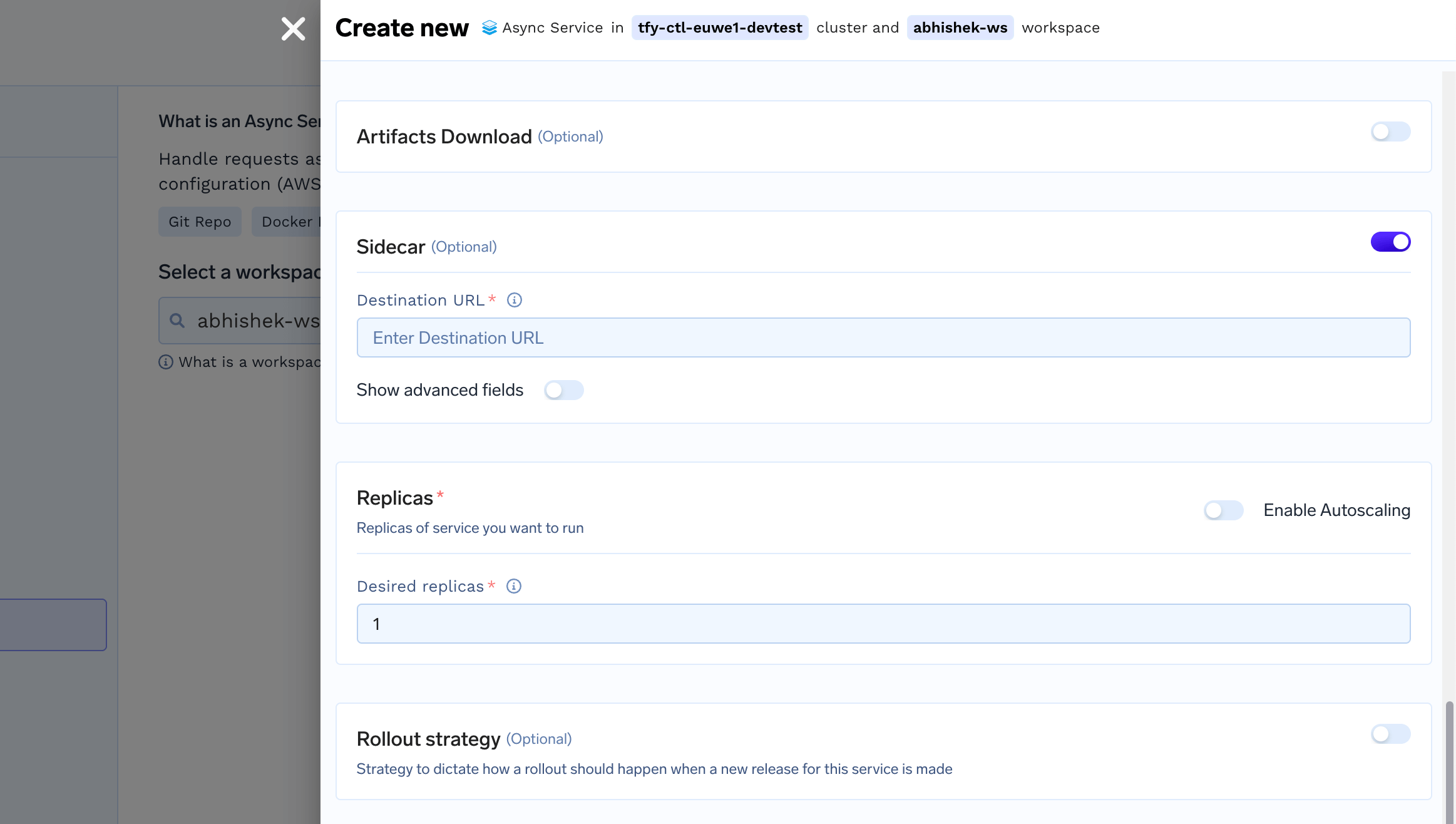 We will have to provide the url in your service to which the sidecar can send the HTTP request. For e.g. if you have a path called `/predict` in your service and you are running it on port 8000, the destination url will be `http://0.0.0.0:8000/predict`
### Sidecar destination url should be `http://0.0.0.0:/`
The port number is the same as what you provided in the Ports section in the deployment form. The reason you have to provide it here again since you might have multiple ports and you want the sidecar to call one of the ports specified.
We will have to provide the url in your service to which the sidecar can send the HTTP request. For e.g. if you have a path called `/predict` in your service and you are running it on port 8000, the destination url will be `http://0.0.0.0:8000/predict`
### Sidecar destination url should be `http://0.0.0.0:/`
The port number is the same as what you provided in the Ports section in the deployment form. The reason you have to provide it here again since you might have multiple ports and you want the sidecar to call one of the ports specified.