> ## Documentation Index
> Fetch the complete documentation index at: https://www.truefoundry.com/llms.txt
> Use this file to discover all available pages before exploring further.
# Traceloop
> Learn how to export LLM Gateway traces to Traceloop using OpenTelemetry integration.
This guide provides instructions for integrating [Traceloop](https://traceloop.com) with the TrueFoundry AI Gateway to export OpenTelemetry traces.
Traceloop ingests **traces only** via OTLP. LLM metrics such as token usage, latency, and cost are derived from trace span attributes and surfaced in the Traceloop dashboard — they do not require a separate metrics exporter. Keep the **Otel Metrics Exporter** disabled when using Traceloop.
## What is Traceloop?
Traceloop is an LLM observability platform built on OpenLLMetry, its open-source OpenTelemetry-based instrumentation layer. It ingests OTLP traces from LLM applications and provides dashboards for monitoring prompt performance, token usage, latency, and model behaviour across environments. Traceloop also supports prompt versioning, regression testing, and environment-based API key management.
### Key Features of Traceloop
* **[LLM Trace Observability](https://docs.traceloop.com/docs/openllmetry/tracing/supported)**: Captures full request and response traces across OpenAI, Anthropic, and other LLM providers with standard `gen_ai` semantic conventions.
* **[Multi-Environment API Keys](https://www.traceloop.com/docs/settings/projects-and-environments)**: Supports separate API keys for Development, Staging, and Production environments to keep telemetry streams isolated.
* **[OpenTelemetry Collector Support](https://www.traceloop.com/docs/openllmetry/integrations/otel-collector)**: Accepts traces forwarded from any OTLP/HTTP-compatible collector, making it easy to fan out from existing OTel pipelines.
## Prerequisites
Before integrating Traceloop with TrueFoundry, ensure you have:
1. **TrueFoundry Account**: Create a [TrueFoundry account](https://www.truefoundry.com/register) and follow the instructions in our [Gateway Quick Start Guide](https://docs.truefoundry.com/gateway/quick-start).
2. **Traceloop Account**: Sign up at [traceloop.com](https://app.traceloop.com) and have access to the Traceloop dashboard to generate an API key.
## Integration Steps
1. Log in to your [Traceloop dashboard](https://app.traceloop.com).
2. In the left-hand navigation, click **Environments**.
3. Select the environment you want to send data to (Development, Staging, or Production).
4. Click **Generate API Key**.
5. Click **Copy Key** immediately — API keys are only shown once and are not stored by Traceloop.
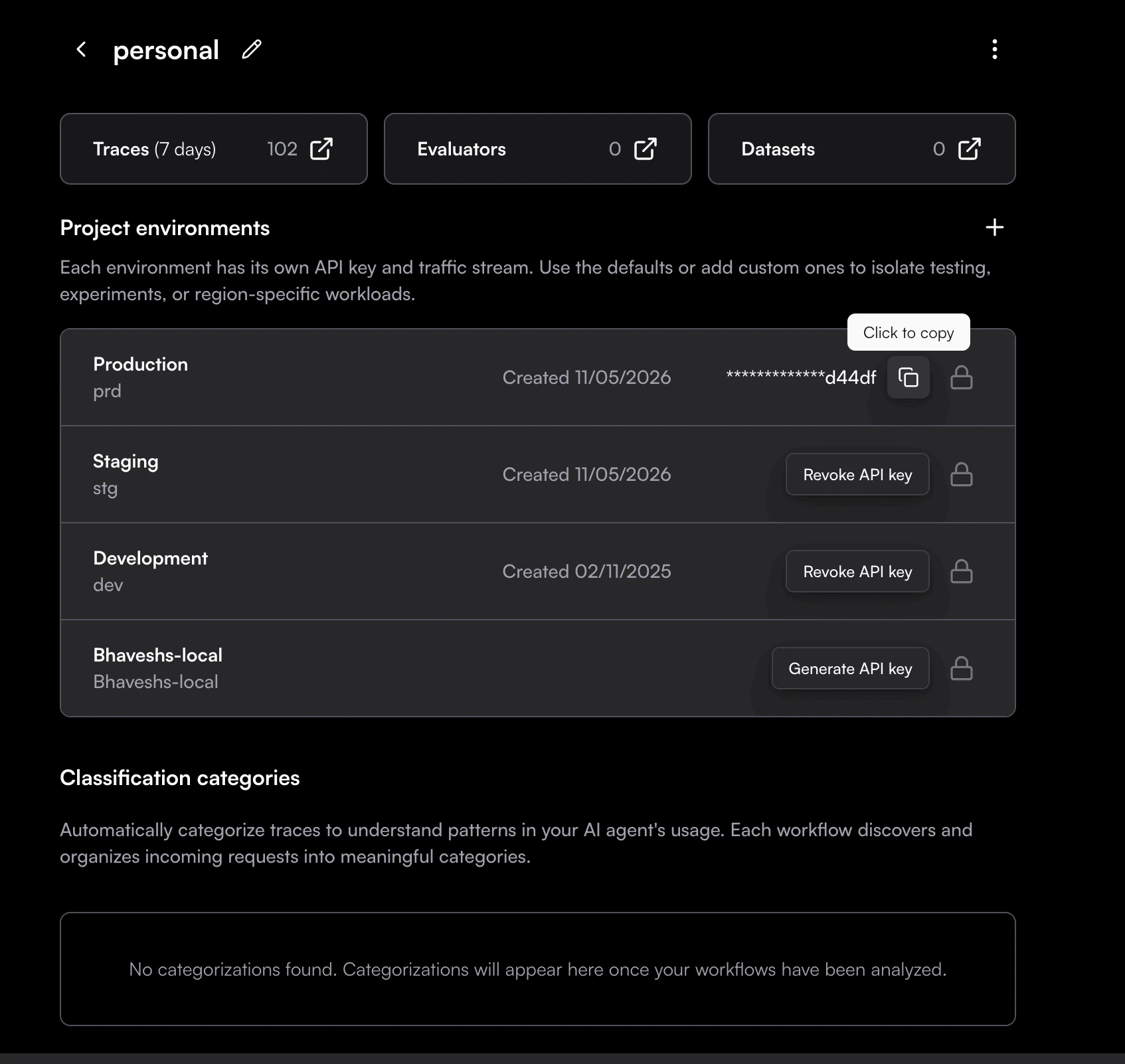 If you lose your API key, revoke it from the Environments page and generate a new one. There is no way to retrieve an existing key.
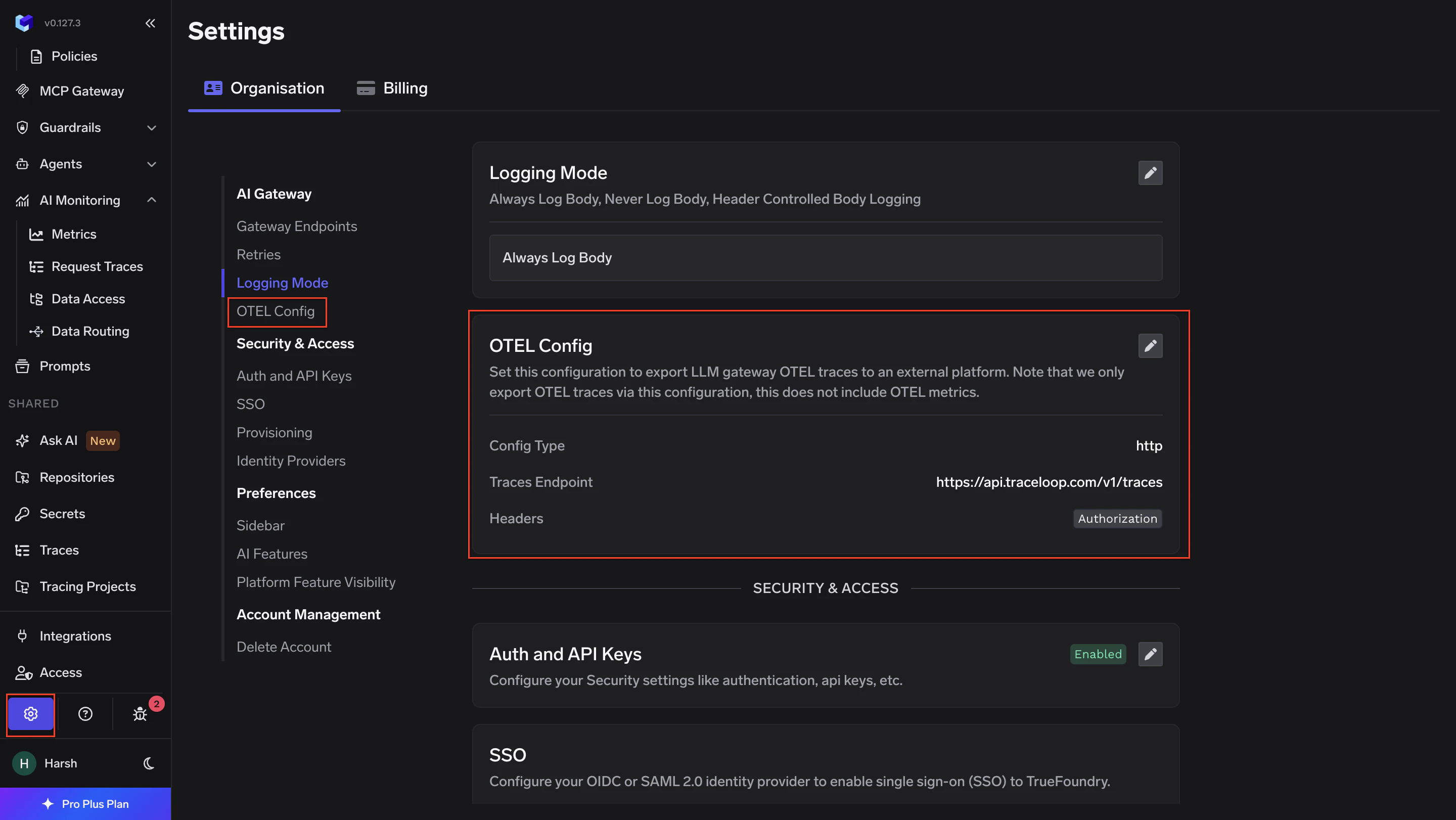
1. Go to **AI Gateway** → **Controls** → **Settings** in the TrueFoundry dashboard.
2. Scroll down to the **OTEL Config** section and click the edit (✏️) button.
If you lose your API key, revoke it from the Environments page and generate a new one. There is no way to retrieve an existing key.
1. Go to **AI Gateway** → **Controls** → **Settings** in the TrueFoundry dashboard.
2. Scroll down to the **OTEL Config** section and click the edit (✏️) button.
 3. Enable the **Otel Traces Exporter Configuration** toggle and fill in:
| Field | Value |
| ---------------- | ------------------------------------- |
| **Toggle** | Enabled |
| **Protocol** | HTTP Configuration |
| **Endpoint** | `https://api.traceloop.com/v1/traces` |
| **Encoding** | Proto |
| **Header Key** | `Authorization` |
| **Header Value** | `Bearer ` |
3. Enable the **Otel Traces Exporter Configuration** toggle and fill in:
| Field | Value |
| ---------------- | ------------------------------------- |
| **Toggle** | Enabled |
| **Protocol** | HTTP Configuration |
| **Endpoint** | `https://api.traceloop.com/v1/traces` |
| **Encoding** | Proto |
| **Header Key** | `Authorization` |
| **Header Value** | `Bearer ` |
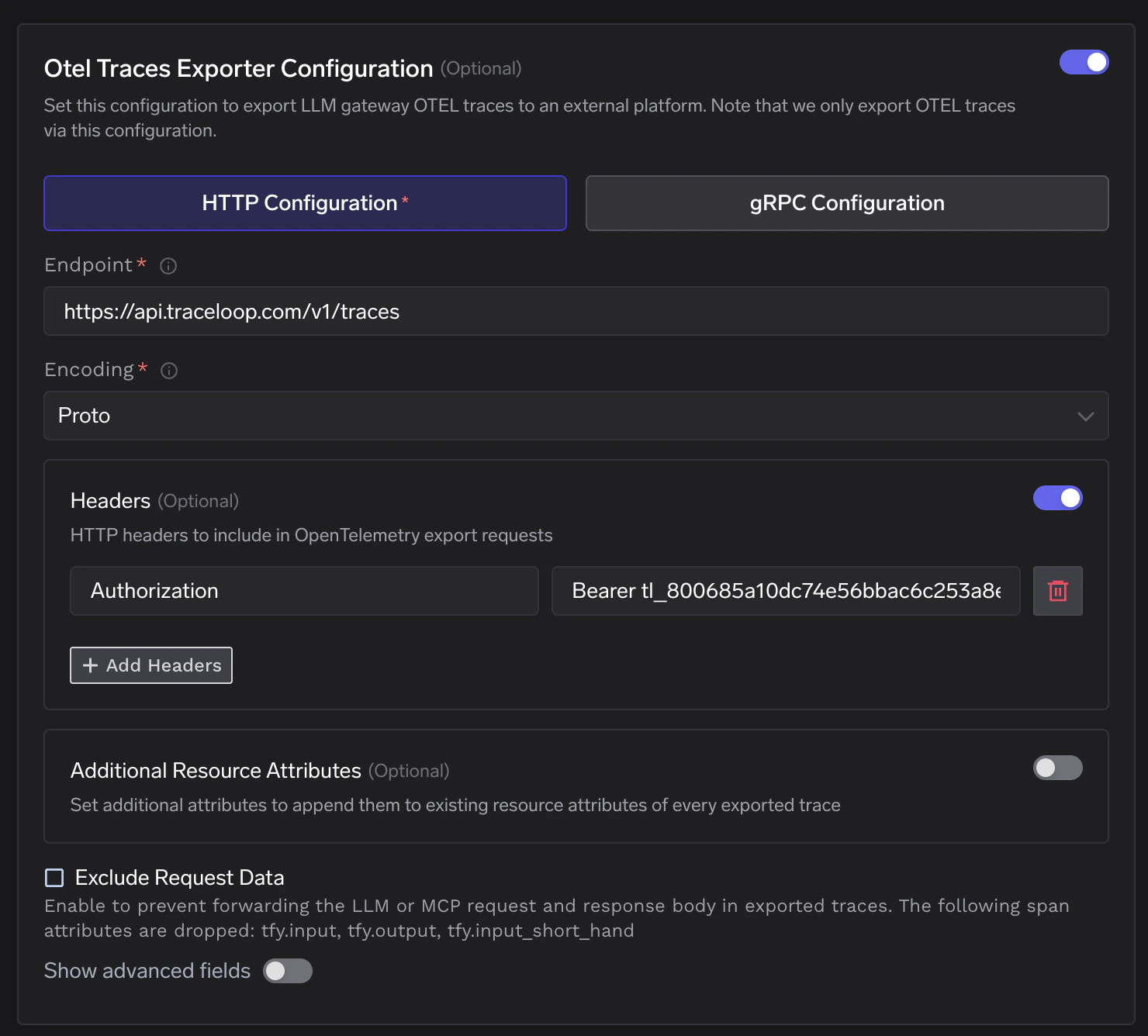 4. Click **Save** to apply the configuration.
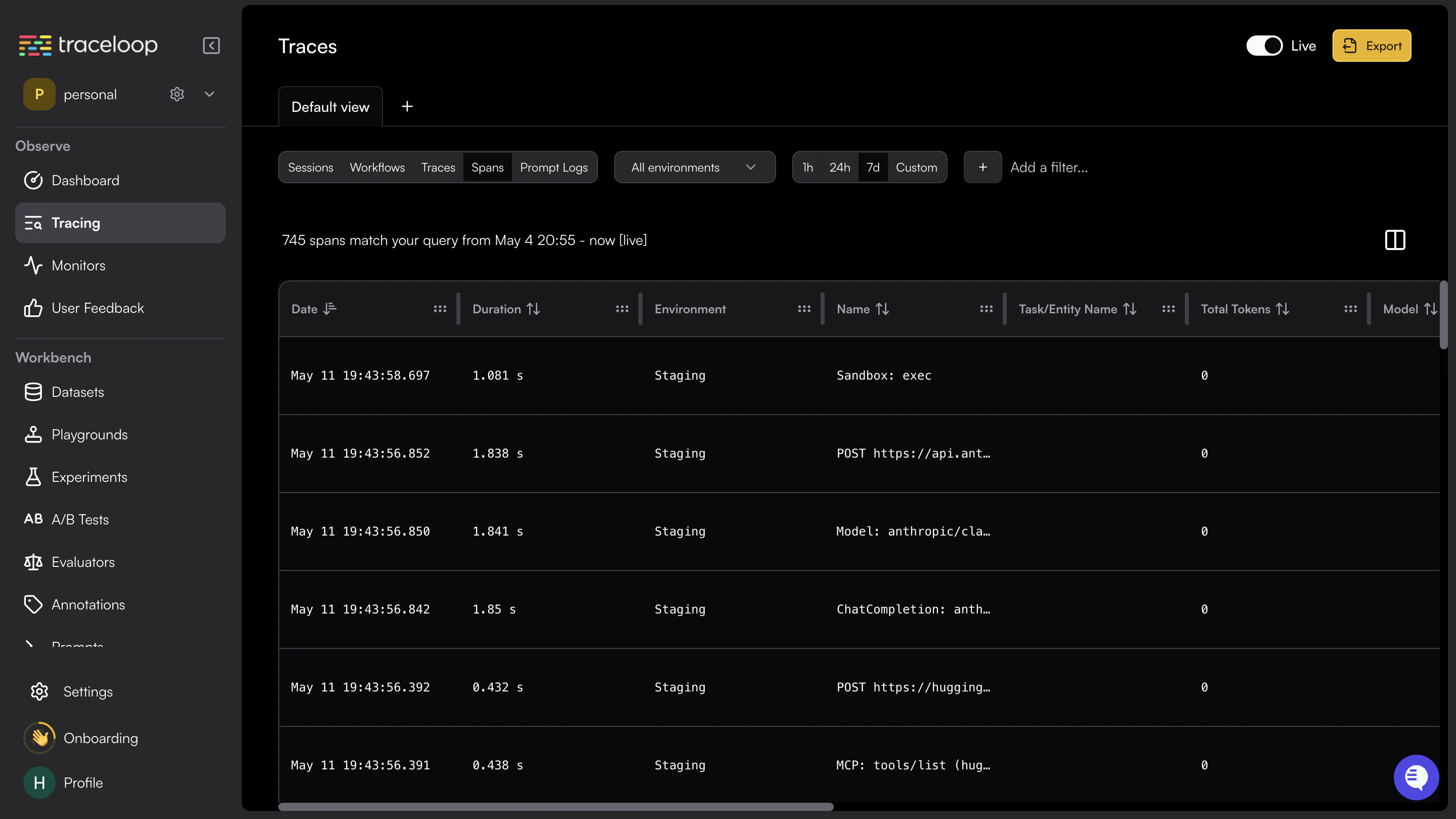
1. Make a request through the TrueFoundry AI Gateway.
2. Log in to your [Traceloop dashboard](https://app.traceloop.com) and navigate to the **Traces** section.
3. Confirm that traces with the service name `tfy-llm-gateway` are appearing.
4. Click **Save** to apply the configuration.
1. Make a request through the TrueFoundry AI Gateway.
2. Log in to your [Traceloop dashboard](https://app.traceloop.com) and navigate to the **Traces** section.
3. Confirm that traces with the service name `tfy-llm-gateway` are appearing.
 ## Configuration Reference
| Configuration | Value |
| --------------------- | ------------------------------------- |
| **Traces Endpoint** | `https://api.traceloop.com/v1/traces` |
| **Protocol** | HTTP |
| **Encoding** | Proto |
| **Auth Header Key** | `Authorization` |
| **Auth Header Value** | `Bearer ` |
## Configuration Reference
| Configuration | Value |
| --------------------- | ------------------------------------- |
| **Traces Endpoint** | `https://api.traceloop.com/v1/traces` |
| **Protocol** | HTTP |
| **Encoding** | Proto |
| **Auth Header Key** | `Authorization` |
| **Auth Header Value** | `Bearer ` |