> ## Documentation Index
> Fetch the complete documentation index at: https://www.truefoundry.com/llms.txt
> Use this file to discover all available pages before exploring further.
# OpenAI
> Add and configure OpenAI models in TrueFoundry's AI Gateway
### Adding Models
This section explains the steps to add OpenAI models and configure the required access controls.
From the TrueFoundry dashboard, navigate to **AI Gateway** > **Models** and select **OpenAI**.
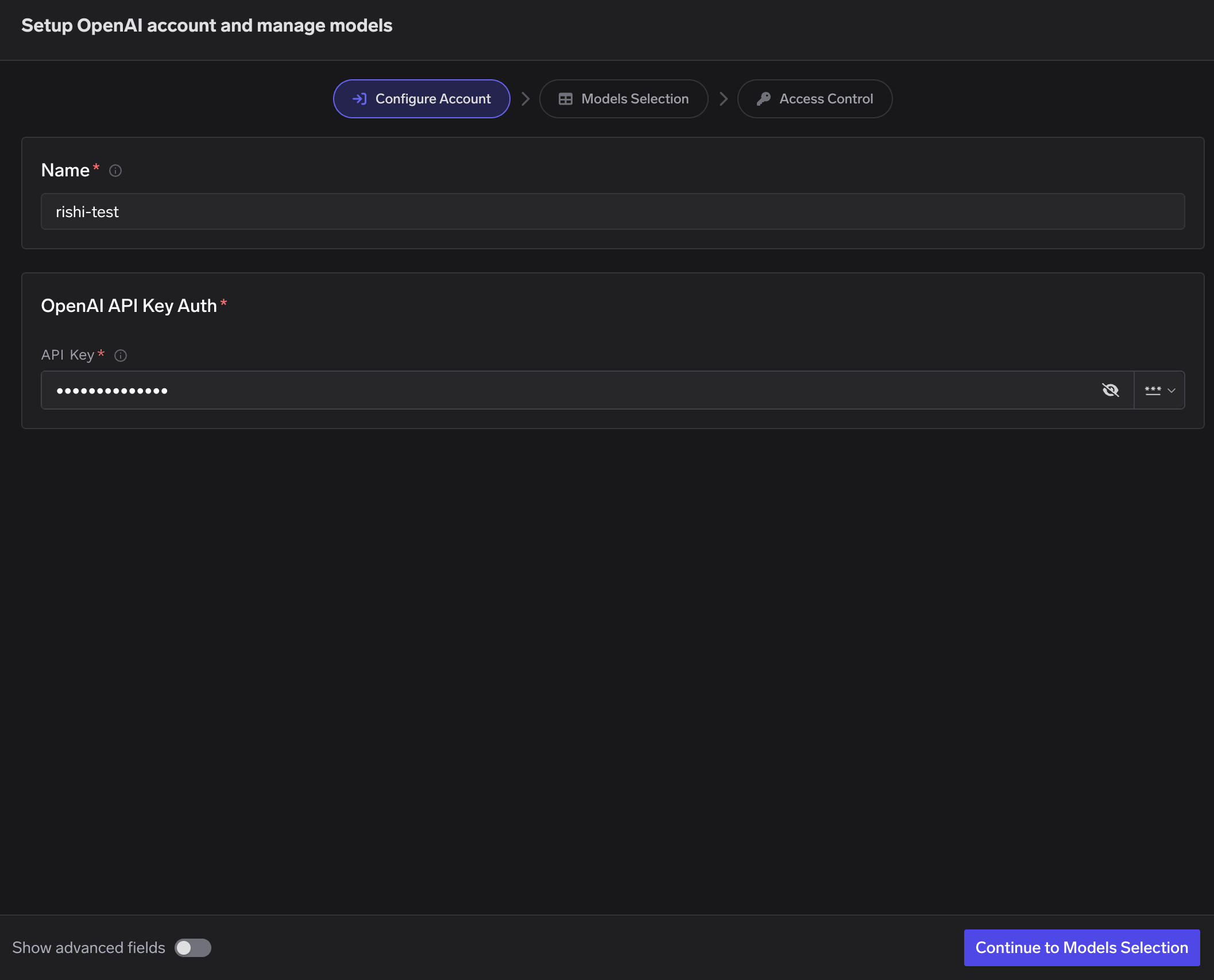
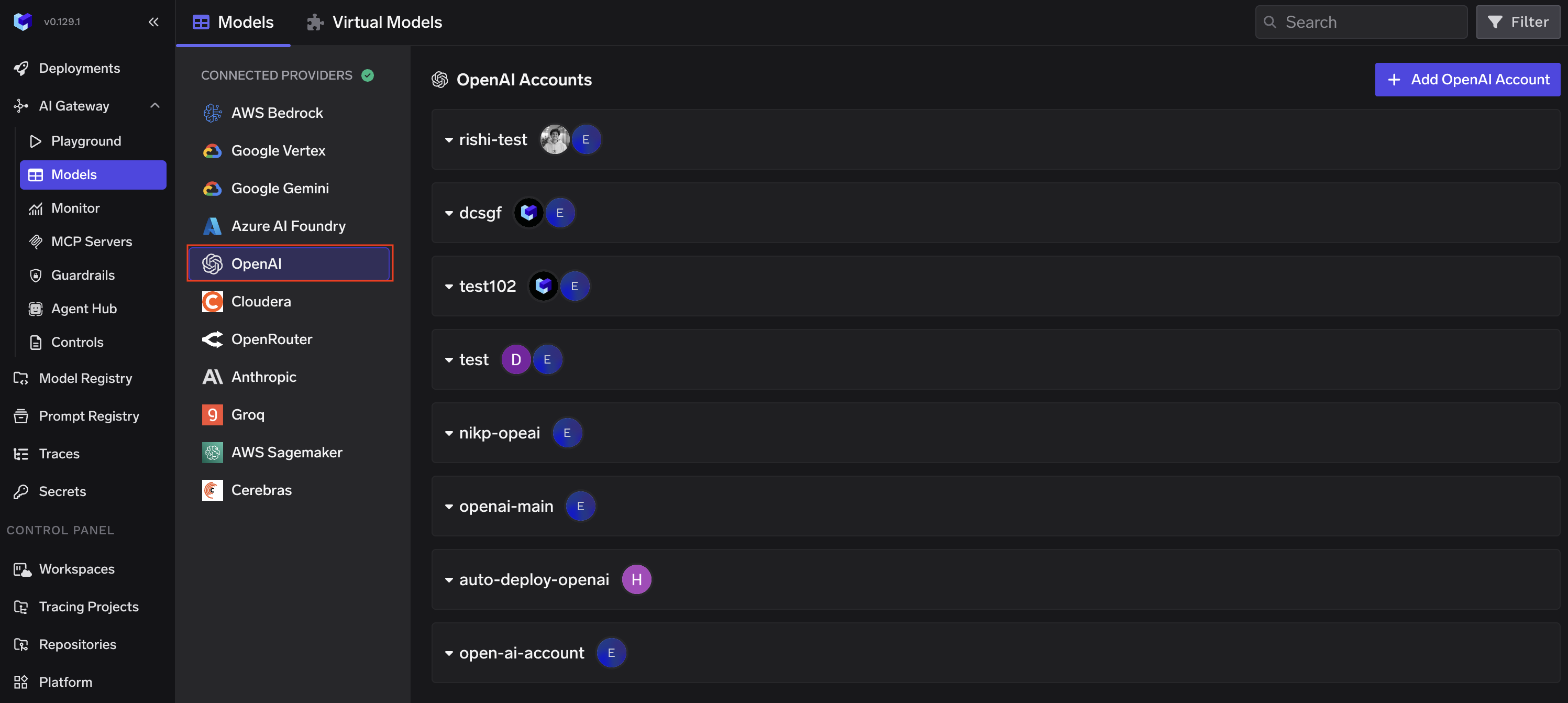 Click **Add OpenAI Account**. Give a unique name to your OpenAI account and provide your API Key.
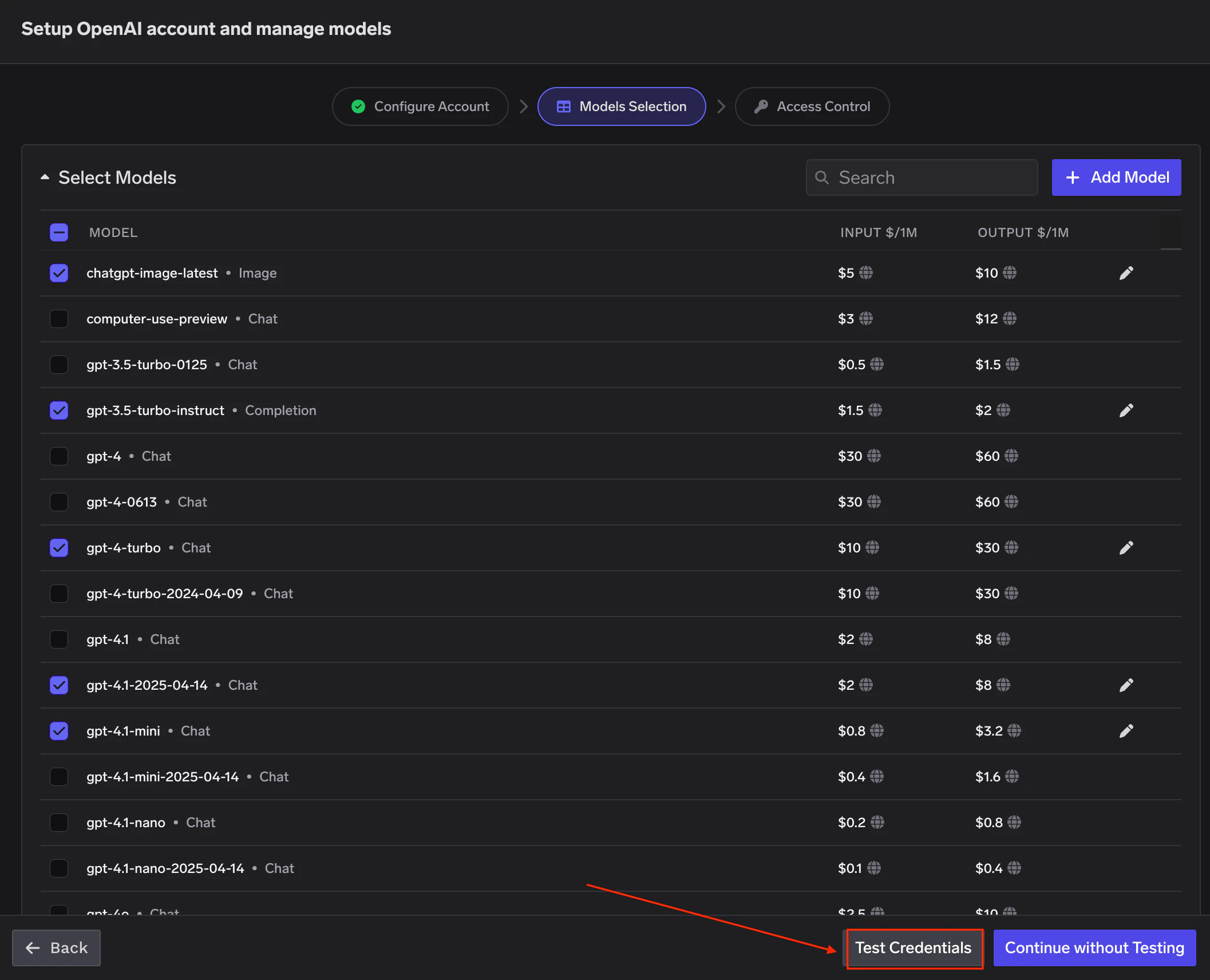
 Select the models you want to enable from the list. Pricing per million tokens is shown for each model.
Click **Test Credentials** to verify your API key against the selected models before saving.
Select the models you want to enable from the list. Pricing per million tokens is shown for each model.
Click **Test Credentials** to verify your API key against the selected models before saving.
 If the model you are looking for is not listed, click **+ Add Model** at the bottom to add it manually.
TrueFoundry AI Gateway supports all text and image models in OpenAI. The complete list of models supported by OpenAI can be found [here](https://platform.openai.com/docs/models).
Configure who can manage and access the models in this provider account. Learn more about access control [here](/docs/ai-gateway/gateway-access-control).
If the model you are looking for is not listed, click **+ Add Model** at the bottom to add it manually.
TrueFoundry AI Gateway supports all text and image models in OpenAI. The complete list of models supported by OpenAI can be found [here](https://platform.openai.com/docs/models).
Configure who can manage and access the models in this provider account. Learn more about access control [here](/docs/ai-gateway/gateway-access-control).
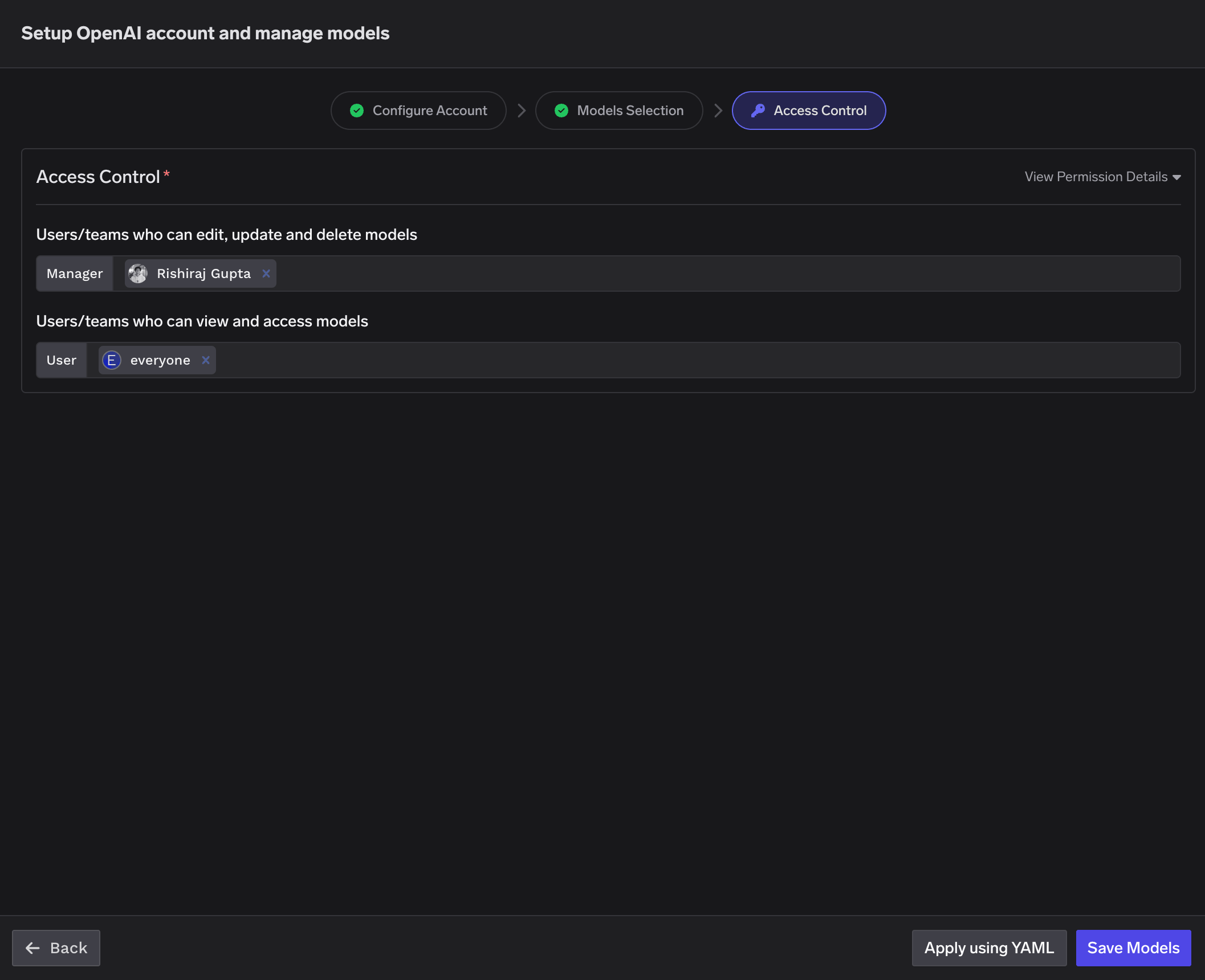 Click **Save Models** to finish.
### Inference
After adding the models, you can perform inference using an OpenAI-compatible API via the Playground or by integrating with your own application.
Click **Save Models** to finish.
### Inference
After adding the models, you can perform inference using an OpenAI-compatible API via the Playground or by integrating with your own application.
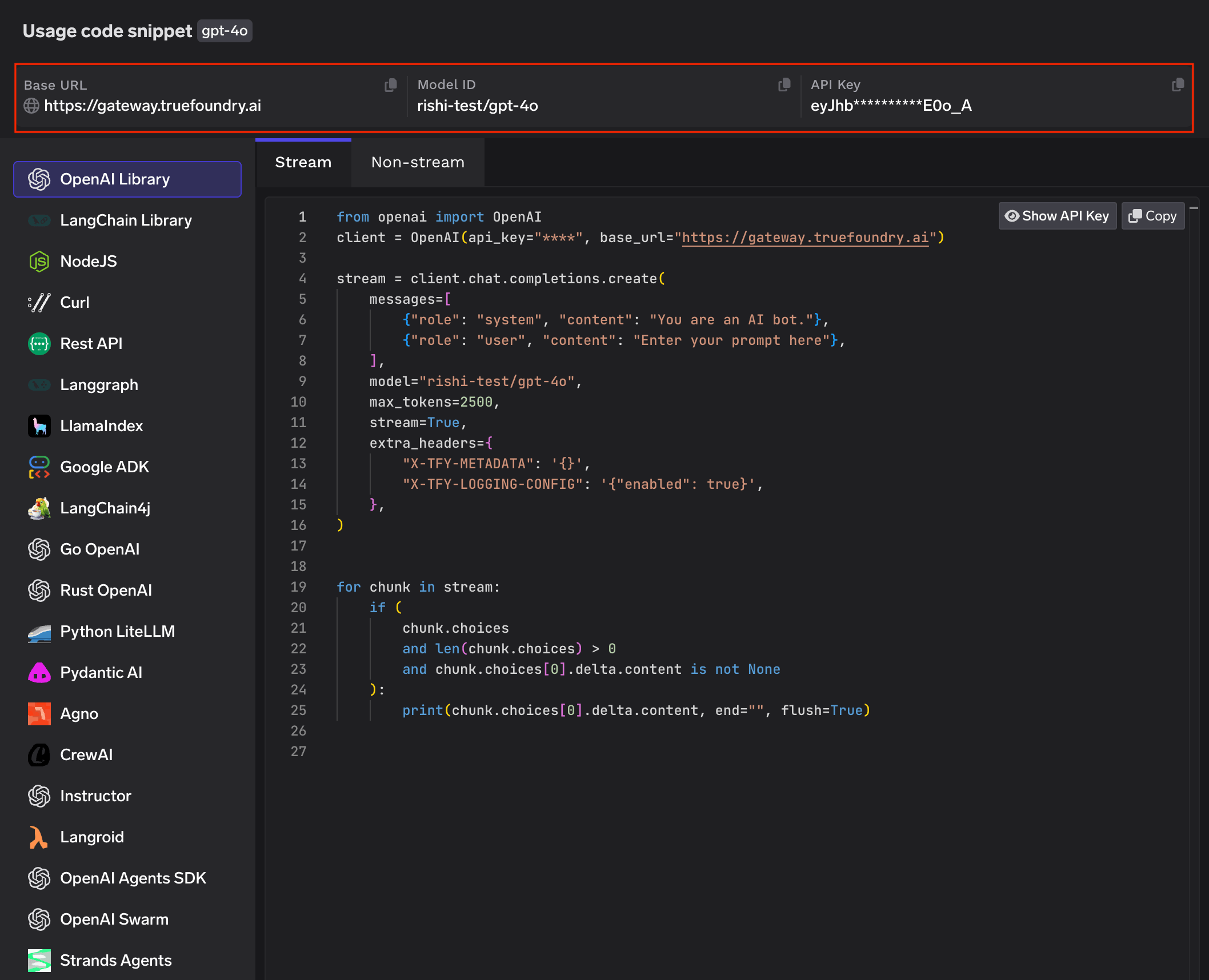 ### Supported APIs
Once your OpenAI provider account is configured, the following API surfaces are available through the gateway. The table below summarizes each endpoint alongside platform feature support (tracing, cost tracking).
Legend:
* **✅** Supported by Provider and Truefoundry
* Supported by Provider, but not by Truefoundry
* Provider does not support this feature
| API | Endpoint | Tracing | Cost Tracking |
| --------------------------------------- | -------------------------- | ------- | ----------------------------------------------------------- |
| [Chat Completions](#chat-completions) | `/chat/completions` | **✅** | **✅** |
| [Embeddings](#embeddings) | `/embeddings` | **✅** | **✅** |
| [Responses API](#responses-api) | `/responses` | **✅** | **✅** |
| [Image Generation](#image-generation) | `/images/generations` | **✅** | |
| [Image Edit](#image-edit) | `/images/edits` | **✅** | |
| [Image Variation](#image-variation) | `/images/variations` | **✅** | |
| [Text-to-Speech](#text-to-speech) | `/audio/speech` | **✅** | |
| [Speech-to-Text](#speech-to-text) | `/audio/transcriptions` | **✅** | |
| [Audio Translation](#audio-translation) | `/audio/translations` | **✅** | |
| [Batch API](#batch-api) | `/batches` | **✅** | |
| [Files API](#files-api) | `/files` | **✅** | |
| [Moderation](#moderation) | `/moderations` | **✅** | Free API |
| [Fine-tuning](#fine-tuning) | `/fine_tuning/jobs` | **✅** | |
| [Realtime API](#realtime-api) | `/live/{provider-account}` | **✅** | **✅** |
The chat completions endpoint is the most widely used — it supports streaming, function calling, multimodal input (images, audio, PDF), structured JSON outputs, reasoning models, and prompt caching. Full provider capability matrix: [Chat Completions API](/docs/ai-gateway/chat-completions-overview)
```python Python lines theme={"dark"}
from openai import OpenAI
client = OpenAI(
api_key="your-truefoundry-api-key",
base_url="{GATEWAY_BASE_URL}",
)
response = client.chat.completions.create(
model="openai-main/gpt-4o-mini",
messages=[
{"role": "system", "content": "You answer in one short sentence."},
{"role": "user", "content": "What is TrueFoundry?"},
],
)
print(response.choices[0].message.content)
```
Set `stream=True` to start streaming responses and iterate over delta chunks. You may defensively check that `chunk.choices` is non-empty and `delta.content` is not `None` as some provider chunks (role deltas, finish markers) have no content.
```python Python lines theme={"dark"}
stream = client.chat.completions.create(
model="openai-main/gpt-4o-mini",
messages=[{"role": "user", "content": "Count from 1 to 5."}],
stream=True,
)
for chunk in stream:
if (
chunk.choices
and len(chunk.choices) > 0
and chunk.choices[0].delta.content is not None
):
print(chunk.choices[0].delta.content, end="", flush=True)
```
Request parameters like `temperature`, `max_tokens`, `top_p`, `frequency_penalty`, `presence_penalty`, and `stop` fine-tune generation behaviour.
Some models don't support all parameters — e.g. `temperature` is not supported on o-series reasoning models.
```python Python lines theme={"dark"}
response = client.chat.completions.create(
model="openai-main/gpt-4o-mini",
messages=[
{
"role": "system",
"content": "You are a creative storyteller. Keep responses under two sentences. Never use the word 'delve'.",
},
{"role": "user", "content": "Write about a robot learning to paint."},
],
temperature=0.9,
max_tokens=100,
top_p=0.95,
frequency_penalty=0.5,
presence_penalty=0.3,
stop=["\n\n"],
)
print(response.choices[0].message.content)
```
Advertise a tool, hand the model's `tool_calls` back as a `tool` role message, then request the final response. Use `tool_choice` to force the model to call a specific tool when you need deterministic behaviour, and defensively unwrap `tool_calls` since the model may still return content instead of a tool call on some prompts.
```python Python lines theme={"dark"}
import json
tools = [{
"type": "function",
"function": {
"name": "get_weather",
"description": "Get the current weather for a city.",
"parameters": {
"type": "object",
"properties": {"city": {"type": "string"}},
"required": ["city"],
},
},
}]
messages = [{"role": "user", "content": "What's the weather in Bengaluru right now?"}]
first = client.chat.completions.create(
model="openai-main/gpt-4o-mini",
messages=messages,
tools=tools,
tool_choice={"type": "function", "function": {"name": "get_weather"}},
)
assistant_msg = first.choices[0].message
tool_calls = assistant_msg.tool_calls or []
if tool_calls:
tool_call = tool_calls[0]
messages.append(assistant_msg)
messages.append({
"role": "tool",
"tool_call_id": tool_call.id,
"content": json.dumps({"city": "Bengaluru", "temp_c": 28, "summary": "partly cloudy"}),
})
second = client.chat.completions.create(
model="openai-main/gpt-4o-mini",
messages=messages,
)
print(second.choices[0].message.content)
```
Send images as part of a message via the `image_url` content part. The URL can be a public HTTP URL **or** an inline `data:image/...;base64,...` URI.
```python Python lines theme={"dark"}
image_url = (
"https://upload.wikimedia.org/wikipedia/commons/thumb/d/dd/Gfp-wisconsin-madison-the-nature-boardwalk.jpg/2560px-Gfp-wisconsin-madison-the-nature-boardwalk.jpg"
)
response = client.chat.completions.create(
model="openai-main/gpt-4o-mini",
messages=[{
"role": "user",
"content": [
{"type": "text", "text": "Describe this image in one sentence."},
{"type": "image_url", "image_url": {"url": image_url}},
],
}],
)
print(response.choices[0].message.content)
```
Send PDF documents as part of a message via the `file` content type with base64 encoding.
```python Python lines theme={"dark"}
import base64
with open("sample.pdf", "rb") as f:
pdf_b64 = base64.b64encode(f.read()).decode("ascii")
response = client.chat.completions.create(
model="openai-main/gpt-4o-mini",
messages=[{
"role": "user",
"content": [
{"type": "text", "text": "What text is in this PDF?"},
{
"type": "file",
"file": {
"filename": "sample.pdf",
"file_data": f"data:application/pdf;base64,{pdf_b64}",
},
},
],
}],
)
print(response.choices[0].message.content)
```
Control the output format with `response_format`. Two modes:
* **JSON object** — `{"type": "json_object"}` — valid JSON, no schema. Include "respond in JSON" in the prompt.
* **JSON schema** — `{"type": "json_schema", ...}` — strict schema conformance. Set all properties in `required`.
```python Python lines theme={"dark"}
# JSON object mode — valid JSON, no schema enforcement
response = client.chat.completions.create(
model="openai-main/gpt-4o-mini",
messages=[
{"role": "system", "content": "You respond in JSON."},
{"role": "user", "content": "List three languages with year of creation."},
],
response_format={"type": "json_object"},
)
print(json.loads(response.choices[0].message.content))
# JSON schema mode — strict schema conformance
schema = {
"name": "person",
"schema": {
"type": "object",
"properties": {
"name": {"type": "string"},
"age": {"type": "integer"},
"hobbies": {"type": "array", "items": {"type": "string"}},
},
"required": ["name", "age", "hobbies"],
"additionalProperties": False,
},
"strict": True,
}
response = client.chat.completions.create(
model="openai-main/gpt-4o-mini",
messages=[{"role": "user", "content": "Invent a fictional person."}],
response_format={"type": "json_schema", "json_schema": schema},
)
message = response.choices[0].message
if getattr(message, "refusal", None):
print("model refused:", message.refusal)
elif not message.content:
print("model returned empty content")
else:
print(json.dumps(json.loads(message.content), indent=2))
```
Reasoning models (o3, o4-mini, etc.) expose a separate pool of reasoning tokens that show up in `response.usage`. Some request parameters like `temperature` are not supported on these models.
```python Python lines theme={"dark"}
response = client.chat.completions.create(
model="openai-main/o4-mini",
messages=[{"role": "user", "content": "A bat and ball cost $1.10. The bat costs $1.00 more than the ball. How much is the ball?"}],
)
print(response.choices[0].message.content)
print(response.usage) # includes reasoning_tokens
```
OpenAI supports automatic prompt caching for `gpt-4o` and newer models. Pass an optional `prompt_cache_key` parameter to improve cache hit rates when requests share common prefixes. Cached tokens appear in `usage.prompt_tokens_details.cached_tokens`.
```python Python lines theme={"dark"}
response = client.chat.completions.create(
model="openai-main/gpt-4o-mini",
messages=[
{"role": "system", "content": "You are a senior cloud architect..."},
{"role": "user", "content": "What should I check in a Helm chart review?"},
],
prompt_cache_key="my-cache-key",
)
cached = getattr(
getattr(response.usage, "prompt_tokens_details", None),
"cached_tokens", 0,
)
print(f"prompt_tokens={response.usage.prompt_tokens} cached_tokens={cached}")
```
The embeddings endpoint accepts a single string or a list of strings and returns dense vectors suitable for semantic search, clustering, or RAG. Full docs: [Embed API](/docs/ai-gateway/embed).
```python Python lines theme={"dark"}
response = client.embeddings.create(
model="openai-main/text-embedding-3-small",
input=[
"TrueFoundry is an AI platform.",
"TrueFoundry helps teams deploy LLMs.",
],
)
print(len(response.data), "vectors of dim", len(response.data[0].embedding))
```
Supported models: `text-embedding-3-small`, `text-embedding-3-large`, `text-embedding-ada-002`. See the [OpenAI embeddings guide](https://platform.openai.com/docs/guides/embeddings) for dimension and pricing details.
OpenAI's Responses API is a stateful alternative to chat completions that manages conversation state on the server and supports `retrieve`, `delete`, and multimodal inputs. Full docs: [Responses API](/docs/ai-gateway/responses-api).
The Responses API requires the `x-tfy-provider-name` header. Set it on `default_headers` when you construct the client — the gateway uses it to route the request to the right OpenAI provider account.
```python Python lines theme={"dark"}
from openai import OpenAI
client = OpenAI(
api_key="your-truefoundry-api-key",
base_url="{GATEWAY_BASE_URL}",
default_headers={"x-tfy-provider-name": "openai-main"},
)
created = client.responses.create(
model="openai-main/gpt-4o-mini",
input=[{"role": "user", "content": "Give me a two-word tagline."}],
)
print(created.id, created.output_text)
# Retrieve by id
fetched = client.responses.retrieve(created.id)
```
Generate images with DALL·E 2/3 or GPT-Image via `client.images.generate`. The response contains either `b64_json` or `url` depending on the model and request parameters — handle both. Full docs: [Image Generation](/docs/ai-gateway/image-generation).
```python Python lines theme={"dark"}
from openai import OpenAI
import base64
client = OpenAI(
api_key="your-truefoundry-api-key",
base_url="{GATEWAY_BASE_URL}"
)
response = client.images.generate(
model="openai-main/gpt-image-1",
prompt="A minimalist isometric illustration of a cloud with a lightning bolt.",
size="1024x1024",
n=1,
)
item = response.data[0]
if getattr(item, "b64_json", None):
image_bytes = base64.b64decode(item.b64_json)
else:
import requests
image_bytes = requests.get(item.url, timeout=60).content
with open("generated.png", "wb") as f:
f.write(image_bytes)
```
Supported models: `gpt-image-1`, `dall-e-2`, `dall-e-3`.
Edit an existing image with a text prompt via `client.images.edit`. Same models as image generation, with size constraints: `gpt-image-1` accepts PNG/WebP/JPG up to 50 MB and up to 16 input images, while `dall-e-2` requires a single square PNG ≤ 4 MB. Full docs: [Image Edit](/docs/ai-gateway/image-edit).
```python Python lines theme={"dark"}
from openai import OpenAI
import base64
client = OpenAI(
api_key="your-truefoundry-api-key",
base_url="{GATEWAY_BASE_URL}"
)
with open("generated.png", "rb") as image_file:
response = client.images.edit(
model="openai-main/gpt-image-1",
image=image_file,
prompt="Add a bright yellow sun in the top-right corner.",
size="1024x1024",
n=1,
)
item = response.data[0]
if getattr(item, "b64_json", None):
edited_bytes = base64.b64decode(item.b64_json)
else:
import requests
edited_bytes = requests.get(item.url, timeout=60).content
with open("edited.png", "wb") as f:
f.write(edited_bytes)
```
**Legacy endpoint — `dall-e-2` has been deprecated by OpenAI.** The `create_variation` endpoint only supported `dall-e-2`, which is no longer available.
Calls to this endpoint may fail post removal. Use `images.edit` with `gpt-image-1` and a variation-style prompt instead (see below).
**Legacy: `create_variation` (dall-e-2 only — deprecated)**
The original variation API accepted an image and returned creative variations. It required a **square PNG ≤ 4 MB** and only worked with `dall-e-2`.
Full docs: [Image Variation](/docs/ai-gateway/image-variation).
```python Python lines theme={"dark"}
from openai import OpenAI
client = OpenAI(
api_key="your-truefoundry-api-key",
base_url="{GATEWAY_BASE_URL}"
)
# Legacy — dall-e-2 is deprecated, request may fail post removal
try:
with open("generated.png", "rb") as image_file:
response = client.images.create_variation(
model="openai-main/dall-e-2",
image=image_file,
size="1024x1024",
n=1,
)
item = response.data[0]
# Same b64_json / url handling as image generation above
except Exception as exc:
print(f"image variation skipped: {type(exc).__name__}: {exc}")
```
**Modern: `images.edit` with variation prompt (gpt-image-1)**
The recommended replacement is to use `images.edit` with a variation-style prompt. This works with current models and produces similar results.
```python Python lines theme={"dark"}
import base64
with open("generated.png", "rb") as image_file:
response = client.images.edit(
model="openai-main/gpt-image-1",
image=image_file,
prompt="Create a subtle variation of this image. Keep the overall composition similar but introduce small creative differences in color and detail.",
size="1024x1024",
n=1,
)
item = response.data[0]
if getattr(item, "b64_json", None):
image_bytes = base64.b64decode(item.b64_json)
else:
import requests
image_bytes = requests.get(item.url, timeout=60).content
with open("variation.png", "wb") as f:
f.write(image_bytes)
```
Stream spoken audio from text with OpenAI's TTS models. Use `with_streaming_response.create(...)` to stream the response body directly to a file or an `AsyncIterator`. Full docs: [Text-to-Speech](/docs/ai-gateway/text-to-speech).
```python Python lines theme={"dark"}
from openai import OpenAI
client = OpenAI(
api_key="your-truefoundry-api-key",
base_url="{GATEWAY_BASE_URL}"
)
with client.audio.speech.with_streaming_response.create(
model="openai-main/gpt-4o-mini-tts",
voice="alloy",
input="Hello from TrueFoundry.",
) as response:
response.stream_to_file("out.mp3")
```
Supported models: `gpt-4o-mini-tts`, `tts-1`, `tts-1-hd`. Supported voices include `alloy`, `echo`, `fable`, `onyx`, `nova`, `shimmer`. See the [OpenAI TTS guide](https://platform.openai.com/docs/guides/text-to-speech) for the full list of voices and audio formats.
Transcribe audio files via `client.audio.transcriptions.create`. Full docs: [Audio Transcription](/docs/ai-gateway/audio-transcription).
```python Python lines theme={"dark"}
from openai import OpenAI
client = OpenAI(
api_key="your-truefoundry-api-key",
base_url="{GATEWAY_BASE_URL}"
)
with open("input.mp3", "rb") as audio_file:
transcript = client.audio.transcriptions.create(
model="openai-main/whisper-1",
file=audio_file,
)
print(transcript.text)
```
Supported models: `whisper-1`, `gpt-4o-transcribe`, `gpt-4o-mini-transcribe`.
Translates audio in any source language to **English** text via `client.audio.translations.create`. Same `whisper-1` model as transcription; the response is always English. Full docs: [Audio Translation](/docs/ai-gateway/audio-translation).
TrueFoundry gates each model entry by capability. A `whisper-1` entry registered with **transcription only** will refuse `audio_translation` requests with a 400 (`audio_translation is not supported for the model`). Re-add `whisper-1` on the provider account with the **translation** capability enabled to allow this endpoint.
The example below generates a short French TTS sample inline and translates it back to English so the demo is self-contained — `text` ↔ `translated
text` round-trip with no external audio file.
```python Python lines theme={"dark"}
from openai import OpenAI
client = OpenAI(
api_key="your-truefoundry-api-key",
base_url="{GATEWAY_BASE_URL}"
)
with open("/path/to/audio.mp3", "rb") as audio_file:
response = client.audio.transcriptions.create(
model="openai-main/whisper-1", # truefoundry model name
file=audio_file,
)
print(response)
```
Process large volumes of requests asynchronously with lower cost and higher throughput than sync inference. The flow is: upload JSONL → create batch → poll for completion → download results. Full docs: [Batch Predictions](/docs/ai-gateway/batch-predictions-with-truefoundry-llm-gateway).
The Batch API requires the `x-tfy-provider-name` header on the client. Also, the `model` field inside each JSONL request line must be the **bare** OpenAI model name (e.g. `gpt-4o-mini`) — **not** the TrueFoundry-prefixed one. Routing is handled by the header, not the body.
```python Python lines theme={"dark"}
from openai import OpenAI
import json
client = OpenAI(
api_key="your-truefoundry-api-key",
base_url="{GATEWAY_BASE_URL}",
default_headers={"x-tfy-provider-name": "openai-main"},
)
# 1. Write JSONL input
with open("batch_input.jsonl", "w") as f:
for i, prompt in enumerate(["Say hi in French.", "Say hi in Japanese."]):
f.write(json.dumps({
"custom_id": f"req-{i}",
"method": "POST",
"url": "/v1/chat/completions",
"body": {
"model": "gpt-4o-mini", # bare name — NOT openai-main/gpt-4o-mini
"messages": [{"role": "user", "content": prompt}],
},
}) + "\n")
# 2. Upload
with open("batch_input.jsonl", "rb") as f:
uploaded = client.files.create(file=f, purpose="batch")
# 3. Create batch
batch = client.batches.create(
input_file_id=uploaded.id,
endpoint="/v1/chat/completions",
completion_window="24h",
)
# 4. Poll until completed
import time
while batch.status not in {"completed", "failed", "expired", "cancelled"}:
time.sleep(10)
batch = client.batches.retrieve(batch.id)
# 5. Download results
if batch.status == "completed":
raw = client.files.content(batch.output_file_id).read()
text = raw.decode("utf-8").strip()
print(text)
```
Upload, list, retrieve, and delete files held by the gateway (used by Batch and Fine-tuning). Full docs: [Files API](/docs/ai-gateway/file-endpoints).
The Files API requires the `x-tfy-provider-name` header on the client.
```python Python lines theme={"dark"}
from openai import OpenAI
client = OpenAI(
api_key="your-truefoundry-api-key",
base_url="{GATEWAY_BASE_URL}",
default_headers={"x-tfy-provider-name": "openai-main"},
)
# List
listed = client.files.list(limit=5)
for f in listed.data:
print(f.id, f.purpose, f.bytes)
# Retrieve metadata
meta = client.files.retrieve("file-abc123")
# Delete
deleted = client.files.delete("file-abc123")
print(deleted.deleted)
```
Identify policy-violating content via `client.moderations.create`. Routes through the regular client (no `x-tfy-provider-name` header needed). Full docs: [Moderation API](/docs/ai-gateway/moderation).
```python Python lines theme={"dark"}
from openai import OpenAI
client = OpenAI(
api_key="your-truefoundry-api-key",
base_url="{GATEWAY_BASE_URL}"
)
moderation = client.moderations.create(
model="openai-main/omni-moderation-latest",
input="I want to help my community thrive.",
)
result = moderation.results[0]
print("flagged:", result.flagged)
print("triggered:", [k for k, v in result.categories.model_dump().items() if v])
```
Supported models: `omni-moderation-latest` (multi-modal — text + image, recommended) and `text-moderation-latest` (legacy, text-only).
Submit a fine-tuning job for a chat model. The full lifecycle is: upload a JSONL training file → create job → poll → use the resulting model ID. Full docs: [Finetune API](/docs/ai-gateway/finetune).
The Fine-tuning API requires the `x-tfy-provider-name` header on the client. The `model` field passed to `fine_tuning.jobs.create` must be the **bare** upstream OpenAI model name (e.g. `gpt-4o-mini-2024-07-18`) — not the gateway-prefixed one.
```python Python lines theme={"dark"}
from openai import OpenAI
client = OpenAI(
api_key=os.environ["TFY_API_KEY"],
base_url=os.environ["TFY_GATEWAY_BASE_URL"],
default_headers={"x-tfy-provider-name": "openai-main"},
)
# 1. Upload training file (minimum 10 examples)
with open("training.jsonl", "rb") as f:
training_file = client.files.create(file=f, purpose="fine-tune")
# 2. Submit the job
job = client.fine_tuning.jobs.create(
training_file=training_file.id,
model="gpt-4o-mini-2024-07-18", # bare model name
)
print(job.id, job.status)
# 3. Poll
job = client.fine_tuning.jobs.retrieve(job.id)
# 4. (or cancel)
client.fine_tuning.jobs.cancel(job.id)
```
Fine-tuning takes minutes to hours and incurs real charges on your upstream OpenAI account. For training file format and full lifecycle, see the [Fine-tuning docs](/docs/ai-gateway/finetune).
OpenAI's Realtime API streams full-duplex audio (and text) over a WebSocket, enabling low-latency voice interactions. On TrueFoundry, the realtime endpoint lives at:
```text theme={"dark"}
wss://{GATEWAY_HOST}/live/{openaiProviderAccountName}
```
Note the two quirks:
* The host is the **bare gateway host** — no `/api/llm` suffix.
* The OpenAI provider-account name is encoded in the URL path, **not** in the model name. The model passed to `client.realtime.connect(model=...)` is the bare upstream OpenAI name (e.g. `gpt-4o-realtime-preview`).
The recommended client is `AsyncOpenAI` from `openai[realtime]`, which handles the WebSocket framing and event schema for you. Full docs: [Realtime API](/docs/ai-gateway/realtime-api).
```python Python lines theme={"dark"}
import asyncio
import os
from urllib.parse import urlparse
from openai import AsyncOpenAI
gateway_host = urlparse(os.environ["TFY_GATEWAY_BASE_URL"]).netloc
ws_base_url = f"wss://{gateway_host}/live/openai-main"
async def main():
client = AsyncOpenAI(
api_key=os.environ["TFY_API_KEY"],
websocket_base_url=ws_base_url,
)
async with client.realtime.connect(model="gpt-4o-realtime-preview") as connection:
await connection.session.update(session={
"type": "realtime",
"output_modalities": ["text"],
"instructions": "You reply in one short sentence.",
})
await connection.conversation.item.create(item={
"type": "message",
"role": "user",
"content": [{"type": "input_text", "text": "Say hello in one line."}],
})
await connection.response.create()
async for event in connection:
if event.type == "response.output_text.delta":
print(event.delta, end="", flush=True)
elif event.type == "response.done":
print()
break
asyncio.run(main())
```
For full-duplex **audio** (mic input + speaker output), use `output_modalities: ["audio"]`, add an `audio.input.turn_detection` block, and stream PCM chunks through `connection.input_audio_buffer.append`. See the [OpenAI realtime audio reference](https://github.com/openai/openai-python/blob/main/examples/realtime/audio_util.py) for a complete sounddevice-based example — it works against the gateway unchanged, just point `websocket_base_url` at `wss://{host}/live/openai-main`.
Local audio hardware is required for mic/speaker I/O. Jupyter kernels running over SSH won't have access to the host's audio devices — run the audio example locally.
### Regional Endpoints
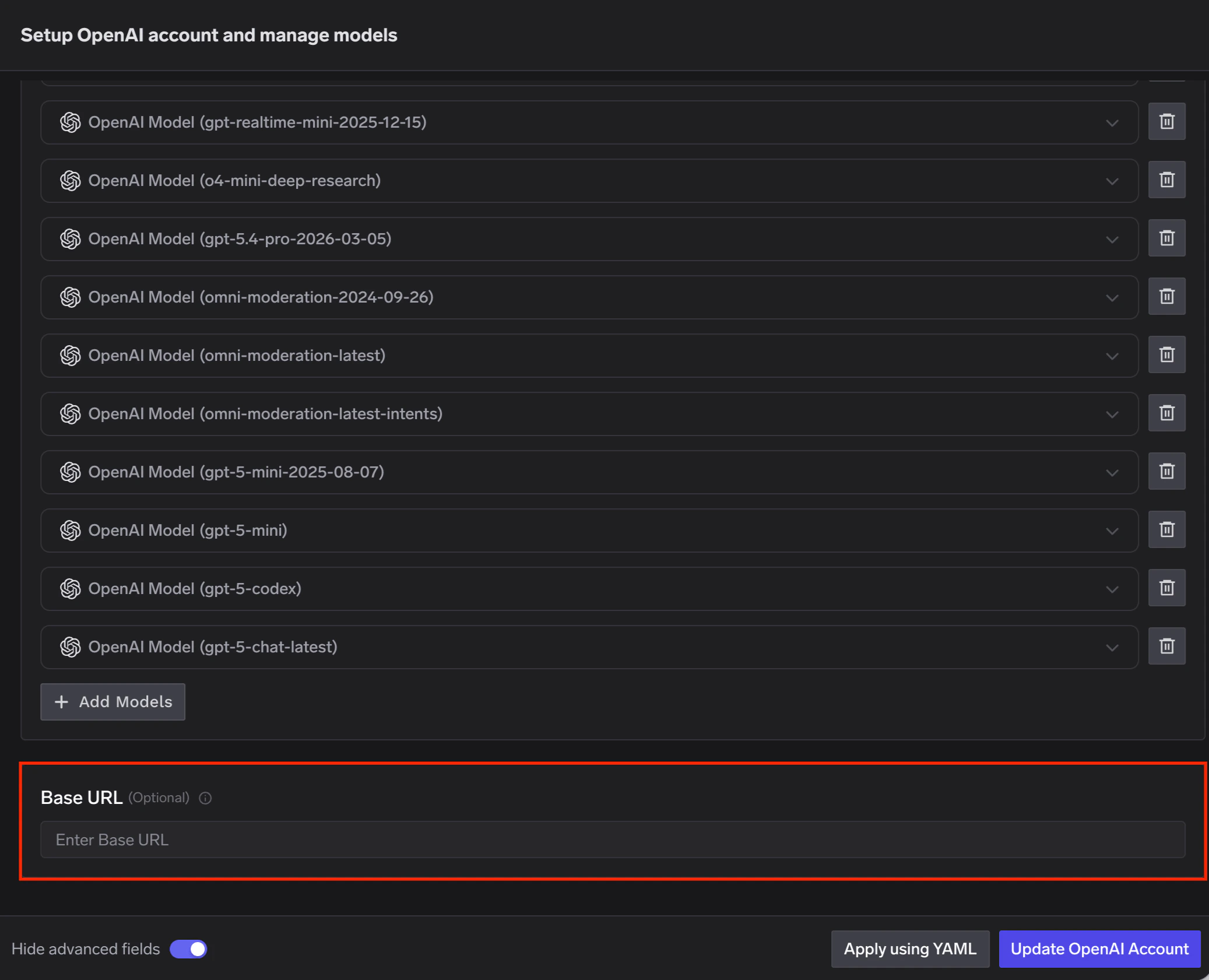
OpenAI offers data residency controls that let you configure the region where your data is stored and, in some regions, processed. When data residency is enabled on your OpenAI account, you must use a region-specific domain prefix for API requests instead of the default `api.openai.com`.
When adding an OpenAI account in TrueFoundry AI Gateway, set the **Base URL** to the appropriate regional endpoint for your OpenAI project.
### Supported APIs
Once your OpenAI provider account is configured, the following API surfaces are available through the gateway. The table below summarizes each endpoint alongside platform feature support (tracing, cost tracking).
Legend:
* **✅** Supported by Provider and Truefoundry
* Supported by Provider, but not by Truefoundry
* Provider does not support this feature
| API | Endpoint | Tracing | Cost Tracking |
| --------------------------------------- | -------------------------- | ------- | ----------------------------------------------------------- |
| [Chat Completions](#chat-completions) | `/chat/completions` | **✅** | **✅** |
| [Embeddings](#embeddings) | `/embeddings` | **✅** | **✅** |
| [Responses API](#responses-api) | `/responses` | **✅** | **✅** |
| [Image Generation](#image-generation) | `/images/generations` | **✅** | |
| [Image Edit](#image-edit) | `/images/edits` | **✅** | |
| [Image Variation](#image-variation) | `/images/variations` | **✅** | |
| [Text-to-Speech](#text-to-speech) | `/audio/speech` | **✅** | |
| [Speech-to-Text](#speech-to-text) | `/audio/transcriptions` | **✅** | |
| [Audio Translation](#audio-translation) | `/audio/translations` | **✅** | |
| [Batch API](#batch-api) | `/batches` | **✅** | |
| [Files API](#files-api) | `/files` | **✅** | |
| [Moderation](#moderation) | `/moderations` | **✅** | Free API |
| [Fine-tuning](#fine-tuning) | `/fine_tuning/jobs` | **✅** | |
| [Realtime API](#realtime-api) | `/live/{provider-account}` | **✅** | **✅** |
The chat completions endpoint is the most widely used — it supports streaming, function calling, multimodal input (images, audio, PDF), structured JSON outputs, reasoning models, and prompt caching. Full provider capability matrix: [Chat Completions API](/docs/ai-gateway/chat-completions-overview)
```python Python lines theme={"dark"}
from openai import OpenAI
client = OpenAI(
api_key="your-truefoundry-api-key",
base_url="{GATEWAY_BASE_URL}",
)
response = client.chat.completions.create(
model="openai-main/gpt-4o-mini",
messages=[
{"role": "system", "content": "You answer in one short sentence."},
{"role": "user", "content": "What is TrueFoundry?"},
],
)
print(response.choices[0].message.content)
```
Set `stream=True` to start streaming responses and iterate over delta chunks. You may defensively check that `chunk.choices` is non-empty and `delta.content` is not `None` as some provider chunks (role deltas, finish markers) have no content.
```python Python lines theme={"dark"}
stream = client.chat.completions.create(
model="openai-main/gpt-4o-mini",
messages=[{"role": "user", "content": "Count from 1 to 5."}],
stream=True,
)
for chunk in stream:
if (
chunk.choices
and len(chunk.choices) > 0
and chunk.choices[0].delta.content is not None
):
print(chunk.choices[0].delta.content, end="", flush=True)
```
Request parameters like `temperature`, `max_tokens`, `top_p`, `frequency_penalty`, `presence_penalty`, and `stop` fine-tune generation behaviour.
Some models don't support all parameters — e.g. `temperature` is not supported on o-series reasoning models.
```python Python lines theme={"dark"}
response = client.chat.completions.create(
model="openai-main/gpt-4o-mini",
messages=[
{
"role": "system",
"content": "You are a creative storyteller. Keep responses under two sentences. Never use the word 'delve'.",
},
{"role": "user", "content": "Write about a robot learning to paint."},
],
temperature=0.9,
max_tokens=100,
top_p=0.95,
frequency_penalty=0.5,
presence_penalty=0.3,
stop=["\n\n"],
)
print(response.choices[0].message.content)
```
Advertise a tool, hand the model's `tool_calls` back as a `tool` role message, then request the final response. Use `tool_choice` to force the model to call a specific tool when you need deterministic behaviour, and defensively unwrap `tool_calls` since the model may still return content instead of a tool call on some prompts.
```python Python lines theme={"dark"}
import json
tools = [{
"type": "function",
"function": {
"name": "get_weather",
"description": "Get the current weather for a city.",
"parameters": {
"type": "object",
"properties": {"city": {"type": "string"}},
"required": ["city"],
},
},
}]
messages = [{"role": "user", "content": "What's the weather in Bengaluru right now?"}]
first = client.chat.completions.create(
model="openai-main/gpt-4o-mini",
messages=messages,
tools=tools,
tool_choice={"type": "function", "function": {"name": "get_weather"}},
)
assistant_msg = first.choices[0].message
tool_calls = assistant_msg.tool_calls or []
if tool_calls:
tool_call = tool_calls[0]
messages.append(assistant_msg)
messages.append({
"role": "tool",
"tool_call_id": tool_call.id,
"content": json.dumps({"city": "Bengaluru", "temp_c": 28, "summary": "partly cloudy"}),
})
second = client.chat.completions.create(
model="openai-main/gpt-4o-mini",
messages=messages,
)
print(second.choices[0].message.content)
```
Send images as part of a message via the `image_url` content part. The URL can be a public HTTP URL **or** an inline `data:image/...;base64,...` URI.
```python Python lines theme={"dark"}
image_url = (
"https://upload.wikimedia.org/wikipedia/commons/thumb/d/dd/Gfp-wisconsin-madison-the-nature-boardwalk.jpg/2560px-Gfp-wisconsin-madison-the-nature-boardwalk.jpg"
)
response = client.chat.completions.create(
model="openai-main/gpt-4o-mini",
messages=[{
"role": "user",
"content": [
{"type": "text", "text": "Describe this image in one sentence."},
{"type": "image_url", "image_url": {"url": image_url}},
],
}],
)
print(response.choices[0].message.content)
```
Send PDF documents as part of a message via the `file` content type with base64 encoding.
```python Python lines theme={"dark"}
import base64
with open("sample.pdf", "rb") as f:
pdf_b64 = base64.b64encode(f.read()).decode("ascii")
response = client.chat.completions.create(
model="openai-main/gpt-4o-mini",
messages=[{
"role": "user",
"content": [
{"type": "text", "text": "What text is in this PDF?"},
{
"type": "file",
"file": {
"filename": "sample.pdf",
"file_data": f"data:application/pdf;base64,{pdf_b64}",
},
},
],
}],
)
print(response.choices[0].message.content)
```
Control the output format with `response_format`. Two modes:
* **JSON object** — `{"type": "json_object"}` — valid JSON, no schema. Include "respond in JSON" in the prompt.
* **JSON schema** — `{"type": "json_schema", ...}` — strict schema conformance. Set all properties in `required`.
```python Python lines theme={"dark"}
# JSON object mode — valid JSON, no schema enforcement
response = client.chat.completions.create(
model="openai-main/gpt-4o-mini",
messages=[
{"role": "system", "content": "You respond in JSON."},
{"role": "user", "content": "List three languages with year of creation."},
],
response_format={"type": "json_object"},
)
print(json.loads(response.choices[0].message.content))
# JSON schema mode — strict schema conformance
schema = {
"name": "person",
"schema": {
"type": "object",
"properties": {
"name": {"type": "string"},
"age": {"type": "integer"},
"hobbies": {"type": "array", "items": {"type": "string"}},
},
"required": ["name", "age", "hobbies"],
"additionalProperties": False,
},
"strict": True,
}
response = client.chat.completions.create(
model="openai-main/gpt-4o-mini",
messages=[{"role": "user", "content": "Invent a fictional person."}],
response_format={"type": "json_schema", "json_schema": schema},
)
message = response.choices[0].message
if getattr(message, "refusal", None):
print("model refused:", message.refusal)
elif not message.content:
print("model returned empty content")
else:
print(json.dumps(json.loads(message.content), indent=2))
```
Reasoning models (o3, o4-mini, etc.) expose a separate pool of reasoning tokens that show up in `response.usage`. Some request parameters like `temperature` are not supported on these models.
```python Python lines theme={"dark"}
response = client.chat.completions.create(
model="openai-main/o4-mini",
messages=[{"role": "user", "content": "A bat and ball cost $1.10. The bat costs $1.00 more than the ball. How much is the ball?"}],
)
print(response.choices[0].message.content)
print(response.usage) # includes reasoning_tokens
```
OpenAI supports automatic prompt caching for `gpt-4o` and newer models. Pass an optional `prompt_cache_key` parameter to improve cache hit rates when requests share common prefixes. Cached tokens appear in `usage.prompt_tokens_details.cached_tokens`.
```python Python lines theme={"dark"}
response = client.chat.completions.create(
model="openai-main/gpt-4o-mini",
messages=[
{"role": "system", "content": "You are a senior cloud architect..."},
{"role": "user", "content": "What should I check in a Helm chart review?"},
],
prompt_cache_key="my-cache-key",
)
cached = getattr(
getattr(response.usage, "prompt_tokens_details", None),
"cached_tokens", 0,
)
print(f"prompt_tokens={response.usage.prompt_tokens} cached_tokens={cached}")
```
The embeddings endpoint accepts a single string or a list of strings and returns dense vectors suitable for semantic search, clustering, or RAG. Full docs: [Embed API](/docs/ai-gateway/embed).
```python Python lines theme={"dark"}
response = client.embeddings.create(
model="openai-main/text-embedding-3-small",
input=[
"TrueFoundry is an AI platform.",
"TrueFoundry helps teams deploy LLMs.",
],
)
print(len(response.data), "vectors of dim", len(response.data[0].embedding))
```
Supported models: `text-embedding-3-small`, `text-embedding-3-large`, `text-embedding-ada-002`. See the [OpenAI embeddings guide](https://platform.openai.com/docs/guides/embeddings) for dimension and pricing details.
OpenAI's Responses API is a stateful alternative to chat completions that manages conversation state on the server and supports `retrieve`, `delete`, and multimodal inputs. Full docs: [Responses API](/docs/ai-gateway/responses-api).
The Responses API requires the `x-tfy-provider-name` header. Set it on `default_headers` when you construct the client — the gateway uses it to route the request to the right OpenAI provider account.
```python Python lines theme={"dark"}
from openai import OpenAI
client = OpenAI(
api_key="your-truefoundry-api-key",
base_url="{GATEWAY_BASE_URL}",
default_headers={"x-tfy-provider-name": "openai-main"},
)
created = client.responses.create(
model="openai-main/gpt-4o-mini",
input=[{"role": "user", "content": "Give me a two-word tagline."}],
)
print(created.id, created.output_text)
# Retrieve by id
fetched = client.responses.retrieve(created.id)
```
Generate images with DALL·E 2/3 or GPT-Image via `client.images.generate`. The response contains either `b64_json` or `url` depending on the model and request parameters — handle both. Full docs: [Image Generation](/docs/ai-gateway/image-generation).
```python Python lines theme={"dark"}
from openai import OpenAI
import base64
client = OpenAI(
api_key="your-truefoundry-api-key",
base_url="{GATEWAY_BASE_URL}"
)
response = client.images.generate(
model="openai-main/gpt-image-1",
prompt="A minimalist isometric illustration of a cloud with a lightning bolt.",
size="1024x1024",
n=1,
)
item = response.data[0]
if getattr(item, "b64_json", None):
image_bytes = base64.b64decode(item.b64_json)
else:
import requests
image_bytes = requests.get(item.url, timeout=60).content
with open("generated.png", "wb") as f:
f.write(image_bytes)
```
Supported models: `gpt-image-1`, `dall-e-2`, `dall-e-3`.
Edit an existing image with a text prompt via `client.images.edit`. Same models as image generation, with size constraints: `gpt-image-1` accepts PNG/WebP/JPG up to 50 MB and up to 16 input images, while `dall-e-2` requires a single square PNG ≤ 4 MB. Full docs: [Image Edit](/docs/ai-gateway/image-edit).
```python Python lines theme={"dark"}
from openai import OpenAI
import base64
client = OpenAI(
api_key="your-truefoundry-api-key",
base_url="{GATEWAY_BASE_URL}"
)
with open("generated.png", "rb") as image_file:
response = client.images.edit(
model="openai-main/gpt-image-1",
image=image_file,
prompt="Add a bright yellow sun in the top-right corner.",
size="1024x1024",
n=1,
)
item = response.data[0]
if getattr(item, "b64_json", None):
edited_bytes = base64.b64decode(item.b64_json)
else:
import requests
edited_bytes = requests.get(item.url, timeout=60).content
with open("edited.png", "wb") as f:
f.write(edited_bytes)
```
**Legacy endpoint — `dall-e-2` has been deprecated by OpenAI.** The `create_variation` endpoint only supported `dall-e-2`, which is no longer available.
Calls to this endpoint may fail post removal. Use `images.edit` with `gpt-image-1` and a variation-style prompt instead (see below).
**Legacy: `create_variation` (dall-e-2 only — deprecated)**
The original variation API accepted an image and returned creative variations. It required a **square PNG ≤ 4 MB** and only worked with `dall-e-2`.
Full docs: [Image Variation](/docs/ai-gateway/image-variation).
```python Python lines theme={"dark"}
from openai import OpenAI
client = OpenAI(
api_key="your-truefoundry-api-key",
base_url="{GATEWAY_BASE_URL}"
)
# Legacy — dall-e-2 is deprecated, request may fail post removal
try:
with open("generated.png", "rb") as image_file:
response = client.images.create_variation(
model="openai-main/dall-e-2",
image=image_file,
size="1024x1024",
n=1,
)
item = response.data[0]
# Same b64_json / url handling as image generation above
except Exception as exc:
print(f"image variation skipped: {type(exc).__name__}: {exc}")
```
**Modern: `images.edit` with variation prompt (gpt-image-1)**
The recommended replacement is to use `images.edit` with a variation-style prompt. This works with current models and produces similar results.
```python Python lines theme={"dark"}
import base64
with open("generated.png", "rb") as image_file:
response = client.images.edit(
model="openai-main/gpt-image-1",
image=image_file,
prompt="Create a subtle variation of this image. Keep the overall composition similar but introduce small creative differences in color and detail.",
size="1024x1024",
n=1,
)
item = response.data[0]
if getattr(item, "b64_json", None):
image_bytes = base64.b64decode(item.b64_json)
else:
import requests
image_bytes = requests.get(item.url, timeout=60).content
with open("variation.png", "wb") as f:
f.write(image_bytes)
```
Stream spoken audio from text with OpenAI's TTS models. Use `with_streaming_response.create(...)` to stream the response body directly to a file or an `AsyncIterator`. Full docs: [Text-to-Speech](/docs/ai-gateway/text-to-speech).
```python Python lines theme={"dark"}
from openai import OpenAI
client = OpenAI(
api_key="your-truefoundry-api-key",
base_url="{GATEWAY_BASE_URL}"
)
with client.audio.speech.with_streaming_response.create(
model="openai-main/gpt-4o-mini-tts",
voice="alloy",
input="Hello from TrueFoundry.",
) as response:
response.stream_to_file("out.mp3")
```
Supported models: `gpt-4o-mini-tts`, `tts-1`, `tts-1-hd`. Supported voices include `alloy`, `echo`, `fable`, `onyx`, `nova`, `shimmer`. See the [OpenAI TTS guide](https://platform.openai.com/docs/guides/text-to-speech) for the full list of voices and audio formats.
Transcribe audio files via `client.audio.transcriptions.create`. Full docs: [Audio Transcription](/docs/ai-gateway/audio-transcription).
```python Python lines theme={"dark"}
from openai import OpenAI
client = OpenAI(
api_key="your-truefoundry-api-key",
base_url="{GATEWAY_BASE_URL}"
)
with open("input.mp3", "rb") as audio_file:
transcript = client.audio.transcriptions.create(
model="openai-main/whisper-1",
file=audio_file,
)
print(transcript.text)
```
Supported models: `whisper-1`, `gpt-4o-transcribe`, `gpt-4o-mini-transcribe`.
Translates audio in any source language to **English** text via `client.audio.translations.create`. Same `whisper-1` model as transcription; the response is always English. Full docs: [Audio Translation](/docs/ai-gateway/audio-translation).
TrueFoundry gates each model entry by capability. A `whisper-1` entry registered with **transcription only** will refuse `audio_translation` requests with a 400 (`audio_translation is not supported for the model`). Re-add `whisper-1` on the provider account with the **translation** capability enabled to allow this endpoint.
The example below generates a short French TTS sample inline and translates it back to English so the demo is self-contained — `text` ↔ `translated
text` round-trip with no external audio file.
```python Python lines theme={"dark"}
from openai import OpenAI
client = OpenAI(
api_key="your-truefoundry-api-key",
base_url="{GATEWAY_BASE_URL}"
)
with open("/path/to/audio.mp3", "rb") as audio_file:
response = client.audio.transcriptions.create(
model="openai-main/whisper-1", # truefoundry model name
file=audio_file,
)
print(response)
```
Process large volumes of requests asynchronously with lower cost and higher throughput than sync inference. The flow is: upload JSONL → create batch → poll for completion → download results. Full docs: [Batch Predictions](/docs/ai-gateway/batch-predictions-with-truefoundry-llm-gateway).
The Batch API requires the `x-tfy-provider-name` header on the client. Also, the `model` field inside each JSONL request line must be the **bare** OpenAI model name (e.g. `gpt-4o-mini`) — **not** the TrueFoundry-prefixed one. Routing is handled by the header, not the body.
```python Python lines theme={"dark"}
from openai import OpenAI
import json
client = OpenAI(
api_key="your-truefoundry-api-key",
base_url="{GATEWAY_BASE_URL}",
default_headers={"x-tfy-provider-name": "openai-main"},
)
# 1. Write JSONL input
with open("batch_input.jsonl", "w") as f:
for i, prompt in enumerate(["Say hi in French.", "Say hi in Japanese."]):
f.write(json.dumps({
"custom_id": f"req-{i}",
"method": "POST",
"url": "/v1/chat/completions",
"body": {
"model": "gpt-4o-mini", # bare name — NOT openai-main/gpt-4o-mini
"messages": [{"role": "user", "content": prompt}],
},
}) + "\n")
# 2. Upload
with open("batch_input.jsonl", "rb") as f:
uploaded = client.files.create(file=f, purpose="batch")
# 3. Create batch
batch = client.batches.create(
input_file_id=uploaded.id,
endpoint="/v1/chat/completions",
completion_window="24h",
)
# 4. Poll until completed
import time
while batch.status not in {"completed", "failed", "expired", "cancelled"}:
time.sleep(10)
batch = client.batches.retrieve(batch.id)
# 5. Download results
if batch.status == "completed":
raw = client.files.content(batch.output_file_id).read()
text = raw.decode("utf-8").strip()
print(text)
```
Upload, list, retrieve, and delete files held by the gateway (used by Batch and Fine-tuning). Full docs: [Files API](/docs/ai-gateway/file-endpoints).
The Files API requires the `x-tfy-provider-name` header on the client.
```python Python lines theme={"dark"}
from openai import OpenAI
client = OpenAI(
api_key="your-truefoundry-api-key",
base_url="{GATEWAY_BASE_URL}",
default_headers={"x-tfy-provider-name": "openai-main"},
)
# List
listed = client.files.list(limit=5)
for f in listed.data:
print(f.id, f.purpose, f.bytes)
# Retrieve metadata
meta = client.files.retrieve("file-abc123")
# Delete
deleted = client.files.delete("file-abc123")
print(deleted.deleted)
```
Identify policy-violating content via `client.moderations.create`. Routes through the regular client (no `x-tfy-provider-name` header needed). Full docs: [Moderation API](/docs/ai-gateway/moderation).
```python Python lines theme={"dark"}
from openai import OpenAI
client = OpenAI(
api_key="your-truefoundry-api-key",
base_url="{GATEWAY_BASE_URL}"
)
moderation = client.moderations.create(
model="openai-main/omni-moderation-latest",
input="I want to help my community thrive.",
)
result = moderation.results[0]
print("flagged:", result.flagged)
print("triggered:", [k for k, v in result.categories.model_dump().items() if v])
```
Supported models: `omni-moderation-latest` (multi-modal — text + image, recommended) and `text-moderation-latest` (legacy, text-only).
Submit a fine-tuning job for a chat model. The full lifecycle is: upload a JSONL training file → create job → poll → use the resulting model ID. Full docs: [Finetune API](/docs/ai-gateway/finetune).
The Fine-tuning API requires the `x-tfy-provider-name` header on the client. The `model` field passed to `fine_tuning.jobs.create` must be the **bare** upstream OpenAI model name (e.g. `gpt-4o-mini-2024-07-18`) — not the gateway-prefixed one.
```python Python lines theme={"dark"}
from openai import OpenAI
client = OpenAI(
api_key=os.environ["TFY_API_KEY"],
base_url=os.environ["TFY_GATEWAY_BASE_URL"],
default_headers={"x-tfy-provider-name": "openai-main"},
)
# 1. Upload training file (minimum 10 examples)
with open("training.jsonl", "rb") as f:
training_file = client.files.create(file=f, purpose="fine-tune")
# 2. Submit the job
job = client.fine_tuning.jobs.create(
training_file=training_file.id,
model="gpt-4o-mini-2024-07-18", # bare model name
)
print(job.id, job.status)
# 3. Poll
job = client.fine_tuning.jobs.retrieve(job.id)
# 4. (or cancel)
client.fine_tuning.jobs.cancel(job.id)
```
Fine-tuning takes minutes to hours and incurs real charges on your upstream OpenAI account. For training file format and full lifecycle, see the [Fine-tuning docs](/docs/ai-gateway/finetune).
OpenAI's Realtime API streams full-duplex audio (and text) over a WebSocket, enabling low-latency voice interactions. On TrueFoundry, the realtime endpoint lives at:
```text theme={"dark"}
wss://{GATEWAY_HOST}/live/{openaiProviderAccountName}
```
Note the two quirks:
* The host is the **bare gateway host** — no `/api/llm` suffix.
* The OpenAI provider-account name is encoded in the URL path, **not** in the model name. The model passed to `client.realtime.connect(model=...)` is the bare upstream OpenAI name (e.g. `gpt-4o-realtime-preview`).
The recommended client is `AsyncOpenAI` from `openai[realtime]`, which handles the WebSocket framing and event schema for you. Full docs: [Realtime API](/docs/ai-gateway/realtime-api).
```python Python lines theme={"dark"}
import asyncio
import os
from urllib.parse import urlparse
from openai import AsyncOpenAI
gateway_host = urlparse(os.environ["TFY_GATEWAY_BASE_URL"]).netloc
ws_base_url = f"wss://{gateway_host}/live/openai-main"
async def main():
client = AsyncOpenAI(
api_key=os.environ["TFY_API_KEY"],
websocket_base_url=ws_base_url,
)
async with client.realtime.connect(model="gpt-4o-realtime-preview") as connection:
await connection.session.update(session={
"type": "realtime",
"output_modalities": ["text"],
"instructions": "You reply in one short sentence.",
})
await connection.conversation.item.create(item={
"type": "message",
"role": "user",
"content": [{"type": "input_text", "text": "Say hello in one line."}],
})
await connection.response.create()
async for event in connection:
if event.type == "response.output_text.delta":
print(event.delta, end="", flush=True)
elif event.type == "response.done":
print()
break
asyncio.run(main())
```
For full-duplex **audio** (mic input + speaker output), use `output_modalities: ["audio"]`, add an `audio.input.turn_detection` block, and stream PCM chunks through `connection.input_audio_buffer.append`. See the [OpenAI realtime audio reference](https://github.com/openai/openai-python/blob/main/examples/realtime/audio_util.py) for a complete sounddevice-based example — it works against the gateway unchanged, just point `websocket_base_url` at `wss://{host}/live/openai-main`.
Local audio hardware is required for mic/speaker I/O. Jupyter kernels running over SSH won't have access to the host's audio devices — run the audio example locally.
### Regional Endpoints
OpenAI offers data residency controls that let you configure the region where your data is stored and, in some regions, processed. When data residency is enabled on your OpenAI account, you must use a region-specific domain prefix for API requests instead of the default `api.openai.com`.
When adding an OpenAI account in TrueFoundry AI Gateway, set the **Base URL** to the appropriate regional endpoint for your OpenAI project.
 | Region | Domain Prefix | Base URL |
| -------------------------- | ------------------------------ | ------------------------------ |
| US | `us.api.openai.com` (required) | `https://us.api.openai.com/v1` |
| Europe (EEA + Switzerland) | `eu.api.openai.com` (required) | `https://eu.api.openai.com/v1` |
| Australia | `au.api.openai.com` (optional) | `https://au.api.openai.com/v1` |
| Canada | `ca.api.openai.com` (optional) | `https://ca.api.openai.com/v1` |
| Japan | `jp.api.openai.com` (optional) | `https://jp.api.openai.com/v1` |
| India | `in.api.openai.com` (optional) | `https://in.api.openai.com/v1` |
| Singapore | `sg.api.openai.com` (optional) | `https://sg.api.openai.com/v1` |
| South Korea | `kr.api.openai.com` (optional) | `https://kr.api.openai.com/v1` |
| United Kingdom | `gb.api.openai.com` (required) | `https://gb.api.openai.com/v1` |
| United Arab Emirates | `ae.api.openai.com` (required) | `https://ae.api.openai.com/v1` |
Regions marked as **(required)** must use the regional domain prefix for all requests. Regions marked as **(optional)** can use the prefix to improve latency, but it is not mandatory.
Non-US regions require approval for Modified Abuse Monitoring or Zero Data Retention on your OpenAI account. For full details on data residency, supported models, and endpoint limitations, refer to the [OpenAI data controls documentation](https://developers.openai.com/api/docs/guides/your-data).
| Region | Domain Prefix | Base URL |
| -------------------------- | ------------------------------ | ------------------------------ |
| US | `us.api.openai.com` (required) | `https://us.api.openai.com/v1` |
| Europe (EEA + Switzerland) | `eu.api.openai.com` (required) | `https://eu.api.openai.com/v1` |
| Australia | `au.api.openai.com` (optional) | `https://au.api.openai.com/v1` |
| Canada | `ca.api.openai.com` (optional) | `https://ca.api.openai.com/v1` |
| Japan | `jp.api.openai.com` (optional) | `https://jp.api.openai.com/v1` |
| India | `in.api.openai.com` (optional) | `https://in.api.openai.com/v1` |
| Singapore | `sg.api.openai.com` (optional) | `https://sg.api.openai.com/v1` |
| South Korea | `kr.api.openai.com` (optional) | `https://kr.api.openai.com/v1` |
| United Kingdom | `gb.api.openai.com` (required) | `https://gb.api.openai.com/v1` |
| United Arab Emirates | `ae.api.openai.com` (required) | `https://ae.api.openai.com/v1` |
Regions marked as **(required)** must use the regional domain prefix for all requests. Regions marked as **(optional)** can use the prefix to improve latency, but it is not mandatory.
Non-US regions require approval for Modified Abuse Monitoring or Zero Data Retention on your OpenAI account. For full details on data residency, supported models, and endpoint limitations, refer to the [OpenAI data controls documentation](https://developers.openai.com/api/docs/guides/your-data).