> ## Documentation Index
> Fetch the complete documentation index at: https://www.truefoundry.com/llms.txt
> Use this file to discover all available pages before exploring further.
# OpenAI Moderation Integration
> Learn how to use openai moderations with TrueFoundry AI Gateway, including setup steps, use cases, and production-ready examples.
This guide explains how to integrate [OpenAI Moderation](https://platform.openai.com/docs/guides/moderation) with TrueFoundry to enhance the safety and compliance of your LLM applications.
## What is OpenAI Moderation?
OpenAI Moderation is a content filtering API that uses advanced machine learning models to detect potentially harmful content across multiple categories. It provides real-time content analysis to identify and flag inappropriate material including hate speech, harassment, violence, sexual content, and other policy violations, helping maintain safe and compliant AI applications.
### Key Features of OpenAI Moderation
1. **Multi-Category Content Detection**: OpenAI Moderation analyzes content across comprehensive categories including hate speech, harassment, violence, sexual content, self-harm, and illicit activities. The [moderation API](https://platform.openai.com/docs/guides/moderation) uses state-of-the-art models to provide nuanced detection with confidence scores for each category, enabling precise content filtering decisions.
2. **Customizable Threshold Controls**: Fine-tune moderation sensitivity with adjustable confidence score thresholds for each content category. Organizations can configure custom threshold values to match their specific content policies and user community standards, balancing safety with user experience across different applications and use cases.
3. **High-Performance Real-Time Analysis**: Built for production environments with low-latency processing and high throughput capabilities. The moderation system integrates seamlessly with [OpenAI's API ecosystem](https://platform.openai.com/docs/api-reference/moderations), providing consistent and reliable content filtering without impacting application performance or user experience.
### Adding OpenAI Moderation Integration
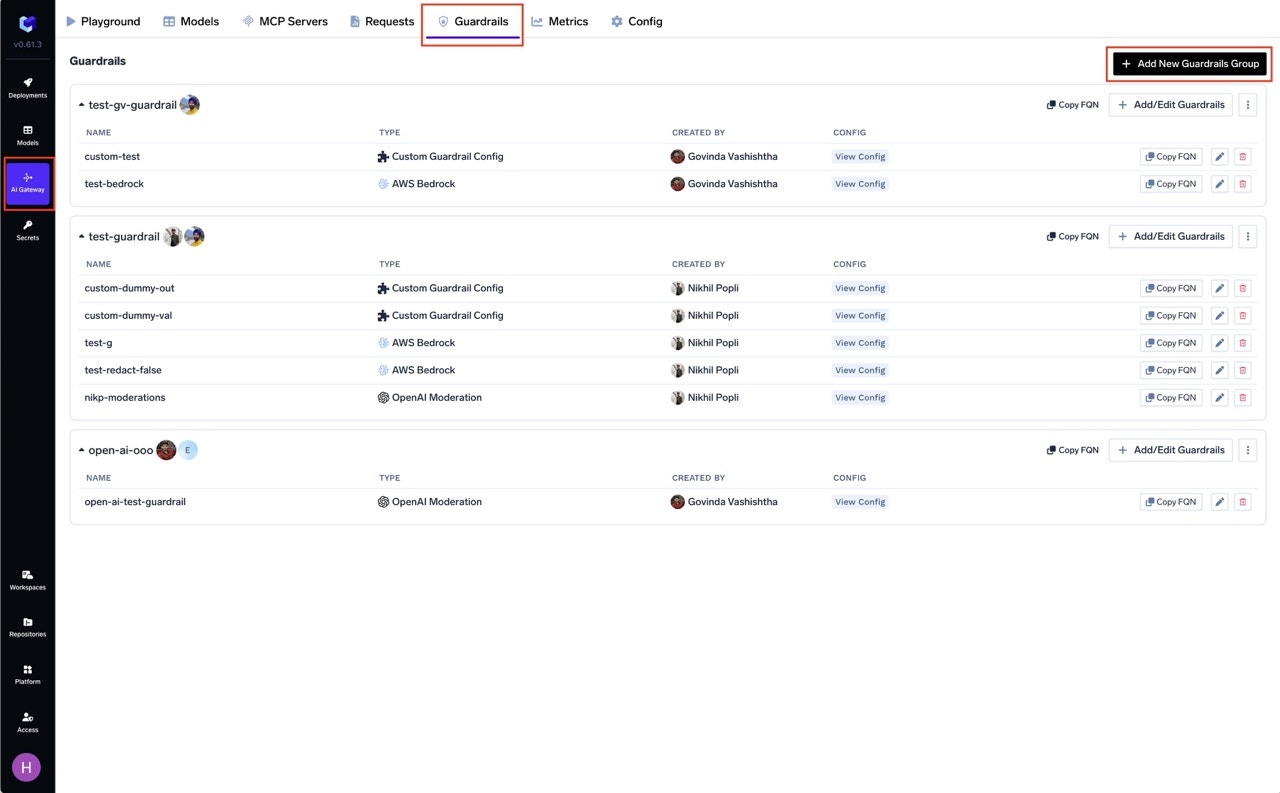 **Fill in the Guardrails Group Form**
* **Name**: Enter a name for your guardrails group.
* **Collaborators**: Add collaborators who will have access to this group.
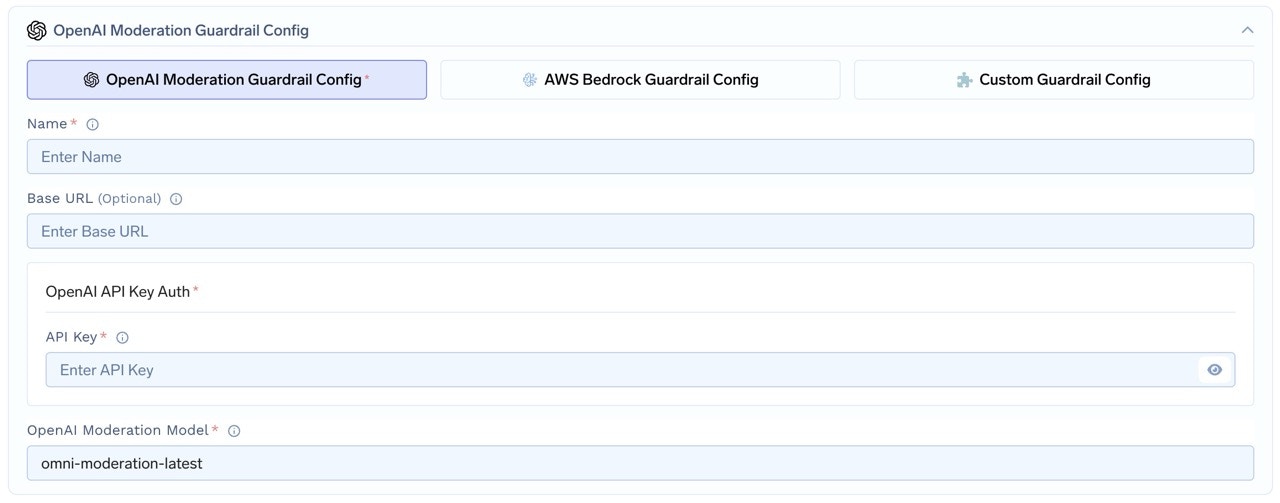
* **OpenAI Moderation Guardrail Config**:
* **Name**: Enter a name for the OpenAI Moderation configuration.
* **Base URL (Optional)**: Specify the base URL if needed.
* **API Key**: Enter your OpenAI API key.
* **OpenAI Moderation Model**: Choose the moderation model. This defaults to `omni-moderation-latest`.
**Fill in the Guardrails Group Form**
* **Name**: Enter a name for your guardrails group.
* **Collaborators**: Add collaborators who will have access to this group.
* **OpenAI Moderation Guardrail Config**:
* **Name**: Enter a name for the OpenAI Moderation configuration.
* **Base URL (Optional)**: Specify the base URL if needed.
* **API Key**: Enter your OpenAI API key.
* **OpenAI Moderation Model**: Choose the moderation model. This defaults to `omni-moderation-latest`.
 ### How OpenAI Moderation Validation Works
When you integrate OpenAI Moderation with TrueFoundry, the system sends the last message to OpenAI's moderation API and receives a response that indicates whether the content violates any safety categories.
#### Response Structure
The OpenAI Moderation API returns a response with the following structure:
```json lines theme={"dark"}
{
"id": "modr-970d409ef3bef3b70c73d8232df86e7d",
"model": "omni-moderation-latest",
"results": [
{
"flagged": true,
"categories": {
"sexual": false,
"sexual/minors": false,
"harassment": false,
"harassment/threatening": false,
"hate": false,
"hate/threatening": false,
"illicit": false,
"illicit/violent": false,
"self-harm": false,
"self-harm/intent": false,
"self-harm/instructions": false,
"violence": true,
"violence/graphic": false
},
"category_scores": {
"sexual": 2.34135824776394e-7,
"sexual/minors": 1.6346470245419304e-7,
"harassment": 0.0011643905680426018,
"harassment/threatening": 0.0022121340080906377,
"hate": 3.1999824407395835e-7,
"hate/threatening": 2.4923252458203563e-7,
"illicit": 0.0005227032493135171,
"illicit/violent": 3.682979260160596e-7,
"self-harm": 0.0011175734280627694,
"self-harm/intent": 0.0006264858507989037,
"self-harm/instructions": 7.368592981140821e-8,
"violence": 0.8599265510337075,
"violence/graphic": 0.37701736389561064
}
}
]
}
```
#### Validation Logic
The system validates content by checking each category in the response:
1. **Overall Flag**: The `flagged` field indicates if any category has been triggered.
2. **Category-Specific Flags**: Each category in the `categories` object returns `true` if that specific category is flagged.
3. **Score Thresholds**: The `category_scores` provide confidence scores (0-1) for each category.
**Customizable Thresholds:**
### How OpenAI Moderation Validation Works
When you integrate OpenAI Moderation with TrueFoundry, the system sends the last message to OpenAI's moderation API and receives a response that indicates whether the content violates any safety categories.
#### Response Structure
The OpenAI Moderation API returns a response with the following structure:
```json lines theme={"dark"}
{
"id": "modr-970d409ef3bef3b70c73d8232df86e7d",
"model": "omni-moderation-latest",
"results": [
{
"flagged": true,
"categories": {
"sexual": false,
"sexual/minors": false,
"harassment": false,
"harassment/threatening": false,
"hate": false,
"hate/threatening": false,
"illicit": false,
"illicit/violent": false,
"self-harm": false,
"self-harm/intent": false,
"self-harm/instructions": false,
"violence": true,
"violence/graphic": false
},
"category_scores": {
"sexual": 2.34135824776394e-7,
"sexual/minors": 1.6346470245419304e-7,
"harassment": 0.0011643905680426018,
"harassment/threatening": 0.0022121340080906377,
"hate": 3.1999824407395835e-7,
"hate/threatening": 2.4923252458203563e-7,
"illicit": 0.0005227032493135171,
"illicit/violent": 3.682979260160596e-7,
"self-harm": 0.0011175734280627694,
"self-harm/intent": 0.0006264858507989037,
"self-harm/instructions": 7.368592981140821e-8,
"violence": 0.8599265510337075,
"violence/graphic": 0.37701736389561064
}
}
]
}
```
#### Validation Logic
The system validates content by checking each category in the response:
1. **Overall Flag**: The `flagged` field indicates if any category has been triggered.
2. **Category-Specific Flags**: Each category in the `categories` object returns `true` if that specific category is flagged.
3. **Score Thresholds**: The `category_scores` provide confidence scores (0-1) for each category.
**Customizable Thresholds:**
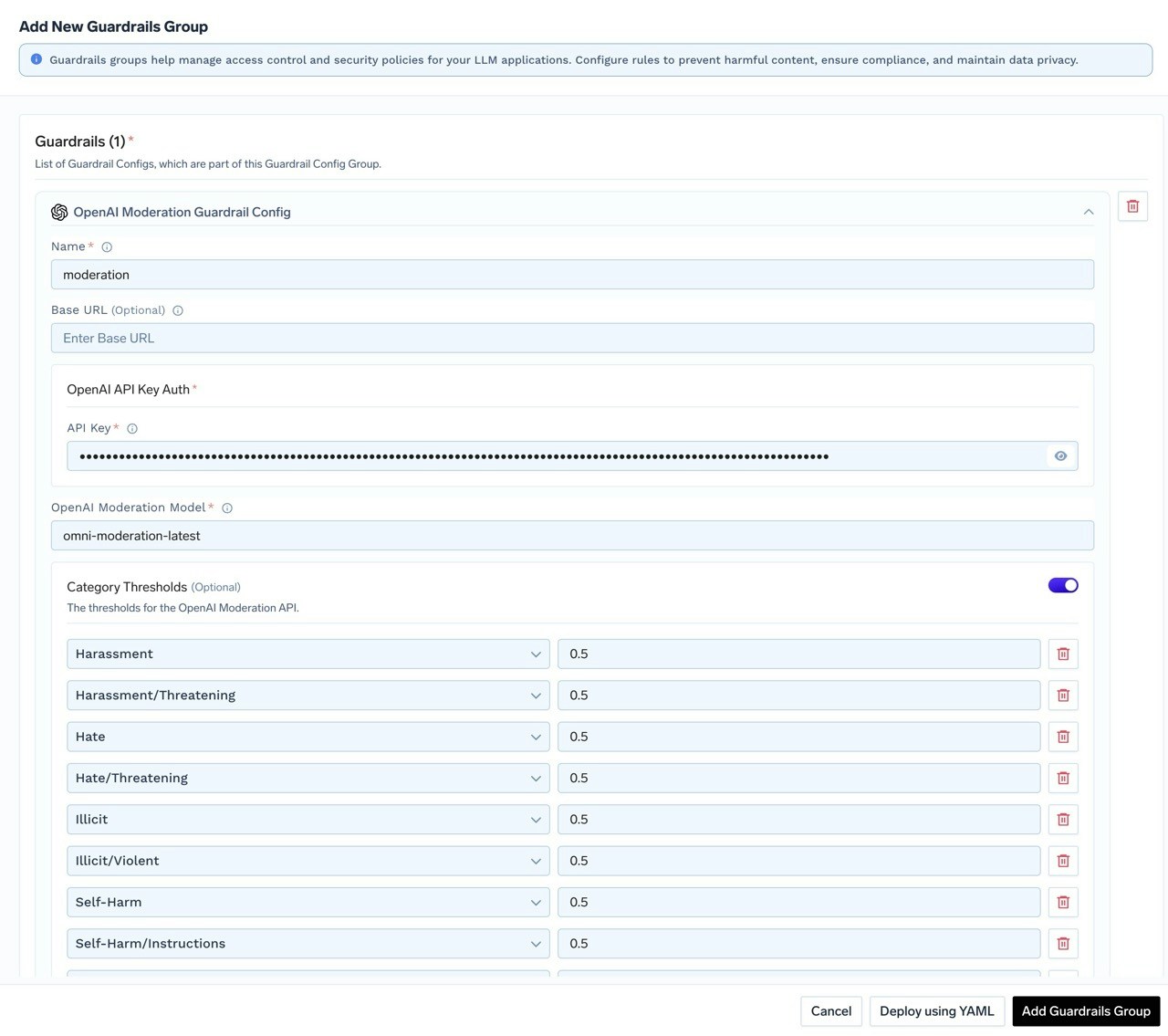 We also provide a way to adjust the threshold for each category to fine-tune moderation sensitivity. When adding or updating the OpenAI guardrail, you can set custom threshold values for any category using the provided form. If override values are specified, the system uses these thresholds to determine whether a category is flagged, instead of the default values.
**Example Validation Process:**
* If `categories.violence` is `true`, or if `category_scores.violence` exceeds the configured threshold, the content is flagged for violence.
* If `categories.harassment` is `false`, and `category_scores.harassment` is below the threshold, the content passes the harassment check.
* The `category_scores.violence` value of `0.8599265510337075` indicates a high confidence (85.99%) that the content contains violence.
When any category is flagged (`true` or by exceeding its threshold), TrueFoundry will block the request and return an appropriate error message to maintain content safety standards.
We also provide a way to adjust the threshold for each category to fine-tune moderation sensitivity. When adding or updating the OpenAI guardrail, you can set custom threshold values for any category using the provided form. If override values are specified, the system uses these thresholds to determine whether a category is flagged, instead of the default values.
**Example Validation Process:**
* If `categories.violence` is `true`, or if `category_scores.violence` exceeds the configured threshold, the content is flagged for violence.
* If `categories.harassment` is `false`, and `category_scores.harassment` is below the threshold, the content passes the harassment check.
* The `category_scores.violence` value of `0.8599265510337075` indicates a high confidence (85.99%) that the content contains violence.
When any category is flagged (`true` or by exceeding its threshold), TrueFoundry will block the request and return an appropriate error message to maintain content safety standards.