> ## Documentation Index
> Fetch the complete documentation index at: https://www.truefoundry.com/llms.txt
> Use this file to discover all available pages before exploring further.
# n8n
> Learn how to use n8n with TrueFoundry AI Gateway, including setup steps, use cases, and production-ready examples.
This guide provides instructions for integrating [n8n](https://n8n.io/) with the Truefoundry AI Gateway.
## What is n8n?
n8n is a powerful workflow automation platform that connects systems and automates tasks through a visual, node-based interface. It enables users to create complex automation workflows that integrate hundreds of different services and tools, including AI capabilities.
### Key Features of n8n
* **[Visual Workflow Editor](https://docs.n8n.io/workflows/)**: Create automation workflows using a drag-and-drop interface with visual connections between nodes, making complex integrations accessible without coding
* **[500+ Integrations](https://docs.n8n.io/integrations/)**: Connect to hundreds of popular services including databases, APIs, cloud platforms, and productivity tools through pre-built nodes
* **[Conditional Logic](https://docs.n8n.io/integrations/builtin/core-nodes/n8n-nodes-base.if/)**: Build sophisticated workflows with IF/ELSE conditions, switches, and loops to handle complex business logic and decision-making
* **[Webhook Support](https://docs.n8n.io/integrations/builtin/core-nodes/n8n-nodes-base.webhook/)**: Trigger workflows instantly through webhooks and HTTP requests, enabling real-time automation and seamless integration with external systems
## Prerequisites
Before integrating n8n with TrueFoundry, ensure you have:
1. **TrueFoundry Account**: Create a [Truefoundry account](https://www.truefoundry.com/register) with atleast one model provider configured
2. **n8n Account**: Set up an n8n account using either the [open-source version](https://github.com/n8n-io/n8n) for self-hosting or the [cloud version](https://n8n.io/)
## Integration Steps
This guide assumes you have an active n8n account and have obtained your TrueFoundry AI Gateway base URL.
### Choosing Between TrueFoundry Chat Node and OpenAI Chat Node
You have two options for integrating n8n with TrueFoundry AI Gateway:
#### Option 1: TrueFoundry Chat Node (Recommended)
The **TrueFoundry Chat Node** is a dedicated community node that provides enhanced features for enterprise-grade monitoring and tracking:
**Automatic Metadata Tracking:**
* **userId**: Automatically tracks the user executing the workflow
* **workflowId**: Unique identifier for each workflow
* **workflowName**: Name of the workflow for easy identification
* **executionId**: Unique identifier for each workflow execution
* **execution mode**: Tracks whether the workflow is in production or test mode
* **projectId**: Associates workflows with specific projects
* **environment**: Tracks the deployment environment (dev, staging, prod)
* **instanceId**: Identifies the n8n instance
* **application name**: Tags requests with application/feature names
**Enhanced Features:**
* **Detailed Monitoring**: Comprehensive observability with automatic metadata enrichment
* **Cost Attribution**: Track costs by workflow, team, department, or application
* **Custom Attributes**: Configure additional metadata like cost centers, departments, and fallback emails
* **Better Analytics**: Enhanced reporting and analytics with rich metadata context
* **Audit Trail**: Complete tracking of all workflow executions with full context
**Installation Required:** Follow **Step 1** below to install the `n8n-nodes-truefoundry` community node.
#### Option 2: OpenAI Chat Node
The **OpenAI Chat Node** provides integration with TrueFoundry AI Gateway but with limited features:
**Limitations:**
* No automatic metadata tracking
* No workflow-level attribution
* Limited monitoring capabilities
**Use Case:** Suitable for simple workflows that don't require detailed monitoring or cost attribution.
**No Installation Required:** You can skip **Step 1** and use the built-in OpenAI node with TrueFoundry credentials.
### Step 1: Install the truefoundry community node
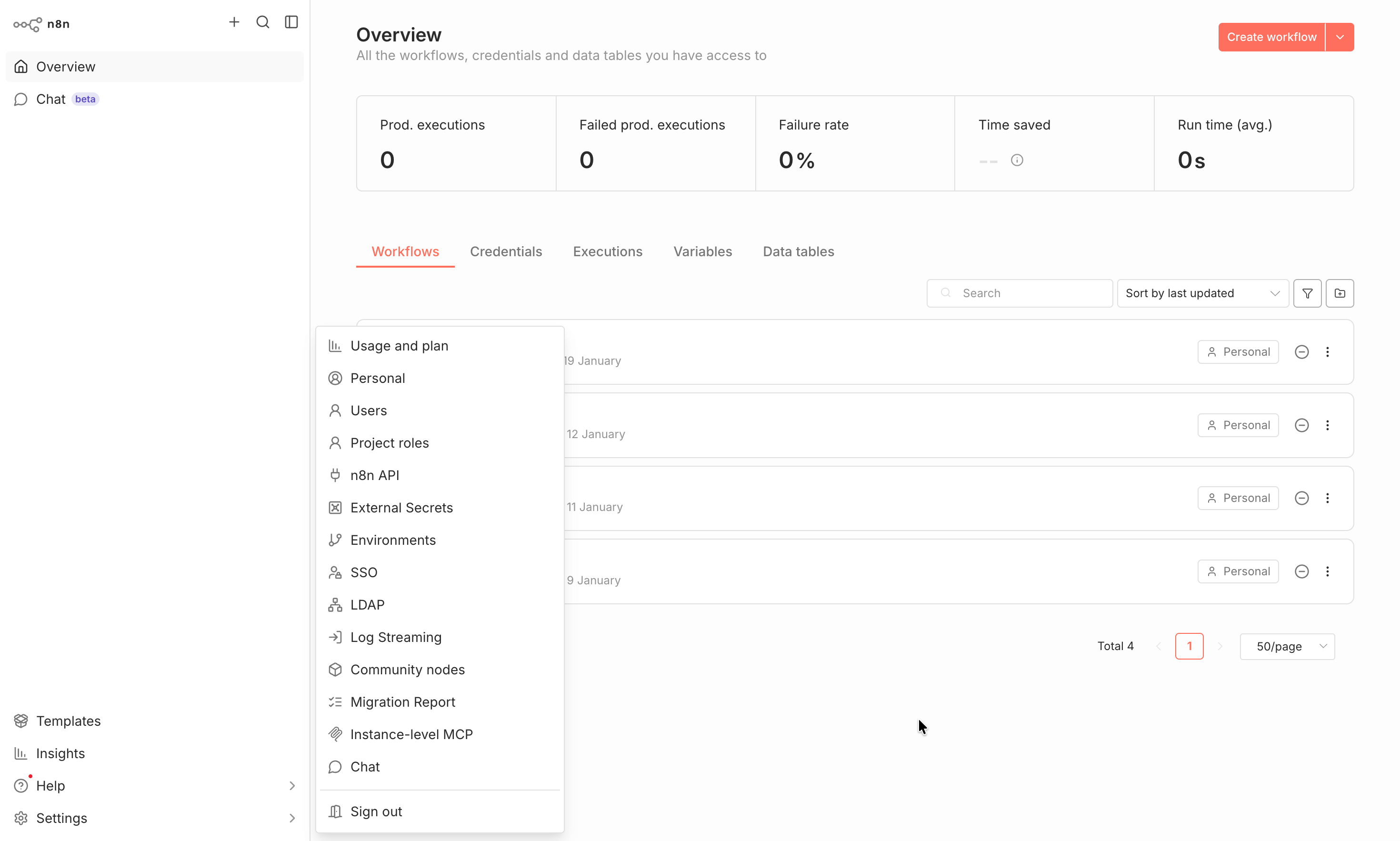
1. Navigate to **Settings > Community nodes**.
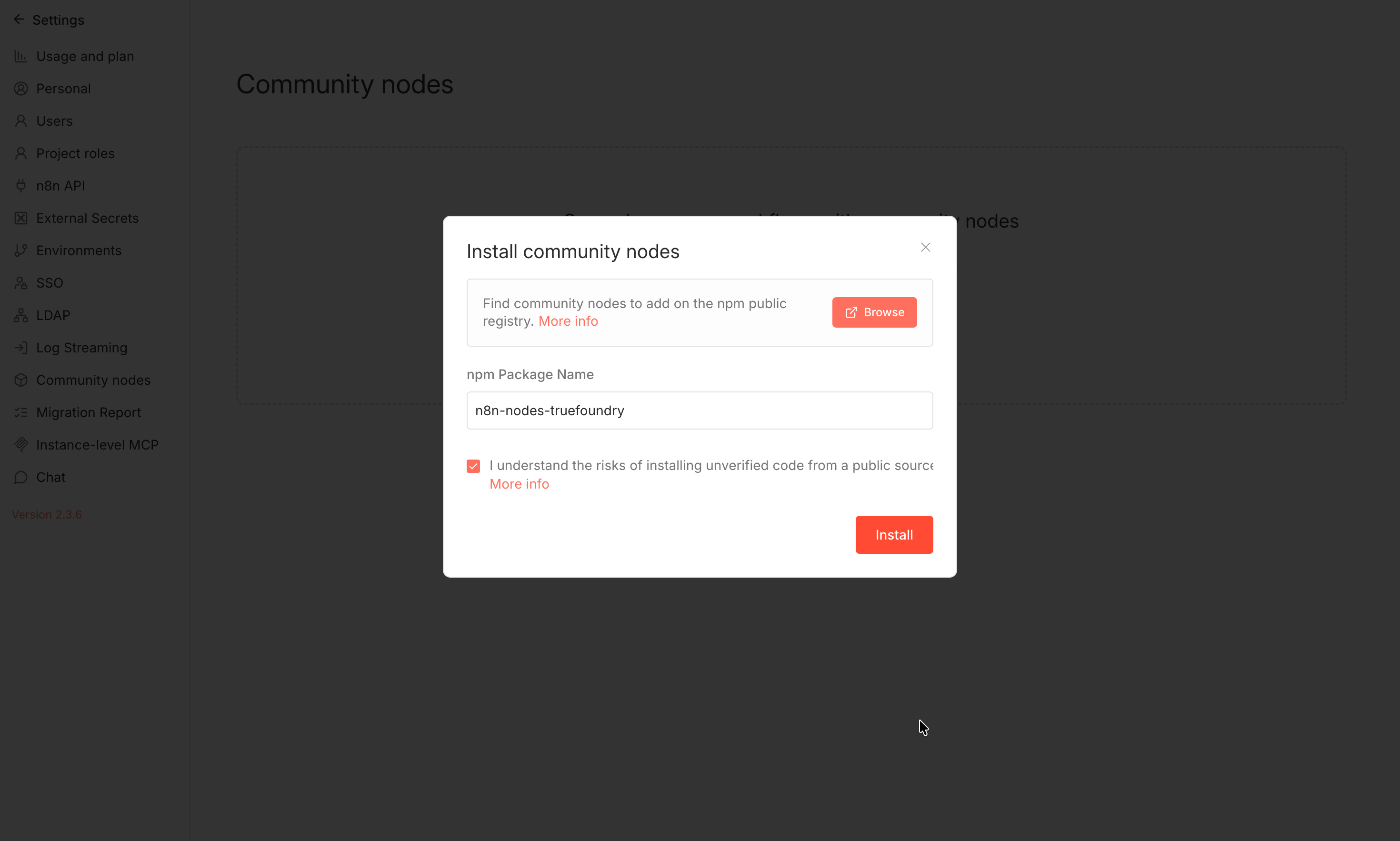
 2. Click install and search for **n8n-nodes-truefoundry**. Check the checkbox and hit install. You can also find it from the npm registry: [https://www.npmjs.com/package/n8n-nodes-truefoundry](https://www.npmjs.com/package/n8n-nodes-truefoundry)
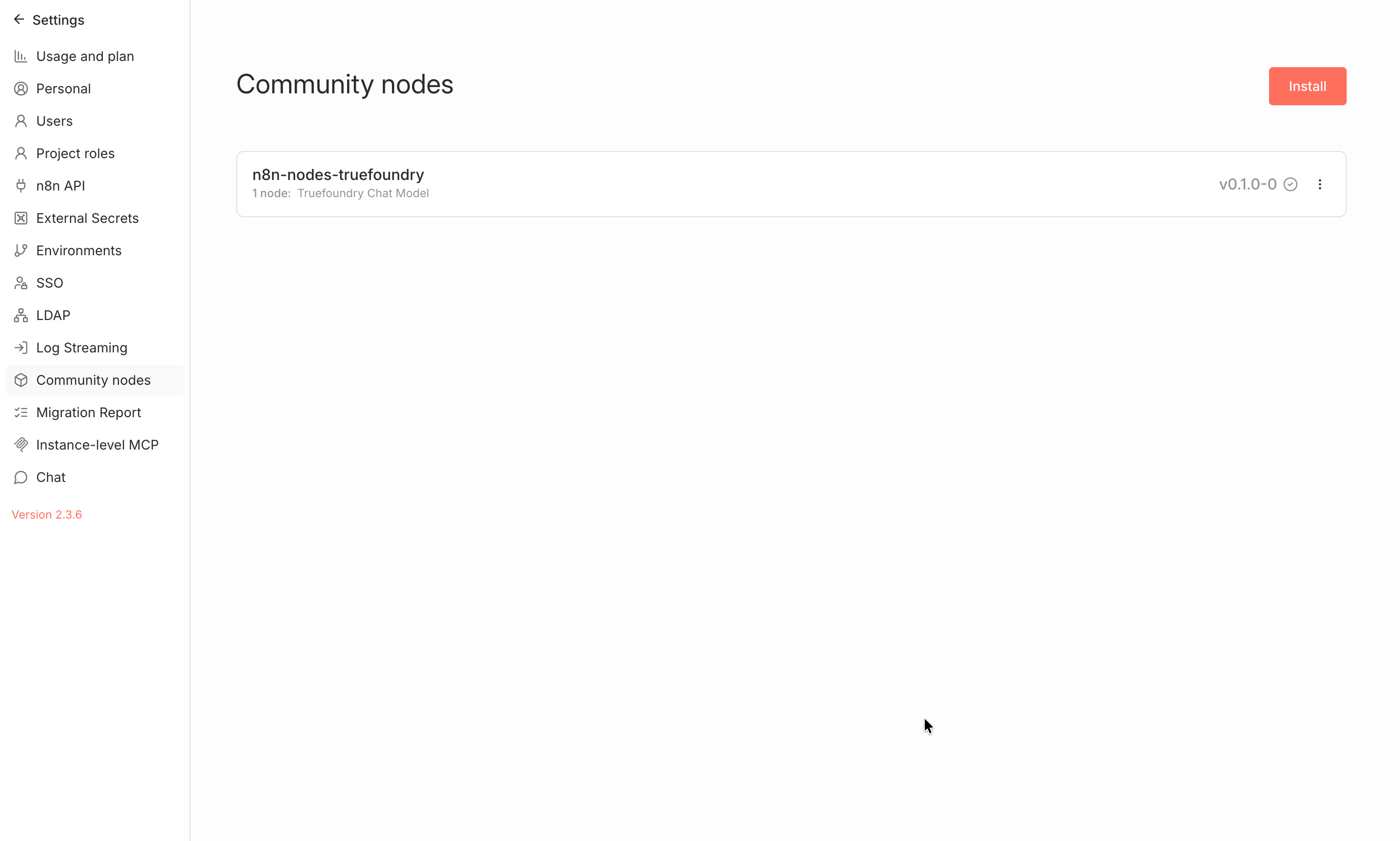
 3. You should now see the truefoundry node in your installed nodes.
 ### Step 2: Configure n8n Credentials
1. Navigate to your n8n dashboard and go to **Create Workflow > Create Credential**:
### Step 2: Configure n8n Credentials
1. Navigate to your n8n dashboard and go to **Create Workflow > Create Credential**:
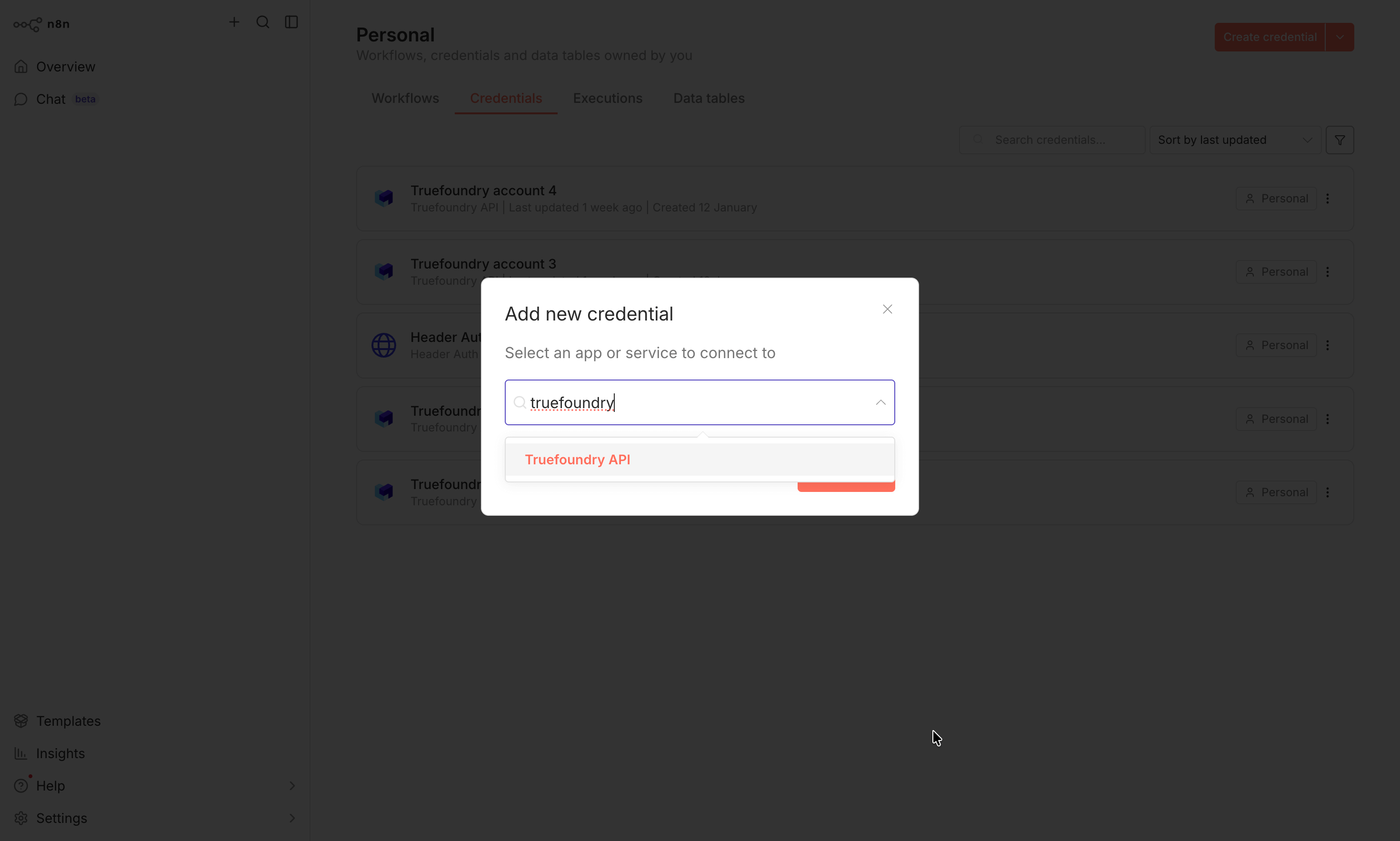
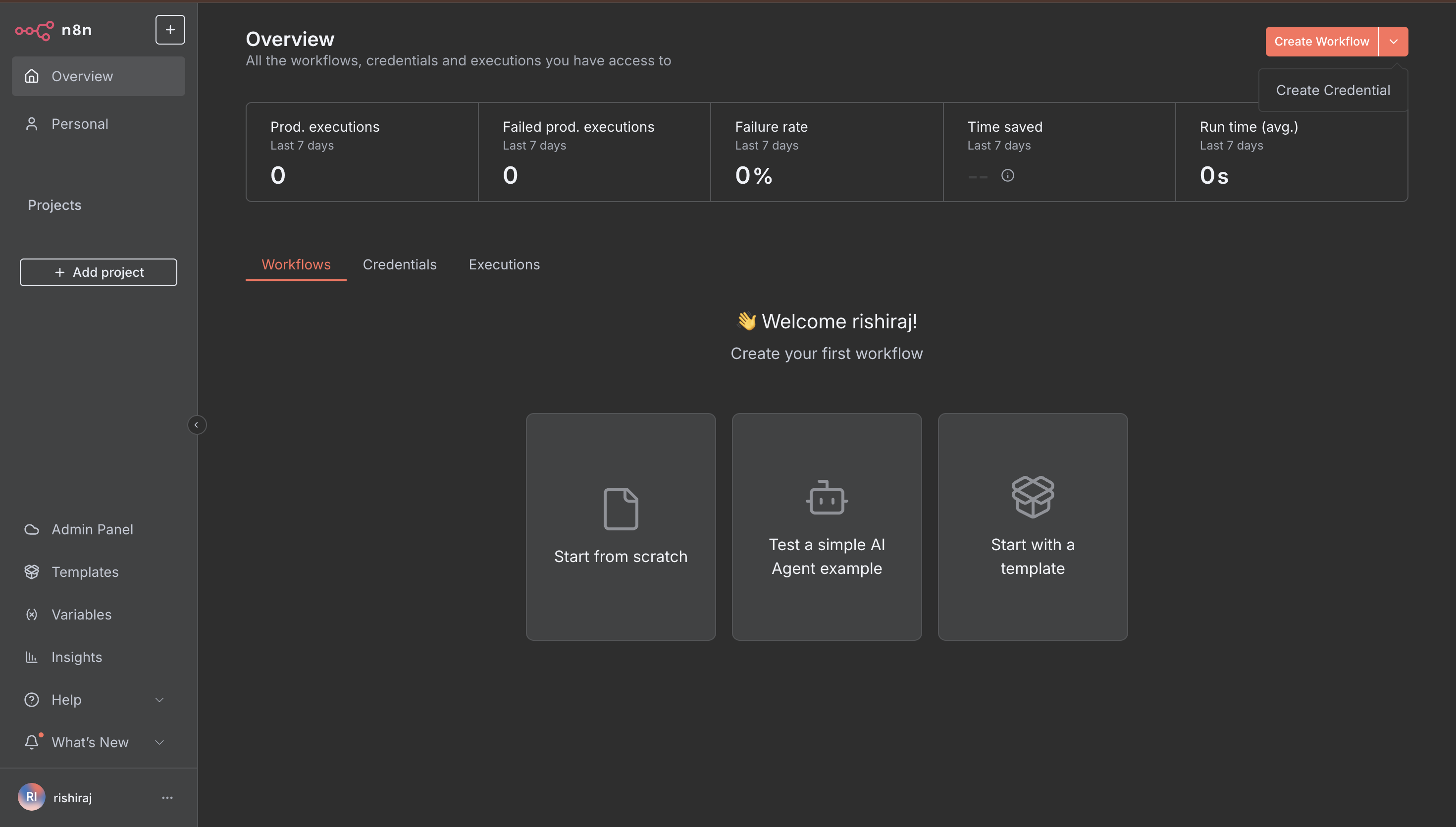 2. Click **Create Credential**, search for **Truefoundry API** or **OpenAI API** and hit continue.
 ### Step 3: Configure Credentials with TrueFoundry
Configure the credentials with your TrueFoundry details:
### Step 3: Configure Credentials with TrueFoundry
Configure the credentials with your TrueFoundry details:
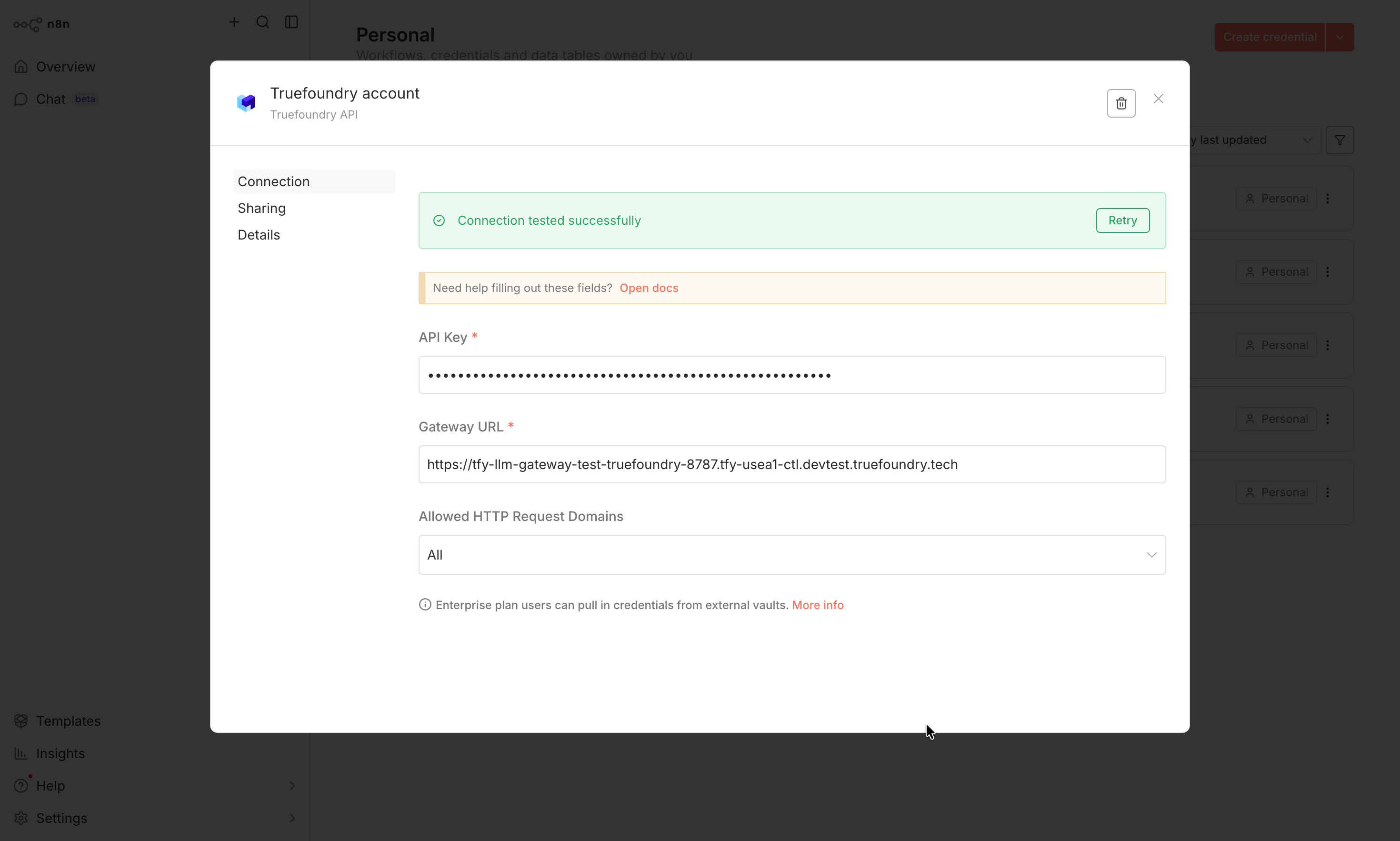 Fill in the following details:
* **Base URL**: You will get the base URL from the unified code snippet in our playground
Fill in the following details:
* **Base URL**: You will get the base URL from the unified code snippet in our playground
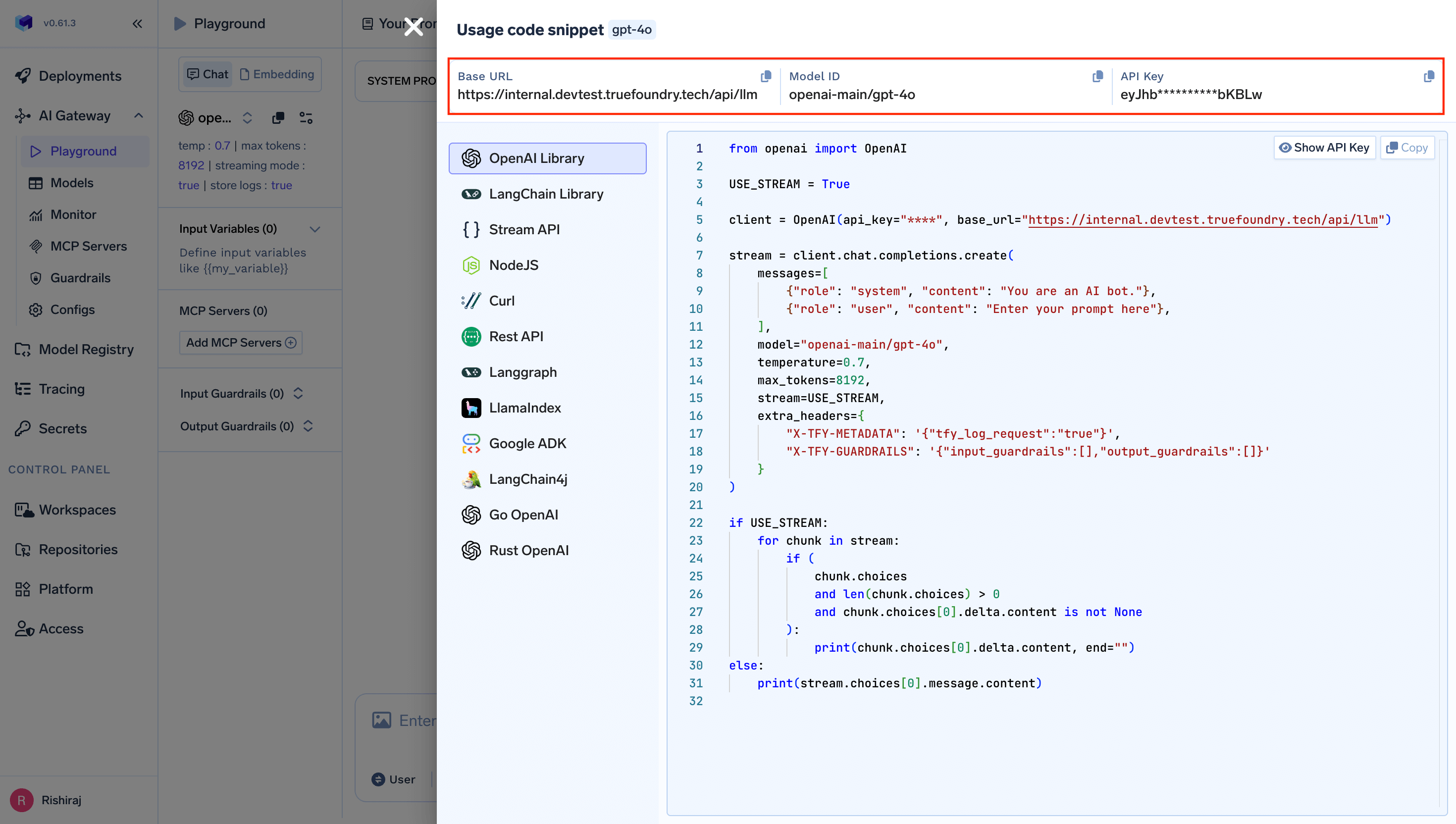 Click **Save** to store your credentials. The models will be automatically fetched and listed.
### Step 4: Create Your First AI Workflow
1. Navigate to **Overview** and click **Create Workflow**:
2. Choose **Test a simple AI Agent example** or **Start from scratch** to begin building your workflow.
### Step 5: Build Your Workflow with AI Components
1. In the workflow editor, add nodes to create your automation. Start with a trigger and add an **LLM chain** node:
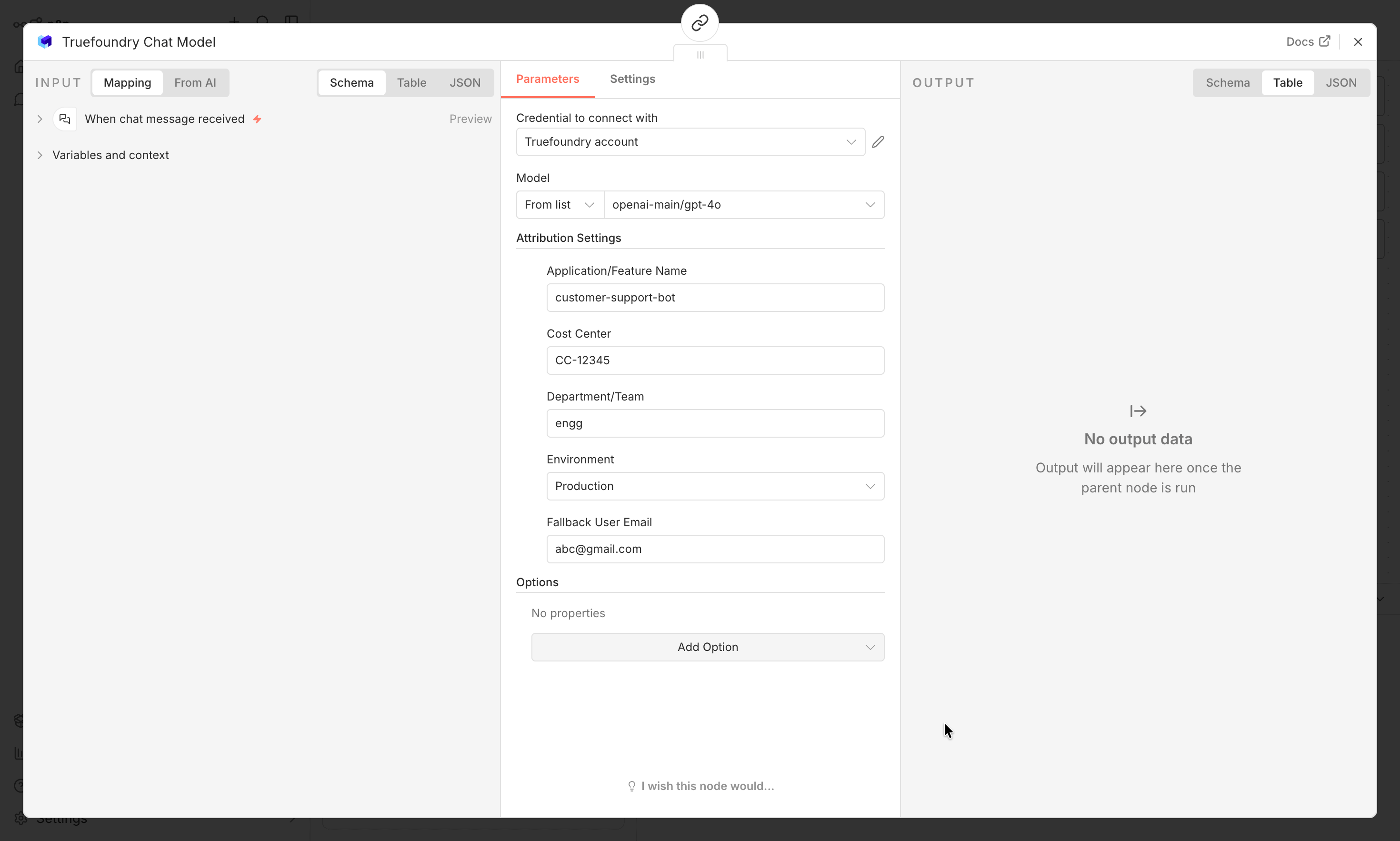
2. Configure your chat model node:
* Select your TrueFoundry credentials from the dropdown
* Choose your model from the dropdown list - all available models from your TrueFoundry account will be automatically listed here
* If you are using the TrueFoundry Chat Node, you can configure custom attribution settings from the provided dropdown:
* **Application/Feature Name**: Tag requests with your application or feature name
* **Environment**: Set the deployment environment (dev, staging, prod)
* **Cost Center**: Associate costs with specific cost centers
* **Department/Team**: Track usage by department or team
* **Fallback User Email**: Set a fallback email for notifications
* **Automatic Metadata**: The node automatically captures workflowId, executionId, workflowName, and other metadata for enhanced tracking
Click **Save** to store your credentials. The models will be automatically fetched and listed.
### Step 4: Create Your First AI Workflow
1. Navigate to **Overview** and click **Create Workflow**:
2. Choose **Test a simple AI Agent example** or **Start from scratch** to begin building your workflow.
### Step 5: Build Your Workflow with AI Components
1. In the workflow editor, add nodes to create your automation. Start with a trigger and add an **LLM chain** node:
2. Configure your chat model node:
* Select your TrueFoundry credentials from the dropdown
* Choose your model from the dropdown list - all available models from your TrueFoundry account will be automatically listed here
* If you are using the TrueFoundry Chat Node, you can configure custom attribution settings from the provided dropdown:
* **Application/Feature Name**: Tag requests with your application or feature name
* **Environment**: Set the deployment environment (dev, staging, prod)
* **Cost Center**: Associate costs with specific cost centers
* **Department/Team**: Track usage by department or team
* **Fallback User Email**: Set a fallback email for notifications
* **Automatic Metadata**: The node automatically captures workflowId, executionId, workflowName, and other metadata for enhanced tracking
 **Note**: With the `/models` endpoint support, you no longer need to manually enter model IDs. All models configured in your TrueFoundry account will be automatically available in the dropdown.
### Step 6: Test Your Integration
1. Save your workflow and execute it to test the integration:
**Note**: With the `/models` endpoint support, you no longer need to manually enter model IDs. All models configured in your TrueFoundry account will be automatically available in the dropdown.
### Step 6: Test Your Integration
1. Save your workflow and execute it to test the integration:
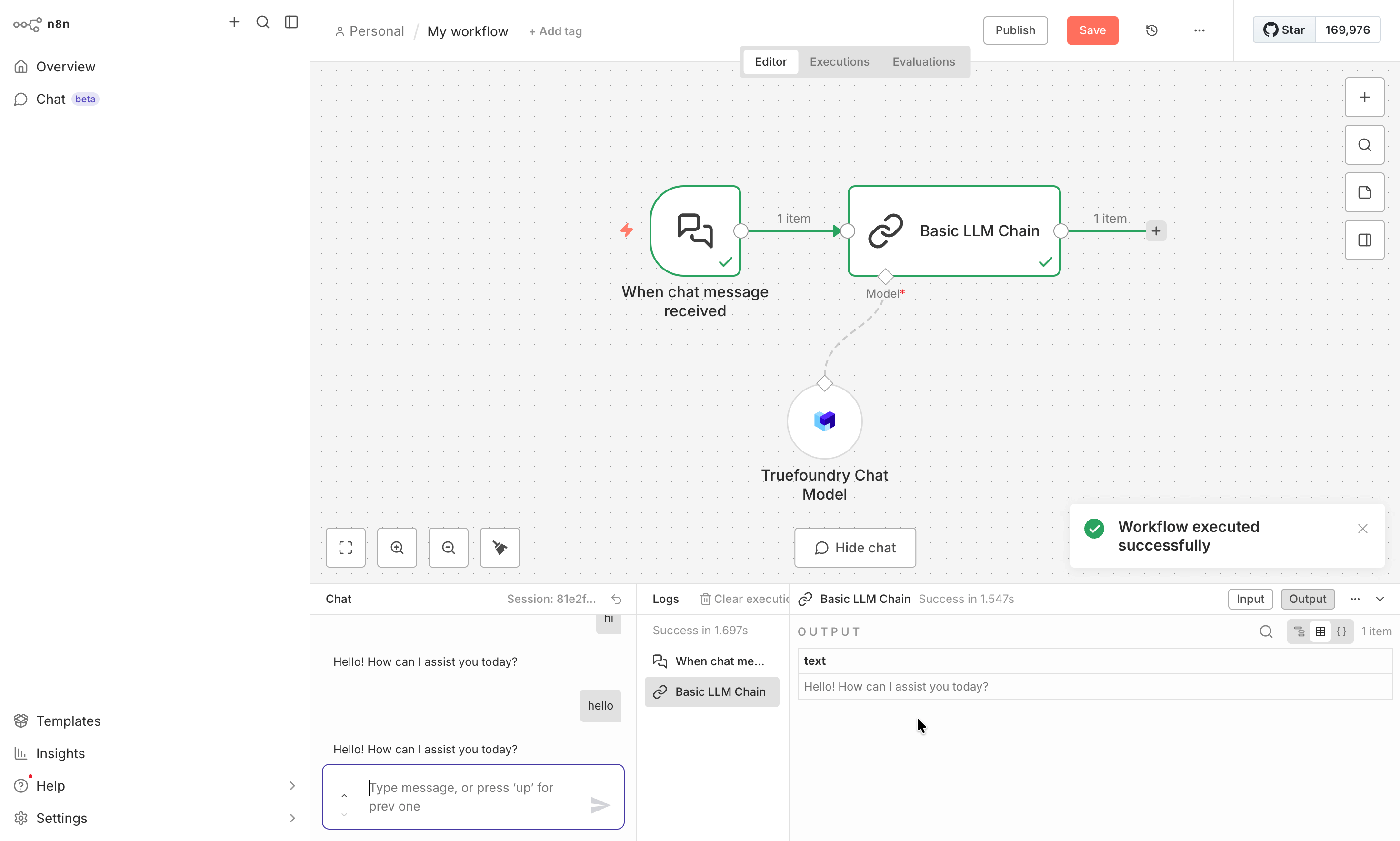 2. Monitor the execution logs to ensure your AI calls are working correctly through TrueFoundry's gateway.
## Enterprise Features
When using n8n with TrueFoundry, you automatically gain access to enterprise-grade features:
### Cost Management & Tracking
* **Budget Controls**: Set spending limits for different teams or projects
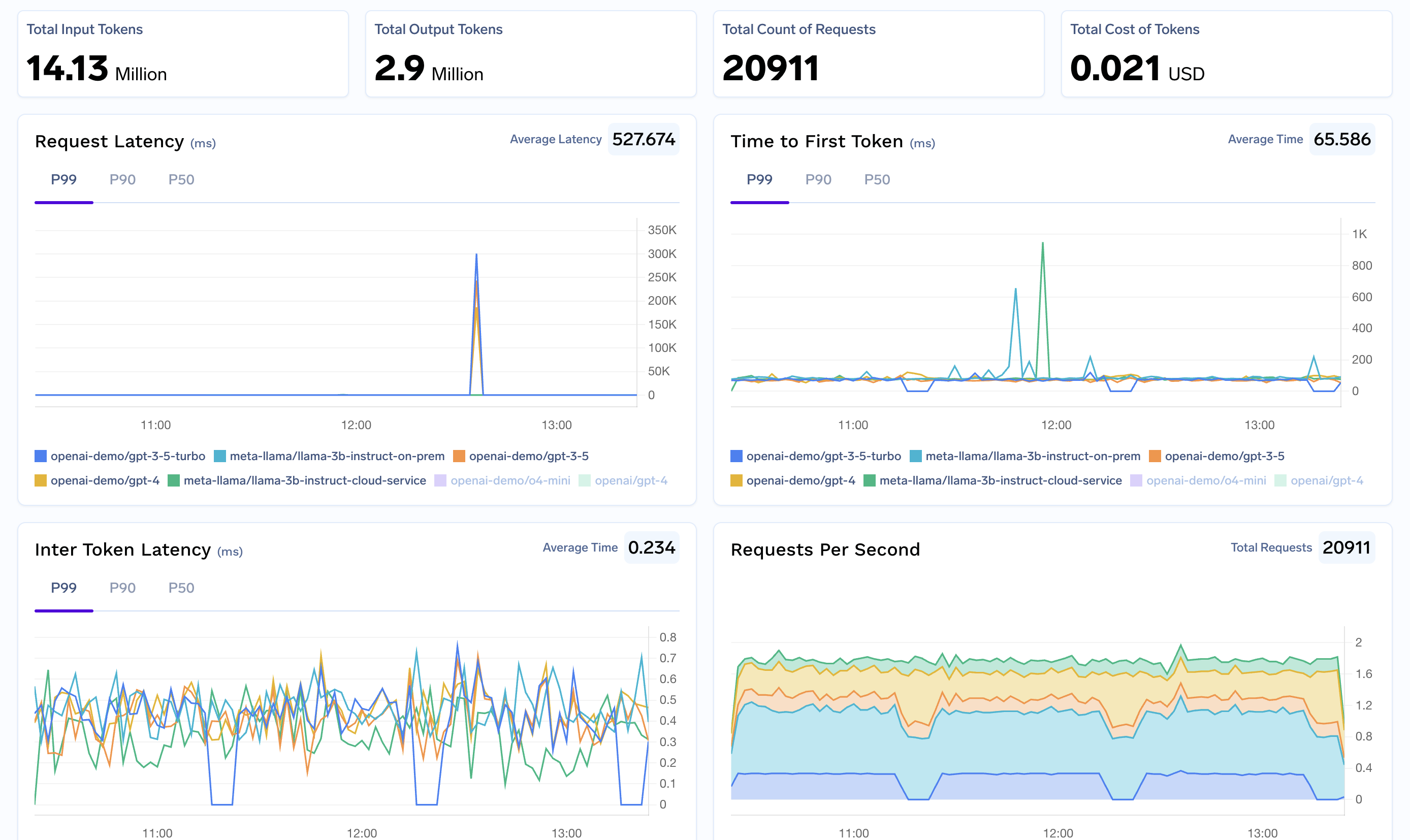
* **Usage Analytics**: Track AI costs across all your n8n workflows
* **Cost Attribution**: Monitor expenses by workflow, team, or department
* **Real-time Metrics**: Monitor performance, costs, and usage patterns
* **Custom Metadata**: Tag workflows for detailed analytics
2. Monitor the execution logs to ensure your AI calls are working correctly through TrueFoundry's gateway.
## Enterprise Features
When using n8n with TrueFoundry, you automatically gain access to enterprise-grade features:
### Cost Management & Tracking
* **Budget Controls**: Set spending limits for different teams or projects
* **Usage Analytics**: Track AI costs across all your n8n workflows
* **Cost Attribution**: Monitor expenses by workflow, team, or department
* **Real-time Metrics**: Monitor performance, costs, and usage patterns
* **Custom Metadata**: Tag workflows for detailed analytics
 ### Security & Compliance
* **Access Controls and Rate Limit**: Manage who can use which AI models in workflows
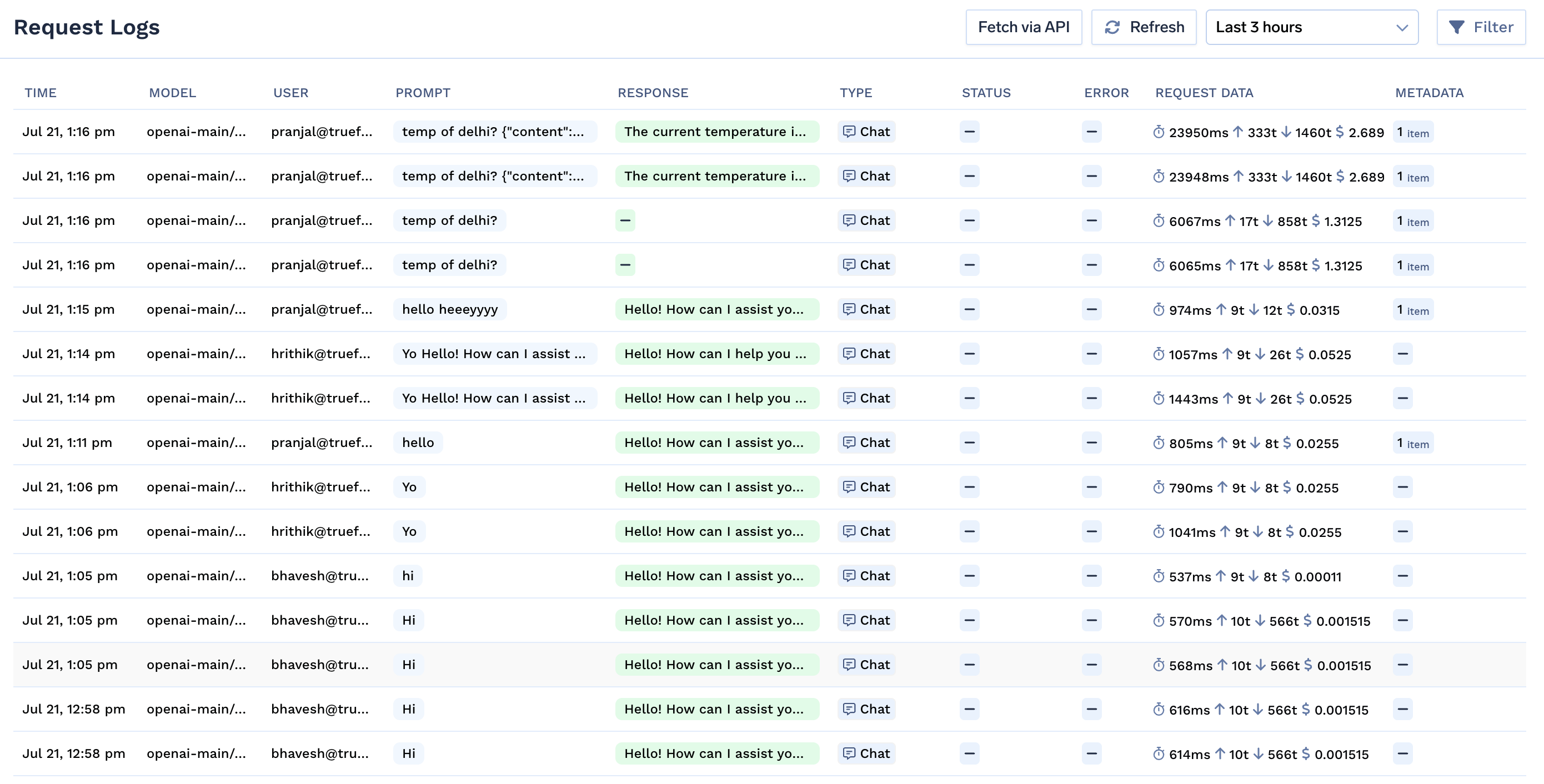
* **Audit Logging**: Complete logs of all AI interactions for compliance
* **Data Protection**: Built-in guardrails to prevent sensitive data exposure
### Security & Compliance
* **Access Controls and Rate Limit**: Manage who can use which AI models in workflows
* **Audit Logging**: Complete logs of all AI interactions for compliance
* **Data Protection**: Built-in guardrails to prevent sensitive data exposure
 ### Reliability Features
* **Fallback Models**: Automatically switch to backup models if primary fails
* **[Virtual Models](/docs/ai-gateway/virtual-model)**: Route requests intelligently across multiple model providers
## Advanced Configuration
### Multi-Model Workflows
* Configure different models for different workflow steps
* Use conditional routing based on input complexity
* Implement model selection logic based on cost and performance requirements
### Team Collaboration
* Set up shared credentials for team access
* Implement workflow versioning and change management
* Use environment-specific configurations for development vs. production
### Enterprise Integration
* Integrate with your organization's SSO system through TrueFoundry
* Set up department-specific cost centers and budgets
* Implement compliance monitoring for regulated industries
### Reliability Features
* **Fallback Models**: Automatically switch to backup models if primary fails
* **[Virtual Models](/docs/ai-gateway/virtual-model)**: Route requests intelligently across multiple model providers
## Advanced Configuration
### Multi-Model Workflows
* Configure different models for different workflow steps
* Use conditional routing based on input complexity
* Implement model selection logic based on cost and performance requirements
### Team Collaboration
* Set up shared credentials for team access
* Implement workflow versioning and change management
* Use environment-specific configurations for development vs. production
### Enterprise Integration
* Integrate with your organization's SSO system through TrueFoundry
* Set up department-specific cost centers and budgets
* Implement compliance monitoring for regulated industries