> ## Documentation Index
> Fetch the complete documentation index at: https://www.truefoundry.com/llms.txt
> Use this file to discover all available pages before exploring further.
# Set up Notion MCP Server
> Connect Notion as a fully managed MCP server on the TrueFoundry MCP Gateway so agents can search, read, and edit pages, databases, and comments.
[Notion](https://www.notion.so) is a collaboration and productivity tool for notes, docs, wikis, and databases. TrueFoundry ships it as a fully managed MCP server, so your agents can search workspaces and read or edit pages, databases, and comments without any infrastructure setup on your end. You add it from the TrueFoundry catalog, authorize once via OAuth2, and the endpoint is immediately available to every MCP-compatible client you use.
Notion is provisioned as a TrueFoundry Managed MCP — the platform manages its URL, auth, scopes, and credentials. For how managed servers are provisioned and kept up to date, see [TrueFoundry Managed MCPs](https://www.truefoundry.com/docs/ai-gateway/mcp/tfy-managed-mcp-server).
## How TrueFoundry Manages the MCP Server
TrueFoundry's MCP Gateway acts as a reverse proxy between your agents and MCP servers like Notion. When you add Notion as a managed MCP, TrueFoundry handles:
* **Authentication** — Agents authenticate once to the TrueFoundry MCP Gateway. The gateway handles outbound auth to Notion. Authorization happens directly between your account and your Notion workspace through the OAuth2 flow; TrueFoundry does not receive your Notion credentials.
* **Tool-level access control** — You can selectively enable or disable individual Notion tools per team from the TrueFoundry UI.
* **Audit trail** — Every tool invocation is traced with the calling user, tool name, input payload, and latency. Traces export via OpenTelemetry to your observability stack.
* **Guardrails** — TrueFoundry's guardrail hooks apply at `mcp_pre_tool` (before a tool is invoked) and `mcp_post_tool` (after the tool returns), letting you enforce content policies on Notion requests and results in real time.
## Adding Notion to TrueFoundry
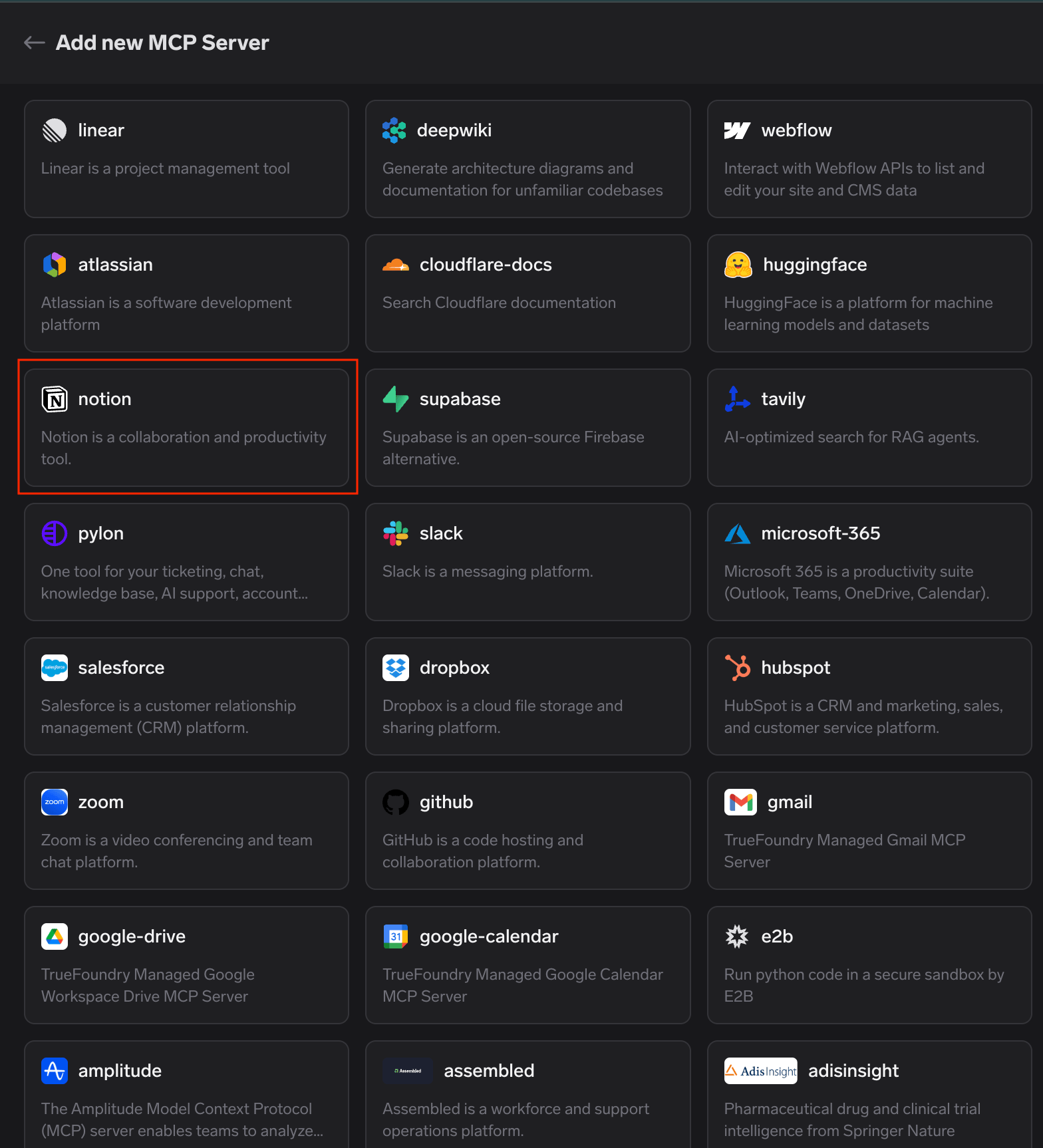
Navigate to **MCP Servers** in the TrueFoundry sidebar and click **Add new MCP Server**. Select **Connect TrueFoundry Managed MCPs** to open the catalog, find **notion** (described as "Notion is a collaboration and productivity tool"), and click **+ Add**. TrueFoundry registers the server and takes you to the Notion MCP server detail page.
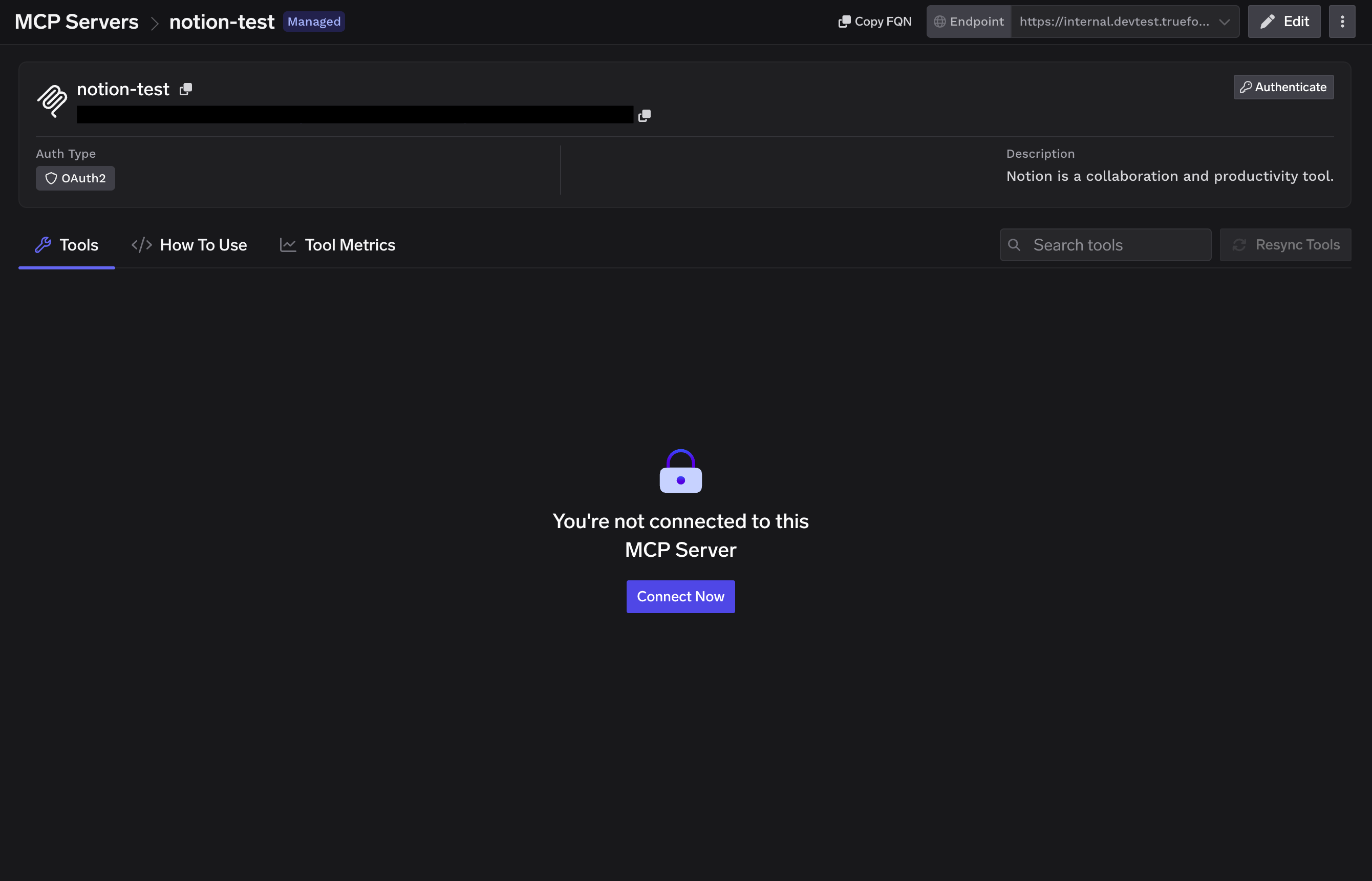
 The Tools tab shows "You're not connected to this MCP Server." Click **Connect Now** to begin the OAuth2 authorization.
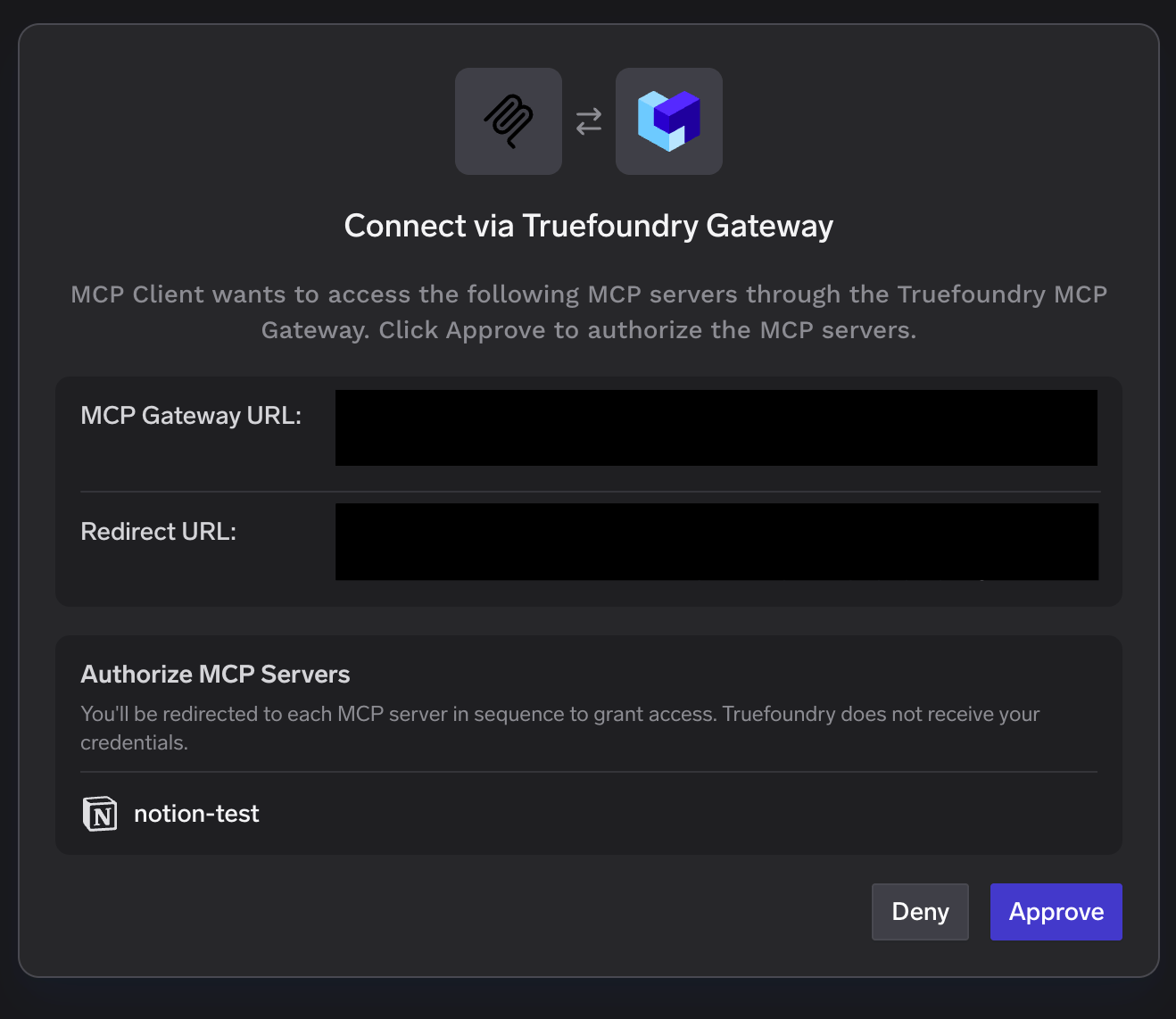
 A "Connect via Truefoundry Gateway" popup appears showing the MCP Gateway URL, the redirect URL, and the MCP servers to authorize. Review the details and click **Approve**.
You'll be redirected to each MCP server in sequence to grant access. TrueFoundry does not receive your credentials.
A "Connect via Truefoundry Gateway" popup appears showing the MCP Gateway URL, the redirect URL, and the MCP servers to authorize. Review the details and click **Approve**.
You'll be redirected to each MCP server in sequence to grant access. TrueFoundry does not receive your credentials.
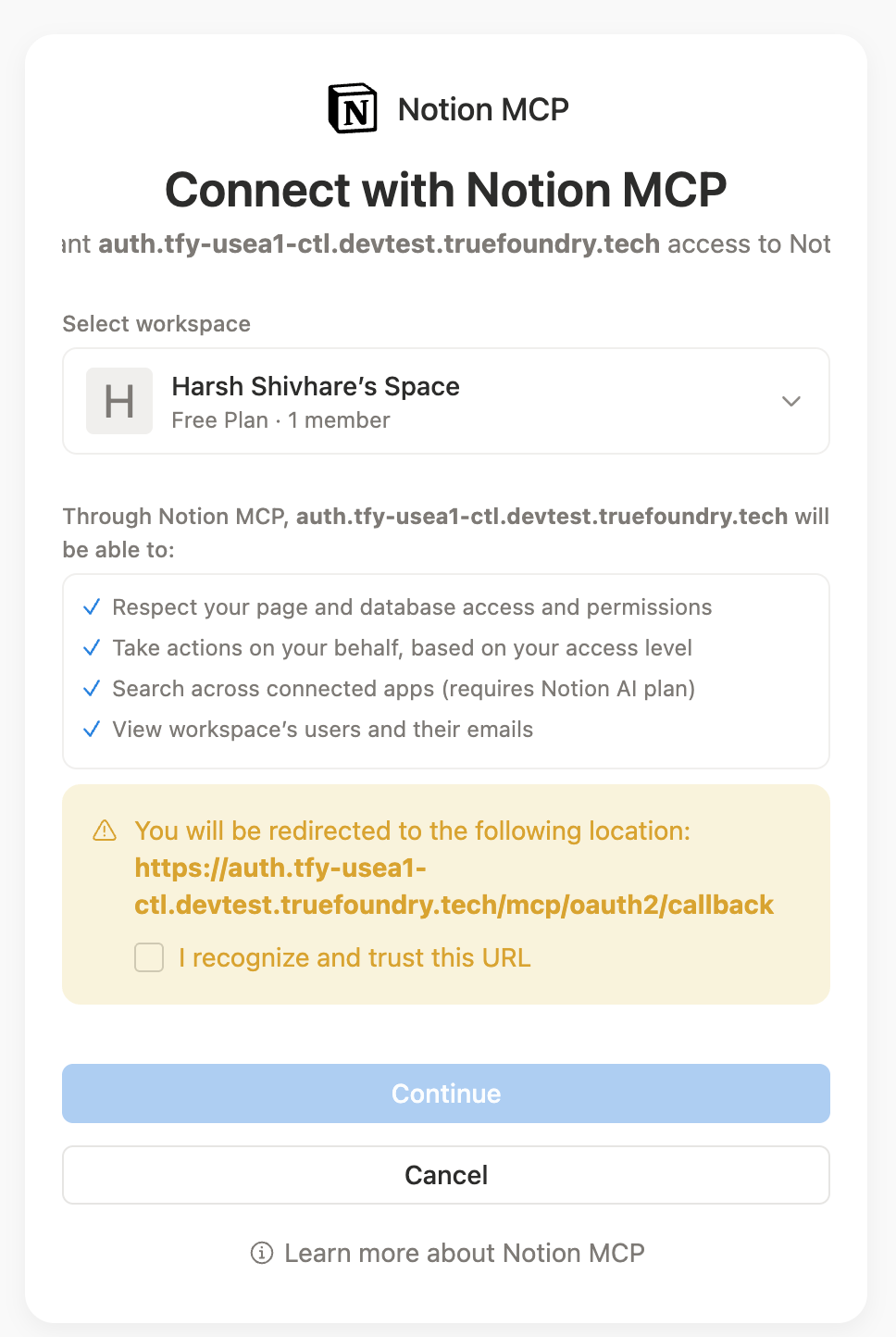
 Notion's own consent screen opens. Select the **workspace** to connect, review the access Notion will grant (page and database access, search, workspace users), confirm you trust the redirect URL, and click **Continue**.
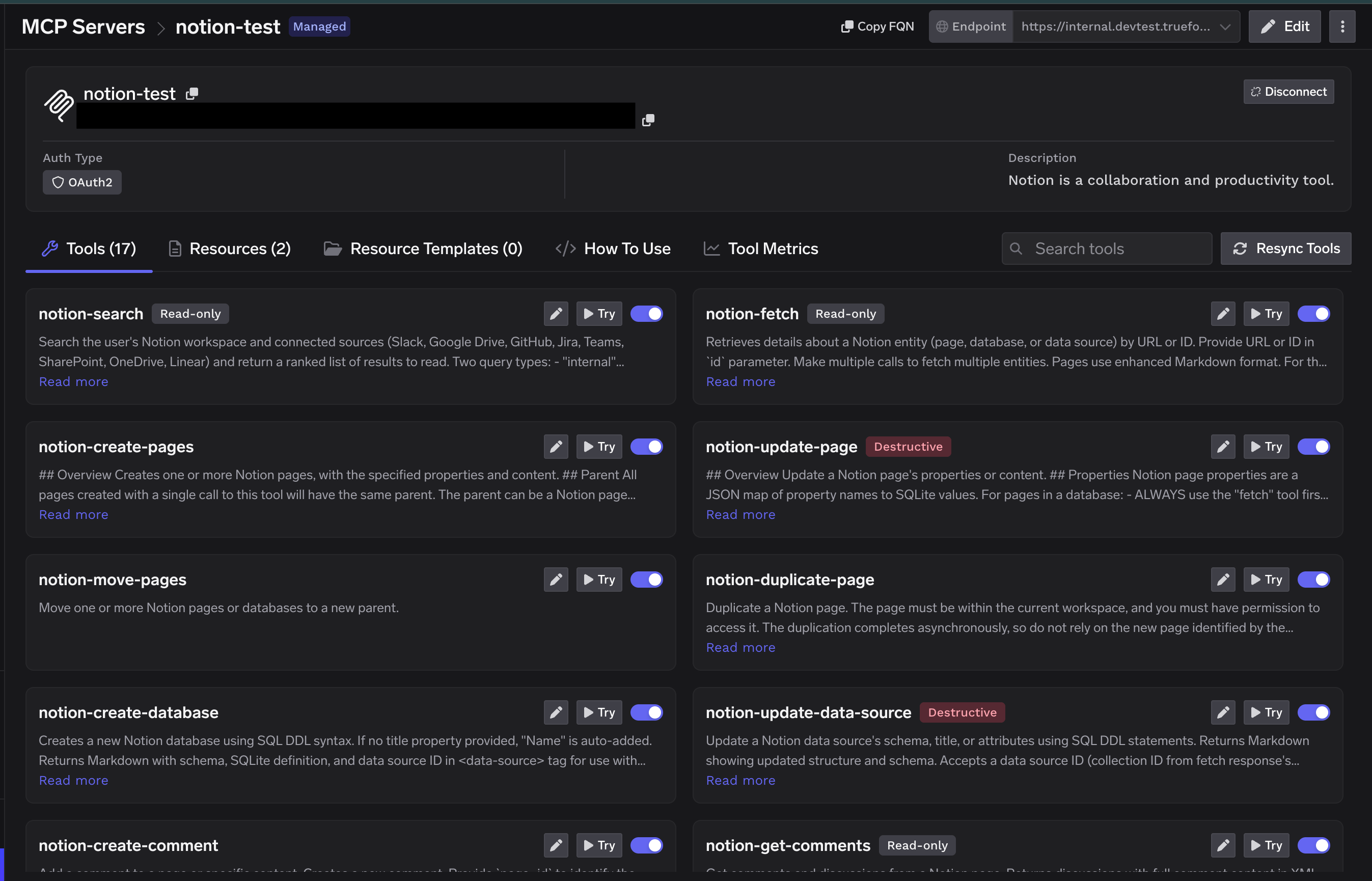
 After authorizing, the **Tools** tab populates with Notion's available tools — search, fetch, create and update pages, databases, comments, and more. Notion also exposes MCP **Resources** on its own tab. Each tool shows its description and a **Try** button so you can test it before wiring it into an agent. Tools are labeled **Read-only** or **Destructive** so you can see at a glance which ones modify data.
 ## Connecting to an MCP Client
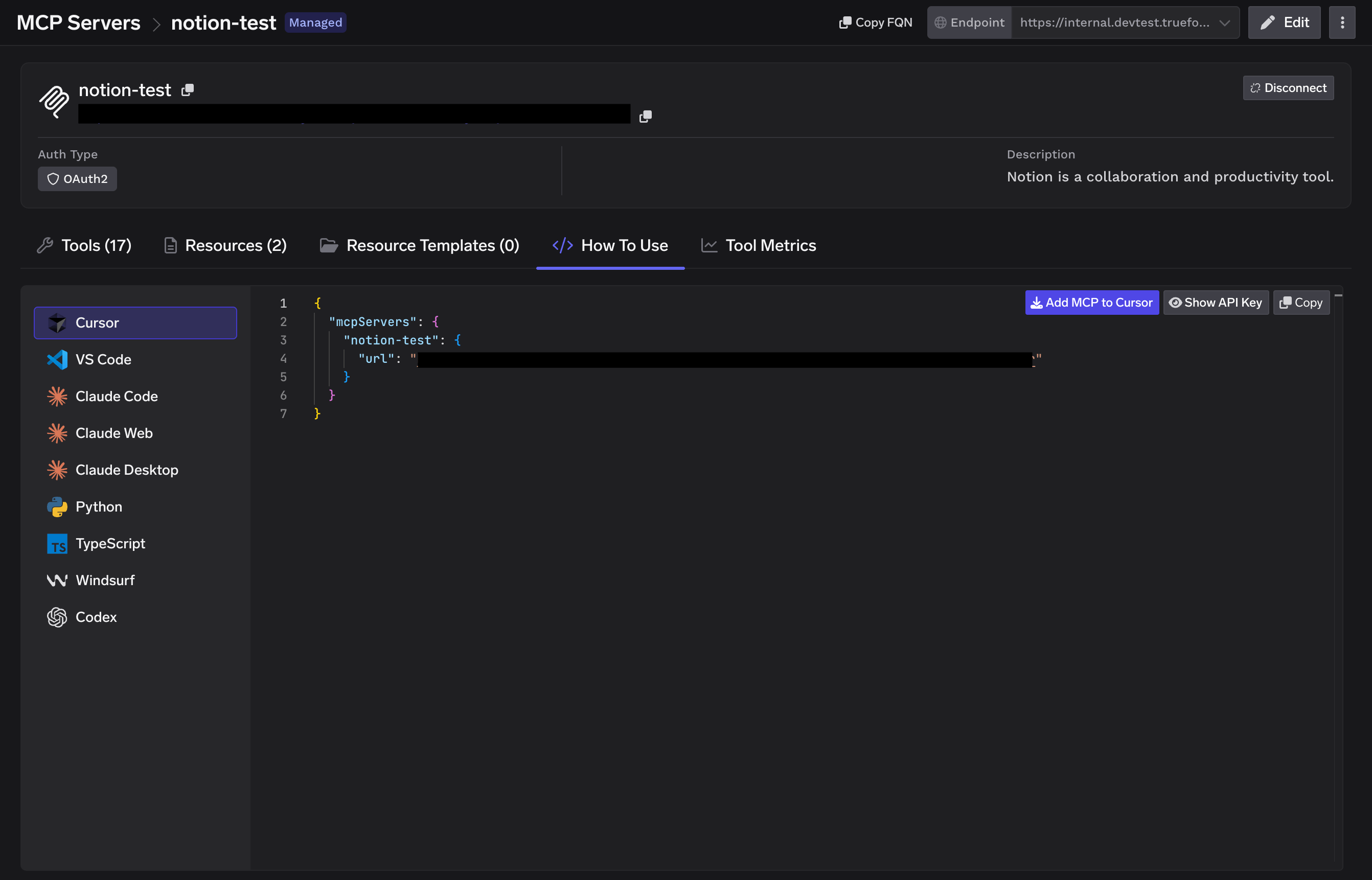
TrueFoundry exposes the Notion MCP server over HTTP transport. The endpoint is specific to your TrueFoundry tenant, so don't construct it by hand — copy the exact URL and ready-to-paste connection commands from the **How To Use** tab on the Notion server detail page.
The How To Use tab generates connection instructions for every major client, including Cursor, VS Code, Claude Code, Claude Web, Claude Desktop, Windsurf, Codex, and the Python and TypeScript MCP SDKs. Pick your client, copy the snippet, and paste it in. Click **Show API Key** on that tab to retrieve the API key if your client requires it as a header.
## Connecting to an MCP Client
TrueFoundry exposes the Notion MCP server over HTTP transport. The endpoint is specific to your TrueFoundry tenant, so don't construct it by hand — copy the exact URL and ready-to-paste connection commands from the **How To Use** tab on the Notion server detail page.
The How To Use tab generates connection instructions for every major client, including Cursor, VS Code, Claude Code, Claude Web, Claude Desktop, Windsurf, Codex, and the Python and TypeScript MCP SDKs. Pick your client, copy the snippet, and paste it in. Click **Show API Key** on that tab to retrieve the API key if your client requires it as a header.
 ## Using the Tool Playground
Before deploying an agent, you can test any Notion tool directly in TrueFoundry:
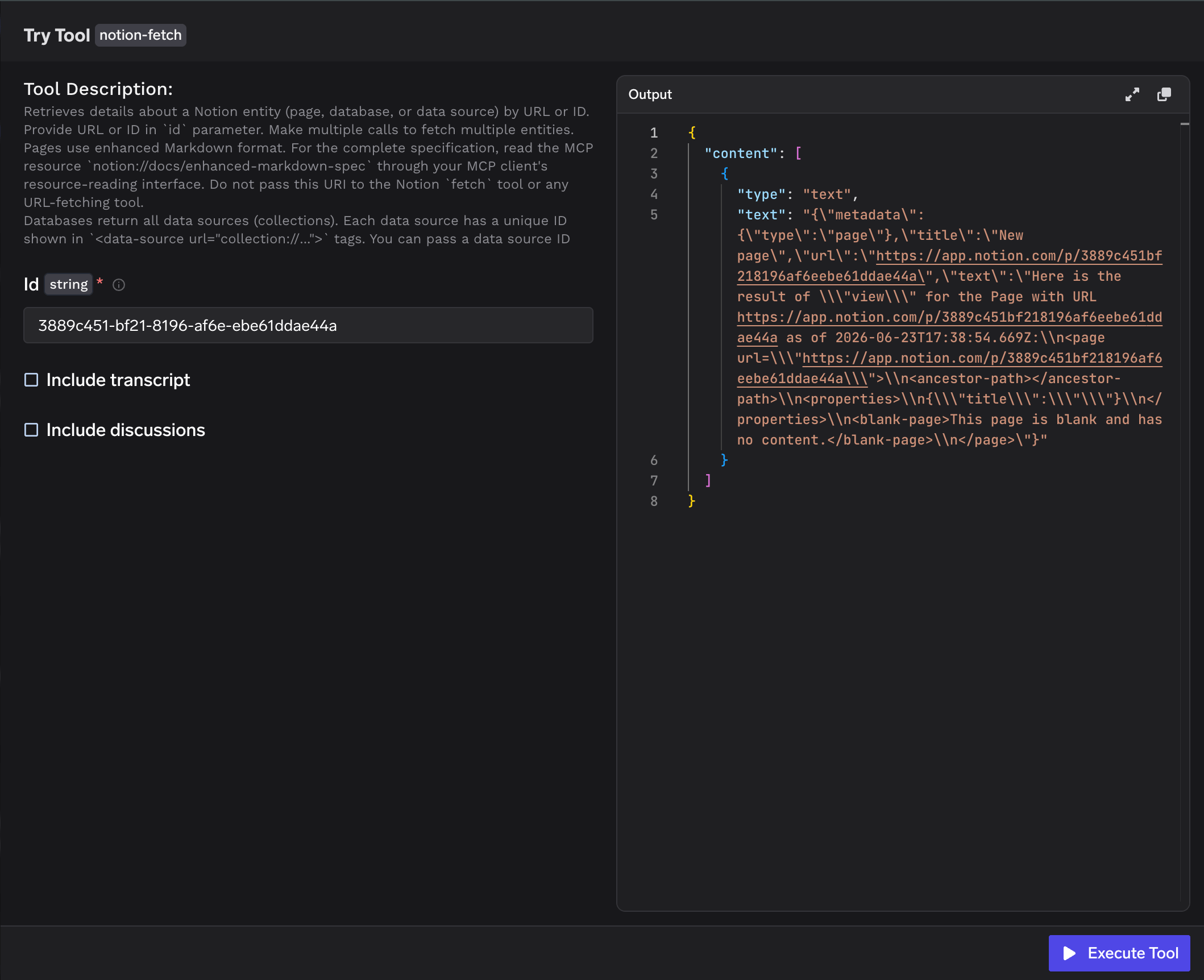
On the Notion MCP server detail page, click **Try** next to any tool — for example `notion-fetch`.
Provide the tool's inputs. For `notion-fetch`, enter the page or data source **Id** (or URL) and optionally toggle **Include transcript** or **Include discussions**.
Click **Execute Tool** and inspect the JSON output in the right panel.
## Using the Tool Playground
Before deploying an agent, you can test any Notion tool directly in TrueFoundry:
On the Notion MCP server detail page, click **Try** next to any tool — for example `notion-fetch`.
Provide the tool's inputs. For `notion-fetch`, enter the page or data source **Id** (or URL) and optionally toggle **Include transcript** or **Include discussions**.
Click **Execute Tool** and inspect the JSON output in the right panel.
 ## Tool Metrics
The **Tool Metrics** tab on the Notion server detail page shows per-tool usage data: invocation count, latency distribution, and error rates. Use this to monitor which tools your agents are using and whether any tool is producing errors in production.
## Disabling Individual Tools
If your use case only needs a subset of Notion's tools, you can disable the rest from the Tools tab. Each tool has a toggle to enable or disable it. Disabled tools are not callable by agents — they will not appear in the tool list returned to the MCP client. This reduces the tool surface exposed to the agent and avoids unnecessary calls — for example, disabling **Destructive** tools to keep an agent read-only.
## Tool Metrics
The **Tool Metrics** tab on the Notion server detail page shows per-tool usage data: invocation count, latency distribution, and error rates. Use this to monitor which tools your agents are using and whether any tool is producing errors in production.
## Disabling Individual Tools
If your use case only needs a subset of Notion's tools, you can disable the rest from the Tools tab. Each tool has a toggle to enable or disable it. Disabled tools are not callable by agents — they will not appear in the tool list returned to the MCP client. This reduces the tool surface exposed to the agent and avoids unnecessary calls — for example, disabling **Destructive** tools to keep an agent read-only.