> ## Documentation Index
> Fetch the complete documentation index at: https://www.truefoundry.com/llms.txt
> Use this file to discover all available pages before exploring further.
# Set up Exa MCP Server
> Connect Exa as a no-auth remote MCP server on the TrueFoundry MCP Gateway so agents can search the web, research entities, and read code context.
[Exa](https://exa.ai) is a search engine built for AIs. It exposes an official remote MCP server that you can register on the TrueFoundry MCP Gateway, so your agents can search the web, research companies and people, crawl pages, and pull code context through governed access. Exa's MCP server is open — it requires **no authentication** to get started.
## How TrueFoundry Manages the MCP Server
TrueFoundry's MCP Gateway acts as a reverse proxy between your agents and MCP servers like Exa. When you register Exa, TrueFoundry handles:
* **Authentication** — Exa's MCP server works with **no auth**, so there's nothing to configure to get started. If you hit rate limits, supply your own Exa API key by adding `exaApiKey=YOUR_EXA_API_KEY` to the server URL.
* **Tool-level access control** — You can selectively enable or disable individual Exa tools per team from the TrueFoundry UI, or scope the toolset directly in the URL (see below).
* **Audit trail** — Every tool invocation is traced with the calling user, tool name, input payload, and latency. Traces export via OpenTelemetry to your observability stack.
* **Guardrails** — TrueFoundry's guardrail hooks apply at `mcp_pre_tool` (before a tool is invoked) and `mcp_post_tool` (after the tool returns), letting you enforce content policies on search queries and results in real time.
## Adding Exa to TrueFoundry
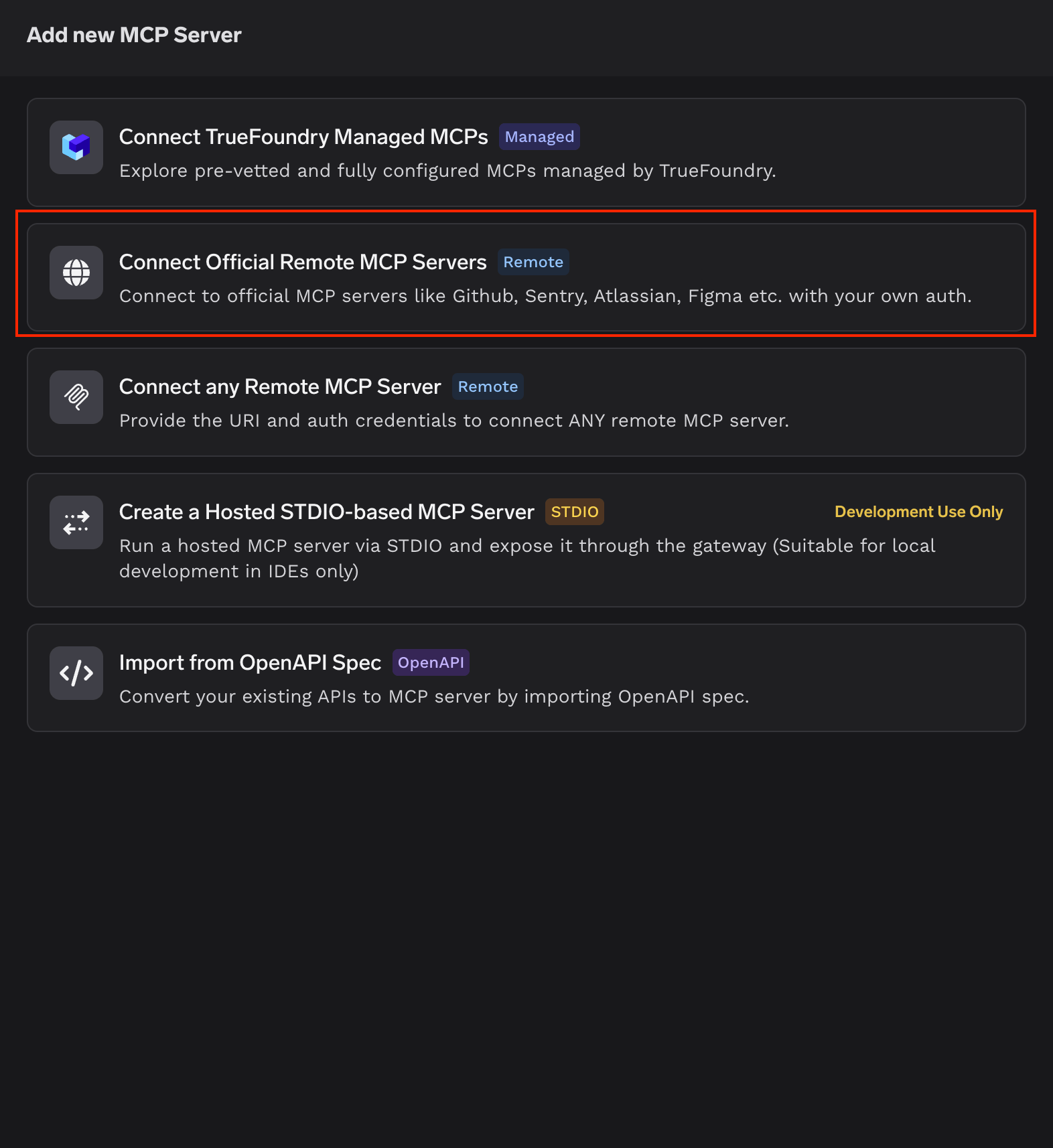
Navigate to **MCP Servers** in the TrueFoundry sidebar and click **Add new MCP Server**. Select **Connect Official Remote MCP Servers** — this lists official, vetted remote MCP servers.
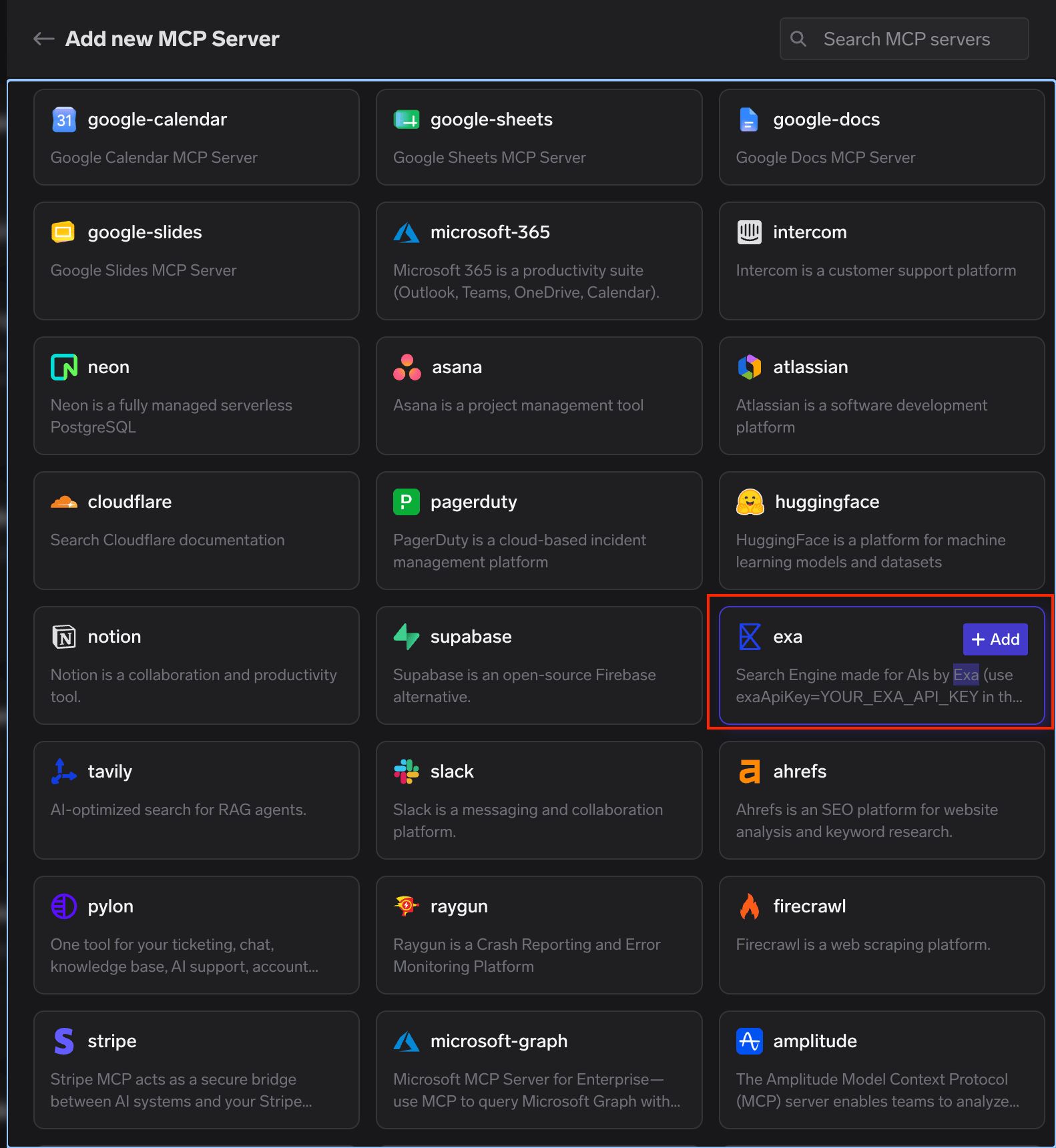
 Find the **exa** card in the catalog (described as "Search Engine made for AIs by Exa") and click **+ Add**.
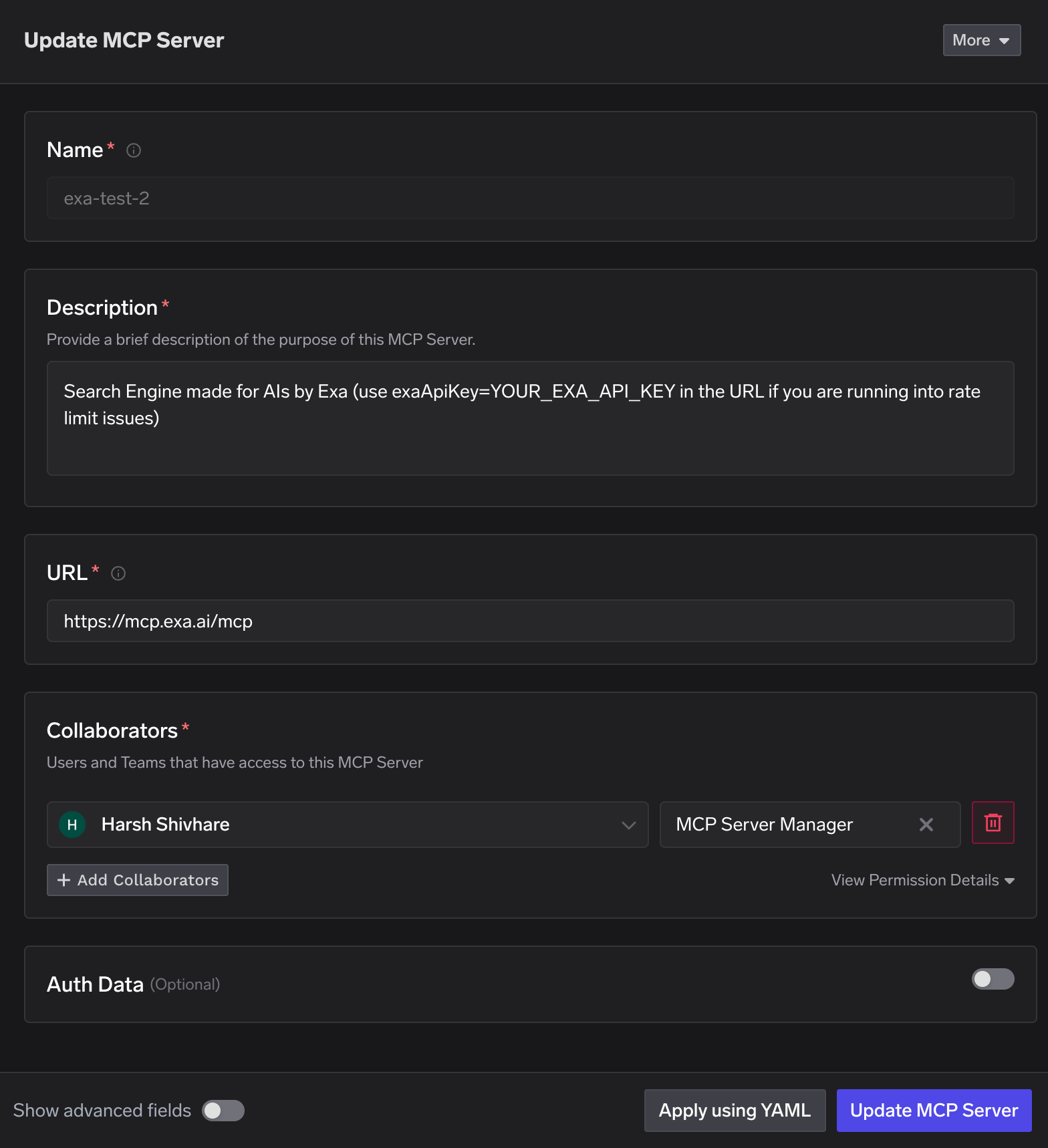
 TrueFoundry pre-fills the server details for Exa:
| Field | Value |
| --------------- | --------------------------------- |
| **Name** | `exa` |
| **Description** | Search Engine made for AIs by Exa |
| **URL** | `https://mcp.exa.ai/mcp` |
Add **Collaborators** — the users and teams that can use or manage this server — and assign each an **MCP Server Manager** or **MCP Server User** role. Leave **Auth Data** toggled off, since Exa requires no authentication. Click **Update MCP Server** to save.
TrueFoundry pre-fills the server details for Exa:
| Field | Value |
| --------------- | --------------------------------- |
| **Name** | `exa` |
| **Description** | Search Engine made for AIs by Exa |
| **URL** | `https://mcp.exa.ai/mcp` |
Add **Collaborators** — the users and teams that can use or manage this server — and assign each an **MCP Server Manager** or **MCP Server User** role. Leave **Auth Data** toggled off, since Exa requires no authentication. Click **Update MCP Server** to save.
 Prefer configuration as code? Click **Apply using YAML** and paste a spec like the one in [Scoping the toolset](#scoping-the-toolset-and-using-an-api-key) below.
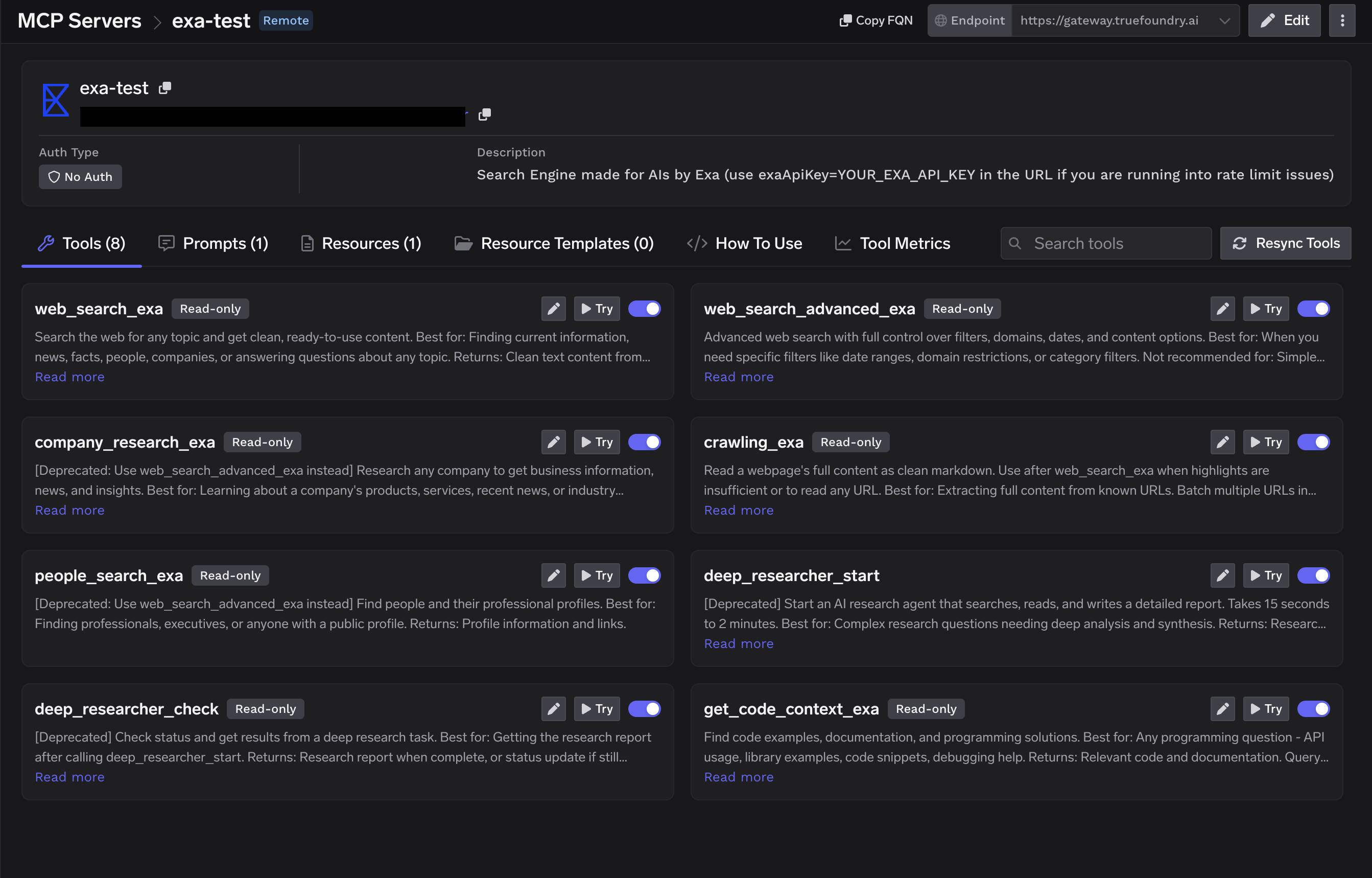
Open the **Tools** tab on the Exa server detail page. It populates with Exa's available tools — web search, company and people research, crawling, code context, and deep research. Exa also exposes MCP **Prompts** and **Resources** on their own tabs. Each tool shows its description and a **Try** button so you can test it before wiring it into an agent.
Prefer configuration as code? Click **Apply using YAML** and paste a spec like the one in [Scoping the toolset](#scoping-the-toolset-and-using-an-api-key) below.
Open the **Tools** tab on the Exa server detail page. It populates with Exa's available tools — web search, company and people research, crawling, code context, and deep research. Exa also exposes MCP **Prompts** and **Resources** on their own tabs. Each tool shows its description and a **Try** button so you can test it before wiring it into an agent.
 ## Scoping the Toolset and Using an API Key
Exa selects which tools the server exposes through a `tools` query parameter on the URL, and accepts an optional `exaApiKey` to lift rate limits. To pin a specific toolset (and optionally your key), register the server with a URL like:
```
https://mcp.exa.ai/mcp?tools=web_search_exa,web_search_advanced_exa,get_code_context_exa,crawling_exa,company_research_exa,people_search_exa,deep_researcher_start,deep_researcher_check
```
The equivalent YAML for the **Apply using YAML** option:
```yaml theme={"dark"}
url: >-
https://mcp.exa.ai/mcp?tools=web_search_exa,web_search_advanced_exa,get_code_context_exa,crawling_exa,company_research_exa,people_search_exa,deep_researcher_start,deep_researcher_check
name: exa
type: mcp-server/remote
description: >-
Search Engine made for AIs by Exa (use exaApiKey=YOUR_EXA_API_KEY in the URL
if you are running into rate limit issues)
collaborators:
- role_id: mcp-server-manager
subject: user:you@your-company.com
```
Append `&exaApiKey=YOUR_EXA_API_KEY` to the URL if you run into rate limits. Get a key from the [Exa dashboard](https://dashboard.exa.ai).
## Connecting to an MCP Client
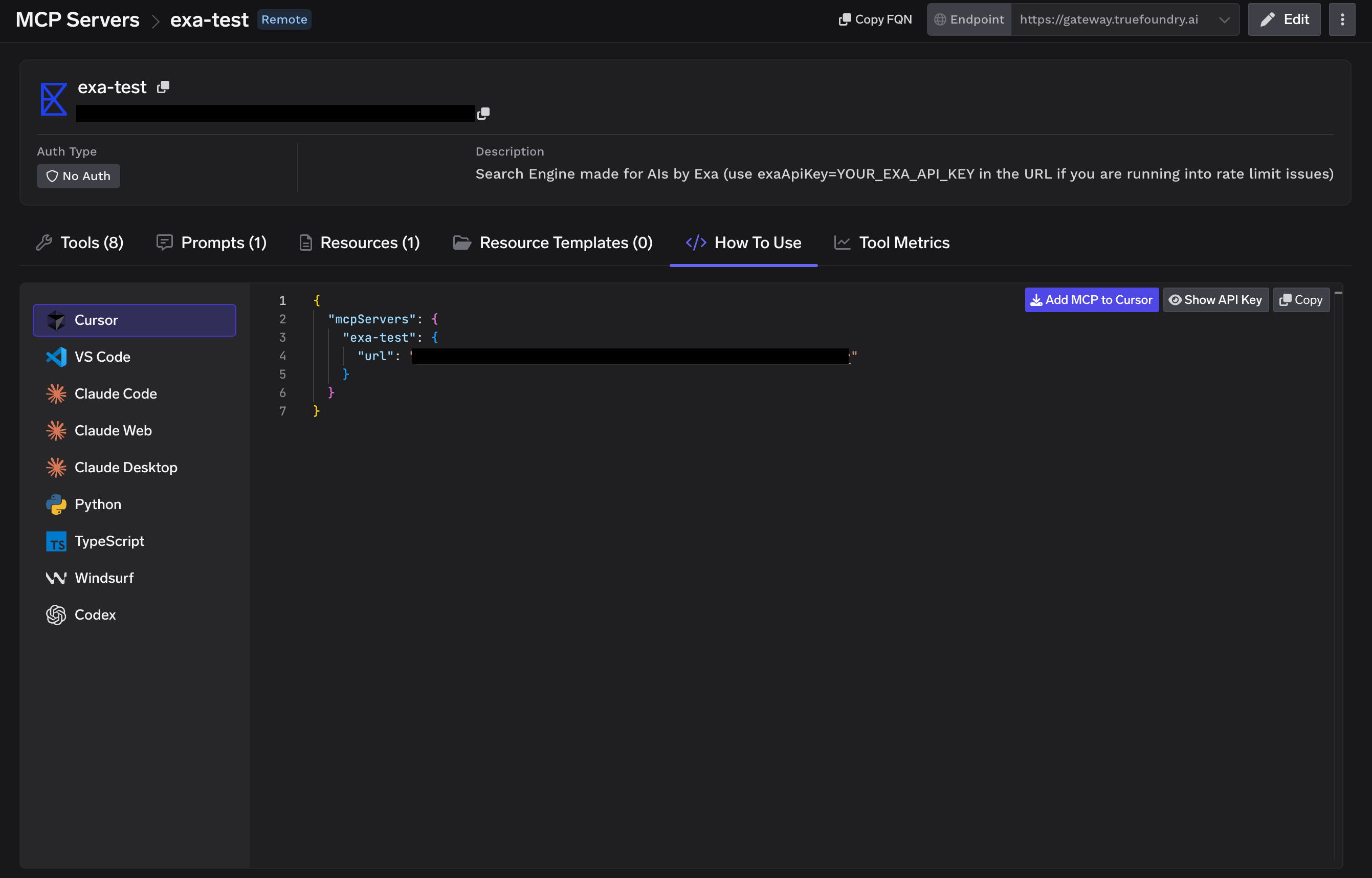
TrueFoundry exposes the Exa MCP server over HTTP transport. The endpoint is specific to your TrueFoundry tenant, so don't construct it by hand — copy the exact URL and ready-to-paste connection commands from the **How To Use** tab on the Exa server detail page.
The How To Use tab generates connection instructions for every major client, including Cursor, VS Code, Claude Code, Claude Web, Claude Desktop, Windsurf, Codex, and the Python and TypeScript MCP SDKs. Pick your client, copy the snippet, and paste it in.
## Scoping the Toolset and Using an API Key
Exa selects which tools the server exposes through a `tools` query parameter on the URL, and accepts an optional `exaApiKey` to lift rate limits. To pin a specific toolset (and optionally your key), register the server with a URL like:
```
https://mcp.exa.ai/mcp?tools=web_search_exa,web_search_advanced_exa,get_code_context_exa,crawling_exa,company_research_exa,people_search_exa,deep_researcher_start,deep_researcher_check
```
The equivalent YAML for the **Apply using YAML** option:
```yaml theme={"dark"}
url: >-
https://mcp.exa.ai/mcp?tools=web_search_exa,web_search_advanced_exa,get_code_context_exa,crawling_exa,company_research_exa,people_search_exa,deep_researcher_start,deep_researcher_check
name: exa
type: mcp-server/remote
description: >-
Search Engine made for AIs by Exa (use exaApiKey=YOUR_EXA_API_KEY in the URL
if you are running into rate limit issues)
collaborators:
- role_id: mcp-server-manager
subject: user:you@your-company.com
```
Append `&exaApiKey=YOUR_EXA_API_KEY` to the URL if you run into rate limits. Get a key from the [Exa dashboard](https://dashboard.exa.ai).
## Connecting to an MCP Client
TrueFoundry exposes the Exa MCP server over HTTP transport. The endpoint is specific to your TrueFoundry tenant, so don't construct it by hand — copy the exact URL and ready-to-paste connection commands from the **How To Use** tab on the Exa server detail page.
The How To Use tab generates connection instructions for every major client, including Cursor, VS Code, Claude Code, Claude Web, Claude Desktop, Windsurf, Codex, and the Python and TypeScript MCP SDKs. Pick your client, copy the snippet, and paste it in.
 ## Using the Tool Playground
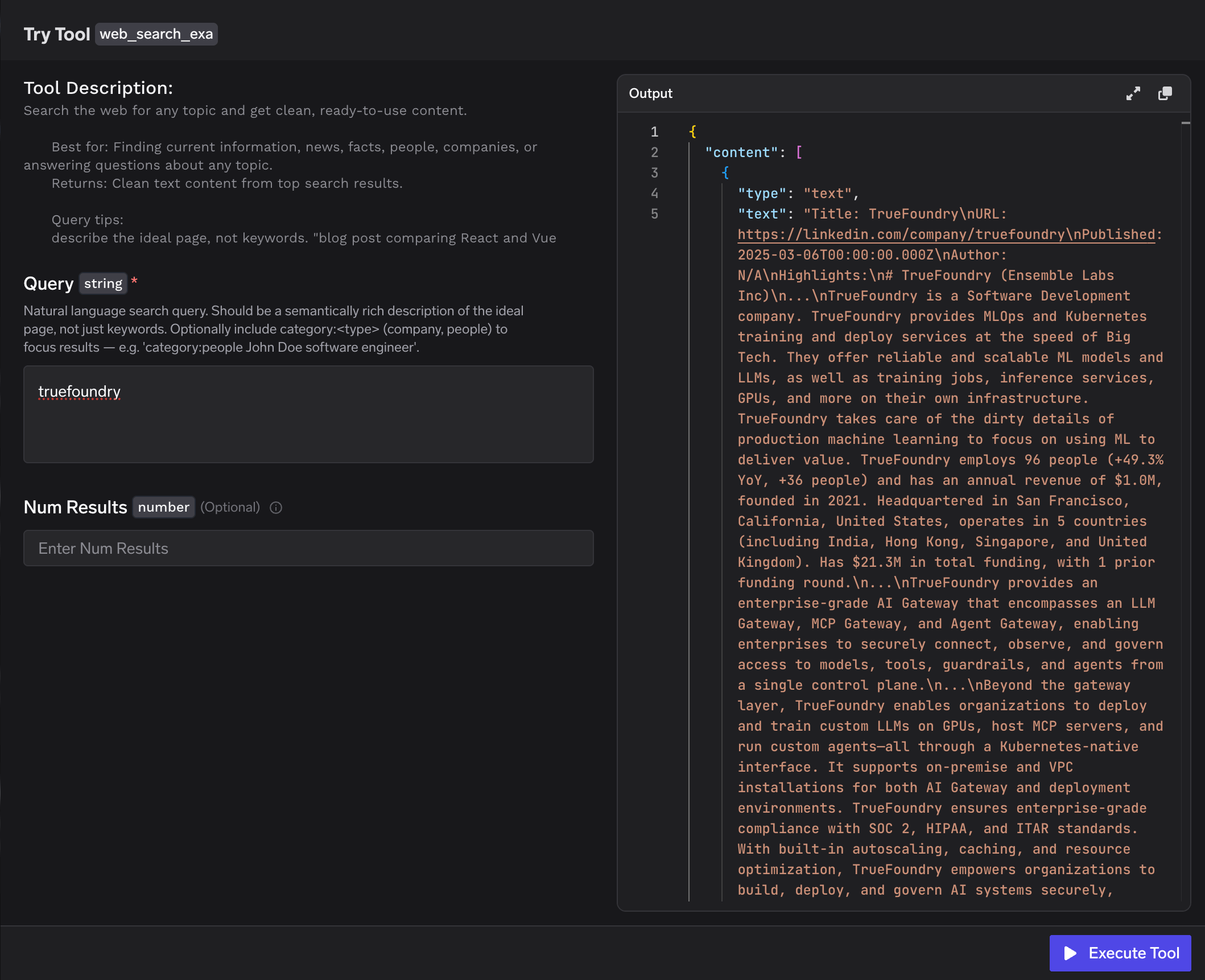
Before deploying an agent, you can test any Exa tool directly in TrueFoundry — click **Try** next to a tool such as `web_search_exa`, fill in the inputs, click **Execute Tool**, and inspect the JSON output in the right panel.
## Using the Tool Playground
Before deploying an agent, you can test any Exa tool directly in TrueFoundry — click **Try** next to a tool such as `web_search_exa`, fill in the inputs, click **Execute Tool**, and inspect the JSON output in the right panel.
 ## Tool Metrics
The **Tool Metrics** tab on the Exa server detail page shows per-tool usage data: invocation count, latency distribution, and error rates. Use this to monitor which tools your agents are using and whether any tool is producing errors in production.
## Disabling Individual Tools
If your use case only needs a subset of Exa's tools, you can disable the rest from the Tools tab. Each tool has a toggle to enable or disable it. Disabled tools are not callable by agents — they will not appear in the tool list returned to the MCP client. This reduces the tool surface exposed to the agent and avoids unnecessary calls.
## Tool Metrics
The **Tool Metrics** tab on the Exa server detail page shows per-tool usage data: invocation count, latency distribution, and error rates. Use this to monitor which tools your agents are using and whether any tool is producing errors in production.
## Disabling Individual Tools
If your use case only needs a subset of Exa's tools, you can disable the rest from the Tools tab. Each tool has a toggle to enable or disable it. Disabled tools are not callable by agents — they will not appear in the tool list returned to the MCP client. This reduces the tool surface exposed to the agent and avoids unnecessary calls.