> ## Documentation Index
> Fetch the complete documentation index at: https://www.truefoundry.com/llms.txt
> Use this file to discover all available pages before exploring further.
# Connect MCP Servers from Your IDE
> Connect to MCP servers on the TrueFoundry MCP Gateway from Cursor, Claude Code, and VS Code with full observability, governance, and security.
Connecting IDEs to MCP servers is one of the most common use cases in companies adopting AI-assisted development. Developers use tools like Cursor, Claude Code, and VS Code to interact with MCP servers for tasks like code review, issue tracking, and internal tooling. The TrueFoundry MCP Gateway sits between the IDE and the MCP servers, giving your organization observability into every tool call, governance over who can access which servers, and security controls that keep credentials off developer machines.
This guide walks you through connecting your IDE to MCP servers through the Gateway.
## Why use the TrueFoundry Gateway
Routing IDE connections through the Gateway gives you:
* **Observability** — every tool call is logged and traceable to the developer who made it.
* **Governance** — access is controlled by TrueFoundry identity and server-level permissions; admins decide who can reach which servers.
* **Security** — no API keys or provider tokens are stored in IDE config files, shell history, or anywhere on the developer machine. The developer signs in with TrueFoundry (using SSO if configured) and the Gateway handles the rest.
## How the connection flow works
When a developer connects from the IDE, the Gateway uses **Sign in with TrueFoundry** (OAuth). The IDE receives a temporary TrueFoundry token to talk to the Gateway. If the MCP server requires a per-user provider token (for example, a GitHub or Slack OAuth token), the Gateway stores that token at the gateway layer — it never reaches the developer's machine.
```mermaid theme={"dark"}
sequenceDiagram
autonumber
participant IDE as IDE MCP client
participant GW as TrueFoundry MCP Gateway
participant TFY as TrueFoundry OAuth
participant Provider as MCP server provider
IDE->>GW: Add Gateway URL
GW->>TFY: Open browser sign-in
TFY->>IDE: Return temporary TrueFoundry token
IDE->>GW: Authenticate with temporary token
GW->>Provider: Authorize provider (if needed)
Provider->>GW: Return user's MCP server token
Note over GW: Store provider token at gateway layer
GW->>Provider: Call MCP server tools on behalf of user
```
Key points:
* The developer only interacts with TrueFoundry sign-in (steps 2–3). No keys to copy or paste.
* Provider tokens are stored at the Gateway layer (step 7), not on the developer machine.
* Every subsequent tool call (step 8) goes through the Gateway, where it is logged, authorized, and rate-limited.
This maps to the **TrueFoundry OAuth** inbound method in [Authentication and Security](/docs/ai-gateway/mcp/mcp-gateway-auth-security#inbound-authentication).
## Prerequisites
* An MCP server **registered** in TrueFoundry that you have access to. If you don't have one yet, see [Getting Started](/docs/ai-gateway/mcp/mcp-server-getting-started).
* A Gateway URL for the MCP server. Copy it from the server's **How To Use** tab in TrueFoundry.
* **For outbound auth — only if the server uses "your own API key" (per-user):** your own upstream API key for that provider. You will be prompted to enter it during the connection flow from your IDE. Other outbound methods (shared key, OAuth, token passthrough, no auth) need no key from you.
The examples below use the tenant-scoped URL form `https:////mcp//server`. Always copy the exact URL shown on the **How To Use** tab for your server — that is the source of truth.
## Connect the server
Adding the server differs per IDE, but every step after that is the same. Follow the steps below in order.
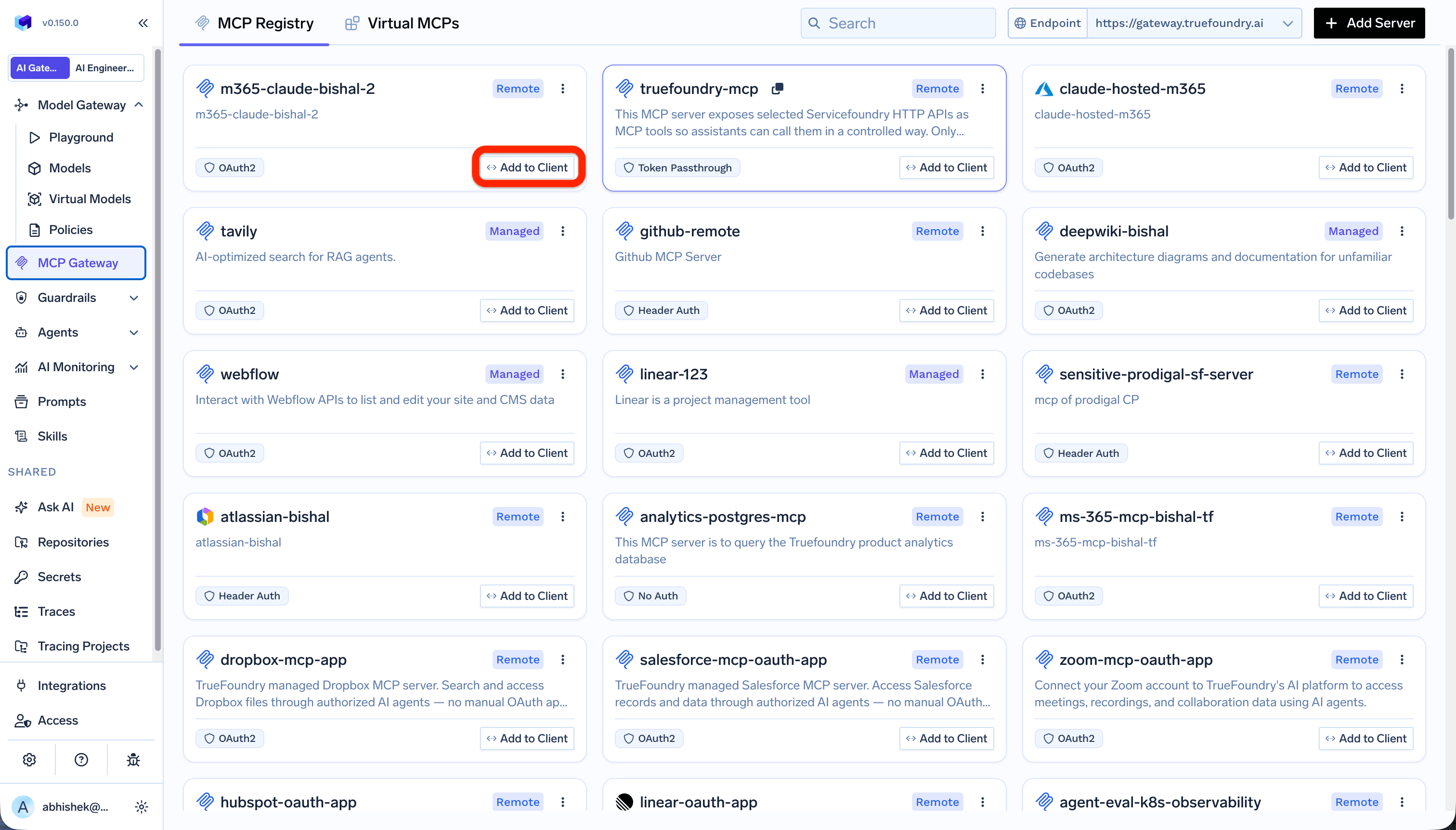
Open the MCP server page in TrueFoundry. Click **Add to Client** or go to the **How To Use** tab to see the Gateway URL and connection instructions for your IDE.
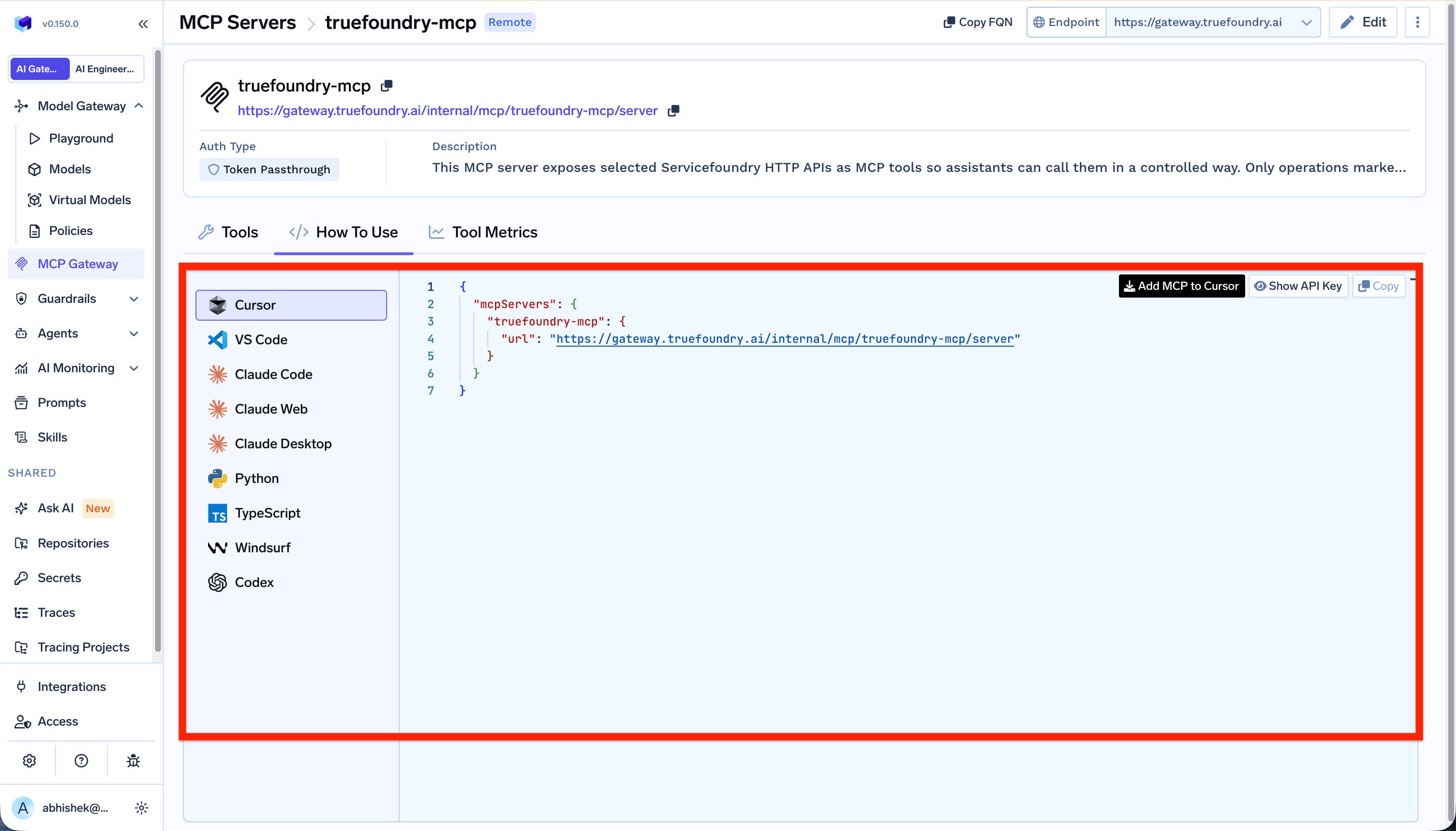 Follow the instructions shown for your IDE, or configure it manually below. You only need the Gateway URL — no token in the config.
Add the server to your `mcp.json`:
```json theme={"dark"}
{
"mcpServers": {
"github": {
"url": "https:////mcp/github/server"
}
}
}
```
After adding it, Cursor prompts you to install the server:
Follow the instructions shown for your IDE, or configure it manually below. You only need the Gateway URL — no token in the config.
Add the server to your `mcp.json`:
```json theme={"dark"}
{
"mcpServers": {
"github": {
"url": "https:////mcp/github/server"
}
}
}
```
After adding it, Cursor prompts you to install the server:
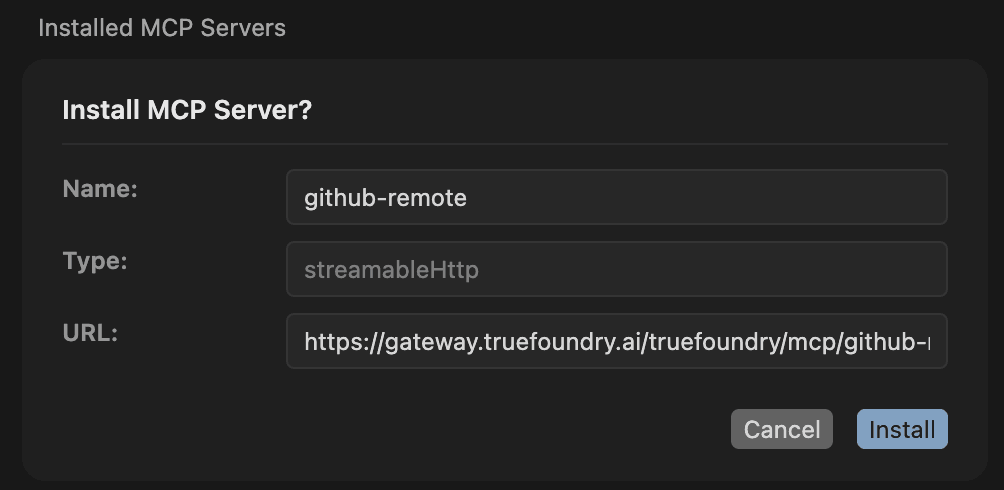 Once installed, the server shows as needing authentication until you sign in:
 Add the server with the Claude Code CLI:
```bash theme={"dark"}
claude mcp add --transport http github https:////mcp/github/server
```
Or add it to your project's `.mcp.json`:
```json theme={"dark"}
{
"mcpServers": {
"github": {
"type": "http",
"url": "https:////mcp/github/server"
}
}
}
```
For an enterprise, MDM-managed Claude Code setup that pre-seeds gateway-backed MCP servers across machines, see [Enterprise Security with MDM](/docs/ai-gateway/mcp/enterprise-security-claude#4-configure-mcp-server-access).
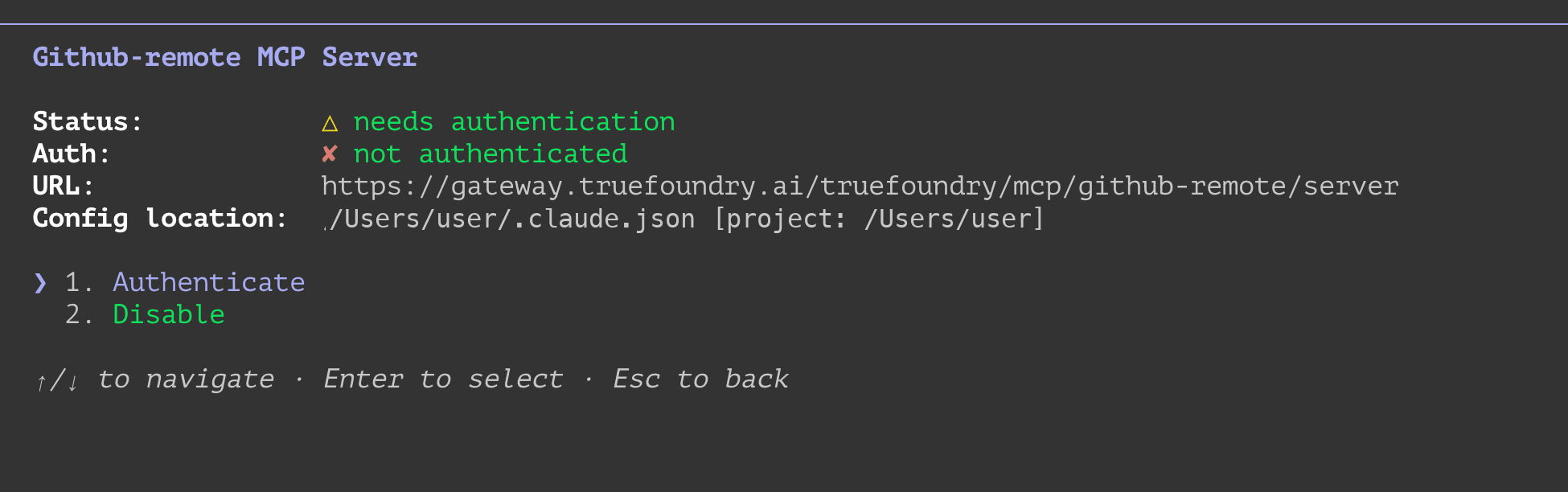
After adding it, Claude Code shows the server with a sign-in prompt:
Add the server with the Claude Code CLI:
```bash theme={"dark"}
claude mcp add --transport http github https:////mcp/github/server
```
Or add it to your project's `.mcp.json`:
```json theme={"dark"}
{
"mcpServers": {
"github": {
"type": "http",
"url": "https:////mcp/github/server"
}
}
}
```
For an enterprise, MDM-managed Claude Code setup that pre-seeds gateway-backed MCP servers across machines, see [Enterprise Security with MDM](/docs/ai-gateway/mcp/enterprise-security-claude#4-configure-mcp-server-access).
After adding it, Claude Code shows the server with a sign-in prompt:
 Add the Gateway URL to `.vscode/mcp.json` in your workspace:
```json theme={"dark"}
{
"servers": {
"github": {
"type": "http",
"url": "https:////mcp/github/server"
}
}
}
```
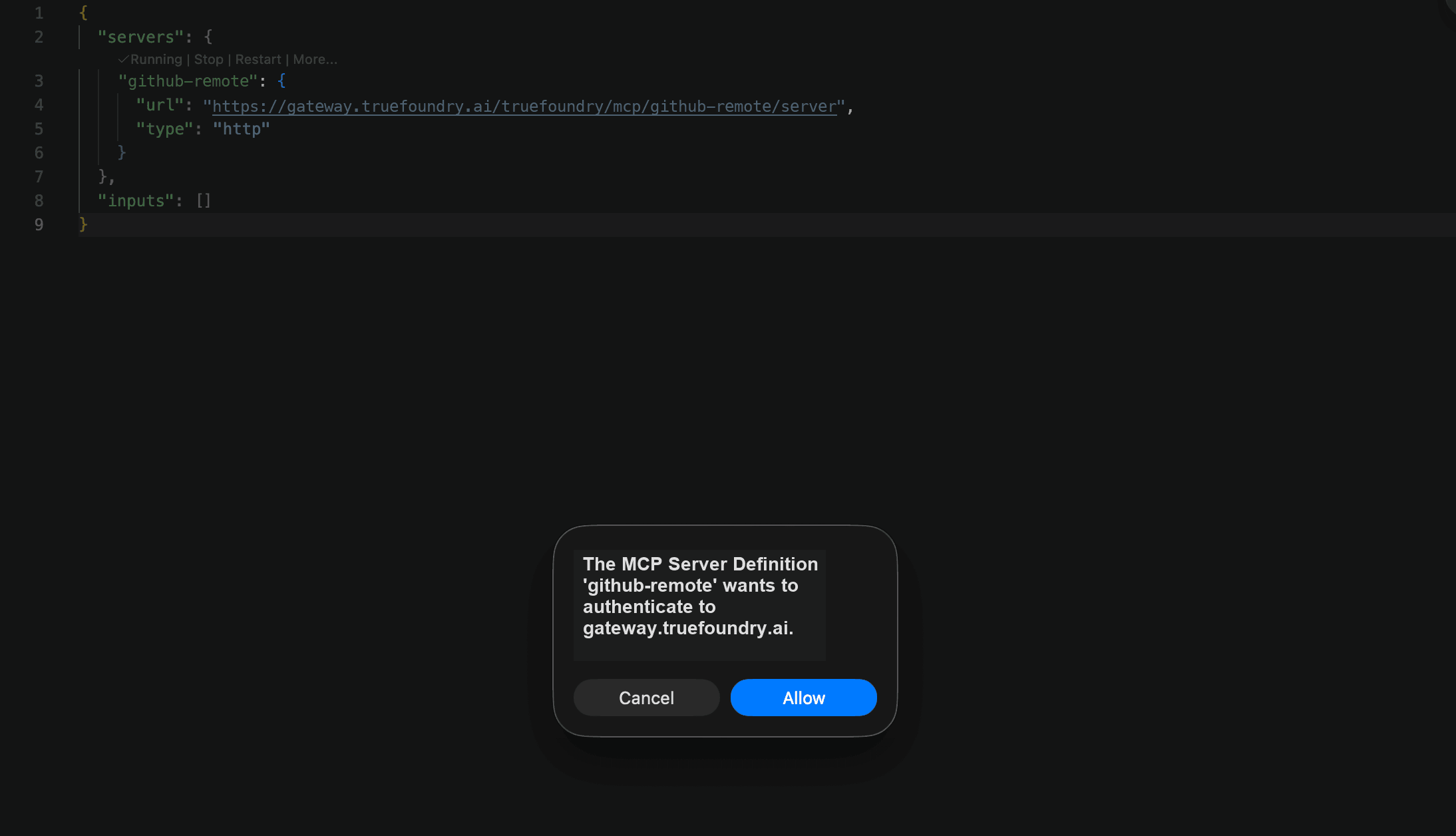
Once added, VS Code prompts you to authenticate to the Gateway:
Add the Gateway URL to `.vscode/mcp.json` in your workspace:
```json theme={"dark"}
{
"servers": {
"github": {
"type": "http",
"url": "https:////mcp/github/server"
}
}
}
```
Once added, VS Code prompts you to authenticate to the Gateway:
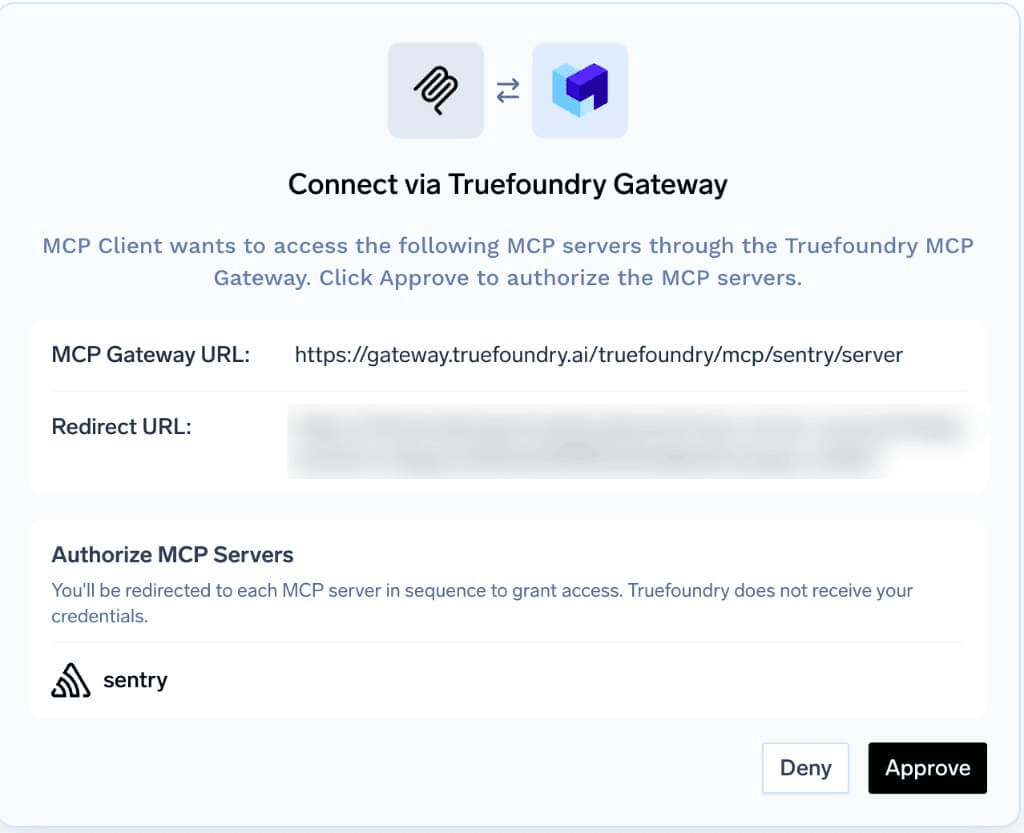
 The first time you use the server, your IDE opens the browser to TrueFoundry. Sign in (using SSO if your organization has it configured), then review what's requesting access — your IDE and the MCP Gateway URL it's connecting to — and click **Approve**.
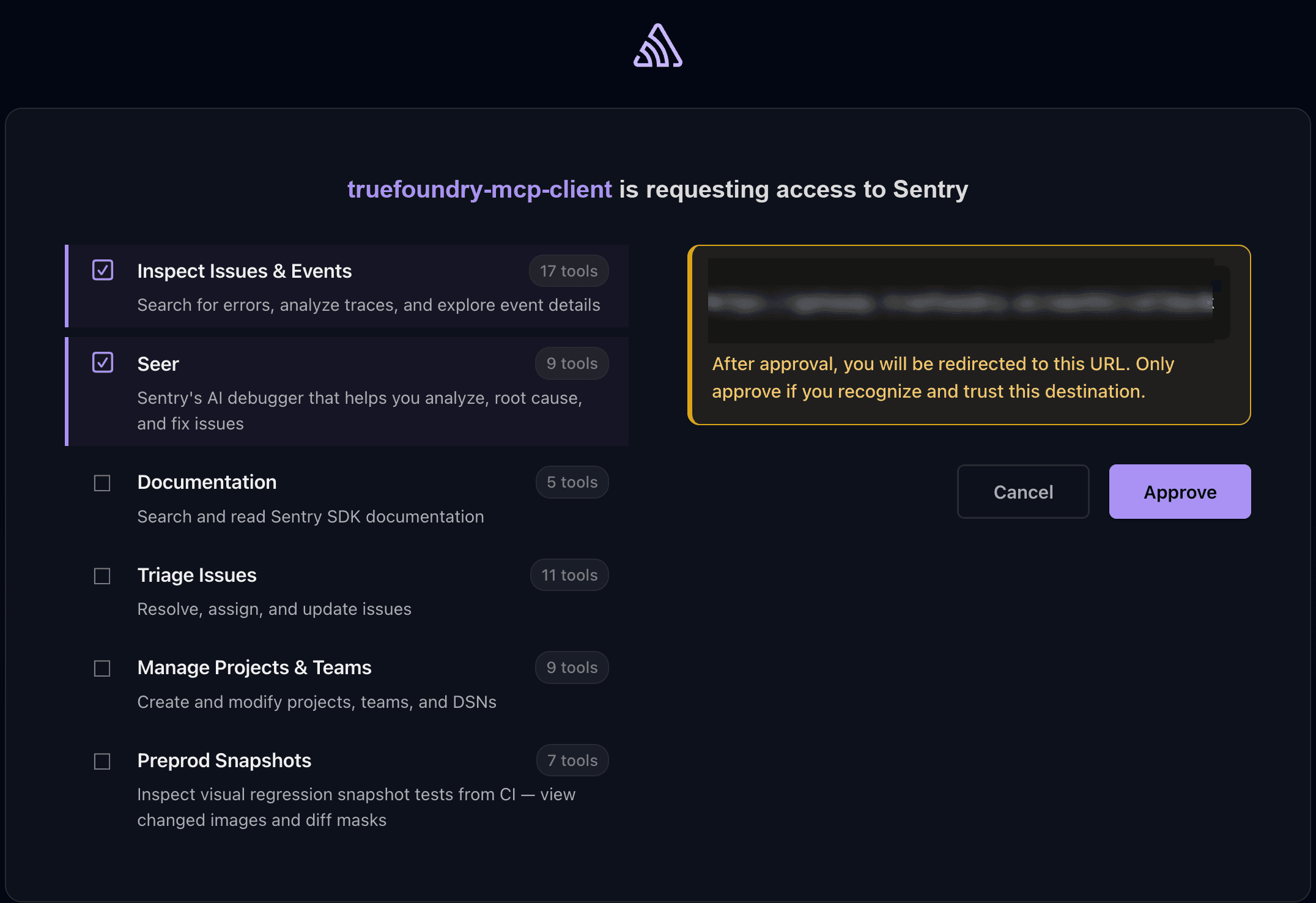
 After signing in with TrueFoundry, the Gateway checks how the MCP server authenticates with its upstream provider. What happens next depends on the [outbound authentication](/docs/ai-gateway/mcp/mcp-gateway-auth-security#outbound-authentication) method configured for the server:
| Outbound method | What happens |
| ------------------------------- | --------------------------------------------------------------------------------------------------------------------------------------------------------------------------------------------------------------------------------- |
| **Shared key** | Nothing — the admin has already configured a shared key for the server. You go straight to your IDE. |
| **Client credentials** | Nothing — the Gateway exchanges credentials with the provider automatically. |
| **Token passthrough** | Nothing — the Gateway forwards your TrueFoundry token to the provider. |
| **No auth** | Nothing — the provider does not require authentication. |
| **OAuth (per-user)** | The provider's authorization screen opens (for example, GitHub or Slack). Sign in with your own account and approve access. This is a one-time step — skipped on future connections if you have already authorized this provider. |
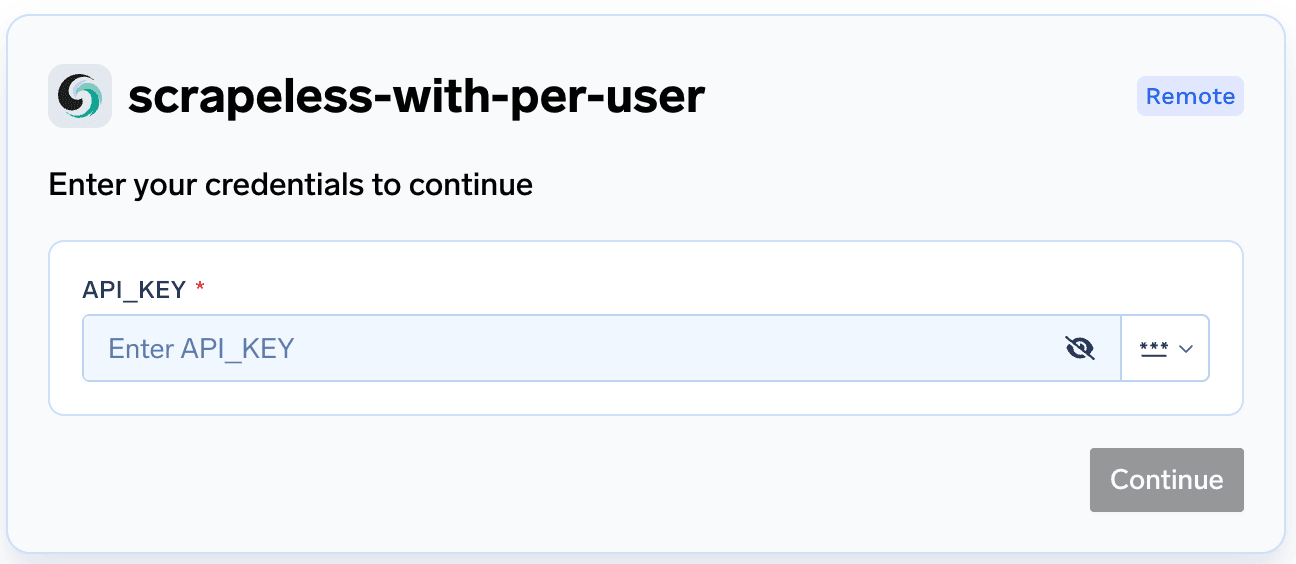
| **Your own API key (per-user)** | You are prompted to enter your upstream API key for the provider. This is also a one-time step. |
For **OAuth (per-user)**, the provider's authorization screen looks like this:
After signing in with TrueFoundry, the Gateway checks how the MCP server authenticates with its upstream provider. What happens next depends on the [outbound authentication](/docs/ai-gateway/mcp/mcp-gateway-auth-security#outbound-authentication) method configured for the server:
| Outbound method | What happens |
| ------------------------------- | --------------------------------------------------------------------------------------------------------------------------------------------------------------------------------------------------------------------------------- |
| **Shared key** | Nothing — the admin has already configured a shared key for the server. You go straight to your IDE. |
| **Client credentials** | Nothing — the Gateway exchanges credentials with the provider automatically. |
| **Token passthrough** | Nothing — the Gateway forwards your TrueFoundry token to the provider. |
| **No auth** | Nothing — the provider does not require authentication. |
| **OAuth (per-user)** | The provider's authorization screen opens (for example, GitHub or Slack). Sign in with your own account and approve access. This is a one-time step — skipped on future connections if you have already authorized this provider. |
| **Your own API key (per-user)** | You are prompted to enter your upstream API key for the provider. This is also a one-time step. |
For **OAuth (per-user)**, the provider's authorization screen looks like this:
 For **Your own API key (per-user)**, the prompt looks like this:
 A [virtual MCP server](/docs/ai-gateway/mcp/virtual-mcp-server) bundles tools from several servers, so you may see more than one authorization prompt — for example, an OAuth screen for one provider and an API key prompt for another.
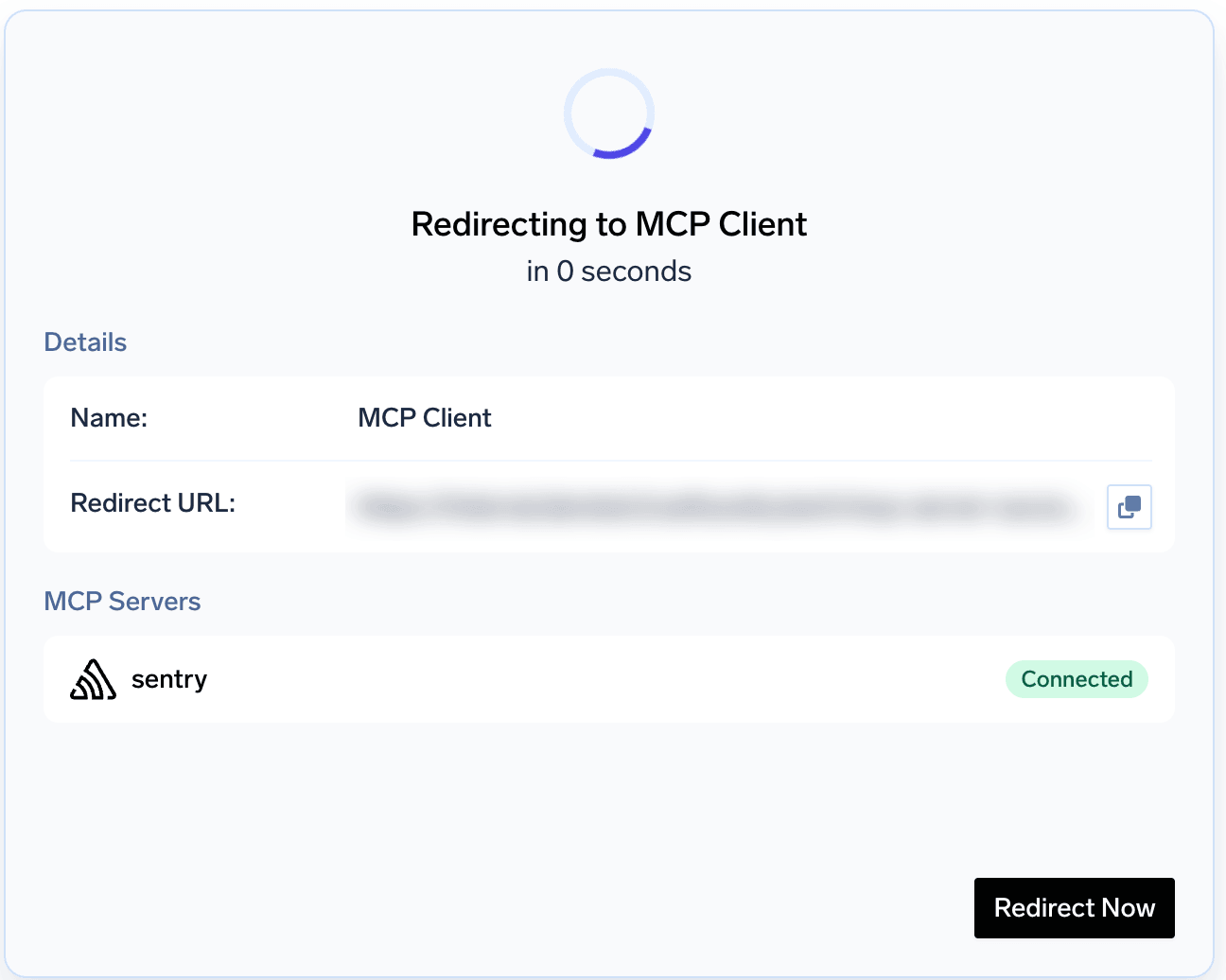
After you approve, the browser redirects automatically back to your IDE — there's no confirmation page to act on. You can close the browser tab.
A [virtual MCP server](/docs/ai-gateway/mcp/virtual-mcp-server) bundles tools from several servers, so you may see more than one authorization prompt — for example, an OAuth screen for one provider and an API key prompt for another.
After you approve, the browser redirects automatically back to your IDE — there's no confirmation page to act on. You can close the browser tab.
 Back in your IDE, the server now shows as connected and its tools are listed. You can use them from your agent.
## FAQ and troubleshooting
Yes. The Gateway needs to identify each user so it can track per-user metrics and apply access control and governance policies.
That said, users do not need to visit the TrueFoundry portal or create an account manually. The recommended setup:
1. **Configure SSO** in TrueFoundry with your identity provider (Okta, Azure AD, or your own IDP) — see [Identity Providers](/docs/platform/identity-providers).
2. **Grant access** to the group of developers or users who should be able to reach MCP servers.
When a user connects to an MCP server from their IDE for the first time and has never logged into TrueFoundry before, the flow is:
1. The IDE opens the browser to the TrueFoundry sign-in page.
2. The user signs in through SSO (Okta, Azure AD, etc.).
3. The user gives consent on the TrueFoundry approval screen.
4. TrueFoundry creates their account automatically on first sign-in.
5. The flow continues to the MCP provider's OAuth screen (if needed) and then redirects back to the IDE.
The user never needs to open the TrueFoundry portal directly — the entire onboarding happens inline during the first IDE connection.
Alternatively, you can set up [SCIM provisioning](/docs/platform/identity-providers) so that all users from your identity provider are automatically synced to TrueFoundry ahead of time.
Yes, but it is not recommended. With a static API key you lose the security benefit of keeping credentials off the developer machine — the key lives in an IDE config file or shell history, and anyone with access to that file can impersonate the user.
Use a TrueFoundry [API key](/docs/generating-truefoundry-api-keys) (PAT) only when:
* Your IDE or platform version does not support the browser-based OAuth flow.
* You are running a headless or CI environment where a browser sign-in is not possible.
| | Sign in with TrueFoundry | API key in headers |
| -------------------------------- | --------------------------- | ---------------------------------------------- |
| Credentials on developer machine | None | API key stored in config file or shell history |
| Token lifetime | Short-lived, auto-refreshed | Long-lived, manually rotated |
| Setup | Add the Gateway URL only | Add the Gateway URL + `Authorization` header |
If you still need to use an API key, add an `Authorization` header with the key to your IDE config. Pick your IDE below for the exact format.
Treat the API key like a password. Do not commit MCP configuration files that contain a real token to version control.
```json theme={"dark"}
{
"mcpServers": {
"github": {
"url": "https:////mcp/github/server",
"headers": {
"Authorization": "Bearer "
}
}
}
}
```
With the CLI:
```bash theme={"dark"}
claude mcp add --transport http github https:////mcp/github/server \
--header "Authorization: Bearer "
```
Or in `.mcp.json`:
```json theme={"dark"}
{
"mcpServers": {
"github": {
"type": "http",
"url": "https:////mcp/github/server",
"headers": {
"Authorization": "Bearer "
}
}
}
}
```
Use a `promptString` input so the token is not hardcoded in the file:
```json theme={"dark"}
{
"inputs": [
{
"type": "promptString",
"id": "tfy-api-key",
"description": "TrueFoundry API key",
"password": true
}
],
"servers": {
"github": {
"type": "http",
"url": "https:////mcp/github/server",
"headers": {
"Authorization": "Bearer ${input:tfy-api-key}"
}
}
}
}
```
If the MCP server uses the "your own API key" outbound method, you can pre-supply the key through [Auth Overrides](/docs/ai-gateway/mcp/mcp-server-auth-overrides) in TrueFoundry instead of entering it when your IDE prompts you. This is useful when you manage keys centrally or want to avoid the interactive prompt.
Some MCP servers require specific headers — for example, a custom auth token or metadata that differs from your Gateway authentication. You can pass these using the `x-tfy-mcp-headers` header in your IDE configuration.
Set `x-tfy-mcp-headers` to a JSON string where the key is the MCP server name and the value is an object of headers to forward:
```json theme={"dark"}
{
"server-name": {
"Authorization": "Bearer ",
"X-Custom-Header": "value"
}
}
```
In your IDE config, add this as a header alongside the Gateway URL:
```json theme={"dark"}
{
"mcpServers": {
"github": {
"url": "https:////mcp/github/server",
"headers": {
"x-tfy-mcp-headers": "{\"github\":{\"Authorization\":\"Bearer \"}}"
}
}
}
}
```
```bash theme={"dark"}
claude mcp add --transport http github https:////mcp/github/server \
--header "x-tfy-mcp-headers: {\"github\":{\"Authorization\":\"Bearer \"}}"
```
```json theme={"dark"}
{
"inputs": [
{
"type": "promptString",
"id": "mcp-server-token",
"description": "Token for the MCP server",
"password": true
}
],
"servers": {
"github": {
"type": "http",
"url": "https:////mcp/github/server",
"headers": {
"x-tfy-mcp-headers": "{\"github\":{\"Authorization\":\"Bearer ${input:mcp-server-token}\"}}"
}
}
}
}
```
The Gateway validates your inbound authentication as usual and then forwards the custom headers to the MCP server. These headers override any default outbound authentication configured for the server.
For more details, see [Token Forwarding](/docs/ai-gateway/mcp/mcp-gateway-auth-security#outbound-authentication) and the [x-tfy-mcp-headers reference](/docs/ai-gateway/mcp/mcp-gateway-auth-security#overriding-auth-with-x-tfy-mcp-headers).
TrueFoundry sessions expire periodically. When that happens, your IDE opens the browser again for you to sign in. If the server uses a third-party provider (GitHub, Slack, etc.), you may also need to re-authorize that provider. If the problem persists, check that you still have access to the server under its **Collaborators** tab in TrueFoundry.
Back in your IDE, the server now shows as connected and its tools are listed. You can use them from your agent.
## FAQ and troubleshooting
Yes. The Gateway needs to identify each user so it can track per-user metrics and apply access control and governance policies.
That said, users do not need to visit the TrueFoundry portal or create an account manually. The recommended setup:
1. **Configure SSO** in TrueFoundry with your identity provider (Okta, Azure AD, or your own IDP) — see [Identity Providers](/docs/platform/identity-providers).
2. **Grant access** to the group of developers or users who should be able to reach MCP servers.
When a user connects to an MCP server from their IDE for the first time and has never logged into TrueFoundry before, the flow is:
1. The IDE opens the browser to the TrueFoundry sign-in page.
2. The user signs in through SSO (Okta, Azure AD, etc.).
3. The user gives consent on the TrueFoundry approval screen.
4. TrueFoundry creates their account automatically on first sign-in.
5. The flow continues to the MCP provider's OAuth screen (if needed) and then redirects back to the IDE.
The user never needs to open the TrueFoundry portal directly — the entire onboarding happens inline during the first IDE connection.
Alternatively, you can set up [SCIM provisioning](/docs/platform/identity-providers) so that all users from your identity provider are automatically synced to TrueFoundry ahead of time.
Yes, but it is not recommended. With a static API key you lose the security benefit of keeping credentials off the developer machine — the key lives in an IDE config file or shell history, and anyone with access to that file can impersonate the user.
Use a TrueFoundry [API key](/docs/generating-truefoundry-api-keys) (PAT) only when:
* Your IDE or platform version does not support the browser-based OAuth flow.
* You are running a headless or CI environment where a browser sign-in is not possible.
| | Sign in with TrueFoundry | API key in headers |
| -------------------------------- | --------------------------- | ---------------------------------------------- |
| Credentials on developer machine | None | API key stored in config file or shell history |
| Token lifetime | Short-lived, auto-refreshed | Long-lived, manually rotated |
| Setup | Add the Gateway URL only | Add the Gateway URL + `Authorization` header |
If you still need to use an API key, add an `Authorization` header with the key to your IDE config. Pick your IDE below for the exact format.
Treat the API key like a password. Do not commit MCP configuration files that contain a real token to version control.
```json theme={"dark"}
{
"mcpServers": {
"github": {
"url": "https:////mcp/github/server",
"headers": {
"Authorization": "Bearer "
}
}
}
}
```
With the CLI:
```bash theme={"dark"}
claude mcp add --transport http github https:////mcp/github/server \
--header "Authorization: Bearer "
```
Or in `.mcp.json`:
```json theme={"dark"}
{
"mcpServers": {
"github": {
"type": "http",
"url": "https:////mcp/github/server",
"headers": {
"Authorization": "Bearer "
}
}
}
}
```
Use a `promptString` input so the token is not hardcoded in the file:
```json theme={"dark"}
{
"inputs": [
{
"type": "promptString",
"id": "tfy-api-key",
"description": "TrueFoundry API key",
"password": true
}
],
"servers": {
"github": {
"type": "http",
"url": "https:////mcp/github/server",
"headers": {
"Authorization": "Bearer ${input:tfy-api-key}"
}
}
}
}
```
If the MCP server uses the "your own API key" outbound method, you can pre-supply the key through [Auth Overrides](/docs/ai-gateway/mcp/mcp-server-auth-overrides) in TrueFoundry instead of entering it when your IDE prompts you. This is useful when you manage keys centrally or want to avoid the interactive prompt.
Some MCP servers require specific headers — for example, a custom auth token or metadata that differs from your Gateway authentication. You can pass these using the `x-tfy-mcp-headers` header in your IDE configuration.
Set `x-tfy-mcp-headers` to a JSON string where the key is the MCP server name and the value is an object of headers to forward:
```json theme={"dark"}
{
"server-name": {
"Authorization": "Bearer ",
"X-Custom-Header": "value"
}
}
```
In your IDE config, add this as a header alongside the Gateway URL:
```json theme={"dark"}
{
"mcpServers": {
"github": {
"url": "https:////mcp/github/server",
"headers": {
"x-tfy-mcp-headers": "{\"github\":{\"Authorization\":\"Bearer \"}}"
}
}
}
}
```
```bash theme={"dark"}
claude mcp add --transport http github https:////mcp/github/server \
--header "x-tfy-mcp-headers: {\"github\":{\"Authorization\":\"Bearer \"}}"
```
```json theme={"dark"}
{
"inputs": [
{
"type": "promptString",
"id": "mcp-server-token",
"description": "Token for the MCP server",
"password": true
}
],
"servers": {
"github": {
"type": "http",
"url": "https:////mcp/github/server",
"headers": {
"x-tfy-mcp-headers": "{\"github\":{\"Authorization\":\"Bearer ${input:mcp-server-token}\"}}"
}
}
}
}
```
The Gateway validates your inbound authentication as usual and then forwards the custom headers to the MCP server. These headers override any default outbound authentication configured for the server.
For more details, see [Token Forwarding](/docs/ai-gateway/mcp/mcp-gateway-auth-security#outbound-authentication) and the [x-tfy-mcp-headers reference](/docs/ai-gateway/mcp/mcp-gateway-auth-security#overriding-auth-with-x-tfy-mcp-headers).
TrueFoundry sessions expire periodically. When that happens, your IDE opens the browser again for you to sign in. If the server uses a third-party provider (GitHub, Slack, etc.), you may also need to re-authorize that provider. If the problem persists, check that you still have access to the server under its **Collaborators** tab in TrueFoundry.