> ## Documentation Index
> Fetch the complete documentation index at: https://www.truefoundry.com/llms.txt
> Use this file to discover all available pages before exploring further.
# Last9
> Learn how to export LLM Gateway traces to Last9 using OpenTelemetry integration.
This guide provides instructions for integrating [Last9](https://last9.io/) with the TrueFoundry AI Gateway to export OpenTelemetry traces.
## What is Last9?
Last9 is a modern observability platform that provides high-performance telemetry data management for logs, metrics, and traces. It offers advanced capabilities for monitoring distributed systems at scale with cost-effective data handling.
### Key Features of Last9
* **High-Cardinality Handling**: Process and analyze high-cardinality data without performance degradation or excessive costs
* **Unified Telemetry**: Correlate logs, metrics, and traces in a single platform for comprehensive observability
* **OpenTelemetry Native**: Built with native OpenTelemetry support for seamless integration with modern observability stacks
## Prerequisites
Before integrating Last9 with TrueFoundry, ensure you have:
1. **TrueFoundry Account**: Create a [TrueFoundry account](https://www.truefoundry.com/register) and follow the instructions in our [Gateway Quick Start Guide](https://docs.truefoundry.com/docs/ai-gateway/quick-start)
2. **Last9 Account**: Sign up for a [Last9 account](https://app.last9.io/)
## Integration Guide
TrueFoundry AI Gateway supports exporting OpenTelemetry (OTEL) traces to external platforms like Last9. This allows you to leverage Last9's powerful tracing and observability features while using TrueFoundry for unified LLM access.
### Step 1: Get Last9 Auth Token
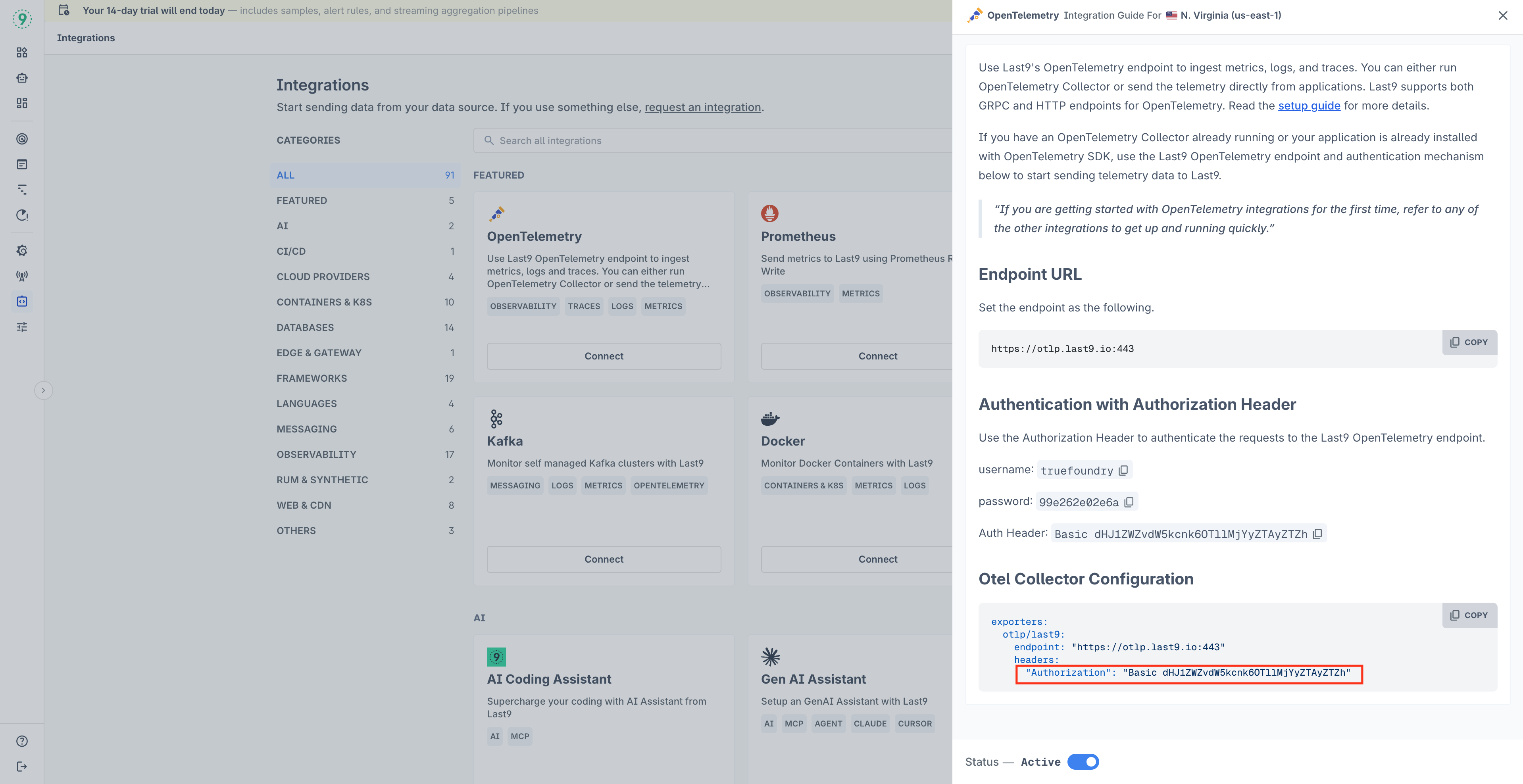
1. Log in to your [Last9 dashboard](https://app.last9.io/)
2. Navigate to **Integrations** in the left sidebar
3. Click **Connect** on the **OpenTelemetry** integration card
4. In the integration guide panel, locate the **Authentication with Authorization Header** section
5. Copy the **Auth Header** value (e.g., `Basic dHJ1ZWZvdW5kcnk6...`)
 ### Step 2: Configure OTEL Export in TrueFoundry
Navigate to the TrueFoundry AI Gateway OTEL configuration:
1. Go to **AI Gateway** → **Controls** → **Settings** in the TrueFoundry dashboard
2. Scroll down to the **OTEL Config** section and click the edit button
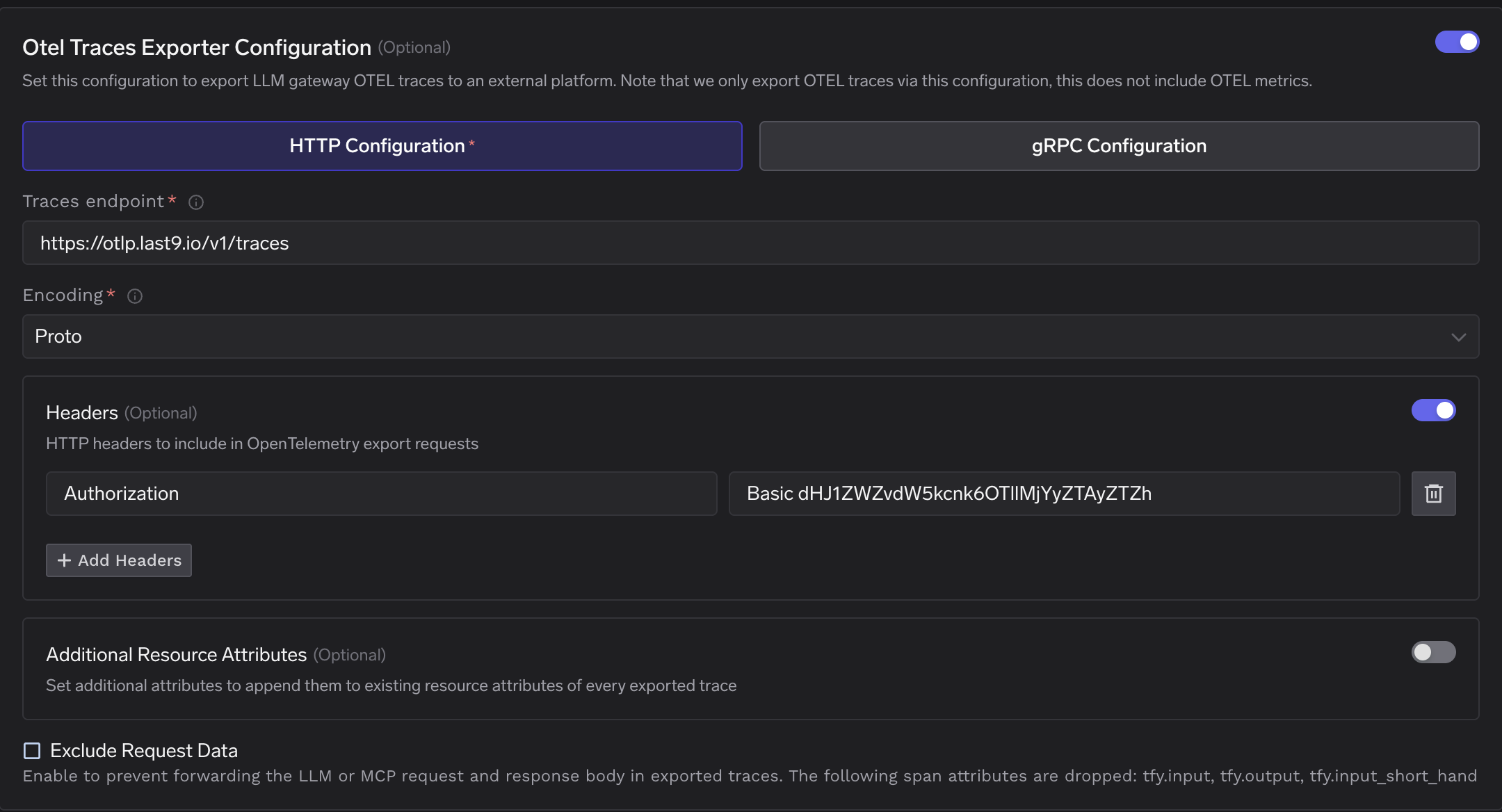
3. Enable the **OTEL Traces Exporter Configuration** toggle
4. Select **HTTP Configuration** tab
### Step 2: Configure OTEL Export in TrueFoundry
Navigate to the TrueFoundry AI Gateway OTEL configuration:
1. Go to **AI Gateway** → **Controls** → **Settings** in the TrueFoundry dashboard
2. Scroll down to the **OTEL Config** section and click the edit button
3. Enable the **OTEL Traces Exporter Configuration** toggle
4. Select **HTTP Configuration** tab
 ### Step 3: Configure Last9 Endpoint
Fill in the following configuration:
| Field | Value |
| ------------------- | --------------------------------- |
| **Traces endpoint** | `https://otlp.last9.io/v1/traces` |
| **Encoding** | `Proto` |
### Step 4: Add Required Headers
Click **+ Add Headers** and configure the following HTTP header:
| Header | Value |
| --------------- | ---------------------------------------------- |
| `Authorization` | Paste the Auth Header value copied from Step 1 |
The Auth Header value from Last9 is already formatted correctly (e.g., `Basic dHJ1ZWZvdW5kcnk6...`). Simply copy and paste it directly.
### Step 5: Save Configuration
Click **Save** to apply the OTEL export configuration. All LLM traces from the TrueFoundry AI Gateway will now be automatically exported to Last9.
### Step 6: View Traces in Last9
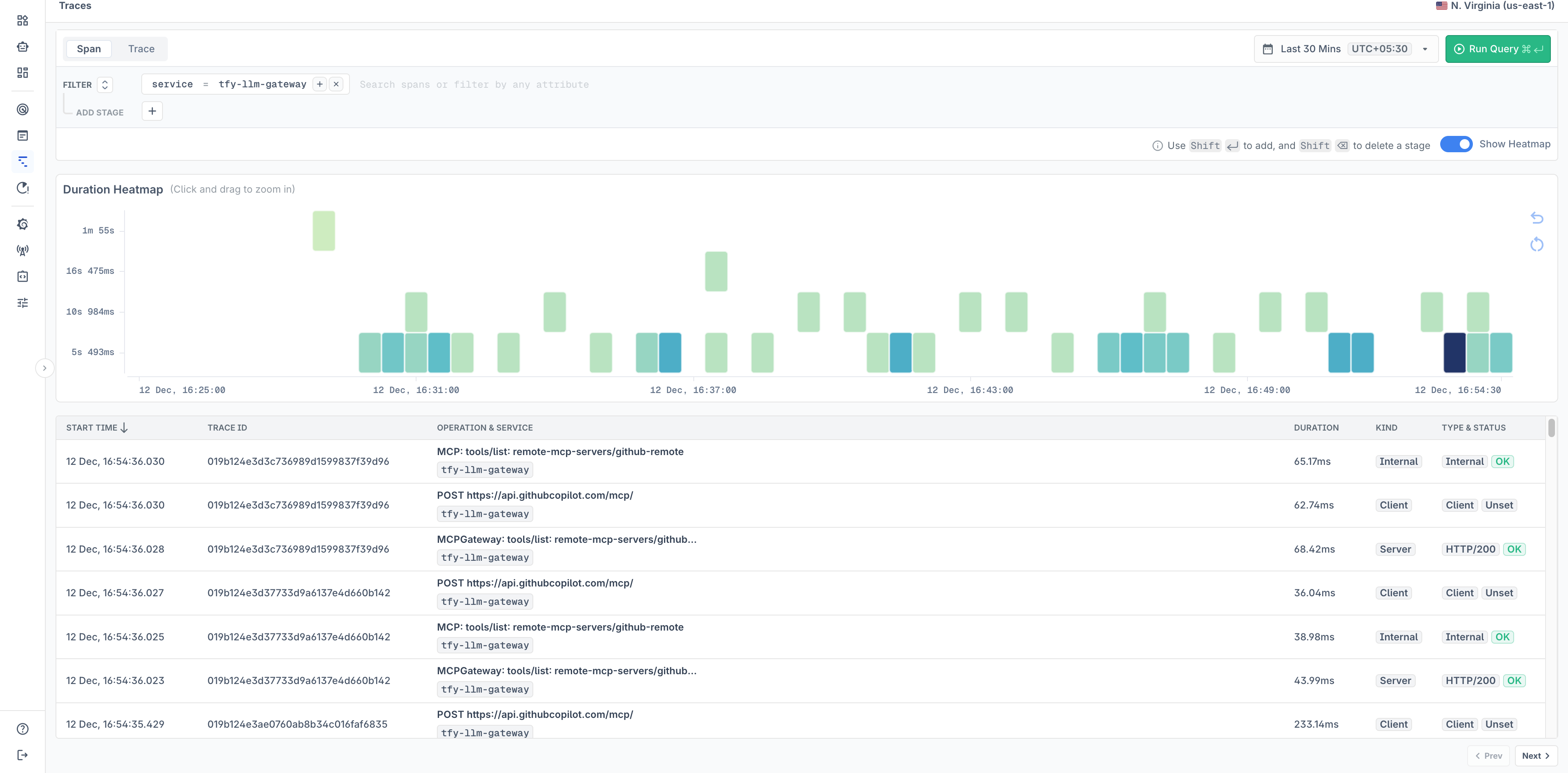
After making LLM requests through TrueFoundry AI Gateway, log in to your Last9 dashboard to view the traces:
1. Navigate to the **Traces** section in Last9
2. Filter by service name `tfy-llm-gateway` to view your LLM Gateway traces
3. Explore the traces including:
* **Duration Heatmap**: Visual representation of trace latencies over time
* **Trace Details**: Individual trace information with operation names, duration, and status
* **Span Information**: Detailed span data including HTTP calls, MCP operations, and LLM requests
### Step 3: Configure Last9 Endpoint
Fill in the following configuration:
| Field | Value |
| ------------------- | --------------------------------- |
| **Traces endpoint** | `https://otlp.last9.io/v1/traces` |
| **Encoding** | `Proto` |
### Step 4: Add Required Headers
Click **+ Add Headers** and configure the following HTTP header:
| Header | Value |
| --------------- | ---------------------------------------------- |
| `Authorization` | Paste the Auth Header value copied from Step 1 |
The Auth Header value from Last9 is already formatted correctly (e.g., `Basic dHJ1ZWZvdW5kcnk6...`). Simply copy and paste it directly.
### Step 5: Save Configuration
Click **Save** to apply the OTEL export configuration. All LLM traces from the TrueFoundry AI Gateway will now be automatically exported to Last9.
### Step 6: View Traces in Last9
After making LLM requests through TrueFoundry AI Gateway, log in to your Last9 dashboard to view the traces:
1. Navigate to the **Traces** section in Last9
2. Filter by service name `tfy-llm-gateway` to view your LLM Gateway traces
3. Explore the traces including:
* **Duration Heatmap**: Visual representation of trace latencies over time
* **Trace Details**: Individual trace information with operation names, duration, and status
* **Span Information**: Detailed span data including HTTP calls, MCP operations, and LLM requests
 ## Configuration Options
### Additional Resource Attributes
You can optionally configure **Additional Resource Attributes** to append custom attributes to every exported trace. This is useful for adding environment-specific metadata or organizational tags.
## Configuration Options
### Additional Resource Attributes
You can optionally configure **Additional Resource Attributes** to append custom attributes to every exported trace. This is useful for adding environment-specific metadata or organizational tags.