> ## Documentation Index
> Fetch the complete documentation index at: https://www.truefoundry.com/llms.txt
> Use this file to discover all available pages before exploring further.
# LangSmith
> Learn how to export LLM Gateway traces to LangSmith using OpenTelemetry integration.
This guide provides instructions for integrating [LangSmith](https://smith.langchain.com/) with the TrueFoundry AI Gateway to export OpenTelemetry traces.
## What is LangSmith?
LangSmith is LangChain's observability and evaluation platform for LLM applications. It provides comprehensive tracing, debugging, and monitoring capabilities to help teams build reliable AI applications.
### Key Features of LangSmith
* **[LLM Tracing](https://docs.smith.langchain.com/observability)**: Capture detailed traces of all LLM interactions including inputs, outputs, latency, and token usage with automatic instrumentation
* **[Evaluation & Testing](https://docs.smith.langchain.com/evaluation)**: Run evaluations on your LLM outputs with custom evaluators, datasets, and automated testing pipelines
* **[Prompt Hub](https://docs.smith.langchain.com/prompt_engineering)**: Version control and manage prompts with collaboration features and A/B testing capabilities
## Prerequisites
Before integrating LangSmith with TrueFoundry, ensure you have:
1. **TrueFoundry Account**: Create a [Truefoundry account](https://www.truefoundry.com/register) and follow the instructions in our [Gateway Quick Start Guide](https://docs.truefoundry.com/gateway/quick-start)
2. **LangSmith Account**: Sign up for a [LangSmith account](https://smith.langchain.com/)
3. **LangSmith API Key**: Generate a workspace-scoped API key from your LangSmith settings (covered below)
## Understanding the LangSmith Hierarchy
LangSmith organizes resources in three levels. Knowing where your API key is scoped and where your traces will land helps avoid empty dashboards:
```
Organization ← Top level (your LangSmith org)
└── Workspace ← Mid level (e.g. "Personal", "Production")
└── Project ← Where traces actually land (e.g. "default", "truefoundry")
```
* Every LangSmith account comes with a default workspace called **Personal**, so you usually do not need to create a new one.
* Traces sent through the OTEL endpoint land in the workspace your API key is scoped to, and in the **`default`** project unless you override it with a header (see [Route Traces to a Specific Project](#route-traces-to-a-specific-project)).
* You can find your workspace ID in the URL bar after `/o/`, or under **Settings → Workspaces**.
## Integration Steps
TrueFoundry AI Gateway supports exporting OpenTelemetry traces to LangSmith, allowing you to monitor and analyze your LLM requests in LangSmith's observability platform.
1. Log into your [LangSmith dashboard](https://smith.langchain.com/).
2. Navigate to **Settings** → **API Keys** and click **Create API Key**.
3. Fill in the dialog as follows:
* **Description**: any recognizable name, for example `tfy-api-key`.
* **Key Type**: select **Service Key** (tied to a service principal, recommended for automation and CI workflows).
* **Scope for Service Key**: choose **Specific Workspaces**, then pick the workspace you want traces to land in (e.g. **Personal**).
* **Expiration Date**: pick a duration that matches your security policy (`Never`, `30d`, `90d`, `1 year`, or `Custom`).
4. Click **Create API Key** and copy the generated key — you will not be able to view it again.
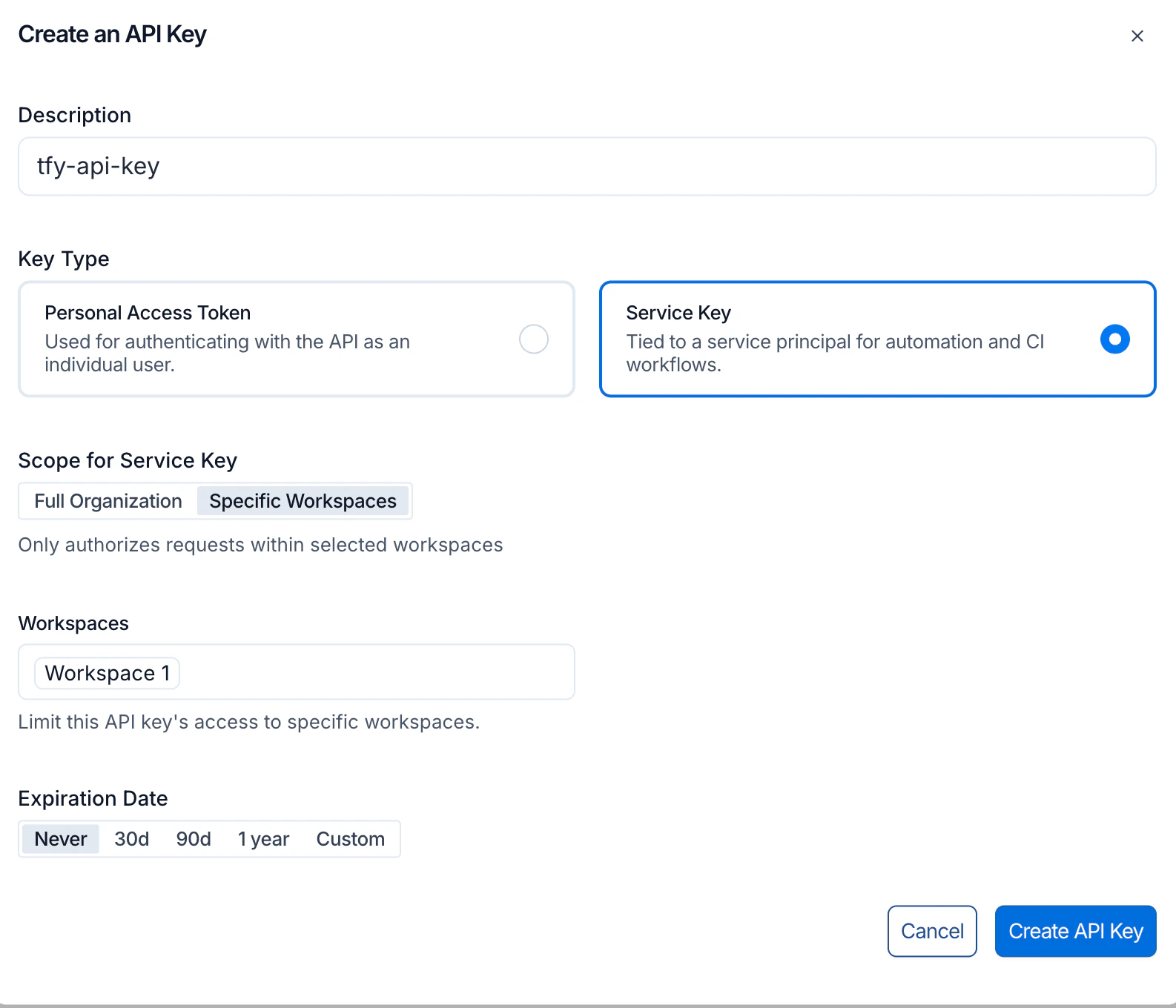 You do not need to type the workspace ID anywhere — selecting **Specific Workspaces** automatically scopes the key to the chosen workspace.
1. Go to **AI Gateway** → **Controls** → **Settings** in the TrueFoundry dashboard.
2. Scroll down to the **OTEL Config** section and click the edit button.
3. Enable the **OTEL Traces Exporter Configuration** toggle.
4. Select **HTTP Configuration**.
5. Enter the LangSmith traces endpoint: `https://api.smith.langchain.com/otel/v1/traces`
6. Set **Encoding** to `Proto`.
You do not need to type the workspace ID anywhere — selecting **Specific Workspaces** automatically scopes the key to the chosen workspace.
1. Go to **AI Gateway** → **Controls** → **Settings** in the TrueFoundry dashboard.
2. Scroll down to the **OTEL Config** section and click the edit button.
3. Enable the **OTEL Traces Exporter Configuration** toggle.
4. Select **HTTP Configuration**.
5. Enter the LangSmith traces endpoint: `https://api.smith.langchain.com/otel/v1/traces`
6. Set **Encoding** to `Proto`.
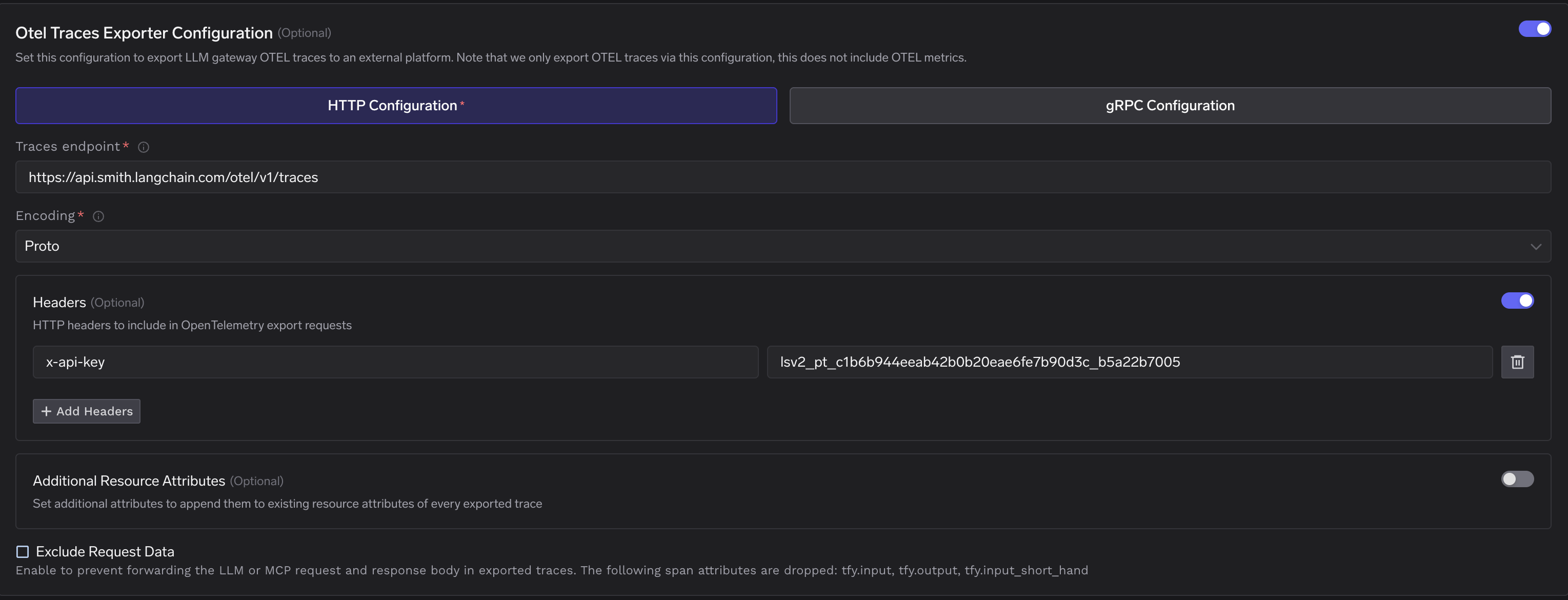 Add the required header for LangSmith authentication:
| Header | Value |
| ----------- | --------------------------------------------------- |
| `x-api-key` | Your workspace-scoped LangSmith API key from Step 1 |
Click **Save** to apply your configuration.
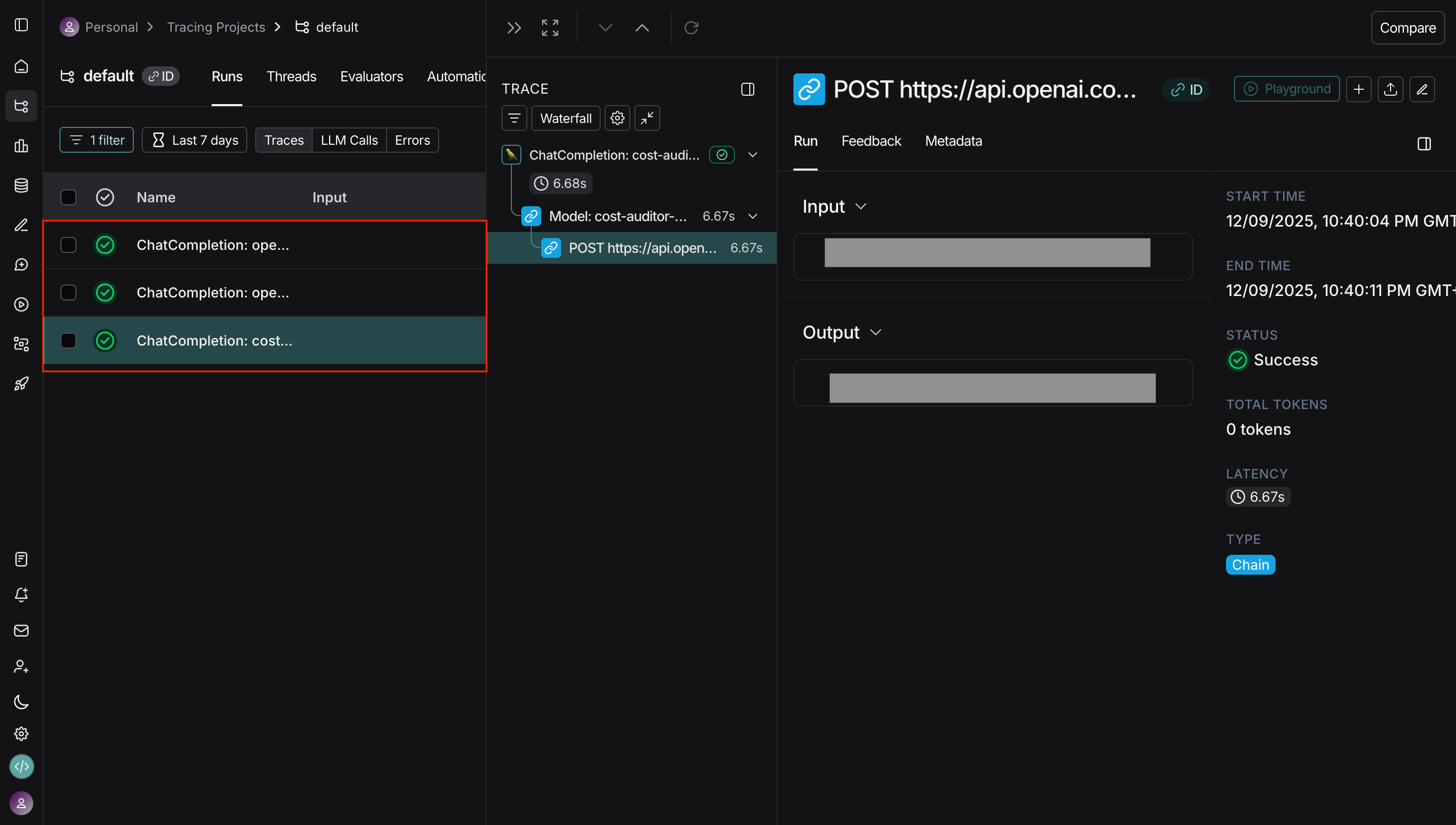
1. Make some requests through the TrueFoundry AI Gateway.
2. Navigate to the **Monitor** section in TrueFoundry to verify traces are being generated.
3. Log into your LangSmith dashboard and open the workspace you scoped the key to.
4. Open the **Projects** section and confirm traces from TrueFoundry are appearing — by default they will land in the **`default`** project.
Add the required header for LangSmith authentication:
| Header | Value |
| ----------- | --------------------------------------------------- |
| `x-api-key` | Your workspace-scoped LangSmith API key from Step 1 |
Click **Save** to apply your configuration.
1. Make some requests through the TrueFoundry AI Gateway.
2. Navigate to the **Monitor** section in TrueFoundry to verify traces are being generated.
3. Log into your LangSmith dashboard and open the workspace you scoped the key to.
4. Open the **Projects** section and confirm traces from TrueFoundry are appearing — by default they will land in the **`default`** project.
 ## Route Traces to a Specific Project
By default, traces land in the **`default`** project of the workspace your API key is scoped to. To send traces to a different project (for example, an existing `truefoundry` project), add a second header alongside `x-api-key` in the TrueFoundry OTEL config:
| Header | Value |
| ------------------- | -------------------------------------------- |
| `x-api-key` | Your workspace-scoped LangSmith API key |
| `Langsmith-Project` | The target project name (e.g. `truefoundry`) |
If the project name does not exist yet in the selected workspace, LangSmith will create it on the first ingested trace.
## Configuration Options
### LangSmith Endpoint
LangSmith uses a single endpoint for OTEL trace ingestion:
| Configuration | Value |
| ------------------- | ------------------------------------------------ |
| **Traces Endpoint** | `https://api.smith.langchain.com/otel/v1/traces` |
| **Protocol** | HTTP |
| **Encoding** | Proto / JSON |
## Route Traces to a Specific Project
By default, traces land in the **`default`** project of the workspace your API key is scoped to. To send traces to a different project (for example, an existing `truefoundry` project), add a second header alongside `x-api-key` in the TrueFoundry OTEL config:
| Header | Value |
| ------------------- | -------------------------------------------- |
| `x-api-key` | Your workspace-scoped LangSmith API key |
| `Langsmith-Project` | The target project name (e.g. `truefoundry`) |
If the project name does not exist yet in the selected workspace, LangSmith will create it on the first ingested trace.
## Configuration Options
### LangSmith Endpoint
LangSmith uses a single endpoint for OTEL trace ingestion:
| Configuration | Value |
| ------------------- | ------------------------------------------------ |
| **Traces Endpoint** | `https://api.smith.langchain.com/otel/v1/traces` |
| **Protocol** | HTTP |
| **Encoding** | Proto / JSON |