> ## Documentation Index
> Fetch the complete documentation index at: https://www.truefoundry.com/llms.txt
> Use this file to discover all available pages before exploring further.
# Google Vertex
> Add and configure Google Vertex AI models including Gemini, Anthropic, and Mistral in TrueFoundry's AI Gateway
### Adding Models
This section explains the steps to add Google Vertex AI models and configure the required access controls.
From the TrueFoundry dashboard, navigate to `AI Gateway` > `Models` and select `Google Vertex`.
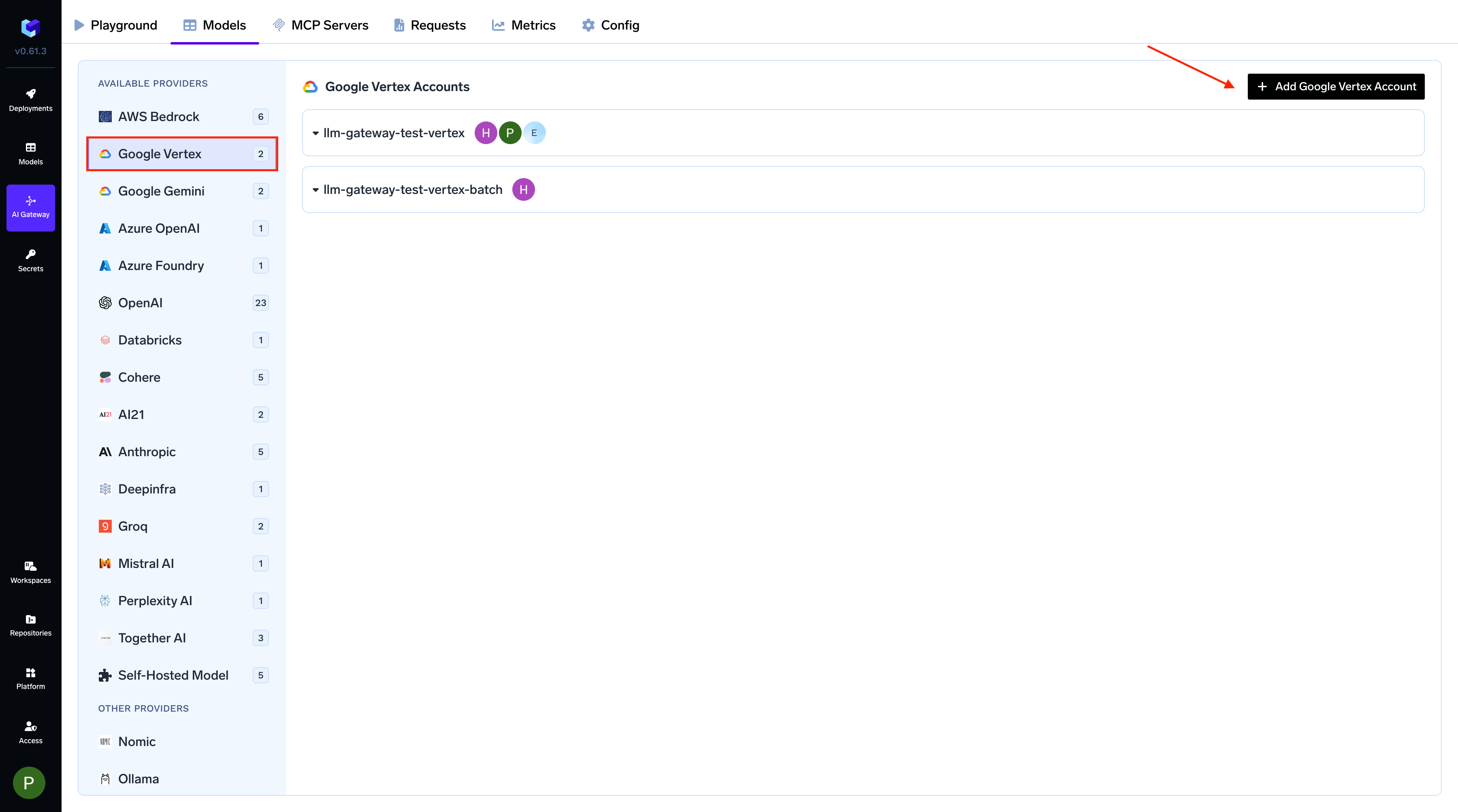 Give a unique name to your Google Vertex account. This will be used to refer to the models later. Add collaborators to your account, this will give access to the account to other users/teams. Learn more about access control [**here**](https://docs.truefoundry.com/gateway/gateway-access-control).
**Required IAM Role**
The Google Cloud identity used by the gateway (a service account, whether referenced by a key, by GKE Workload Identity, or by Workload Identity Federation) must have the `Agent Platform User` role (`roles/aiplatform.user`, formerly `Vertex AI User`), which includes the `aiplatform.endpoints.predict` permission required by the gateway.
**Step 1 — Create a service account and grant it Vertex AI access**
No matter which authentication method you choose below, the gateway ultimately authenticates as a Google Cloud IAM service account. Create that service account once and grant it Vertex AI access. (For the reusable, provider-agnostic version of these steps — including an AWS IAM ARN variant — see [Create a custom service account](/docs/integration-provider-gcp#create-a-custom-serviceaccount).)
```bash theme={"dark"}
export GCP_PROJECT_ID=
export GSA_NAME= # e.g. tfy-vertex-gateway
export GSA_EMAIL=$GSA_NAME@$GCP_PROJECT_ID.iam.gserviceaccount.com
# 1a. Create the IAM service account (the `tfy` prefix helps tell it apart from others).
gcloud iam service-accounts create $GSA_NAME \
--project="$GCP_PROJECT_ID" \
--display-name="$GSA_NAME"
# 1b. Grant the Vertex AI User role on the project. This includes the
# aiplatform.endpoints.predict permission the gateway needs for inference.
gcloud projects add-iam-policy-binding $GCP_PROJECT_ID \
--member="serviceAccount:$GSA_EMAIL" \
--role="roles/aiplatform.user"
```
`roles/aiplatform.user` (the `Agent Platform User` role, formerly `Vertex AI User`) is the simplest grant. If your organization requires least privilege, create a [custom IAM role](https://cloud.google.com/iam/docs/creating-custom-roles#creating) containing only the `aiplatform.endpoints.predict` permission and bind it in place of `roles/aiplatform.user`.
**Step 2 — Connect the service account using an authentication method**
The gateway supports three authentication methods. Pick the one that matches your deployment.
**1. Using Service Account JSON Key**
This method works for all deployment types (GKE, EKS, AKS, on-premises, or the SaaS Gateway).
Create a JSON key for the service account from Step 1:
```bash theme={"dark"}
gcloud iam service-accounts keys create $GSA_NAME-key.json \
--iam-account="$GSA_EMAIL" \
--project="$GCP_PROJECT_ID"
```
When adding the provider account in TrueFoundry, select **Service account key file** as the authentication type and paste the contents of `$GSA_NAME-key.json` into the **Service account key JSON** field (or store it as a secret and reference it). See the official guide on [creating and managing service account keys](https://cloud.google.com/iam/docs/creating-managing-service-account-keys) for rotation and lifecycle management.
**2. Using Workload Identity Federation (Keyless, Cross-Cloud)**
Workload Identity Federation (WIF) lets the gateway authenticate to Google Cloud **without service account keys**, even when running **outside of GKE** — for example, on Amazon EKS, Azure AKS, or on-premises Kubernetes clusters. It works by exchanging a short-lived Kubernetes service account token for a Google Cloud access token through Google's Security Token Service.
Workload Identity Federation is the recommended approach for production deployments running outside of GKE. It eliminates long-lived service account keys while supporting any Kubernetes environment, and it also works on the **SaaS** version of the AI Gateway.
**Prerequisites**
* A Google Cloud project with Vertex AI enabled, and the service account from **Step 1** (already granted `roles/aiplatform.user`).
* The Kubernetes service account used by the gateway must have permission to issue `TokenRequest` resources for itself. The TrueFoundry-provided Helm chart configures this RBAC automatically.
The steps below reuse the service account from Step 1 (`$GSA_EMAIL`). Set the additional inputs:
```bash theme={"dark"}
export PROJECT_NUMBER=
export POOL_NAME=tfy--pool
export PROVIDER_NAME=tfy--provider
export OIDC_ISSUER_URL= # for EKS: aws eks describe-cluster --name --query "cluster.identity.oidc.issuer" --output text
export NAMESPACE= # for the TrueFoundry SaaS gateway, use: truefoundry
export KSA_NAME= # for the TrueFoundry SaaS gateway, use: truefoundry
```
**a. Create a Workload Identity Pool**
```bash theme={"dark"}
gcloud iam workload-identity-pools create $POOL_NAME \
--location="global" \
--description="Workload identity pool for TrueFoundry" \
--display-name="$POOL_NAME" \
--project="$GCP_PROJECT_ID"
```
**b. Create a Workload Identity Provider**
The `--issuer-uri` must be the OIDC issuer URL of your Kubernetes cluster. The `--attribute-condition` restricts which Kubernetes service accounts can use this provider.
```bash theme={"dark"}
gcloud iam workload-identity-pools providers create-oidc $PROVIDER_NAME \
--location="global" \
--workload-identity-pool="$POOL_NAME" \
--issuer-uri="$OIDC_ISSUER_URL" \
--attribute-mapping="google.subject=assertion.sub,attribute.namespace=assertion['kubernetes.io']['namespace'],attribute.service_account_name=assertion['kubernetes.io']['serviceaccount']['name']" \
--attribute-condition="assertion.sub == 'system:serviceaccount:$NAMESPACE:$KSA_NAME'" \
--project="$GCP_PROJECT_ID"
```
**c. Allow the federated identity to impersonate the service account**
Grant `roles/iam.workloadIdentityUser` so the Kubernetes service account (via the pool) can impersonate the service account you created in Step 1:
```bash theme={"dark"}
gcloud iam service-accounts add-iam-policy-binding $GSA_EMAIL \
--member="principal://iam.googleapis.com/projects/$PROJECT_NUMBER/locations/global/workloadIdentityPools/$POOL_NAME/subject/system:serviceaccount:$NAMESPACE:$KSA_NAME" \
--role="roles/iam.workloadIdentityUser" \
--project="$GCP_PROJECT_ID"
```
To allow **all** service accounts in a namespace (instead of a single one), bind on the namespace attribute with `principalSet` instead:
```bash theme={"dark"}
gcloud iam service-accounts add-iam-policy-binding $GSA_EMAIL \
--member="principalSet://iam.googleapis.com/projects/$PROJECT_NUMBER/locations/global/workloadIdentityPools/$POOL_NAME/attribute.namespace/$NAMESPACE" \
--role="roles/iam.workloadIdentityUser" \
--project="$GCP_PROJECT_ID"
```
**d. Generate the credential configuration JSON**
```bash theme={"dark"}
gcloud iam workload-identity-pools create-cred-config \
projects/$PROJECT_NUMBER/locations/global/workloadIdentityPools/$POOL_NAME/providers/$PROVIDER_NAME \
--service-account=$GSA_EMAIL \
--credential-source-type=programmatic \
--output-file=credential-config.json
```
This produces a JSON file with `"type": "external_account"` describing the identity pool, audience, and STS token-exchange endpoints. It is **not** a private key.
**Which `--credential-source-type` should I use?**
* `--credential-source-type=programmatic` (used above) generates a config with **no** credential source — the gateway mints a fresh Kubernetes service account token itself via the `TokenRequest` API and supplies it during the STS exchange. This is the recommended setup for the TrueFoundry gateway and relies on the `TokenRequest` RBAC noted in the prerequisites (the Helm chart configures it automatically).
* `--credential-source-file= --credential-source-type=text` (used in the reference [Create a custom service account](/docs/integration-provider-gcp#create-a-custom-serviceaccount) guide and the [EKS walkthrough FAQ](#how-do-i-set-up-workload-identity-federation-for-an-eks-cluster-step-by-step-example)) instead reads a **static projected token** mounted in the pod (e.g. `/var/run/secrets/kubernetes.io/serviceaccount/token`). Use this variant if your deployment mounts a projected service-account token rather than minting one on demand.
Both produce a valid `external_account` config — pick the one that matches how the gateway pod obtains its Kubernetes token.
These steps mirror the reusable [Create a custom service account](/docs/integration-provider-gcp#create-a-custom-serviceaccount) guide. For a complete step-by-step walkthrough of setting up Workload Identity Federation from an EKS cluster, see the FAQ: [How do I set up Workload Identity Federation for an EKS cluster?](#how-do-i-set-up-workload-identity-federation-for-an-eks-cluster-step-by-step-example)
**Configure in TrueFoundry**
When adding or editing the Vertex AI provider account:
1. Select **Workload Identity Federation file** as the authentication type.
2. Paste the contents of the generated `credential-config.json` into the **Key file content** field, or store it as a secret and reference it.
Resumable file uploads (used for some batch and fine-tuning workflows that upload files to Google Cloud Storage via signed URLs) are not yet supported with Workload Identity Federation. If you rely on those flows, use a Service Account JSON key instead.
**3. Using GCP Workload Identity on GKE (Self-Hosted Gateway only)**
When running the gateway inside Google Kubernetes Engine (GKE), you can rely on GKE's built-in Workload Identity, which lets a Kubernetes service account (KSA) act as a Google Cloud IAM service account (GSA) automatically through the GKE metadata server.
GKE Workload Identity is GKE-specific. Pods using the configured KSA authenticate as the associated GSA when accessing Google Cloud APIs, with no extra configuration on the gateway side.
To set up GKE Workload Identity, follow the official Google Cloud documentation: [Configure Workload Identity on GKE](https://cloud.google.com/kubernetes-engine/docs/how-to/workload-identity).
When adding the Vertex AI provider account in TrueFoundry, **leave the authentication section empty** — the gateway will automatically pick up GKE Workload Identity credentials via Application Default Credentials (ADC).
GCP Workload Identity (GKE ADC) does **not** work on the SaaS version of the Gateway, and it only works when the gateway runs inside a GKE cluster. For all other environments, use Workload Identity Federation or a Service Account JSON key.
Give a unique name to your Google Vertex account. This will be used to refer to the models later. Add collaborators to your account, this will give access to the account to other users/teams. Learn more about access control [**here**](https://docs.truefoundry.com/gateway/gateway-access-control).
**Required IAM Role**
The Google Cloud identity used by the gateway (a service account, whether referenced by a key, by GKE Workload Identity, or by Workload Identity Federation) must have the `Agent Platform User` role (`roles/aiplatform.user`, formerly `Vertex AI User`), which includes the `aiplatform.endpoints.predict` permission required by the gateway.
**Step 1 — Create a service account and grant it Vertex AI access**
No matter which authentication method you choose below, the gateway ultimately authenticates as a Google Cloud IAM service account. Create that service account once and grant it Vertex AI access. (For the reusable, provider-agnostic version of these steps — including an AWS IAM ARN variant — see [Create a custom service account](/docs/integration-provider-gcp#create-a-custom-serviceaccount).)
```bash theme={"dark"}
export GCP_PROJECT_ID=
export GSA_NAME= # e.g. tfy-vertex-gateway
export GSA_EMAIL=$GSA_NAME@$GCP_PROJECT_ID.iam.gserviceaccount.com
# 1a. Create the IAM service account (the `tfy` prefix helps tell it apart from others).
gcloud iam service-accounts create $GSA_NAME \
--project="$GCP_PROJECT_ID" \
--display-name="$GSA_NAME"
# 1b. Grant the Vertex AI User role on the project. This includes the
# aiplatform.endpoints.predict permission the gateway needs for inference.
gcloud projects add-iam-policy-binding $GCP_PROJECT_ID \
--member="serviceAccount:$GSA_EMAIL" \
--role="roles/aiplatform.user"
```
`roles/aiplatform.user` (the `Agent Platform User` role, formerly `Vertex AI User`) is the simplest grant. If your organization requires least privilege, create a [custom IAM role](https://cloud.google.com/iam/docs/creating-custom-roles#creating) containing only the `aiplatform.endpoints.predict` permission and bind it in place of `roles/aiplatform.user`.
**Step 2 — Connect the service account using an authentication method**
The gateway supports three authentication methods. Pick the one that matches your deployment.
**1. Using Service Account JSON Key**
This method works for all deployment types (GKE, EKS, AKS, on-premises, or the SaaS Gateway).
Create a JSON key for the service account from Step 1:
```bash theme={"dark"}
gcloud iam service-accounts keys create $GSA_NAME-key.json \
--iam-account="$GSA_EMAIL" \
--project="$GCP_PROJECT_ID"
```
When adding the provider account in TrueFoundry, select **Service account key file** as the authentication type and paste the contents of `$GSA_NAME-key.json` into the **Service account key JSON** field (or store it as a secret and reference it). See the official guide on [creating and managing service account keys](https://cloud.google.com/iam/docs/creating-managing-service-account-keys) for rotation and lifecycle management.
**2. Using Workload Identity Federation (Keyless, Cross-Cloud)**
Workload Identity Federation (WIF) lets the gateway authenticate to Google Cloud **without service account keys**, even when running **outside of GKE** — for example, on Amazon EKS, Azure AKS, or on-premises Kubernetes clusters. It works by exchanging a short-lived Kubernetes service account token for a Google Cloud access token through Google's Security Token Service.
Workload Identity Federation is the recommended approach for production deployments running outside of GKE. It eliminates long-lived service account keys while supporting any Kubernetes environment, and it also works on the **SaaS** version of the AI Gateway.
**Prerequisites**
* A Google Cloud project with Vertex AI enabled, and the service account from **Step 1** (already granted `roles/aiplatform.user`).
* The Kubernetes service account used by the gateway must have permission to issue `TokenRequest` resources for itself. The TrueFoundry-provided Helm chart configures this RBAC automatically.
The steps below reuse the service account from Step 1 (`$GSA_EMAIL`). Set the additional inputs:
```bash theme={"dark"}
export PROJECT_NUMBER=
export POOL_NAME=tfy--pool
export PROVIDER_NAME=tfy--provider
export OIDC_ISSUER_URL= # for EKS: aws eks describe-cluster --name --query "cluster.identity.oidc.issuer" --output text
export NAMESPACE= # for the TrueFoundry SaaS gateway, use: truefoundry
export KSA_NAME= # for the TrueFoundry SaaS gateway, use: truefoundry
```
**a. Create a Workload Identity Pool**
```bash theme={"dark"}
gcloud iam workload-identity-pools create $POOL_NAME \
--location="global" \
--description="Workload identity pool for TrueFoundry" \
--display-name="$POOL_NAME" \
--project="$GCP_PROJECT_ID"
```
**b. Create a Workload Identity Provider**
The `--issuer-uri` must be the OIDC issuer URL of your Kubernetes cluster. The `--attribute-condition` restricts which Kubernetes service accounts can use this provider.
```bash theme={"dark"}
gcloud iam workload-identity-pools providers create-oidc $PROVIDER_NAME \
--location="global" \
--workload-identity-pool="$POOL_NAME" \
--issuer-uri="$OIDC_ISSUER_URL" \
--attribute-mapping="google.subject=assertion.sub,attribute.namespace=assertion['kubernetes.io']['namespace'],attribute.service_account_name=assertion['kubernetes.io']['serviceaccount']['name']" \
--attribute-condition="assertion.sub == 'system:serviceaccount:$NAMESPACE:$KSA_NAME'" \
--project="$GCP_PROJECT_ID"
```
**c. Allow the federated identity to impersonate the service account**
Grant `roles/iam.workloadIdentityUser` so the Kubernetes service account (via the pool) can impersonate the service account you created in Step 1:
```bash theme={"dark"}
gcloud iam service-accounts add-iam-policy-binding $GSA_EMAIL \
--member="principal://iam.googleapis.com/projects/$PROJECT_NUMBER/locations/global/workloadIdentityPools/$POOL_NAME/subject/system:serviceaccount:$NAMESPACE:$KSA_NAME" \
--role="roles/iam.workloadIdentityUser" \
--project="$GCP_PROJECT_ID"
```
To allow **all** service accounts in a namespace (instead of a single one), bind on the namespace attribute with `principalSet` instead:
```bash theme={"dark"}
gcloud iam service-accounts add-iam-policy-binding $GSA_EMAIL \
--member="principalSet://iam.googleapis.com/projects/$PROJECT_NUMBER/locations/global/workloadIdentityPools/$POOL_NAME/attribute.namespace/$NAMESPACE" \
--role="roles/iam.workloadIdentityUser" \
--project="$GCP_PROJECT_ID"
```
**d. Generate the credential configuration JSON**
```bash theme={"dark"}
gcloud iam workload-identity-pools create-cred-config \
projects/$PROJECT_NUMBER/locations/global/workloadIdentityPools/$POOL_NAME/providers/$PROVIDER_NAME \
--service-account=$GSA_EMAIL \
--credential-source-type=programmatic \
--output-file=credential-config.json
```
This produces a JSON file with `"type": "external_account"` describing the identity pool, audience, and STS token-exchange endpoints. It is **not** a private key.
**Which `--credential-source-type` should I use?**
* `--credential-source-type=programmatic` (used above) generates a config with **no** credential source — the gateway mints a fresh Kubernetes service account token itself via the `TokenRequest` API and supplies it during the STS exchange. This is the recommended setup for the TrueFoundry gateway and relies on the `TokenRequest` RBAC noted in the prerequisites (the Helm chart configures it automatically).
* `--credential-source-file= --credential-source-type=text` (used in the reference [Create a custom service account](/docs/integration-provider-gcp#create-a-custom-serviceaccount) guide and the [EKS walkthrough FAQ](#how-do-i-set-up-workload-identity-federation-for-an-eks-cluster-step-by-step-example)) instead reads a **static projected token** mounted in the pod (e.g. `/var/run/secrets/kubernetes.io/serviceaccount/token`). Use this variant if your deployment mounts a projected service-account token rather than minting one on demand.
Both produce a valid `external_account` config — pick the one that matches how the gateway pod obtains its Kubernetes token.
These steps mirror the reusable [Create a custom service account](/docs/integration-provider-gcp#create-a-custom-serviceaccount) guide. For a complete step-by-step walkthrough of setting up Workload Identity Federation from an EKS cluster, see the FAQ: [How do I set up Workload Identity Federation for an EKS cluster?](#how-do-i-set-up-workload-identity-federation-for-an-eks-cluster-step-by-step-example)
**Configure in TrueFoundry**
When adding or editing the Vertex AI provider account:
1. Select **Workload Identity Federation file** as the authentication type.
2. Paste the contents of the generated `credential-config.json` into the **Key file content** field, or store it as a secret and reference it.
Resumable file uploads (used for some batch and fine-tuning workflows that upload files to Google Cloud Storage via signed URLs) are not yet supported with Workload Identity Federation. If you rely on those flows, use a Service Account JSON key instead.
**3. Using GCP Workload Identity on GKE (Self-Hosted Gateway only)**
When running the gateway inside Google Kubernetes Engine (GKE), you can rely on GKE's built-in Workload Identity, which lets a Kubernetes service account (KSA) act as a Google Cloud IAM service account (GSA) automatically through the GKE metadata server.
GKE Workload Identity is GKE-specific. Pods using the configured KSA authenticate as the associated GSA when accessing Google Cloud APIs, with no extra configuration on the gateway side.
To set up GKE Workload Identity, follow the official Google Cloud documentation: [Configure Workload Identity on GKE](https://cloud.google.com/kubernetes-engine/docs/how-to/workload-identity).
When adding the Vertex AI provider account in TrueFoundry, **leave the authentication section empty** — the gateway will automatically pick up GKE Workload Identity credentials via Application Default Credentials (ADC).
GCP Workload Identity (GKE ADC) does **not** work on the SaaS version of the Gateway, and it only works when the gateway runs inside a GKE cluster. For all other environments, use Workload Identity Federation or a Service Account JSON key.
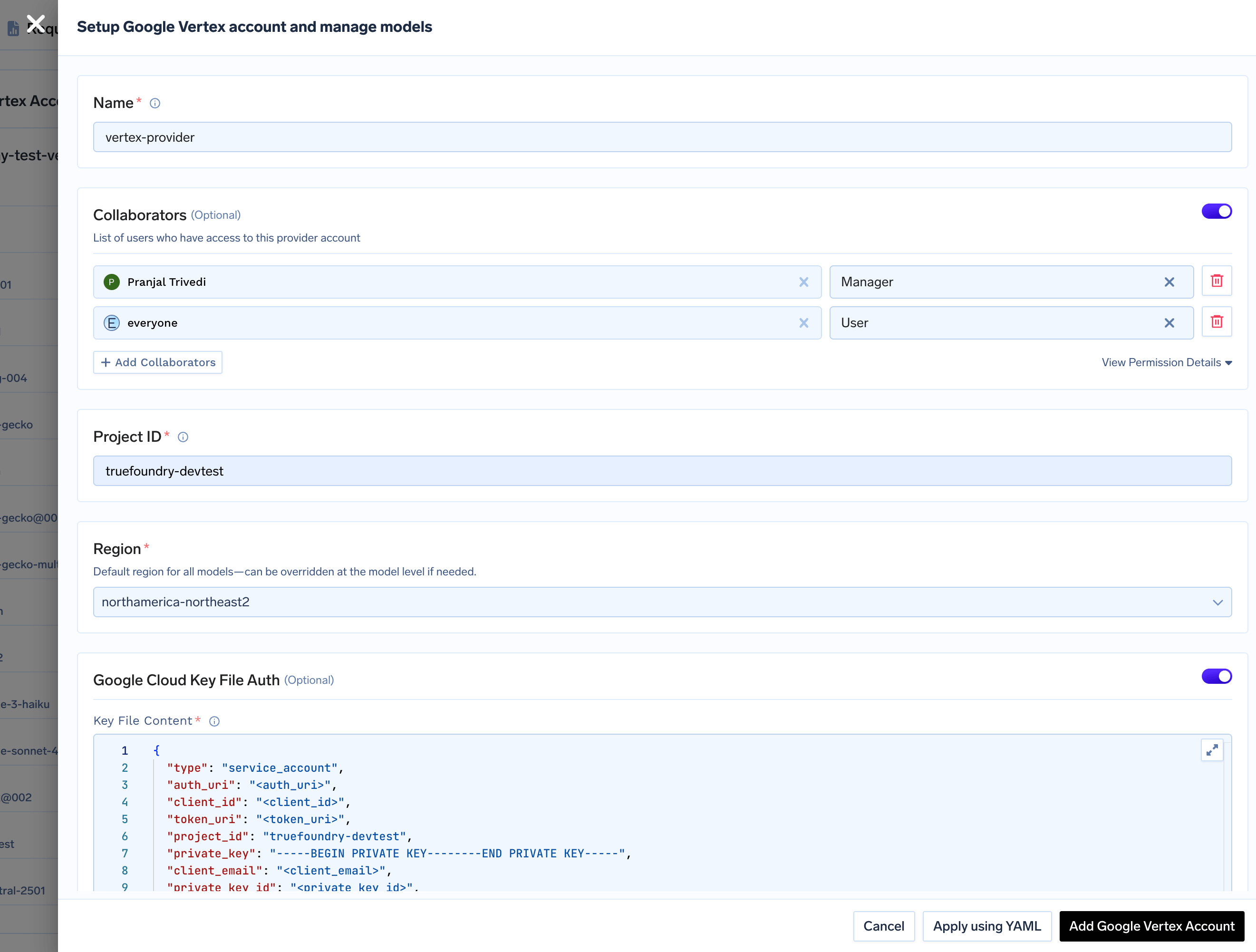 Provide your Google Cloud **Project ID** and a default **Region** for all models under this account. You can override the region for individual models later.
**Project ID**
* You can find your **Project ID** in the top-right corner of your Google Cloud Console.
Provide your Google Cloud **Project ID** and a default **Region** for all models under this account. You can override the region for individual models later.
**Project ID**
* You can find your **Project ID** in the top-right corner of your Google Cloud Console.
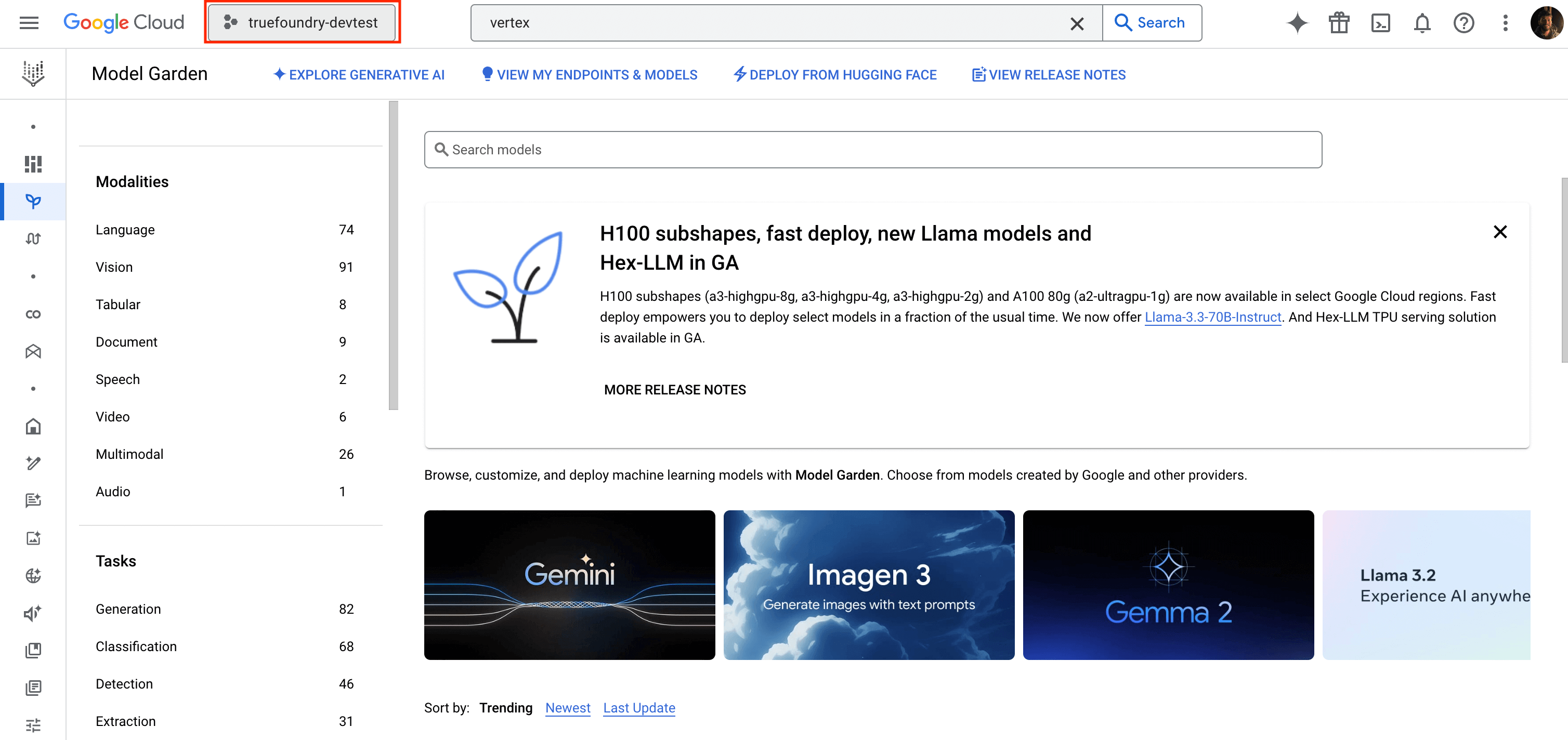 **Region**
* Specify a default region for all models under this account. You can override this region for individual models later.
You can either select available models from the list or add them manually by clicking `+ Add Model`. When adding a model manually, the `Model ID` format depends on the provider.
Select a Gemini model from the list or add it manually.
* **Model ID Format**: `google/`
* **Example**: `google/gemini-1.5-pro`
You can find the Model ID in the Google Cloud Console.
**Region**
* Specify a default region for all models under this account. You can override this region for individual models later.
You can either select available models from the list or add them manually by clicking `+ Add Model`. When adding a model manually, the `Model ID` format depends on the provider.
Select a Gemini model from the list or add it manually.
* **Model ID Format**: `google/`
* **Example**: `google/gemini-1.5-pro`
You can find the Model ID in the Google Cloud Console.
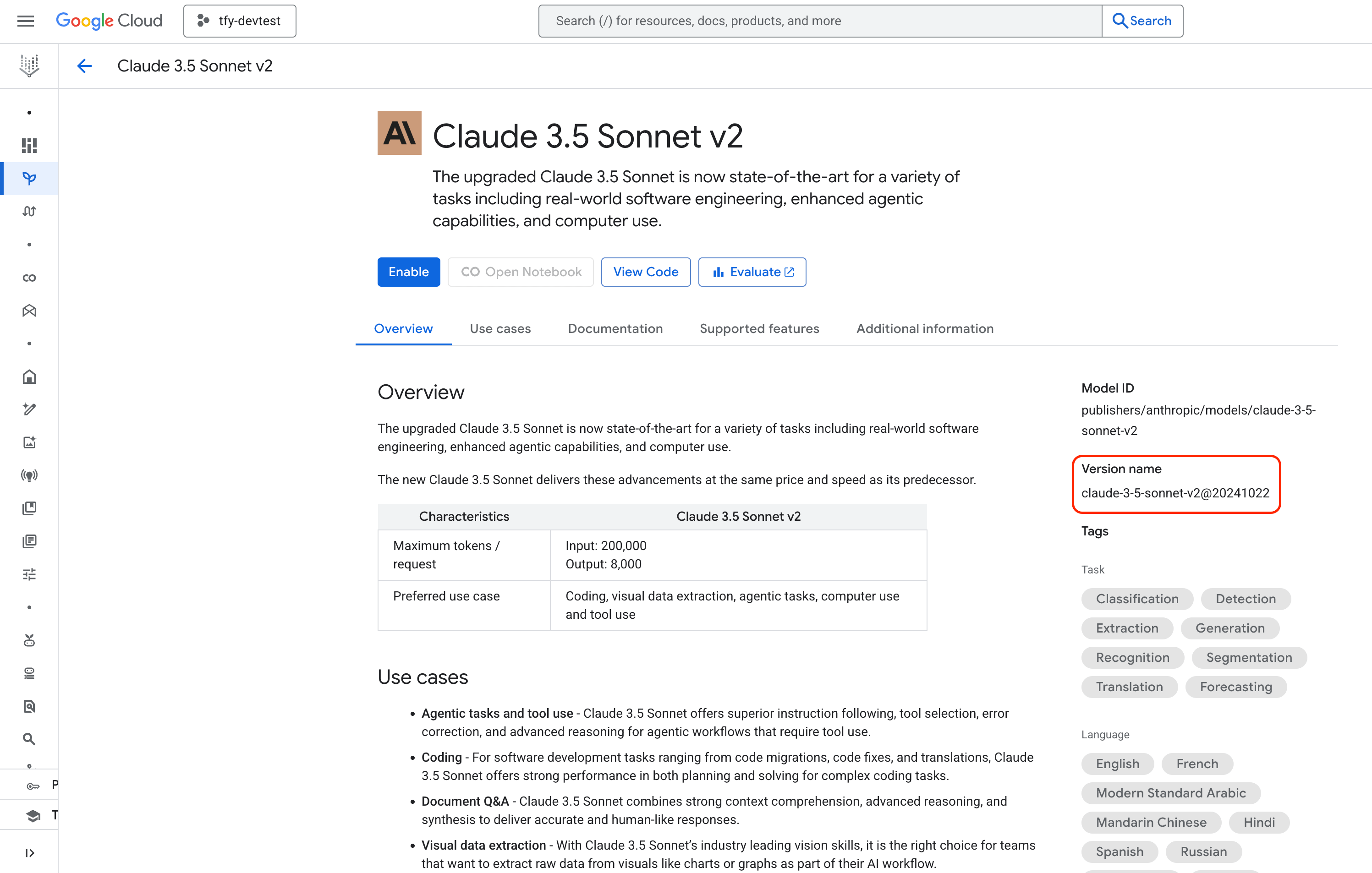
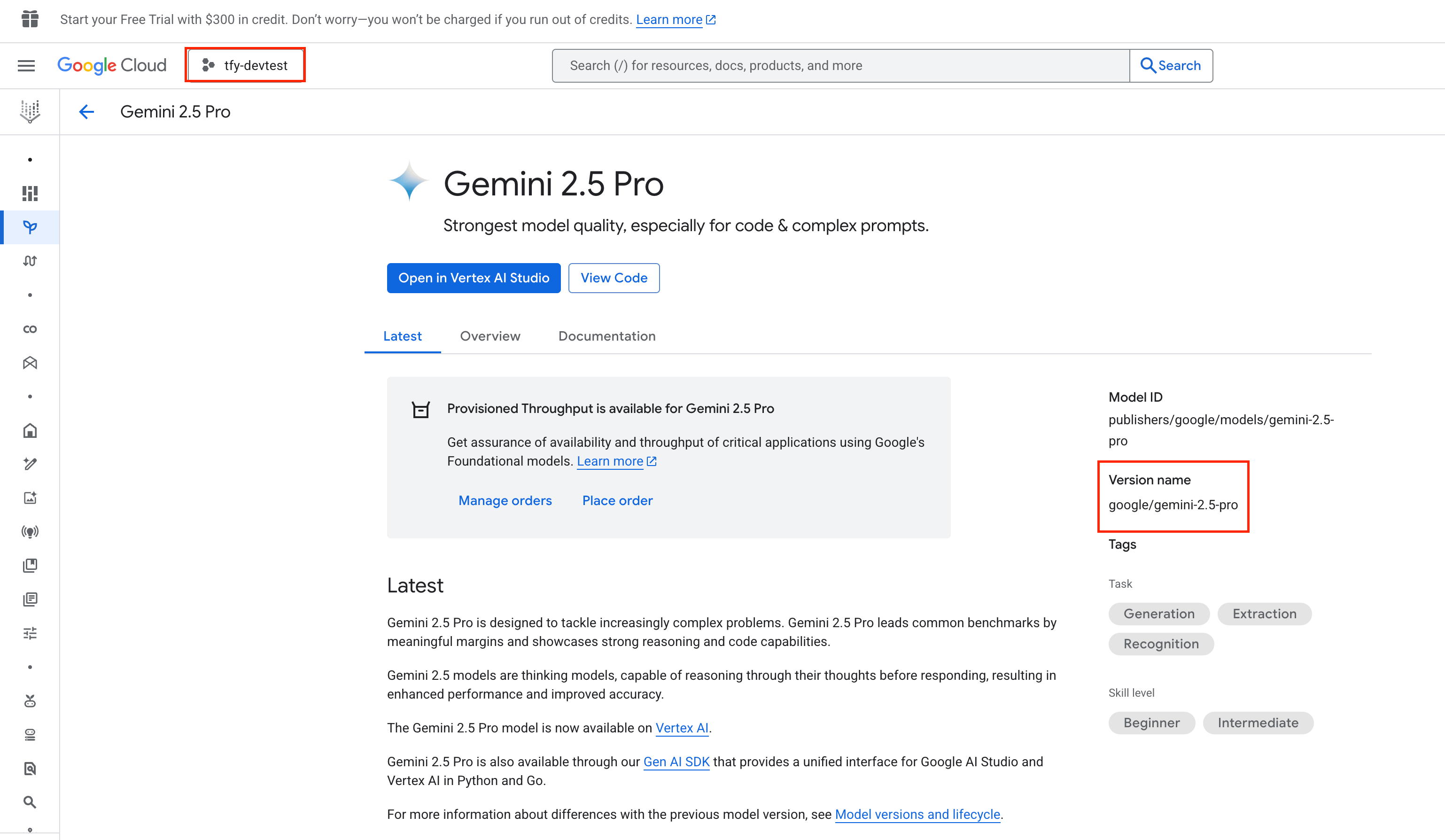 Select a Claude model from the list or add it manually.
* **Model ID Format**: `anthropic/`
* **Example**: `anthropic/claude-3-5-sonnet-v2@20241022`
Select a Claude model from the list or add it manually.
* **Model ID Format**: `anthropic/`
* **Example**: `anthropic/claude-3-5-sonnet-v2@20241022`
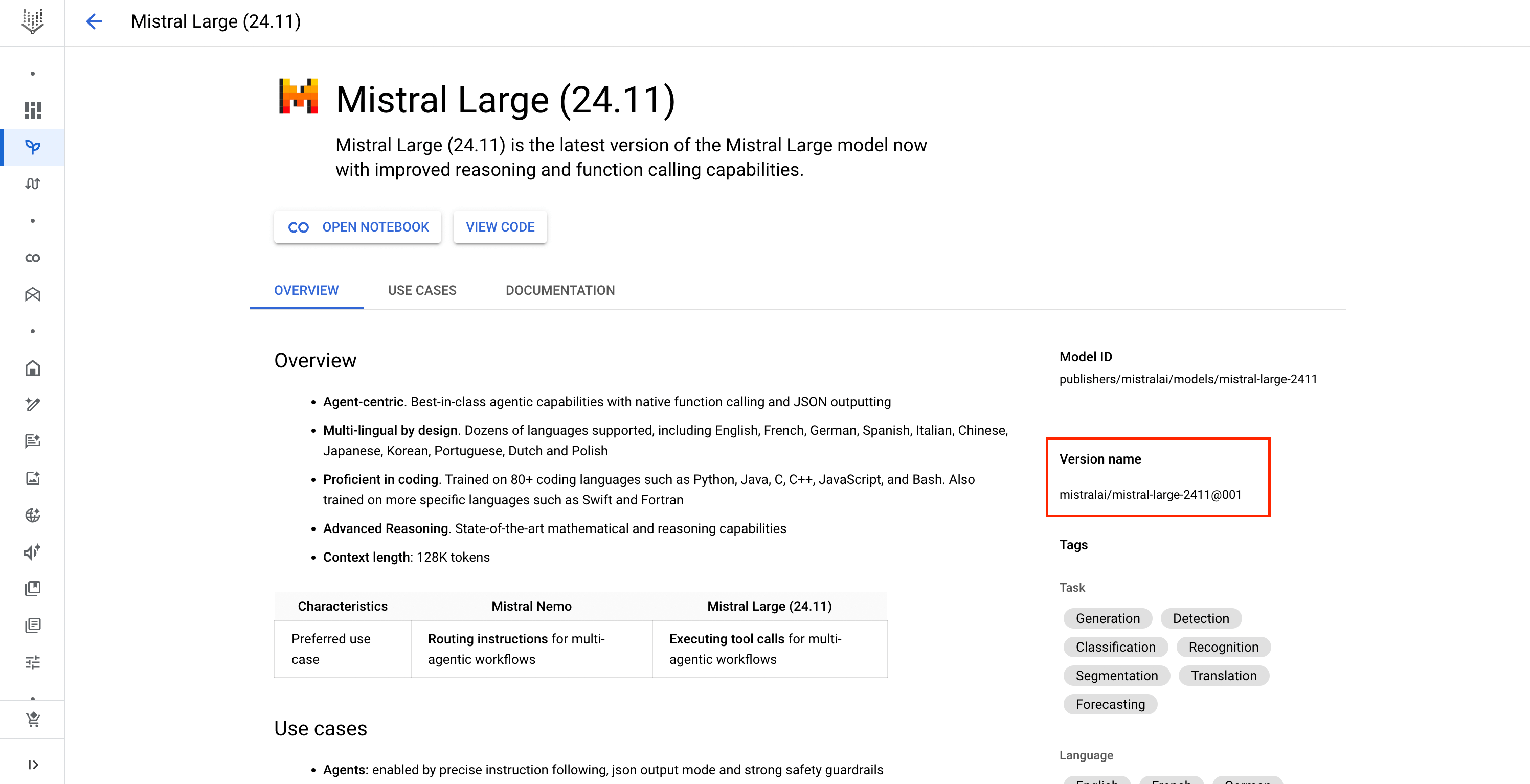
 Select a Mistral model from the list or add it manually.
* **Model ID Format**: `mistralai/`
* **Example**: `mistralai/mistral-large-2411@001`
Select a Mistral model from the list or add it manually.
* **Model ID Format**: `mistralai/`
* **Example**: `mistralai/mistral-large-2411@001`
 When adding any model manually, you can specify a **Region** to override the default one set at the account level.
### Inference
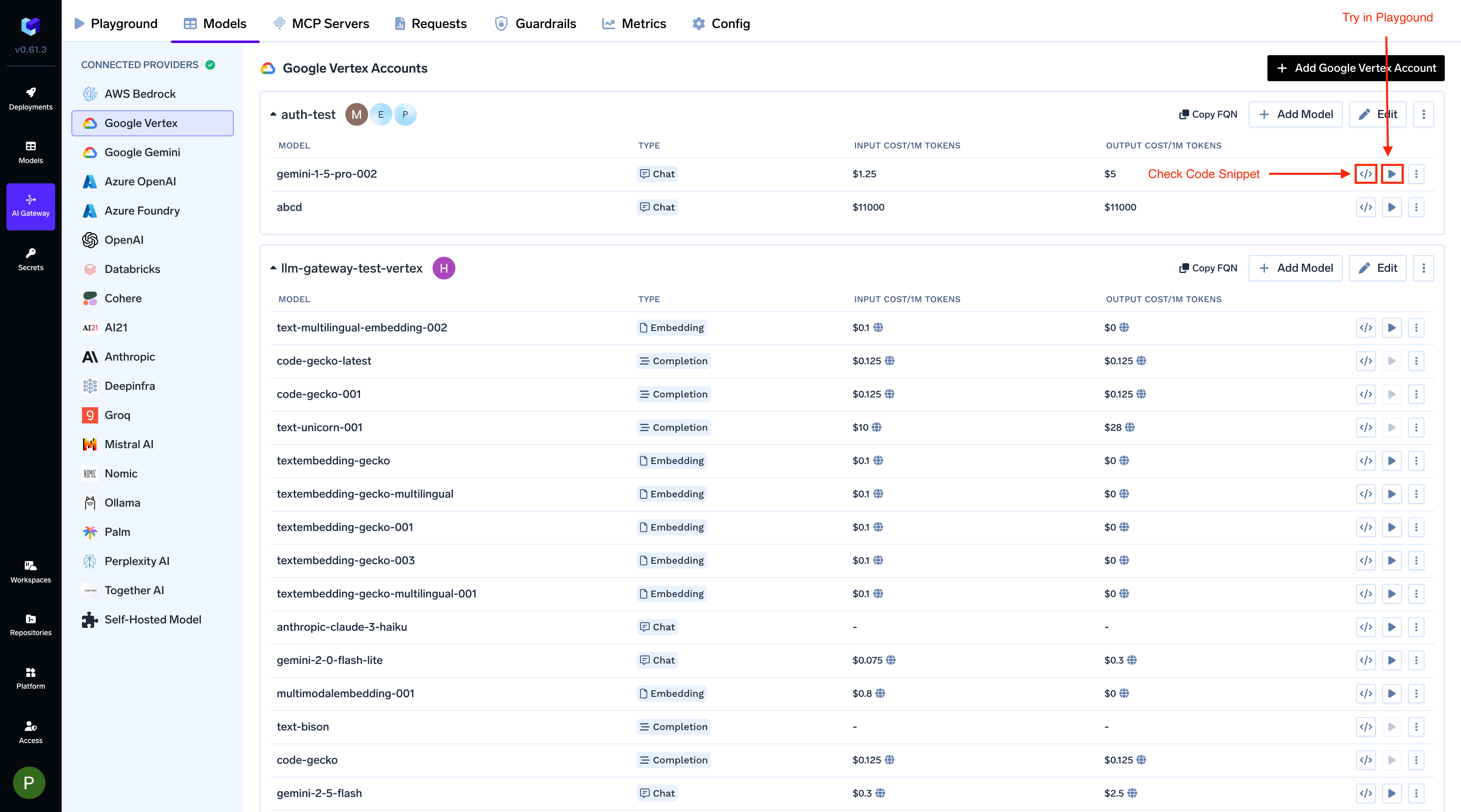
After adding the models, you can perform inference using an OpenAI-compatible API via the Playground or by integrating it with your own application.
When adding any model manually, you can specify a **Region** to override the default one set at the account level.
### Inference
After adding the models, you can perform inference using an OpenAI-compatible API via the Playground or by integrating it with your own application.
 ### Supported APIs
Once your Vertex provider account is configured, the following API surfaces are available through the gateway. The table below summarizes each endpoint alongside platform feature support (tracing, cost tracking).
Legend:
* **✅** Supported by Provider and Truefoundry
* Supported by Provider, but not by Truefoundry
* Provider does not support this feature
| API | Endpoint | Tracing | Cost Tracking |
| ------------------------------------- | --------------------- | ------- | ----------------------------------------------------------- |
| [Chat Completions](#chat-completions) | `/chat/completions` | **✅** | **✅** |
| [Embeddings](#embeddings) | `/embeddings` | **✅** | **✅** |
| [Image Generation](#image-generation) | `/images/generations` | **✅** | **✅** |
| [Image Edit](#image-edit) | `/images/edits` | **✅** | **✅** |
| [Text-to-Speech](#text-to-speech) | `/audio/speech` | **✅** | |
| [Batch API](#batch-api) | `/batches` | **✅** | |
| [Files API](#files-api) | `/files` | **✅** | |
| [Fine-tuning](#fine-tuning) | `/fine_tuning/jobs` | **✅** | |
Vertex's chat completions endpoint is the most widely used — it supports streaming, tools, multimodal input (images, **audio, video**, PDF), structured JSON outputs &
extended thinking. The gateway translates OpenAI-compatible requests into Vertex's native `generateContent` API based on the model family.
Full provider capability matrix: [Chat Completions API](/docs/ai-gateway/chat-completions-overview).
```python Python lines theme={"dark"}
from openai import OpenAI
client = OpenAI(
api_key="your-truefoundry-api-key",
base_url="{GATEWAY_BASE_URL}",
)
response = client.chat.completions.create(
model="vertex-main/gemini-2.5-flash",
messages=[
{"role": "user", "content": "What is TrueFoundry in one line?"},
],
)
print(response.choices[0].message.content)
```
Set `stream=True` and iterate over delta chunks. Defensively check that `chunk.choices` is non-empty and `delta.content` is not `None`.
```python Python lines theme={"dark"}
stream = client.chat.completions.create(
model="vertex-main/gemini-2.5-flash",
messages=[{"role": "user", "content": "Count from 1 to 5, one number per line."}],
stream=True,
)
for chunk in stream:
if (
chunk.choices
and len(chunk.choices) > 0
and chunk.choices[0].delta.content is not None
):
print(chunk.choices[0].delta.content, end="", flush=True)
print()
```
Advertise a tool, hand the model's `tool_calls` back as a `tool` role message, then request the final response.
```python Python lines theme={"dark"}
import json
tools = [{
"type": "function",
"function": {
"name": "get_weather",
"description": "Get the current weather for a city.",
"parameters": {
"type": "object",
"properties": {"city": {"type": "string"}},
"required": ["city"],
},
},
}]
messages = [{"role": "user", "content": "What's the weather in Bengaluru right now?"}]
first = client.chat.completions.create(
model="vertex-main/gemini-2.5-flash",
messages=messages,
tools=tools,
tool_choice={"type": "function", "function": {"name": "get_weather"}},
)
assistant_msg = first.choices[0].message
tool_calls = assistant_msg.tool_calls or []
if tool_calls:
tool_call = tool_calls[0]
messages.append(assistant_msg)
messages.append({
"role": "tool",
"tool_call_id": tool_call.id,
"content": json.dumps({"city": "Bengaluru", "temp_c": 28, "summary": "partly cloudy"}),
})
second = client.chat.completions.create(
model="vertex-main/gemini-2.5-flash",
messages=messages,
)
print(second.choices[0].message.content)
```
Gemini models support image inputs via the `image_url` content part. The `detail` parameter (`low` / `high` / `auto`) translates to Vertex's native `mediaResolution` setting.
```python Python lines theme={"dark"}
import base64
from io import BytesIO
from PIL import Image as PILImage, ImageDraw
img = PILImage.new("RGB", (256, 256), (30, 144, 255))
draw = ImageDraw.Draw(img)
draw.ellipse((48, 48, 208, 208), fill=(255, 215, 0))
draw.rectangle((96, 96, 160, 160), fill=(220, 20, 60))
buf = BytesIO()
img.save(buf, format="PNG")
data_uri = f"data:image/png;base64,{base64.b64encode(buf.getvalue()).decode('ascii')}"
response = client.chat.completions.create(
model="vertex-main/gemini-3-pro-image-preview",
messages=[{
"role": "user",
"content": [
{"type": "text", "text": "Describe this image in one sentence."},
{"type": "image_url", "image_url": {"url": data_uri, "detail": "low"}},
],
}],
)
print(response.choices[0].message.content)
```
Gemini models accept audio files inline via `image_url` content parts with a `mime_type` hint. This is **unique to Gemini** — Bedrock and direct OpenAI chat models do not accept audio as chat input.
```python Python lines theme={"dark"}
import base64, wave, struct, math
from io import BytesIO
# Generate a 1-second 440 Hz sine wave PCM WAV in-memory
buf = BytesIO()
with wave.open(buf, "wb") as w:
w.setnchannels(1)
w.setsampwidth(2)
w.setframerate(16000)
for i in range(16000):
sample = int(32767 * 0.3 * math.sin(2 * math.pi * 440 * i / 16000))
w.writeframes(struct.pack("
Gemini models accept video files via `image_url` content parts with `mime_type: video/mp4`. The gateway fetches the URL server-side, so you can pass any publicly reachable MP4. This is **unique to Gemini**.
```python Python lines theme={"dark"}
SAMPLE_VIDEO_URL = "https://www.youtube.com/watch?v=8FsHo7xoTr4"
response = client.chat.completions.create(
model="vertex-main/gemini-2.5-flash",
messages=[{
"role": "user",
"content": [
{"type": "text", "text": "Describe what happens in this video in one sentence."},
{"type": "image_url", "image_url": {"url": SAMPLE_VIDEO_URL, "mime_type": "video/mp4"}},
],
}],
)
print(response.choices[0].message.content)
```
Gemini models accept PDFs via the `file` content type with base64 encoding.
```python Python lines theme={"dark"}
import base64
with open("sample.pdf", "rb") as f:
pdf_b64 = base64.b64encode(f.read()).decode("ascii")
response = client.chat.completions.create(
model="vertex-main/gemini-2.5-flash",
messages=[{
"role": "user",
"content": [
{"type": "text", "text": "What text is in this PDF?"},
{
"type": "file",
"file": {
"filename": "sample.pdf",
"file_data": f"data:application/pdf;base64,{pdf_b64}",
},
},
],
}],
)
print(response.choices[0].message.content)
```
Gemini supports two structured-output modes via `response_format`:
* **JSON object** — `{"type": "json_object"}` — guarantees valid JSON, no schema
* **JSON schema** — `{"type": "json_schema", "json_schema": {...}}` — enforces a schema (`additionalProperties: False` and `strict: True` are recommended)
```python Python lines theme={"dark"}
import json
schema = {
"name": "person",
"schema": {
"type": "object",
"properties": {
"name": {"type": "string"},
"age": {"type": "integer"},
"hobbies": {"type": "array", "items": {"type": "string"}},
},
"required": ["name", "age", "hobbies"],
"additionalProperties": False,
},
"strict": True,
}
response = client.chat.completions.create(
model="vertex-main/gemini-2.5-flash",
messages=[{"role": "user", "content": "Invent a fictional person with name, age, and three hobbies."}],
response_format={"type": "json_schema", "json_schema": schema},
)
message = response.choices[0].message
if getattr(message, "refusal", None):
print("model refused:", message.refusal)
elif message.content:
print(json.dumps(json.loads(message.content), indent=2))
```
Gemini 2.5 Pro and 2.5 Flash support extended thinking, on by default. Use `reasoning_effort` (`low`/`medium`/`high`) — the gateway translates it to Vertex's native thinking-budget parameter.
Gemini 3+ models additionally return `thinking_blocks` with signatures for multi-turn continuity.
```python Python lines theme={"dark"}
response = client.chat.completions.create(
model="vertex-main/gemini-2.5-pro",
messages=[{
"role": "user",
"content": "A bat and a ball cost $1.10. The bat costs $1.00 more than the ball. How much is the ball?",
}],
reasoning_effort="high",
max_tokens=8000,
)
msg = response.choices[0].message
print("answer:", msg.content)
print("reasoning:", getattr(msg, "reasoning_content", None))
for block in getattr(msg, "thinking_blocks", []) or []:
print(" block:", block.get("type"), "signature:", block.get("signature", "")[:30])
```
For Gemini 3+, always echo `thinking_blocks` exactly as returned when continuing a conversation. Blocks with missing or modified `signature` fields are rejected by Vertex.
Vertex's Gemini TTS models (`gemini-2.5-flash-tts`, `gemini-2.5-flash-preview-tts`, `gemini-2.5-pro-preview-tts`) generate audio from text. The gateway exposes them via the OpenAI-compatible `/audio/speech` endpoint.
Full docs: [Text-to-Speech](/docs/ai-gateway/text-to-speech).
**Model gating:** Before you call the Text to Speech API, add TTS-preview model to your Vertex provider account. When adding a model, select Text to Speech as the model type.
```python Python lines theme={"dark"}
response = client.audio.speech.create(
model="vertex-main/gemini-2.5-flash-tts",
voice="alloy",
input="Hello from TrueFoundry. The AI gateway makes multi-provider routing simple.",
)
with open("tts.wav", "wb") as f:
f.write(response.read())
```
Vertex exposes two embedding families through `/embeddings`:
* **Text embeddings** (`text-embedding-004`, `text-embedding-005`) — accept a `task_type` parameter via `extra_body` that tunes the vector for the downstream task (`RETRIEVAL_DOCUMENT`, `RETRIEVAL_QUERY`, `SEMANTIC_SIMILARITY`, `CLASSIFICATION`, `CLUSTERING`).
* **Multimodal embeddings** (`multimodalembedding@001`) — accept text, image, and/or video in the same request and return separate vectors per modality.
Full docs: [Embed API](/docs/ai-gateway/embed).
```python Python lines theme={"dark"}
# Text embeddings with task_type
doc = client.embeddings.create(
model="vertex-main/text-embedding-005",
input=["TrueFoundry is an AI gateway that unifies access to multiple LLM providers."],
extra_body={"task_type": "RETRIEVAL_DOCUMENT"},
)
query = client.embeddings.create(
model="vertex-main/text-embedding-005",
input=["What does TrueFoundry do?"],
extra_body={"task_type": "RETRIEVAL_QUERY"},
)
print("dim:", len(doc.data[0].embedding))
```
`multimodalembedding@001` returns separate vectors per modality under `embedding` (text) and `image_embedding`. Useful for cross-modal retrieval — e.g. find the image whose embedding is closest to a text query.
```python Python lines theme={"dark"}
import base64
from io import BytesIO
from PIL import Image as PILImage
img = PILImage.new("RGB", (128, 128), (220, 20, 60))
buf = BytesIO()
img.save(buf, format="PNG")
img_b64 = base64.b64encode(buf.getvalue()).decode("ascii")
# encoding_format="float" — the gateway defaults image_embedding to
# a base64 string; set explicitly to get a list of floats.
response = client.embeddings.create(
model="vertex-main/multimodalembedding@001",
input=[{
"text": "A red square with a gold circle",
"image": {"base64": img_b64},
}],
encoding_format="float",
)
data = response.data[0]
print("text dim :", len(data.embedding))
print("image dim:", len(data.image_embedding))
```
Supported embedding models on Vertex include `text-embedding-004`, `text-embedding-005`, and `multimodalembedding@001`. Add them to your provider account from the model picker.
Vertex exposes Imagen and Gemini image-generation models via the OpenAI-compatible `/images/generations` endpoint.
Full docs: [Image Generation](/docs/ai-gateway/image-generation).
```python Python lines theme={"dark"}
import base64
response = client.images.generate(
model="vertex-main/imagen-4.0-generate-001",
prompt="A minimalist isometric illustration of a cloud with a lightning bolt, flat colors.",
size="1024x1024",
n=1,
)
item = response.data[0]
if getattr(item, "b64_json", None):
image_bytes = base64.b64decode(item.b64_json)
else:
import requests
image_bytes = requests.get(item.url, timeout=60).content
with open("generated.png", "wb") as f:
f.write(image_bytes)
```
Supported text-to-image models include `imagen-4.0-generate-001`, `imagen-3.0-generate-002`, and Gemini image models such as `gemini-3-pro-image-preview`.
**Pricing varies by model family.** Imagen models are billed **per image** at a flat rate. Gemini image models are billed **per token**, where higher-resolution / HD outputs consume more tokens. Pick the family that matches your cost profile.
Vertex's image edit only supports **inpainting with a mask** — unlike OpenAI, the **mask is required**. Use `imagen-3.0-capability-001` (Imagen's edit-specific variant).
```python Python lines theme={"dark"}
import base64
from PIL import Image as PILImage, ImageDraw
# Build a binary mask: white where we want the model to paint, black elsewhere
mask_img = PILImage.new("L", (1024, 1024), 0)
mask_draw = ImageDraw.Draw(mask_img)
mask_draw.rectangle((700, 0, 1024, 300), fill=255)
mask_img.save("mask.png", format="PNG")
with open("generated.png", "rb") as img_f, open("mask.png", "rb") as mask_f:
response = client.images.edit(
model="vertex-main/imagen-3.0-capability-001",
image=img_f,
mask=mask_f,
prompt="Paint a bright yellow sun in the top-right corner.",
n=1,
)
item = response.data[0]
if getattr(item, "b64_json", None):
image_bytes = base64.b64decode(item.b64_json)
else:
import requests
image_bytes = requests.get(item.url, timeout=60).content
with open("edited.png", "wb") as f:
f.write(image_bytes)
```
**Image Variation** (`client.images.create_variation`) is **not supported** — Vertex Imagen only supports generation and inpainting.
Vertex batch jobs are **GCS-backed** — the gateway uploads JSONL to a Cloud Storage bucket on your provider account, creates a Vertex batch prediction job, and fetches results from GCS.
Full docs: [Batch Predictions](/docs/ai-gateway/batch-predictions-with-truefoundry-llm-gateway).
**Vertex batch prerequisites:**
* **GCS bucket** — must be in the same region as your Vertex model
* **Service account / federated identity** — with `roles/storage.objectAdmin` on the bucket
* **Workload Identity Federation caveat** — does not yet support resumable uploads. Use a Service Account JSON key for batch.
### Workflow Steps
The batch process follows these steps:
1. **Upload**: Upload JSONL file → Get file ID (a URL-encoded `gs://...` URI)
2. **Create**: Create batch job → Get batch ID
3. **Monitor**: Check status until complete
4. **Fetch**: Download aggregated results from the gateway's `/batches/{id}/output` endpoint
#### Step-by-Step Examples
Client setup with batch-specific headers. The bucket and region headers tell the gateway where to stage the JSONL on GCS, and `x-tfy-provider-model` is the **bare** Vertex model id (no provider prefix).
```python Python lines theme={"dark"}
from openai import OpenAI
batch_client = OpenAI(
api_key="your-truefoundry-api-key",
base_url="{GATEWAY_BASE_URL}",
default_headers={
"x-tfy-provider-name": "vertex-main",
"x-tfy-vertex-storage-bucket-name": "your-gcs-bucket-name",
"x-tfy-vertex-region": "us-central1",
"x-tfy-provider-model": "gemini-2.5-flash", # bare Vertex id
},
)
```
Build and upload the input JSONL.
```python Python lines theme={"dark"}
import json
LANGUAGES = ["French", "Japanese", "Hindi", "Spanish", "German"]
batch_requests = [
{
"custom_id": f"req-{i}",
"method": "POST",
"url": "/v1/chat/completions",
"body": {
"model": "gemini-2.5-flash", # bare Vertex id inside the body too
"messages": [{"role": "user", "content": f"Say hello in {lang}."}],
"max_tokens": 50,
},
}
for i, lang in enumerate(LANGUAGES)
]
with open("batch_input.jsonl", "w") as f:
for req in batch_requests:
f.write(json.dumps(req) + "\n")
with open("batch_input.jsonl", "rb") as f:
uploaded = batch_client.files.create(file=f, purpose="batch")
print(uploaded.id) # Example: gs%3A%2F%2Fyour-bucket%2Fuuid.jsonl (URL-encoded)
```
Vertex doesn't enforce a strict per-batch minimum like Bedrock — you can submit a small batch for testing.
```python Python lines theme={"dark"}
batch = batch_client.batches.create(
input_file_id=uploaded.id,
endpoint="/v1/chat/completions",
completion_window="24h",
)
print("batch id:", batch.id, "status:", batch.status)
```
Poll `batches.retrieve()` until completed. `batch.id` may come as URL-encoded; `unquote()` once before retrieve so the OpenAI SDK doesn't double-encode the path.
```python Python lines theme={"dark"}
import time
from urllib.parse import unquote
TERMINAL = {"completed", "failed", "expired", "cancelled"}
TIMEOUT_SECONDS = 30 * 60
POLL_INTERVAL = 15
batch_id = unquote(batch.id)
start = time.monotonic()
while batch.status not in TERMINAL:
if time.monotonic() - start > TIMEOUT_SECONDS:
print(f"timed out after {TIMEOUT_SECONDS}s — rerun this cell to keep polling")
break
time.sleep(POLL_INTERVAL)
batch = batch_client.batches.retrieve(batch_id)
print("status:", batch.status)
print("final:", batch.status, "output_file_id:", batch.output_file_id)
```
Vertex returns the payload as a single-line JSON array (not JSONL) — parse it once, then iterate.
```python Python lines theme={"dark"}
import json
from urllib.parse import unquote
if batch.status == "completed":
output_id = unquote(batch.output_file_id)
text = batch_client.files.content(output_id).read().decode("utf-8")
rows = json.loads(text)
print(rows)
```
Vertex's Files API stores uploads in **Google Cloud Storage** on your behalf. **Upload, retrieve metadata, and retrieve content are supported. List and delete are NOT supported** — the GCS backend doesn't expose those operations.
Full docs: [Files API](/docs/ai-gateway/file-endpoints).
```python Python lines theme={"dark"}
import json
from urllib.parse import unquote
from openai import OpenAI
files_client = OpenAI(
api_key="your-truefoundry-api-key",
base_url="{GATEWAY_BASE_URL}",
default_headers={
"x-tfy-provider-name": "vertex-main",
"x-tfy-vertex-storage-bucket-name": "your-gcs-bucket-name",
"x-tfy-vertex-region": "us-central1",
"x-tfy-provider-model": "gemini-2.5-flash",
},
)
# Vertex Files API only accepts purpose="batch" (or "fine-tune" with the
# x-tfy-file-purpose header) and validates content as batch-style JSONL.
with open("files_api_test.jsonl", "w") as f:
f.write(json.dumps({
"custom_id": "demo",
"method": "POST",
"url": "/v1/chat/completions",
"body": {
"model": "gemini-2.5-flash",
"messages": [{"role": "user", "content": "hi"}],
"max_tokens": 5,
},
}) + "\n")
with open("files_api_test.jsonl", "rb") as f:
uploaded = files_client.files.create(file=f, purpose="batch")
print(uploaded.id) # gs%3A%2F%2Fbucket%2Fuuid.jsonl
# CRITICAL: unquote the id before passing it to retrieve / content.
file_id = unquote(uploaded.id)
meta = files_client.files.retrieve(file_id)
content = files_client.files.content(file_id).read()
print(f"{len(content)} bytes")
```
`files.list()` and `files.delete()` is not supported by Vertex — the GCS backend doesn't expose them. Plan lifecycle management via GCS bucket policies and lifecycle rules instead of through the gateway.
Vertex's Files API only accepts `purpose="batch"` for batch uploads or `purpose="fine-tune"` (with the `x-tfy-file-purpose: fine-tune` header) for tuning uploads. Plain text or non-conforming JSONL will fail validation.
Vertex supports supervised fine-tuning of Gemini models. The lifecycle:
1. Prepare JSONL training data (one example per line)
2. Upload via the Files API with `purpose="fine-tune"` and the `x-tfy-file-purpose: fine-tune` header
3. Submit a fine-tune job; poll for completion
4. Use the resulting fine-tuned model id in subsequent inference calls
Full docs: [Fine-tuning](/docs/ai-gateway/finetune).
Fine-tuning incurs real GCP charges. See the [Vertex tunable model list](https://cloud.google.com/vertex-ai/generative-ai/docs/models/gemini-supervised-tuning).
```python Python lines theme={"dark"}
import json, uuid
from openai import OpenAI
FINETUNE_BASE_MODEL = "gemini-2.5-flash"
with open("finetune_training.jsonl", "w") as f:
for topic, haiku in [
("the sun", "Bright orb in the sky"),
("a river", "Silver thread of life"),
("the moon", "Pale night-watcher gleams"),
("a forest", "Tall trees stand in green"),
("the ocean", "Vast blue stretching wide"),
]:
f.write(json.dumps({"messages": [
{"role": "user", "content": f"What is {topic}?"},
{"role": "assistant", "content": haiku},
]}) + "\n")
ft_client = OpenAI(
api_key="your-truefoundry-api-key",
base_url="{GATEWAY_BASE_URL}",
default_headers={
"x-tfy-provider-name": "vertex-main",
"x-tfy-vertex-storage-bucket-name": "your-gcs-bucket-name",
"x-tfy-vertex-region": "us-central1",
"x-tfy-provider-model": FINETUNE_BASE_MODEL,
"x-tfy-file-purpose": "fine-tune",
},
)
with open("finetune_training.jsonl", "rb") as f:
ft_file = ft_client.files.create(file=f, purpose="fine-tune")
ft_job = ft_client.fine_tuning.jobs.create(
training_file=ft_file.id,
model=f"vertex-main/{FINETUNE_BASE_MODEL}",
suffix=f"vertex-ft-{uuid.uuid4().hex[:6]}",
extra_body={"hyperparameters": {"n_epochs": 2}},
)
print(f"created: {ft_job.id} status={ft_job.status}")
# Retrieve status (queued, running, succeeded, failed, cancelled)
ft_job = ft_client.fine_tuning.jobs.retrieve(ft_job.id)
print(f"status: {ft_job.status}")
```
### FAQs
No. You can set a default region at the account level and override it for each individual model if needed. This allows you to use models from different regions with a single provider account.
* **Service Account JSON Key** — Works everywhere (any cloud, on-prem, SaaS Gateway). Simplest to set up, but requires you to manage and rotate a long-lived secret.
* **Workload Identity Federation** — Recommended for production. Keyless, works on any Kubernetes cluster (EKS, AKS, GKE, on-prem) and on the SaaS Gateway. Requires a one-time setup of a Workload Identity Pool in Google Cloud.
* **GCP Workload Identity (GKE)** — Only available when the self-hosted gateway runs inside a GKE cluster. Keyless and zero-config on the gateway side, but does not work on the SaaS Gateway or outside of GKE.
| | Service Account Key | Workload Identity Federation | GCP Workload Identity (GKE) |
| --------------------------------------- | ------------------------- | ------------------------------- | --------------------------- |
| Works on GKE | Yes | Yes | Yes |
| Works on EKS / AKS / on-prem | Yes | Yes | No |
| Works on SaaS Gateway | Yes | Yes | No |
| Key management required | Yes | No | No |
| Requires credential JSON in TrueFoundry | Yes (service account key) | Yes (`external_account` config) | No (leave empty) |
Both are keyless authentication mechanisms, but they target different environments.
**GCP Workload Identity** is a GKE-only feature. The GKE metadata server automatically maps a Kubernetes service account to a Google Cloud IAM service account. The gateway picks this up through Application Default Credentials (ADC) when no auth data is configured. It does not work on the SaaS Gateway or outside of GKE.
**Workload Identity Federation** is a broader Google Cloud feature that works across any Kubernetes cluster (EKS, AKS, on-prem, and GKE) and on the SaaS Gateway. It requires you to provide an `external_account` credential configuration JSON (generated via `gcloud iam workload-identity-pools create-cred-config`). The gateway exchanges a short-lived Kubernetes service account token for a Google Cloud access token through Google's Security Token Service.
This example walks through the full setup of Workload Identity Federation to let a TrueFoundry service account running on Amazon EKS authenticate to Google Cloud. Replace the pool names, project IDs, OIDC issuer URI, namespaces, and service account names with your own values.
**Step 1 — Create a Workload Identity Pool**
```bash theme={"dark"}
gcloud iam workload-identity-pools create \
--location="global" \
--description="Workload identity pool for " \
--display-name=""
```
**Step 2 — Create a Workload Identity Provider**
The `--issuer-uri` must be the OIDC issuer URL of your EKS cluster. You can find it in the AWS EKS console or via `aws eks describe-cluster`. The `--attribute-condition` restricts which Kubernetes service accounts can use this provider.
```bash theme={"dark"}
gcloud iam workload-identity-pools providers create-oidc \
--location="global" \
--workload-identity-pool="" \
--issuer-uri="" \
--attribute-mapping="google.subject=assertion.sub,attribute.namespace=assertion['kubernetes.io']['namespace'],attribute.service_account_name=assertion['kubernetes.io']['serviceaccount']['name']" \
--attribute-condition="assertion.sub == 'system:serviceaccount::'"
```
**Step 3 — Create a Google Cloud Service Account**
```bash theme={"dark"}
gcloud iam service-accounts create \
--project="" \
--display-name=""
```
**Step 4 — Grant the Service Account the Required Role**
Grant the `Agent Platform User` role (formerly `Vertex AI User`, or whichever role your workload needs) to the service account:
```bash theme={"dark"}
gcloud projects add-iam-policy-binding \
--member="serviceAccount:" \
--role="roles/aiplatform.user"
```
**Step 5 — Allow the Federated Identity to Impersonate the Service Account**
Grant the `roles/iam.workloadIdentityUser` role so the Kubernetes service account (via the workload identity pool) can impersonate the Google Cloud service account:
```bash theme={"dark"}
gcloud iam service-accounts add-iam-policy-binding \
--member="principal://iam.googleapis.com/projects//locations/global/workloadIdentityPools//subject/system:serviceaccount::" \
--role="roles/iam.workloadIdentityUser"
```
Optionally, to allow **all** service accounts in a namespace (instead of a single one), use `principalSet`:
```bash theme={"dark"}
gcloud iam service-accounts add-iam-policy-binding \
--member="principalSet://iam.googleapis.com/projects//locations/global/workloadIdentityPools//attribute.namespace/" \
--role="roles/iam.workloadIdentityUser"
```
**Step 6 — Generate the Credential Configuration File**
This is the file you will paste into TrueFoundry when configuring the Vertex AI provider account.
```bash theme={"dark"}
gcloud iam workload-identity-pools create-cred-config \
projects//locations/global/workloadIdentityPools//providers/ \
--service-account= \
--credential-source-file=/var/run/secrets/kubernetes.io/serviceaccount/token \
--credential-source-type=text \
--output-file=credential-configuration.json
```
The generated `credential-configuration.json` file is what you provide in TrueFoundry under **Workload Identity Federation file** when adding the Vertex AI provider account.
**Gemini** is generally recommended for individual developers and prototyping use cases, while **Vertex AI** is recommended for production and enterprise use cases.
Vertex AI offers everything available in the Gemini API and more, including:
* More secure auth using service accounts instead of API keys
* A Model Garden that includes multiple third-party models
* Access to provisioned throughput
You can read more about this here:
* [Migrate to Cloud](https://ai.google.dev/gemini-api/docs/migrate-to-cloud)
* [Migrate from Google AI](https://docs.cloud.google.com/vertex-ai/generative-ai/docs/migrate/migrate-google-ai#google-ai)
### Supported APIs
Once your Vertex provider account is configured, the following API surfaces are available through the gateway. The table below summarizes each endpoint alongside platform feature support (tracing, cost tracking).
Legend:
* **✅** Supported by Provider and Truefoundry
* Supported by Provider, but not by Truefoundry
* Provider does not support this feature
| API | Endpoint | Tracing | Cost Tracking |
| ------------------------------------- | --------------------- | ------- | ----------------------------------------------------------- |
| [Chat Completions](#chat-completions) | `/chat/completions` | **✅** | **✅** |
| [Embeddings](#embeddings) | `/embeddings` | **✅** | **✅** |
| [Image Generation](#image-generation) | `/images/generations` | **✅** | **✅** |
| [Image Edit](#image-edit) | `/images/edits` | **✅** | **✅** |
| [Text-to-Speech](#text-to-speech) | `/audio/speech` | **✅** | |
| [Batch API](#batch-api) | `/batches` | **✅** | |
| [Files API](#files-api) | `/files` | **✅** | |
| [Fine-tuning](#fine-tuning) | `/fine_tuning/jobs` | **✅** | |
Vertex's chat completions endpoint is the most widely used — it supports streaming, tools, multimodal input (images, **audio, video**, PDF), structured JSON outputs &
extended thinking. The gateway translates OpenAI-compatible requests into Vertex's native `generateContent` API based on the model family.
Full provider capability matrix: [Chat Completions API](/docs/ai-gateway/chat-completions-overview).
```python Python lines theme={"dark"}
from openai import OpenAI
client = OpenAI(
api_key="your-truefoundry-api-key",
base_url="{GATEWAY_BASE_URL}",
)
response = client.chat.completions.create(
model="vertex-main/gemini-2.5-flash",
messages=[
{"role": "user", "content": "What is TrueFoundry in one line?"},
],
)
print(response.choices[0].message.content)
```
Set `stream=True` and iterate over delta chunks. Defensively check that `chunk.choices` is non-empty and `delta.content` is not `None`.
```python Python lines theme={"dark"}
stream = client.chat.completions.create(
model="vertex-main/gemini-2.5-flash",
messages=[{"role": "user", "content": "Count from 1 to 5, one number per line."}],
stream=True,
)
for chunk in stream:
if (
chunk.choices
and len(chunk.choices) > 0
and chunk.choices[0].delta.content is not None
):
print(chunk.choices[0].delta.content, end="", flush=True)
print()
```
Advertise a tool, hand the model's `tool_calls` back as a `tool` role message, then request the final response.
```python Python lines theme={"dark"}
import json
tools = [{
"type": "function",
"function": {
"name": "get_weather",
"description": "Get the current weather for a city.",
"parameters": {
"type": "object",
"properties": {"city": {"type": "string"}},
"required": ["city"],
},
},
}]
messages = [{"role": "user", "content": "What's the weather in Bengaluru right now?"}]
first = client.chat.completions.create(
model="vertex-main/gemini-2.5-flash",
messages=messages,
tools=tools,
tool_choice={"type": "function", "function": {"name": "get_weather"}},
)
assistant_msg = first.choices[0].message
tool_calls = assistant_msg.tool_calls or []
if tool_calls:
tool_call = tool_calls[0]
messages.append(assistant_msg)
messages.append({
"role": "tool",
"tool_call_id": tool_call.id,
"content": json.dumps({"city": "Bengaluru", "temp_c": 28, "summary": "partly cloudy"}),
})
second = client.chat.completions.create(
model="vertex-main/gemini-2.5-flash",
messages=messages,
)
print(second.choices[0].message.content)
```
Gemini models support image inputs via the `image_url` content part. The `detail` parameter (`low` / `high` / `auto`) translates to Vertex's native `mediaResolution` setting.
```python Python lines theme={"dark"}
import base64
from io import BytesIO
from PIL import Image as PILImage, ImageDraw
img = PILImage.new("RGB", (256, 256), (30, 144, 255))
draw = ImageDraw.Draw(img)
draw.ellipse((48, 48, 208, 208), fill=(255, 215, 0))
draw.rectangle((96, 96, 160, 160), fill=(220, 20, 60))
buf = BytesIO()
img.save(buf, format="PNG")
data_uri = f"data:image/png;base64,{base64.b64encode(buf.getvalue()).decode('ascii')}"
response = client.chat.completions.create(
model="vertex-main/gemini-3-pro-image-preview",
messages=[{
"role": "user",
"content": [
{"type": "text", "text": "Describe this image in one sentence."},
{"type": "image_url", "image_url": {"url": data_uri, "detail": "low"}},
],
}],
)
print(response.choices[0].message.content)
```
Gemini models accept audio files inline via `image_url` content parts with a `mime_type` hint. This is **unique to Gemini** — Bedrock and direct OpenAI chat models do not accept audio as chat input.
```python Python lines theme={"dark"}
import base64, wave, struct, math
from io import BytesIO
# Generate a 1-second 440 Hz sine wave PCM WAV in-memory
buf = BytesIO()
with wave.open(buf, "wb") as w:
w.setnchannels(1)
w.setsampwidth(2)
w.setframerate(16000)
for i in range(16000):
sample = int(32767 * 0.3 * math.sin(2 * math.pi * 440 * i / 16000))
w.writeframes(struct.pack("
Gemini models accept video files via `image_url` content parts with `mime_type: video/mp4`. The gateway fetches the URL server-side, so you can pass any publicly reachable MP4. This is **unique to Gemini**.
```python Python lines theme={"dark"}
SAMPLE_VIDEO_URL = "https://www.youtube.com/watch?v=8FsHo7xoTr4"
response = client.chat.completions.create(
model="vertex-main/gemini-2.5-flash",
messages=[{
"role": "user",
"content": [
{"type": "text", "text": "Describe what happens in this video in one sentence."},
{"type": "image_url", "image_url": {"url": SAMPLE_VIDEO_URL, "mime_type": "video/mp4"}},
],
}],
)
print(response.choices[0].message.content)
```
Gemini models accept PDFs via the `file` content type with base64 encoding.
```python Python lines theme={"dark"}
import base64
with open("sample.pdf", "rb") as f:
pdf_b64 = base64.b64encode(f.read()).decode("ascii")
response = client.chat.completions.create(
model="vertex-main/gemini-2.5-flash",
messages=[{
"role": "user",
"content": [
{"type": "text", "text": "What text is in this PDF?"},
{
"type": "file",
"file": {
"filename": "sample.pdf",
"file_data": f"data:application/pdf;base64,{pdf_b64}",
},
},
],
}],
)
print(response.choices[0].message.content)
```
Gemini supports two structured-output modes via `response_format`:
* **JSON object** — `{"type": "json_object"}` — guarantees valid JSON, no schema
* **JSON schema** — `{"type": "json_schema", "json_schema": {...}}` — enforces a schema (`additionalProperties: False` and `strict: True` are recommended)
```python Python lines theme={"dark"}
import json
schema = {
"name": "person",
"schema": {
"type": "object",
"properties": {
"name": {"type": "string"},
"age": {"type": "integer"},
"hobbies": {"type": "array", "items": {"type": "string"}},
},
"required": ["name", "age", "hobbies"],
"additionalProperties": False,
},
"strict": True,
}
response = client.chat.completions.create(
model="vertex-main/gemini-2.5-flash",
messages=[{"role": "user", "content": "Invent a fictional person with name, age, and three hobbies."}],
response_format={"type": "json_schema", "json_schema": schema},
)
message = response.choices[0].message
if getattr(message, "refusal", None):
print("model refused:", message.refusal)
elif message.content:
print(json.dumps(json.loads(message.content), indent=2))
```
Gemini 2.5 Pro and 2.5 Flash support extended thinking, on by default. Use `reasoning_effort` (`low`/`medium`/`high`) — the gateway translates it to Vertex's native thinking-budget parameter.
Gemini 3+ models additionally return `thinking_blocks` with signatures for multi-turn continuity.
```python Python lines theme={"dark"}
response = client.chat.completions.create(
model="vertex-main/gemini-2.5-pro",
messages=[{
"role": "user",
"content": "A bat and a ball cost $1.10. The bat costs $1.00 more than the ball. How much is the ball?",
}],
reasoning_effort="high",
max_tokens=8000,
)
msg = response.choices[0].message
print("answer:", msg.content)
print("reasoning:", getattr(msg, "reasoning_content", None))
for block in getattr(msg, "thinking_blocks", []) or []:
print(" block:", block.get("type"), "signature:", block.get("signature", "")[:30])
```
For Gemini 3+, always echo `thinking_blocks` exactly as returned when continuing a conversation. Blocks with missing or modified `signature` fields are rejected by Vertex.
Vertex's Gemini TTS models (`gemini-2.5-flash-tts`, `gemini-2.5-flash-preview-tts`, `gemini-2.5-pro-preview-tts`) generate audio from text. The gateway exposes them via the OpenAI-compatible `/audio/speech` endpoint.
Full docs: [Text-to-Speech](/docs/ai-gateway/text-to-speech).
**Model gating:** Before you call the Text to Speech API, add TTS-preview model to your Vertex provider account. When adding a model, select Text to Speech as the model type.
```python Python lines theme={"dark"}
response = client.audio.speech.create(
model="vertex-main/gemini-2.5-flash-tts",
voice="alloy",
input="Hello from TrueFoundry. The AI gateway makes multi-provider routing simple.",
)
with open("tts.wav", "wb") as f:
f.write(response.read())
```
Vertex exposes two embedding families through `/embeddings`:
* **Text embeddings** (`text-embedding-004`, `text-embedding-005`) — accept a `task_type` parameter via `extra_body` that tunes the vector for the downstream task (`RETRIEVAL_DOCUMENT`, `RETRIEVAL_QUERY`, `SEMANTIC_SIMILARITY`, `CLASSIFICATION`, `CLUSTERING`).
* **Multimodal embeddings** (`multimodalembedding@001`) — accept text, image, and/or video in the same request and return separate vectors per modality.
Full docs: [Embed API](/docs/ai-gateway/embed).
```python Python lines theme={"dark"}
# Text embeddings with task_type
doc = client.embeddings.create(
model="vertex-main/text-embedding-005",
input=["TrueFoundry is an AI gateway that unifies access to multiple LLM providers."],
extra_body={"task_type": "RETRIEVAL_DOCUMENT"},
)
query = client.embeddings.create(
model="vertex-main/text-embedding-005",
input=["What does TrueFoundry do?"],
extra_body={"task_type": "RETRIEVAL_QUERY"},
)
print("dim:", len(doc.data[0].embedding))
```
`multimodalembedding@001` returns separate vectors per modality under `embedding` (text) and `image_embedding`. Useful for cross-modal retrieval — e.g. find the image whose embedding is closest to a text query.
```python Python lines theme={"dark"}
import base64
from io import BytesIO
from PIL import Image as PILImage
img = PILImage.new("RGB", (128, 128), (220, 20, 60))
buf = BytesIO()
img.save(buf, format="PNG")
img_b64 = base64.b64encode(buf.getvalue()).decode("ascii")
# encoding_format="float" — the gateway defaults image_embedding to
# a base64 string; set explicitly to get a list of floats.
response = client.embeddings.create(
model="vertex-main/multimodalembedding@001",
input=[{
"text": "A red square with a gold circle",
"image": {"base64": img_b64},
}],
encoding_format="float",
)
data = response.data[0]
print("text dim :", len(data.embedding))
print("image dim:", len(data.image_embedding))
```
Supported embedding models on Vertex include `text-embedding-004`, `text-embedding-005`, and `multimodalembedding@001`. Add them to your provider account from the model picker.
Vertex exposes Imagen and Gemini image-generation models via the OpenAI-compatible `/images/generations` endpoint.
Full docs: [Image Generation](/docs/ai-gateway/image-generation).
```python Python lines theme={"dark"}
import base64
response = client.images.generate(
model="vertex-main/imagen-4.0-generate-001",
prompt="A minimalist isometric illustration of a cloud with a lightning bolt, flat colors.",
size="1024x1024",
n=1,
)
item = response.data[0]
if getattr(item, "b64_json", None):
image_bytes = base64.b64decode(item.b64_json)
else:
import requests
image_bytes = requests.get(item.url, timeout=60).content
with open("generated.png", "wb") as f:
f.write(image_bytes)
```
Supported text-to-image models include `imagen-4.0-generate-001`, `imagen-3.0-generate-002`, and Gemini image models such as `gemini-3-pro-image-preview`.
**Pricing varies by model family.** Imagen models are billed **per image** at a flat rate. Gemini image models are billed **per token**, where higher-resolution / HD outputs consume more tokens. Pick the family that matches your cost profile.
Vertex's image edit only supports **inpainting with a mask** — unlike OpenAI, the **mask is required**. Use `imagen-3.0-capability-001` (Imagen's edit-specific variant).
```python Python lines theme={"dark"}
import base64
from PIL import Image as PILImage, ImageDraw
# Build a binary mask: white where we want the model to paint, black elsewhere
mask_img = PILImage.new("L", (1024, 1024), 0)
mask_draw = ImageDraw.Draw(mask_img)
mask_draw.rectangle((700, 0, 1024, 300), fill=255)
mask_img.save("mask.png", format="PNG")
with open("generated.png", "rb") as img_f, open("mask.png", "rb") as mask_f:
response = client.images.edit(
model="vertex-main/imagen-3.0-capability-001",
image=img_f,
mask=mask_f,
prompt="Paint a bright yellow sun in the top-right corner.",
n=1,
)
item = response.data[0]
if getattr(item, "b64_json", None):
image_bytes = base64.b64decode(item.b64_json)
else:
import requests
image_bytes = requests.get(item.url, timeout=60).content
with open("edited.png", "wb") as f:
f.write(image_bytes)
```
**Image Variation** (`client.images.create_variation`) is **not supported** — Vertex Imagen only supports generation and inpainting.
Vertex batch jobs are **GCS-backed** — the gateway uploads JSONL to a Cloud Storage bucket on your provider account, creates a Vertex batch prediction job, and fetches results from GCS.
Full docs: [Batch Predictions](/docs/ai-gateway/batch-predictions-with-truefoundry-llm-gateway).
**Vertex batch prerequisites:**
* **GCS bucket** — must be in the same region as your Vertex model
* **Service account / federated identity** — with `roles/storage.objectAdmin` on the bucket
* **Workload Identity Federation caveat** — does not yet support resumable uploads. Use a Service Account JSON key for batch.
### Workflow Steps
The batch process follows these steps:
1. **Upload**: Upload JSONL file → Get file ID (a URL-encoded `gs://...` URI)
2. **Create**: Create batch job → Get batch ID
3. **Monitor**: Check status until complete
4. **Fetch**: Download aggregated results from the gateway's `/batches/{id}/output` endpoint
#### Step-by-Step Examples
Client setup with batch-specific headers. The bucket and region headers tell the gateway where to stage the JSONL on GCS, and `x-tfy-provider-model` is the **bare** Vertex model id (no provider prefix).
```python Python lines theme={"dark"}
from openai import OpenAI
batch_client = OpenAI(
api_key="your-truefoundry-api-key",
base_url="{GATEWAY_BASE_URL}",
default_headers={
"x-tfy-provider-name": "vertex-main",
"x-tfy-vertex-storage-bucket-name": "your-gcs-bucket-name",
"x-tfy-vertex-region": "us-central1",
"x-tfy-provider-model": "gemini-2.5-flash", # bare Vertex id
},
)
```
Build and upload the input JSONL.
```python Python lines theme={"dark"}
import json
LANGUAGES = ["French", "Japanese", "Hindi", "Spanish", "German"]
batch_requests = [
{
"custom_id": f"req-{i}",
"method": "POST",
"url": "/v1/chat/completions",
"body": {
"model": "gemini-2.5-flash", # bare Vertex id inside the body too
"messages": [{"role": "user", "content": f"Say hello in {lang}."}],
"max_tokens": 50,
},
}
for i, lang in enumerate(LANGUAGES)
]
with open("batch_input.jsonl", "w") as f:
for req in batch_requests:
f.write(json.dumps(req) + "\n")
with open("batch_input.jsonl", "rb") as f:
uploaded = batch_client.files.create(file=f, purpose="batch")
print(uploaded.id) # Example: gs%3A%2F%2Fyour-bucket%2Fuuid.jsonl (URL-encoded)
```
Vertex doesn't enforce a strict per-batch minimum like Bedrock — you can submit a small batch for testing.
```python Python lines theme={"dark"}
batch = batch_client.batches.create(
input_file_id=uploaded.id,
endpoint="/v1/chat/completions",
completion_window="24h",
)
print("batch id:", batch.id, "status:", batch.status)
```
Poll `batches.retrieve()` until completed. `batch.id` may come as URL-encoded; `unquote()` once before retrieve so the OpenAI SDK doesn't double-encode the path.
```python Python lines theme={"dark"}
import time
from urllib.parse import unquote
TERMINAL = {"completed", "failed", "expired", "cancelled"}
TIMEOUT_SECONDS = 30 * 60
POLL_INTERVAL = 15
batch_id = unquote(batch.id)
start = time.monotonic()
while batch.status not in TERMINAL:
if time.monotonic() - start > TIMEOUT_SECONDS:
print(f"timed out after {TIMEOUT_SECONDS}s — rerun this cell to keep polling")
break
time.sleep(POLL_INTERVAL)
batch = batch_client.batches.retrieve(batch_id)
print("status:", batch.status)
print("final:", batch.status, "output_file_id:", batch.output_file_id)
```
Vertex returns the payload as a single-line JSON array (not JSONL) — parse it once, then iterate.
```python Python lines theme={"dark"}
import json
from urllib.parse import unquote
if batch.status == "completed":
output_id = unquote(batch.output_file_id)
text = batch_client.files.content(output_id).read().decode("utf-8")
rows = json.loads(text)
print(rows)
```
Vertex's Files API stores uploads in **Google Cloud Storage** on your behalf. **Upload, retrieve metadata, and retrieve content are supported. List and delete are NOT supported** — the GCS backend doesn't expose those operations.
Full docs: [Files API](/docs/ai-gateway/file-endpoints).
```python Python lines theme={"dark"}
import json
from urllib.parse import unquote
from openai import OpenAI
files_client = OpenAI(
api_key="your-truefoundry-api-key",
base_url="{GATEWAY_BASE_URL}",
default_headers={
"x-tfy-provider-name": "vertex-main",
"x-tfy-vertex-storage-bucket-name": "your-gcs-bucket-name",
"x-tfy-vertex-region": "us-central1",
"x-tfy-provider-model": "gemini-2.5-flash",
},
)
# Vertex Files API only accepts purpose="batch" (or "fine-tune" with the
# x-tfy-file-purpose header) and validates content as batch-style JSONL.
with open("files_api_test.jsonl", "w") as f:
f.write(json.dumps({
"custom_id": "demo",
"method": "POST",
"url": "/v1/chat/completions",
"body": {
"model": "gemini-2.5-flash",
"messages": [{"role": "user", "content": "hi"}],
"max_tokens": 5,
},
}) + "\n")
with open("files_api_test.jsonl", "rb") as f:
uploaded = files_client.files.create(file=f, purpose="batch")
print(uploaded.id) # gs%3A%2F%2Fbucket%2Fuuid.jsonl
# CRITICAL: unquote the id before passing it to retrieve / content.
file_id = unquote(uploaded.id)
meta = files_client.files.retrieve(file_id)
content = files_client.files.content(file_id).read()
print(f"{len(content)} bytes")
```
`files.list()` and `files.delete()` is not supported by Vertex — the GCS backend doesn't expose them. Plan lifecycle management via GCS bucket policies and lifecycle rules instead of through the gateway.
Vertex's Files API only accepts `purpose="batch"` for batch uploads or `purpose="fine-tune"` (with the `x-tfy-file-purpose: fine-tune` header) for tuning uploads. Plain text or non-conforming JSONL will fail validation.
Vertex supports supervised fine-tuning of Gemini models. The lifecycle:
1. Prepare JSONL training data (one example per line)
2. Upload via the Files API with `purpose="fine-tune"` and the `x-tfy-file-purpose: fine-tune` header
3. Submit a fine-tune job; poll for completion
4. Use the resulting fine-tuned model id in subsequent inference calls
Full docs: [Fine-tuning](/docs/ai-gateway/finetune).
Fine-tuning incurs real GCP charges. See the [Vertex tunable model list](https://cloud.google.com/vertex-ai/generative-ai/docs/models/gemini-supervised-tuning).
```python Python lines theme={"dark"}
import json, uuid
from openai import OpenAI
FINETUNE_BASE_MODEL = "gemini-2.5-flash"
with open("finetune_training.jsonl", "w") as f:
for topic, haiku in [
("the sun", "Bright orb in the sky"),
("a river", "Silver thread of life"),
("the moon", "Pale night-watcher gleams"),
("a forest", "Tall trees stand in green"),
("the ocean", "Vast blue stretching wide"),
]:
f.write(json.dumps({"messages": [
{"role": "user", "content": f"What is {topic}?"},
{"role": "assistant", "content": haiku},
]}) + "\n")
ft_client = OpenAI(
api_key="your-truefoundry-api-key",
base_url="{GATEWAY_BASE_URL}",
default_headers={
"x-tfy-provider-name": "vertex-main",
"x-tfy-vertex-storage-bucket-name": "your-gcs-bucket-name",
"x-tfy-vertex-region": "us-central1",
"x-tfy-provider-model": FINETUNE_BASE_MODEL,
"x-tfy-file-purpose": "fine-tune",
},
)
with open("finetune_training.jsonl", "rb") as f:
ft_file = ft_client.files.create(file=f, purpose="fine-tune")
ft_job = ft_client.fine_tuning.jobs.create(
training_file=ft_file.id,
model=f"vertex-main/{FINETUNE_BASE_MODEL}",
suffix=f"vertex-ft-{uuid.uuid4().hex[:6]}",
extra_body={"hyperparameters": {"n_epochs": 2}},
)
print(f"created: {ft_job.id} status={ft_job.status}")
# Retrieve status (queued, running, succeeded, failed, cancelled)
ft_job = ft_client.fine_tuning.jobs.retrieve(ft_job.id)
print(f"status: {ft_job.status}")
```
### FAQs
No. You can set a default region at the account level and override it for each individual model if needed. This allows you to use models from different regions with a single provider account.
* **Service Account JSON Key** — Works everywhere (any cloud, on-prem, SaaS Gateway). Simplest to set up, but requires you to manage and rotate a long-lived secret.
* **Workload Identity Federation** — Recommended for production. Keyless, works on any Kubernetes cluster (EKS, AKS, GKE, on-prem) and on the SaaS Gateway. Requires a one-time setup of a Workload Identity Pool in Google Cloud.
* **GCP Workload Identity (GKE)** — Only available when the self-hosted gateway runs inside a GKE cluster. Keyless and zero-config on the gateway side, but does not work on the SaaS Gateway or outside of GKE.
| | Service Account Key | Workload Identity Federation | GCP Workload Identity (GKE) |
| --------------------------------------- | ------------------------- | ------------------------------- | --------------------------- |
| Works on GKE | Yes | Yes | Yes |
| Works on EKS / AKS / on-prem | Yes | Yes | No |
| Works on SaaS Gateway | Yes | Yes | No |
| Key management required | Yes | No | No |
| Requires credential JSON in TrueFoundry | Yes (service account key) | Yes (`external_account` config) | No (leave empty) |
Both are keyless authentication mechanisms, but they target different environments.
**GCP Workload Identity** is a GKE-only feature. The GKE metadata server automatically maps a Kubernetes service account to a Google Cloud IAM service account. The gateway picks this up through Application Default Credentials (ADC) when no auth data is configured. It does not work on the SaaS Gateway or outside of GKE.
**Workload Identity Federation** is a broader Google Cloud feature that works across any Kubernetes cluster (EKS, AKS, on-prem, and GKE) and on the SaaS Gateway. It requires you to provide an `external_account` credential configuration JSON (generated via `gcloud iam workload-identity-pools create-cred-config`). The gateway exchanges a short-lived Kubernetes service account token for a Google Cloud access token through Google's Security Token Service.
This example walks through the full setup of Workload Identity Federation to let a TrueFoundry service account running on Amazon EKS authenticate to Google Cloud. Replace the pool names, project IDs, OIDC issuer URI, namespaces, and service account names with your own values.
**Step 1 — Create a Workload Identity Pool**
```bash theme={"dark"}
gcloud iam workload-identity-pools create \
--location="global" \
--description="Workload identity pool for " \
--display-name=""
```
**Step 2 — Create a Workload Identity Provider**
The `--issuer-uri` must be the OIDC issuer URL of your EKS cluster. You can find it in the AWS EKS console or via `aws eks describe-cluster`. The `--attribute-condition` restricts which Kubernetes service accounts can use this provider.
```bash theme={"dark"}
gcloud iam workload-identity-pools providers create-oidc \
--location="global" \
--workload-identity-pool="" \
--issuer-uri="" \
--attribute-mapping="google.subject=assertion.sub,attribute.namespace=assertion['kubernetes.io']['namespace'],attribute.service_account_name=assertion['kubernetes.io']['serviceaccount']['name']" \
--attribute-condition="assertion.sub == 'system:serviceaccount::'"
```
**Step 3 — Create a Google Cloud Service Account**
```bash theme={"dark"}
gcloud iam service-accounts create \
--project="" \
--display-name=""
```
**Step 4 — Grant the Service Account the Required Role**
Grant the `Agent Platform User` role (formerly `Vertex AI User`, or whichever role your workload needs) to the service account:
```bash theme={"dark"}
gcloud projects add-iam-policy-binding \
--member="serviceAccount:" \
--role="roles/aiplatform.user"
```
**Step 5 — Allow the Federated Identity to Impersonate the Service Account**
Grant the `roles/iam.workloadIdentityUser` role so the Kubernetes service account (via the workload identity pool) can impersonate the Google Cloud service account:
```bash theme={"dark"}
gcloud iam service-accounts add-iam-policy-binding \
--member="principal://iam.googleapis.com/projects//locations/global/workloadIdentityPools//subject/system:serviceaccount::" \
--role="roles/iam.workloadIdentityUser"
```
Optionally, to allow **all** service accounts in a namespace (instead of a single one), use `principalSet`:
```bash theme={"dark"}
gcloud iam service-accounts add-iam-policy-binding \
--member="principalSet://iam.googleapis.com/projects//locations/global/workloadIdentityPools//attribute.namespace/" \
--role="roles/iam.workloadIdentityUser"
```
**Step 6 — Generate the Credential Configuration File**
This is the file you will paste into TrueFoundry when configuring the Vertex AI provider account.
```bash theme={"dark"}
gcloud iam workload-identity-pools create-cred-config \
projects//locations/global/workloadIdentityPools//providers/ \
--service-account= \
--credential-source-file=/var/run/secrets/kubernetes.io/serviceaccount/token \
--credential-source-type=text \
--output-file=credential-configuration.json
```
The generated `credential-configuration.json` file is what you provide in TrueFoundry under **Workload Identity Federation file** when adding the Vertex AI provider account.
**Gemini** is generally recommended for individual developers and prototyping use cases, while **Vertex AI** is recommended for production and enterprise use cases.
Vertex AI offers everything available in the Gemini API and more, including:
* More secure auth using service accounts instead of API keys
* A Model Garden that includes multiple third-party models
* Access to provisioned throughput
You can read more about this here:
* [Migrate to Cloud](https://ai.google.dev/gemini-api/docs/migrate-to-cloud)
* [Migrate from Google AI](https://docs.cloud.google.com/vertex-ai/generative-ai/docs/migrate/migrate-google-ai#google-ai)