> ## Documentation Index
> Fetch the complete documentation index at: https://www.truefoundry.com/llms.txt
> Use this file to discover all available pages before exploring further.
# Gemini CLI
> This guide provides instructions for integrating Gemini CLI with TrueFoundry's AI Gateway
## What is Gemini CLI?
The [Gemini command line interface (CLI)](https://github.com/google-gemini/gemini-cli) is Google's official AI coding assistant that runs directly in your terminal. It understands your codebase and helps you code faster through natural language commands.
**Rate and budget limits:** TrueFoundry AI Gateway now supports Rate and Budget Limits for Gemini CLI. You can set configurations to cap usage and costs and avoid unexpected overuse. [Learn More](/docs/ai-gateway/budgetlimiting)
## Prerequisites
Before integrating Gemini CLI with TrueFoundry, ensure you have:
1. **TrueFoundry Account**: A [TrueFoundry account](https://www.truefoundry.com/register) with at least one Google Gemini or Vertex AI Provider Account configured and a Personal Access Token ([Generate here](/docs/ai-gateway/authentication))
2. **Gemini CLI Installation**: Install Gemini CLI by running:
```bash lines theme={"dark"}
npm install -g @google/gemini-cli
```
## Setup Configuration
### 1. Create Provider Account
Create a provider account for either Google Gemini or Vertex AI:
* **Google Gemini**: Follow the [Google Gemini setup guide](/docs/ai-gateway/google-gemini)
* **Vertex AI**: Follow the [Vertex AI setup guide](/docs/ai-gateway/google-vertex)
**Provider Support**: Both Google Gemini and Vertex AI providers are supported. The gateway automatically handles the necessary transformations for Vertex AI when using the Gemini CLI.
### 2. Get Configuration Details
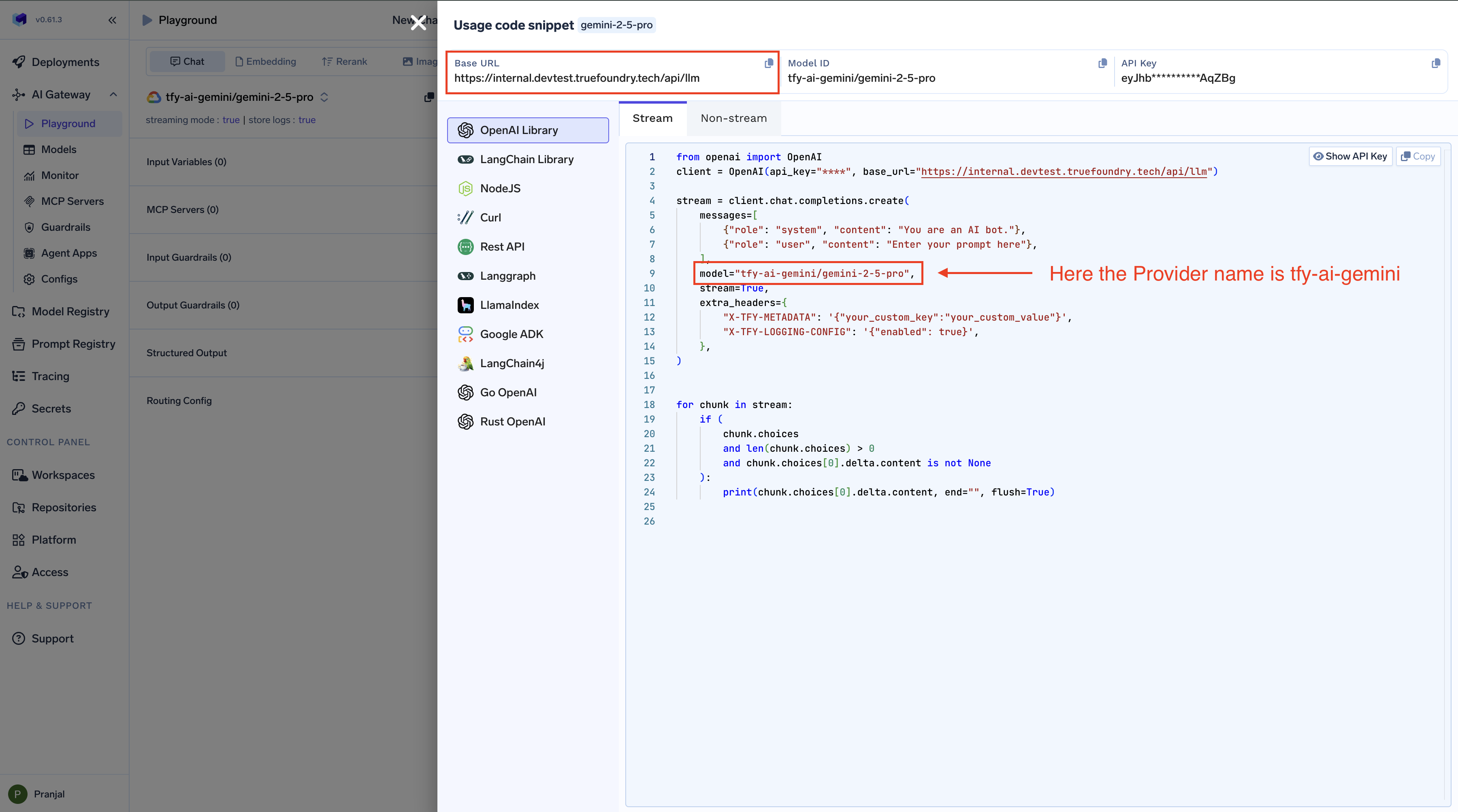
Get the `base URL` and `Provider Name` from your TrueFoundry AI Gateway playground using the unified code snippet:
 ### 3. Configure Environment Variables
Choose the configuration that matches your provider. **Google Gemini** and **Vertex AI** use different environment variables and auth mechanisms.
```bash lines theme={"dark"}
export GOOGLE_GEMINI_BASE_URL="{GATEWAY_BASE_URL}/gemini/{providerAccountName}/proxy"
export GEMINI_API_KEY="your-truefoundry-api-key"
```
```bash lines theme={"dark"}
export GOOGLE_VERTEX_BASE_URL="{GATEWAY_BASE_URL}/gemini/{providerAccountName}/proxy"
export GOOGLE_API_KEY="your-truefoundry-api-key"
export GEMINI_API_KEY_AUTH_MECHANISM="bearer"
```
**Replace the placeholders:**
| Placeholder | Description |
| -------------------------- | ------------------------------------------------------------------------------------------------------ |
| `GATEWAY_BASE_URL` | Your TrueFoundry AI Gateway Base URL ([how to find it](/docs/ai-gateway/quick-start#gateway-base-url)) |
| `providerAccountName` | Your Provider Account name (either `Google Gemini or Vertex AI`) |
| `your-truefoundry-api-key` | Your TrueFoundry Personal Access Token |
**Vertex AI users:** You must use the **Vertex AI** configuration above (with `GOOGLE_VERTEX_BASE_URL`, `GOOGLE_API_KEY`, and `GEMINI_API_KEY_AUTH_MECHANISM="bearer"`). The older Gemini-style config is no longer supported for Vertex AI with Gemini CLI due to upstream changes affecting models such as **gemini-3.1-pro**. If you were previously using Vertex AI with the Gemini config, see [Migrating from Gemini config to Vertex AI config](#migrating-from-gemini-config-to-vertex-ai-config) below.
## Migrating from Gemini config to Vertex AI config
If you were using **Vertex AI** with the previous Gemini-style configuration (`GOOGLE_GEMINI_BASE_URL` + `GEMINI_API_KEY`), you need to switch to the **Vertex AI–specific configuration**. Gemini CLI has made changes that make Vertex AI Gemini models (when used via Gemini CLI in gemini mode) **unusable for gemini-3.1-pro** unless you use the new Vertex AI config and auth type.
**Action required for Vertex AI users:** Migrate to the new Vertex AI configuration and re-select **Vertex AI** as the auth type in Gemini CLI. Until you do, Vertex AI models such as **gemini-3.1-pro** may not work correctly with Gemini CLI.
Follow **one** of the migration options below.
### Option 1: Reset auth via CLI (/auth and logout)
1. Set the [Vertex AI environment variables](#3-configure-environment-variables) (see the **Vertex AI** accordion above) in your shell profile or environment.
2. Start the CLI with `gemini`, then run the `/auth` command.
3. Use the logout option in the auth flow to clear the current auth type.
4. When prompted, select **Vertex AI** as the auth type.
### Option 2: Reset auth via settings file
1. Open the Gemini CLI settings file (e.g. `~/.gemini/settings.json` .
2. Delete the `selectedType` field from the auth object so that the CLI no longer uses the old auth selection.
3. Set the [Vertex AI environment variables](#3-configure-environment-variables) (see the **Vertex AI** accordion above) in your shell profile or environment.
4. Start the CLI with `gemini`. When prompted for authentication, choose **Vertex AI**.
After removing `selectedType`, the next time you run `gemini` you will be asked to pick an auth type again. Select **Vertex AI** to use the new configuration.
## Using Gemini CLI
1. **Start the CLI:**
```bash lines theme={"dark"}
gemini
```
2. **Setup Authentication:**
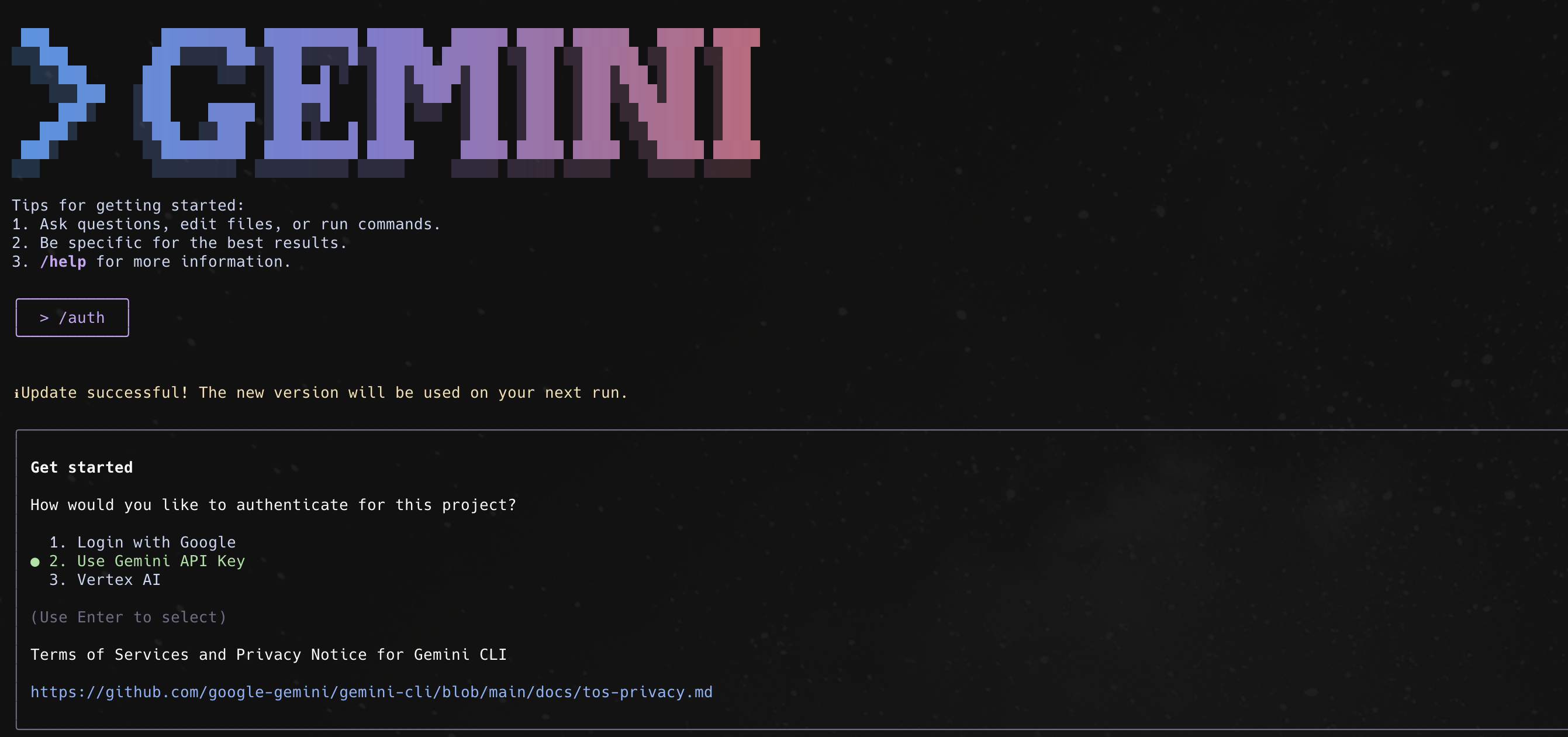
* **Google Gemini users:** If you see authentication options, choose **Use Gemini API Key**. If not prompted, type `/auth` and select **Use Gemini API Key**.
* **Vertex AI users:** Choose **Vertex AI** (or the Vertex AI auth type). If not prompted, type `/auth` and select **Vertex AI**. Ensure you have set the [Vertex AI environment variables](#3-configure-environment-variables) (see the **Vertex AI** accordion above) before starting.
### 3. Configure Environment Variables
Choose the configuration that matches your provider. **Google Gemini** and **Vertex AI** use different environment variables and auth mechanisms.
```bash lines theme={"dark"}
export GOOGLE_GEMINI_BASE_URL="{GATEWAY_BASE_URL}/gemini/{providerAccountName}/proxy"
export GEMINI_API_KEY="your-truefoundry-api-key"
```
```bash lines theme={"dark"}
export GOOGLE_VERTEX_BASE_URL="{GATEWAY_BASE_URL}/gemini/{providerAccountName}/proxy"
export GOOGLE_API_KEY="your-truefoundry-api-key"
export GEMINI_API_KEY_AUTH_MECHANISM="bearer"
```
**Replace the placeholders:**
| Placeholder | Description |
| -------------------------- | ------------------------------------------------------------------------------------------------------ |
| `GATEWAY_BASE_URL` | Your TrueFoundry AI Gateway Base URL ([how to find it](/docs/ai-gateway/quick-start#gateway-base-url)) |
| `providerAccountName` | Your Provider Account name (either `Google Gemini or Vertex AI`) |
| `your-truefoundry-api-key` | Your TrueFoundry Personal Access Token |
**Vertex AI users:** You must use the **Vertex AI** configuration above (with `GOOGLE_VERTEX_BASE_URL`, `GOOGLE_API_KEY`, and `GEMINI_API_KEY_AUTH_MECHANISM="bearer"`). The older Gemini-style config is no longer supported for Vertex AI with Gemini CLI due to upstream changes affecting models such as **gemini-3.1-pro**. If you were previously using Vertex AI with the Gemini config, see [Migrating from Gemini config to Vertex AI config](#migrating-from-gemini-config-to-vertex-ai-config) below.
## Migrating from Gemini config to Vertex AI config
If you were using **Vertex AI** with the previous Gemini-style configuration (`GOOGLE_GEMINI_BASE_URL` + `GEMINI_API_KEY`), you need to switch to the **Vertex AI–specific configuration**. Gemini CLI has made changes that make Vertex AI Gemini models (when used via Gemini CLI in gemini mode) **unusable for gemini-3.1-pro** unless you use the new Vertex AI config and auth type.
**Action required for Vertex AI users:** Migrate to the new Vertex AI configuration and re-select **Vertex AI** as the auth type in Gemini CLI. Until you do, Vertex AI models such as **gemini-3.1-pro** may not work correctly with Gemini CLI.
Follow **one** of the migration options below.
### Option 1: Reset auth via CLI (/auth and logout)
1. Set the [Vertex AI environment variables](#3-configure-environment-variables) (see the **Vertex AI** accordion above) in your shell profile or environment.
2. Start the CLI with `gemini`, then run the `/auth` command.
3. Use the logout option in the auth flow to clear the current auth type.
4. When prompted, select **Vertex AI** as the auth type.
### Option 2: Reset auth via settings file
1. Open the Gemini CLI settings file (e.g. `~/.gemini/settings.json` .
2. Delete the `selectedType` field from the auth object so that the CLI no longer uses the old auth selection.
3. Set the [Vertex AI environment variables](#3-configure-environment-variables) (see the **Vertex AI** accordion above) in your shell profile or environment.
4. Start the CLI with `gemini`. When prompted for authentication, choose **Vertex AI**.
After removing `selectedType`, the next time you run `gemini` you will be asked to pick an auth type again. Select **Vertex AI** to use the new configuration.
## Using Gemini CLI
1. **Start the CLI:**
```bash lines theme={"dark"}
gemini
```
2. **Setup Authentication:**
* **Google Gemini users:** If you see authentication options, choose **Use Gemini API Key**. If not prompted, type `/auth` and select **Use Gemini API Key**.
* **Vertex AI users:** Choose **Vertex AI** (or the Vertex AI auth type). If not prompted, type `/auth` and select **Vertex AI**. Ensure you have set the [Vertex AI environment variables](#3-configure-environment-variables) (see the **Vertex AI** accordion above) before starting.
 3. **Start using Gemini:**
```plain theme={"dark"}
# Ask about your code
> Explain this function
# Get code suggestions
> Write a function to validate email addresses
# Debug issues
> Why is this giving me a syntax error?
```
You can now use Gemini CLI with all requests going through your TrueFoundry AI Gateway.
## Using Gemini CLI with OpenAI Models
The configuration above (with `/gemini/{providerAccountName}/proxy`) is a pass-through path that only works for **native Gemini models** (Google Gemini or Vertex AI). To use the Gemini CLI with OpenAI-backed models (e.g. `gpt-5.4`, `gpt-5-mini`), the CLI needs to be pointed at the gateway's **inference endpoint** instead, which performs Gemini ↔ OpenAI request/response translation server-side. Setting this up requires a Virtual Model in TrueFoundry with `override_params` configured to strip Gemini-only generation-config fields that OpenAI rejects (such as `topK` and `topP`).
This integration only supports models where the upstream provider is OpenAI-compatible (OpenAI, Azure OpenAI, etc.). For native Gemini models, continue using the standard `/gemini/{providerAccountName}/proxy` configuration described above.
### 1. Create a Virtual Model with override\_params
The Gemini CLI unconditionally attaches Gemini-only generation-config fields (`topK`, `topP`, `thinkingConfig`, `safetySettings`) to every request body. OpenAI's chat-completion API rejects these with `Unknown parameter: 'top_k'`. To work around this, create a Virtual Model in TrueFoundry pointing to your OpenAI provider account and model, and configure its `override_params` so the offending fields are removed before the gateway forwards the request upstream.
In the TrueFoundry UI, create a new Virtual Model with:
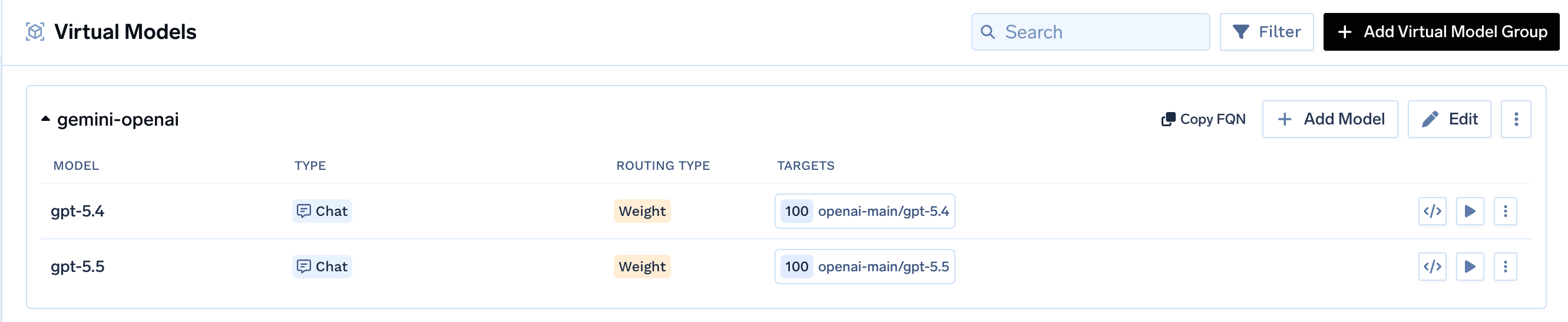
* **Target**:
Configure your OpenAI provider account and model (for example, `openai-main/gpt-5.4`) as target. Refer [Create a Virtual Model](/docs/ai-gateway/virtual-model-advanced) for more details.
3. **Start using Gemini:**
```plain theme={"dark"}
# Ask about your code
> Explain this function
# Get code suggestions
> Write a function to validate email addresses
# Debug issues
> Why is this giving me a syntax error?
```
You can now use Gemini CLI with all requests going through your TrueFoundry AI Gateway.
## Using Gemini CLI with OpenAI Models
The configuration above (with `/gemini/{providerAccountName}/proxy`) is a pass-through path that only works for **native Gemini models** (Google Gemini or Vertex AI). To use the Gemini CLI with OpenAI-backed models (e.g. `gpt-5.4`, `gpt-5-mini`), the CLI needs to be pointed at the gateway's **inference endpoint** instead, which performs Gemini ↔ OpenAI request/response translation server-side. Setting this up requires a Virtual Model in TrueFoundry with `override_params` configured to strip Gemini-only generation-config fields that OpenAI rejects (such as `topK` and `topP`).
This integration only supports models where the upstream provider is OpenAI-compatible (OpenAI, Azure OpenAI, etc.). For native Gemini models, continue using the standard `/gemini/{providerAccountName}/proxy` configuration described above.
### 1. Create a Virtual Model with override\_params
The Gemini CLI unconditionally attaches Gemini-only generation-config fields (`topK`, `topP`, `thinkingConfig`, `safetySettings`) to every request body. OpenAI's chat-completion API rejects these with `Unknown parameter: 'top_k'`. To work around this, create a Virtual Model in TrueFoundry pointing to your OpenAI provider account and model, and configure its `override_params` so the offending fields are removed before the gateway forwards the request upstream.
In the TrueFoundry UI, create a new Virtual Model with:
* **Target**:
Configure your OpenAI provider account and model (for example, `openai-main/gpt-5.4`) as target. Refer [Create a Virtual Model](/docs/ai-gateway/virtual-model-advanced) for more details.
 * **Override parameters**:
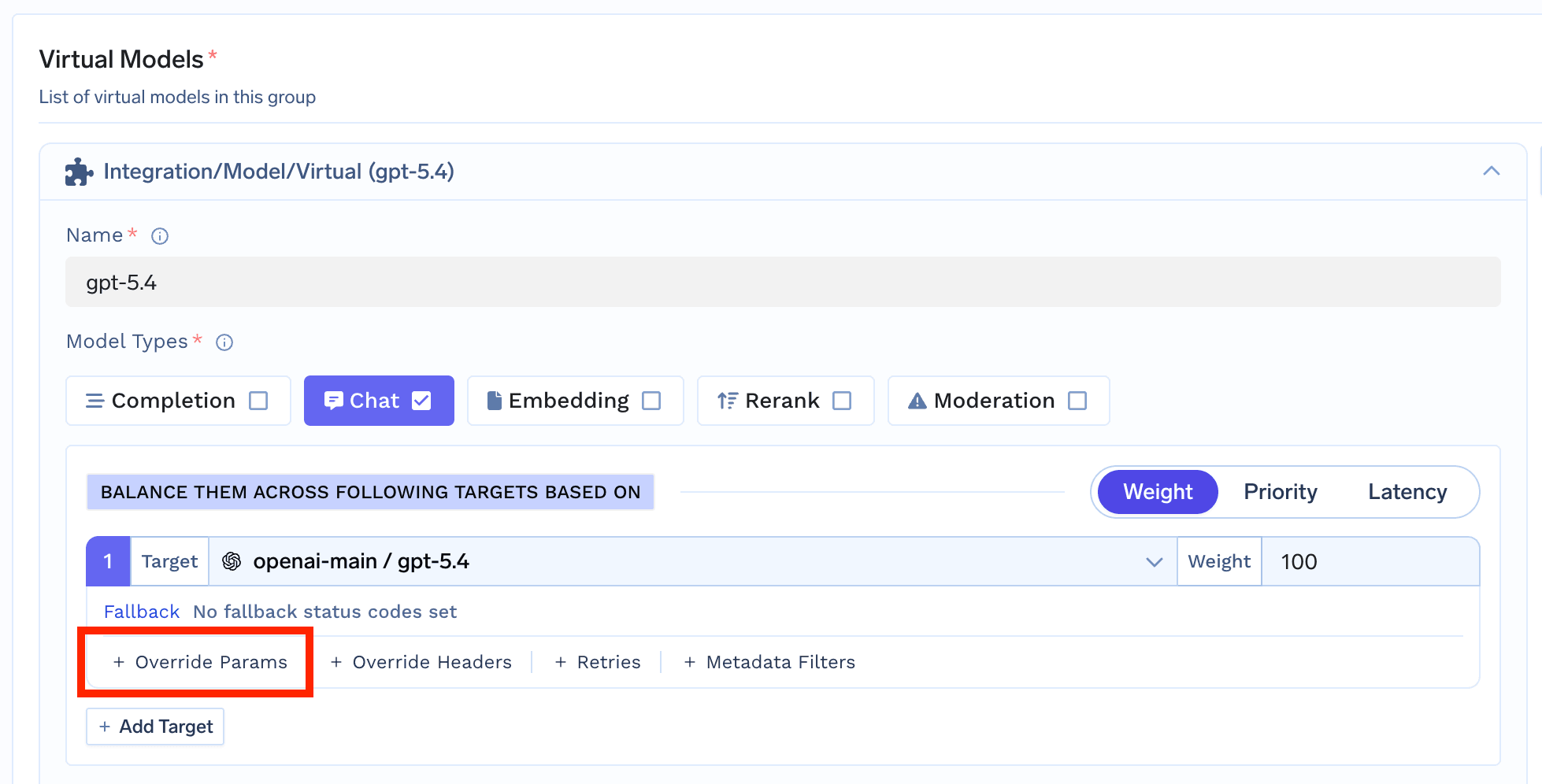
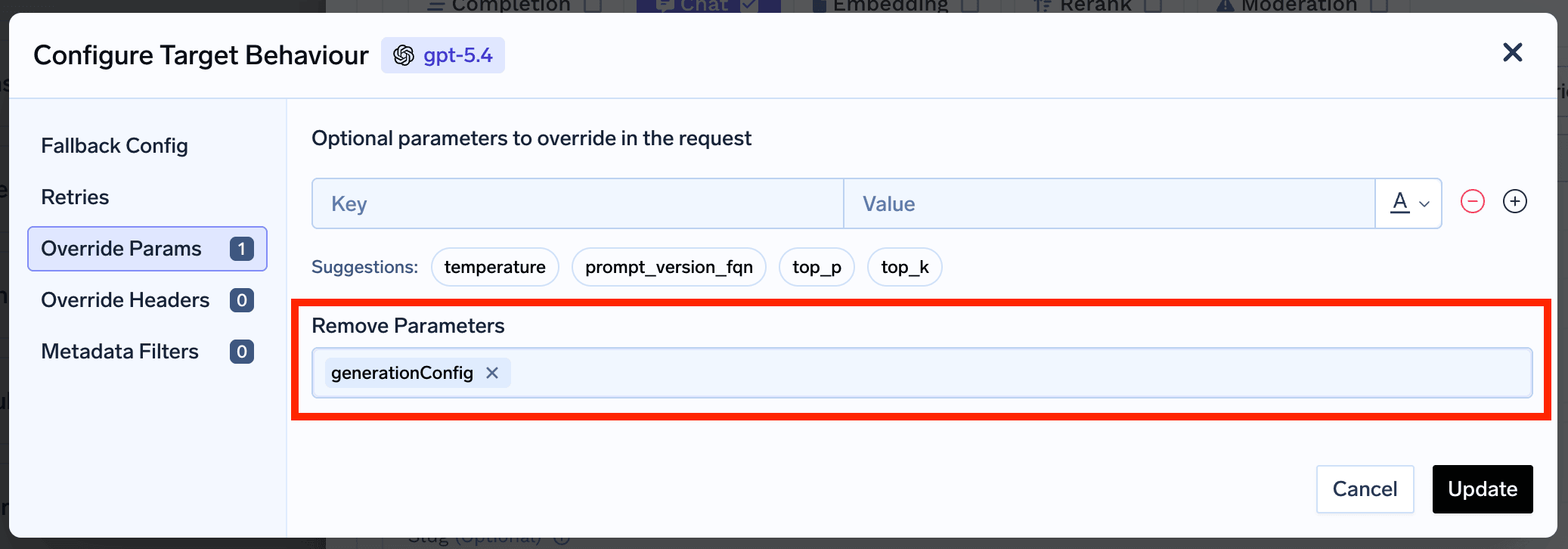
Under Virtual Models for each target configuration, you can configure `Override Params` to remove `generationConfig` before Gemini ↔ OpenAI request/response translation.
* **Override parameters**:
Under Virtual Models for each target configuration, you can configure `Override Params` to remove `generationConfig` before Gemini ↔ OpenAI request/response translation.
 * **Configure Remove Parameters**:
This replaces the CLI's full `generationConfig` (which would otherwise contain `topK`, `topP`, `thinkingConfig`, and other Gemini-only fields) with a clean version containing only fields OpenAI accepts.
* **Configure Remove Parameters**:
This replaces the CLI's full `generationConfig` (which would otherwise contain `topK`, `topP`, `thinkingConfig`, and other Gemini-only fields) with a clean version containing only fields OpenAI accepts.
 ### 2. Configure Gemini CLI for the Inference Endpoint
Unlike the native Gemini setup, the OpenAI integration uses the **bare gateway base URL** (no `/gemini/.../proxy` suffix). The CLI will append the inference path automatically.
```bash lines theme={"dark"}
export GOOGLE_GEMINI_BASE_URL="{GATEWAY_BASE_URL}"
export GEMINI_API_KEY="your-truefoundry-api-key"
```
**Replace the placeholders:**
| Placeholder | Description |
| -------------------------- | --------------------------------------------------------------------------------------- |
| `GATEWAY_BASE_URL` | Your TrueFoundry AI Gateway Base URL (root only, e.g. `https://gateway.truefoundry.ai`) |
| `your-truefoundry-api-key` | Your TrueFoundry Personal Access Token |
### 3. Start the CLI with the Virtual Model
Launch the CLI with the `-m` flag specifying your Virtual Model's `{providerAccountName}/{modelName}` slug:
```bash lines theme={"dark"}
gemini -m {virtualModelProviderAccount}/{virtualModelName}
```
For example, if your Virtual Model is registered under the provider account `openai-virtual` with the model name `gpt-5.4`:
```bash lines theme={"dark"}
gemini -m openai-virtual/gpt-5.4
```
The resulting request path becomes:
```
{GATEWAY_BASE_URL}/v1beta/models/{virtualModelProviderAccount}/{virtualModelName}:streamGenerateContent
```
Test with OpenAI models via Gemini CLI
### 2. Configure Gemini CLI for the Inference Endpoint
Unlike the native Gemini setup, the OpenAI integration uses the **bare gateway base URL** (no `/gemini/.../proxy` suffix). The CLI will append the inference path automatically.
```bash lines theme={"dark"}
export GOOGLE_GEMINI_BASE_URL="{GATEWAY_BASE_URL}"
export GEMINI_API_KEY="your-truefoundry-api-key"
```
**Replace the placeholders:**
| Placeholder | Description |
| -------------------------- | --------------------------------------------------------------------------------------- |
| `GATEWAY_BASE_URL` | Your TrueFoundry AI Gateway Base URL (root only, e.g. `https://gateway.truefoundry.ai`) |
| `your-truefoundry-api-key` | Your TrueFoundry Personal Access Token |
### 3. Start the CLI with the Virtual Model
Launch the CLI with the `-m` flag specifying your Virtual Model's `{providerAccountName}/{modelName}` slug:
```bash lines theme={"dark"}
gemini -m {virtualModelProviderAccount}/{virtualModelName}
```
For example, if your Virtual Model is registered under the provider account `openai-virtual` with the model name `gpt-5.4`:
```bash lines theme={"dark"}
gemini -m openai-virtual/gpt-5.4
```
The resulting request path becomes:
```
{GATEWAY_BASE_URL}/v1beta/models/{virtualModelProviderAccount}/{virtualModelName}:streamGenerateContent
```
Test with OpenAI models via Gemini CLI
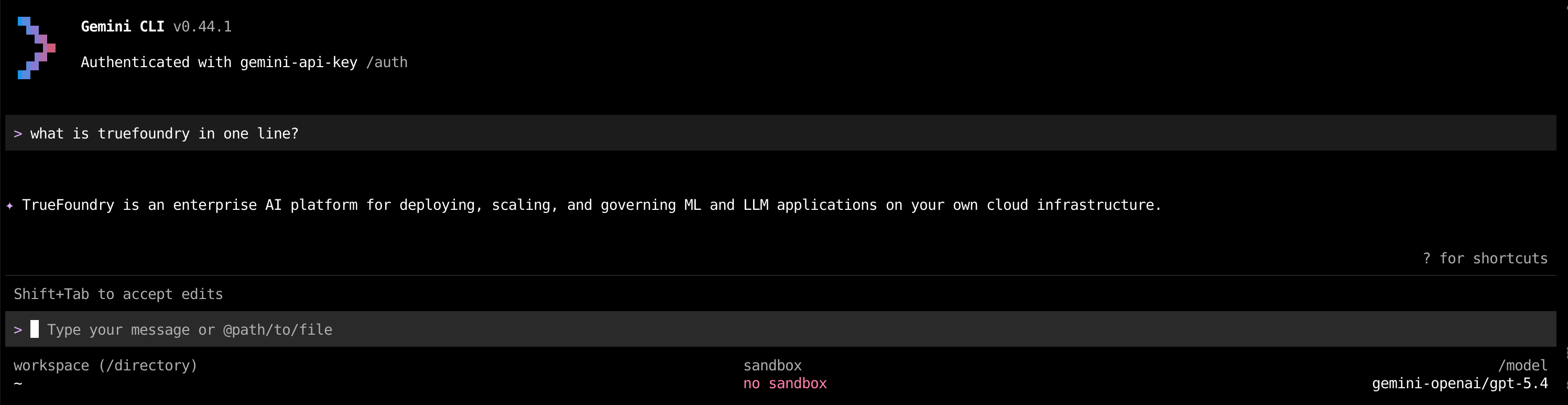 The gateway translates the Gemini-format request to OpenAI's chat-completions shape, forwards it to OpenAI, and translates the response back to Gemini format before returning it to the CLI.
### Limitations
**In-CLI model switching is not supported.** Gemini CLI's built-in model picker only lists native Gemini models (e.g. `gemini-2.5-pro`, `gemini-2.5-flash`). When you launch with `-m {provider}/{model}`, that model is fixed for the entire CLI session. To use a different OpenAI model, exit and re-launch the CLI with a different `-m` argument — or create additional Virtual Models in TrueFoundry, one per OpenAI model you want to use.
The gateway translates the Gemini-format request to OpenAI's chat-completions shape, forwards it to OpenAI, and translates the response back to Gemini format before returning it to the CLI.
### Limitations
**In-CLI model switching is not supported.** Gemini CLI's built-in model picker only lists native Gemini models (e.g. `gemini-2.5-pro`, `gemini-2.5-flash`). When you launch with `-m {provider}/{model}`, that model is fixed for the entire CLI session. To use a different OpenAI model, exit and re-launch the CLI with a different `-m` argument — or create additional Virtual Models in TrueFoundry, one per OpenAI model you want to use.