> ## Documentation Index
> Fetch the complete documentation index at: https://www.truefoundry.com/llms.txt
> Use this file to discover all available pages before exploring further.
# API Access to Logs
> Learn how to fetch Gateway request logs using the spans query API for different use cases.
The LLM Gateway delivers detailed request logs through tracing. Retrieve these logs using the [Query Spans API](/docs/truefoundry_sdk/traces#query-spans).
To better understand tracing concepts like traces, spans, and how they work together, see our [tracing overview](/docs/tracing/overview).
## Contents
| Section | Description |
| -------------------------------------------------------------------------- | ----------------------------------------- |
| [Overview](/docs/ai-gateway/fetch-request-logs) | Quickstart with SDK and HTTP API |
| [Trace inspection](/docs/ai-gateway/fetch-request-logs-trace-inspection) | Inspect a single trace and span hierarchy |
| [Filtering](/docs/ai-gateway/fetch-request-logs-filtering) | Filter request logs |
| [Basic queries](/docs/ai-gateway/fetch-request-logs-use-cases) | Time range, users, virtual accounts |
| [Advanced queries](/docs/ai-gateway/fetch-request-logs-use-cases-advanced) | Trace ID, model spans, metadata, MCP |
| [Span attributes](/docs/ai-gateway/fetch-request-logs-span-attributes) | Attribute reference |
## Quickstart
### Setup the TrueFoundry SDK
To start querying request logs, install and configure the **TrueFoundry SDK and CLI**.\
Follow the [CLI Setup Guide](/docs/setup-cli) for installation instructions and authentication steps.
Once setup is complete, you can use the SDK to query tracing data programmatically.
### Fetch using TrueFoundry SDK
Each request to the LLM Gateway generates a **trace**—a timeline of everything that happened, from the incoming request to guardrails to the model call and any external APIs.
Let's pull the latest Gateway traces and see real data quickly.
Fetch the latest LLM Gateway request logs:
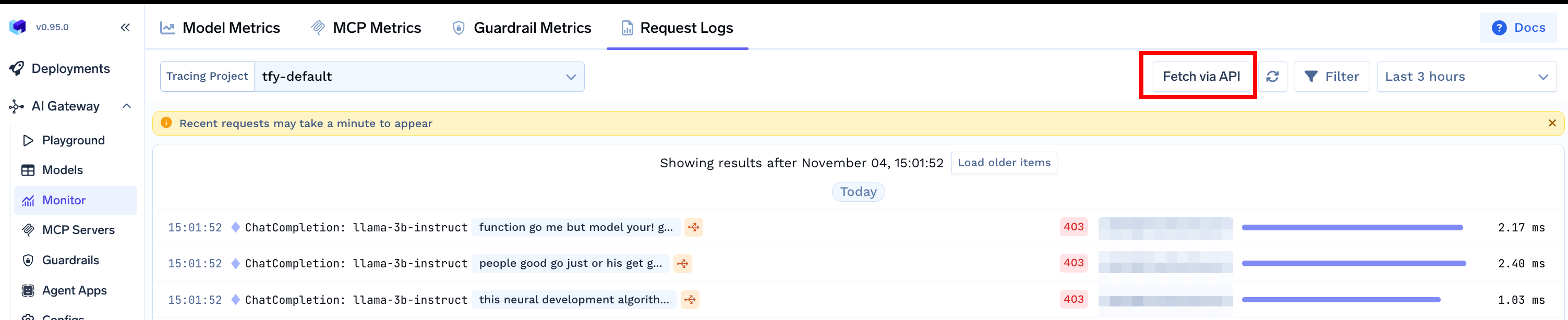
You can get the `tracing_project_fqn` from the `Fetch via API` button on the Request Logs page
 ```python lines theme={"dark"}
from truefoundry import client
# Fetch LLM Gateway request logs
spans = client.traces.query_spans(
data_routing_destination="default",
start_time="2025-01-21T00:00:00.000Z",
)
for span in spans:
print(span.span_name, span.span_attributes.get('tfy.span_type'))
```
### Authentication
To start querying request logs, you need to authenticate with your TrueFoundry API key. You can use either a Personal Access Token **(PAT)** or Virtual Account Token **(VAT)**.
To generate an API key:
1. **Personal Access Token (PAT)**: Go to Access → Personal Access Tokens in your TrueFoundry dashboard
2. **Virtual Account Token (VAT)**: Go to Access → Virtual Account Tokens (requires admin permissions)
For detailed authentication setup, see our [Authentication guide](/docs/ai-gateway/authentication).
### Fetch using HTTP API
Each request to the LLM Gateway generates a **trace**—a timeline of everything that happened, from the incoming request to guardrails to the model call and any external APIs.
Let's pull the latest Gateway traces and see real data quickly.
Fetch the latest LLM Gateway request logs:
You can get the `tracing_project_fqn` from the `Fetch via API` button on the Request Logs page
```python lines theme={"dark"}
import requests
page_token = None
done = False
while not done:
# Make API request
response = requests.post(
"https://{control_plane_url}/api/svc/v1/spans/query",
headers={
"Authorization": "Bearer YOUR_API_TOKEN",
"Content-Type": "application/json"
},
json={
"dataRoutingDestination": "default",
"startTime": "2025-10-08T20:16:54",
"pageToken": page_token
}
)
response.raise_for_status()
data = response.json()
for span in data['data']:
print(span['spanName'], span['spanAttributes'].get('tfy.span_type', ''))
page_token = data['pagination'].get("nextPageToken")
done = page_token is None
print("Fetch spans completed!")
```
```python lines theme={"dark"}
from truefoundry import client
# Fetch LLM Gateway request logs
spans = client.traces.query_spans(
data_routing_destination="default",
start_time="2025-01-21T00:00:00.000Z",
)
for span in spans:
print(span.span_name, span.span_attributes.get('tfy.span_type'))
```
### Authentication
To start querying request logs, you need to authenticate with your TrueFoundry API key. You can use either a Personal Access Token **(PAT)** or Virtual Account Token **(VAT)**.
To generate an API key:
1. **Personal Access Token (PAT)**: Go to Access → Personal Access Tokens in your TrueFoundry dashboard
2. **Virtual Account Token (VAT)**: Go to Access → Virtual Account Tokens (requires admin permissions)
For detailed authentication setup, see our [Authentication guide](/docs/ai-gateway/authentication).
### Fetch using HTTP API
Each request to the LLM Gateway generates a **trace**—a timeline of everything that happened, from the incoming request to guardrails to the model call and any external APIs.
Let's pull the latest Gateway traces and see real data quickly.
Fetch the latest LLM Gateway request logs:
You can get the `tracing_project_fqn` from the `Fetch via API` button on the Request Logs page
```python lines theme={"dark"}
import requests
page_token = None
done = False
while not done:
# Make API request
response = requests.post(
"https://{control_plane_url}/api/svc/v1/spans/query",
headers={
"Authorization": "Bearer YOUR_API_TOKEN",
"Content-Type": "application/json"
},
json={
"dataRoutingDestination": "default",
"startTime": "2025-10-08T20:16:54",
"pageToken": page_token
}
)
response.raise_for_status()
data = response.json()
for span in data['data']:
print(span['spanName'], span['spanAttributes'].get('tfy.span_type', ''))
page_token = data['pagination'].get("nextPageToken")
done = page_token is None
print("Fetch spans completed!")
```