> ## Documentation Index
> Fetch the complete documentation index at: https://www.truefoundry.com/llms.txt
> Use this file to discover all available pages before exploring further.
# Cloudera
> Add and configure Cloudera models in TrueFoundry's AI Gateway
### Adding Models
This section explains the steps to add Cloudera models and configure the required access controls.
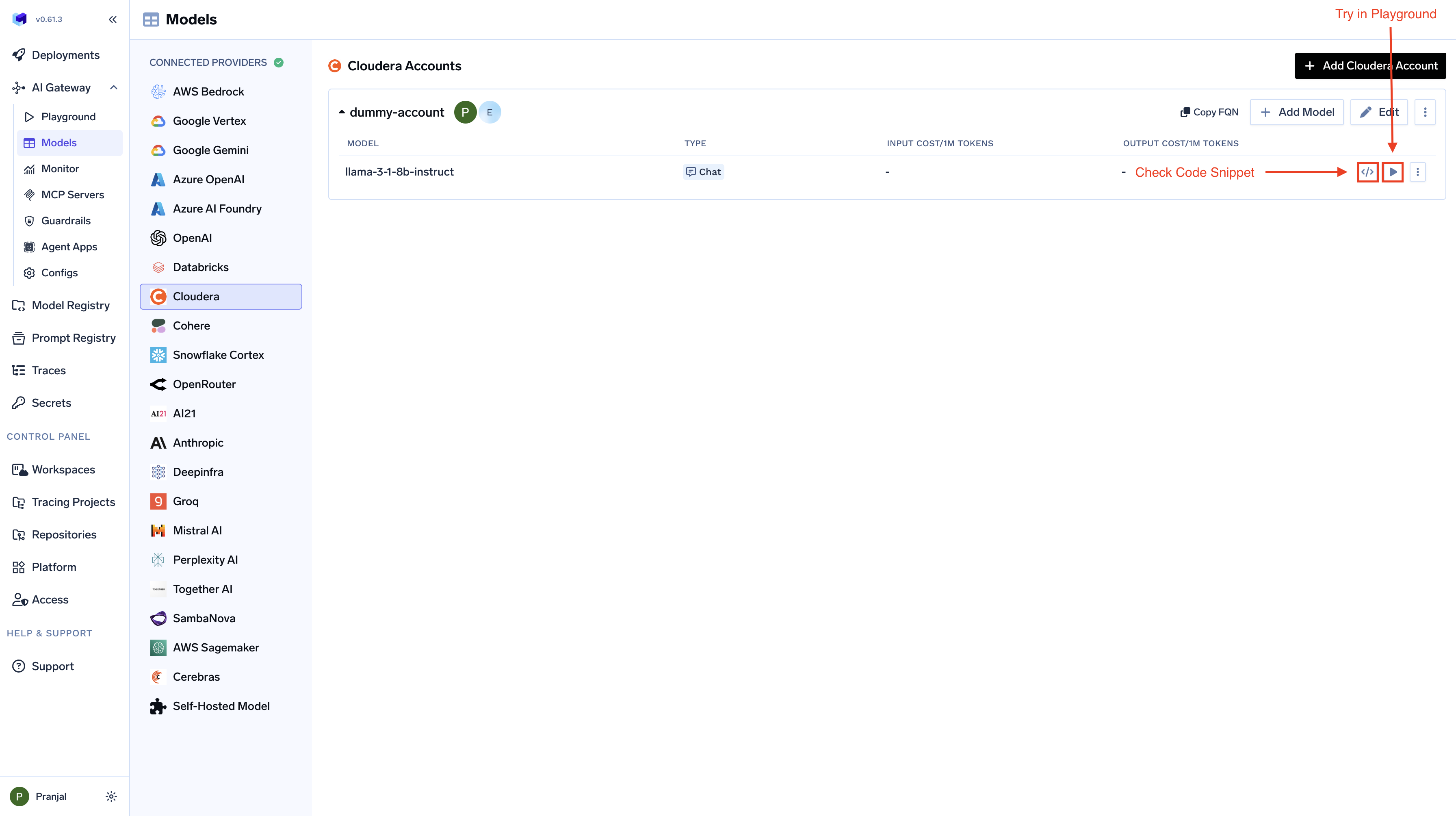
From the TrueFoundry dashboard, navigate to `AI Gateway` > `Models` and select `Cloudera`.
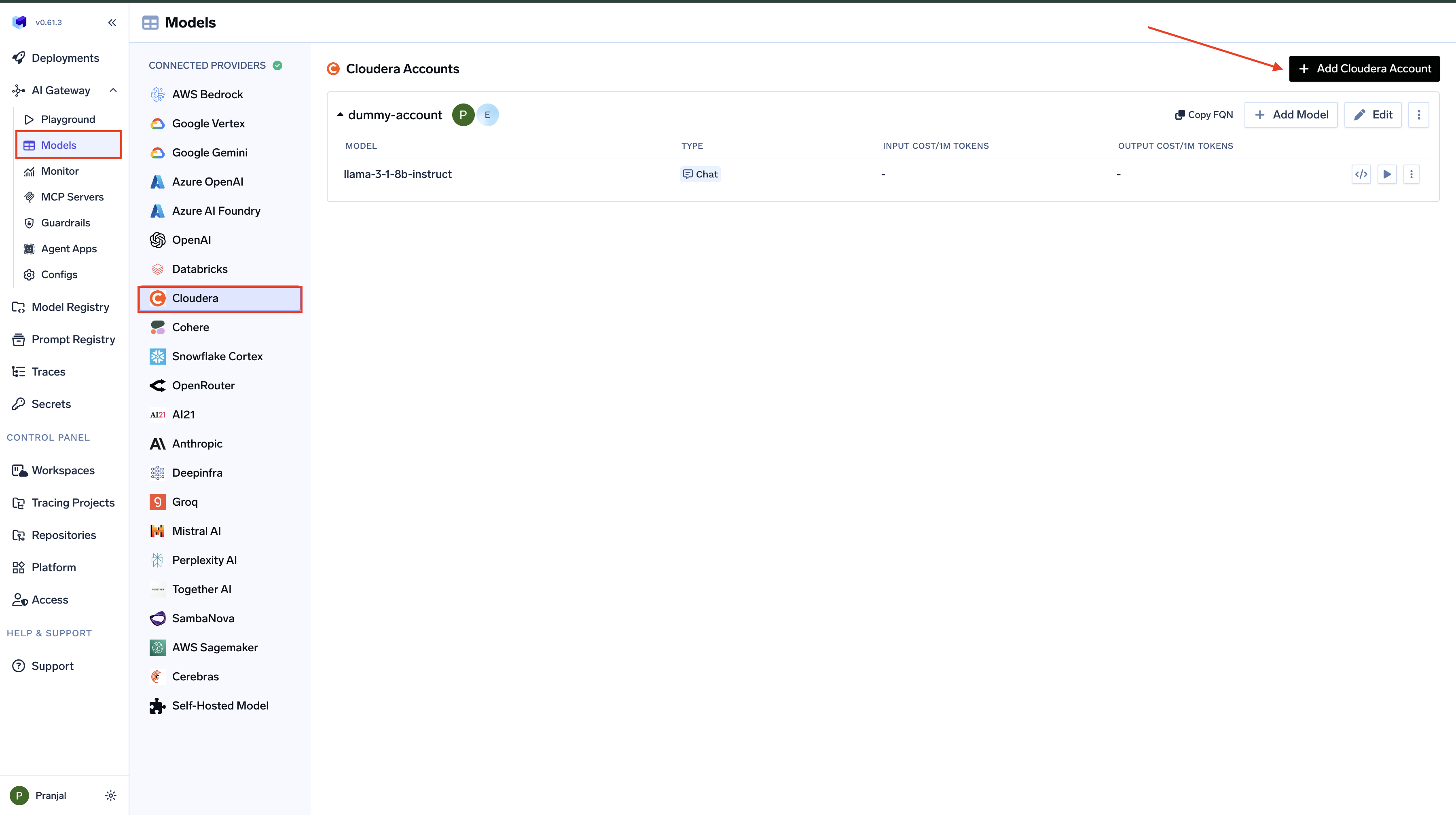 Give a unique name for the Cloudera account. This will be used to refer to the models later. Provide the authentication details for the gateway to access your Cloudera CDP environment. TrueFoundry supports both `CDP Workload Authentication` (recommended) and `Auth Token based` authentication.
**Using CDP Workload Authentication (Recommended):**
CDP Workload Authentication is the recommended approach for production environments as it provides better security and access control. This method generates secure workload tokens using your Access key and private key.
Choose **CDP Workload Auth Token**.
* Enter your `Access Key ID`, `Private Key`, and `Workload Name`.
* Enter your `CDP Base URL`. This is the base URL for CDP API services used for authentication token generation. You can find your CDP Base URL in your Cloudera CDP environment settings or documentation.
Store your `Private Key` in a Secret Group and reference it using the secret's Fully Qualified Name (FQN) in the Private Key field. This ensures your private key is securely managed and not exposed in plain text.
The `CDP Base URL` is different from the Model Base URL. The CDP Base URL is used for authentication token generation, while the Model Base URL (configured per model) is used for inference requests.
Give a unique name for the Cloudera account. This will be used to refer to the models later. Provide the authentication details for the gateway to access your Cloudera CDP environment. TrueFoundry supports both `CDP Workload Authentication` (recommended) and `Auth Token based` authentication.
**Using CDP Workload Authentication (Recommended):**
CDP Workload Authentication is the recommended approach for production environments as it provides better security and access control. This method generates secure workload tokens using your Access key and private key.
Choose **CDP Workload Auth Token**.
* Enter your `Access Key ID`, `Private Key`, and `Workload Name`.
* Enter your `CDP Base URL`. This is the base URL for CDP API services used for authentication token generation. You can find your CDP Base URL in your Cloudera CDP environment settings or documentation.
Store your `Private Key` in a Secret Group and reference it using the secret's Fully Qualified Name (FQN) in the Private Key field. This ensures your private key is securely managed and not exposed in plain text.
The `CDP Base URL` is different from the Model Base URL. The CDP Base URL is used for authentication token generation, while the Model Base URL (configured per model) is used for inference requests.
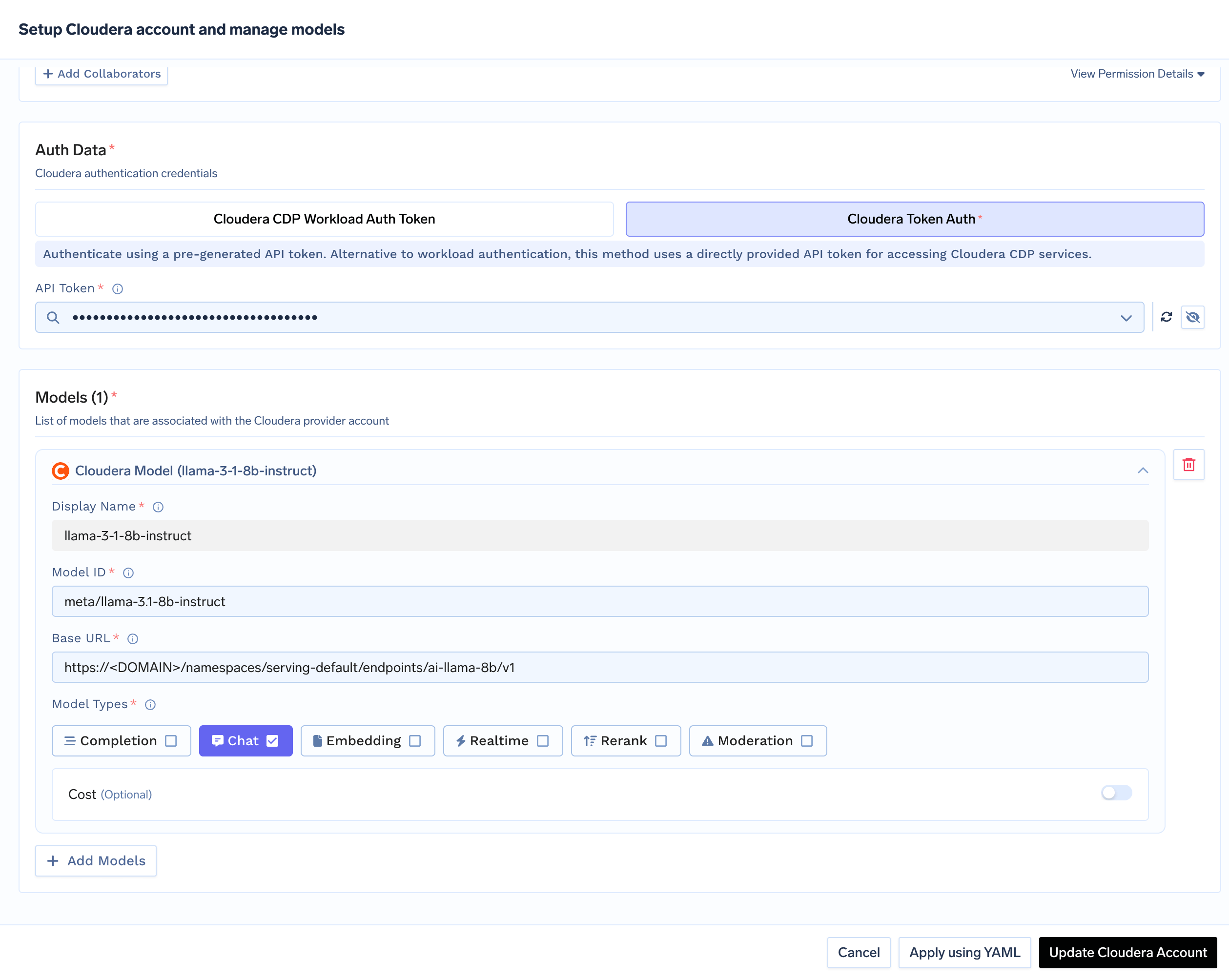
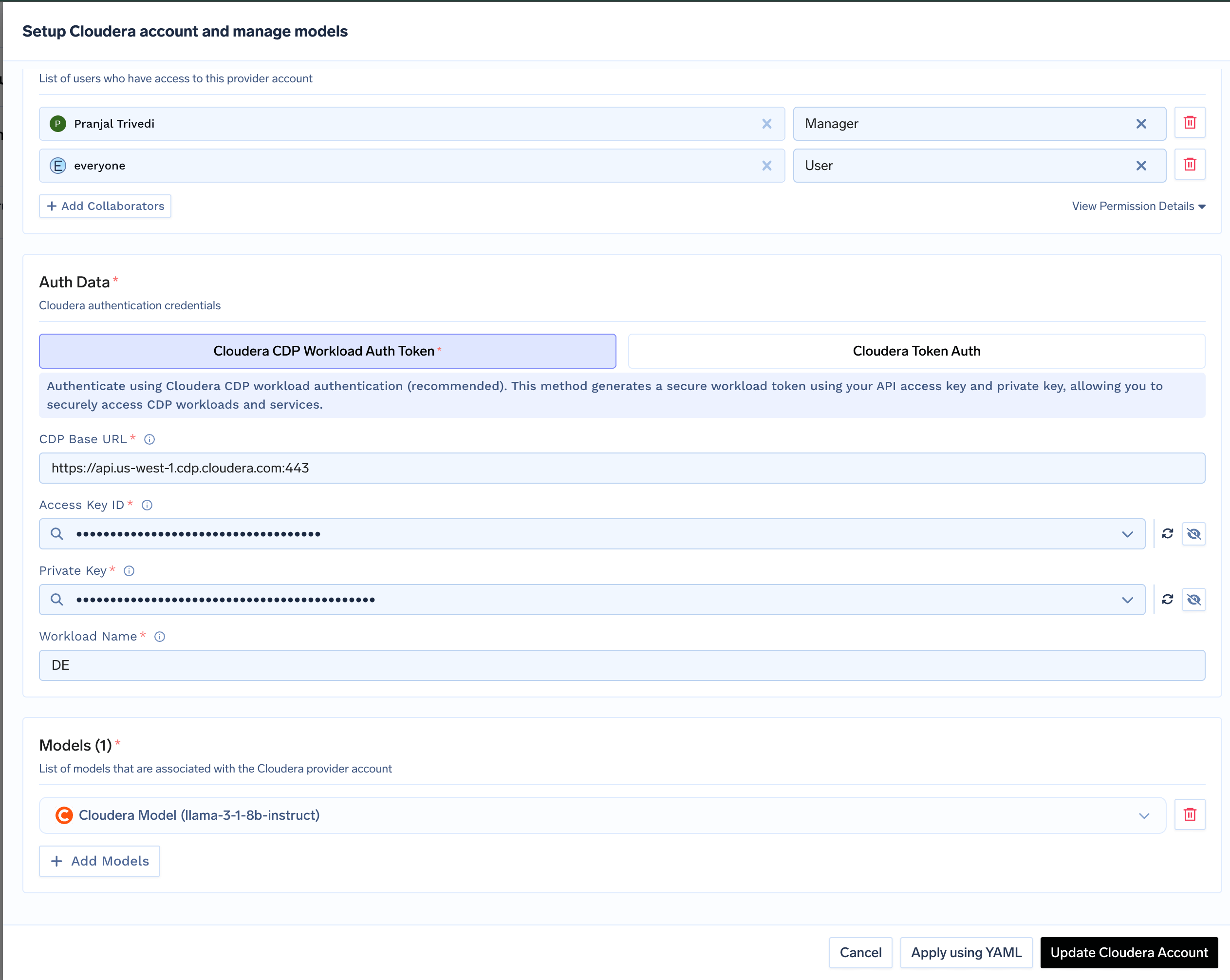 **Using Auth Token:**
Auth Token is suitable for development and testing environments.
* Choose **Token Auth**.
* Enter your pre-generated `Auth Token`. You can generate this token using the CDP CLI or from your user profile settings.
**Using Auth Token:**
Auth Token is suitable for development and testing environments.
* Choose **Token Auth**.
* Enter your pre-generated `Auth Token`. You can generate this token using the CDP CLI or from your user profile settings.
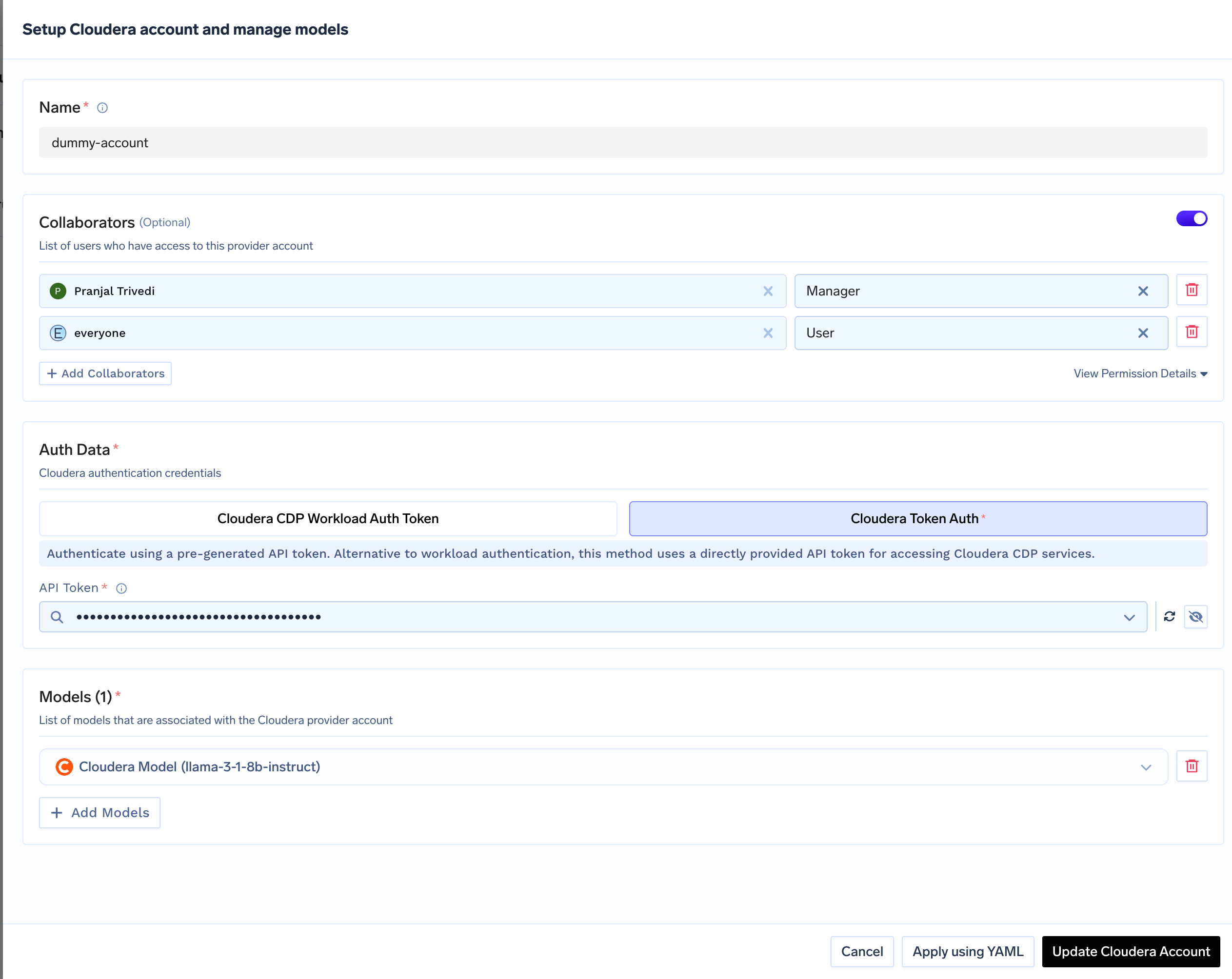 Click `+ Add Model` to add a new model configuration. Provide the following:
* **Model ID**: The unique identifier of the model in the Cloudera Model Registry. This is used in the request body and can differ from the endpoint name in the URL. Find this in the Cloudera CDP Model Registry or Model Endpoint Details UI.
* **Base URL**: The model endpoint URL up to `/v1`. Copy the full endpoint URL from your Cloudera AI Inference service and remove the last two path components (e.g., remove `/chat/completions`). The Base URL should end with `/v1`.
Click `+ Add Model` to add a new model configuration. Provide the following:
* **Model ID**: The unique identifier of the model in the Cloudera Model Registry. This is used in the request body and can differ from the endpoint name in the URL. Find this in the Cloudera CDP Model Registry or Model Endpoint Details UI.
* **Base URL**: The model endpoint URL up to `/v1`. Copy the full endpoint URL from your Cloudera AI Inference service and remove the last two path components (e.g., remove `/chat/completions`). The Base URL should end with `/v1`.
 ### Inference
After adding the models, you can perform inference using an OpenAI-compatible API via the Playground or by integrating it with your own application.
### Inference
After adding the models, you can perform inference using an OpenAI-compatible API via the Playground or by integrating it with your own application.