> ## Documentation Index
> Fetch the complete documentation index at: https://www.truefoundry.com/llms.txt
> Use this file to discover all available pages before exploring further.
# Cline
> Documentation for using Cline with the TrueFoundry AI Gateway.
This guide provides instructions for integrating [Cline](https://github.com/cline/cline) with the Truefoundry AI Gateway.
## What is Cline?
Cline is an AI coding assistant that integrates directly into your VS Code environment, providing autonomous coding capabilities. It enhances your development workflow by offering intelligent code assistance, automated file creation, and interactive debugging support.
### Key Features of Cline
* **[VS Code Integration](https://github.com/cline/cline)**: Seamlessly integrates into your VS Code environment as an extension, providing AI-powered coding assistance directly within your familiar development interface
* **[Autonomous Code Generation](https://cline.bot/)**: Creates files, functions, and code blocks autonomously based on natural language descriptions, accelerating development with intelligent code synthesis
* **[Interactive Development Support](https://github.com/cline/cline)**: Provides real-time assistance for code modifications, explanations, debugging, and error resolution through conversational AI interaction
## Prerequisites
Before integrating Cline with TrueFoundry, ensure you have:
1. **TrueFoundry Account**: Create a [Truefoundry account](https://www.truefoundry.com/register) and follow the instructions in our [Gateway Quick Start](https://docs.truefoundry.com/gateway/quick-start)
2. **VS Code**: Install [Cline](https://cline.bot/) or in whichever IDE you prefer
3. **Cline Extension**: Install the Cline extension from the VS Code marketplace
## Setup Process
### 1. Configure Cline Settings
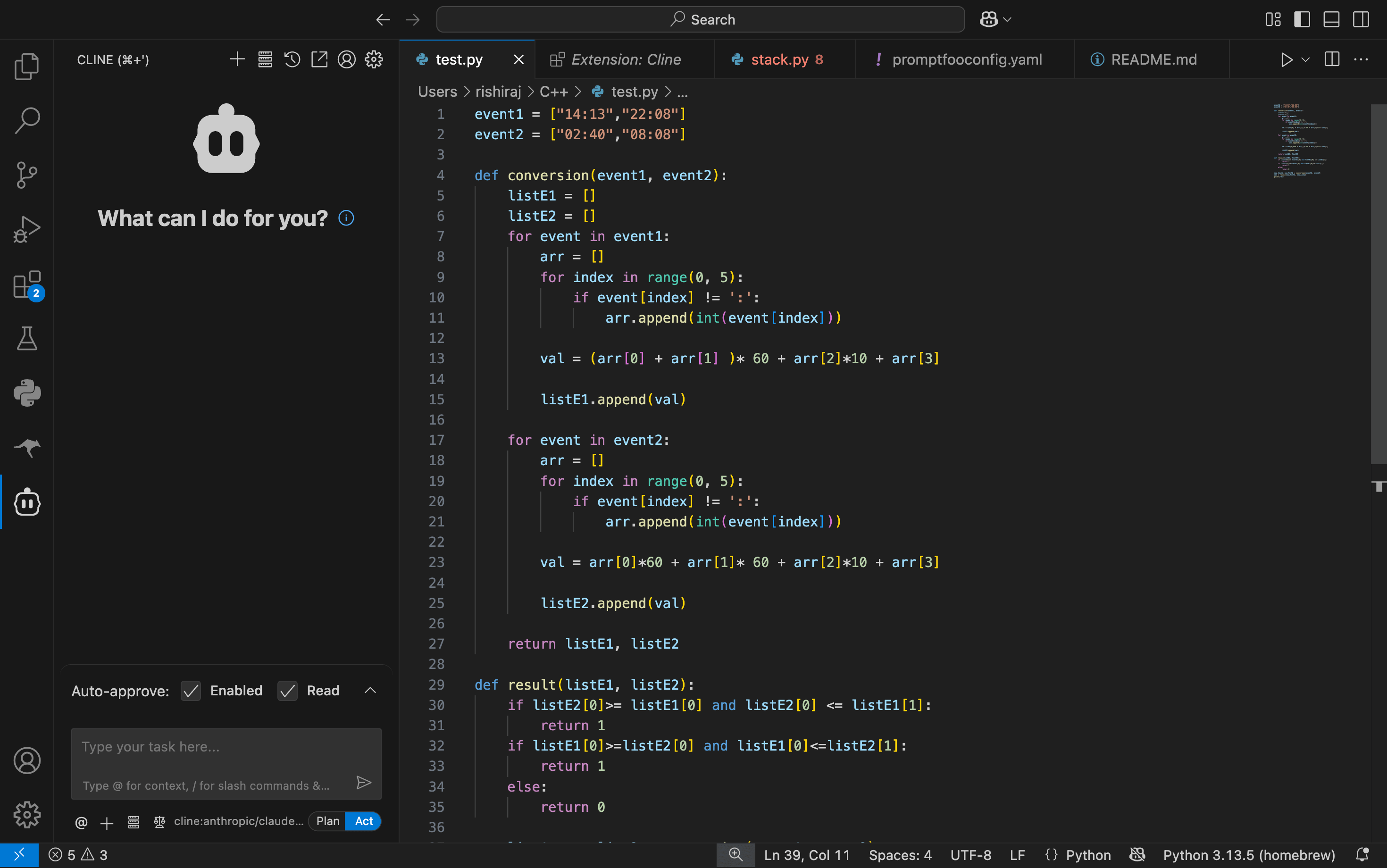
Open Cline settings in VS Code:
1. Open VS Code with Cline installed
2. Press `Cmd/Ctrl + Shift + P` to open the command palette
3. Search for `Cline: Open in new tab`
4. Click on the settings gear icon ⚙️ in the Cline tab
 ### 2. Configure API Settings
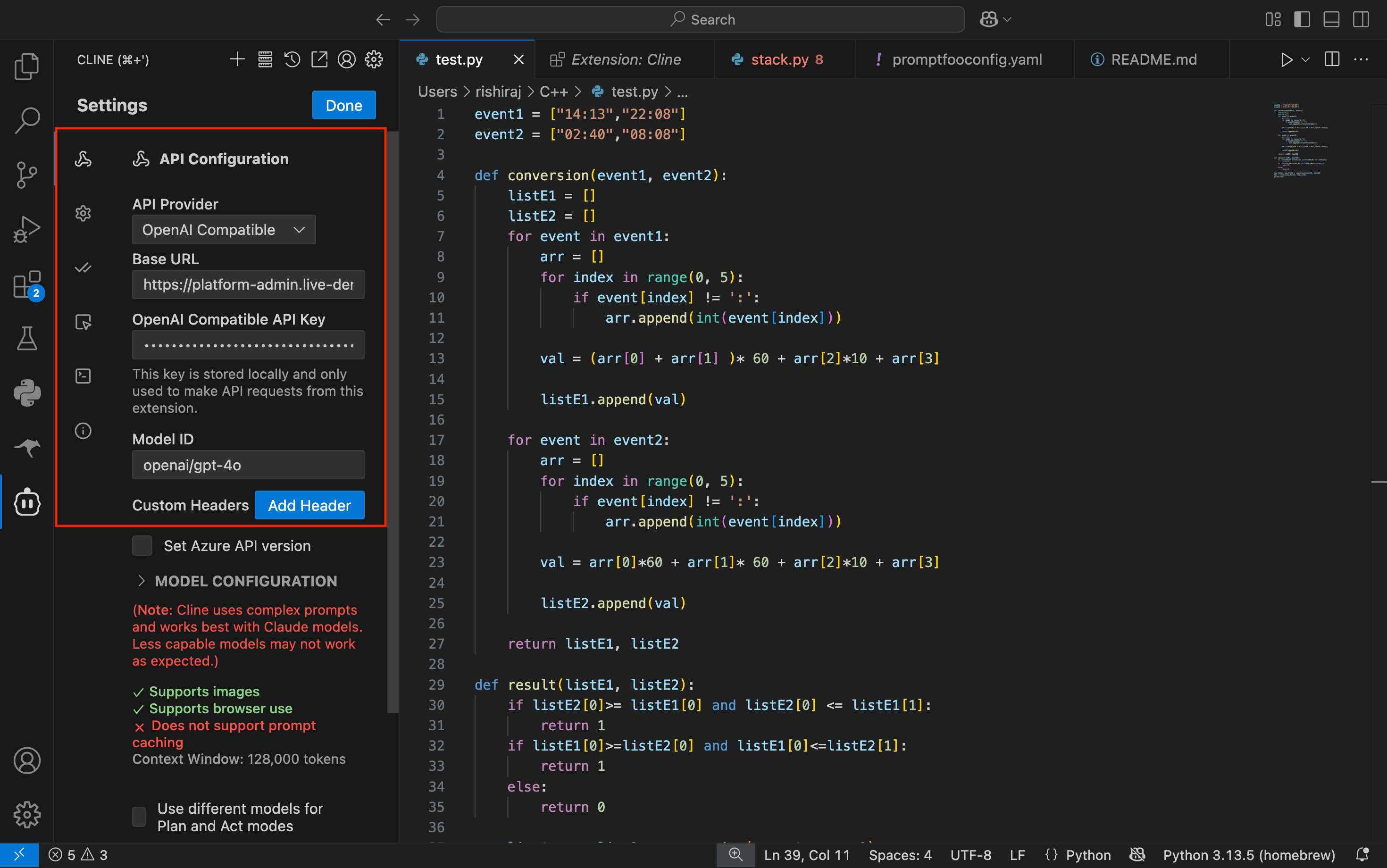
In the Cline settings, configure the API connection:
Set the following values:
* **API Provider**: Select `OpenAI Compatible`
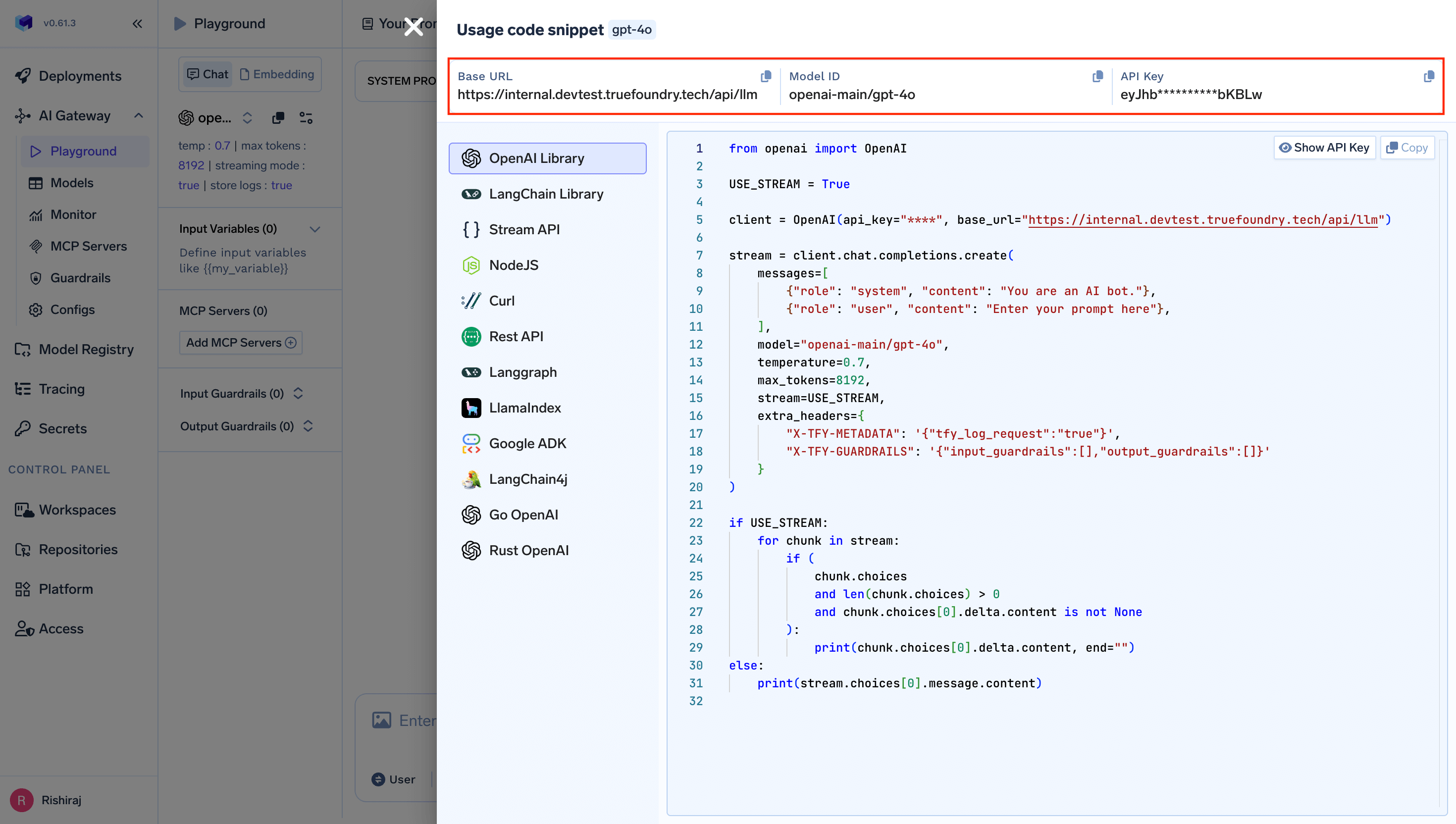
* **Base URL**: `your-truefoundry-gateway-url`
* **API Key**: 'your-truefoundry-api-key'
* **Model ID**: `openai-main/gpt-4o` (or your preferred TrueFoundry model)
### 2. Configure API Settings
In the Cline settings, configure the API connection:
Set the following values:
* **API Provider**: Select `OpenAI Compatible`
* **Base URL**: `your-truefoundry-gateway-url`
* **API Key**: 'your-truefoundry-api-key'
* **Model ID**: `openai-main/gpt-4o` (or your preferred TrueFoundry model)
 Once configured, you can start using Cline for various coding tasks:
1. **Ask Cline to create a new file**: "Create a Python function to calculate Fibonacci numbers"
2. **Request code modifications**: "Add error handling to this function"
3. **Get explanations**: "Explain what this code does"
4. **Debug assistance**: "Help me fix this error"
That's it! You're now ready to use Cline with TrueFoundry Gateway for enhanced AI-powered development with enterprise-grade controls and monitoring.
Once configured, you can start using Cline for various coding tasks:
1. **Ask Cline to create a new file**: "Create a Python function to calculate Fibonacci numbers"
2. **Request code modifications**: "Add error handling to this function"
3. **Get explanations**: "Explain what this code does"
4. **Debug assistance**: "Help me fix this error"
That's it! You're now ready to use Cline with TrueFoundry Gateway for enhanced AI-powered development with enterprise-grade controls and monitoring.