> ## Documentation Index
> Fetch the complete documentation index at: https://www.truefoundry.com/llms.txt
> Use this file to discover all available pages before exploring further.
# Cerebras
> Add and configure Cerebras models through TrueFoundry's AI Gateway
### Adding Models
This section explains the steps to add Cerebras models and configure the required access controls.
From the TrueFoundry dashboard, navigate to `AI Gateway` > `Models` and select `Cerebras`.
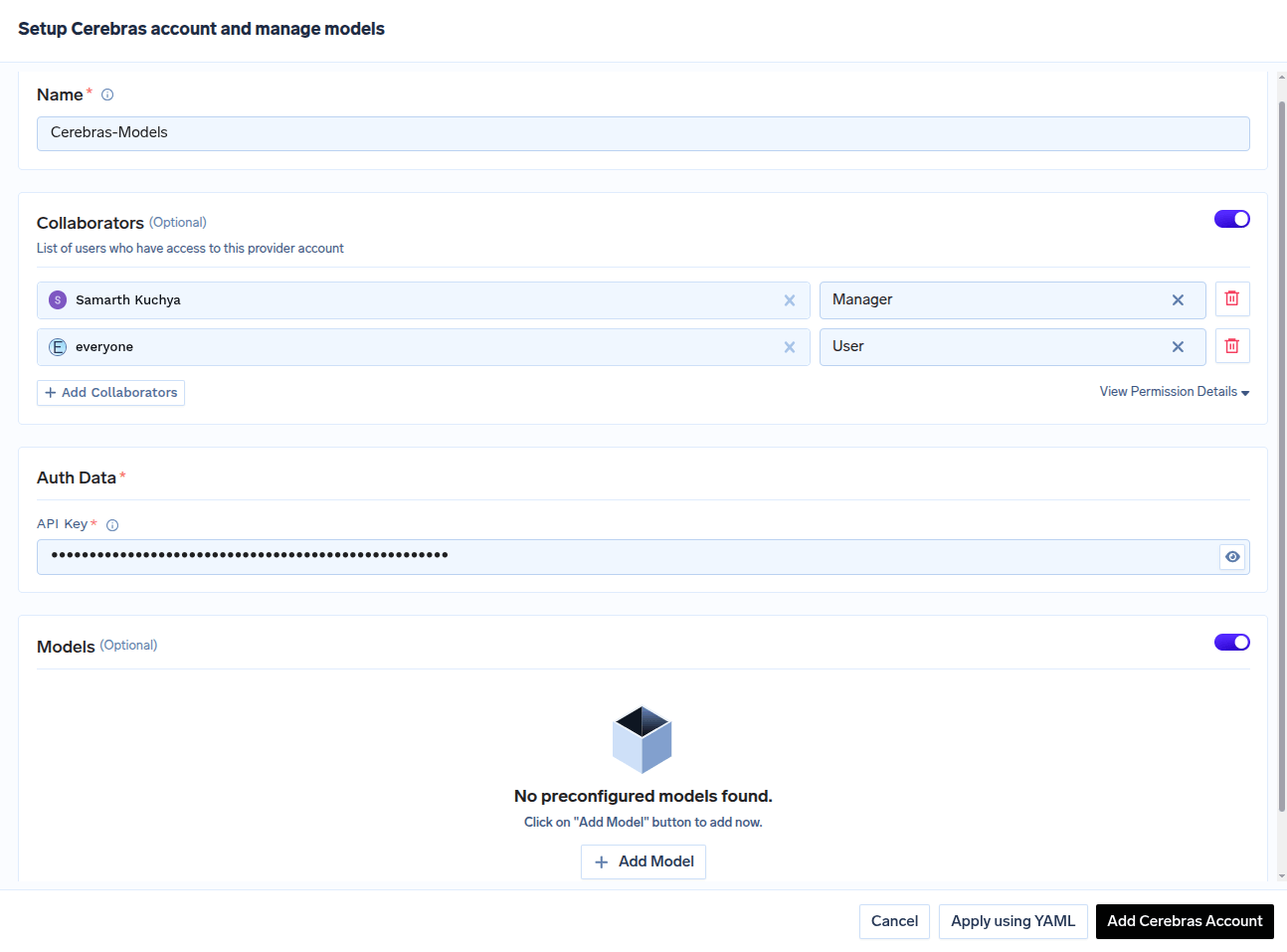
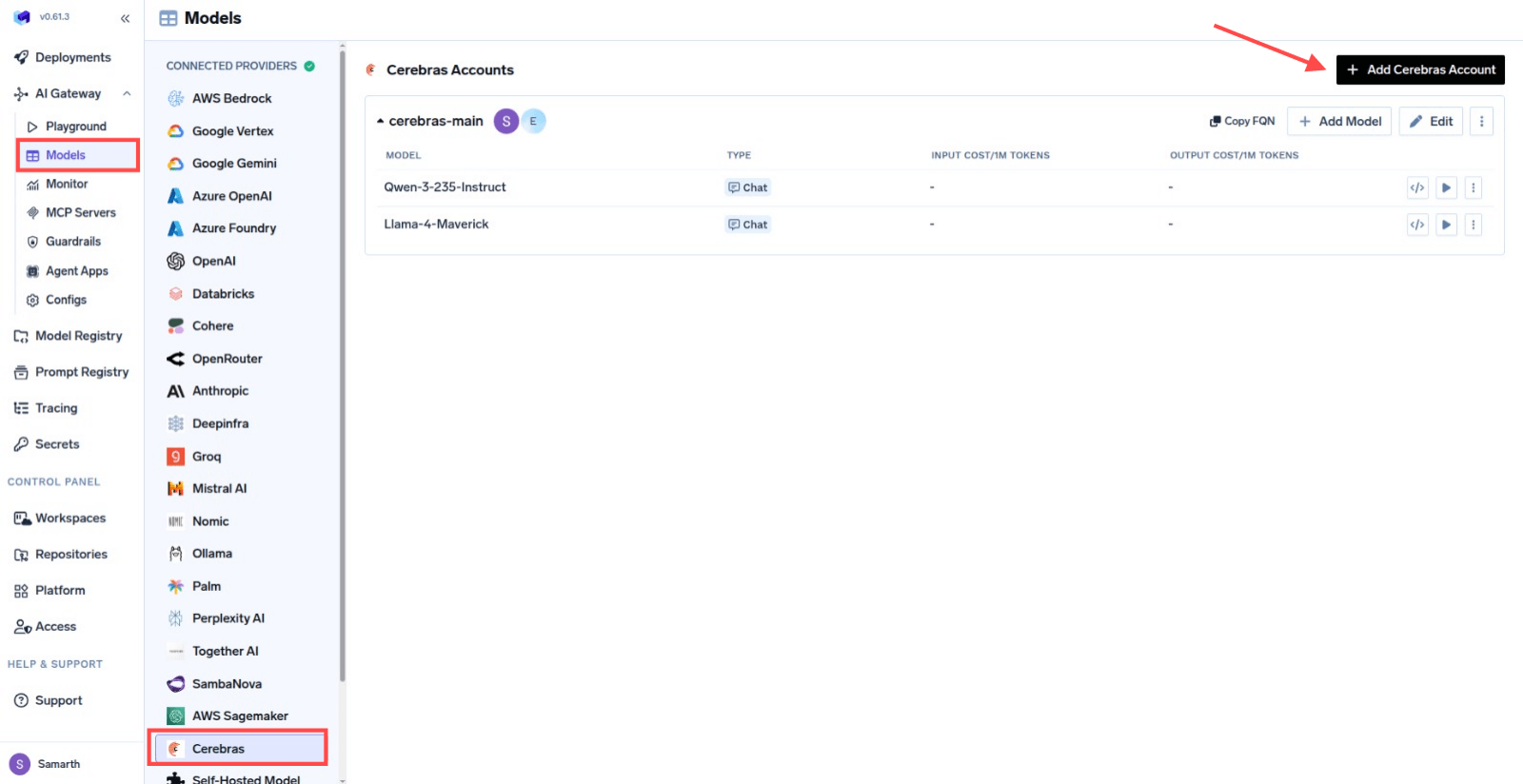 Click `Add Cerebras Account`. Give a unique name to your Cerebras account and complete the form with your Cerebras authentication details (API Key).
Add collaborators to your account. You can read more about access control [here](/docs/ai-gateway/gateway-access-control).
Click `Add Cerebras Account`. Give a unique name to your Cerebras account and complete the form with your Cerebras authentication details (API Key).
Add collaborators to your account. You can read more about access control [here](/docs/ai-gateway/gateway-access-control).
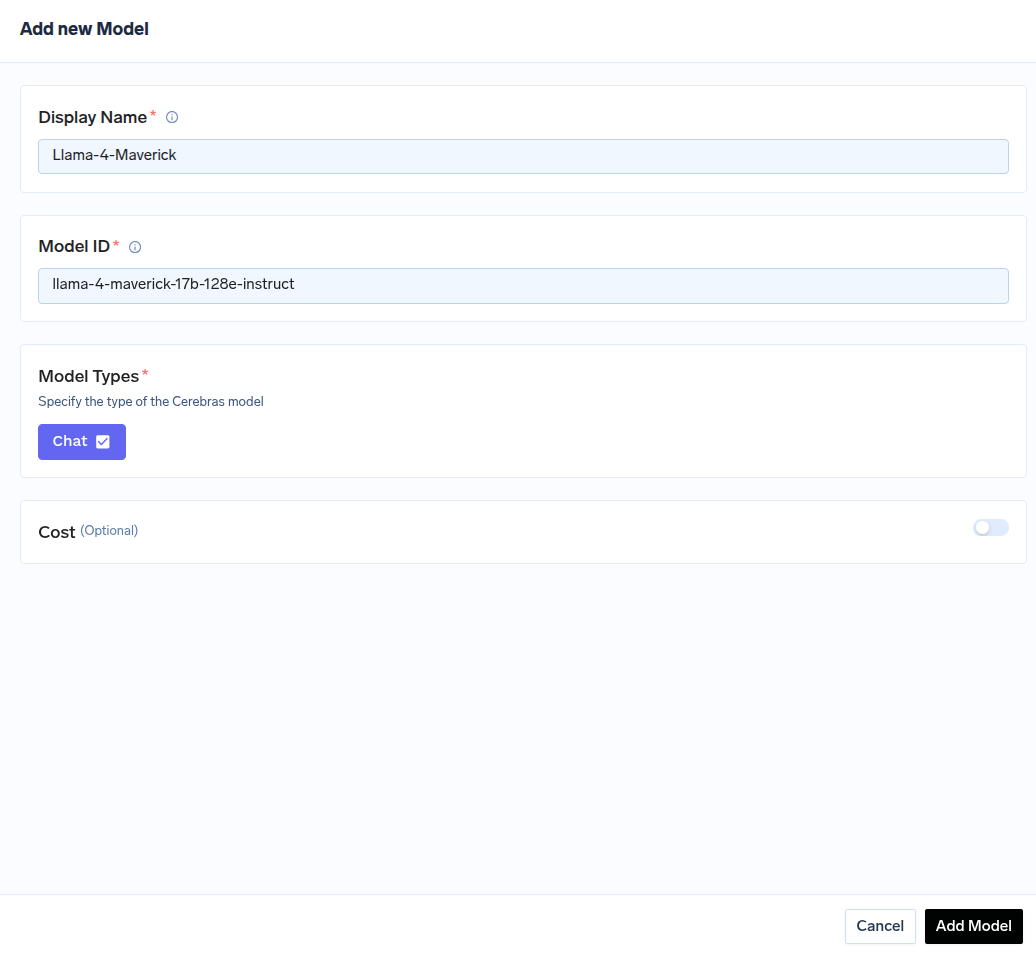
 Click on `+ Add Model` to open the form for adding a new model. For Cerebras, you don't select from a list. Instead, you need to get the `Model ID` from their [docs](https://inference-docs.cerebras.ai/models/overview) page.
 Use this `Model ID` when adding the model in TrueFoundry.
 ### Inference
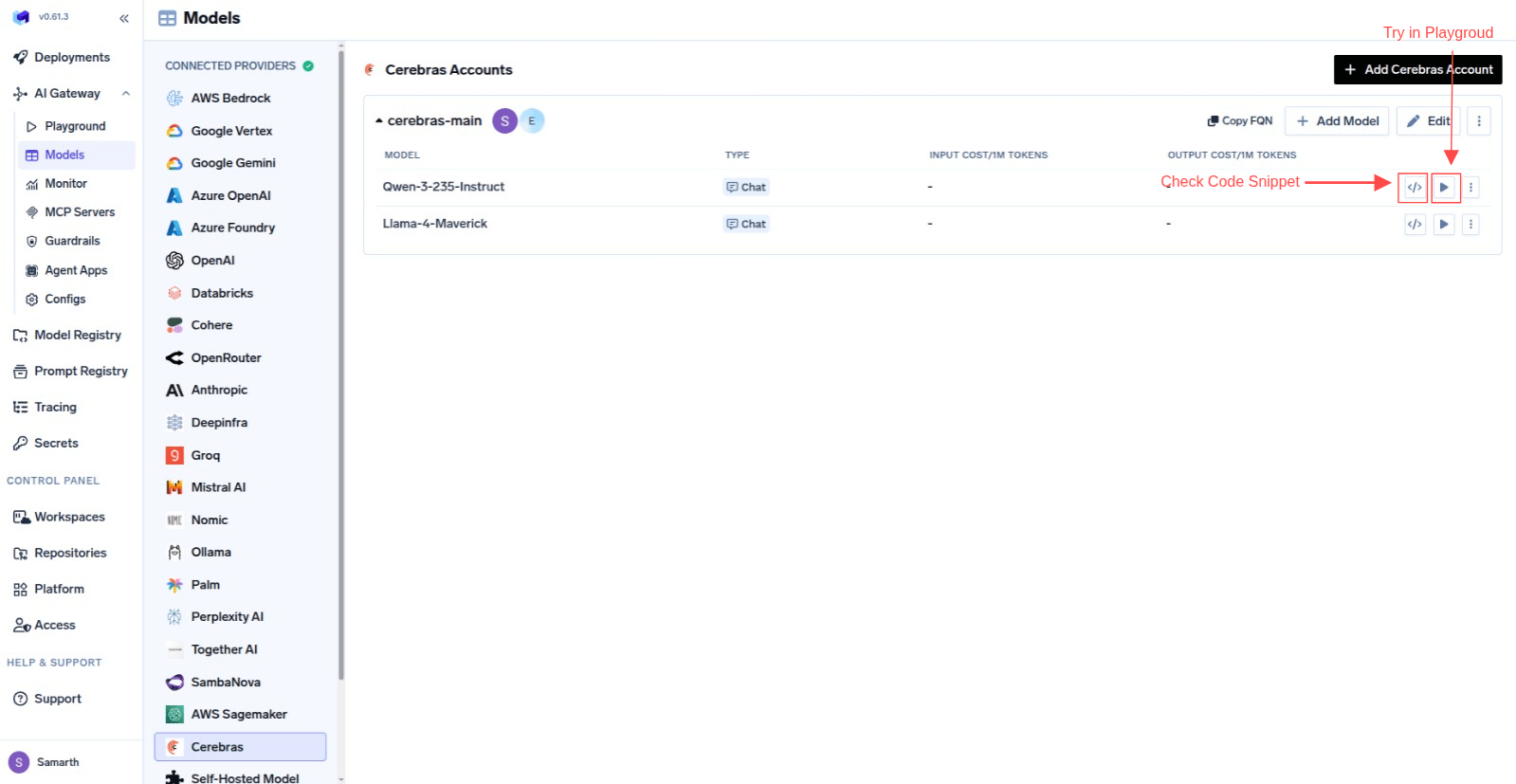
After adding the models, you can perform inference using an OpenAI-compatible API via the Playground or by integrating with your own application.
### Inference
After adding the models, you can perform inference using an OpenAI-compatible API via the Playground or by integrating with your own application.