> ## Documentation Index
> Fetch the complete documentation index at: https://www.truefoundry.com/llms.txt
> Use this file to discover all available pages before exploring further.
# Azure PII Guardrail Integration
> Set up Azure PII detection and redaction using the TrueFoundry AI Gateway.
This guide explains how to integrate [Azure PII Guardrail](https://azure.microsoft.com/en-us/products/ai-services/ai-content-safety) with TrueFoundry to enhance the safety and compliance of your LLM applications.
## What is Azure PII Detection?
Azure PII Detection is Microsoft's cloud-based service that identifies and redacts Personally Identifiable Information (PII) from text content.
### Key Features of Azure PII Detection
1. **Comprehensive PII Recognition**: Azure PII Detection identifies over 50 different types of personal information including names, addresses, phone numbers, email addresses, social security numbers, and financial information. The service supports [multiple languages and locales](https://learn.microsoft.com/en-us/azure/ai-services/language-service/personally-identifiable-information/overview) with high accuracy and continues to expand its recognition capabilities for global compliance requirements.
2. **Intelligent Redaction and Masking**: Automatically redact or mask detected PII with configurable replacement patterns while maintaining text readability and context. The service preserves document structure and formatting while replacing sensitive information with placeholder tokens, enabling safe data processing and analysis without compromising privacy.
3. **Healthcare and Domain-Specific Support**: Specialized support for healthcare data with PHI (Protected Health Information) detection capabilities that comply with HIPAA and other healthcare regulations. The [Azure AI Language service](https://azure.microsoft.com/en-us/products/ai-services/ai-language/) includes domain-specific models trained to recognize medical terminology, patient information, and healthcare-specific identifiers with enhanced accuracy.
## How to setup Azure PII on Azure AI Foundry
Navigate to [Azure AI Foundry](https://ai.azure.com) and sign in with your Azure credentials. If you want know more about Azure AI Foundry, you can refer to [Azure AI Foundry Documentation](https://learn.microsoft.com/en-us/azure/ai-services/language-service/personally-identifiable-information/overview?tabs=text-pii).
Depending on your current location in Azure AI Foundry:
* **If you're in a project**: Select the project breadcrumb, then select **Create new resource**
* **If you're not in a project**: Select **Create new** in the top right to create a new Foundry project
Choose **AI hub resource** for hub-based projects or **Azure AI Foundry resource** for Foundry projects, then select **Next**.
* Enter a name for your project
* If you have an existing hub, select it from the dropdown
* If you don't have a hub, a default one will be created automatically
* For advanced customization, select the arrow on the right side to configure:
* **Resource group**: Select existing or create new
* **Location**: Choose the region where your hub will be hosted
Select **Create** to provision your Azure AI Foundry project. The creation process may take several minutes.
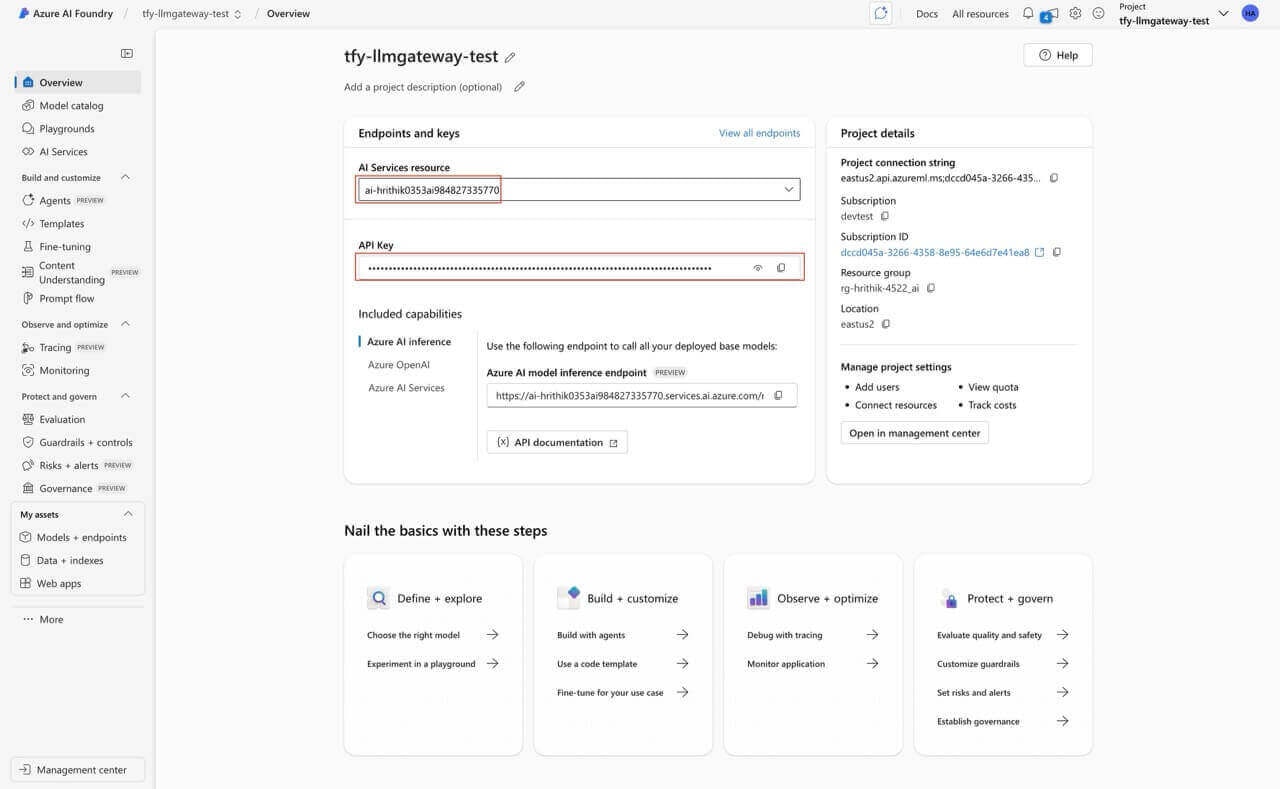
Once your project is created, navigate to the **Overview** section in the Azure AI Foundry portal. Here, you will see the **API Key** and **Service Endpoint** displayed. The Service Endpoint is used as the **Resource Name** when configuring the integration in TrueFoundry. Keep both the API Key and Service Endpoint handy, as you will need them when setting up the Azure PII Guardrail integration on TrueFoundry.
 ## Adding Azure PII Guardrail Integration to TrueFoundry
### Adding Azure PII Guardrail Integration
To add Azure PII Guardrail to your TrueFoundry setup, follow these steps:
**Fill in the Guardrails Group Form**
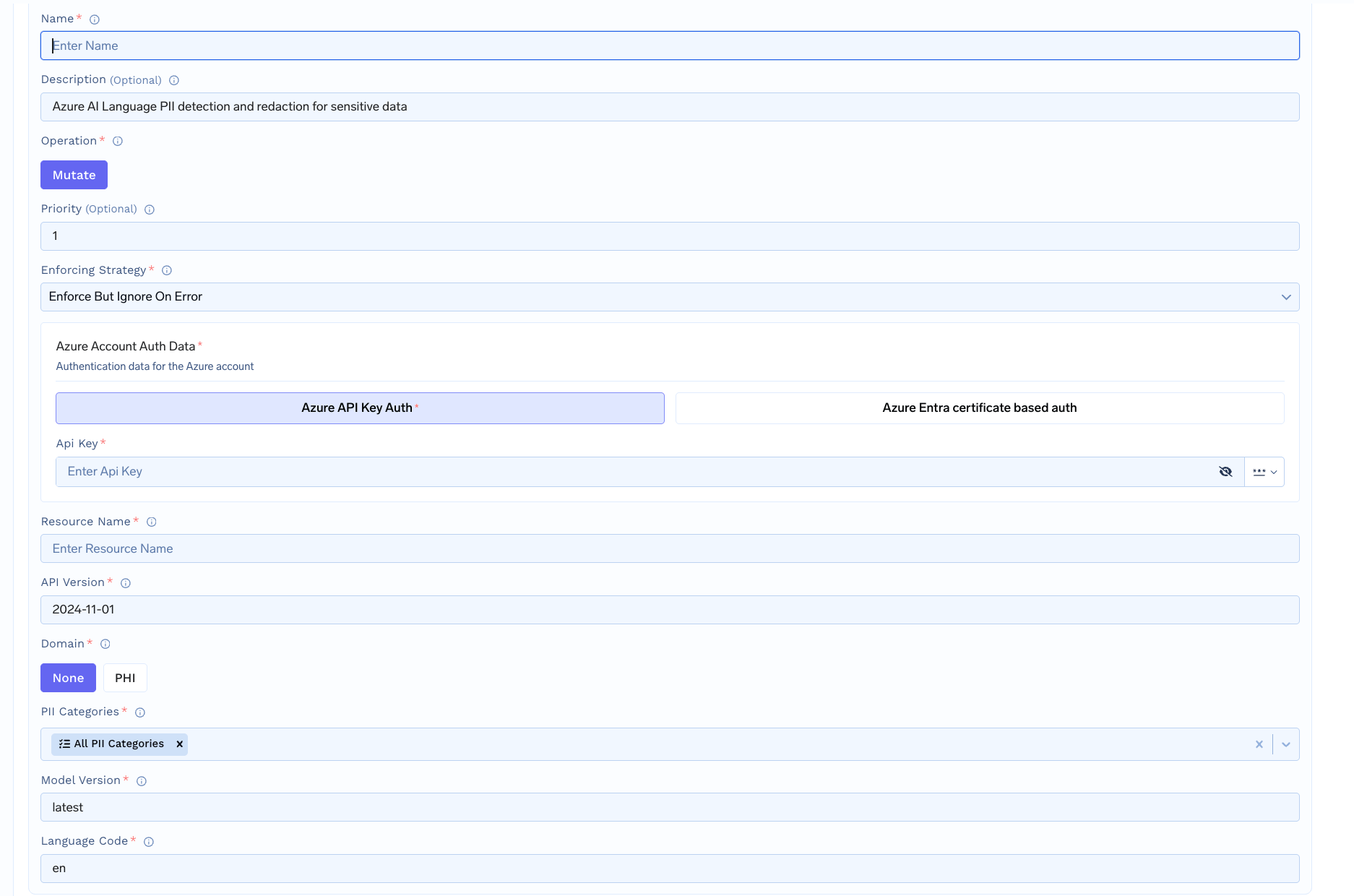
* **Name**: Enter a name for your guardrails group.
* **Collaborators**: Add collaborators who will have access to this group.
* **Azure PII Guardrail Config**:
* **Name**: Enter a name for the Azure PII Guardrail configuration.
* **Resource Name**: The unique name of your Azure resource (e.g., the Azure Cognitive Services or Azure AI resource) that provides the PII detection capability. You can find this in the Azure portal under the resource's overview page. This is required to authenticate and route requests to the correct Azure service instance.
* **API Version**: The version of the Azure PII detection API to use. (Default: `2024-11-01`)
* **Domain**: The domain of the Azure PII detection API to use. (Default: `None`, If you want to detect PHI, you can set this to `Healthcare`)
* **PII Categories**: The categories of PII to detect or select all categories(Default).
* **Model Version**: The version of the Azure PII detection model to use. (Default: `latest`)
* **Language Code**: The language code of the text to detect PII in. (Default: `en`)
* **Azure Authentication Data**:
* **API Key**: The API key for the Azure PII detection service.
This key is required to authenticate requests to Azure's PII detection API. You can obtain it from the Azure portal by navigating to your Cognitive Services or Azure AI resource, then selecting "Keys and Endpoint" in the resource menu. Ensure you keep this key secure, as it grants access to your Azure resource.
As an alternative to API keys, you can authenticate via Microsoft Entra ID using [certificate-based authentication](/docs/ai-gateway/azure-entra-certificate-auth), [client secret based authentication](/docs/ai-gateway/azure-entra-client-secret-auth), or [workload identity federation](/docs/ai-gateway/azure-entra-wif-auth).
## Adding Azure PII Guardrail Integration to TrueFoundry
### Adding Azure PII Guardrail Integration
To add Azure PII Guardrail to your TrueFoundry setup, follow these steps:
**Fill in the Guardrails Group Form**
* **Name**: Enter a name for your guardrails group.
* **Collaborators**: Add collaborators who will have access to this group.
* **Azure PII Guardrail Config**:
* **Name**: Enter a name for the Azure PII Guardrail configuration.
* **Resource Name**: The unique name of your Azure resource (e.g., the Azure Cognitive Services or Azure AI resource) that provides the PII detection capability. You can find this in the Azure portal under the resource's overview page. This is required to authenticate and route requests to the correct Azure service instance.
* **API Version**: The version of the Azure PII detection API to use. (Default: `2024-11-01`)
* **Domain**: The domain of the Azure PII detection API to use. (Default: `None`, If you want to detect PHI, you can set this to `Healthcare`)
* **PII Categories**: The categories of PII to detect or select all categories(Default).
* **Model Version**: The version of the Azure PII detection model to use. (Default: `latest`)
* **Language Code**: The language code of the text to detect PII in. (Default: `en`)
* **Azure Authentication Data**:
* **API Key**: The API key for the Azure PII detection service.
This key is required to authenticate requests to Azure's PII detection API. You can obtain it from the Azure portal by navigating to your Cognitive Services or Azure AI resource, then selecting "Keys and Endpoint" in the resource menu. Ensure you keep this key secure, as it grants access to your Azure resource.
As an alternative to API keys, you can authenticate via Microsoft Entra ID using [certificate-based authentication](/docs/ai-gateway/azure-entra-certificate-auth), [client secret based authentication](/docs/ai-gateway/azure-entra-client-secret-auth), or [workload identity federation](/docs/ai-gateway/azure-entra-wif-auth).
 ### How Azure PII Guardrail Works
When you integrate Azure PII Guardrail with TrueFoundry, the system sends the last message to Azure PII Guardrail API and receives a response that indicates whether the content violates any configured policies.
#### Response Structure
The Azure PII Guardrail API returns a response with the following structure:
This is an example response from Azure PII Guardrail, where PII is detected and anonymized (redacted) in the output.
```json lines theme={"dark"}
{
"kind": "PiiEntityRecognitionResults",
"results": {
"documents": [{
"redactedText": "Call our office at ************, or send an email to *******************",
"id": "1",
"entities": [{
"text": "312-555-1234",
"category": "PhoneNumber",
"offset": 19,
"length": 12,
"confidenceScore": 0.8
}, {
"text": "support@contoso.com",
"category": "Email",
"offset": 53,
"length": 19,
"confidenceScore": 0.8
}],
"warnings": []
}],
"errors": [],
"modelVersion": "2021-01-15"
}
}
```
#### Validation Logic
TrueFoundry relies on the Azure PII Guardrail response to determine content safety:
* If Azure PII Guardrail detects any PII, the content will be redacted as you can see in the example response above.
* If Azure PII Guardrail does not detect any PII, the content will be passed through as is.
* TrueFoundry AI Gateway will respond with the redacted content if PII is detected.
### How Azure PII Guardrail Works
When you integrate Azure PII Guardrail with TrueFoundry, the system sends the last message to Azure PII Guardrail API and receives a response that indicates whether the content violates any configured policies.
#### Response Structure
The Azure PII Guardrail API returns a response with the following structure:
This is an example response from Azure PII Guardrail, where PII is detected and anonymized (redacted) in the output.
```json lines theme={"dark"}
{
"kind": "PiiEntityRecognitionResults",
"results": {
"documents": [{
"redactedText": "Call our office at ************, or send an email to *******************",
"id": "1",
"entities": [{
"text": "312-555-1234",
"category": "PhoneNumber",
"offset": 19,
"length": 12,
"confidenceScore": 0.8
}, {
"text": "support@contoso.com",
"category": "Email",
"offset": 53,
"length": 19,
"confidenceScore": 0.8
}],
"warnings": []
}],
"errors": [],
"modelVersion": "2021-01-15"
}
}
```
#### Validation Logic
TrueFoundry relies on the Azure PII Guardrail response to determine content safety:
* If Azure PII Guardrail detects any PII, the content will be redacted as you can see in the example response above.
* If Azure PII Guardrail does not detect any PII, the content will be passed through as is.
* TrueFoundry AI Gateway will respond with the redacted content if PII is detected.